
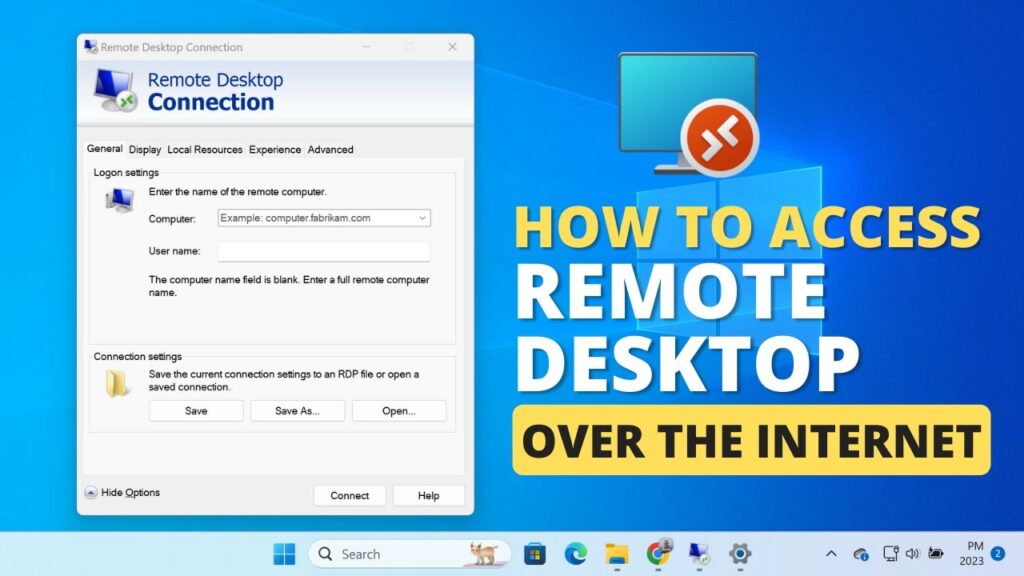
By default, Windows Remote Desktop only works inside your home network.
This guide shows how to safely access your PC from anywhere in the world using the official Remote Desktop system — no third-party apps required.
You’ll learn port forwarding, static IP setup, and dynamic DNS step-by-step.
⚠ Important Warning
- Opening Remote Desktop exposes your PC to the internet
- Always use a strong Windows password
- Never use blank passwords
- Enable Windows Firewall
What You’ll Need
- Windows PC with Remote Desktop enabled
- Router access (admin login)
- Internet connection
- Optional: Dynamic DNS account
Step 1 — Enable Remote Desktop
- Open Settings
- Go to System → Remote Desktop
- Turn ON Remote Desktop
Remember the Windows username and password.
If you use a Microsoft account, use that email and password.
Step 2 — Find Your PC IP Address
Press Start → type:
cmd
Open Command Prompt and run:
ipconfig
Note the IPv4 address.
Example:
192.168.1.25
This is your local PC address.
Recommended: assign a static IP in router settings.
Step 3 — Setup Port Forwarding
Log into your router.
Open Port Forwarding section.
Forward:
Port 3389 → your PC IP
Example:
3389 → 192.168.1.25
Save settings.
This exposes Remote Desktop to the internet.
Step 4 — Find Your Public WAN IP
This is the IP used outside your home network.
If your ISP changes IP frequently, use Dynamic DNS.
Step 5 — Setup Dynamic DNS (Optional but Recommended)
Dynamic DNS gives you a permanent domain name.
- Create hostname
- Enter credentials in router DDNS section
- Enable Dynamic DNS
Now your PC can be accessed using a domain instead of changing IP.
Step 6 — Connect from Outside Network
Use Microsoft Remote Desktop app.
Available on:
- Windows
- Mac
- Android
- iPhone/iPad
Enter:
- Public IP OR DDNS domain
- Windows username
- Password
Connection starts instantly.
Security Tips
- Use strong password
- Change default RDP port (advanced)
- Enable Windows updates
- Disable unused accounts
- Use firewall rules
Troubleshooting
- Cannot connect → port forwarding incorrect
- Connection refused → firewall blocking
- IP changed → use Dynamic DNS
- Login fails → wrong credentials
FAQs
Does this require extra software?
No.
Works on mobile?
Yes.
Is it safe?
Yes with strong password.
Can I use it for gaming?
No, RDP is for desktop control.
Final Result
You can now access your Windows PC from anywhere in the world using Remote Desktop.
Your home PC is securely available over the internet.
If this guide helped you, bookmark it and share it.

