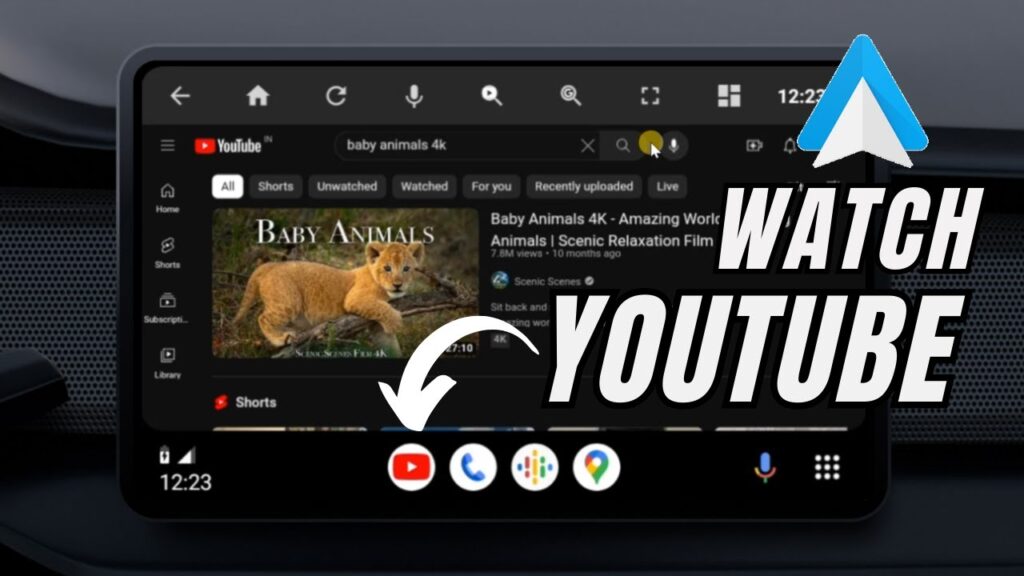
Want to mirror your Android phone screen directly to your car’s Android Auto display? With screen mirroring, you can access your favorite apps, media, and tools from your car’s infotainment system without constantly picking up your phone. It adds convenience, improves accessibility, and makes your driving setup feel much more powerful.
In this guide, you’ll learn step by step how to mirror your Android phone to Android Auto using the Screen2Auto app. The process is simple, works on most modern Android phones, and doesn’t require complicated technical skills. Just follow along carefully, and you’ll have your phone screen running on your car display in minutes.
What You Need Before You Start
Before we begin the setup, make sure you have everything ready. This will help avoid errors during installation and connection.
- An Android phone that supports Android Auto
- A car head unit that supports Android Auto
- A good quality USB cable (data cable, not charging-only)
- Internet connection on your phone
- Permission to install apps from unknown sources
Also remember: this method uses third-party apps that are not available on the Play Store. That’s normal for Android Auto customization tools like Screen2Auto. We’ll install everything safely and step by step.
Once you confirm you have these requirements ready, we can start with installing the necessary apps.
Step 1: Install Android Auto on Your Phone
First, you need to make sure Android Auto is installed and updated on your phone. Even if your car already connects to Android Auto, installing the app ensures all required services are available.
Open the Play Store on your phone and install Android Auto if it’s not already installed. If you already have it, tap Update to get the latest version. Newer versions are more stable and work better with third-party tools like Screen2Auto.
After installing, you might not see an Android Auto icon on your home screen. That’s normal. On many phones, Android Auto runs as a system app.
To open it manually:
- Open Phone Settings
- Search for Android Auto
- Tap it to open the app settings
We’ll come back to this screen later to enable Developer Mode. For now, just confirm the app is installed.
Next, we’ll install the tool that allows us to download Screen2Auto.
Step 2: Install AAAD (Android Auto Apps Downloader)
Screen2Auto is not available on the Play Store, so we’ll use a helper app called AAAD to install it safely. AAAD is designed specifically to download third-party apps for Android Auto.
Open your browser on the phone and search for “AAAD APK”. Open the official GitHub page and download the APK file. After downloading:
- Tap the APK file to install it
- If Android blocks the install, enable Install from Unknown Sources for your browser or file manager
- Tap Install again
Once installed, open the AAAD app.
When AAAD launches for the first time, it will ask for permission to install apps. Tap OK to allow it. This permission is required so AAAD can install Screen2Auto automatically.
Next, we’ll use AAAD to install Screen2Auto.
Step 3: Install Screen2Auto Using AAAD
Now that AAAD is installed, we can use it to download and install Screen2Auto.
- Open the AAAD app
- You’ll see a list of apps available for Android Auto
- Select Screen2Auto from the list
- Tap the install button
Your phone may show a warning because Screen2Auto is not from the Play Store. This is expected. Just tap Install anyway to continue.
Wait for the installation to finish. Once done, you’ll see the Screen2Auto app in your app drawer or home screen.
Do not open it yet — we still need to enable a few important permissions and Android Auto settings first.
Next, we’ll set up Screen2Auto and grant all required permissions.
Step 4: Set Up Screen2Auto and Grant Permissions
Now open the Screen2Auto app for the first time. You’ll see a setup wizard that asks for several permissions. These permissions are necessary for screen mirroring and touch control to work properly on your car display.
Go through the wizard step by step:
- Turn on all the requested toggles one by one
- Allow overlay permission when prompted
- Allow accessibility access if asked
- Grant storage and app permissions
You may see an option asking for root access. Don’t worry if your phone is not rooted. In most cases, Screen2Auto can still function on non-rooted devices. Just continue with the setup and enable the available options.
After completing the wizard, the app setup is finished.
Next, we’ll enable Android Auto Developer Mode and allow unknown sources so Screen2Auto can appear inside Android Auto.
Step 5: Enable Android Auto Developer Mode
For Screen2Auto to show up inside Android Auto, we must enable a hidden developer setting that allows third-party apps.
Android Auto usually doesn’t appear as a normal app icon, so follow these steps carefully:
- Open Phone Settings
- Search for Android Auto
- Tap to open Android Auto settings
- Scroll to the bottom and find Version
- Tap Version repeatedly (about 10 times)
- A message will appear: Developer mode enabled
Now tap the three-dot menu in the top-right corner and select Developer settings.
Inside Developer settings:
- Turn on Unknown sources
This option allows Android Auto to run apps that were not installed from the Play Store — including Screen2Auto.
Once this is enabled, we’re ready to connect the phone to your car and start mirroring.
Step 6: Connect Your Phone to the Car and Start Mirroring
Now everything is ready. It’s time to connect your phone and run Screen2Auto on the car display.
- Use a USB cable to connect your phone to the car’s infotainment system
- Wait for Android Auto to launch on the car screen
- Open the Apps drawer inside Android Auto
- Find and tap Screen2Auto
Screen2Auto will load its own launcher interface. From there:
- Open Applications
- You’ll see all apps installed on your phone
- Tap any app to run it on the car screen
The app is actually running on your phone and being streamed to the head unit. You can interact with it using the car’s touchscreen.
For best safety, only use mirroring features while parked.
Next, we’ll cover what to do if Screen2Auto doesn’t appear in Android Auto.
Screen2Auto Not Showing? Try These Fixes
If Screen2Auto doesn’t appear in the Android Auto app list, don’t worry. This is a common issue and can usually be fixed with a few simple checks.
1. Re-check Unknown Sources
Open Settings → Android Auto → Developer settings and make sure Unknown sources is enabled.
2. Restart Everything
Restart your phone and turn your car off completely. Wait a minute, then start the car again and reconnect the phone.
3. Use a Proper USB Cable
Many Android Auto problems are caused by poor-quality or charging-only cables. Always use a data-capable USB cable.
4. Update Android Auto
Open the Play Store and make sure Android Auto is updated to the latest version.
5. Reinstall Screen2Auto
Uninstall Screen2Auto and install it again using AAAD, then repeat the setup steps.
After trying these fixes, reconnect your phone and check the Android Auto app drawer again.
Conclusion
That’s it — you’ve successfully set up Screen2Auto and mirrored your Android phone screen to Android Auto. With this setup, you can access many of your favorite apps directly from your car’s display and create a much more flexible infotainment experience.
Just remember to use screen mirroring responsibly and only interact with apps while parked. Safety should always come first.
If something doesn’t work on your device, don’t panic. Android Auto behavior can vary depending on phone model, Android version, and car head unit. Go through the troubleshooting steps again, and you should be able to fix most issues quickly.
Enjoy your upgraded Android Auto experience!