Weak Wi-Fi signals and dead zones are one of the most common problems in homes and offices. Instead of buying expensive new equipment, you can reuse an old router to expand your network and get strong internet coverage in every room.
In this guide, I’ll show you how to connect two WiFi routers together — either with an Ethernet cable for maximum speed and stability, or wirelessly using repeater mode if running a cable isn’t possible. Both methods are beginner-friendly and only take a few minutes to set up.
By the end of this tutorial, your second router will act as a Wi-Fi extender, helping you eliminate slow spots and enjoy a stronger, more reliable connection throughout your space.
Before You Start (Important Preparation)
Before connecting the two routers, there are a few small but important things you should do. This will prevent setup errors and make sure everything works smoothly on the first try.
Reset the Second Router
If the second router was previously used, it may have old settings saved. These old configurations can cause network conflicts. So it’s best to reset it to factory defaults.
To reset:
- Power on the second router
- Press and hold the Reset button for about 5–10 seconds
- When the router lights blink or all lights turn on together, release the button
- Wait for the router to reboot completely
After reset, the router will return to its original factory settings.
Check Router Placement
Where you place the second router matters:
- For Ethernet cable method: place it in the area where you want strong Wi-Fi
- For wireless repeater method: place it halfway between the main router and the weak signal area
If the repeater is too far from the main router, it will repeat a weak signal.
Keep Login Details Ready
Most routers have their default:
- Wi-Fi name (SSID)
- Wi-Fi password
- Admin login IP (like 192.168.0.1 or 192.168.1.1)
- Username and password
These details are printed on a sticker at the back or bottom of the router. You’ll need them during setup.
Now that everything is prepared, let’s start with the first method — the most stable and recommended option.
Method 1: Connect Two Routers Using an Ethernet Cable (Best Method)
This is the most reliable and fastest way to extend your Wi-Fi. Since the second router receives internet through a cable, there is almost no speed loss, and the connection stays stable even for gaming, streaming, and large downloads.
Step 1: Connect the Routers with the Cable
- Take an Ethernet cable
- Plug one end into a LAN port of the main router
- Plug the other end into the WAN / Internet port of the second router
That’s it — physically the setup is complete.
Step 2: Test the Connection
Now connect your phone or computer to the second router’s Wi-Fi.
- The default Wi-Fi name and password are printed on the router sticker
- Once connected, open a browser and try loading any website
If the internet works, the second router is already extending the network.
Step 3: Customize Router 2 (Recommended)
Now log in to the second router’s settings page to customize it.
- Open a browser
- Enter the router login IP (usually 192.168.0.1 or 192.168.1.1)
- Log in using default admin credentials
You should change:
- Wi-Fi name (SSID)
- Wi-Fi password
- Admin username & password
You can name it something like:
HomeWiFi_Ext
OfficeWiFi_2
This helps you easily identify which router you’re connected to.
After saving settings, your second router is fully ready to use.
Now let’s look at the wireless method, which works without any cable.
Method 2: Connect Two Routers Wirelessly (Repeater / Range Extender Mode)
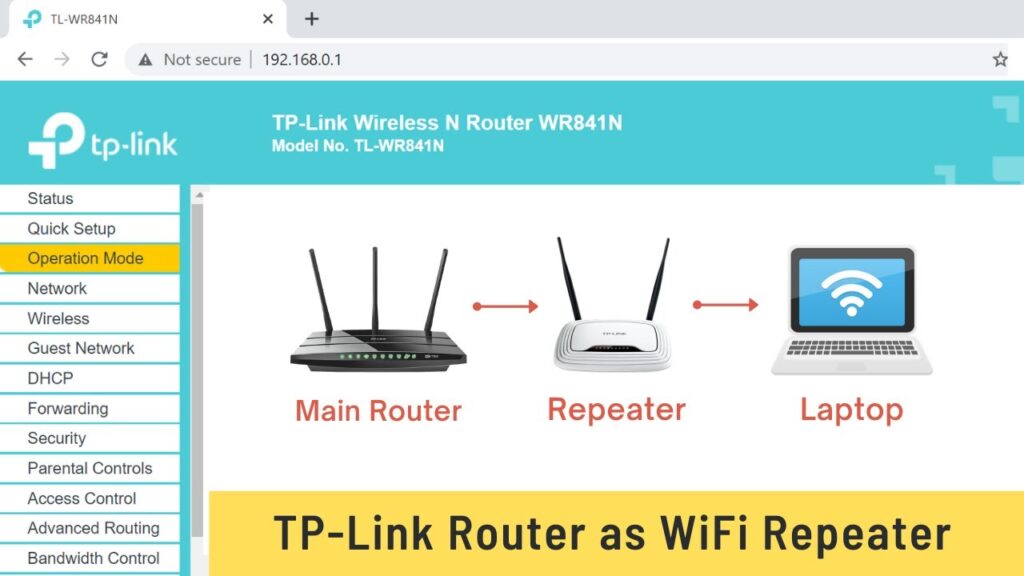
If running an Ethernet cable is not possible, you can connect the second router wirelessly. In this method, Router 2 connects to Router 1 over Wi-Fi and rebroadcasts the signal like a range extender.
Keep in mind: wireless repeating is convenient, but it may reduce speed slightly compared to a wired setup.
Step 1: Reset the Second Router
First reset Router 2 again (important if you tried anything earlier).
- Power it on
- Hold the Reset button for 5–10 seconds
- Wait for reboot
Step 2: Connect to Router 2
Connect your computer to Router 2:
- Preferably using an Ethernet cable
- Or connect to its default Wi-Fi network
Then open a browser and log in to the router setup page:
- Usually 192.168.0.1 or 192.168.1.1
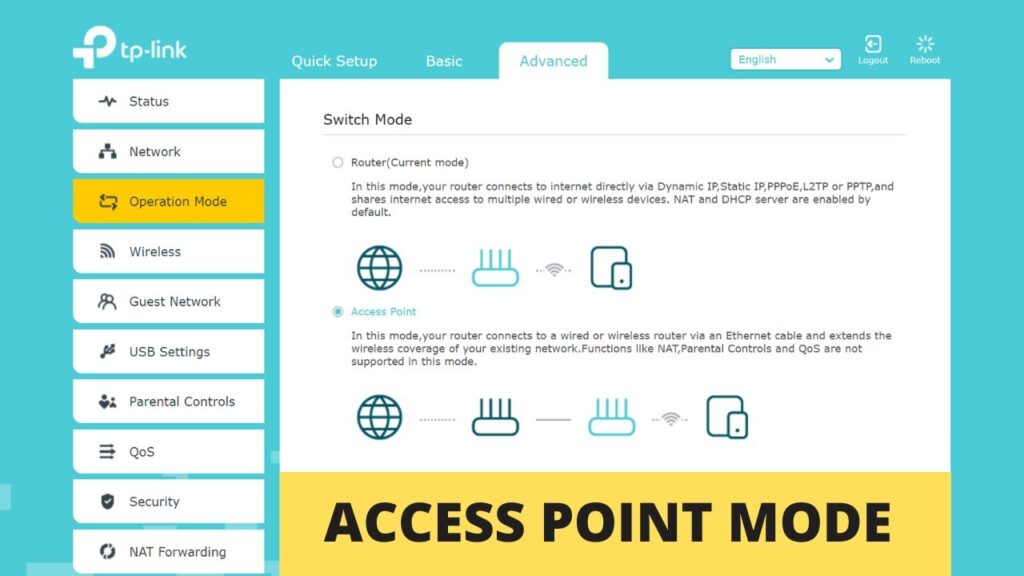
Step 3: Enable Repeater / Range Extender Mode
During setup, look for an option named something like:
- Repeater Mode
- Range Extender
- Wireless Bridge
- WDS
- Client + AP
(The name depends on the router brand.)
Select that option and continue.
Step 4: Connect to the Main Router
The router will scan for nearby Wi-Fi networks.
- Select your main router’s Wi-Fi
- Enter the Wi-Fi password
- Choose a name for the extended network
You can keep a similar name like:
HomeWiFi_EXT
or use the same name and password for seamless roaming.
Step 5: Finish Setup
Save settings and wait for the router to reboot.
After restarting, Router 2 will start repeating the main Wi-Fi. You can now connect phones, laptops, and tablets to Router 2 and access the internet normally.
Tips for Best Wireless Performance
- Place Router 2 where Router 1 signal is still strong
- Avoid walls and metal objects between routers
- Keep routers elevated (table height or higher)
- Use 5GHz band if both routers support it
Now your home should have much wider Wi-Fi coverage without buying extra equipment.
Next, let’s quickly fix common problems if something doesn’t work.
Troubleshooting Common Problems
If the setup doesn’t work on the first try, don’t worry — most issues are small and easy to fix. Here are the most common problems and their solutions.
No Internet on the Second Router (Cable Method)
If you connected the cable but internet isn’t working:
- Make sure the cable goes LAN (Router 1) → WAN (Router 2)
- Try a different LAN port on the main router
- Restart both routers
- Replace the Ethernet cable (faulty cables are common)
After restarting, wait 1–2 minutes and test again.
Repeater Connected but No Internet
If Router 2 shows connected but devices can’t access the internet:
- Re-enter the main Wi-Fi password carefully
- Move Router 2 closer to Router 1
- Reset Router 2 and repeat setup
A weak signal between routers causes most repeater failures.
Setup Page Not Opening
If you cannot open the router login page:
- Connect directly to Router 2 Wi-Fi
- Turn off mobile data while testing
- Try both addresses:
- 192.168.0.1
- 192.168.1.1
If still not opening, reset the router and try again.
Slow Speed After Setup
Wireless repeaters always reduce speed slightly. To improve:
- Place Router 2 closer to Router 1
- Use Ethernet method if possible
- Switch to 5GHz Wi-Fi (if supported)
- Avoid interference from microwaves, Bluetooth, or thick walls
Final Words
Connecting two routers is one of the easiest and cheapest ways to expand Wi-Fi coverage. You don’t need to buy expensive mesh systems or extenders if you already have a spare router.
Use the Ethernet cable method for best performance, or the wireless repeater method when running cables isn’t possible.
Once configured properly, your entire home or office can enjoy strong and stable Wi-Fi in every room.