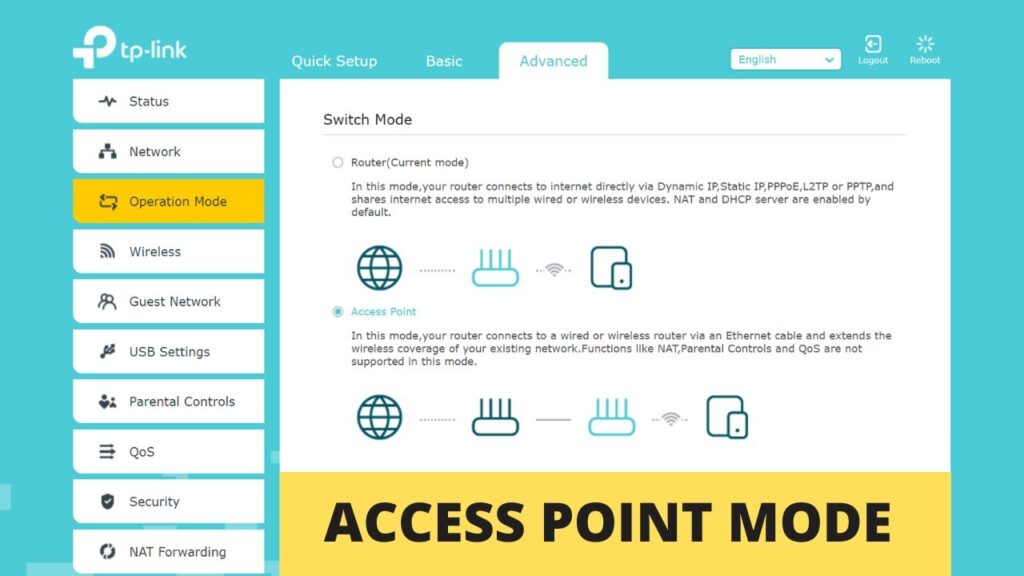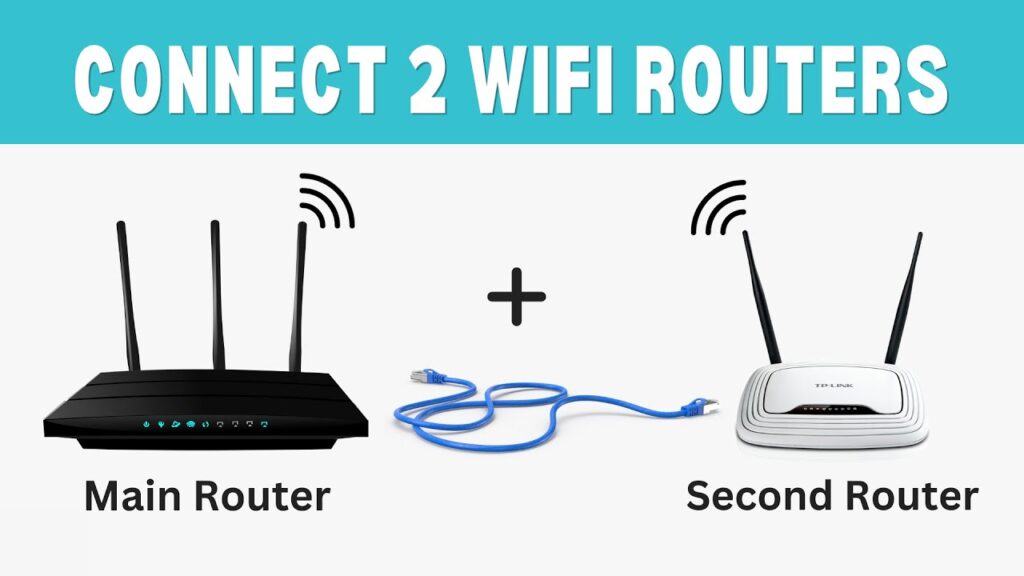
If you have a second WiFi router at home, you can use it to extend your WiFi coverage and eliminate dead zones. This guide shows two simple methods to connect two routers together — using an Ethernet cable or wirelessly as a repeater.
Both methods work on most router brands including TP-Link, D-Link, Netgear, Tenda, and others.
📌 What You’ll Learn
- How to connect routers using an Ethernet cable
- How to connect routers wirelessly (repeater mode)
- How to reset a router safely
- How to change WiFi name and password
- Troubleshooting network issues
Method 1 — Connect Two Routers Using an Ethernet Cable
This method gives the best speed and stability because it uses a wired connection.
Step 1 — Reset the Second Router
Resetting removes old settings that may cause conflicts.
- Power on the router
- Press and hold the reset button for 5–10 seconds
- Wait until lights blink and router reboots
The router is now restored to factory settings.
Step 2 — Connect the Routers
- Take an Ethernet cable
- Connect main router LAN port → second router WAN port
- Wait 1 minute
The second router now extends the main router’s network.
Step 3 — Configure WiFi Settings
- Connect to second router’s WiFi
- Open browser → type router IP (usually 192.168.0.1)
- Login using default admin credentials
- Change WiFi name and password
You can keep the same WiFi name for seamless roaming or use a different name.
Method 2 — Connect Routers Wirelessly (Repeater Mode)
This method connects routers without cables. It’s easier but slightly slower than wired.
Step 1 — Reset the Second Router
Follow the same reset steps as Method 1.
Step 2 — Login to Router Setup
- Connect computer to second router using Ethernet cable
- Open router admin page in browser
- Complete initial setup
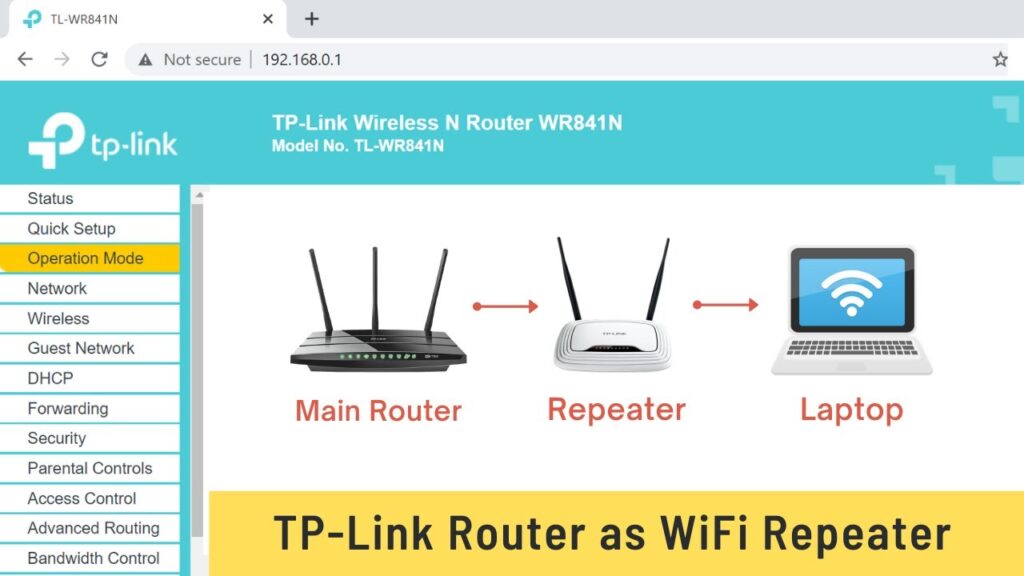
Step 3 — Enable Repeater / Range Extender Mode
- Select Wireless Repeater / Range Extender option
- Scan available WiFi networks
- Select your main router WiFi
- Enter main router password
The router will restart and connect wirelessly.
Step 4 — Connect Devices
Now phones, laptops, and tablets can connect to the second router and access internet.
Which Method Should You Choose?
- Ethernet cable → best speed and stability
- Wireless repeater → easiest setup, no cables
Common Problems & Fixes
- No internet → restart both routers
- Slow speed → use wired method
- Login page not opening → check router IP
- Devices disconnecting → change WiFi channel
Safety Tips
- Always reset second router before setup
- Use strong WiFi passwords
- Keep router firmware updated
- Place router in open space
Final Result
You now have extended WiFi coverage across your home using two routers. This setup removes weak signal areas and improves internet reliability.
If this guide helped you, bookmark it and share it.