
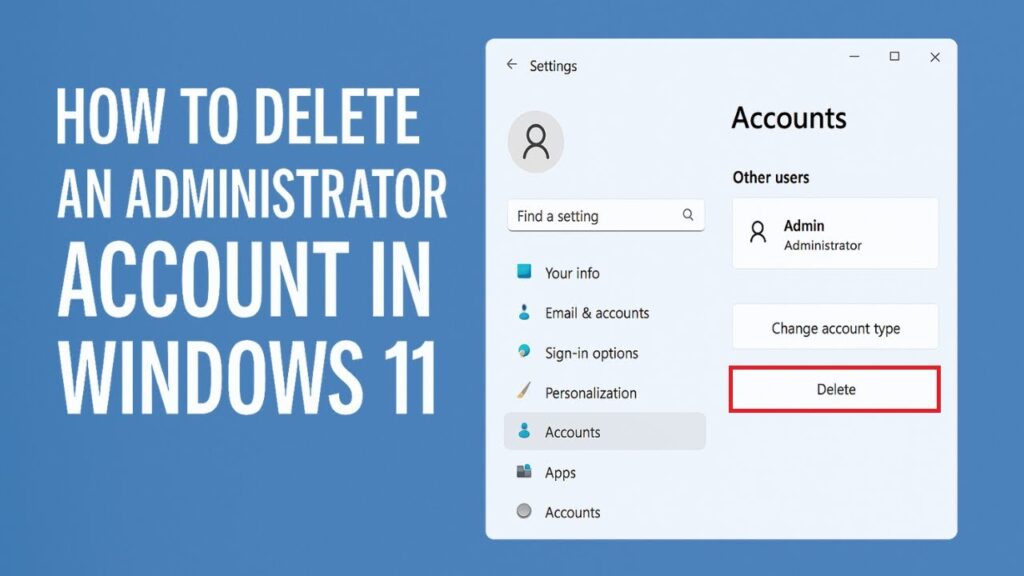
Deleting an administrator account in Windows 11 is easy — but if done incorrectly, you can accidentally lock yourself out of your own PC.
This guide shows the safe method to remove an admin account without breaking your system or losing access.
It works for both local accounts and Microsoft accounts.
⚠ Important Warning
- Always back up important files first
- Deleting an account erases its data
- You must have another admin account ready
- Never delete the only admin account
Step 1 — Create a New Administrator Account
If you don’t already have another admin account, create one first.
- Open Settings
- Go to Accounts
- Select Other Users
- Click Add Account
If you want a local account:
- Click “I don’t have this person’s sign-in information”
- Select “Add a user without a Microsoft account”
After creating the account:
- Click the new account
- Select Change account type
- Choose Administrator
Step 2 — Sign into the New Admin Account
Press:
Windows + L
Select the newly created admin account and sign in.
This ensures the old account is not in use.
Step 3 — Sign Out the Old Administrator
- Right-click Start
- Open Task Manager
- Go to Users tab
- Right-click the old admin account
- Select Sign Off
This prevents file conflicts.
Step 4 — Delete the Old Administrator Account
- Open Settings
- Accounts → Other Users
- Select the old admin account
- Click Remove
- Choose Delete account and data
The account is now permanently removed.
What Happens After Deletion?
- Documents are erased
- Downloads are erased
- Desktop files are erased
- App settings are removed
Only system files remain untouched.
Troubleshooting
- Cannot delete account → sign out user first
- Remove button greyed out → not admin
- Access denied → restart PC
- Account still appears → refresh settings
Safety Tips
- Keep at least one admin account
- Backup files before deletion
- Use strong passwords
- Do not delete main system profile
Final Result
You safely removed an administrator account without damaging Windows or losing access to your PC.
Your system remains secure and fully functional.
If this guide helped you, bookmark it and share it.

