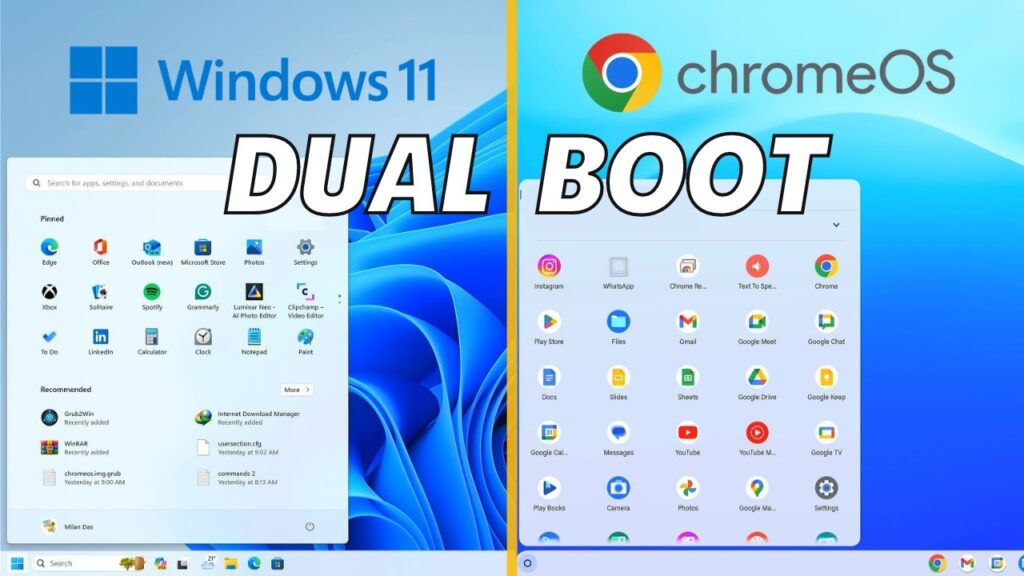
You can install Chrome OS alongside Windows and run both operating systems on the same computer.
This gives you Chrome OS speed + Android Play Store + full Windows compatibility in a single machine.
This guide shows the safest way to dual boot Chrome OS and Windows using the Brunch framework.
Works on Intel and AMD PCs.
⚠ Important Warning
- Backup your data before starting
- Dual boot modifies your disk partitions
- Disable Secure Boot before installation
- Follow steps exactly
📥 Required Downloads
Step 1 — Disable Windows Hibernation
Open Command Prompt as Administrator and run:
powercfg.exe /hibernate offThis prevents boot conflicts.
Step 2 — Disable Fast Startup
Open Registry Editor and go to:
HKEY_LOCAL_MACHINE\SYSTEM\CurrentControlSet\Control\Session Manager\PowerChange HiberBootEnabled value to:
0Step 3 — Disable Secure Boot
Restart PC → enter BIOS → disable Secure Boot → save & exit.
Step 4 — Install WSL + Ubuntu
Open PowerShell as Administrator:
wsl --installRestart PC after installation.
Ubuntu will launch and ask for username/password.
Step 5 — Install Required Linux Tools
sudo apt update && sudo apt -y install pv cgpt tar unzipStep 6 — Create Chrome OS Partition
- Open Disk Management
- Shrink Windows partition
- Create new partition (minimum 16GB)
- Name it ChromeOS
- Create folder named brunch
Step 7 — Extract ChromeOS Files
- Extract Brunch ZIP
- Extract ChromeOS recovery image
- Move all files into ChromeOS folder
- Rename recovery image → chromeos.bin
Step 8 — Install Chrome OS via Ubuntu
Mount ChromeOS folder:
cd /mnt/(your chromeos folder path)Run install command:
sudo bash chromeos-install.sh -src chromeos.bin -dst chromeos.imgChoose dual boot when prompted.
Installation takes 20–30 minutes.
Step 9 — Install Grub2Win Bootloader
- Install Grub2Win
- Click Manage Boot Menu
- Create new entry → Chrome OS
- Paste grub config text
- Apply changes
Set Grub2Win as first boot option in BIOS.
Step 10 — First Boot into Chrome OS
- Restart PC
- Select Chrome OS in Grub menu
- Wait for Brunch logo
- Chrome OS will start
Complete Google login and setup.
Choose Correct ChromeOS Image (CPU Guide)
Intel CPUs:
3rd gen or older → Samus
4th–5th gen → Rammus
6th–9th gen → Shyvana
10th gen → Jinlon
11th gen+ → Voxel

AMD Ryzen → Gumboz
Troubleshooting
- ChromeOS not booting → reinstall grub entry
- Black screen → try different ChromeOS image
- Ubuntu error → reinstall WSL
- No Play Store → update ChromeOS
Final Result
You now have Chrome OS and Windows running side-by-side on one PC with Google Play Store support.
This gives Chromebook performance with full Windows compatibility.
If this guide helped you, bookmark it and share it.