
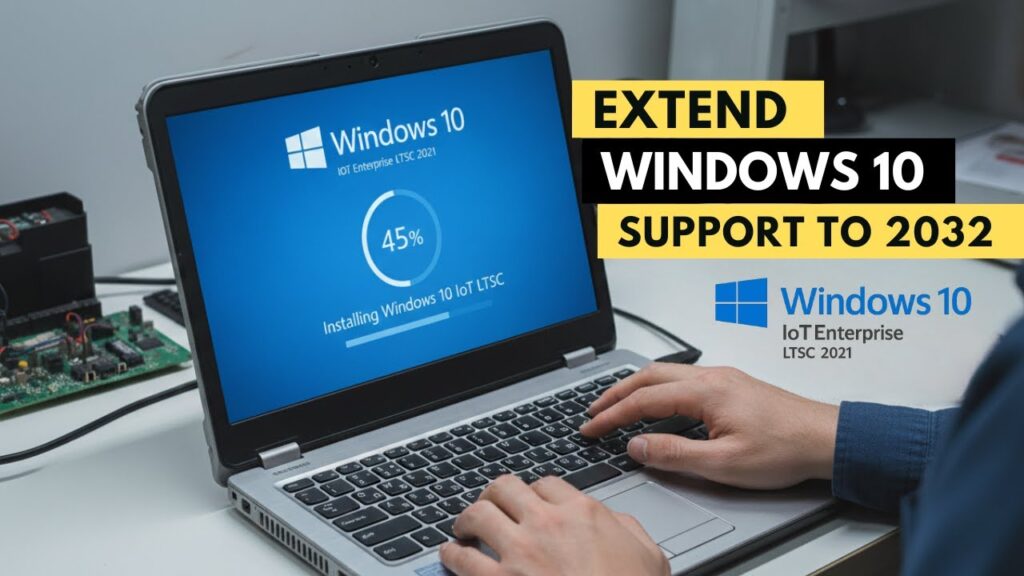
Windows 10 officially reached end of support on October 14, 2025.
That means regular Windows 10 Home and Pro editions no longer receive security updates, making systems unsafe for browsing, banking, and daily work.
But there is still a safe, official way to continue using Windows 10 for many more years.
This guide shows how to upgrade your existing Windows 10 Home or Pro installation to Windows 10 IoT Enterprise LTSC 2021, which receives security updates until January 13, 2032.
The best part: your apps, files, and settings remain untouched.
⚠ Important Warning
- This guide edits the Windows registry
- Follow steps carefully
- Do not interrupt installation
- Backup important files (recommended)
📥 Required Download
What Is Windows 10 LTSC?
LTSC stands for Long-Term Servicing Channel.
It is a special edition of Windows designed for stability and long-term security updates.
- No feature bloat
- No forced UI changes
- Security updates only
- Support until 2032
Perfect for old PCs and work machines.
Step 1 — Change Windows Edition in Registry
Press Start → type:
regedit
Open Registry Editor.
Navigate to:
HKEY_LOCAL_MACHINE
→ SOFTWARE
→ Microsoft
→ Windows NT
→ CurrentVersion
Find entry:
EditionID
Double-click it.
Change value to:
IoTEnterpriseS
Click OK.
Close Registry Editor.
Do not restart.
Step 2 — Mount the LTSC ISO
After downloading the ISO:
- Right-click ISO file
- Select Mount
Windows creates a virtual DVD drive.
Open the mounted drive.
Step 3 — Start Upgrade Setup
Inside the mounted ISO:
- Double-click setup.exe
When asked about updates, choose:
Not right now
The installer checks your system.
You will see confirmation that:
- Files will be kept
- Apps will be kept
- Settings will be kept
Step 4 — Install LTSC Upgrade
Click Install.
Your screen turns blue and the upgrade begins.
The PC restarts several times.
This is normal.
Do not interrupt the process.
Step 5 — Confirm Installation
After upgrade finishes:
- Open Settings
- Go to System → About
You should see:
Windows 10 IoT Enterprise LTSC 2021
This confirms success.
Activation Notice
After upgrade, Windows may show as not activated.
This is normal.
LTSC uses a different product key system.
You can activate using a valid LTSC license if you have one.
The upgrade itself is official and safe.
What Changes After Upgrade?
- No data loss
- No app removal
- Same desktop environment
- Security updates until 2032
- Cleaner Windows experience
Troubleshooting
- Setup fails → registry value incorrect
- Files not kept → wrong ISO edition
- Activation error → license mismatch
- Installer crashes → redownload ISO
FAQs
Will I lose files?
No.
Is this official?
Yes, Microsoft edition.
Works on old PCs?
Yes.
Is it faster than Home?
Yes, lighter system.
Final Result
Your Windows 10 system is now secured until 2032.
You extended the life of your PC without reinstalling Windows.
If this guide helped you, bookmark it and share it.

