Google Family Link is one of the best free parental control tools available today.
It lets parents monitor screen time, manage apps, restrict content, and keep children safe online — all from their own phone.
This complete beginner guide shows how to set it up step-by-step.
📥 Download Google Family Link
What You Need Before Setup
- Google account for parent
- Google account for child
- Child’s phone or tablet
- Parent’s phone
- Internet connection
Step 1 — Install Family Link on Parent Device
Download and open the app.
Sign in with the parent Google account.
This becomes the supervision account.
Step 2 — Add Your Child’s Account
If your child already has a Google account:
Select Yes to link it.
If not, create a new supervised account.
Step 3 — Setup on Child’s Device
On the child’s phone:
- Open Settings
- Go to Google
- Select Parental Controls
- Tap Let’s Do This
- Select the child account
- Tap Supervise
The system asks for the parent account password.
Enter it to approve supervision.
Step 4 — Approve Permissions
Allow supervision permissions for:
- Google Play
- Chrome browser
- Google Search
- Device activity
Tap Done.
The child device is now linked.
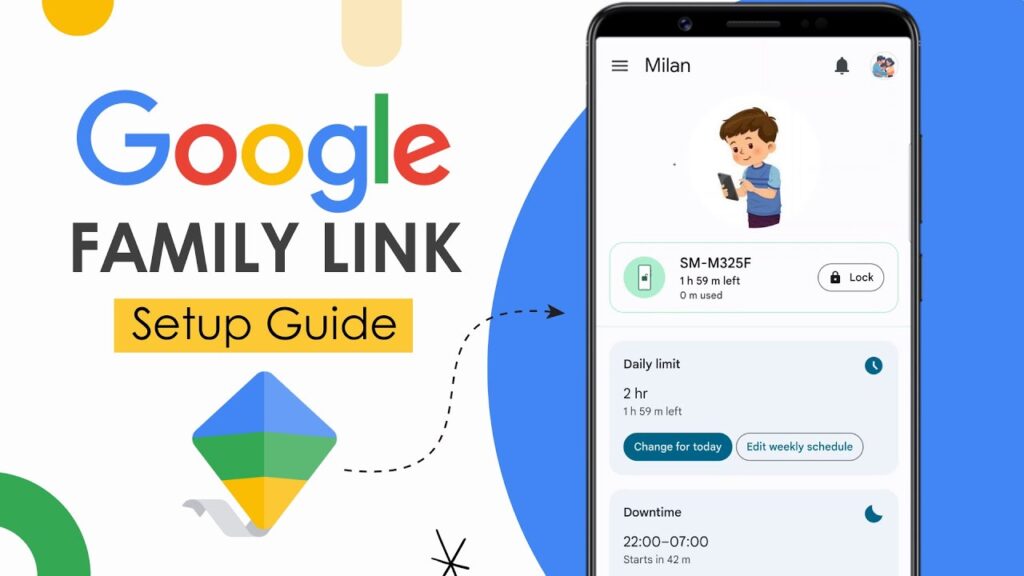
Family Link Dashboard (Parent View)
The parent phone shows a full control dashboard.
You can monitor everything remotely.
Daily Limit — Screen Time Control
Set how long your child can use their device per day.
Example:
- 2 hours weekdays
- 3 hours weekends
Device locks automatically when time ends.
Downtime — Device-Free Hours
Schedule bedtime hours.
The phone locks during sleep time.
Prevents late-night usage.
App Limits — Control App Usage
You can limit specific apps.
Example:
- Games → 30 minutes/day
- Social apps → 1 hour/day
Helps build healthy habits.
Content Restrictions — Online Safety
Filter content on:
- Google Play Store
- YouTube
- Chrome browser
- Google Search
Enable Restricted Mode to block adult content.
Account Settings
Manage your child’s Google account:
- Name & birthday
- Password reset
- Privacy controls
- Stop supervision if needed
Device Tracking
See all devices linked to the account.
You can:
- Check battery level
- See last activity time
- Locate lost phone
This helps keep children safe.
Important Safety Notes
- Family Link cannot read private messages
- It focuses on screen time & safety
- Child cannot uninstall supervision
- Parent always has final control
Troubleshooting
- Setup fails → check internet
- Permission denied → allow Google services
- Device not linking → update Family Link
- Child bypass attempt → reset supervision
FAQs
Is Family Link free?
Yes.
Works on iPhone?
Parent app yes. Child device Android.
Can kids remove it?
No without parent permission.
Does it spy on messages?
No. It controls device usage only.
Final Result
You now have full parental control over your child’s device.
Screen time is managed, apps are safe, and online activity is protected.
If this guide helped you, bookmark it and share it.