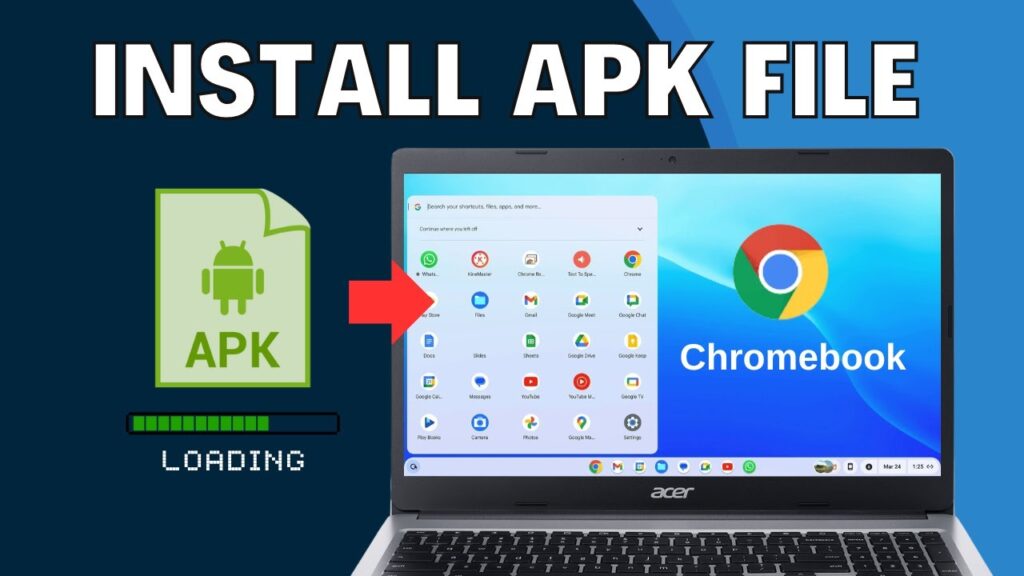
If you’ve ever tried to install APK files on a Chromebook, you know ChromeOS normally forces you to enable Developer Mode — which wipes your device and resets everything.
But there’s good news.
You can sideload Android APK files on a Chromebook without enabling Developer Mode using the built-in Linux environment and ADB.
This method is safe, official, and does not erase your Chromebook.
What This Guide Does
- Install APK apps manually
- No Developer Mode required
- No factory reset
- Works on modern Chromebooks
- Uses official Android runtime
Step 1 — Enable Linux on Chromebook
First we activate the Linux development environment.
- Open Settings
- Go to Advanced
- Select Developers
- Turn on Linux Development Environment
Choose your username and disk size.
Default 10GB is fine, but you can increase it if you plan to install many apps.
Click Install and wait a few minutes.
After installation, the Linux Terminal will open automatically.
Step 2 — Enable ADB Debugging
ADB allows Android app installation.
- Open Settings → Developers
- Click Develop Android Apps
- Turn on ADB Debugging
- Restart Chromebook when asked
After reboot, confirm the ADB permission popup.
Step 3 — Install ADB Tool
Open the Linux Terminal again.
Type this command:
sudo apt install adb
Press Enter and confirm installation.
Step 4 — Prepare Your APK File
Move your APK into the Linux Files folder.
The Linux container can only access files stored here.
Tip: rename the APK to something short like:
app.apk
Step 5 — Connect ADB
Run:
adb devices
Check the box that says:
Always allow from this computer
Click OK.
You should now see a connected device listed.
Step 6 — Install the APK
Now install the app:
adb install app.apk
Replace app.apk with your real filename.
After installation completes, open your app drawer — the Android app will appear there.
How It Works
The app runs through ChromeOS Android Runtime, not inside Linux.
This means performance is the same as Play Store apps.
No emulation. No slowdown.
Safety Warning
- Only install APKs from trusted sources
- Malicious APKs can harm your data
- Avoid pirated apps
- Use Play Store when possible
Troubleshooting
- ADB not detected → restart Chromebook
- Permission denied → confirm popup
- APK fails → rename file shorter
- Linux not opening → reinstall Linux
Commands Summary
sudo apt install adb
adb devices
adb install app.apk
FAQs
Does this wipe my Chromebook?
No.
Do I need Developer Mode?
No.
Can I uninstall APK apps?
Yes, like normal Android apps.
Does this work offline?
Yes after setup.
Final Result
You can now install APK files safely on Chromebook without Developer Mode.
No reset. No risk. Fully official method.
If this guide helped you, bookmark it and share it.