
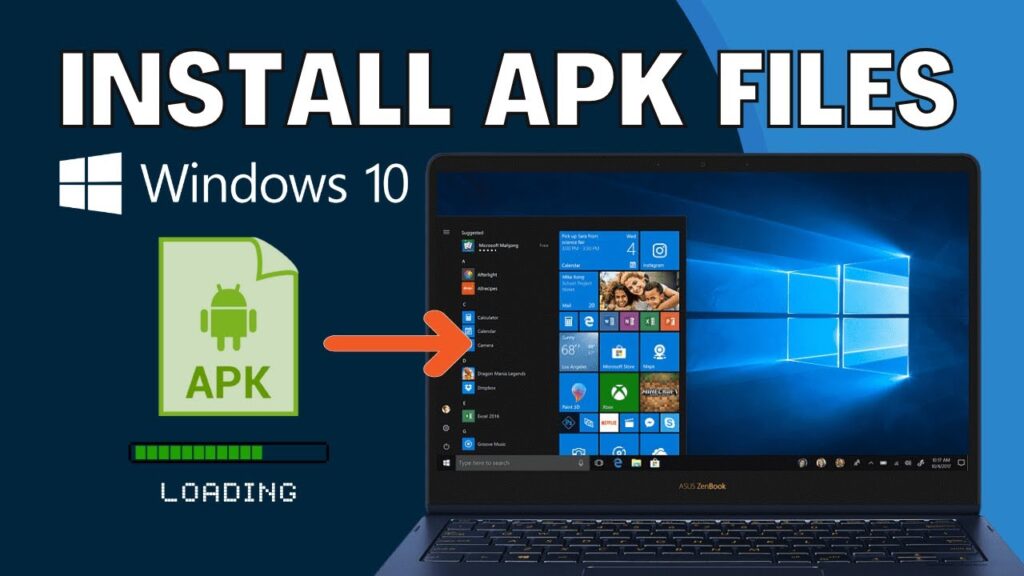
You can run Android apps directly on Windows 10 without using heavy emulators.
This guide shows how to install Windows Subsystem for Android (WSA) and sideload APK files like native Windows apps.
No BlueStacks. No slow emulators. Apps run almost natively.
📥 Required Downloads
System Requirements
- Windows 10 64-bit
- 8GB RAM or higher
- SSD recommended
- Intel 8th Gen / Ryzen 3000 or newer
- Virtualization enabled in BIOS
Step 1 — Check Virtualization
- Press Ctrl + Shift + Esc
- Open Task Manager
- Go to Performance tab
- Look for Virtualization → Enabled
If disabled, enable it in BIOS/UEFI.
Step 2 — Enable Virtual Machine Platform
- Search Windows Features
- Open Turn Windows features on or off
- Enable Virtual Machine Platform
- Click OK
- Restart computer
Step 3 — Install WSA Build
Download the Windows 10 WSA build.
Extract ZIP using 7-Zip or WinRAR.
Open extracted folder.
Double-click Run.bat.
Wait for installation to finish.
Play Store will install automatically.
Step 4 — Enable Developer Mode
- Open Windows Subsystem for Android
- Go to Advanced Settings
- Enable Developer Mode
- Click Manage developer settings
- Enable USB debugging
Step 5 — Install WSA PacMan
Install WSA PacMan normally.
Launch the app.
You should see: Connected
Step 6 — Install APK Files
Double-click any APK file.
WSA PacMan opens installer window.
Click Install.
Android app appears in Start Menu.
You can create desktop shortcut.
Uninstall Android Apps
Open Windows Settings → Apps → Installed Apps.
Select Android app and uninstall normally.
Troubleshooting
- WSA not opening → restart PC
- PacMan not connected → enable developer mode
- APK not installing → reinstall WSA
- Play Store not working → sign in again
FAQs
Is this an emulator?
No. It runs natively through Windows subsystem.
Is performance better than BlueStacks?
Yes.
Can I install Play Store apps?
Yes.
Can I run games?
Yes, depending on hardware.
Final Result
You can now run Android APK apps directly on Windows 10 like native software.
No emulator needed.
If this guide helped you, bookmark it and share it.

