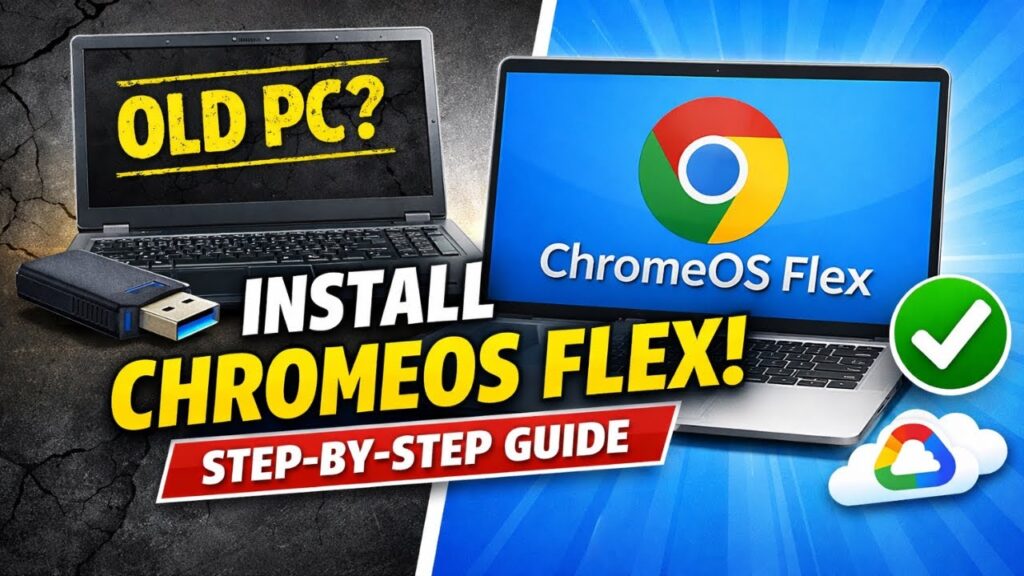
If your old laptop or PC has become slow, unsupported, or no longer receives Windows updates, don’t throw it away.
You can revive it using ChromeOS Flex — a free operating system from Google that turns old computers into fast, secure, cloud-powered machines.
ChromeOS Flex is lightweight, modern, and perfect for web browsing, YouTube, online work, emails, and Google Drive.
This guide shows you exactly how to install ChromeOS Flex step by step using a USB drive.
📥 Official Downloads
System Requirements
- Intel or AMD 64-bit processor
- At least 4GB RAM
- Minimum 16GB internal storage
- USB drive (8GB or larger)
- PC must support USB boot
Note: Very old hardware made before 2010 may not run smoothly.
Step 1 — Check Device Compatibility
Google maintains a Certified Models List.
If your device is listed, ChromeOS Flex is officially tested.
If not listed, you can still install it — but some features like Bluetooth or touchscreen may not work perfectly.
Step 2 — Create ChromeOS Flex USB Installer
On a working computer:
- Open Google Chrome browser
- Install Chromebook Recovery Utility
- Open the extension
- Click Get Started
- Select a model from a list
- Choose Google ChromeOS Flex
- Insert your USB drive
- Click Create Now
The tool downloads ChromeOS Flex and writes it to the USB.
This may take 10–30 minutes depending on your internet speed.
Step 3 — Boot from USB Drive
Insert the USB into the target PC.
Restart the computer and open the boot menu.
- Dell → F12
- HP → Esc or F9
- Lenovo → F12
- Acer → F12
Select your USB drive and press Enter.
Step 4 — Try ChromeOS Flex First
When ChromeOS boots, click Get Started.
You can choose:
- Try ChromeOS Flex (without installing)
- Install ChromeOS Flex permanently
Trying first is recommended to test compatibility.
Step 5 — Install ChromeOS Flex Permanently
If everything works correctly:
- Select Install ChromeOS Flex
- Click Next
- Confirm installation
Warning: This erases all existing data.
Installation usually takes 5–10 minutes.
Step 6 — Initial Setup
After installation:
- Remove the USB drive
- Restart system
- Connect to Wi-Fi
- Sign in with Google account
You can also browse as Guest mode if you prefer.
What ChromeOS Flex Gives You
- Fast boot times
- Automatic updates
- Virus resistance
- Google Drive integration
- Web apps & Android-style experience
- Lightweight performance
Your old PC will feel new again.
Performance Tips
- Use SSD if possible
- Upgrade RAM to 8GB for smoother performance
- Use wired Ethernet for stability
- Keep ChromeOS updated
Troubleshooting
- USB not booting → disable Secure Boot
- No Wi-Fi → use Ethernet temporarily
- Black screen → try legacy boot mode
- Installation fails → recreate USB installer
FAQs
Does ChromeOS Flex delete Windows?
Yes if installed permanently.
Can I dual boot?
No official dual boot support.
Is ChromeOS Flex free?
Yes. 100% free from Google.
Can I install Android apps?
No Play Store on Flex.
Final Result
You’ve successfully revived your old laptop or PC with ChromeOS Flex.
The system is now faster, cleaner, and more secure.
This is one of the best ways to extend the life of old hardware.
If this guide helped you, bookmark it and share it.