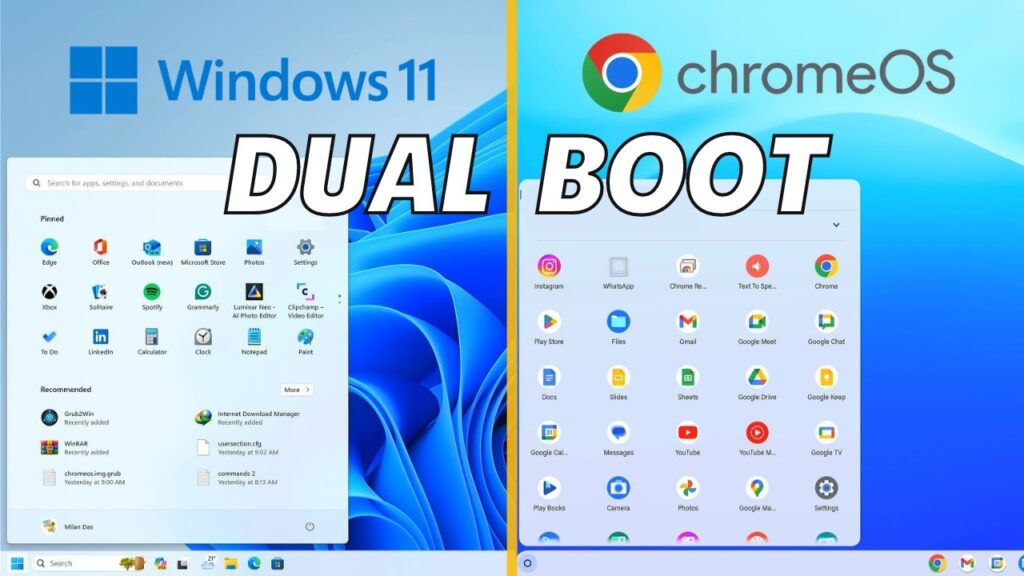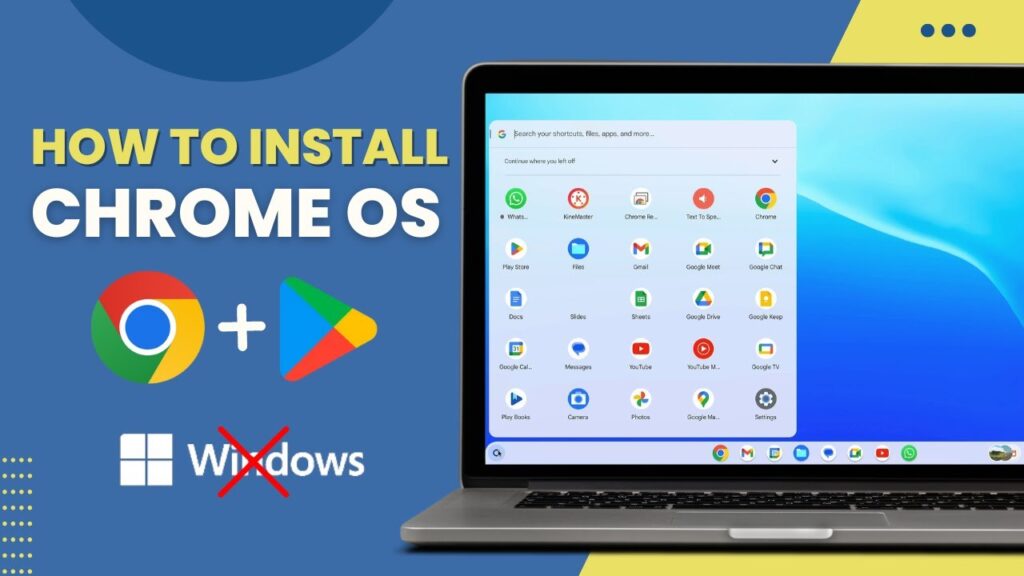
ChromeOS is a lightweight Linux-based operating system designed by Google. It runs Android apps, Linux apps, and web apps — making old PCs feel brand new.
Official ChromeOS is limited to Chromebooks. ChromeOS Flex exists for PCs, but it does not include the Google Play Store.
This guide shows how to install full ChromeOS on a Windows PC with Play Store support.
Warning: This will replace Windows completely. Back up important files first.
📥 Required Downloads
System Requirements
- 64-bit PC
- Intel Skylake / 6th gen or newer
- AMD Ryzen supported
- 16GB USB drive
- UEFI boot enabled
- Secure Boot disabled
- Virtualization enabled
- ARM CPUs not supported
Step 1 — Choose Correct ChromeOS Image
Select the correct recovery image based on CPU:
Intel
- 3rd gen or older → Samus
- 4th–5th gen → Rammus
- 6th–9th gen → Shyvana
- 10th gen → Jinlon
- 11th gen+ → Voxel
AMD
- Ryzen → Gumboz
Download latest stable build.
Step 2 — Prepare ChromeOS Files
Extract Brunch and recovery files using 7-Zip or WinRAR.
Create a new folder named:
chromeos
Move all extracted files inside.
Rename recovery file to:
chromeos.bin
Step 3 — Install Ubuntu Terminal (WSL)
Open PowerShell as Administrator:
wsl --install
Restart PC.
Ubuntu terminal will open automatically.
Create username and password.
Step 4 — Install Required Packages
sudo apt update
sudo apt -y install pv cgpt tar unzip
Step 5 — Build ChromeOS Disk Image
Mount ChromeOS folder:
cd /mnt/drive/path/chromeos
Create image:
sudo bash chromeos-install.sh -src chromeos.bin -dst chromeos.img
This takes 15–20 minutes.
Step 6 — Create Bootable USB
Open Rufus.
- Select USB drive
- Select chromeos.img
- Click Start
USB is ready.
Step 7 — Boot ChromeOS from USB
Restart PC → open boot menu → choose USB.
Wait for ChromeOS to load.
This is Live mode.
Step 8 — Install ChromeOS to Hard Drive
Open shell:
Ctrl + Alt + F2
Login:
root
List drives:
lsblk -e7
Install command:
sudo chromeos-install -dst /dev/disk-name
Replace disk-name with your SSD/HDD.
Example:
/dev/nvme0n1
Wait until installation completes.
Step 9 — First Boot Setup
- Select language
- Connect WiFi
- Login Google account
- Enable Play Store
ChromeOS is ready.
Linux Apps Setup
Enable Linux subsystem in settings.
Install Linux app store:
sudo apt install plasma-discover
You can now install Linux apps easily.
Performance Tips
- Install on SSD
- Enable hardware acceleration
- Update ChromeOS regularly
- Allocate Linux storage wisely
Troubleshooting
- Boot error → disable Secure Boot
- No WiFi → update drivers
- Play Store missing → enable Android subsystem
- Slow system → use SSD
FAQs
Does this erase Windows?
Yes.
Can I dual boot?
Possible but advanced.
Is this legal?
Community project.
Works on AMD?
Yes.
Final Result
You now have full ChromeOS with Play Store on your PC.
Android apps + Linux apps + Chrome browser in one system.
If this guide helped you, bookmark it and share it.