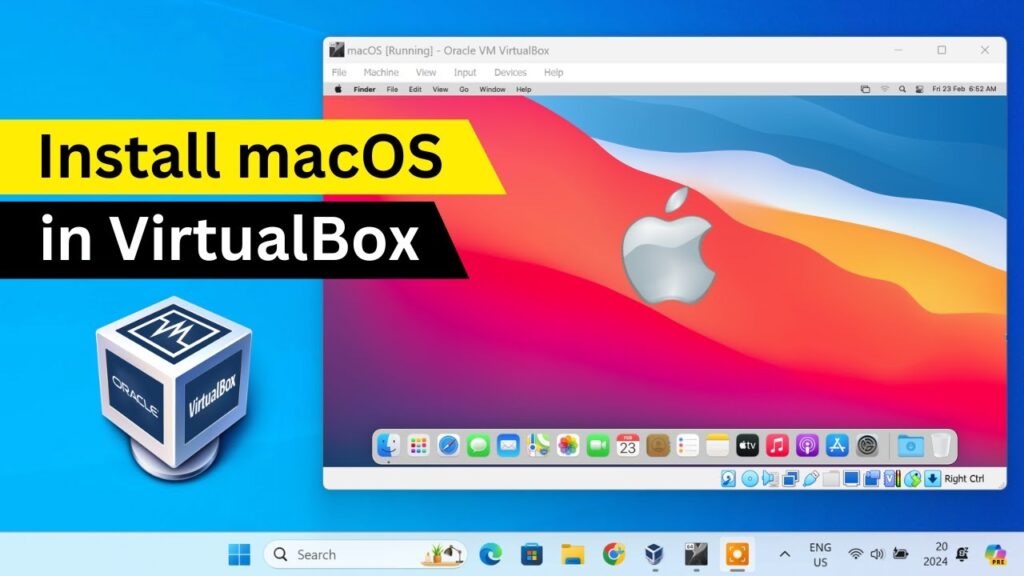
Running both Windows and macOS on the same computer might sound complicated, but with the right tools and a clear method, it’s completely possible — even for beginners.
In this guide, you’ll learn how to install macOS alongside your existing Windows 10 or Windows 11 system without deleting Windows. When you turn on your PC, you’ll get a boot menu that lets you choose which operating system to start. This is called dual-booting.
We will use OpenCore, the most stable and modern bootloader used in Hackintosh systems. Instead of manually configuring dozens of files, we’ll use automation tools that generate everything based on your hardware. That makes this guide much easier than traditional Hackintosh tutorials.
By the end of this guide, you will have:
✅ Windows still working normally
✅ macOS installed on a separate partition
✅ A clean boot menu to choose OS at startup
✅ USB ports mapped properly
✅ A stable OpenCore setup
Before we begin, a few important notes:
- Installing macOS on non-Apple hardware is unofficial and may violate Apple’s license agreement
- Hardware compatibility matters (Intel systems work best)
- Always backup important data
- This process is safe when followed correctly, but mistakes can cause boot issues
If you follow each step carefully, everything will work smoothly.
Step 1 — Install Python (Required Dependency)
Before we touch any Hackintosh tools, we must install Python. Some of the scripts used by OpenCore Simplify rely on Python to run correctly. If Python is missing, the tool may fail, crash, or skip important steps.
Don’t worry — you don’t need to learn Python. We are only installing it as a background dependency.
What Python does in this guide
Think of Python as an engine that runs automation scripts. OpenCore Simplify uses Python to:
- Detect your hardware
- Generate config files
- Download required components
- Build your custom EFI folder
Without Python, none of that works properly.
Install Python from Microsoft Store
Click the button below and install Python directly from the official Microsoft Store.
Installation steps
- Click the button above
- Microsoft Store opens
- Click Install
- Wait until installation finishes
- Close Microsoft Store
That’s it. No configuration needed.
Quick verification (optional but recommended)
We’ll quickly confirm Python is installed correctly.
- Press Windows Key
- Type:
cmd - Open Command Prompt
- Type:
python --version
If Python is installed correctly, you’ll see something like:
Python 3.x.x
If you see a version number → perfect. Move on.
If it says command not recognized → restart your PC and try again.
Python is now ready. This ensures OpenCore Simplify runs smoothly in the next step.
Step 2 — Generate Your Custom OpenCore EFI (Core of the Entire Setup)
This is the most important step in the whole guide.
We are now going to generate a custom OpenCore EFI folder that is tailored specifically to your hardware. This EFI folder contains:
- The OpenCore bootloader
- Hardware drivers (called kexts)
- Boot configuration files
- System patches required for macOS
Think of this EFI folder as a compatibility bridge between your PC and macOS. Without it, macOS cannot boot on non-Apple hardware.
Traditionally, building OpenCore manually requires deep technical knowledge. But we’ll use OpenCore Simplify, which automatically scans your hardware and builds everything for you.
This makes Hackintosh setup beginner-friendly.
Download OpenCore Simplify
Extract and launch the tool
- Download the ZIP file
- Right-click → Extract All
- Open the extracted folder
- Double-click OpCore-Simplify.bat
A command window will open.
Do not close it unless instructed.
Handle the update prompt
The tool may ask:
“Skip update?”
This is important:
- First time → type N and press Enter
(This downloads the newest files) - When it asks again → type Y
(This skips future checks and speeds up the process)
This ensures you are using the latest OpenCore components.
Scan your hardware
Inside the tool:
Type:
1
Press Enter.
The program will now scan:
- CPU
- GPU
- Motherboard chipset
- USB controllers
- Storage controllers
- ACPI tables
This hardware scan is what allows the tool to build a working EFI for your exact PC.
Wait until the scan completes.
Check macOS compatibility
Next:
Type:
E
Press Enter.
You’ll see a list of macOS versions your hardware supports.
Example:
- macOS Ventura
- macOS Sonoma
- macOS Sequoia
Choose the newest version supported.
Each version will have a number next to it.
Type the number and press Enter.
Build the EFI
Now the final step inside the tool:
Type:
6
Press Enter.
The tool will now automatically:
- Download OpenCore
- Download required drivers
- Add hardware patches
- Generate config files
- Apply correct SMBIOS
- Prepare boot structure
This may take a few minutes depending on internet speed.
Do not close the window while it works.
Locate your EFI folder
When the build completes, the tool creates a folder named:
EFI
This is your custom bootloader.
Copy the entire EFI folder to your Desktop.
We will use this folder in the next steps to create the installer USB.
Step 2 is complete. You now have a working OpenCore EFI tailored to your PC.
Step 3 — Map USB Ports (Critical for a Stable Installation)
This step is extremely important and many beginners skip it — which later causes keyboard, mouse, or installer failures.
macOS has a strict USB port limit. If your ports are not mapped properly, you may experience:
- Keyboard not working in installer
- Mouse freezing
- USB devices disconnecting randomly
- Installer getting stuck
- Ports working in Windows but dead in macOS
USB mapping tells macOS exactly which ports exist on your motherboard and how to use them safely.
We’ll use USBToolBox to automatically detect and map every port.
Download USBToolBox
Extract and run USBToolBox
- Extract the USBToolBox ZIP file
- Open the folder
- Double-click USBToolBox.exe
A command window opens.
Scan every USB port
Inside the tool:
Type:
D
Press Enter.
Now you must manually test every USB port on your PC.
Take any USB device (flash drive works best).
For each port:
- Plug in USB device
- Wait 5 seconds
- Unplug it
- Move to the next port
Repeat until all ports are scanned.
This step teaches macOS which ports exist physically on your system.
Review detected ports
After scanning:
Type:
B
to go back
Then type:
S
This shows detected ports.
You want them to appear green.
If some show red, it means they were not detected properly. Plug the device again and rescan that port.
Generate USB mapping file
Once all ports look correct:
Type:
K
Press Enter.
The tool will generate:
USBMap.kext
This is your USB mapping driver.
You’ll find it in your Downloads folder.
Add USB drivers to your EFI
Now we copy the mapping into your OpenCore setup.
- Copy USBMap.kext
- Go to your Desktop EFI folder:
EFI > OC > Kexts- Paste USBMap.kext inside the Kexts folder
Next:
- Extract the USBToolBox Kext pack
- Copy USBToolBox.kext
- Paste it into the same Kexts folder
You should now have:
EFI > OC > Kexts > USBMap.kext
EFI > OC > Kexts > USBToolBox.kext
Step 3 is complete. Your USB ports are now properly mapped.
This prevents installer failures and future stability issues.
Step 4 — Add USB Drivers to OpenCore Configuration
In the previous step, we added USB drivers into the EFI folder.
But OpenCore still doesn’t know they exist.
Simply copying kext files is not enough — we must tell OpenCore to load them during boot. This is done inside a file called:
config.plist
Think of config.plist as OpenCore’s instruction manual.
If a kext is not listed there, OpenCore ignores it.
We’ll use a beginner-friendly tool to edit this safely.
Download OC Auxiliary Tools
Open your OpenCore config
- Extract OC Auxiliary Tools
- Launch the program
- Click File → Open
- Navigate to:
Desktop → EFI → OC → config.plist
- Open the file
You are now editing your OpenCore configuration.
Add USB kext entries
- In the left panel, click Kernel
- Find the Add section
- Click the + button
Add the following two entries:
USBMap.kext
USBToolBox.kext
The tool may auto-fill details after selecting the kext file from the Kexts folder.
If it asks for path, select the files from:
EFI → OC → Kexts
Save changes
- Click Save
- Close the application
That’s it.
OpenCore will now load your USB drivers during boot, ensuring keyboard, mouse, and USB ports work inside macOS installer.
Step 5 — Create the macOS Installer USB Drive
Now we will prepare the USB drive that boots OpenCore and launches the macOS installer.
This USB acts as a temporary boot disk. Your PC will start from it and load macOS setup.
Make sure you are using:
- A USB drive with at least 8GB
- Empty USB (all data will be erased)
Download Rufus
Format the USB correctly
- Insert the USB drive
- Open Rufus
- Select your USB device
Set the options exactly like this:
- Boot selection → Non-bootable
- Partition scheme → GPT
- File system → FAT32
These settings make the USB compatible with UEFI booting.
Click Start and wait for formatting to finish.
Copy OpenCore EFI to USB
After Rufus completes:
- Open your USB drive
- Copy the entire EFI folder from your Desktop
- Paste it into the USB drive root
The structure should look like:
USB:\EFI
Do not rename anything.
At this point, the USB can boot OpenCore.
But it still doesn’t have the macOS installer. We add that next.
Step 6 — Download macOS Recovery Files (Installer)
Your USB can now boot OpenCore, but it still doesn’t contain the actual macOS installer.
In this step, we download Apple’s official macOS recovery image and add it to the USB.
This recovery image is what launches the macOS installer.
The files come directly from Apple’s servers, not from third-party websites.
Download OpenCorePkg
Open the macOS recovery tool
- Extract the OpenCorePkg ZIP
- Open the folder:
Utilities → macrecovery - Click the address bar at the top
- Type:
CMD
- Press Enter
A Command Prompt window opens in the correct folder.
Get the recovery command
Open the official recovery command list:
Scroll until you find the macOS version you selected earlier.
Each version has a ready-to-copy command.
Example format:
python macrecovery.py -b XXXXX -m XXXXX download
Copy the full command.
Download recovery image
Paste the command into Command Prompt and press Enter.
The tool will:
- Connect to Apple servers
- Download macOS recovery files
- Create a folder named:
com.apple.recovery.boot
This may take several minutes depending on internet speed.
Do not close the window until finished.
Copy recovery files to USB
After download completes:
- Copy the entire folder:
com.apple.recovery.boot
- Paste it into the USB drive root
Your USB should now contain:
USB:\EFI
USB:\com.apple.recovery.boot
This means the installer USB is fully ready.
Step 7 — Create a Partition for macOS in Windows
Now we will create space on your SSD where macOS will be installed.
We are not deleting Windows.
We are only shrinking the Windows partition and creating a new empty partition beside it.
This keeps Windows completely safe.
Open Disk Management
- Right-click the Start button
- Click Disk Management
You’ll see your drives and partitions.
Find your main Windows drive (usually C:).
Shrink the Windows partition
- Right-click the Windows partition
- Choose Shrink Volume
Windows will calculate how much space can be reduced.
In the size box, enter how much space you want for macOS.
Recommended:
- Minimum → 50 GB
- Better → 100 GB or more
Example:
If you want 100GB:
102400 MB
Click Shrink.
You will now see Unallocated Space.
Create the macOS partition
- Right-click the new Unallocated Space
- Choose New Simple Volume
- Follow the wizard
When asked for file system:
👉 Select exFAT
Why exFAT?
Because the macOS installer can detect and reformat it later.
Give the partition a label:
macOS
This makes it easy to recognize during installation.
Finish the wizard.
You should now see a new drive named macOS in Windows.
Step 8 — Configure BIOS / UEFI Settings Before Installation
Before booting the installer USB, we must adjust a few BIOS settings.
These settings allow OpenCore to run and prevent Windows security features from blocking macOS.
Every motherboard BIOS looks different, but the options usually have similar names.
Enter BIOS / UEFI
- Restart your PC
- While booting, repeatedly press one of these keys:
Delete
F2
F10
F12
Esc
One of them will open BIOS.
(Your screen usually shows: “Press DEL to enter setup” or similar.)
Disable Secure Boot
Secure Boot blocks unsigned bootloaders.
OpenCore is unsigned, so it will not run unless Secure Boot is disabled.
Inside BIOS:
- Find Secure Boot
- Set it to Disabled
Location varies:
Boot tab
Security tab
Advanced tab
Set USB as first boot device
Next we tell the PC to boot from the installer USB.
Find:
Boot Priority
Boot Order
Boot Sequence
Move your USB drive to the top of the list.
This ensures the PC loads OpenCore from USB.
Optional settings (recommended)
Some systems require these for stability:
- Disable Fast Boot
- Enable UEFI Boot Mode
- Disable CSM (if present)
- Enable XHCI Hand-off (USB compatibility)
Not every BIOS has these options — skip if missing.
Save and exit
Press:
F10 → Save & Exit
Your PC will restart.
If everything is correct, it will now boot into the OpenCore USB menu.
Step 9 — Install macOS from the OpenCore Boot Menu
Now we finally install macOS onto the partition we created earlier.
Your PC should boot into the OpenCore menu from the USB. If it boots into Windows instead, recheck BIOS boot order.
Boot into the macOS installer
When OpenCore appears, you’ll see several icons:
- Windows
- macOS Installer
- Recovery options
Use arrow keys to select:
👉 macOS Installer
Press Enter
The macOS recovery environment will load.
This may take a few minutes. Be patient — a black screen for 30–60 seconds is normal.
Open Disk Utility
Once the macOS recovery screen appears:
- Click Disk Utility
- Click Continue
We must erase the partition we created earlier.
Format the macOS partition
Inside Disk Utility:
- Select the partition labeled macOS
- Click Erase
Set:
- Format → APFS
- Scheme → GUID Partition Map
Click Erase
After formatting finishes:
Close Disk Utility.
Install macOS
- Click Install macOS
- Click Continue
- Select the APFS partition you just formatted
- Start installation
macOS will now copy files.
Your system will reboot multiple times — this is normal.
Each time OpenCore appears:
👉 Select the macOS installer / macOS disk
(not Windows)
Let the process complete.
Installation can take 20–45 minutes depending on hardware.
First boot setup
After installation finishes, macOS will start the welcome screen.
Go through:
- Region
- Keyboard
- Network
- Apple ID (optional)
- User account
If Wi-Fi doesn’t work yet:
- Use Ethernet
- Or USB tethering from phone
We’ll fix Wi-Fi later after installation.
Step 10 — Make macOS Boot Without the USB Drive
Right now, macOS only boots because the USB contains OpenCore.
If you remove the USB, your PC will boot straight into Windows.
So in this step, we copy OpenCore from the USB into your PC’s internal EFI partition. This installs OpenCore permanently and gives you a proper dual-boot menu every time the PC starts.
Download OC Auxiliary Tools for macOS
Inside macOS, download OC Auxiliary Tools again (macOS version):
Allow the app to run
macOS may block it because it’s from an unidentified developer.
If you see a warning:
- Open System Settings
- Go to Privacy & Security
- Click Open Anyway
- Enter your password
Now launch the app again.
Mount the internal EFI partition
- Open OC Auxiliary Tools
- Use the Mount EFI option
- Select your internal SSD (not the USB)
- Click Mount
The EFI partition will appear in Finder as:
NO NAME
This is normal.
Copy OpenCore to internal drive
- Open your USB drive
- Go to:
USB → EFI
- Copy these folders:
Boot
OC
- Paste them into the mounted internal EFI partition
- Merge / replace if asked
Your internal drive now contains OpenCore.
You can safely eject and unplug the USB.
Step 11 — Set OpenCore as the Default Boot Manager (Dual-Boot Menu)
Right now, your PC may still boot directly into Windows.
That’s because Windows Boot Manager is still set as the default in UEFI.
We will change the default boot path so OpenCore loads first.
This gives you a clean menu to choose macOS or Windows every time the PC starts.
This step is safe and reversible.
Boot into Windows
Restart your PC and boot into Windows normally.
Open Command Prompt as Administrator
- Press Windows key
- Type:
cmd
- Right-click Command Prompt
- Choose Run as Administrator
You must run this as admin or the command will fail.
Run the boot command
Paste the command below and press Enter:
bcdedit /set {bootmgr} path \efi\boot\bootx64.efi
If successful, you’ll see:
The operation completed successfully.
This tells your motherboard firmware:
👉 Load OpenCore instead of Windows Boot Manager
Restart and test
Restart your PC.
You should now see the OpenCore boot menu first.
From there you can choose:
- macOS
- Windows
Congratulations — you now have a fully working dual-boot system.
Final Result
You successfully:
✅ Installed macOS alongside Windows
✅ Preserved your Windows installation
✅ Created a clean dual-boot menu
✅ Configured OpenCore permanently
✅ Mapped USB for stability
✅ Built a beginner-friendly Hackintosh setup
Your PC is now a dual-OS machine.