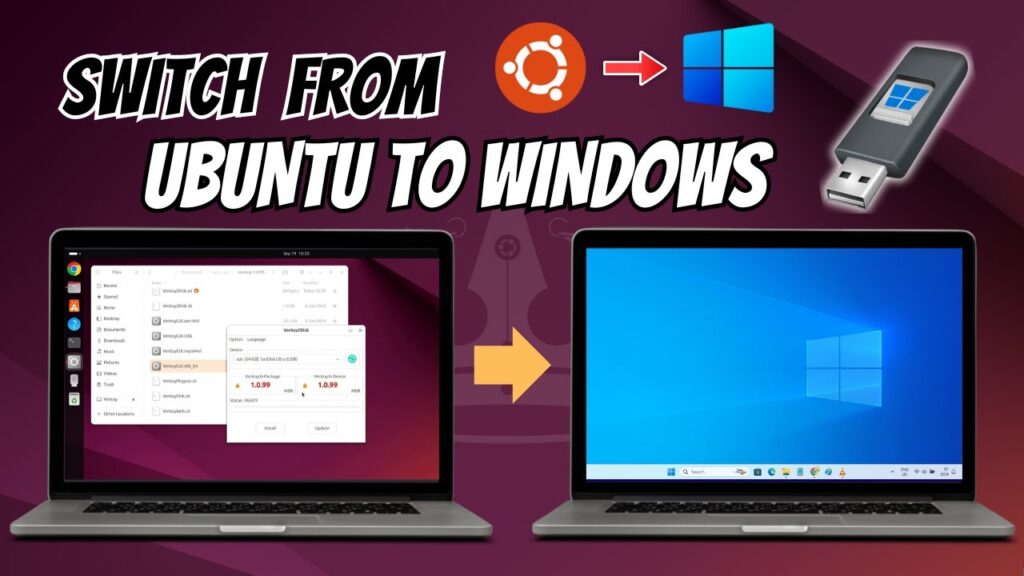
Want to switch from Ubuntu back to Windows?
Maybe you need software that only runs on Windows, better gaming support, or compatibility with professional applications.
This guide shows the safest way to remove Ubuntu completely and install Windows 10 or Windows 11 step-by-step.
Important: This process erases Ubuntu and all data on the drive.
⚠ Backup Warning
Before continuing:
- Back up your important files
- Copy documents to external storage
- Save passwords and recovery keys
- Sync cloud files
Switching operating systems wipes your entire disk.
📥 Required Downloads
Requirements
- 8GB or larger USB drive
- Working Ubuntu system
- Internet connection
- Windows ISO file
Step 1 — Download Windows ISO
Go to Microsoft’s official website.
Download either:
- Windows 10
- Windows 11
Choose the version that matches your PC compatibility.
Step 2 — Create Bootable USB Using Ventoy
Ventoy is a powerful tool that lets you boot ISO files directly without formatting each time.
- Download Ventoy for Linux
- Extract the Ventoy archive
- Insert USB drive
- Open Ventoy folder
- Run Ventoy GUI
- Select USB drive
- Click Install
Ventoy is now installed on your USB.
Simply drag and drop the Windows ISO into the USB drive.
No extra steps needed.
Step 3 — Boot from USB
- Restart PC
- Open Boot Menu (F12 / Esc / F2 varies by system)
- Select USB drive
Ventoy menu appears.
Select the Windows ISO and press Enter.
Step 4 — Delete Ubuntu Partitions
Windows setup will ask where to install Windows.
- Choose Custom Installation
- Delete all Ubuntu partitions
- Look for EXT4 or Linux partitions
- After deletion → unallocated space appears
- Select unallocated space
- Click Next
Windows will automatically create new partitions.
Step 5 — Install Windows
Installation begins automatically.
The PC will restart several times.
Do not remove the USB until installation finishes.
Step 6 — Complete Windows Setup
- Create Windows account
- Select region and language
- Configure privacy settings
- Connect internet
Windows is now installed.
Step 7 — Install Drivers & Updates
- Open Settings → Update & Security
- Check for updates
- Install graphics drivers
- Install motherboard drivers
This ensures best performance.
Secure Boot Troubleshooting
If Windows installer fails to boot:
- Enter BIOS/UEFI
- Locate Secure Boot option
- Set to Disabled
- Save and restart
Secure Boot can block Linux-created USB drives.
Troubleshooting
- USB not booting → recreate Ventoy USB
- No disk detected → change BIOS SATA mode
- Installer crashes → redownload ISO
- Boot loop → remove USB after install
FAQs
Does this erase Ubuntu completely?
Yes.
Can I dual boot later?
Yes.
Is this official?
Yes, Microsoft ISO.
Works on laptops?
Yes.
Final Result
You successfully replaced Ubuntu with Windows.
Your PC is now running a clean Windows installation.
If this guide helped you, bookmark it and share it.