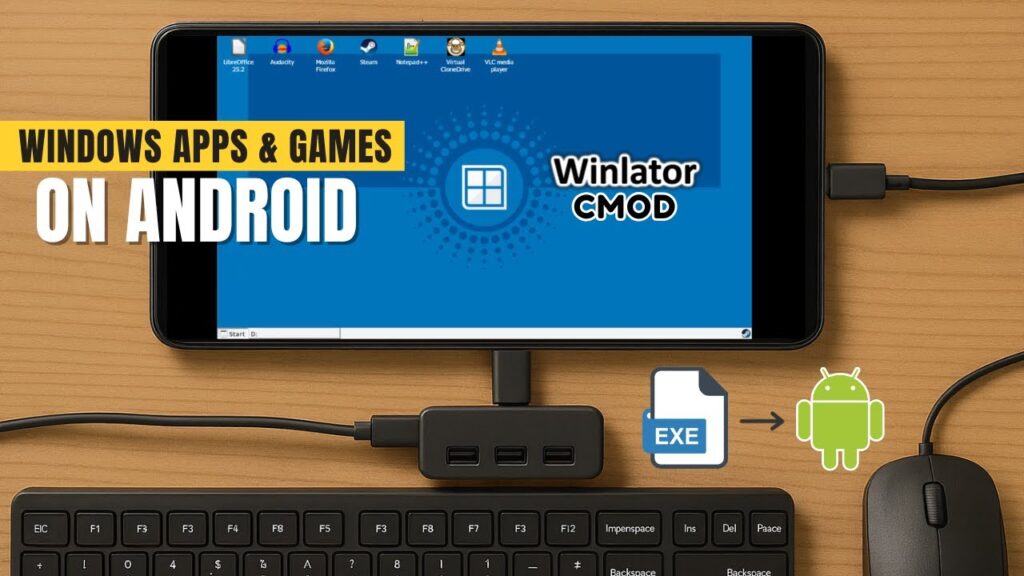
You can run real Windows software and classic PC games directly on an Android phone — no streaming, no remote desktop, no PC required.
This guide shows how to install Winlator CMOD, a powerful Windows compatibility layer that combines Wine + Box64 to create a virtual Windows PC environment on Android.
By the end of this tutorial, you’ll be able to run LibreOffice, Firefox, VLC, Notepad++, 7-Zip, Steam games, and many older PC titles right from your phone.
📥 Download Winlator CMOD
What is Winlator?
Winlator creates a lightweight Windows environment using Wine and Box64. It translates Windows programs so they can run on ARM Android devices.
This means your phone becomes a mini Windows PC capable of running desktop apps and classic games.
Step 1 — Install Winlator
- Download the latest APK from GitHub
- Open the file
- Select Install Anyway
- Launch the app
- Grant storage permissions
Winlator will download system components automatically on first launch.
Step 2 — Create a Container
A container is a virtual Windows PC.
- Tap the + icon
- Name the container (Games / Work Apps)
- Select resolution
Recommended performance resolution:
960 × 544Lower resolution = smoother performance.
Graphics Settings (Performance Boost)
These settings dramatically improve speed.
- Wrapper → Wrapper V2
- Driver → Turnip 25.3.0 R3 Auto
- DXVK → Async 1.10.3
- Async → ON
GPU Spoof:
NVIDIA GTX 1080 TiVideo Memory:
- 6GB RAM phones → 2GB
- 8GB+ RAM phones → 4GB
Step 3 — Add Storage Drive
You can mount phone folders inside Winlator.
- Open Drives tab
- Tap Add
- Select any Android folder
- Assign drive letter (F:)
This lets you access downloads, games, and media.
Step 4 — Install System Components
Inside the container desktop:
- Open Start → System Tools
- Install Wine Gecko
- Install Wine Mono
These are required for many Windows apps.
Step 5 — Install Windows Apps
Example apps that work well:
- LibreOffice
- VLC Media Player
- Notepad++
- 7-Zip
- Older Firefox versions
Open the D: drive (Downloads folder), double-click installers, and install normally.
Step 6 — Install Steam & Games
- Download Steam Windows installer
- Enable Desktop Mode in browser
- Install Steam inside Winlator
- Login and download games
Older PC games run best:
- Counter-Strike 1.6 / Condition Zero
- Half-Life
- Age of Empires II
- Warcraft III
- Classic indie games
Controller Setup
Winlator supports:
- Bluetooth gamepads
- USB keyboard + mouse
- Touchscreen controls
Assign controllers inside Controller Manager.
Performance Expectations
Winlator excels at classic PC software. Modern AAA Windows games will not run well because ARM phones must emulate x86 processors.
Best compatibility range:
2000 — 2012 era PC gamesTroubleshooting
- Black screen → wait or restart container
- App crashes → reinstall Wine Mono
- Slow performance → lower resolution
- No controls → reassign controller
Safety Notes
- Not all Windows apps are compatible
- Heavy games may overheat device
- Always download software from official sources
- Use moderate graphics settings
Final Result
You’ve turned your Android phone into a portable Windows PC capable of running desktop applications and classic games.
This is one of the most advanced Windows emulation setups available for Android.
If this guide helped you, bookmark it and share it.