
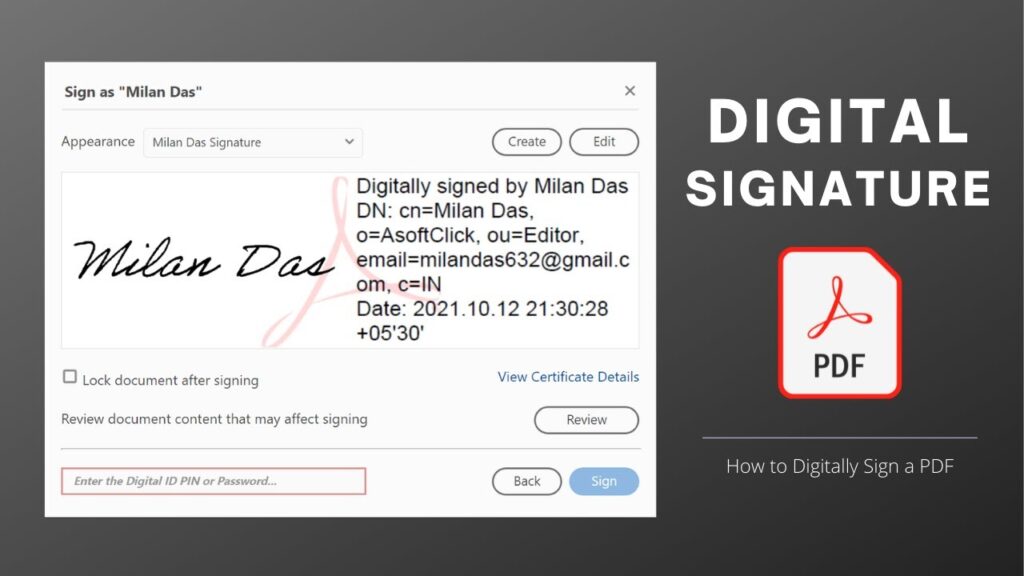
Digitally signing a PDF is safer than pasting an image of your signature. A real digital signature uses certificate encryption to verify identity and protect documents from tampering.
This guide shows how to create a Digital ID and sign PDF documents securely using Adobe Acrobat Reader — completely free.
No paid software required.
📥 Required Software
What Is a Digital Signature Certificate?
A digital signature certificate contains encrypted identity information such as:
- Name
- Email address
- Organization
- Serial number
- Expiration date
This certificate proves the signer’s identity and prevents document modification after signing.
It is far more secure than an image signature.
Step 1 — Install Adobe Acrobat Reader
Download and install Adobe Acrobat Reader DC.
The installer downloads additional components online, so keep internet active.
Step 2 — Create a Digital ID
- Open Adobe Acrobat Reader
- Click Edit → Preferences
- Select Signatures
- Click More under Identities & Trusted Certificates
- Select Digital IDs
- Click Add ID
- Choose Create a New Digital ID
Enter your personal details:
- Name
- Organization (optional)
- Country/Region
Leave encryption settings as default.
Create a password to protect your Digital ID.
Click Finish.
Your Digital ID is now ready.
Step 3 — Create a Signature Image
A visual signature improves professionalism.
- Open any PDF
- Click Sign icon (pen tip)
- Select Add Signature
- Choose Draw
- Draw your signature
- Click Apply
Take a screenshot of the signature.
Open MS Paint, crop the signature, and save as JPG.
Convert JPG to PDF using Microsoft Print to PDF.
Step 4 — Customize Signature Appearance
- Open Preferences → Signatures
- Choose Creation & Appearance
- Create New Appearance
- Enter signature title
- Import the PDF signature image
Choose what text appears:
- Name
- Date
- Location
- Reason
Click OK.
Your digital signature appearance is ready.
Step 5 — Sign a PDF
- Open the PDF document
- Click Tools → Certificates
- Select Digitally Sign
- Draw signature box
- Choose your Digital ID
- Select appearance
- Click Continue
Optional: enable Lock Document After Signing to prevent edits.
Enter Digital ID password.
Click Sign.
Save the signed file.
What Happens After Signing?
- PDF becomes tamper-proof
- Signature verifies authenticity
- Document becomes read-only (if locked)
- Recipient sees certificate info
Troubleshooting
- Signature not showing → reselect appearance
- Password error → recreate Digital ID
- PDF editable → enable lock option
- Certificate expired → create new ID
FAQs
Is this legally valid?
Yes, in many regions.
Is it secure?
Yes, certificate-based encryption.
Does it cost money?
No.
Can I reuse the signature?
Yes.
Final Result
You now have a professional digital signature certificate and can securely sign PDF documents.
This method protects identity and prevents document tampering.
If this guide helped you, bookmark it and share it.

