
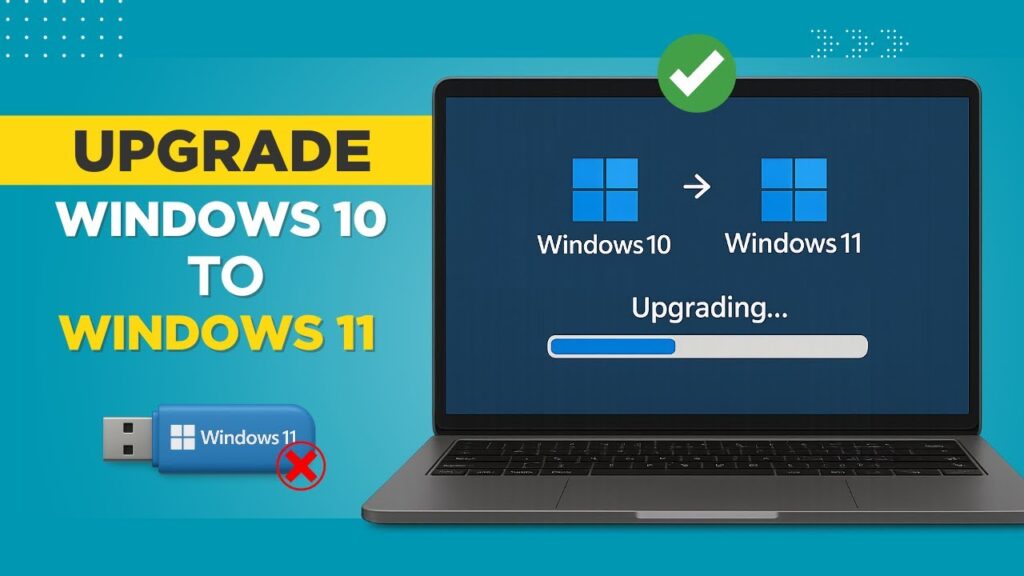
You can upgrade from Windows 10 to Windows 11 completely for free — without using a USB drive and without losing your files or installed apps. This method works even on unsupported hardware and keeps your personal data safe.
We’ll use the official Windows 11 ISO from Microsoft and run a simple command that bypasses system checks like TPM and Secure Boot. Follow each step carefully and the upgrade will complete smoothly.
📌 What This Method Does
- No USB drive required
- No data loss
- Keeps apps and files
- Works on unsupported PCs
- Uses official Microsoft installer
Step 1 — Check Your System Language
The Windows 11 ISO language must match your current Windows language.
Open Command Prompt as Administrator and run:
DISM /Online /Get-IntlLook for Default system UI language. For example: en-US.
Remember this language for the download step.
Step 2 — Download Windows 11 ISO
- Scroll to Download Windows 11 Disk Image (ISO)
- Select Windows 11 (multi-edition ISO)
- Choose the same language you saw earlier
- Click 64-bit Download
The file is around 5–6 GB.
Step 3 — Mount the ISO
- Right-click the ISO file
- Select Mount
- Open the mounted drive
- Copy all files inside
Go to your C drive and create a folder named:
C:\Win11Paste all files into this folder.
Step 4 — Run Windows 11 Setup (Bypass Requirements)
Open Command Prompt as Administrator and run:
C:\Win11\setup.exe /product serverThis launches Windows 11 setup and skips hardware checks.
If you see “Windows Server” text — don’t worry. It still installs Windows 11.
Step 5 — Start Upgrade
- Click Next
- Accept license terms
- Select Keep personal files and apps
- Click Install
Your PC will restart several times. Do not turn it off.
Step 6 — Finish Setup
After installation, Windows boots into Windows 11 with all files and apps intact.
Verify version:
winverStep 7 — Clean Up
You can delete the folder:
C:\Win11to free storage space.
How to Go Back to Windows 10
You have 10 days to revert:
- Open Settings
- Go to System → Recovery
- Click Go back
This restores Windows 10 without losing data.
Safety Notes
- This method is legal and uses Microsoft files
- Always backup important data
- Unsupported hardware may have minor issues
- Upgrade takes 30–90 minutes
Final Result
You now have Windows 11 installed without USB and without losing your files. This method keeps everything intact while bypassing hardware restrictions.
If this guide helped you, bookmark it and share it.

