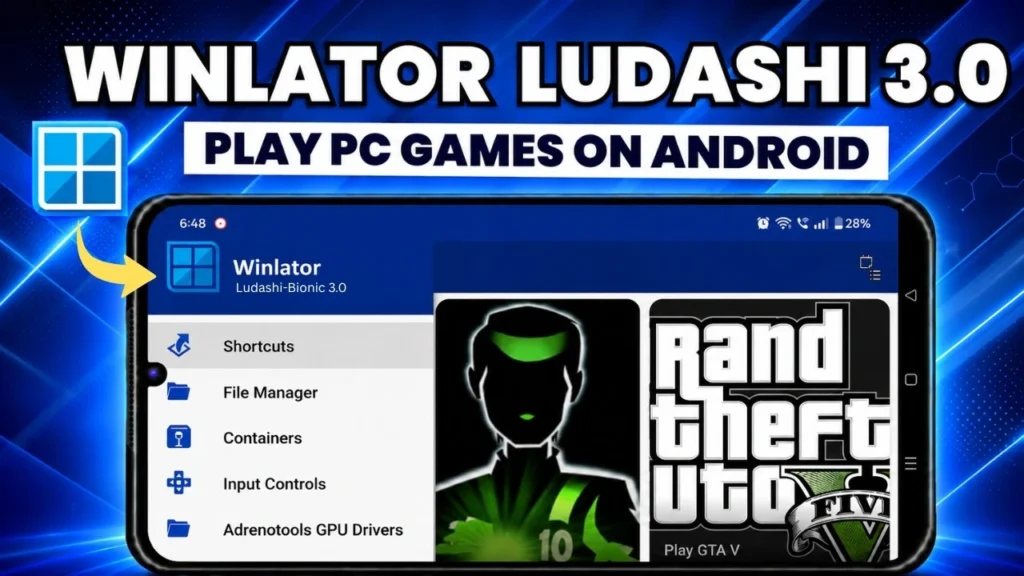
Want to run real Windows apps and even classic PC games directly on your Android phone? With Winlator CMOD, you can turn your device into a portable mini Windows PC without rooting or installing a custom ROM. This powerful tool combines Wine and Box64 to create a virtual Windows environment right inside Android, allowing you to install software just like you would on a normal computer.
In this step-by-step guide, I’ll show you how to install Winlator CMOD, create your first container, optimize performance settings, and run both Windows applications and games smoothly. Even if you’re a beginner, you can follow along and have a working setup in minutes. Let’s get started.
What You Need Before Starting
Before installing Winlator CMOD, make sure your Android device is ready. Running Windows software through emulation requires decent hardware and enough storage space. You don’t need a flagship phone, but better hardware will always give smoother performance.
Here’s what I recommend:
- Android 10 or newer
- At least 6GB RAM (8GB or more is ideal)
- Snapdragon processor for best compatibility (Adreno GPUs perform better with Winlator)
- 10GB+ free storage space for apps and games
- Stable internet connection for first-time setup
- Optional: Bluetooth controller or mouse + keyboard
Older or low-end devices can still run lightweight Windows apps, but performance may be limited for games.
Once you confirm your device meets the requirements, we can move on to downloading Winlator CMOD.
Step 1: Download and Install Winlator CMOD
Now we’ll install Winlator CMOD on your Android device. Always download it from the official GitHub page to avoid modified or unsafe versions.
On the GitHub page:
- Open the latest release at the top
- Scroll down to the Assets section
- Download the file that ends in .apk
Once the download finishes:
- Tap the APK file
- Choose Install Anyway if Android shows a warning
- Wait a few seconds for installation to complete
- Tap Open
When Winlator launches for the first time, allow storage permission. The app will automatically download and configure its system components. This setup may take a minute or two depending on your internet speed.
After setup finishes, you’ll see the Containers screen. This means Winlator is ready to use.
Step 2: Create Your First Container
A container is basically a mini Windows PC inside Winlator. Every app and game you install will run inside a container, so setting it up correctly is important.
On the Containers screen:
- Tap the plus (+) button at the top
- A configuration window will open
First, give your container a name. This helps you organize different setups later. For example:
- Games (for PC games)
- Work Apps (for office and tools)
Choose screen resolution
Resolution affects performance.
- Lower resolution = smoother performance
- Higher resolution = sharper visuals but heavier load
A good balanced option is 960 × 544. It runs smoothly on most devices while still looking clear.
You can leave the remaining basic settings on default for now. Winlator works fine with default values, and we’ll adjust advanced performance settings in the next step.
Once you finish naming and choosing resolution, don’t press save yet — we still need to optimize graphics settings.
Step 3: Optimize Graphics and Performance Settings
This is the most important step if you want smooth performance. Don’t worry — I’ll explain each option in simple terms.
Inside the container setup window, go to the Graphics section.
Select graphics wrapper
Choose the latest wrapper available (usually labeled Wrapper V2 or newer). Newer wrappers improve compatibility and performance.
Tap the settings icon next to the wrapper to open driver options.
Choose the correct graphics driver
- Snapdragon (Adreno GPU) → use a Turnip driver if available
- Snapdragon 7 series → v762
- Snapdragon 8 series → v805 or Turnip Auto
- Mali GPU → stick with System driver
Turnip drivers usually give better FPS and smoother gameplay on Adreno devices.
DXVK settings
Find the DXVK option and choose:
- Async 1.10.3
- Turn Async ON
This reduces stuttering and improves frame pacing in many games.
Video memory (VRAM)
Set VRAM based on your RAM:
- 6GB RAM or less → 2GB
- 8GB RAM or more → 4GB
More VRAM helps games load textures properly.
Advanced settings
Go to Advanced Settings:
- Startup selection → Normal
This ensures all Windows services load correctly when the container starts.
Once you finish these settings, press the checkmark to save the container.
Next, we’ll map storage drives so Winlator can access your downloads and game files.
Step 4: Map Storage Drives (Access Your Files)
Before installing Windows apps, we need to link your Android storage to the container. This lets Winlator access downloads, game installers, and personal files.
Open your container settings again and go to the Drives tab.
By default, you’ll see:
- D drive → linked to Android Downloads folder
- E drive → system files
You can add another drive for your own files.
Add a custom drive
- Tap Add
- A new drive (usually F) appears
- Tap the folder icon next to it
- Choose any folder from internal storage or SD card
- Press the checkmark to save
You can create a new folder just for Winlator if you want — for example:
/WinlatorApps or /Games
This keeps everything organized.
Now your container can read and write files just like a real Windows PC.
Next, we’ll boot into the container and install essential Windows components that prevent app crashes.
Step 5: Boot the Container and Install Required Components
Now we’ll start the container for the first time and install two important components that many Windows apps depend on.
On the Containers screen:
- Tap the Play button on your container
- Wait for it to boot
After loading, you’ll see a desktop that looks like a lightweight Windows environment. The touch mouse is enabled by default. You can open the on-screen keyboard from the side panel whenever needed. If you want a better experience, you can connect a real mouse and keyboard using Bluetooth or a USB hub.
Install Wine Gecko and Wine Mono
These are required for compatibility with many Windows programs.
- Tap Start (bottom left corner)
- Go to System Tools
- Open Wine Gecko Installer
- Install it
- Then open Wine Mono Installer
- Install it as well
These components help apps that rely on browser engines and .NET-like features. Without them, some programs may crash or refuse to open.
Once both are installed, your container becomes much more stable and ready for real Windows software.
Next, we’ll install our first Windows program to test everything.
Step 6: Install Your First Windows Program (Steam Example)
Now that the container is ready, let’s install a real Windows application. We’ll use Steam as an example, but the process is the same for almost any Windows program.
First, minimize Winlator and open your Android browser.
Search for Steam download and open the official Steam website. By default, the site detects Android and shows the mobile app. We need the Windows version instead.
- Tap the browser menu (three dots)
- Enable Desktop site
- Reload the page
- Click the Windows download button
- Download SteamSetup.exe
Once the download finishes, go back to Winlator and open your container.
On the desktop:
- Open D drive (this is your Downloads folder)
- Find SteamSetup.exe
- Double-click it
The installer will launch exactly like on a real Windows PC. Follow the setup wizard and complete installation.
First Steam launch
When opening Steam for the first time:
- It may update itself
- It might show a black screen briefly
- It can take longer than usual
This is normal. Be patient.
If Steam doesn’t open:
- Close the container completely
- Relaunch it
- Try again
Once Steam loads, sign in and download a game you already own.
Older PC games usually run best because they require less hardware. After installation, launch the game and lower the graphics settings for smoother performance.
Next, we’ll configure controls so you can actually play comfortably.
Step 7: Configure Controls (Touch, Controller, Mouse & Keyboard)
To actually enjoy games inside Winlator, you need proper controls. The good news is Winlator supports multiple input methods.
You can play using:
- Touchscreen controls
- Bluetooth game controller
- Mouse and keyboard
- USB controller via OTG hub
Using a Bluetooth controller
- Swipe from the left edge to open the side panel
- Tap Input
- Open Controller Manager
- Assign your controller to Player 1
You can add more controllers for multiplayer, up to four players.
After assigning the controller, open your game and configure buttons inside the game’s settings menu.
Using touchscreen controls
If you don’t have a controller, Winlator includes built-in touchscreen mapping. The on-screen buttons act like keyboard keys and mouse clicks. Many games work fine with this setup.
Relative mouse for FPS games
For first-person shooters, enable Relative Mouse Mode (if available). This locks the cursor like a real PC, so aiming feels natural instead of dragging across the screen.
Once controls are set, you’re ready to play.
Next, let’s talk about which games run well in Winlator and why some modern games struggle.
Step 8: What Games Run Well in Winlator
Winlator is amazing, but it’s important to understand its limits so you don’t expect PC-level performance from a phone.
Older PC games run best.
Games from the early 2000s up to around 2012 usually work well because:
- They use older DirectX versions
- They require less RAM
- They were designed for weaker hardware
- They don’t rely on heavy anti-cheat systems
Examples of games that typically run well:
- Counter-Strike 1.6 / Condition Zero
- Half-Life series
- Older indie games
- Classic RPGs and strategy titles
Modern AAA games are a different story.
Games like GTA V, Valorant, newer CS titles, and other DirectX 11/12 games depend on modern Windows components and x86-64 CPUs. On Android, these must be translated through emulation layers, which is extremely demanding.
Because of this:
- Performance may be very slow
- Some games won’t launch
- Anti-cheat systems often block them completely
So think of Winlator as a classic PC gaming machine, not a high-end modern gaming PC.
Next, we’ll install everyday Windows applications to turn your phone into a productivity machine.
Step 9: Install Windows Applications
Winlator isn’t just for games — you can run real productivity apps too. The installation process is exactly the same as installing software on a Windows PC.
Download the Windows installer files using your Android browser. They will automatically save to your Downloads folder, which appears as the D drive inside Winlator.
Let’s install a few useful apps.
Install LibreOffice (Office Suite)
LibreOffice is a free alternative to Microsoft Office and works very well inside Winlator.
- Open container → D drive
- Double-click the installer
- Follow the setup wizard
After installation, open LibreOffice from the Start menu. Writer, Spreadsheet, and Presentation all work normally.
Install Firefox
Older Firefox versions work more reliably in Winlator.
- Download Firefox Windows installer
- Run it inside the container
- If it crashes after install, restart the container
- Launch it again from desktop shortcut
Install VLC Media Player
VLC runs smoothly and supports most media formats.
Open a video file from your drive to test playback.
Install Notepad++
A lightweight text editor that works perfectly inside Winlator.
Install 7-Zip (File Extractor)
Only download from the official site to avoid fake installers.
Install it, then test by extracting a ZIP file inside the container.
Now your Android device is running a full set of Windows productivity apps.
Next, I’ll show you how to uninstall programs and clean up your container.
Step 10: Uninstall Programs and Manage Your Container
Just like a real Windows PC, you can uninstall apps inside Winlator whenever you want. This helps free storage and keeps your container clean.
Inside the container:
- Click Start
- Open Control Panel
- Select Add/Remove Programs
- Choose the app you want to remove
- Click Modify/Remove
The uninstall wizard will run exactly like Windows.
After uninstalling, you may still see the shortcut on the desktop. Don’t worry — it disappears after restarting the container.
Restarting the container
To restart:
- Close the container completely
- Return to the Containers screen
- Tap Play again
This refreshes the environment and clears leftover icons.
Creating multiple containers
You can create separate containers for different purposes:
- One for gaming
- One for work apps
- One for testing new software
This keeps things organized and prevents conflicts between apps.
Next, let’s go over troubleshooting tips in case something doesn’t work as expected.
Step 11: Troubleshooting Common Problems
If something doesn’t work, don’t panic. Most Winlator issues are easy to fix once you know what to check.
App crashes on launch
- Make sure Wine Gecko and Wine Mono are installed
- Restart the container and try again
- Some apps only work after a fresh reboot
Black screen or frozen window
- Wait 20–40 seconds (first launch can be slow)
- Lower container resolution
- Restart Winlator completely
Slow performance
- Reduce resolution (try 800×480 or 960×544)
- Use Turnip drivers on Snapdragon devices
- Enable DXVK async if available
- Lower in-game graphics settings
Steam not opening
- Restart the container
- Launch Steam again from desktop shortcut
- Be patient on first launch
Keyboard not showing
- Open the side panel → enable on-screen keyboard
- Or connect a physical keyboard
Game doesn’t start
Some games simply aren’t compatible with Wine/Box64 yet. Try:
- Older versions of the game
- Community compatibility fixes
- Different container graphics settings
Winlator is constantly improving, so future updates may fix current limitations.
Final Thoughts
With Winlator CMOD, your Android phone becomes a surprisingly capable mini Windows machine. You can run classic PC games, office software, media tools, and many everyday applications — all without root access.
Not everything will work perfectly, but the fact that full Windows apps run on a phone at all is impressive. As hardware and Winlator continue to improve, compatibility will only get better.
Enjoy your portable Windows setup — and have fun experimenting!