Android can share the password for a Wi-Fi network that your phone already knows. Depending on the phone, the sharing screen may display the password as text, create a QR code, or provide both. You normally need to unlock the phone before Android reveals either one.
This tutorial covers the Samsung Galaxy menus shown in the video, the equivalent path on Pixel and other Android phones, and a safe way to read a QR code on the same device. It works only with a network saved on a phone you can unlock; it is not a method for discovering somebody else’s password.
Find the Password on a Samsung Galaxy Phone
Open the Connected Wi-Fi Network
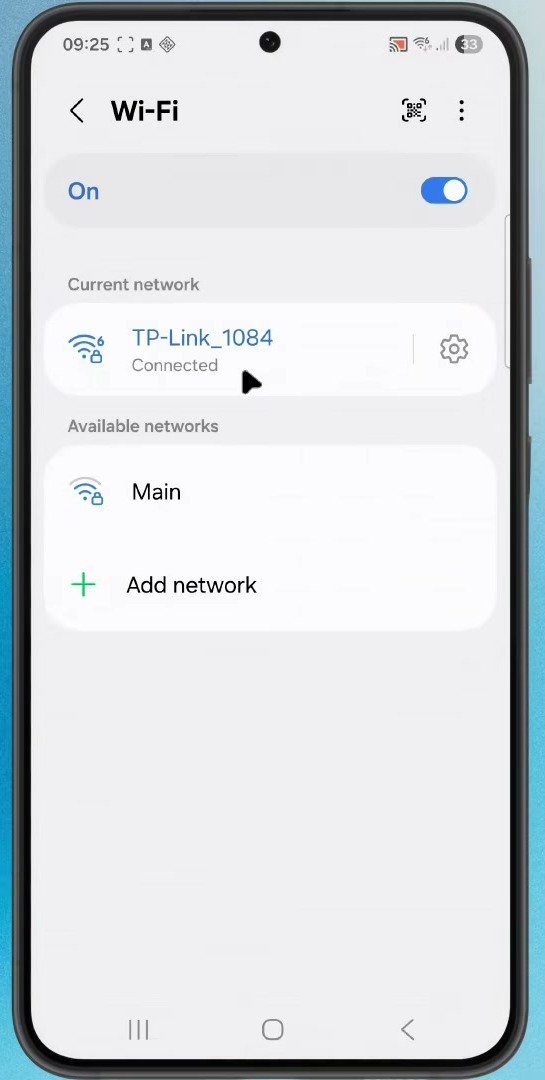
Open Settings, select Connections, and then tap Wi-Fi. Make sure the phone is connected to the network you want to share.
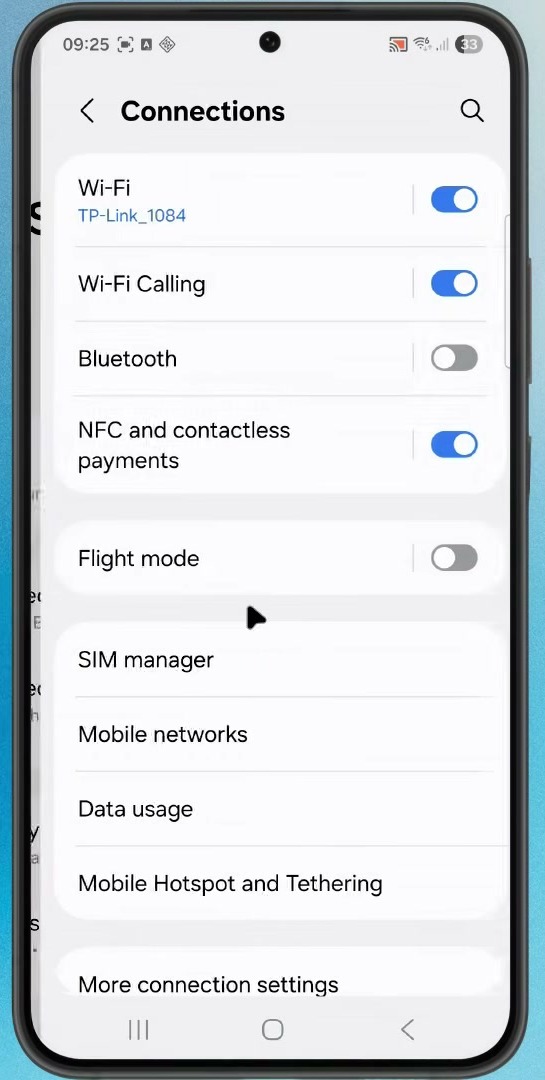
Tap the gear icon beside the connected network. A network saved on the phone but not currently connected may not offer the same sharing controls on every Galaxy model.
Open the QR Sharing Screen
On the network details page, tap QR code. Confirm your fingerprint, face, PIN, or pattern when prompted. This verification prevents somebody holding an unlocked phone from immediately viewing the saved network credentials.
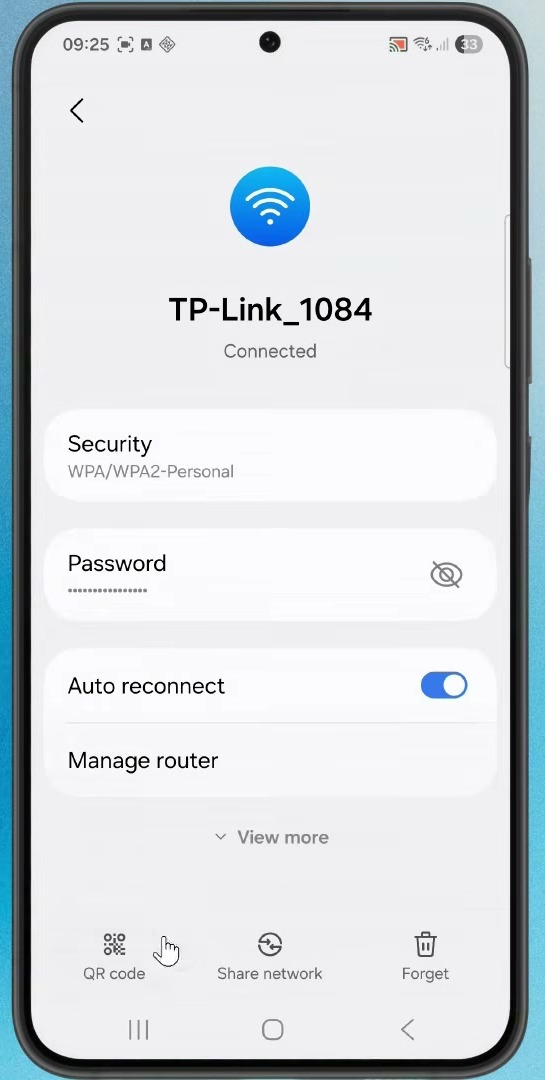
If the resulting page includes a Password line, read or copy it there and stop. Many Galaxy versions show only the QR code. In that case, another phone can scan the code directly with its Camera app and connect without typing the password.
Samsung changes labels and features across models, carriers, regions, and One UI versions. Its current Wi-Fi sharing instructions use the same general path even when the screen looks slightly different.
Use the Share Option on Pixel and Other Android Phones
On a Pixel or stock-style Android phone, open Settings and go to Network & internet > Internet. Select the connected or saved network, tap Share, and authenticate. The phone then displays its Wi-Fi QR code. Some builds also place the password below it.
The exact path can vary, so search Settings for Wi-Fi if those names are missing. Google’s current Android Wi-Fi help also notes that some steps depend on the Android version.
Read the Wi-Fi QR Code on the Same Phone
First try a built-in tool. Save the QR image or take a screenshot only when necessary. On a recent Galaxy phone, open it in Samsung Gallery and press and hold the QR code until an action appears. In Google Photos, open the image, tap More, and choose Google Lens. Lens may offer to join the network instead of displaying the password characters.
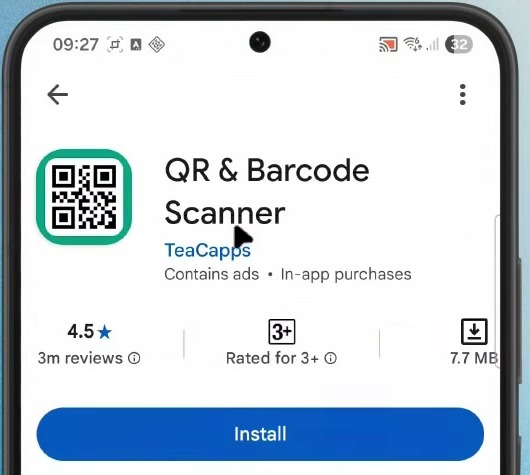
Use a third-party scanner only if the built-in options cannot provide what you need. The app demonstrated in the video is QR & Barcode Scanner by TeaCapps. Verify both the developer name and package com.teacapps.barcodescanner on Google Play before installing it.
Scan the Saved Image
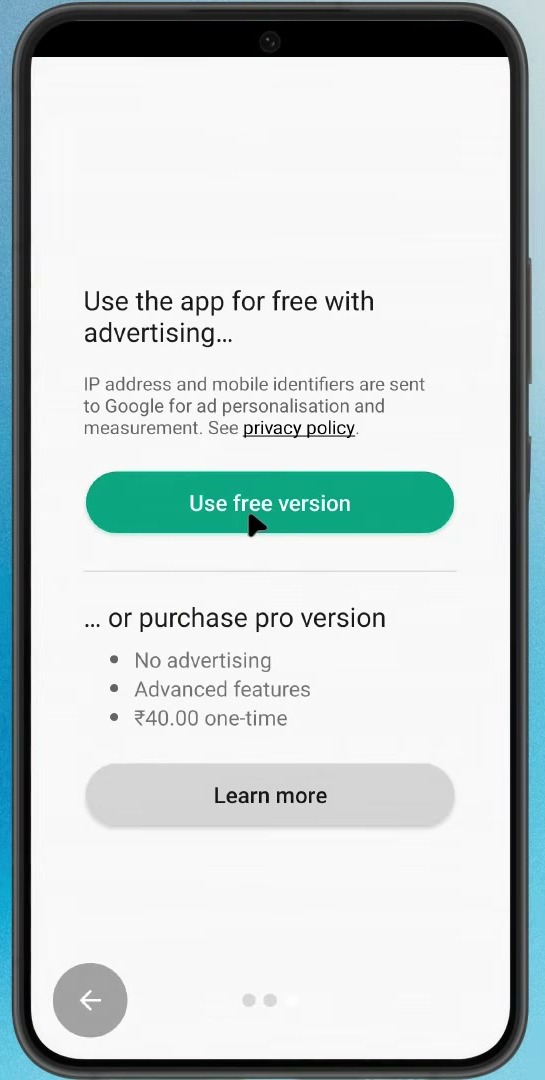
Open the scanner after installation. The free version displays an advertising choice before its main screen; choose Use free version if you do not want the paid upgrade.
Tap Scan image, select only the QR screenshot, and use Android’s photo picker if it is offered. The decoded result can contain the network name, security type, and password. Copy only the value you need, then clear the result from the scanner’s history.
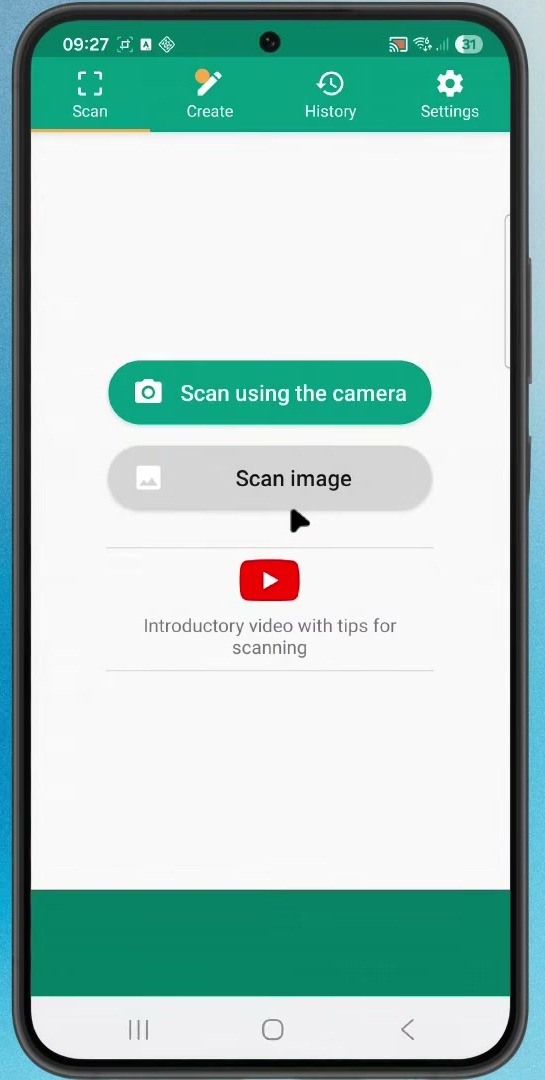
The screenshots here deliberately stop before the real QR code and decoded result shown in the recording. Publishing either image would publish the Wi-Fi credential as well.
Delete the QR Image When You Finish
Delete the QR screenshot from Gallery or Google Photos, and then remove it from Trash or the recycle bin. Clear any scanner history that retained the result. Also check that the image was not automatically backed up or shared. If the QR code has already appeared online, in a public video, or in an untrusted message, change the Wi-Fi password in the router and reconnect your devices.
For visitors, a separate guest network is safer than revealing the password for your main network. You can disable the guest network or change its key without reconnecting every personal device.
Troubleshooting
The Share or QR Code Button Is Missing
Connect to the network first and check its details again. Older Android versions and heavily customized manufacturer software may not include the sharing feature. Work, school, Passpoint, and enterprise Wi-Fi can use accounts or certificates instead of one reusable password, while a managed-device policy can disable sharing. Ask the network administrator rather than trying to bypass those controls.
The QR Image Will Not Scan
Use the original full-resolution image, keep the complete square and its white border visible, and raise the screen brightness if another device is scanning it. Do not post the image to a website for decoding. For a hidden network, the receiving phone may need the exact network name, security type, and Hidden network option entered manually.
The Revealed Password Does Not Work
The router password may have changed since the phone saved the network. Forget the connection, reconnect with the current key, and generate a fresh sharing code. If you administer the router, its local settings page or provider app is the authoritative place to change the key.
Final Thoughts
Android’s built-in Share or QR code option is the simplest way to reuse a saved Wi-Fi connection. Read the password directly when the phone displays it, scan the code from the receiving device when possible, and use an on-device image scanner only as a fallback. Most importantly, remove every saved copy of the QR code when you are done.