Do you want to use Claude Code for free on your Windows PC without paying for Claude API billing? In this guide, I will show you how to connect Claude Code with Ollama and use a local open-source AI model on your computer.
Normally, when you install and open Claude Code, it may ask you to log in with a Claude subscription or use Anthropic API billing. But with this method, we will not use the paid Claude API. Instead, we will use Ollama to run an AI model locally on Windows and connect Claude Code with that local model.
This setup is useful if you want an AI coding assistant on your Windows PC without depending on paid API credits. You can use it to create files, edit code, understand projects, and work inside Command Prompt or VS Code.
Basic Requirements
Before starting, let’s quickly understand the basic requirements.
To run local AI models smoothly, your computer should have at least 16 GB RAM. If you have an NVIDIA GPU with 4 GB VRAM or more, the performance will be better.
However, even if you do not have a very powerful PC, you can still try smaller models. Just remember that larger models need more RAM, more VRAM, and better hardware.
Tools You Need
For this setup, we need these tools:
- Node.js
- npm
- Claude Code
- Ollama for Windows
- A local AI model, such as Qwen 3.5
- VS Code, optional but recommended
Required Links
First, download Node.js and Ollama from their official websites.
Step 1: Install Node.js on Windows
The first thing we need is Node.js. Claude Code is installed using npm, and npm comes with Node.js.
Open your browser and search for Node.js download. Open the official Node.js website and download the LTS version for Windows.
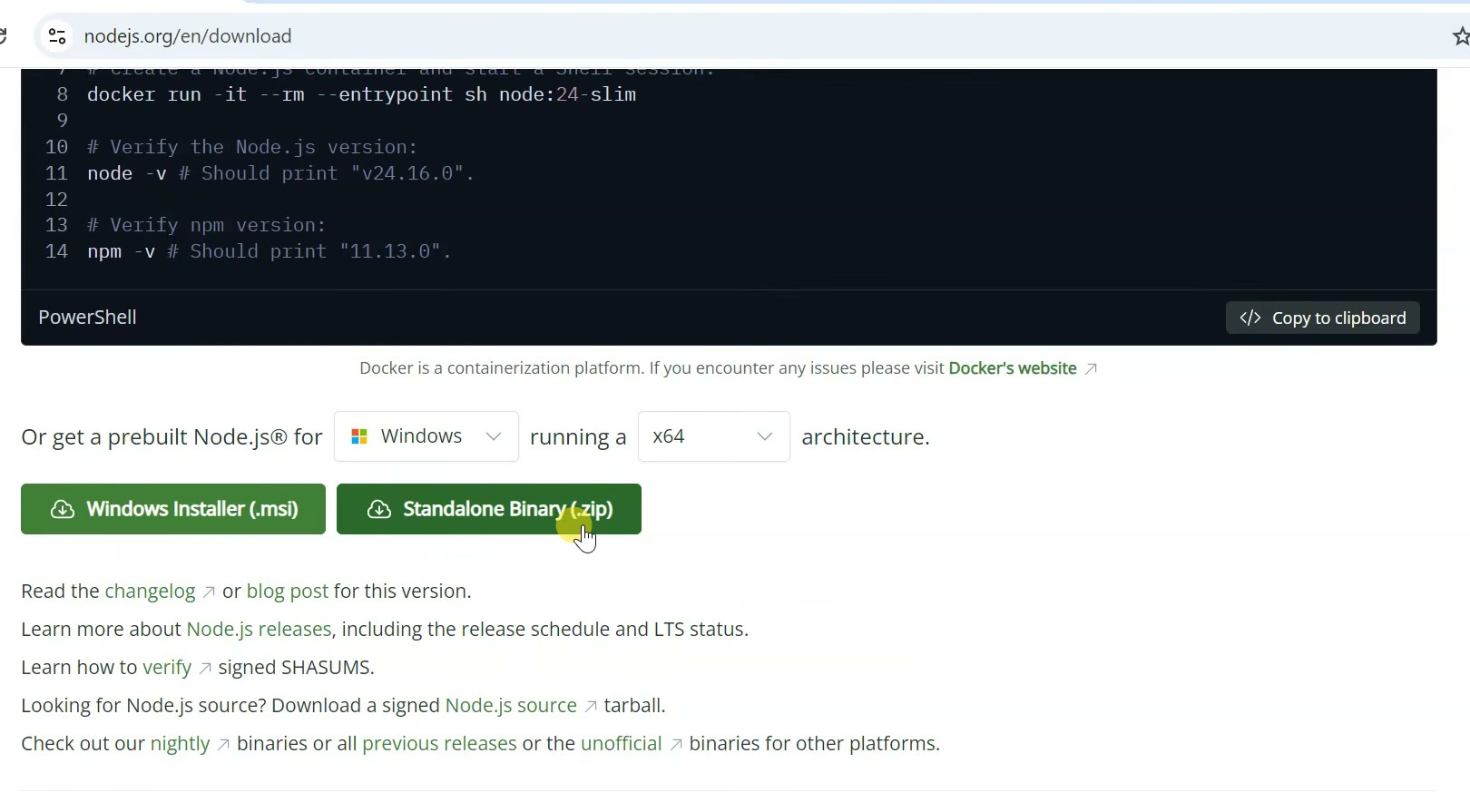
After downloading, open the installer. Keep all the options default and complete the installation.
Once Node.js is installed, open Command Prompt and run this command:
node -vIf it shows a version number, Node.js is installed successfully.
Now check npm by running:
npm -vIf this also shows a version number, then npm is working correctly.
Step 2: Install Claude Code
Now we will install Claude Code using npm.
In Command Prompt, run this command:
npm install -g @anthropic-ai/claude-codeWait for the installation to complete. Depending on your internet speed, this may take a few moments.
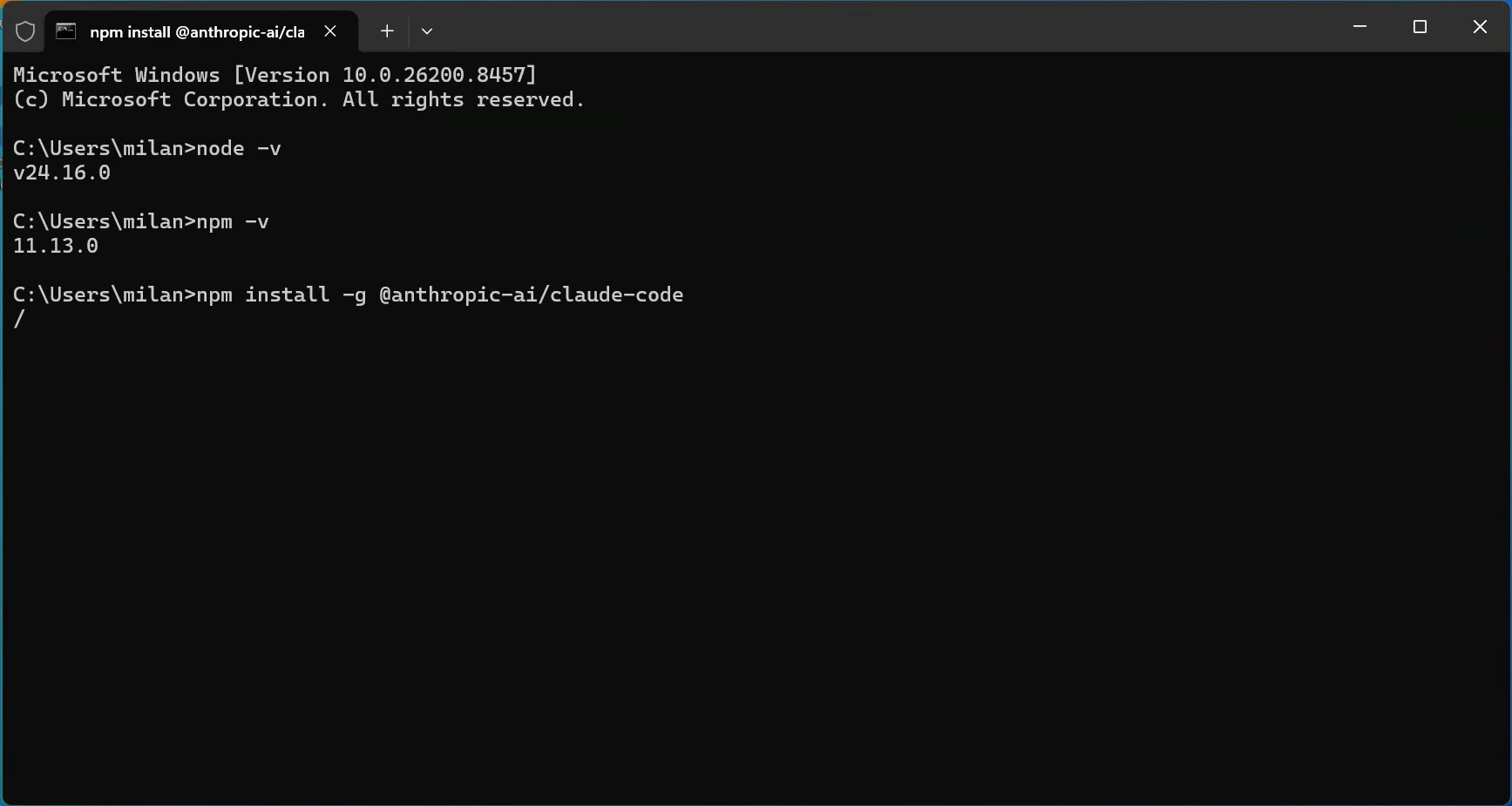
After installation, check whether Claude Code is installed correctly by running:
claude --versionIf it shows the Claude Code version number, that means Claude Code is installed successfully.
Step 3: Install Ollama on Windows
Now we need to install Ollama. Ollama is the tool that will run the AI model locally on your Windows PC.
Open your browser and go to the official Ollama website. Download the Windows version and install it normally.
After installation, Ollama will run in the background.
To check if Ollama is installed correctly, open Command Prompt and run:
ollama --version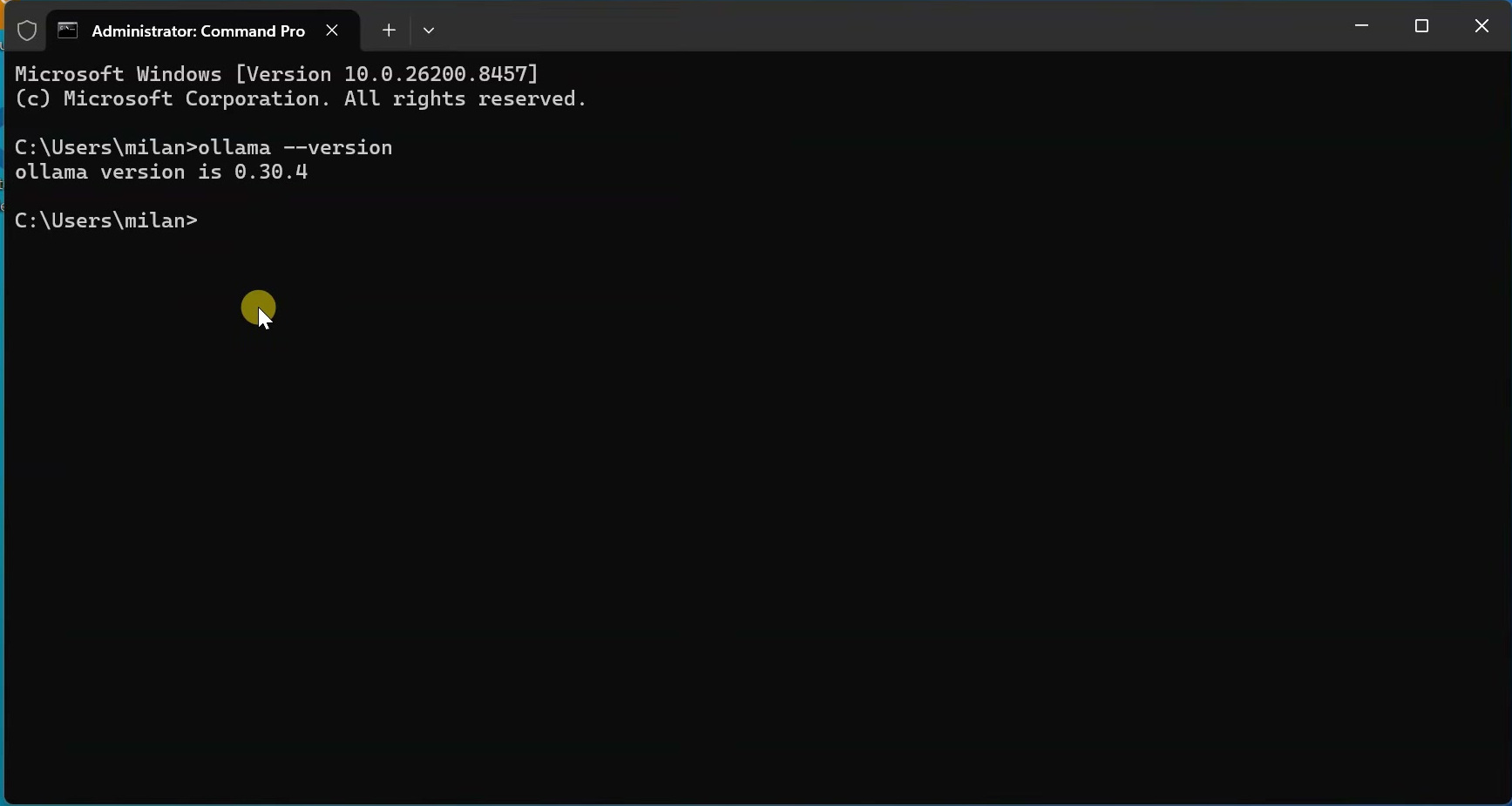
If it shows the Ollama version, then Ollama is installed properly.
You can also open this address in your browser:
http://localhost:11434If it says Ollama is running, then the Ollama server is working correctly.
Step 4: Download Qwen 3.5 Model in Ollama
Now we need to download an AI model.
For this tutorial, we will use Qwen 3.5 because it is a powerful model for coding, reasoning, and agent-based tasks.
To download Qwen 3.5, run this command:
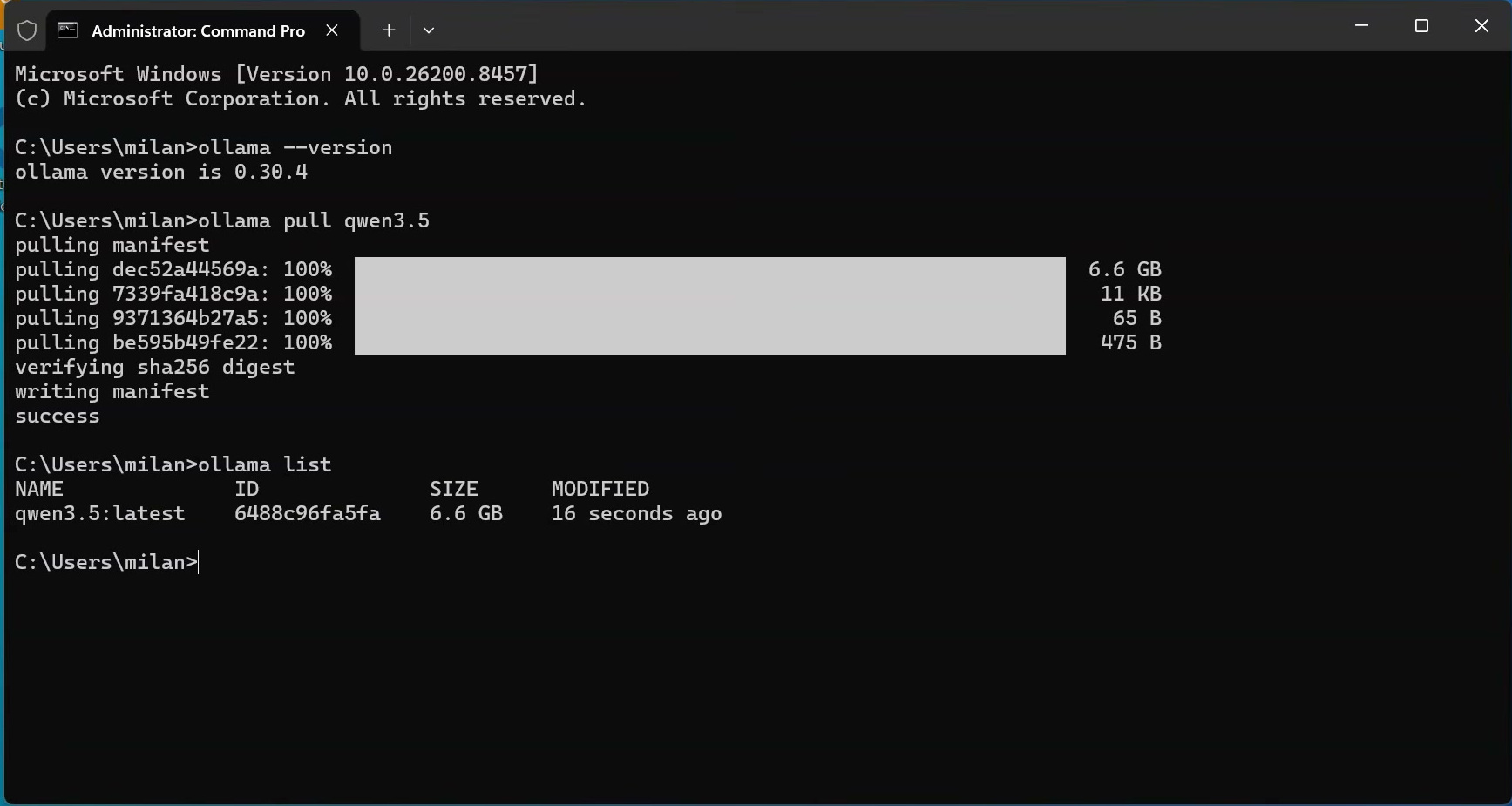
ollama pull qwen3.5The download may take some time depending on your internet speed and the model size.
After the download is complete, run this command:
ollama listHere, you should see qwen3.5 in the model list.
Step 5: Test the Qwen 3.5 Model
Before connecting it with Claude Code, let’s quickly test if the model is working.
Run the model using this command:
ollama run qwen3.5Now type a simple prompt like this:
Write a simple HTML pageIf the model replies with HTML code, that means the model is working properly.
To exit the Ollama chat, type:
/byeStep 6: Check the Default Context Window
Now comes the important part.
By default, the model may not use a large context window. But for Claude Code, a larger context window is useful because it needs to understand project files, prompts, edits, and tool instructions.
For normal chatting, a smaller context window may be okay. But for coding tasks with Claude Code, a small context window can become limited, especially when the project becomes larger.
So we will create a custom model with a 64K context window.
First, run the normal Qwen model again:
ollama run qwen3.5Keep this running.
Now open another Command Prompt window and run:
ollama ps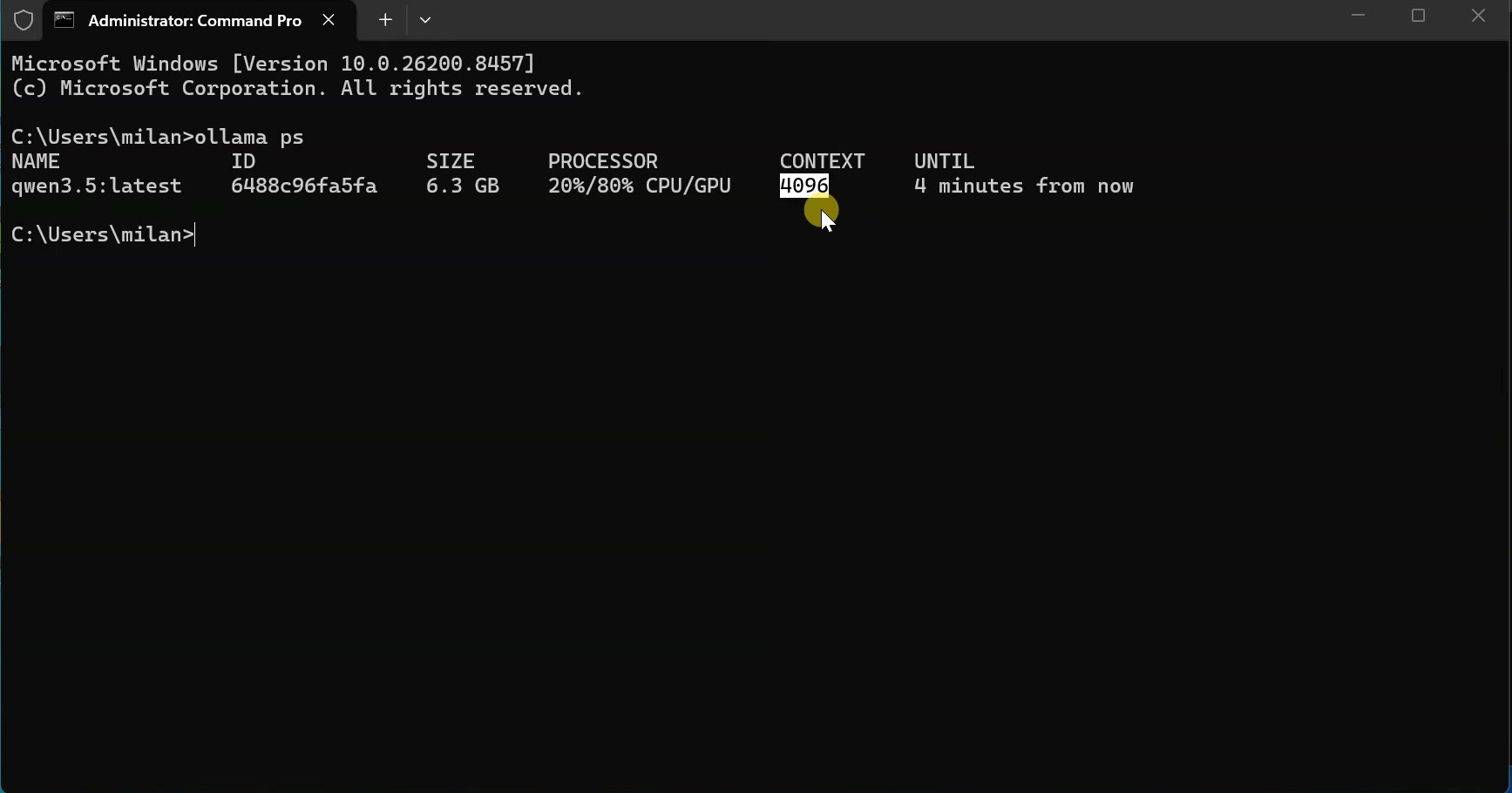
Here, if it shows something like 4096 or 4K, that means the model is currently running with only a small context window.
That is why we will create a custom model with a larger context setting.
Step 7: Create a Workspace Folder
Before creating the custom model and launching Claude Code, we need to prepare a proper workspace folder.
For this tutorial, create a folder on your Desktop named:
claude testThis folder will be used for two things. First, we will create the Ollama Modelfile inside this folder. Later, we will launch Claude Code from this same folder, so any files created by Claude Code will be saved here.
Open the claude test folder.
Now click on the address bar, type cmd, and press Enter. This will open Command Prompt directly inside this folder.
Step 8: Create a Modelfile for 64K Context
Now we need to create a configuration file for Ollama called Modelfile.
Inside the Command Prompt window, run this command:
echo FROM qwen3.5> ModelfileThis command creates a file named Modelfile and adds Qwen 3.5 as the base model.
Now run this second command:
echo PARAMETER num_ctx 65536>> Modelfile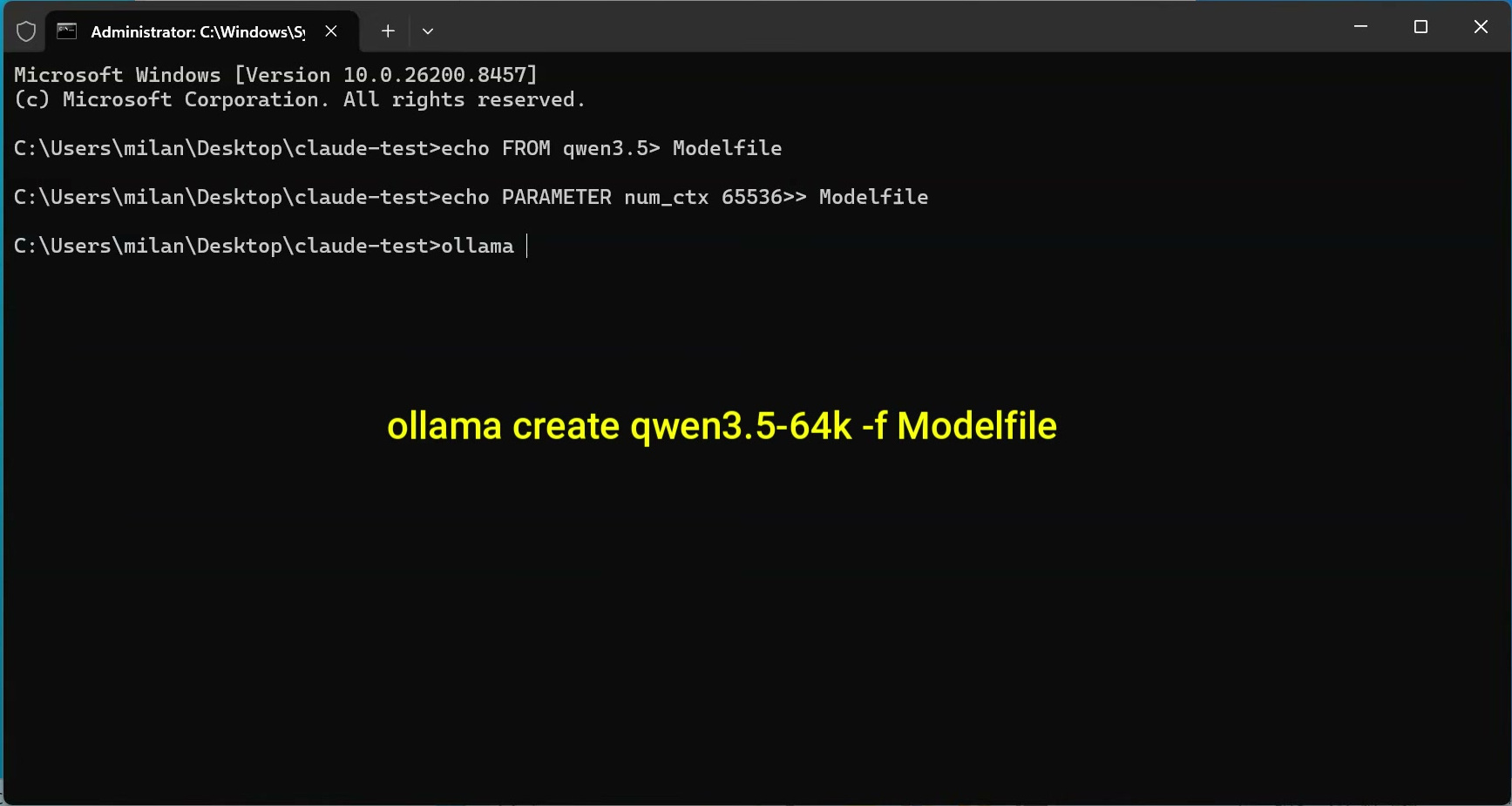
This command adds the 64K context setting inside the same Modelfile.
If you want to check the file manually, run:
notepad ModelfileInside the file, you should see this:
FROM qwen3.5
PARAMETER num_ctx 65536
Now close Notepad.
Step 9: Create the Custom Qwen 3.5 64K Model
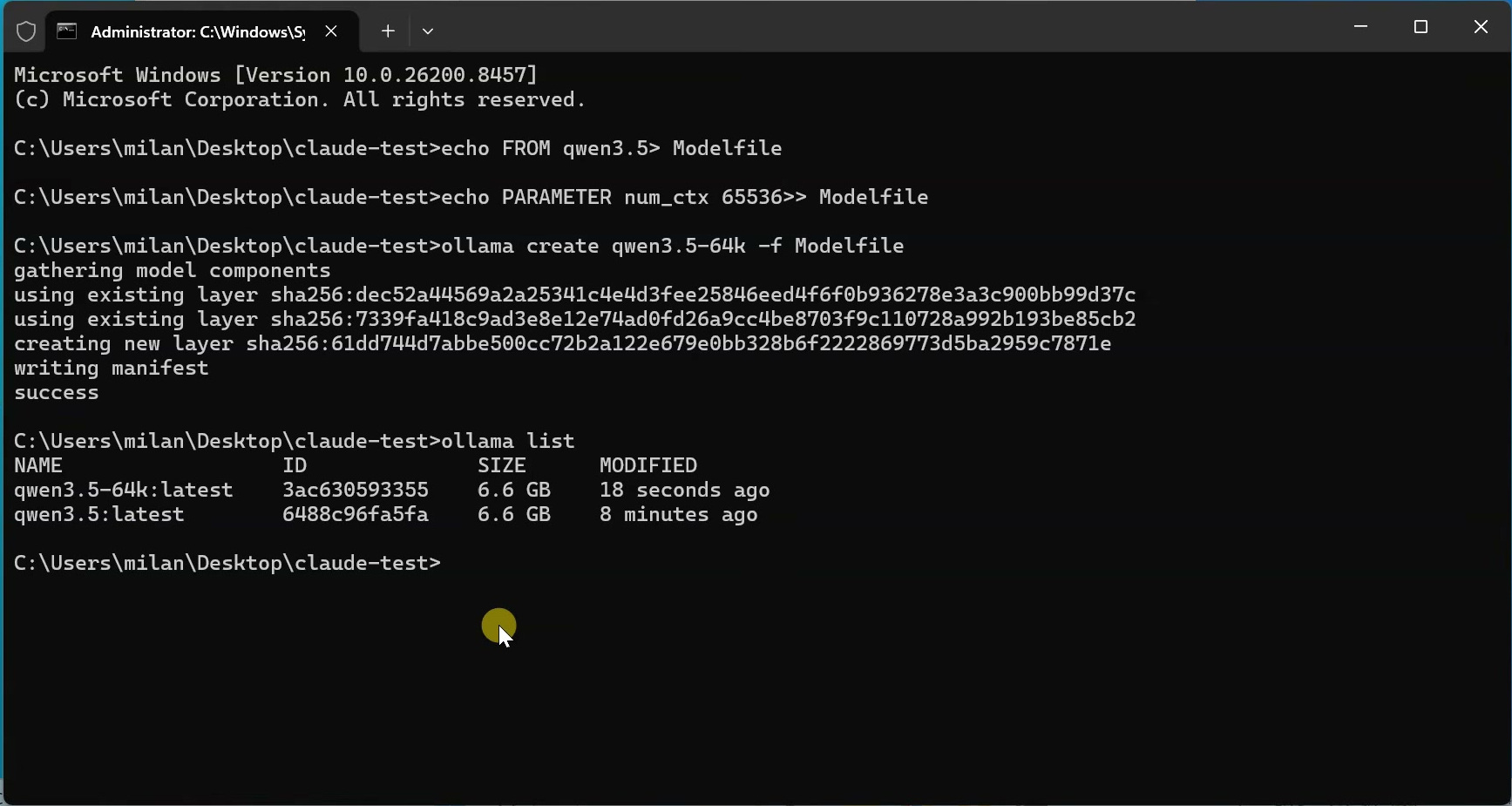
Now create the custom model by running this command:
ollama create qwen3.5-64k -f ModelfileIf everything is correct, Ollama will create the model and show a success message.
Now check the model list again:
ollama listHere, you should see the new custom model:
qwen3.5-64kThis is our custom Qwen 3.5 model with a 64K context window.
Step 10: Launch Claude Code with Ollama
Now we will connect Claude Code with Ollama.
Make sure you are still inside the claude test project folder.
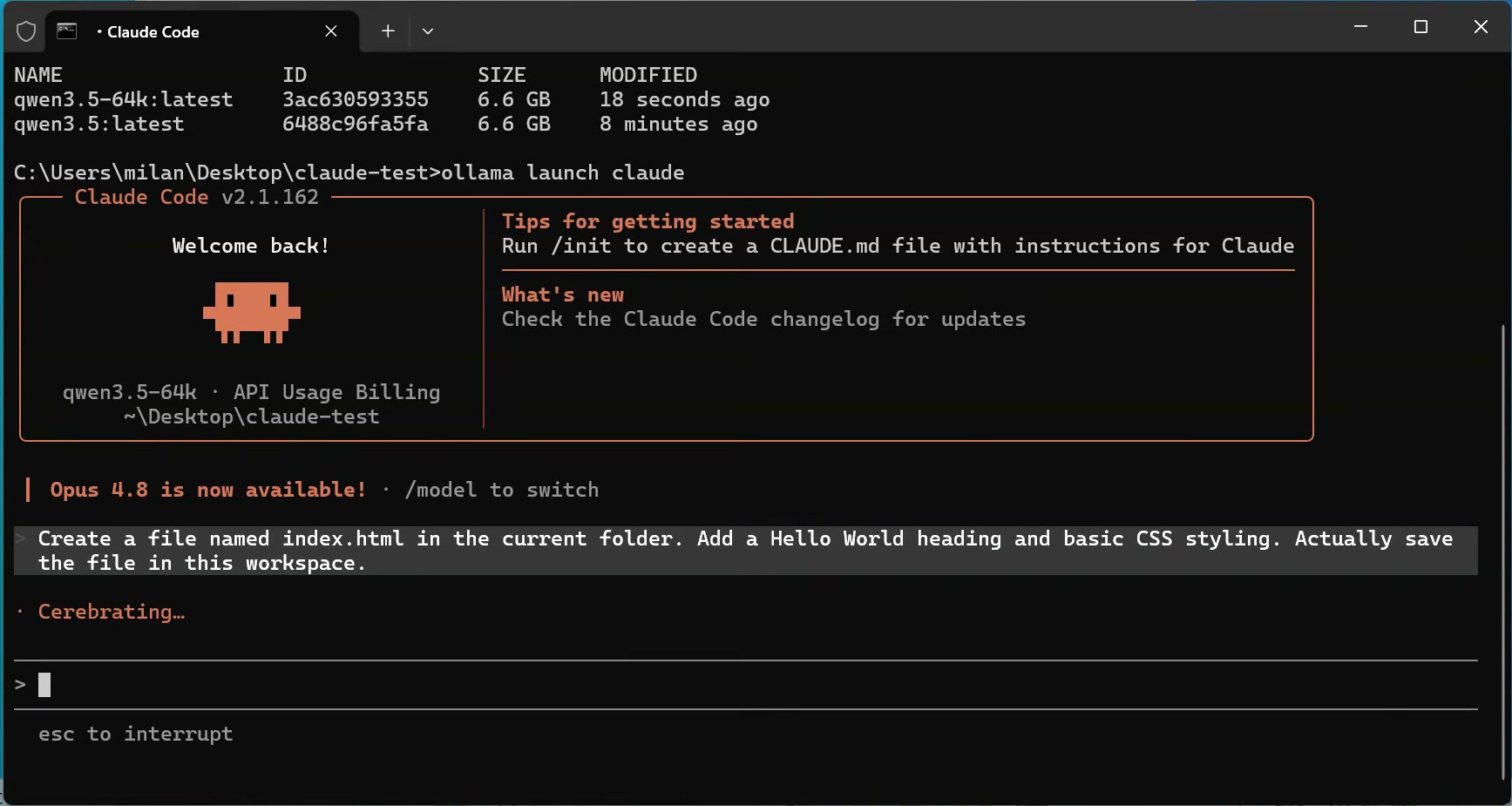
Now run this command:
ollama launch claudeAfter running the command, Ollama will show a model selection screen.
Select:
qwen3.5-64kThen press Enter.
Now Claude Code will open. Here, you should see the model name qwen3.5-64k. This confirms that Claude Code is running through Ollama using our custom local model.
Step 11: Test Claude Code by Creating a File
Now let’s test if Claude Code can actually create files inside the workspace folder.
In Claude Code, enter this prompt:
Create a file named index.html in the current folder. Add a Hello World heading and basic CSS styling. Actually save the file in this workspace.After entering the prompt, Claude Code will write the code. Once completed, it may ask for confirmation to create index.html.
Choose Yes.
After that, open your claude test folder. You should now see the index.html file.
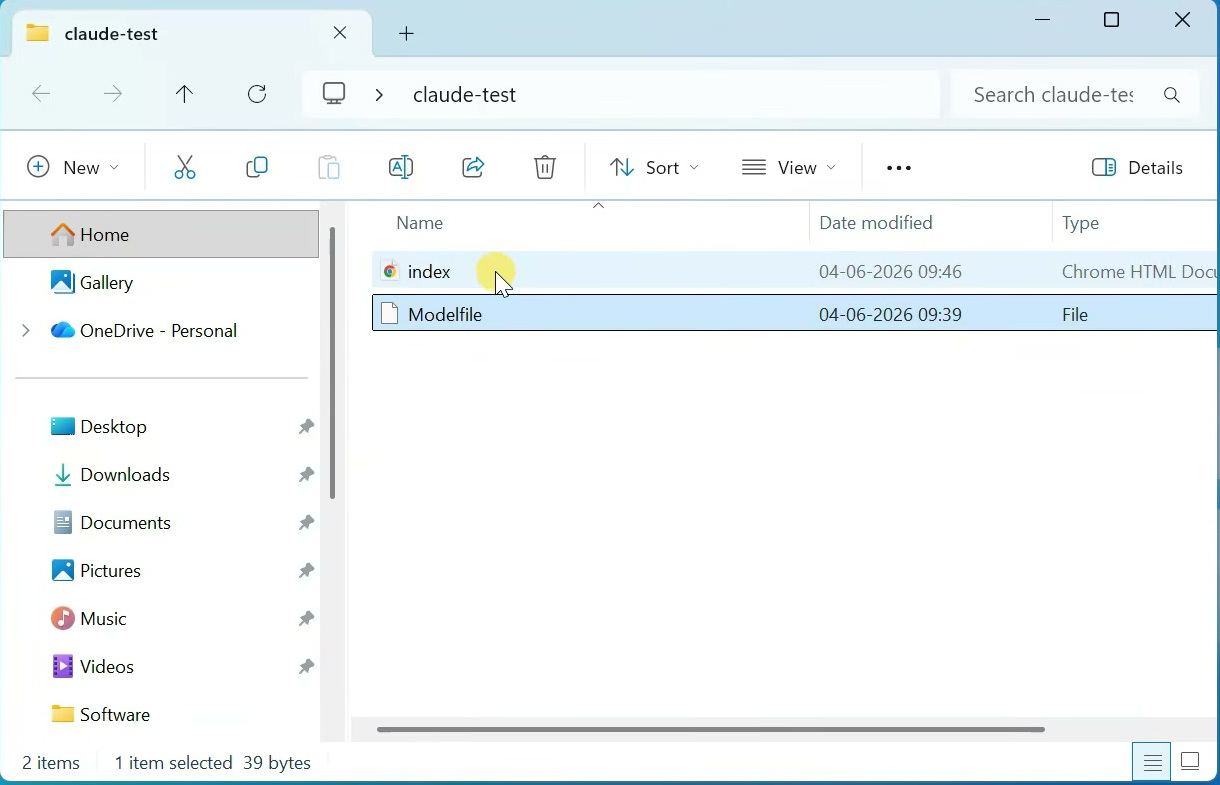
Double-click the file to open it in Chrome.
If the Hello World webpage opens correctly, then everything is working. This confirms that Claude Code is using Ollama and can create files directly inside your Windows project folder.
Step 12: Use Claude Code Inside VS Code
Now that everything is working from Command Prompt, let’s also use Claude Code inside VS Code.
First, open VS Code.
Now open the claude test folder in VS Code.
If you want to create a separate project, create a new folder inside it. For example, create a folder named:
todo-appNow open the VS Code terminal.
If you want the files to be created inside todo-app, go inside that folder using this command:
cd todo-appNow launch Claude Code again through Ollama:
ollama launch claudeSelect the qwen3.5-64k model and press Enter.
Now Claude Code will open inside the VS Code terminal.
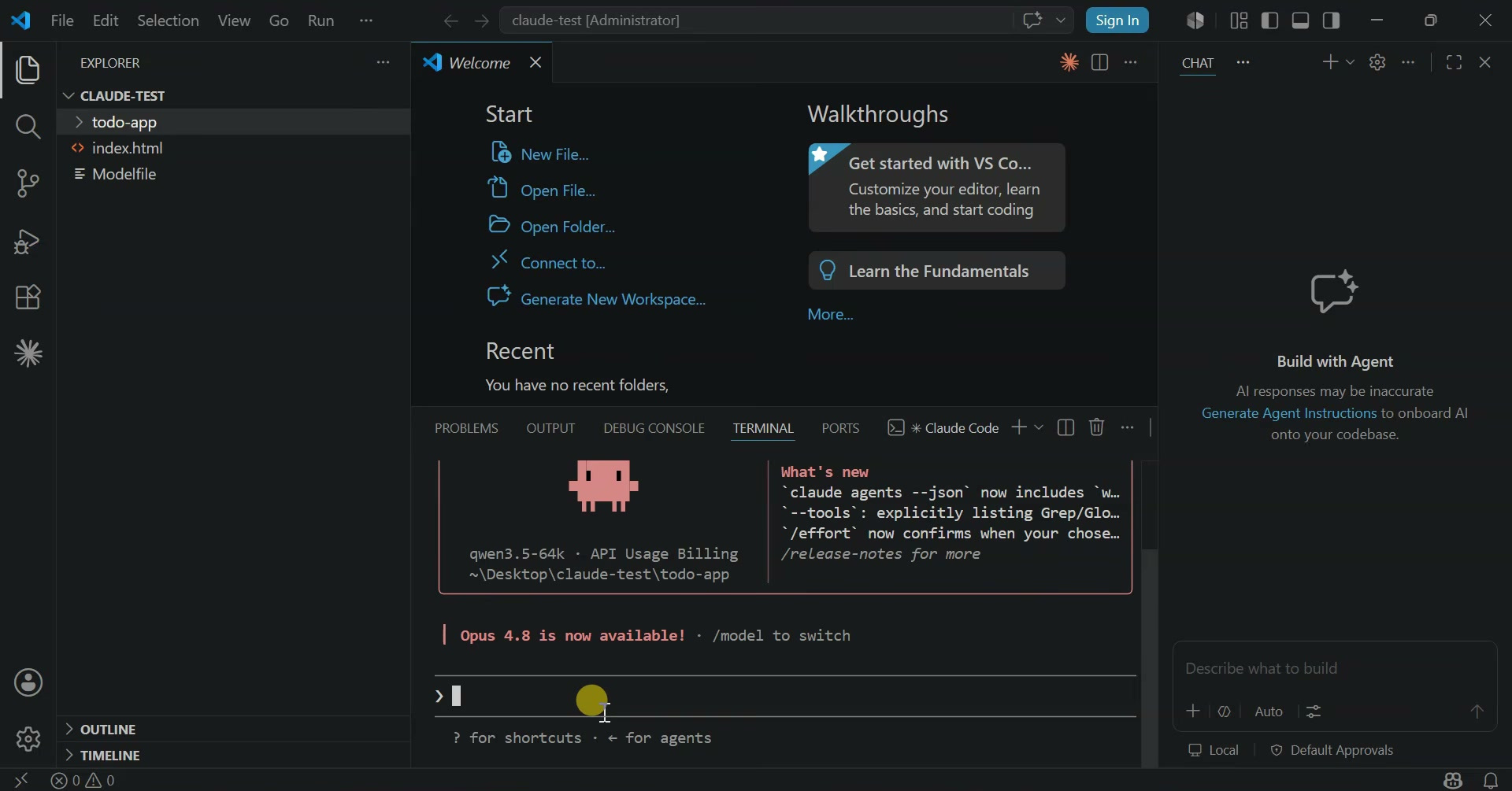
From here, you can ask it to create or edit files, and you can also see those files directly in the VS Code Explorer panel.
Step 13: Test with a To-Do App Project
For testing inside VS Code, you can ask Claude Code to create a simple to-do app.
Use a prompt like this:
Create a simple to-do app using HTML, CSS, and JavaScript. Add an input box, an Add button, a task list, and a Delete button for each task. Save all required files in this folder.After Claude Code creates the files, open the index.html file in your browser.
Now test the app.
Type a task and click on Add. The task should appear in the list.
Now click Delete, and the task should be removed.
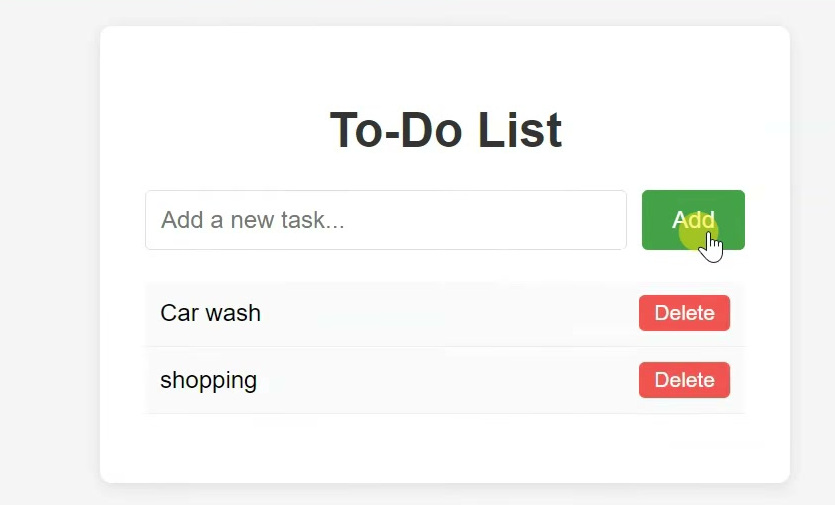
If everything works, that means Claude Code with Ollama is working perfectly inside VS Code as well.
Troubleshooting
node is not recognized
If Command Prompt says node is not recognized, Node.js may not be installed properly or it may not be added to PATH.
Restart your computer after installing Node.js and try again. If it still does not work, reinstall Node.js using the default installer options.
npm is not recognized
If npm is not recognized, reinstall Node.js because npm comes with Node.js.
claude is not recognized
If the claude command is not recognized, Claude Code may not be installed properly.
Run the installation command again:
npm install -g @anthropic-ai/claude-codeThen close and reopen Command Prompt.
ollama is not recognized
If the ollama command is not recognized, make sure Ollama is installed properly on Windows.
Restart your computer after installing Ollama and try again.
Ollama is not running on localhost
If http://localhost:11434 does not show that Ollama is running, open Ollama manually from the Start Menu.
You can also restart your PC and check again.
qwen3.5-64k is not showing
If the custom model is not showing in the model list, make sure the Modelfile was created properly.
Run:
notepad ModelfileMake sure it contains:
FROM qwen3.5
PARAMETER num_ctx 65536
Then run the model creation command again:
ollama create qwen3.5-64k -f ModelfileClaude Code is slow
If Claude Code is slow, your PC may not have enough RAM, VRAM, or processing power for the selected model.
You can try a smaller model, close unnecessary apps, or use a PC with a better GPU.
Important Notes
This setup is useful for local AI coding, but it is not exactly the same as using Claude’s official cloud models. The output quality depends on the local model you select in Ollama.
Also, even though the model runs locally, you should still be careful when allowing an AI coding tool to create, edit, or run files on your computer. Always review the code before using it in an important project.
Frequently Asked Questions
Can I use Claude Code for free with Ollama?
Yes, you can use Claude Code with Ollama and run an open-source model locally on your Windows PC instead of using paid Anthropic API billing.
Do I need Claude Pro for this method?
No, this method is designed to use Ollama with a local model. You do not need Claude Pro or paid API credits for the local model responses.
Does this run the real Claude model locally?
No. This does not run Anthropic’s Claude model locally. Claude Code is used as the coding interface, while Ollama runs a local model like Qwen 3.5.
Can I use this inside VS Code?
Yes, you can open your project folder in VS Code, open the terminal, and run Claude Code through Ollama from there.
Is 64K context required?
It is not strictly required, but a larger context window is useful for coding tasks because Claude Code may need to understand more project files and instructions at once.
Can I use another model instead of Qwen 3.5?
Yes, you can use another Ollama-supported model. But the commands in this guide use Qwen 3.5 as the example model.
Conclusion
So that is how you can use Claude Code for free with Ollama on a Windows PC.
First, we installed Node.js and Claude Code. Then we installed Ollama, downloaded the Qwen 3.5 model, created a custom 64K context version, and connected Claude Code with Ollama using the ollama launch claude command.
After that, we tested file creation from Command Prompt and also used Claude Code inside VS Code to create a simple to-do app.
This setup is very useful if you want to use AI for coding locally without depending on paid Claude API billing. The final experience will depend on your PC hardware and the model you choose, but it is a great way to experiment with local AI coding on Windows.