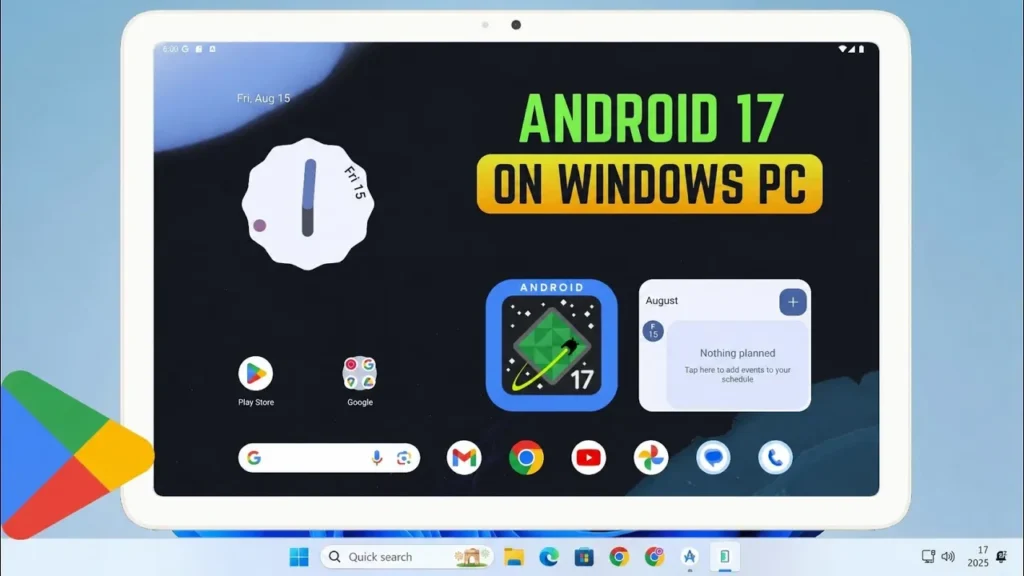
Windows Subsystem for Android, also known as WSA, allowed Windows users to run Android apps directly on their PC. But in March 2025, Microsoft officially ended support and removed WSA from the Microsoft Store. At first glance, it looks like Android apps on Windows are gone forever — but that’s not true.
WSA still works perfectly if you install it manually. And in this guide, I’ll show you the safest and easiest way to install and set up Windows Subsystem for Android on Windows 11 or Windows 10 in 2026. You’ll get full Google Play Store support, the ability to sideload APK files, and smooth Android app performance on your PC.
Whether you want to use mobile apps, test Android software, or play Android games on your computer, this step-by-step guide covers everything. Let’s get started.
Download the Required Files
Since WSA is no longer available through the Microsoft Store, we’ll install it using a trusted community build from GitHub. This package includes Google Play Services and Play Store support, so you don’t need Amazon Appstore at all.
First, open the WSABuilds GitHub page. Click on the latest release, then scroll down to the Assets section. You’ll see multiple versions available. For this guide, download the GApps version. This is the one that includes Google Play Store. The file size is around 700 MB, so it may take a few minutes depending on your internet speed.
Next, we also need Android Platform Tools. This allows us to sideload APK files using ADB later.
Once both downloads are complete, extract them to a folder that’s easy to access, such as your Desktop or C drive. After that, we’ll prepare Windows for installation.
Enable Required Windows Features
Before installing WSA, we need to turn on the virtualization components that Android relies on. Without these features enabled, the installer will fail or WSA won’t start.
Click Start, search for “Turn Windows features on or off”, and open it. A small Windows Features window will appear.
Inside this list, find and enable:
- ✅ Virtual Machine Platform
- ✅ Windows Hypervisor Platform (if available)
If you’re using Windows 11 Home, you might only see Virtual Machine Platform. That’s completely fine — just enable whatever options are available on your system.
After ticking the boxes, click OK. Windows will install the components and then ask you to restart your PC. Save your work and click Restart now.
Once your computer boots back up, we’ll enable Developer Mode and begin installing WSA manually.
Turn On Developer Mode
After rebooting, we need to allow Windows to install apps from outside the Microsoft Store. This is required for the manual WSA installation.
Open Settings → go to System → scroll down and select For developers.
Now turn on Developer Mode. Windows will show a warning message — click Yes to confirm. This doesn’t harm your system; it simply unlocks advanced installation permissions.
Once Developer Mode is enabled, your PC is ready to install Windows Subsystem for Android manually. Next, we’ll run the installation script from the WSABuilds folder.
Install WSA Using the Run.bat Script
Now we’ll install Windows Subsystem for Android using the package you downloaded earlier.
Go to the folder where you extracted the WSABuilds archive. Inside that folder, look for a file named Run.bat. This is the automated installer script.
Right-click Run.bat and choose Run as administrator.
A PowerShell window will open and the installation process will begin automatically. Don’t close the window. Just wait patiently while it installs all required components. This can take a few minutes depending on your system speed.
When the script finishes, Windows Subsystem for Android will be installed, and the Google Play Store will be added to your system. On some builds, Play Store may open automatically — if it does, that means the installation succeeded.
You can now close the PowerShell window. Next, we’ll launch WSA properly and configure it for the best performance.
Launch WSA and Start the Android System
After installation, we need to manually start the Android subsystem so it runs correctly in the background.
Click Start and open Windows Subsystem for Android.
Inside the WSA window, click Files. This step is important — opening Files boots the Android system. A small Android file window will appear. Once it opens, minimize it, but do not close it. If you close it, the Android subsystem will shut down.
Now go back to the main WSA settings window and turn on Developer mode. As soon as you enable it, you should see an IP address appear. This confirms that WSA is running and ready to accept ADB connections.
Next, we’ll optimize performance settings so Android apps run faster and smoother.
Optimize WSA Performance Settings
While WSA is open, we can adjust a few settings to make Android apps run faster and more smoothly.
Scroll to the Memory and Performance section.
Change Subsystem resources to Continuous. This keeps WSA running in the background instead of shutting down after inactivity. Apps will launch much faster because the Android system stays loaded.
If your PC has enough RAM (8GB or more is ideal), increase the memory allocation slightly. More RAM helps Android apps run smoother, especially games or heavy apps.
Next, scroll to Graphics preference.
If your PC has a dedicated GPU, set this to High performance. This improves rendering, animations, and overall app responsiveness.
Once done, leave WSA running in the background. Now you’re ready to install Android apps using the Play Store or sideload APK files.
Install Apps from Google Play Store
Now that WSA is running, you can use Android apps just like on a phone.
Open the Start Menu and launch Google Play Store. Sign in with your Google account the same way you would on an Android device. After signing in, you can browse, search, and install apps normally.
Click Install on any app you want. Once installed, the app will appear in your Start Menu alongside your regular Windows programs. You can launch it directly from there, pin it to the taskbar, or add it to the desktop.
At this point, WSA is fully working with Play Store support. But if you want to install APK files manually, the next step shows how to sideload apps using ADB.
Sideload APK Files Using ADB
Besides the Play Store, you can also install Android apps manually using APK files. For that, we’ll use ADB from the Platform Tools you downloaded earlier.
First, extract the Platform Tools ZIP file to an easy location like C:\platform-tools.
Open that folder, click the address bar at the top, type cmd, and press Enter. This opens Command Prompt directly inside the platform-tools folder.
Now go back to the WSA window and copy the IP address shown under Developer mode.
In Command Prompt, enter:
adb connect <WSA_IP_ADDRESS>:58526
For example:
adb connect 127.0.0.1:58526
If Windows Firewall asks permission, click Allow access.
If the command says connected, the link between ADB and WSA is successful.
Next, copy your APK file into the platform-tools folder. Then run:
adb install filename.apk
Replace filename.apk with the actual APK name.
After a few seconds, you’ll see Success. The app will instantly appear in your Start Menu and run like a normal Windows application.
Next, we’ll cover a few quick troubleshooting tips in case something doesn’t work properly.
Troubleshooting & Common Fixes
If everything worked, you should now have a fully functional Android environment on Windows. But if something doesn’t behave as expected, here are the most common fixes.
WSA won’t start or shows no IP address
Make sure you clicked Files inside the WSA window. This step actually boots the Android system. Without it, WSA stays idle and ADB can’t connect.
Also double-check that Virtual Machine Platform is enabled in Windows Features and that you restarted your PC after enabling it.
ADB says “unable to connect”
Confirm that Developer mode is ON inside WSA settings.
Use the exact IP address shown in WSA and include the port number. If Windows Firewall shows a popup, you must allow ADB access or the connection will fail.
Google Play Store crashes or won’t sign in
Close WSA completely, reopen it, and wait 30–60 seconds before launching Play Store. The Android system sometimes needs time to fully initialize after boot.
If the issue continues, restart your PC and open WSA again.
Apps run slowly or lag
Set subsystem resources to Continuous and increase RAM allocation if your system allows it. Also switch Graphics preference to High performance if you have a GPU.
Conclusion
Even though Microsoft officially ended support for Windows Subsystem for Android in 2025, WSA is far from dead. With the manual WSABuilds installation, you can still run Android apps, access Google Play Store, and sideload APK files on Windows just like before.
This method keeps WSA alive and working smoothly, letting you turn your PC into a powerful Android environment whenever you need it.
Enjoy running Android apps on Windows!