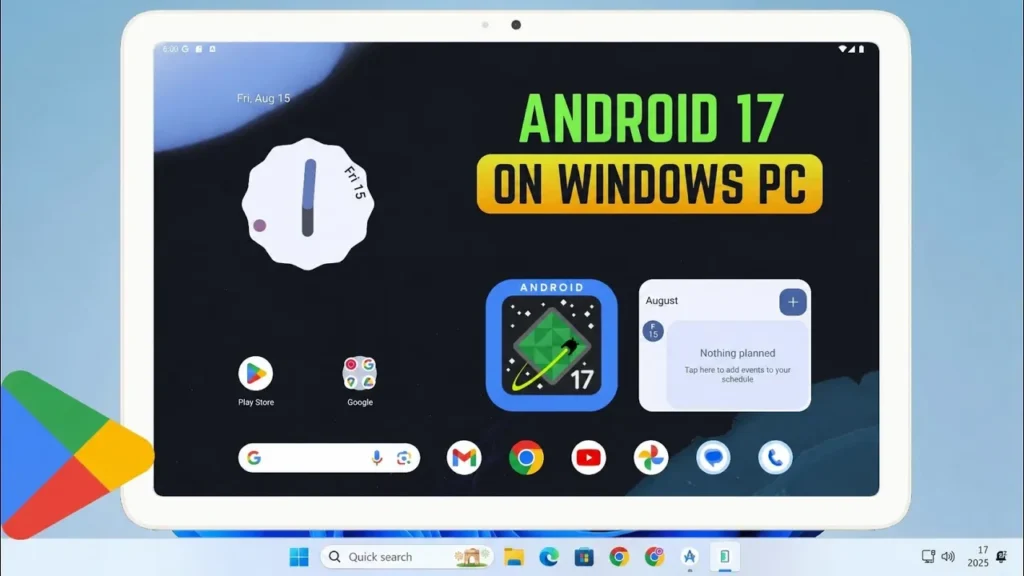
Installing Android apps on a Windows computer used to require heavy emulators that slowed down your system and drained resources. But now, there’s a much better way. With Windows Subsystem for Android (WSA), you can run Android apps directly on Windows 10 — smoothly and without needing any emulator.
In this guide, I’ll show you step-by-step how to install WSA, add Google Play Store support, and sideload APK files on your Windows 10 PC. Once everything is set up, installing Android apps becomes as easy as double-clicking an APK file, just like installing normal Windows software. Even if you’re a beginner, don’t worry — I’ll explain every step clearly.
Let’s get started.
System Requirements Before Installing WSA
Before we begin the installation, make sure your computer meets the minimum requirements. Windows Subsystem for Android runs like a lightweight virtual machine, so your hardware matters.
Your PC should have:
- At least 8GB RAM (16GB recommended for smoother performance)
- An SSD drive instead of a hard disk
- A modern processor like Intel Core i3 8th Gen, AMD Ryzen 3000, or newer
- Virtualization enabled in BIOS/UEFI
- Windows 10 updated to a recent build
Check if Virtualization Is Enabled
Press Ctrl + Shift + Esc to open Task Manager.
Go to the Performance tab → select CPU.
On the bottom-right side, you’ll see Virtualization.
If it says Enabled, you’re good to go.
If it says Disabled, restart your PC and enable virtualization from BIOS or UEFI settings.
Once these requirements are confirmed, your computer is ready to support Android apps. In the next step, we’ll enable the Windows features required for WSA.
Enable Virtual Machine Platform in Windows 10
Windows Subsystem for Android depends on a built-in Windows feature called Virtual Machine Platform. Without enabling this, WSA will not install.
Follow these steps carefully:
- Press Windows + S and type Windows features
- Click Turn Windows features on or off
- In the list, find and check ✅ Virtual Machine Platform
- Click OK
- Windows will apply changes
- Restart your computer
The restart is important — don’t skip it.
After your PC boots back up, the system is now ready to install Windows Subsystem for Android. In the next step, we’ll download the WSA package that includes Google Play Store support.
Download and Install WSA with Google Play Store
Now we’ll install Windows Subsystem for Android manually using a community build that also includes Google Play Store support.
Open the GitHub page from the button below and download the latest stable Windows 10 build.
After downloading:
- Extract the ZIP file using 7-Zip or WinRAR
- Open the extracted WSA folder
- Double-click Run.bat
- A command window will open and install WSA automatically
- Wait until the process finishes
Once completed, Windows Subsystem for Android and the Google Play Store will appear in your Start Menu.
You can now sign in with your Google account and install Android apps normally. But since we want to install APK files directly, the next step is enabling developer mode inside WSA.
Enable Developer Mode in Windows Subsystem for Android
To sideload APK files, we need to turn on developer features inside WSA. This allows Windows to communicate with Android apps.
- Open Windows Subsystem for Android from the Start Menu
- Go to Advanced settings
- Turn ON Developer mode
- Click Manage developer settings
- Find USB debugging and toggle it ON
The first time you enable USB debugging, WSA may ask for permission — allow it.
Once developer mode is enabled, your system is ready to install APK files. In the next step, we’ll install a small tool that lets you install APKs simply by double-clicking them.
Install WSA PacMan (APK Installer Tool)
Now we’ll install a small tool called WSA PacMan. This app lets you install APK files on Windows just like installing a normal EXE file.
Open the download page from the button below:
Installation steps
- Download the latest WSA PacMan installer
- Run the setup file and install it normally
- Launch WSA PacMan
If everything is configured correctly, you should see a “Connected” message inside the app. That means WSA is ready to accept APK installations.
If you don’t see Connected, open Windows Subsystem for Android once, wait for it to fully start, and then reopen WSA PacMan.
In the next step, we’ll install APK files on Windows with a simple double-click.
Install APK Files on Windows 10
Now everything is set up. Installing Android apps is extremely simple.
- Download any APK file you want (from a trusted source)
- Double-click the APK file
- WSA PacMan will open automatically
- Click Install
That’s it. The Android app will install just like normal Windows software.
After installation:
- The app appears in the Start Menu
- You can create a desktop shortcut
- It runs in its own window like a regular PC app
You don’t need to keep WSA PacMan open after installing — it only acts as an installer.
Uninstall Android apps later
If you want to remove an Android app:
Go to Windows Settings → Apps → Installed apps,
find the app, and click Uninstall.
In the next section, we’ll go over common problems and quick fixes in case something doesn’t work.
Common Problems and Quick Fixes
If something doesn’t work during setup, don’t worry. Most WSA issues are easy to fix.
WSA doesn’t open or gets stuck loading
- Restart your computer once
- Open WSA again and wait 30–60 seconds
- Make sure Virtual Machine Platform is enabled
- Confirm Virtualization is enabled in Task Manager
- Open WSA settings and toggle Developer mode OFF → ON
WSA PacMan not showing “Connected”
- Open Windows Subsystem for Android manually first
- Wait until it fully loads
- Reopen WSA PacMan
- Re-enable USB debugging
- Restart WSA and try again
APK installation fails
- Check if the APK matches your CPU architecture (x64 / ARM64)
- Try installing another APK to test
- Restart WSA and retry
- Reboot the PC if needed
Most problems are solved with a simple restart of WSA or Windows.
In the next section, we’ll wrap things up with a quick conclusion.
Conclusion
That’s it! You can now install and run Android APK files directly on your Windows 10 computer — no emulator required. Once Windows Subsystem for Android is set up, installing apps becomes as easy as double-clicking an APK file.
This method gives you better performance than traditional Android emulators and lets your Android apps behave like normal desktop programs. You can pin them to the Start Menu, create shortcuts, and uninstall them anytime from Windows settings.
If you follow each step carefully, the entire setup only takes a few minutes, and after that, you can enjoy running your favorite Android apps right on your PC.
Happy installing! 🚀