Playing PC games on an Android phone is now much easier with GameHub Emulator. GameHub is a gaming platform for Android that supports PC game emulation, Steam games, Epic Games, cloud gaming, and game streaming. With the latest version, the user interface is cleaner, the setup process is easier, and you also get improved performance settings, better touch controls, updated driver options, and frame generation support.
In this guide, I will show you how to set up GameHub Emulator on Android, import Windows PC games, connect Steam and Epic Games, apply the best performance settings, configure GPU drivers, adjust DXVK and Proton, set up touch controls, and use frame generation for smoother gameplay.
What Is GameHub Emulator?
GameHub is a Windows game emulator and gaming platform for Android. It allows you to run many PC games directly on your Android phone. It also supports Steam integration, Epic Games support, touch controls, controller support, and different performance settings for better compatibility.
Compared to older versions, the latest GameHub interface is more organized. You will see separate sections for PC Games, Steam Games, Epic Games, and Retro Games. This makes it easier to import your own Windows games or access supported games from your online game libraries.
Requirements Before Starting
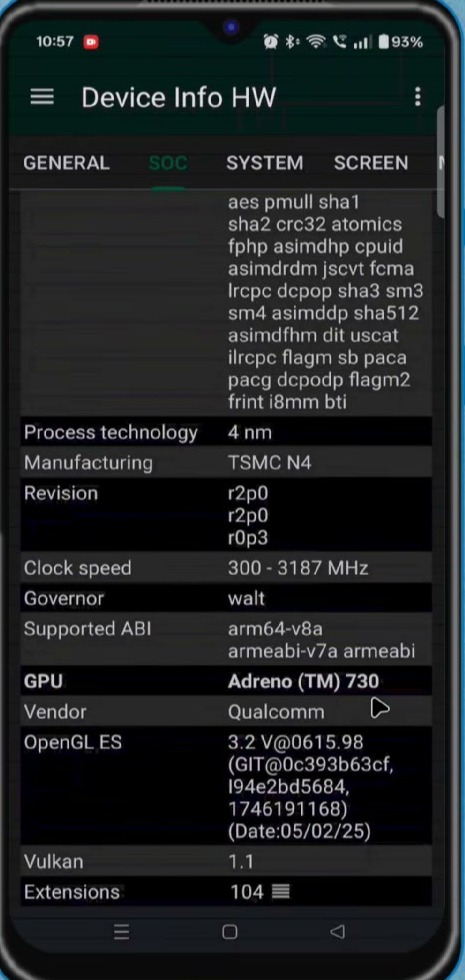
Before installing GameHub, make sure you have a decent Android phone with enough storage space. A powerful Snapdragon phone will usually give better performance because Snapdragon devices have better Turnip GPU driver support. MediaTek, Dimensity, Exynos, and Mali GPU devices may still run some games, but performance and compatibility can be different.
For this tutorial, a OnePlus 10T with a Snapdragon 8+ Gen 1 processor is used as an example. If your phone has a different processor, your settings may need to be adjusted.
You can use a device information app to check your phone model, processor, GPU, RAM, and other hardware details.
Install the Latest GameHub Emulator
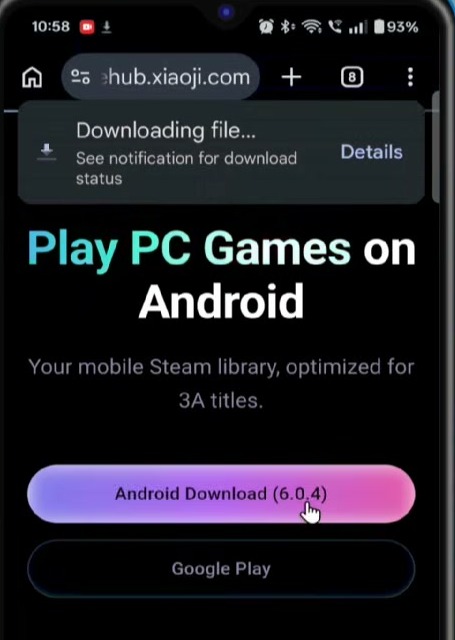
To import your own PC game files, it is better to use the latest GameHub version from the official website. The Play Store version may not include all important features like custom file import or external storage support, so the official website version is usually the better choice for this tutorial.
Open the official GameHub website and get the latest APK file. After the APK is downloaded, install it on your Android phone.
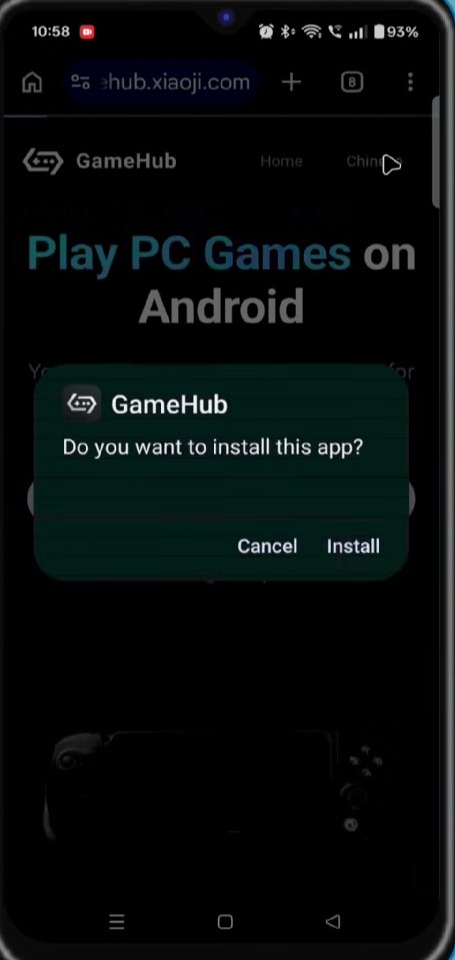
After installation, open GameHub. When you launch it for the first time, you may need to log in or create a GameHub account. You can use your Google account to sign up or log in. After signing in, GameHub may ask you to choose an emoji or profile icon. Select any profile icon, set your username, and save the changes.
Switch GameHub to Handheld Mode
After opening GameHub, you can tap the handheld mode icon to switch the interface into landscape gaming mode. This makes the app easier to use on a phone screen, especially when you are playing games with touch controls or a controller.
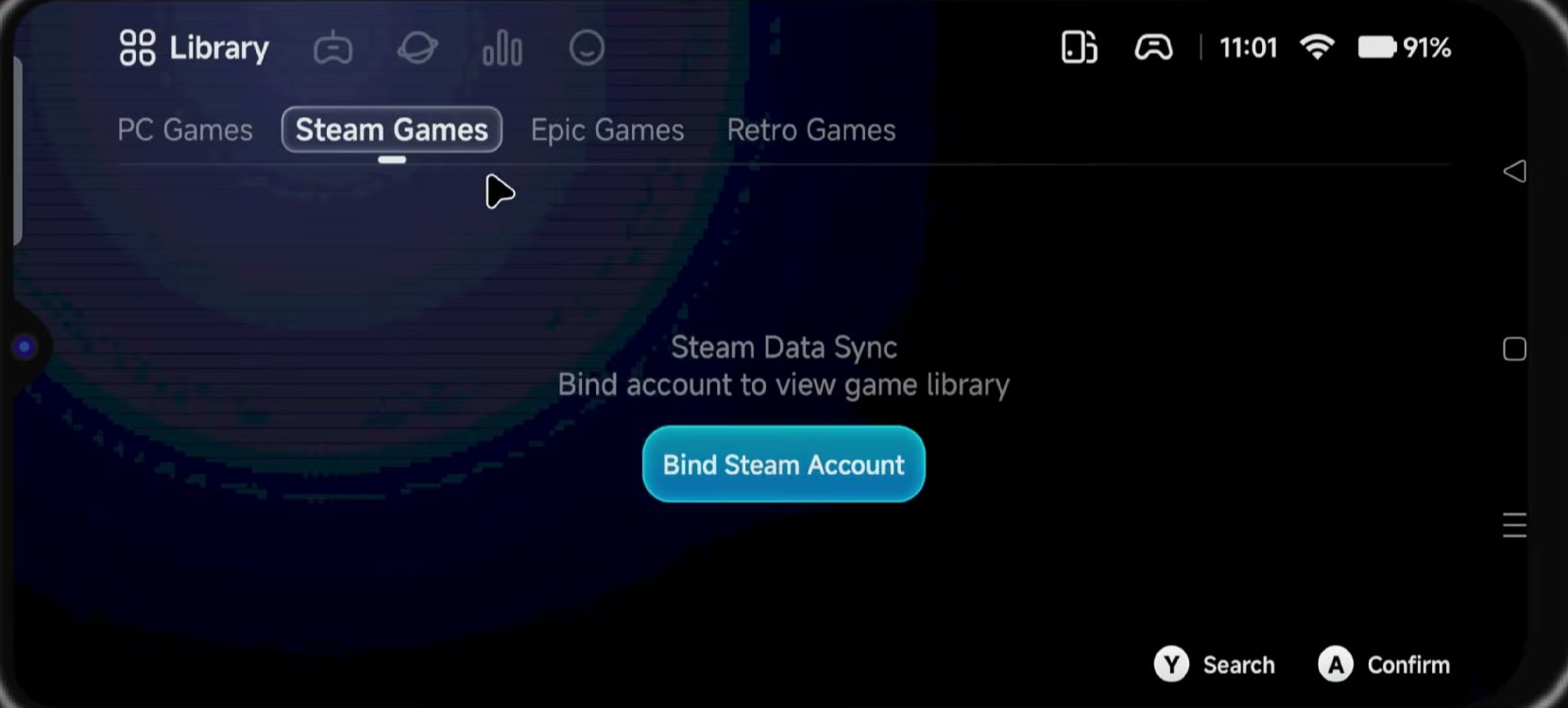
In the latest version, GameHub has different sections such as PC Games, Steam Games, Epic Games, and Retro Games. The PC Games section is used for importing your own Windows game files. The Steam Games section is used for connecting your Steam account. The Epic Games section is used for Epic Games support. The Retro Games section is for older classic games.
How to Import PC Games in GameHub
To import a Windows PC game into GameHub, you need the final installed game folder. This means you should first install the game on your Windows PC. After installation, open the folder where the game is installed. Inside that folder, you will find the main game application file, usually ending with .exe, along with all other required game files.
Now copy the full installed game folder from your Windows PC to your Android phone storage. Do not copy only the .exe file. You need to copy the full game folder, because the game also needs its data files, DLL files, configuration files, and other required components.
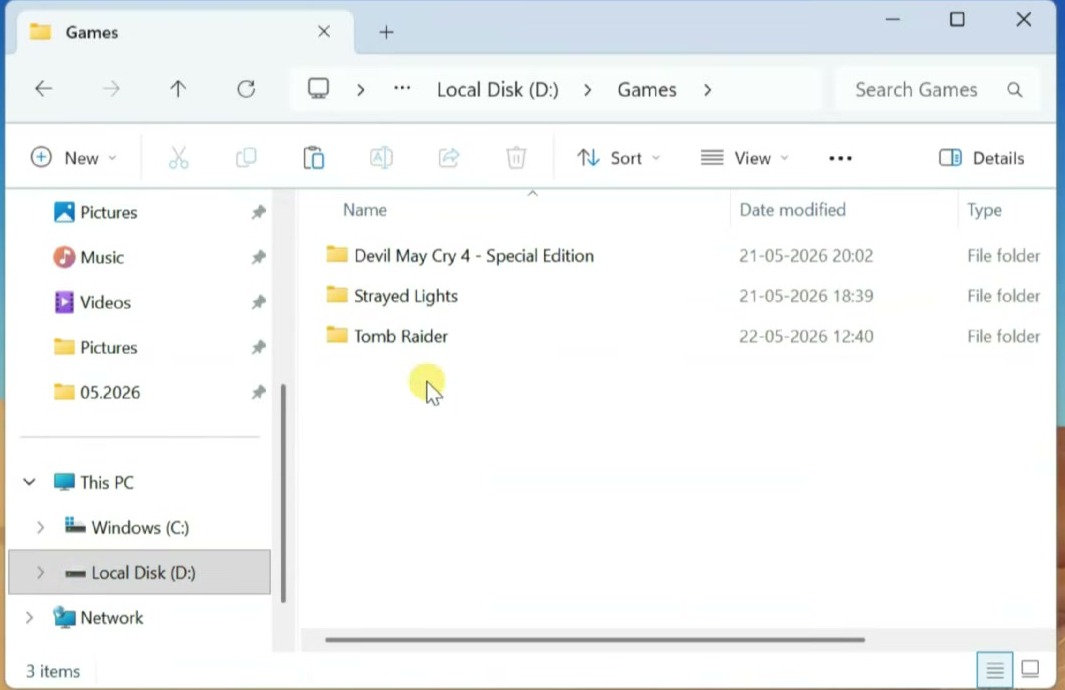
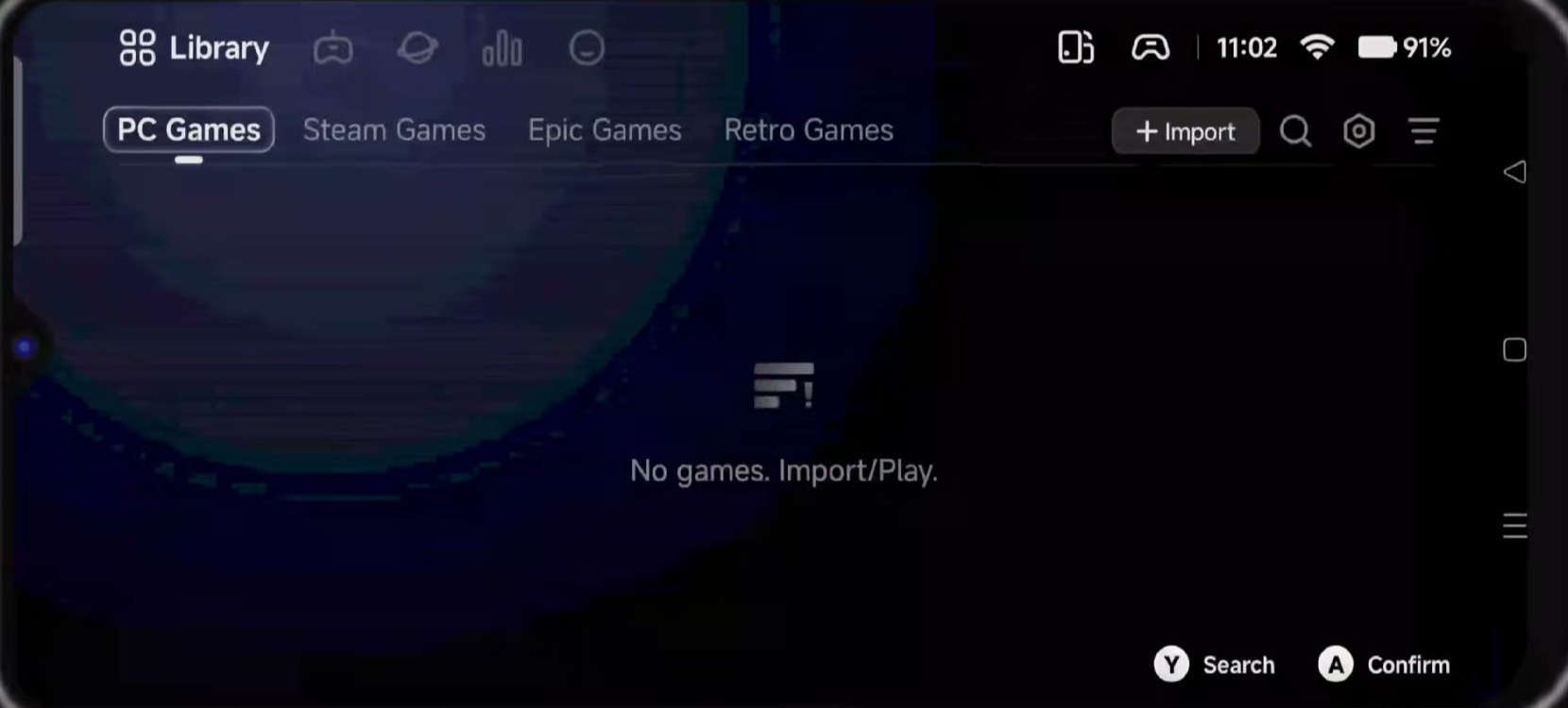
After copying the game folder to your phone, open GameHub and tap on Import. Your file manager will open. Go to the folder where you copied the PC game. Inside the folder, select the main .exe file of the game. For example, if you are importing Tomb Raider, open the Tomb Raider folder and select the main Tomb Raider executable file.
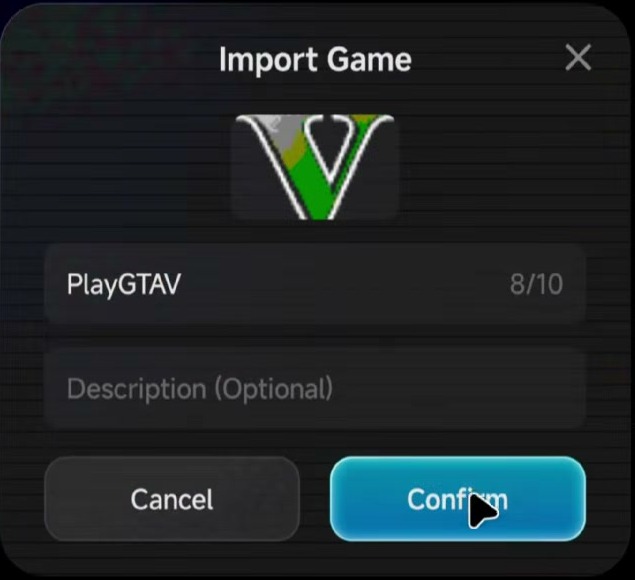
After selecting the .exe file, confirm it. GameHub will add the game to your library. If you have more PC games, you can repeat the same process. Open the game folder, select the main .exe file, and confirm it.
How to Connect Steam Games
If you want to play supported Steam games, open the Steam Games section in GameHub. From there, you can bind or connect your Steam account. After connecting your account, supported games from your Steam library can be downloaded and played through GameHub.
Keep in mind that not every Steam game will run perfectly on Android. Performance depends on the game, your phone hardware, driver support, and GameHub settings.
How to Use Epic Games in GameHub
GameHub also includes Epic Games support. To use it, go to the Epic Games section and connect your Epic Games account. After connecting your account, you can access supported Epic Games through GameHub.
Best GameHub Settings for PC Games
After adding a PC game to your GameHub library, select the game and open its settings. Then go to PC Engine. This is where you can adjust the most important emulator settings for better performance and compatibility.
1. Resolution Settings
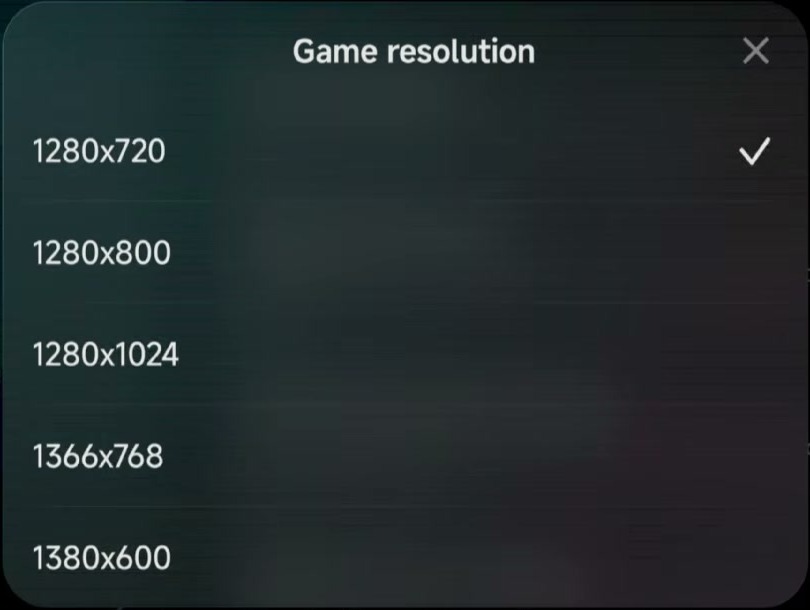
Resolution has a big impact on performance. Higher resolution makes the game look better, but it also needs more power. If your phone is not powerful enough, the game may lag, stutter, overheat, or crash.
For mid-range or low-end phones, try a lower resolution like 960 x 544 or 800 x 600. These settings can improve FPS and reduce lag. If you have a powerful Snapdragon phone with good RAM, you can try 1280 x 720 for better visuals.
2. GPU Driver Settings
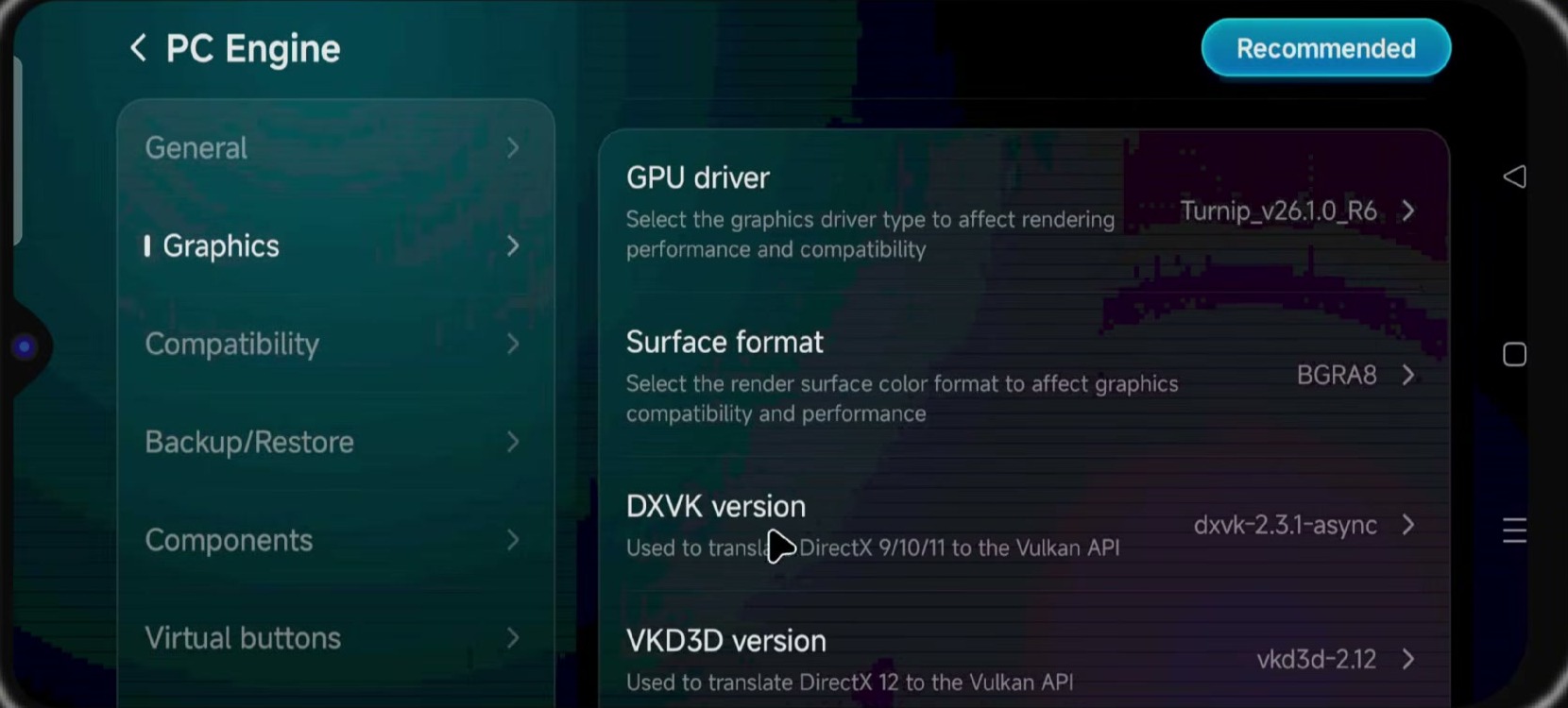
The GPU driver option is very important for performance. If your phone has a Snapdragon processor, select the latest compatible Turnip GPU Driver. For example, on a Snapdragon 8+ Gen 1 phone like the OnePlus 10T, Turnip version 26.1.0 R6 can be a good option.
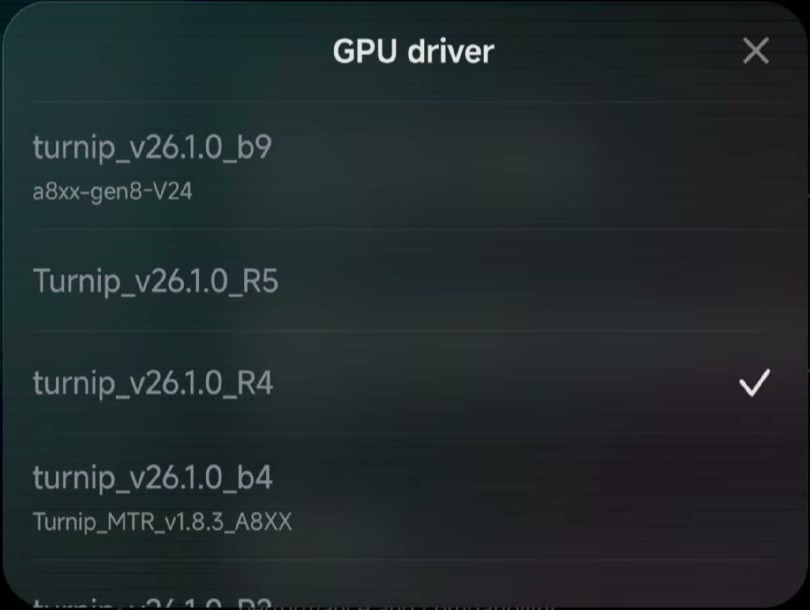
In newer GameHub versions, you may see updated Turnip drivers like Turnip 26.2.0 or newer. If your phone has a newer Snapdragon processor, choose the latest compatible Turnip driver available inside GameHub.
If your phone has a MediaTek, Dimensity, Exynos, Mali, or any non-Snapdragon processor, use the System Driver. Snapdragon phones usually perform better in PC game emulation because they have better custom driver support.
3. DXVK Version
DXVK helps DirectX games run through Vulkan, so this setting is very important for PC game compatibility. For most games, you can start with DXVK 2.3.1 async or DXVK 2.3.1 arm64.
If the game does not open, crashes, or shows graphics problems, try newer versions like DXVK 2.6.2 async or DXVK 2.7.1 async. Some older games may work better with older DXVK versions like DXVK 1.10.3 async.
There is no single DXVK version that works best for every game. If a game has graphics issues or does not launch, change the DXVK version and test again.
4. Compatibility Layer
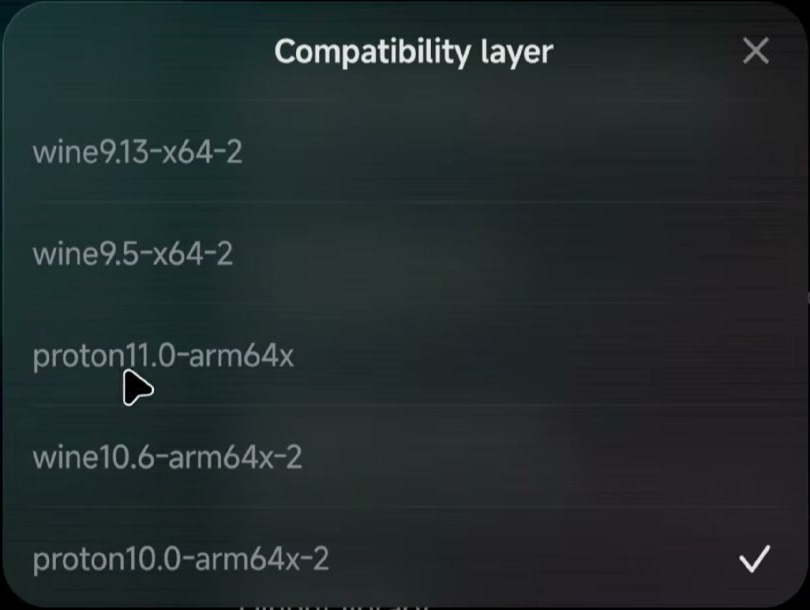
The compatibility layer helps Windows games run on Android. In older versions, many users used Proton 10 arm64 v2. In newer GameHub versions, you may see options like Proton 11 arm64.
For most games, start with the latest Proton version available in GameHub. A newer Proton version can improve performance and compatibility in many games. However, if a game does not run properly with the latest version, try an older Proton version.
5. Translation Parameters
Inside the translation parameters, you may see options like Game Presets, Compatible, Stable, Performance, and Extreme.
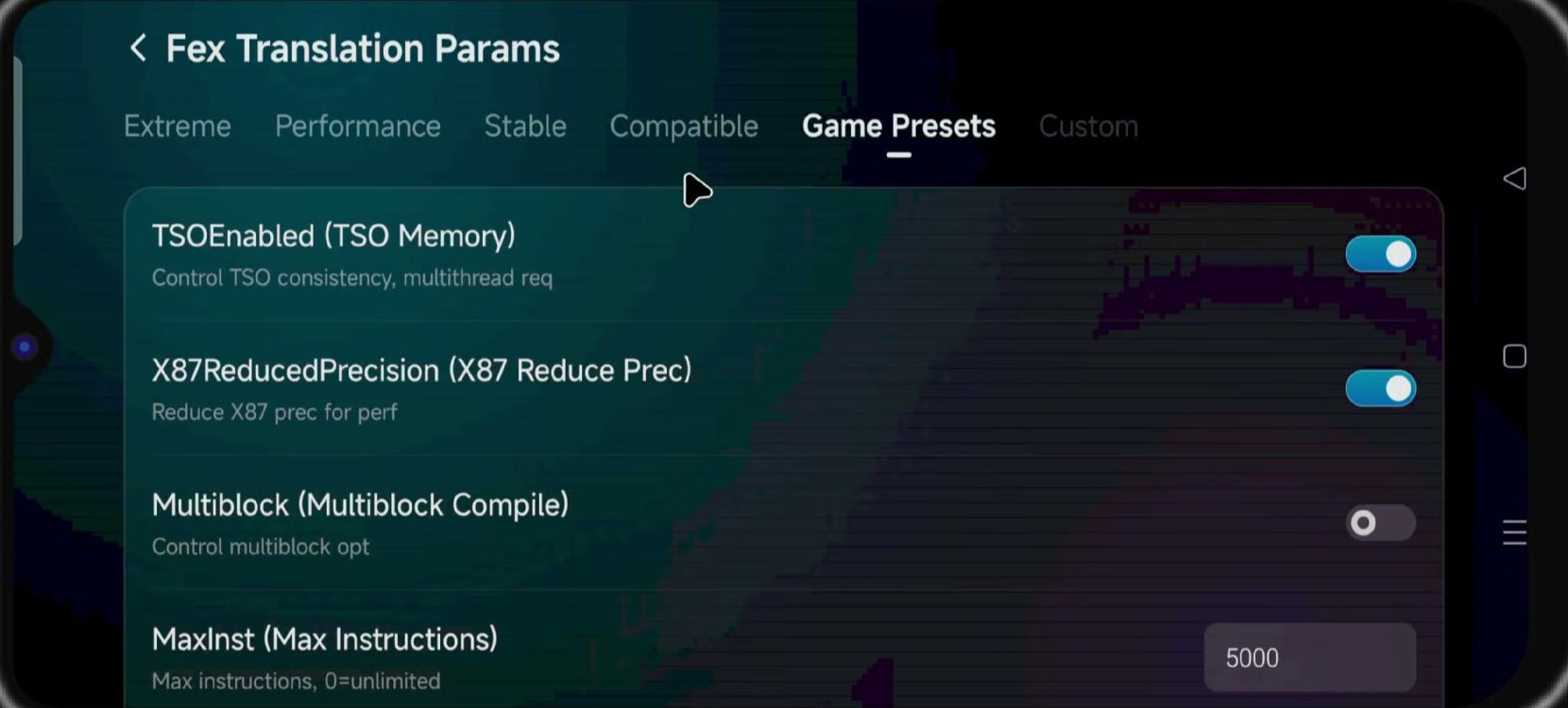
If GameHub has a preset for your game, you can try the Game Presets option first. If the game is not opening, try Compatible. If the game opens but crashes or stutters, try Stable. For normal gameplay, Performance is a good starting point.
If you have a powerful phone and want maximum FPS, you can try Extreme. But Extreme mode can sometimes cause crashing, overheating, or unstable gameplay. If the game becomes unstable, switch back to Performance or Stable.
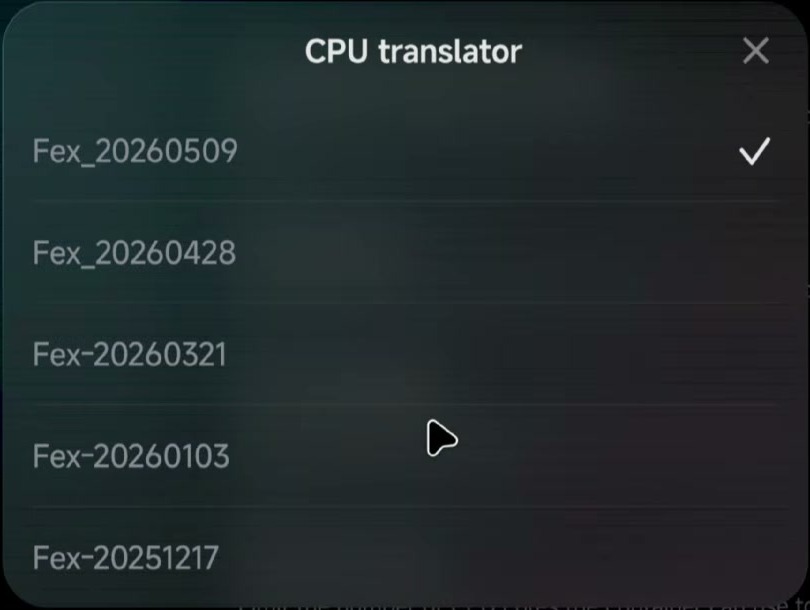
6. CPU Translator
PC games are made for x86 processors, but Android phones use ARM processors. The CPU translator helps GameHub translate x86 instructions so the game can run on your Android phone.
For this setting, select the latest available CPU translator. In most cases, the latest version will provide better compatibility and performance.
Install Required Windows Components
Some PC games need extra Windows components to run properly. If a game shows a C++ error, install VC Redist 2022. If a game needs Vulkan files, install Vulkan Runtime. Some games may require additional components depending on the error message.
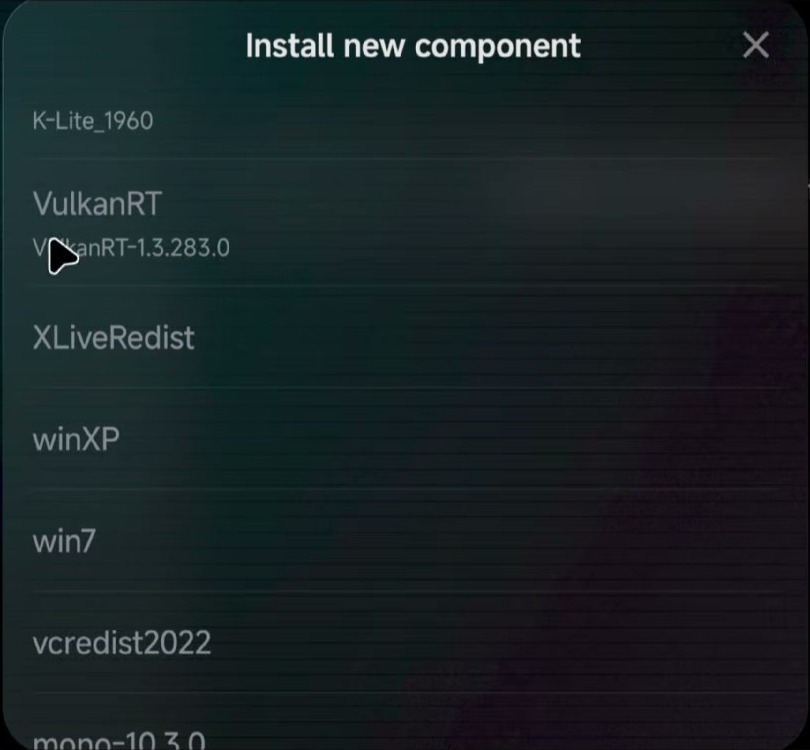
If a game does not launch, always read the error message carefully. The error message often tells you which component is missing.
Set Up Touch Controls in GameHub
The latest GameHub version includes improved touch controls. To configure the controls, open the Buttons and Layout option. Here, you can select an existing touch control profile if available.
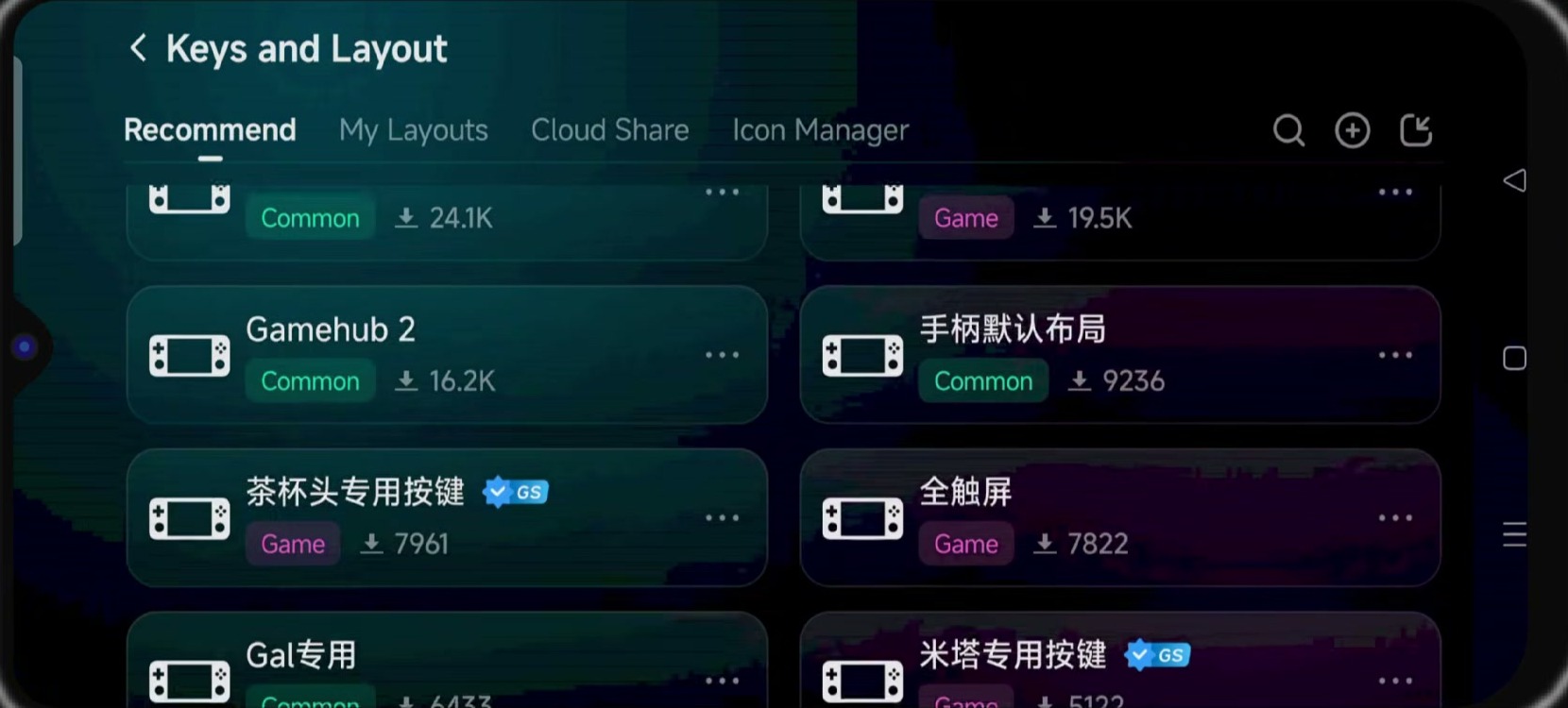
For example, if you are playing GTA 5, you may find a GTA 5 touch control layout. This type of layout already includes important buttons like movement, camera control, accelerator, brake, left, right, and action buttons.
You can also customize the layout manually. You can move buttons, resize them, change transparency, and place them wherever you want. If you already have a control layout file, you can import it and use it inside GameHub.
Once the layout is ready, go back and launch the game.
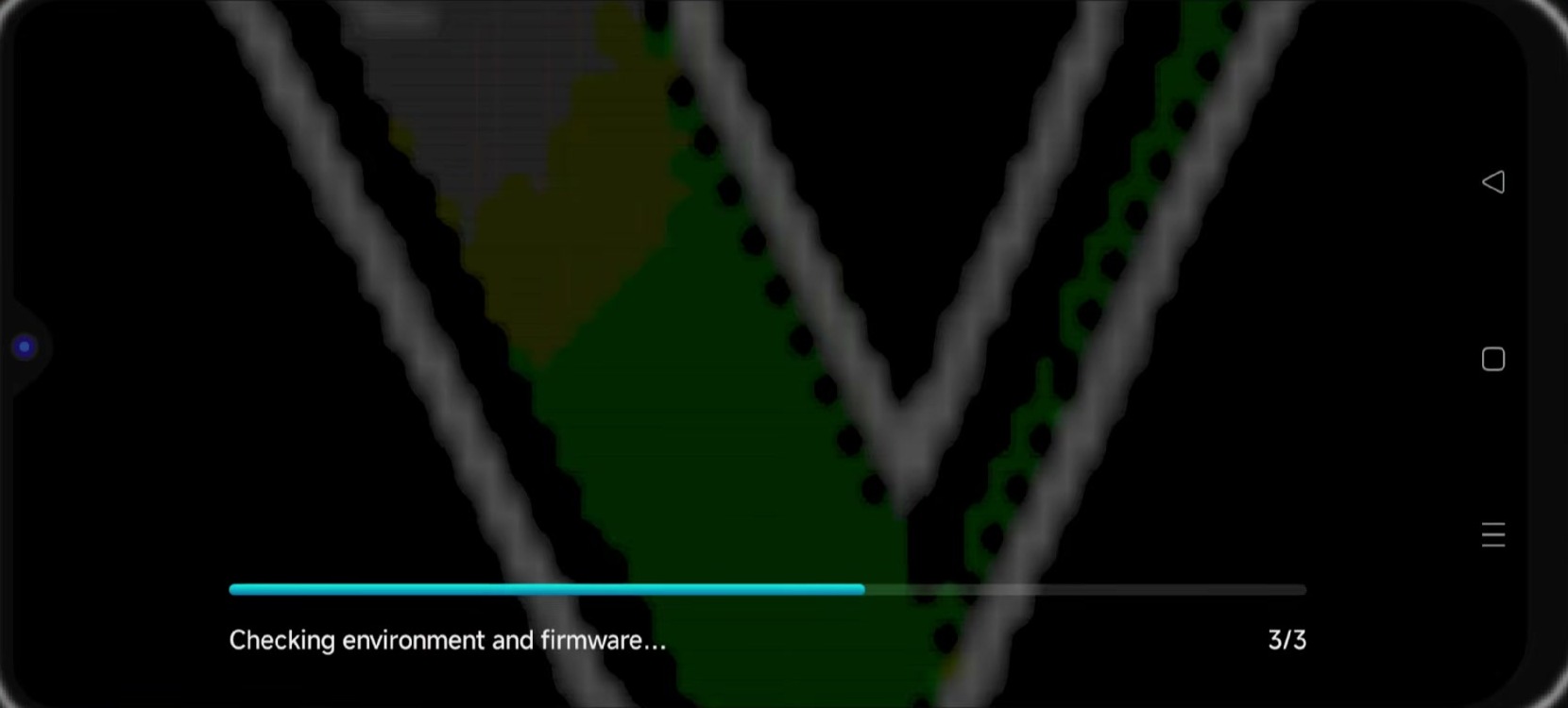
First Launch May Take Some Time
When you launch a PC game for the first time, GameHub may take some time to prepare everything. It may install or update required files like firmware, VKD3D, drivers, and other system components.
Do not close the app during this process. Wait until GameHub finishes preparing the game. After that, the game should start.
Enable On-Screen Controller
If you do not have a physical game controller, you can use the on-screen controller. Once the game starts, press the back button once. Then open the Controller tab and enable the Virtual Buttons option.
This will show the touch controls on the screen so you can play without an external controller.
How to Use Frame Generation in GameHub
In GameHub 6, a new frame generation feature has been added. Frame generation can make gameplay look smoother by generating extra frames. For example, if a game is running around 30 FPS, frame generation may make it feel closer to 60 FPS in some cases.
To use this option, open Performance Settings. First, disable Frame Limit. After that, find the Frame Generation option. You may see options like Balanced and Max.
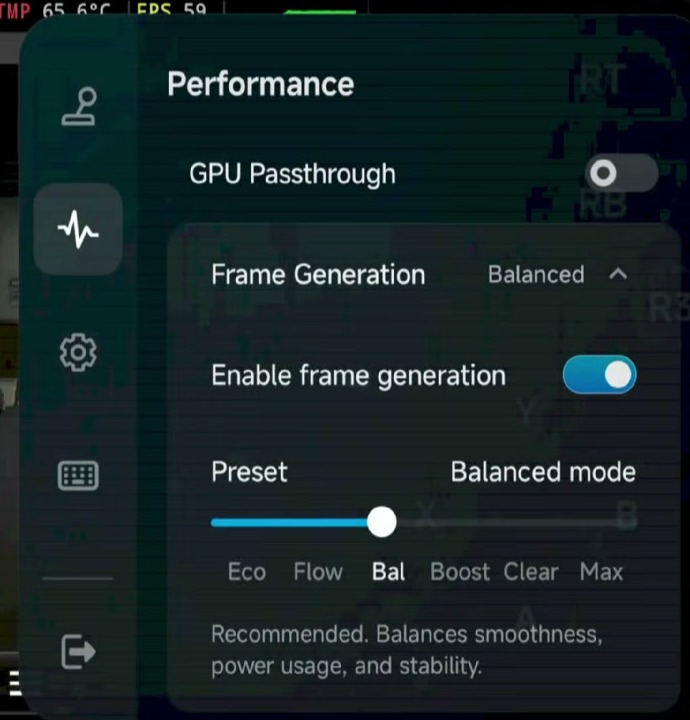
Before enabling frame generation, test the game normally and check the FPS. Then enable frame generation and set it to Balanced. Check the FPS and gameplay smoothness again. If you want to test further, change it to Max and compare the result.
Frame generation does not increase the real power of your phone. It creates extra frames to make the game look smoother. In some games, it works well. In other games, it may cause input delay, unstable FPS, or visual glitches.
If the game feels delayed, unstable, or glitchy, turn off frame generation. This feature usually works better on powerful phones with newer Snapdragon processors.
Best Settings Summary for GameHub Emulator
| Setting | Recommended Option |
|---|---|
| Resolution | 960 x 544 or 800 x 600 for better performance, 1280 x 720 for powerful phones |
| GPU Driver | Turnip Driver for Snapdragon, System Driver for non-Snapdragon phones |
| DXVK | Start with DXVK 2.3.1 async or arm64, then test newer or older versions if needed |
| Compatibility Layer | Use the latest Proton version first |
| Translation Parameter | Performance for normal use, Stable for fewer crashes, Compatible if the game does not open |
| CPU Translator | Latest available CPU translator |
| Frame Generation | Test Balanced first, use Max only if it feels smooth and stable |
Tips to Improve GameHub Performance
- Use a phone with a powerful Snapdragon processor for better driver support.
- Lower the resolution if the game is lagging or crashing.
- Try different DXVK versions if the game has graphics issues.
- Use Performance mode for normal gameplay.
- Switch to Stable mode if the game crashes.
- Turn off frame generation if you notice input delay or visual glitches.
- Keep your phone cool during long gaming sessions.
- Use a physical controller for a better gaming experience.
Common GameHub Problems and Fixes
Game Not Opening
If the game does not open, try changing the DXVK version, Proton version, or translation parameter. Also check if the game needs extra components like VC Redist or Vulkan Runtime.
Game Crashing
If the game crashes, lower the resolution and change the translation parameter from Extreme or Performance to Stable. You can also try a different DXVK version.
Graphics Glitches
Graphics glitches are usually related to GPU driver or DXVK compatibility. If you are using a Snapdragon phone, try a different Turnip driver. If that does not help, change the DXVK version.
Low FPS
For low FPS, reduce the resolution, use Performance mode, close background apps, and keep the phone cool. You can also test frame generation, but disable it if the game feels delayed or unstable.
Touch Controls Not Showing
If touch controls are not showing, press the back button during gameplay, open the Controller tab, and enable Virtual Buttons.
Final Words
GameHub Emulator makes it possible to play many Windows PC games directly on an Android phone. With support for PC game imports, Steam games, Epic Games, touch controls, updated drivers, DXVK, Proton, and frame generation, it is one of the easiest ways to try PC gaming on Android.
However, performance depends on your phone hardware and game compatibility. Snapdragon phones usually provide better results, especially when using Turnip GPU drivers. If a game does not work properly, try changing the resolution, GPU driver, DXVK version, Proton version, and translation settings.
With the right settings, GameHub can run many PC games smoothly on Android and give you a portable PC gaming experience directly on your phone.