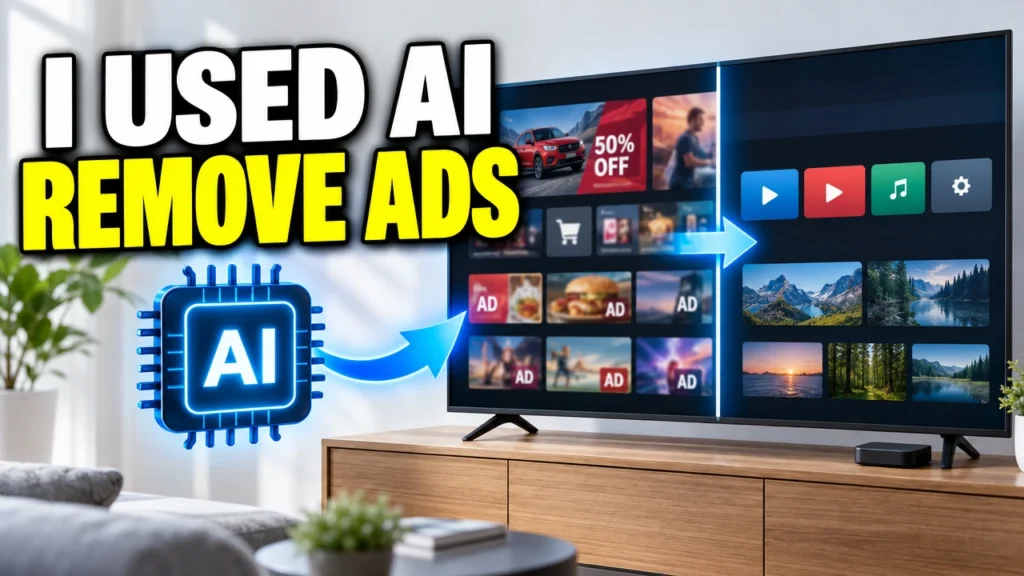
A smart TV is supposed to make finding something to watch easy. But when its home screen is crowded with sponsored movies, recommendations, and apps you never use, even opening YouTube can feel like a chore. If you have an Android TV or Google TV, you may be able to clean things up with just your Android phone.
My TCL Google TV originally had a busy home screen filled with recommendations. Here’s what it looked like before the cleanup.
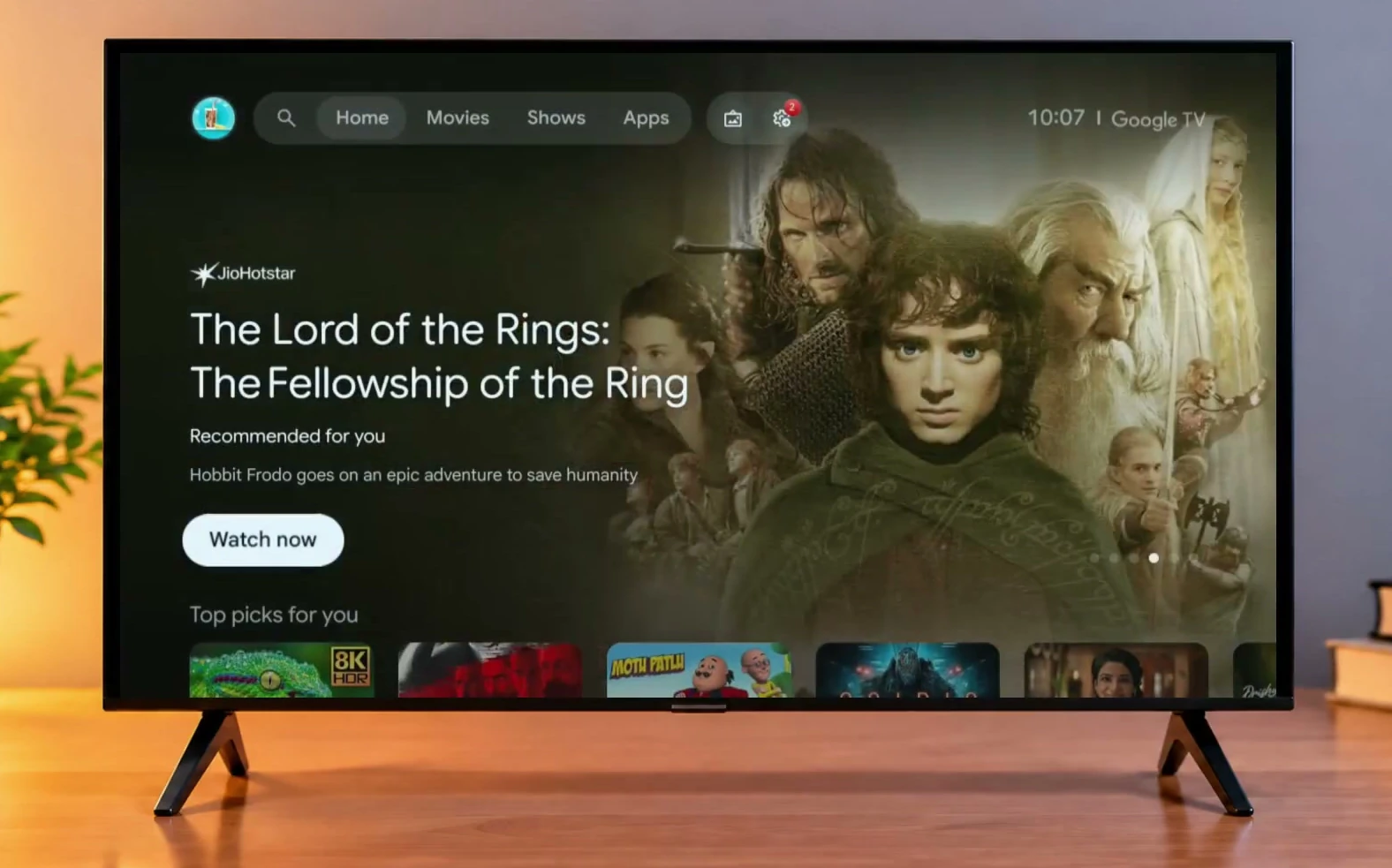
After the changes, I had a much simpler home screen with my favorite applications right where I wanted them. No computer, USB cable, or root access was needed for this setup.
I used a free, open-source phone app called Clean Your TV. It connects to compatible TVs over the local network, identifies unwanted software, and can switch off selected components without permanently deleting their system packages. It also creates a restore point so you can reverse the changes. The exact options depend on your TV model and the app version, so we’ll review what the app proposes before making any changes.
Install Clean Your TV on your phone
Start with an Android phone and an Android TV or Google TV connected to the same Wi-Fi network. The Clean Your TV project currently lists Android 9 or newer for its phone app. Your TV must also support the app’s network debugging connection. You don’t need to install the phone APK on the TV itself.
Start on the Clean Your TV project’s GitHub page, where you can review the app and find its official releases.
On GitHub, open Releases. Under the latest suitable release, expand Assets and download the .apk file. Avoid the source-code ZIP files; those aren’t the Android installer.
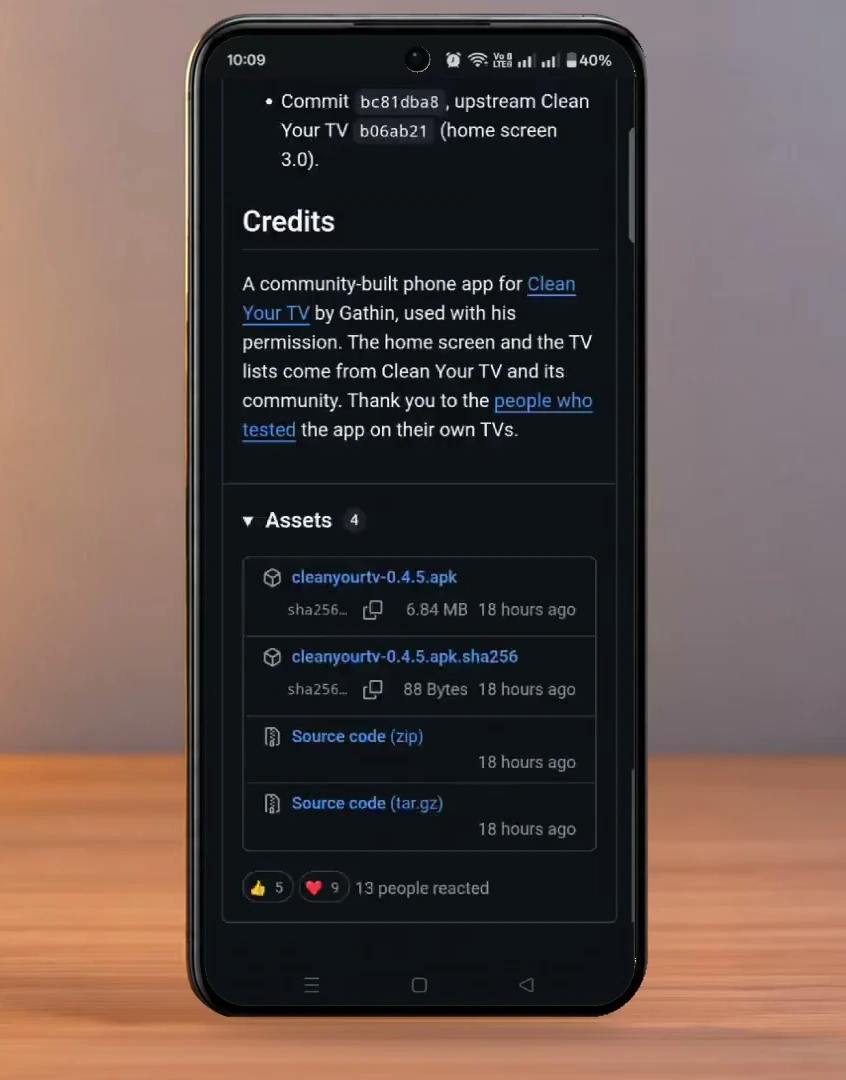
Open the downloaded APK on your phone and install it. If Android asks for permission to install from your browser or file manager, allow that source only if you trust the download. After installation, open Clean Your TV.
Enable debugging on the TV
The phone app needs permission to communicate with your TV. To allow that connection, first enable the TV’s developer settings.
On my TCL Google TV, I opened Settings, selected System, and went to About. I scrolled to Android TV OS build and pressed OK on the remote seven times. This unlocked Developer options.
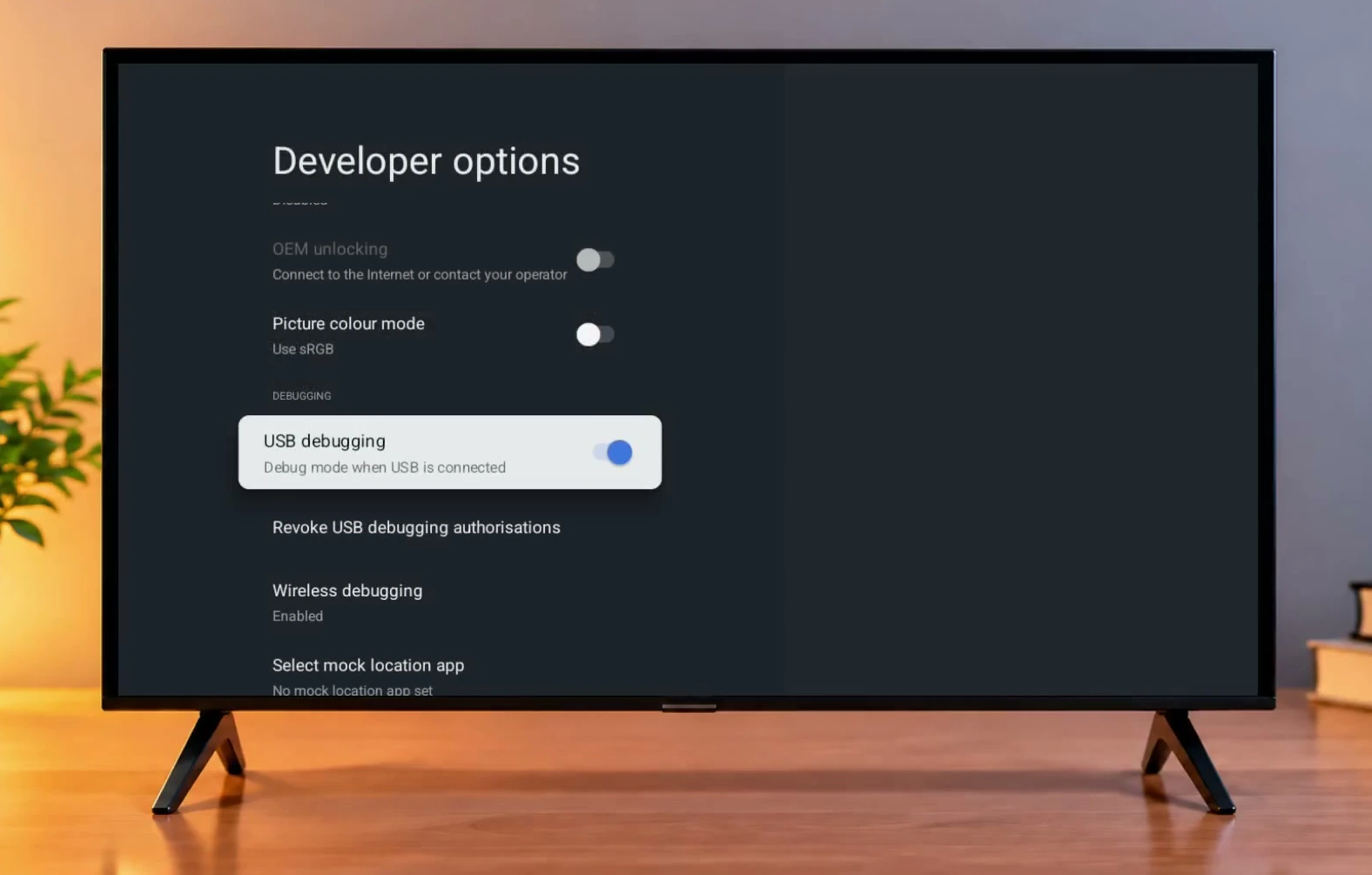
Next, I returned to Developer options and enabled USB debugging. Despite the name, this setting can also authorize the app’s network-based ADB connection on supported TVs. If your TV has a separate network or wireless debugging option and the app requests it, follow the instructions displayed for your model.
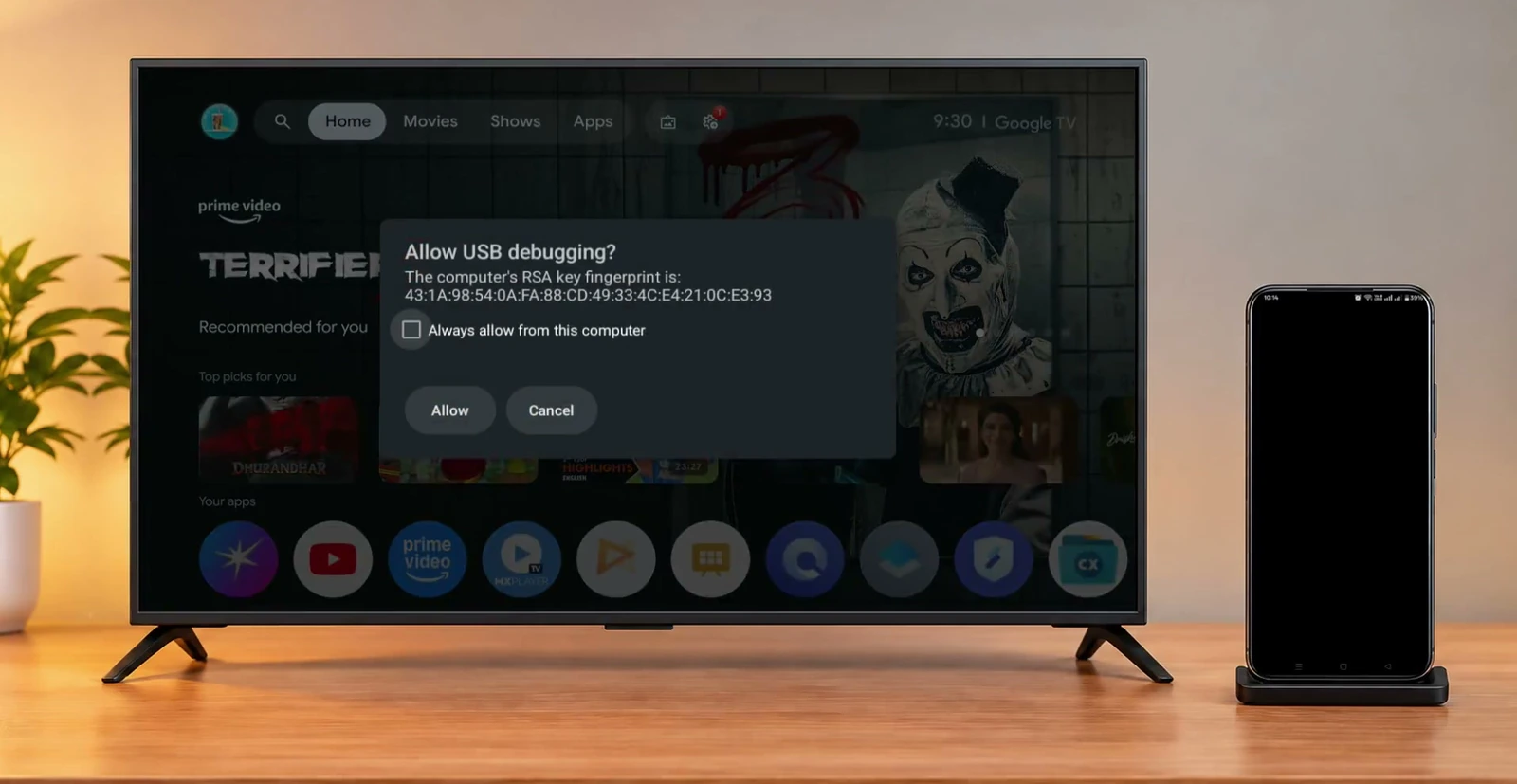
Now launch the phone app and tap Start. When it discovers your TV, approve the debugging request that appears on the television. I selected Always allow from this computer and then Allow so the phone could reconnect during the setup.
Review the services Clean Your TV wants to disable
Once connected, the app scans the TV’s installed packages and prepares a cleanup plan. On my TCL Google TV, it found eight components that could be switched off. They were grouped under advertising and sponsored rows, tracking and analytics, and unnecessary preinstalled apps.
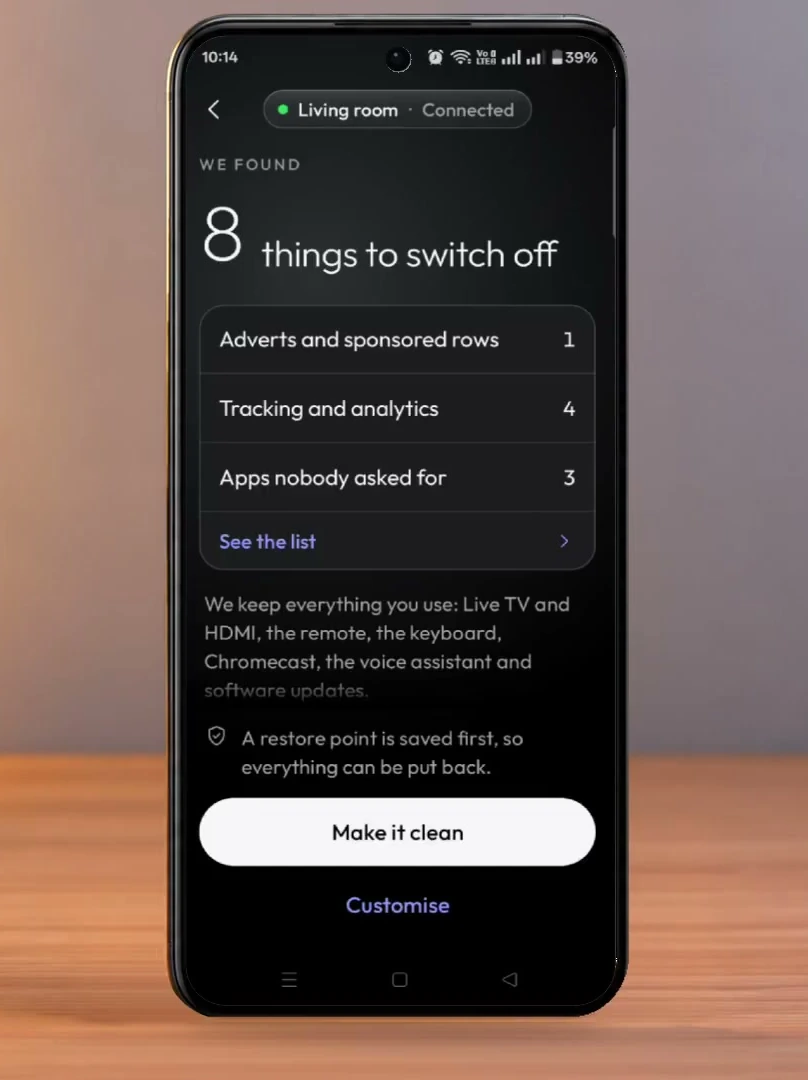
Don’t rush into applying the plan. Tap See the list or Customise to inspect what’s selected. In my scan, the app identified services such as Google TV partner installation and feedback components, TCL login-related software, and other optional packages.
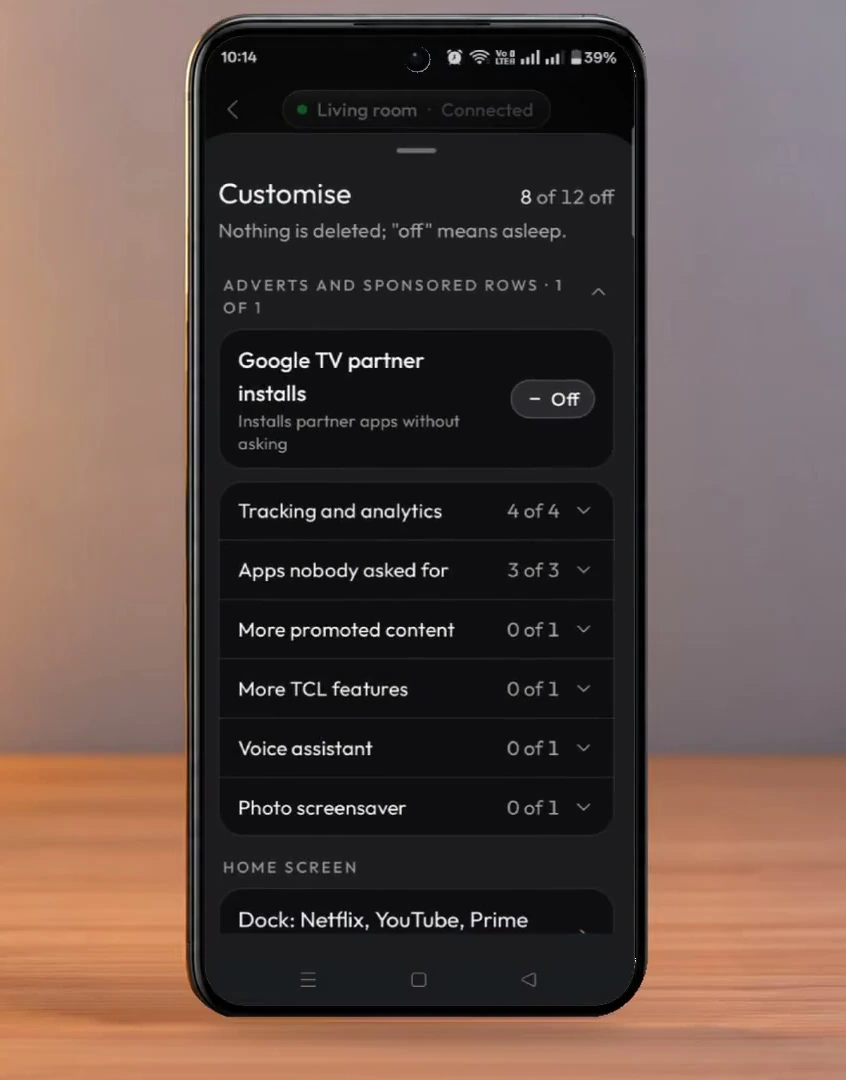
The app also showed features I could choose to keep, including TCL’s home customizer, Google Assistant, and Google Ambient mode. I left anything potentially important to normal TV operation alone. The exact package names and recommended selections can be different on another brand or model.
Run the cleanup and check the result
After reviewing the list, I went back and tapped Make it clean. The app created a restore point first, then started switching off the selected components. It showed the progress on both the phone and the TV.
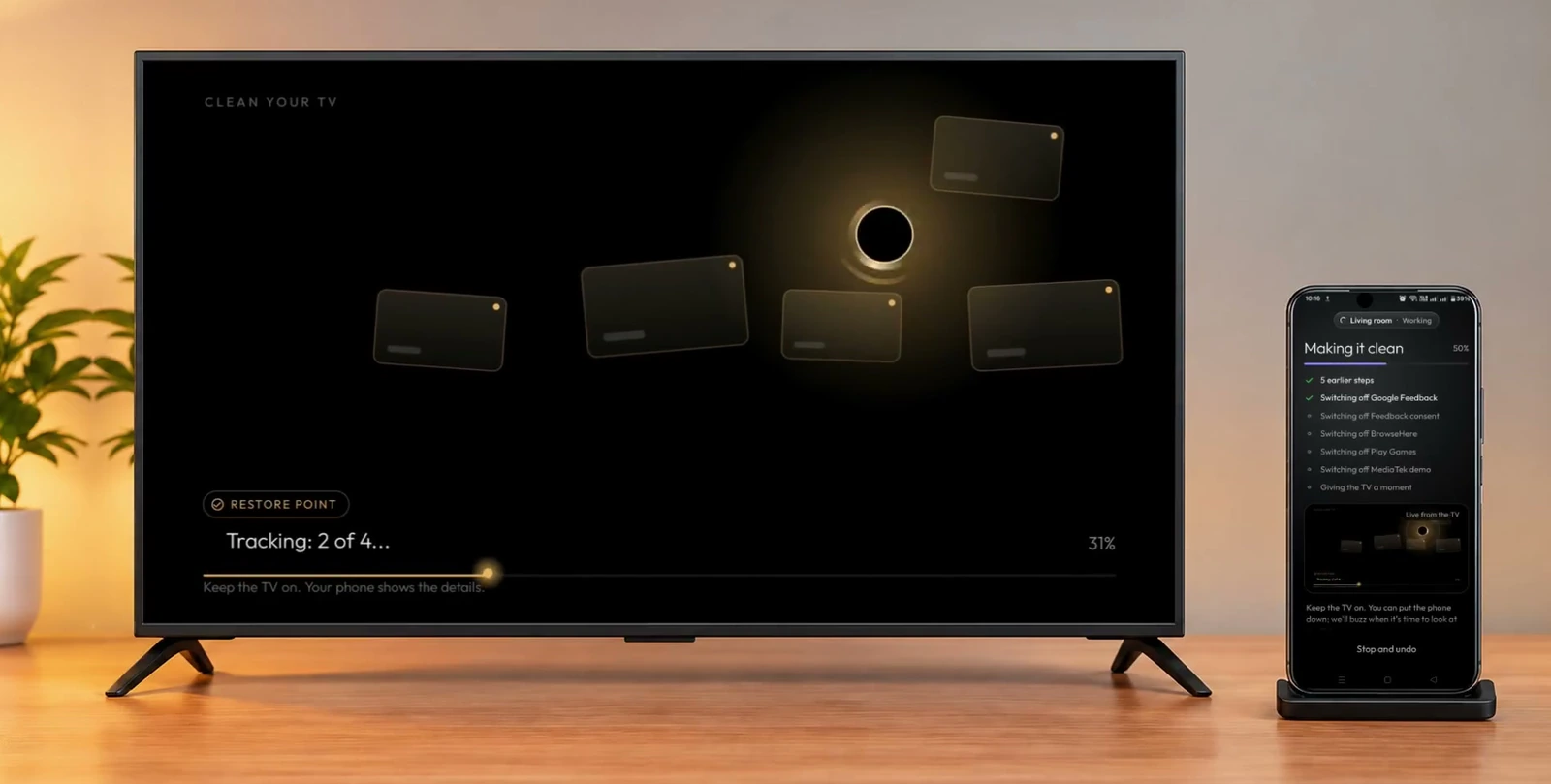
When the first cleanup finished, seven components had been disabled. The app left a MediaTek demo-related component enabled because it was associated with HDMI and tuner functions on my particular TV. That was a good reminder that keeping essential functionality matters more than removing every possible package.
After restarting the TV, the disabled services stayed off. However, I was still looking at the original Google TV home screen with its recommendations. This doesn’t necessarily mean the cleanup failed. On some TVs, removing unwanted background services is supported while replacing the default launcher is restricted.
Switch to the cleaner home screen, if your TV supports it
Back in the phone app, I opened Home Screen to see why the launcher hadn’t changed. The app explained that my TV’s Wi-Fi connection was saved through Google’s initial setup wizard. On this specific setup, replacing the launcher required the app to disable that wizard, which could disrupt Wi-Fi.

To handle this, the app asked me to forget the TV’s Wi-Fi network and connect again, so the network would no longer depend on the original setup flow.
On the TV, I opened Settings, then Network & Internet. I selected my connected Wi-Fi network, chose Forget Network, and reconnected to the same network using its password.
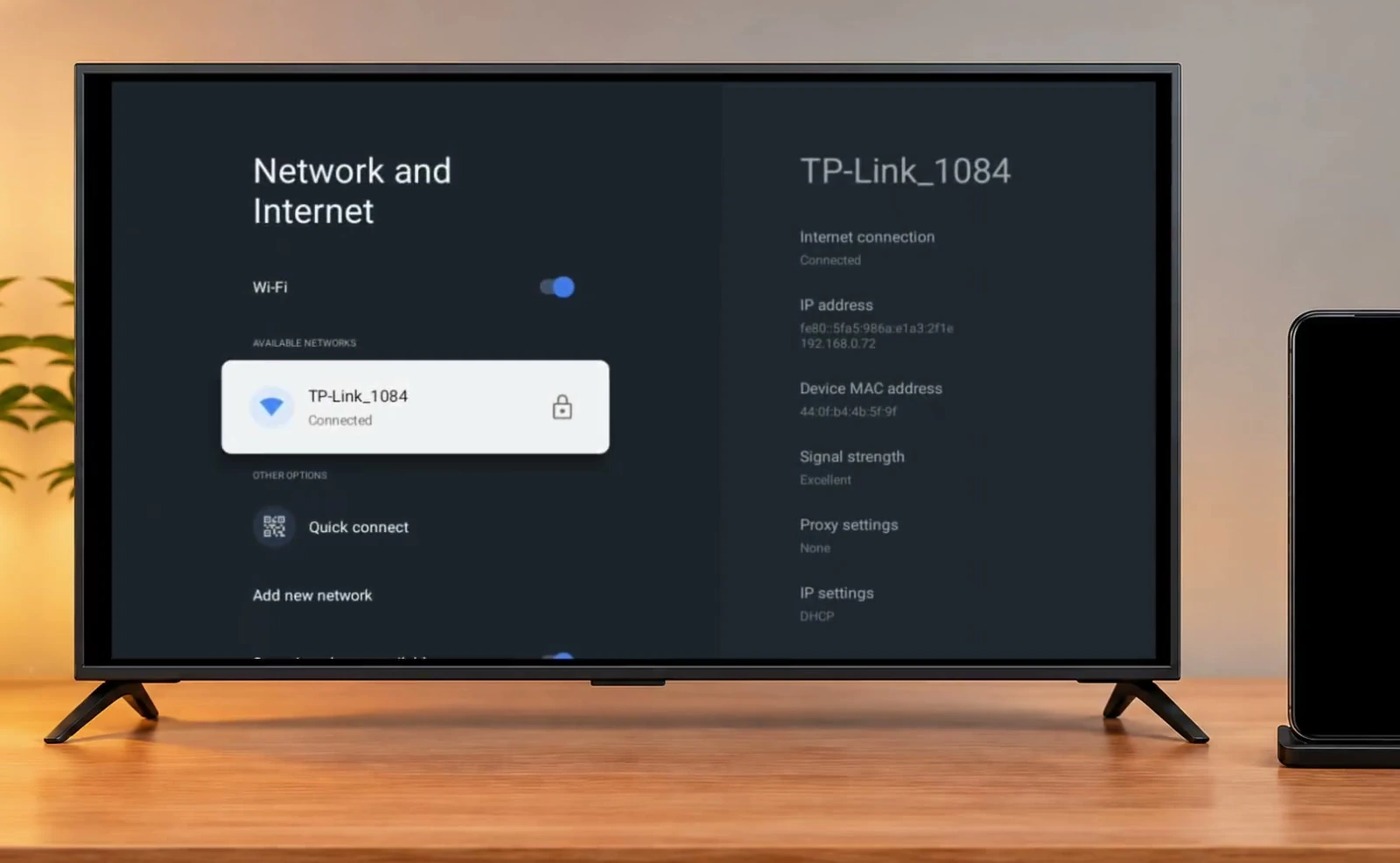
With Wi-Fi working again, I returned to Clean Your TV on my phone and selected Run Setup again. This time the app found the additional items needed for the launcher switch. I reviewed them carefully, kept the important TV features enabled, and tapped Make it clean again.
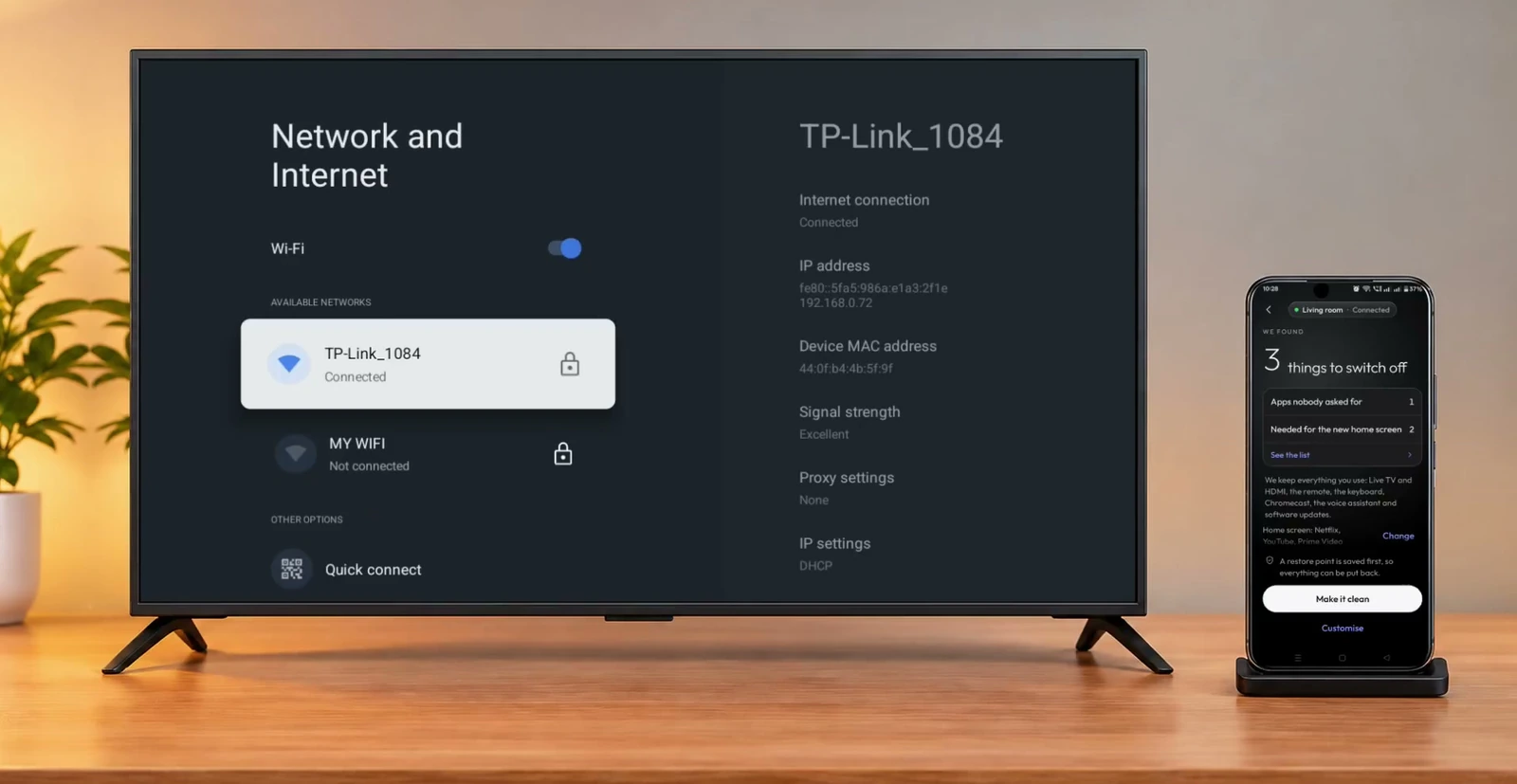
The app installed the replacement launcher and completed its checks. When the new home screen appeared, I tapped Yes, I see it on my phone to confirm that the switch had worked.
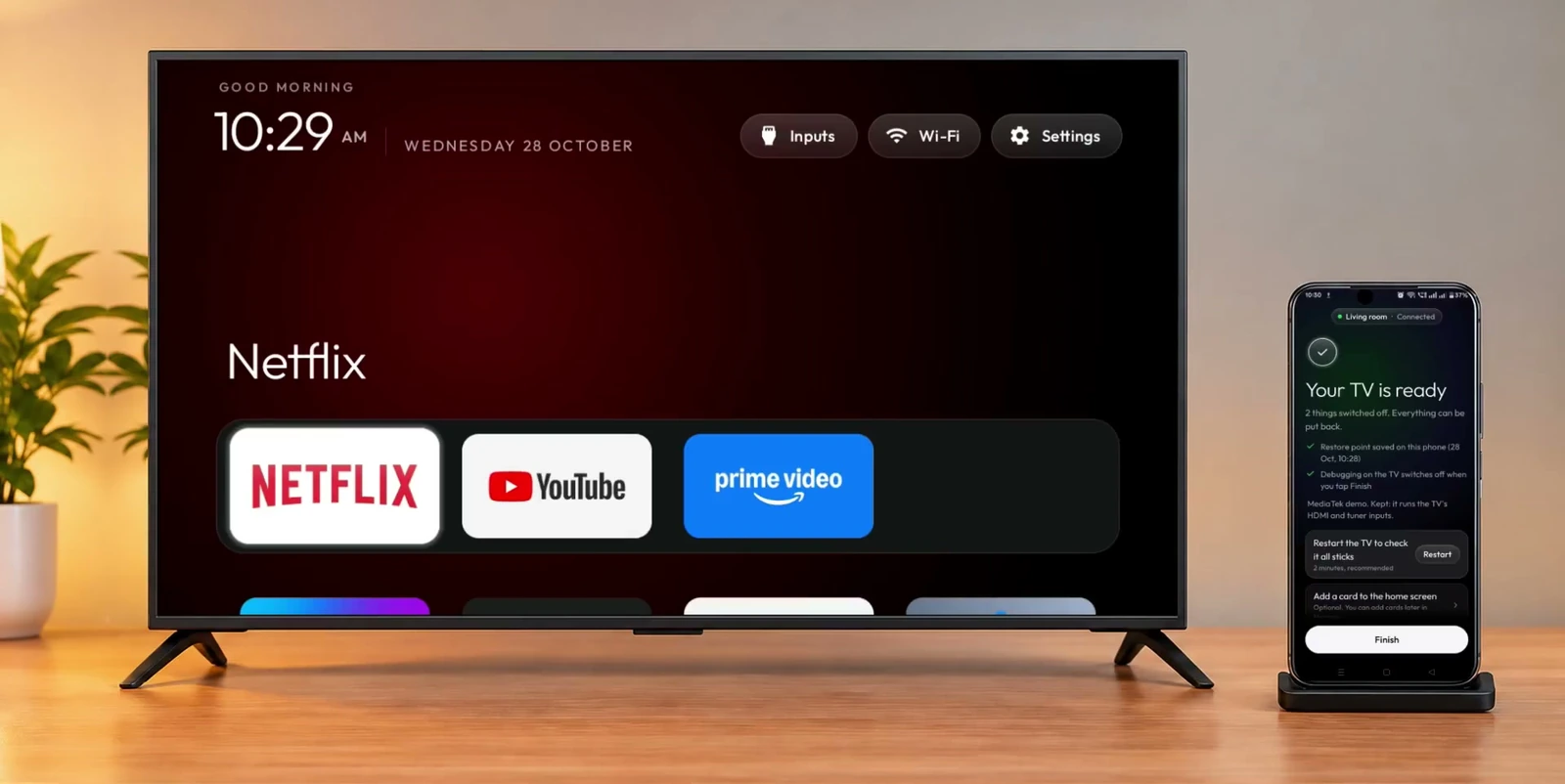
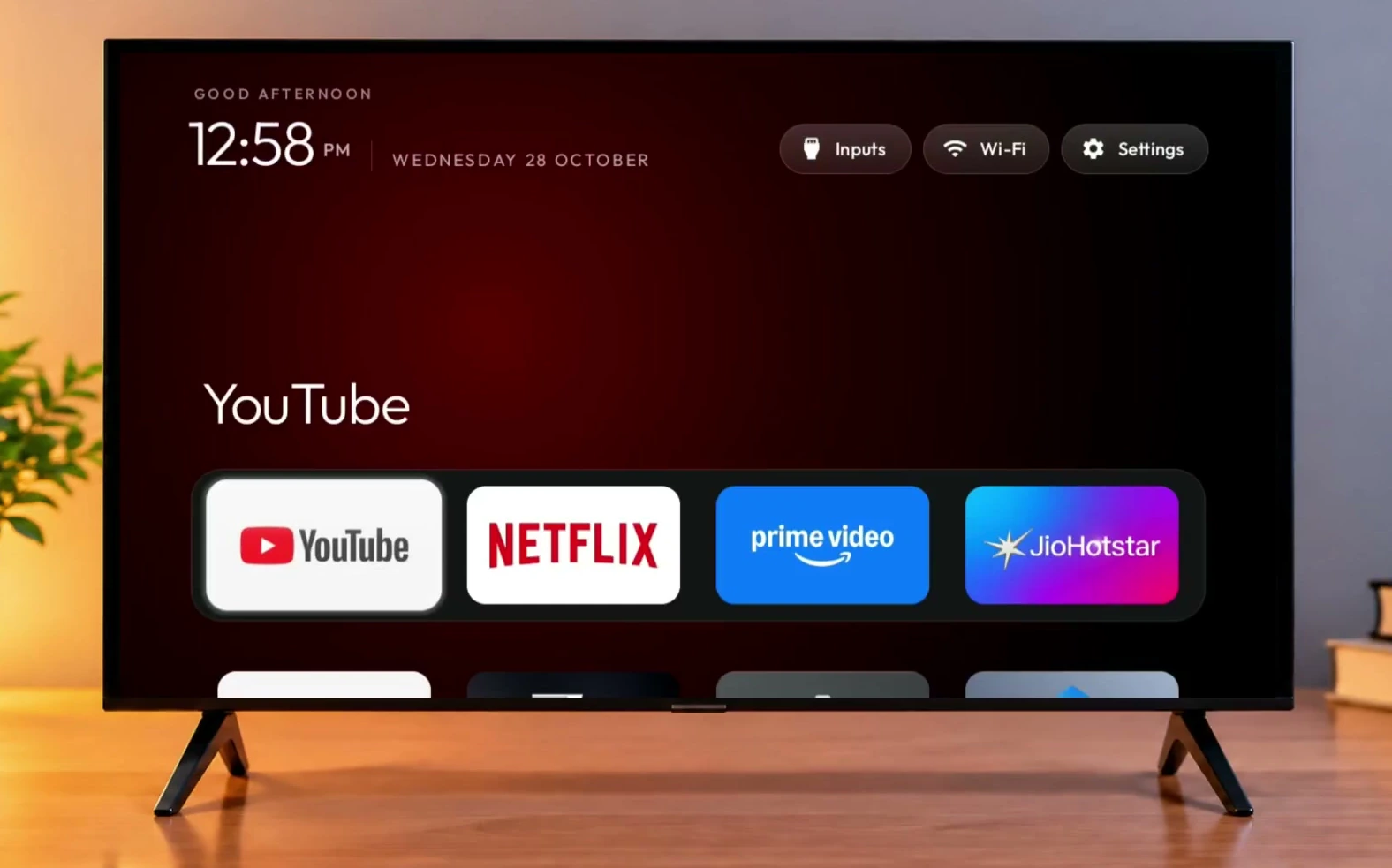
The new layout put the clock and date at the top, quick shortcuts for Inputs, Wi-Fi, and Settings nearby, and my favorite apps in one tidy row. Other installed apps were still available by scrolling down.
Not every Android TV or Google TV supports this launcher replacement. If Clean Your TV offers cleanup only for your model, keep its recommended safe configuration instead of forcing a launcher change or disabling the setup wizard manually.
Customize your new TV launcher
Once the cleaner home screen was working, I used the TV remote to arrange my favorite apps. Move to Settings in the top-right corner of the launcher and press and hold OK. This opens a menu with Launcher settings, Edit dock, and Reorder apps.
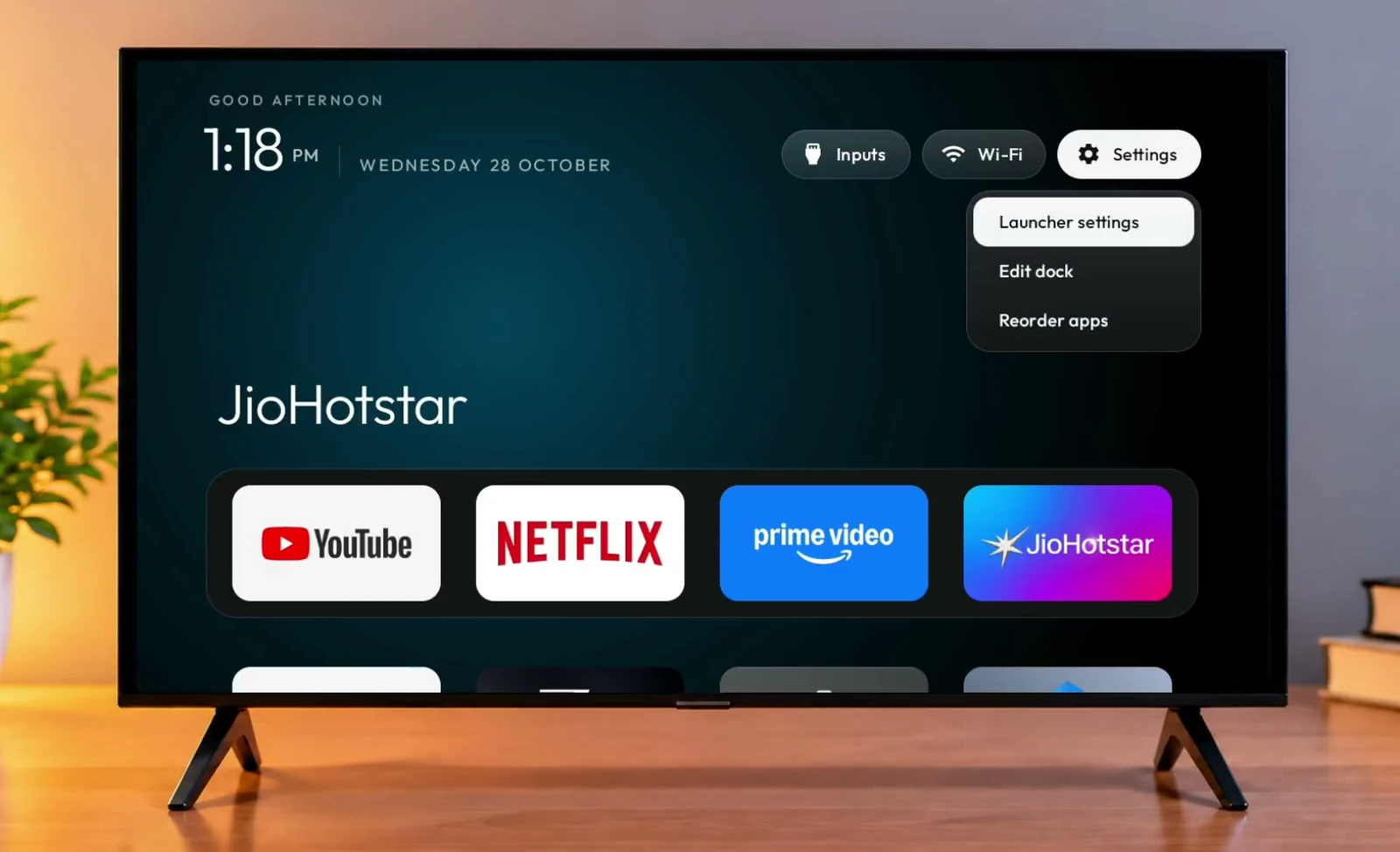
Choose Edit dock to change the apps shown in the favorites row. Select a position, press OK, choose your preferred app, and press OK again. The launcher saves the selection automatically.
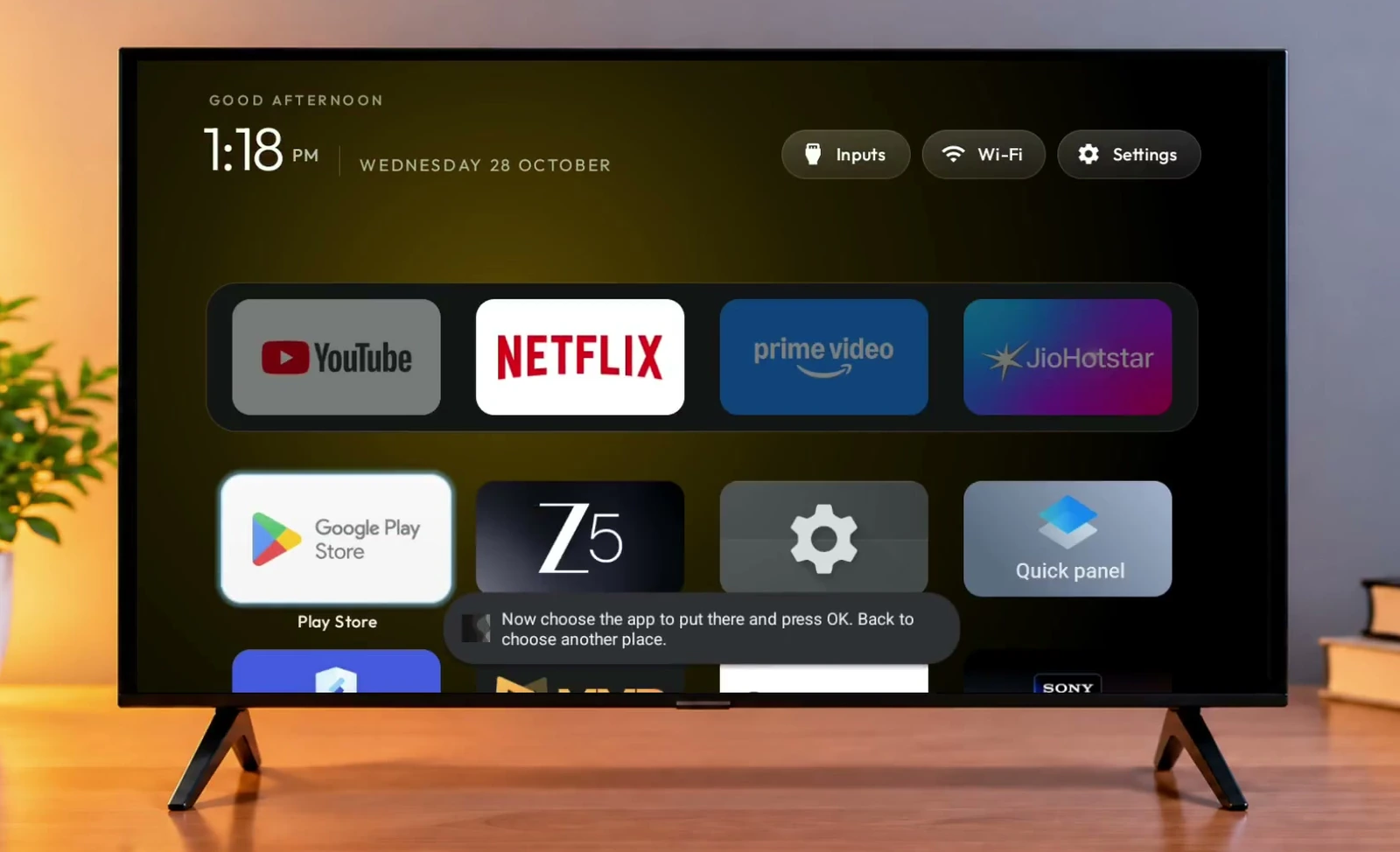
If the apps are already there but in the wrong order, open Reorder apps. Select an app, press OK to pick it up, move it using the remote’s direction buttons, then press OK to place it. Press Back when you’re done.
I also checked that the apps still worked. YouTube opened and played videos normally, and the Google Play Store was still available for installing apps. Of course, it’s worth checking the functions you use most on your own TV after making changes.
Restore the original Google TV home screen
What if you try the cleaner launcher and decide you liked the original better? Clean Your TV has an undo feature, so you don’t need to factory-reset the television just to reverse the changes it made.
Open the app again on your phone and reconnect to the TV. If you turned debugging off after setup, temporarily enable it again so the app can connect. Select your TV and scroll down to Restore point, then choose Undo everything.
The app asked whether I wanted to keep the replacement launcher installed as a regular application or remove it. I chose to keep it. Then I tapped Put everything back and confirmed the restore.
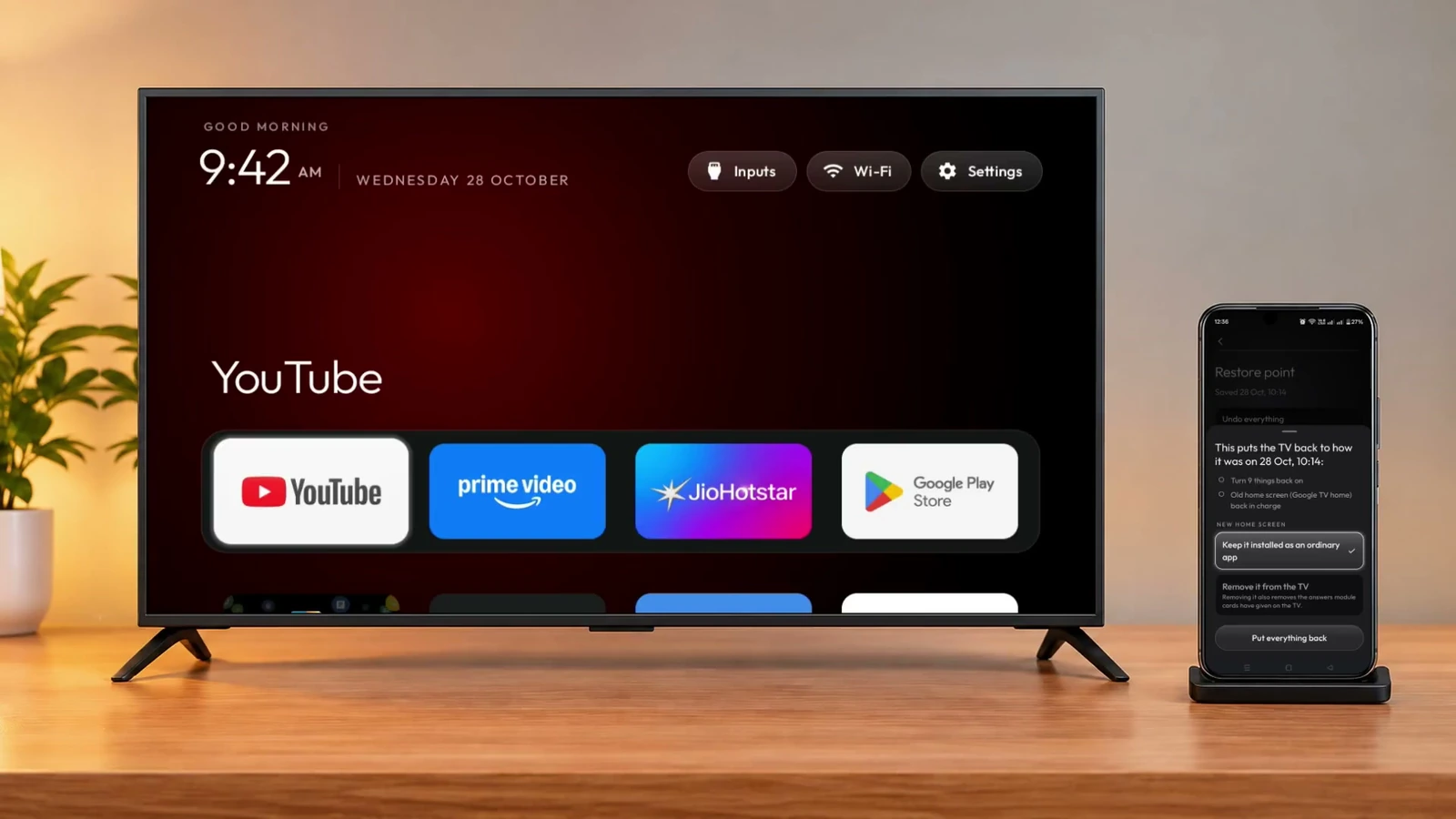
Clean Your TV re-enabled the services it had switched off, and the original Google TV home screen came back, complete with its sponsored recommendations. That confirmed the cleanup was reversible on my TCL TV.

So if you want less clutter on a compatible Android TV or Google TV, this is a practical way to try it without using a computer. Review the cleanup plan, keep essential TV features intact, and use the restore option if the results aren’t right for you. A cleaner home screen is nice, but a fully working TV is even better.
If you’re interested in more Android utilities, you can also browse my apps on Google Play.