If you want to install a custom recovery, flash a custom ROM, or root your Xiaomi, Redmi, or POCO phone, the first important step is unlocking the bootloader. In this guide, I will show you how to officially unlock the bootloader on Xiaomi, Redmi, and POCO phones running MIUI using Xiaomi’s Mi Unlock Tool.
This method is mainly for older Xiaomi, Redmi, and POCO phones running MIUI. If your phone is running Xiaomi HyperOS, the bootloader unlock permission process may be different, so this guide may not apply to your device.
Unlocking the bootloader will completely erase your phone. Before following this guide, back up your photos, videos, documents, contacts, WhatsApp data, and all other important files. Also, unlocking the bootloader can reduce device security, so continue only if you understand the risks.
What Is Bootloader Unlocking?
The bootloader is a security layer that controls what system software your phone can boot. By default, Xiaomi keeps the bootloader locked to protect the device from unauthorized system changes.
Once you unlock the bootloader, you can make advanced modifications like installing a custom recovery, flashing a custom ROM, rooting the phone using Magisk, or changing system-level files. However, this also means your phone becomes less secure than before, so you should only unlock it if you really need these advanced features.
Things You Need Before Starting
Before starting the bootloader unlock process, make sure you have everything ready. You will need a Xiaomi, Redmi, or POCO phone running MIUI, a SIM card with working mobile data, a Xiaomi or Mi Account, a Windows computer, and a proper USB data cable.
Your phone should also have at least 50 percent battery. Do not start this process with a low battery, because the phone will restart and reset during the unlock process.
Step 1: Sign In to Your Xiaomi Account
First, open Settings on your Xiaomi, Redmi, or POCO phone. Sign in to your Xiaomi or Mi Account. Make sure you remember the account email, phone number, and password, because you will need to use the same account later on your Windows computer inside the Mi Unlock Tool.
This step is very important. The Xiaomi account added on the phone and the Xiaomi account used inside Mi Unlock Tool must be the same. If you use a different account, the unlock process may fail.
Step 2: Enable Developer Options
Now go to Settings and open About phone. Here, tap on MIUI Version seven times. After tapping it multiple times, you should see a message saying that Developer options have been enabled.
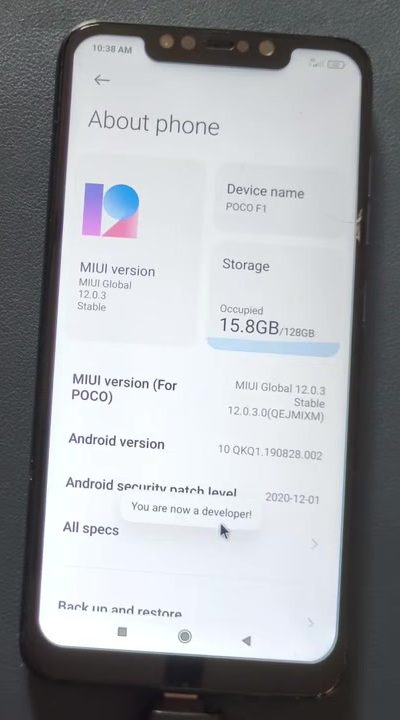
Developer options are required because Xiaomi keeps the bootloader unlock settings hidden by default. Once Developer options are enabled, you can turn on OEM unlocking, USB debugging, and Mi Unlock Status.
Step 3: Enable OEM Unlocking and USB Debugging
Go back to the main Settings page. Open Additional settings, then open Developer options.
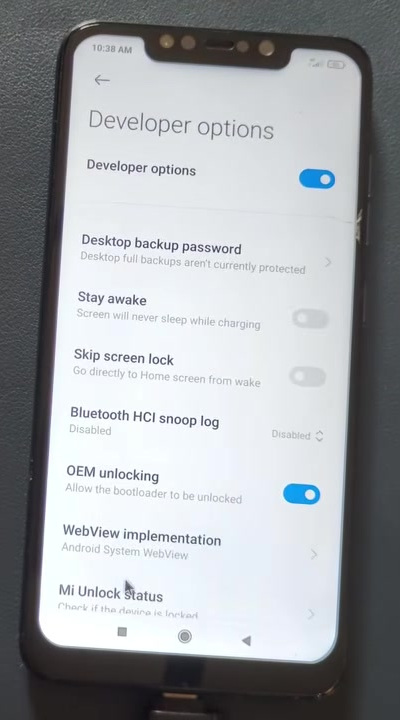
Inside Developer options, enable OEM unlocking and USB debugging. If any warning message appears, read it carefully and accept it.
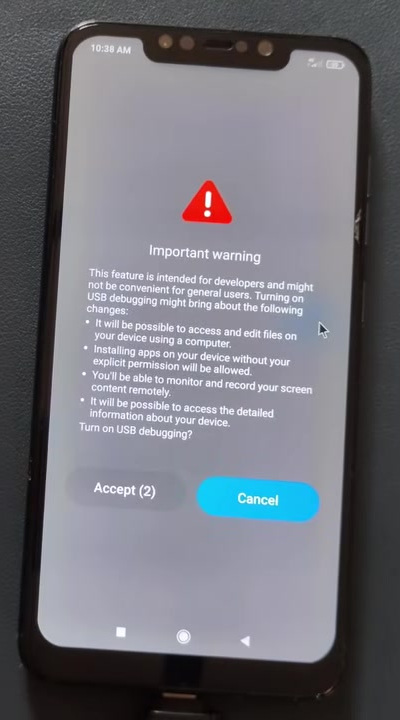
OEM unlocking allows the bootloader to be unlocked, while USB debugging helps your computer communicate with the phone properly when required.
Step 4: Add Your Xiaomi Account in Mi Unlock Status
Now turn off Wi-Fi on your phone and enable mobile data using the SIM card inserted in the same phone. This is important because Xiaomi usually requires mobile data for adding the account and device in Mi Unlock Status.
Inside Developer options, open Mi Unlock Status. Tap Agree, then tap Add account and device.
Wait for a few seconds. If everything is correct, you should see a message saying that the account and device have been added successfully.
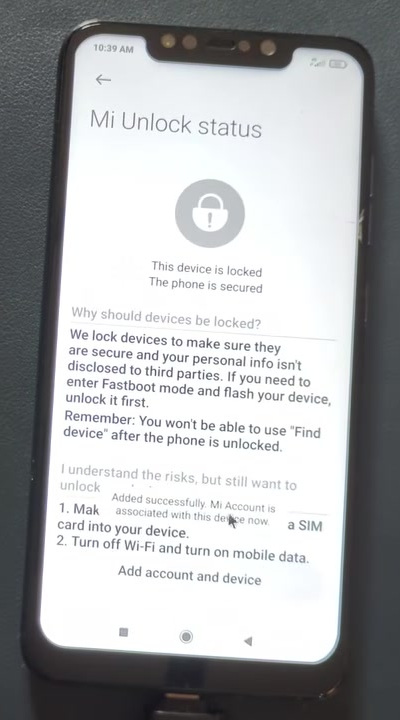
Do not remove the Xiaomi account, factory reset the phone, or change the account after adding the account and device. Doing this may reset the waiting period or cause unlock errors.
Step 5: Download Mi Unlock Tool on Your Computer
Now move to your Windows computer and download the Mi Unlock Tool. The tool will usually be downloaded as a ZIP file, so you need to extract it first.
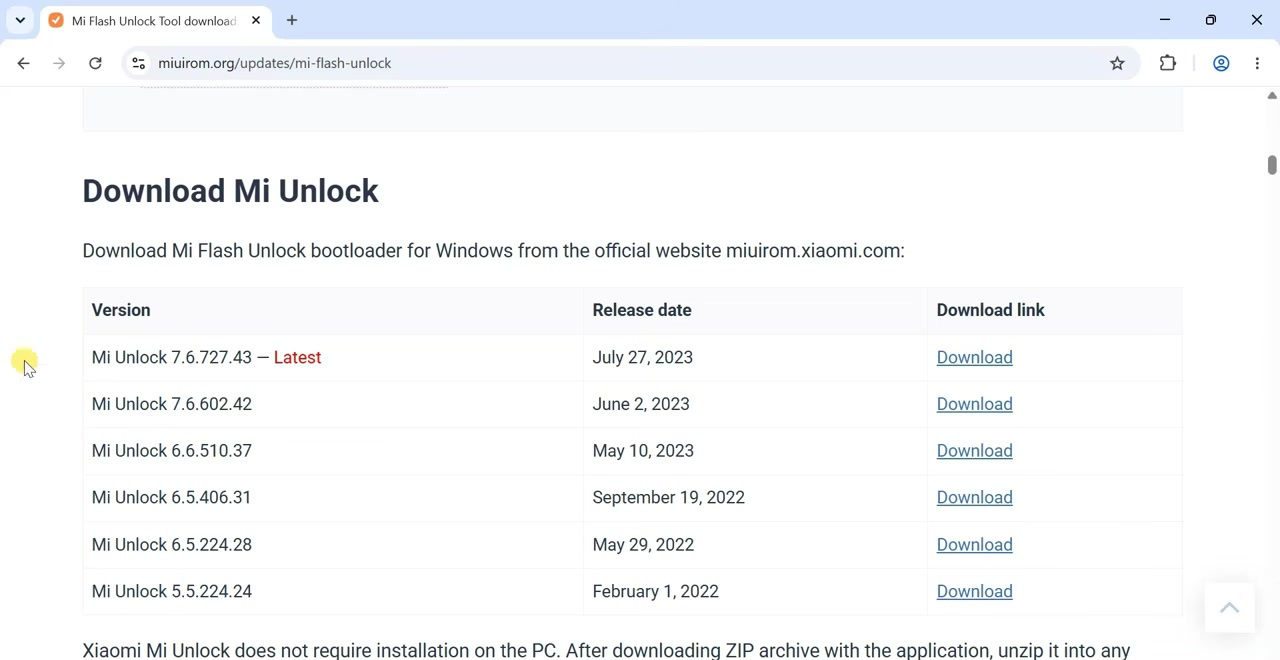
After extracting the ZIP file, open the extracted folder and run the Mi Unlock application.
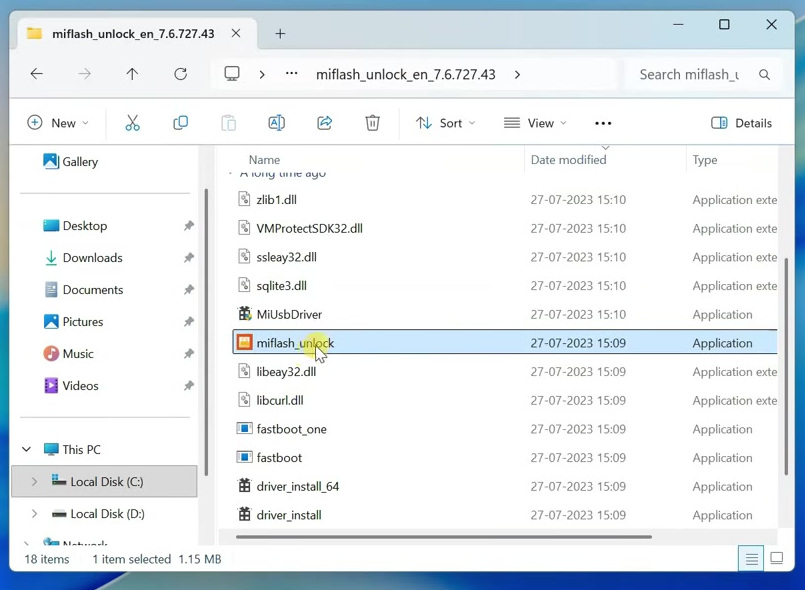
Step 6: Sign In to Mi Unlock Tool
Inside the Mi Unlock Tool, sign in using the same Xiaomi account that is already connected to your phone. If Xiaomi asks for OTP or email verification, complete the verification process.
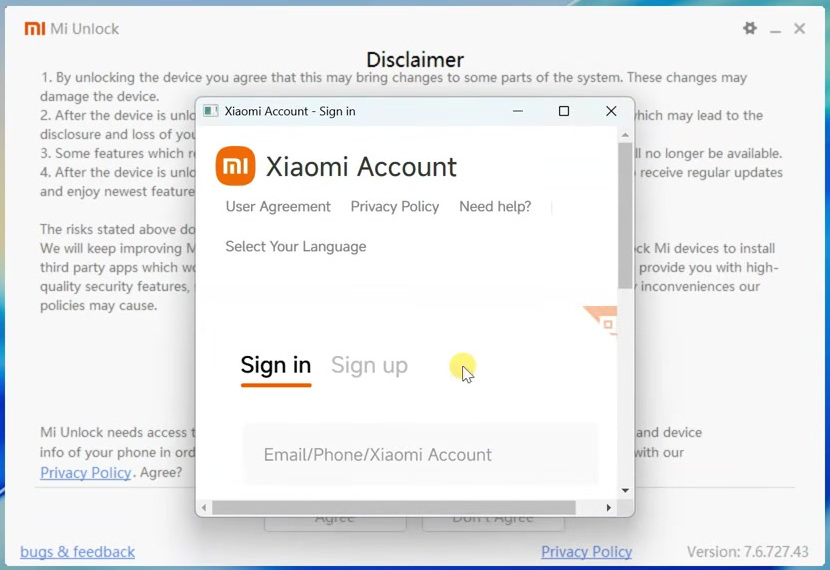
Again, make sure the account is the same. If your phone is connected with one Xiaomi account but the Mi Unlock Tool is logged in with another account, the unlock process will not work.
Step 7: Boot Your Phone into Fastboot Mode
Now switch off your phone completely. After the phone turns off, press and hold the Volume Down and Power buttons together.
Release the buttons when the Fastboot logo appears on the screen. Your phone is now in Fastboot mode.
Step 8: Connect the Phone to Your Computer
Connect your phone to the Windows computer using a proper USB data cable. Do not use a charging-only cable, because it may not detect the phone properly.
Once connected, Mi Unlock Tool should detect your phone. If the phone is not detected, try changing the USB port, using another USB cable, or installing the Mi USB driver.
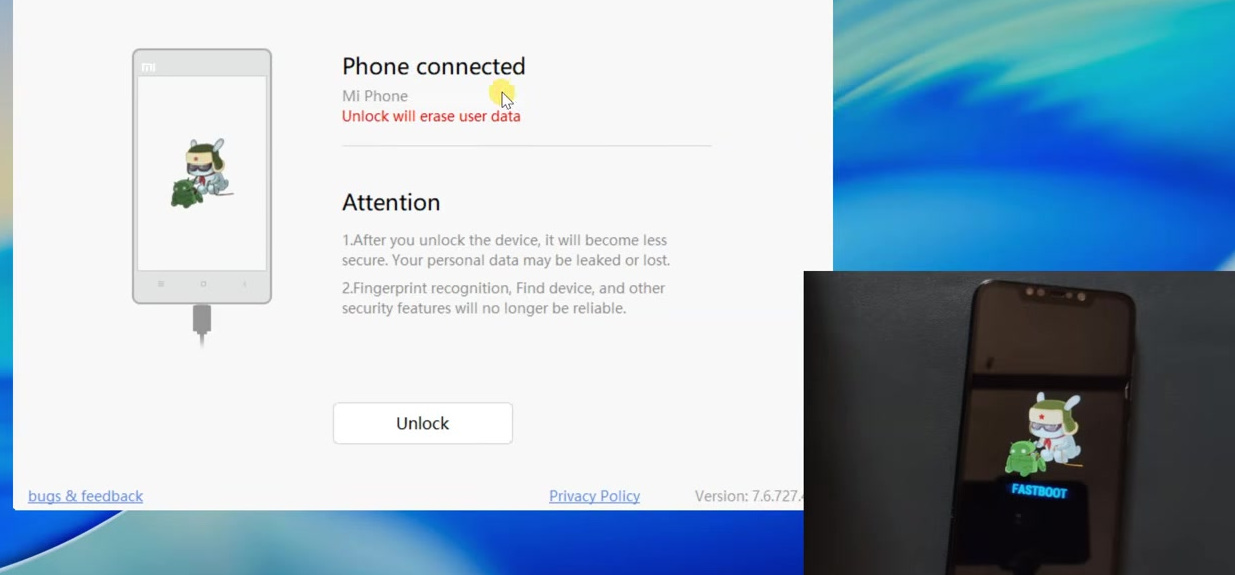
Step 9: Click Unlock
Once your phone is detected in Mi Unlock Tool, click on the Unlock button. The tool will show a warning that unlocking the bootloader will erase all data from the phone.
Read the warning carefully and confirm it only if you have already backed up your important data.
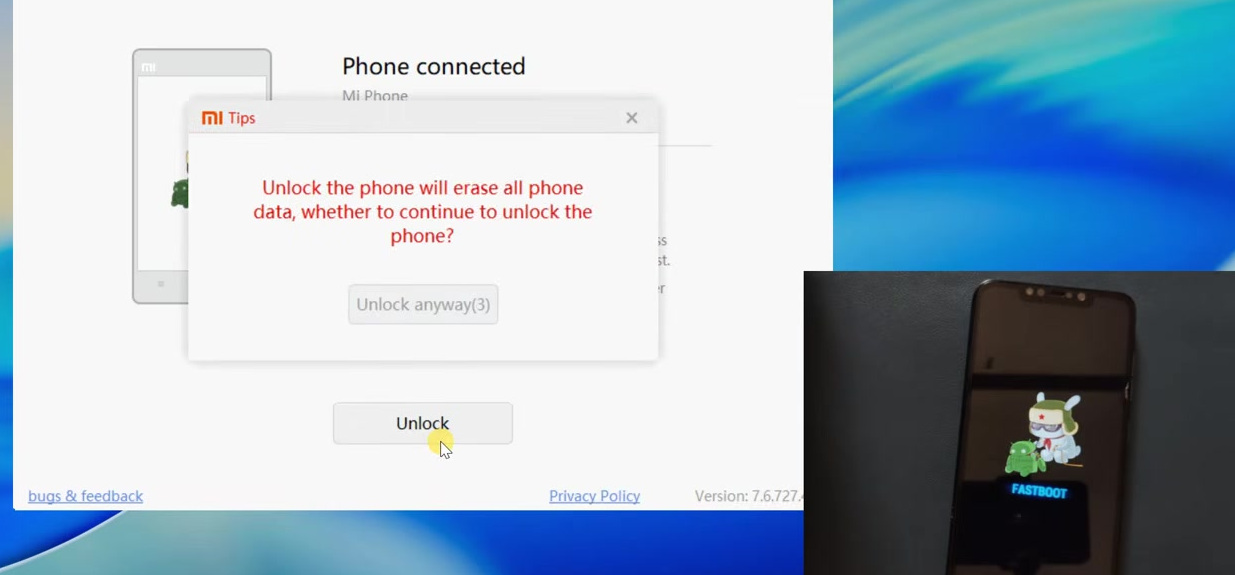
Step 10: Wait for the Xiaomi Waiting Period
On the first attempt, Xiaomi may show a waiting period. In many cases, it can be around 168 hours, but the actual waiting time can vary depending on the device and account.
If Mi Unlock Tool shows a waiting period, do not panic. Restart your phone and use it normally. During this waiting period, do not remove the Xiaomi account, do not factory reset the phone, and do not add another Xiaomi account.
After the waiting period is over, boot the phone into Fastboot mode again, connect it to the computer, open Mi Unlock Tool, sign in with the same Xiaomi account, and click Unlock again.
Step 11: Bootloader Unlocked Successfully
After the waiting period is complete, the unlock progress should reach 100 percent. You should see a message saying Unlocked successfully.
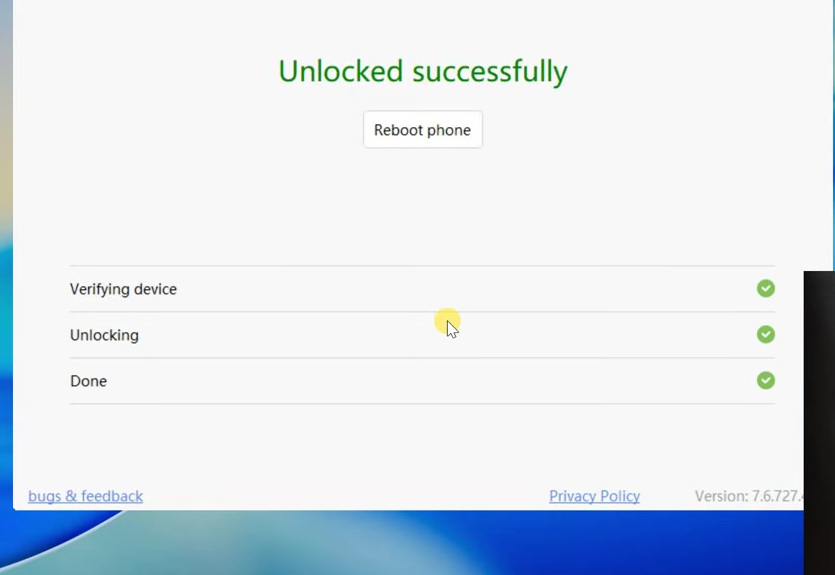
Your phone will now perform a factory reset and restart automatically. The first boot may take a few minutes, so wait patiently and do not disconnect or force restart the phone unnecessarily.
Step 12: Set Up Your Phone Again
Once the MIUI setup screen appears, set up your phone normally. After setup, your Xiaomi, Redmi, or POCO phone will have an unlocked bootloader.
Now you can continue with advanced tasks like installing a custom recovery, flashing a custom ROM, or rooting the phone. However, always follow a proper guide for your exact device model, because flashing the wrong file can cause bootloop or other serious issues.
Common Problems During Xiaomi Bootloader Unlock
Mi Unlock Tool Does Not Detect the Phone
If Mi Unlock Tool does not detect your phone, try using another USB cable, changing the USB port, or installing the correct Mi USB driver. Also, make sure the phone is actually in Fastboot mode.
Account and Device Not Added Successfully
If you cannot add the account and device in Mi Unlock Status, turn off Wi-Fi and use mobile data from the SIM card inserted in the phone. Also, make sure you are signed in to your Xiaomi account properly.
Mi Unlock Tool Shows 168 Hours Waiting Time
This is normal for many Xiaomi devices. You need to wait for the time shown in the tool. Do not try to bypass the waiting period using unofficial tools, because that can be risky and may create more problems.
Unlock Failed After Waiting
If the unlock fails even after waiting, check whether the same Xiaomi account is still added on the phone and in Mi Unlock Tool. Also, avoid resetting the phone or changing accounts during the waiting period.
Final Words
This is how you can officially unlock the bootloader on Xiaomi, Redmi, and POCO phones running MIUI using Mi Unlock Tool. The process is simple, but you must follow every step carefully, especially the Xiaomi account binding and waiting period steps.
After unlocking the bootloader, you can install a custom recovery, flash a custom ROM, or root your phone. But before doing anything advanced, always download files made specifically for your exact phone model.
If this guide helped you, you can also watch the complete video tutorial carefully and follow every step on your phone and computer.