LineageOS is one of the most popular custom ROMs for Android phones. It can give an older phone a cleaner, smoother, and more updated Android experience. In this guide, I will show you how to install LineageOS on an Android phone using the official method.
For this tutorial, I am using my Xiaomi POCO F1. The device codename of the POCO F1 is beryllium. However, the same overall process can be followed for any officially supported Android phone. Just remember that the required files, firmware version, and flashing commands can be different for every device. So always follow the official LineageOS installation guide created specifically for your exact phone model and codename.
Important Warning: Installing a custom ROM will erase everything stored on your phone. Before starting, back up your photos, videos, contacts, documents, WhatsApp data, and anything else that is important. Your phone’s bootloader must also be unlocked. Charge your phone to at least 60% to 70%, and use a good-quality USB data cable.
Step 1: Visit the Official LineageOS Website
First, visit the official LineageOS website. Click on Get LineageOS, open the device list, and search for your phone.
In my case, I will select Xiaomi, then I will select POCO F1. Before downloading anything, make sure the device name and codename are correct. My phone is the POCO F1, and its codename is beryllium.
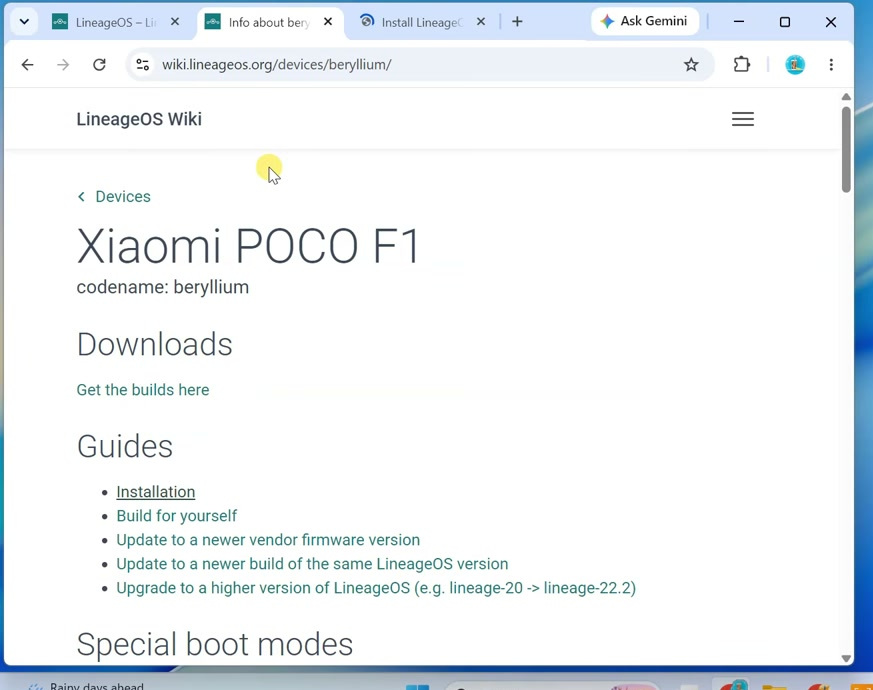
Open Official LineageOS Website
Now open the official installation guide for your phone. Read the entire guide at least once before continuing. The LineageOS team clearly says that every section must be followed carefully, and you should not continue if any step fails.
Step 2: Download Android SDK Platform Tools
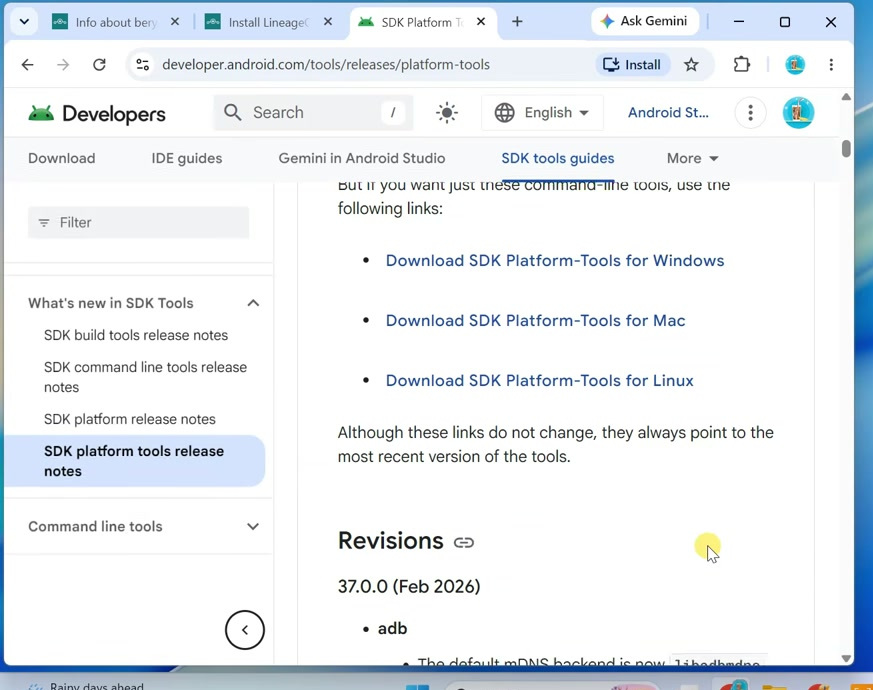
To install LineageOS, you need ADB and Fastboot installed on your computer. The easiest option is to download the latest Android SDK Platform Tools package from Google.
This package contains both ADB and Fastboot. These tools are required to check device connection, reboot the phone into Fastboot mode, flash the recovery image, and sideload the LineageOS ROM file.
Download Android SDK Platform Tools
After downloading the ZIP file, extract it on your computer. You will get a folder called platform-tools. Keep this folder ready because we will use it for all ADB and Fastboot commands.
Step 3: Enable USB Debugging
Now we need to enable USB Debugging on the phone.
On a Xiaomi, Redmi, or POCO phone, open Settings and go to About phone. Now repeatedly tap on the MIUI version until Developer Options are enabled.
After that, go back to Settings. Open Additional settings, then open Developer options. From here, enable USB debugging.
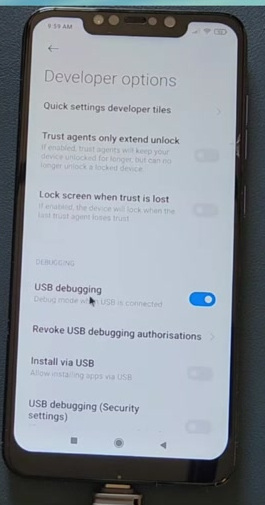
Now connect your phone to the computer using a USB data cable. If you see a USB mode prompt on the phone, select File Transfer mode.
Tip: You should also remove all Google accounts from the phone before continuing. This helps prevent Factory Reset Protection from causing problems after the phone is erased.
Step 4: Check the Required Firmware Version
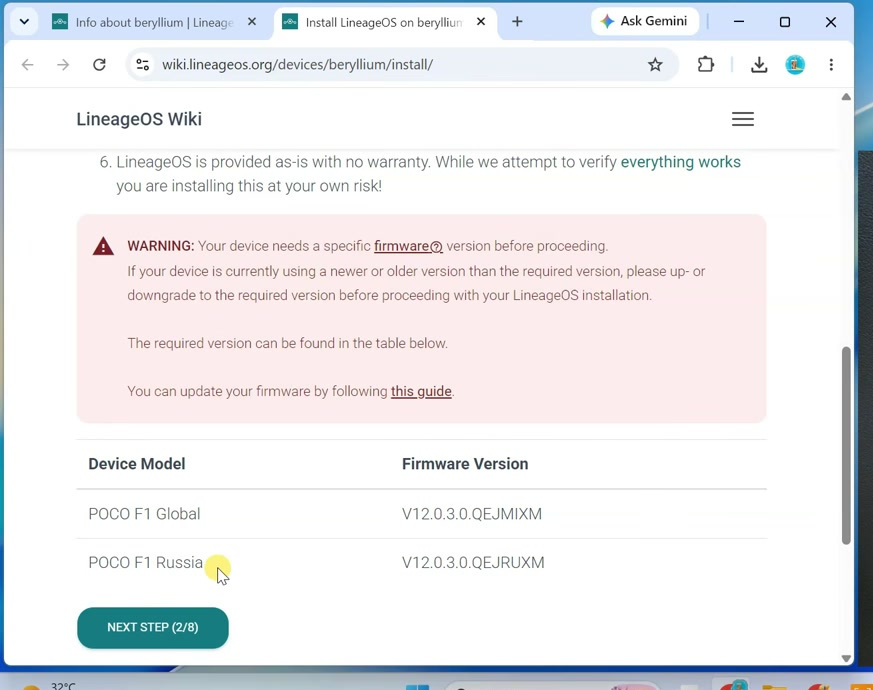
Now you must check the required firmware version for your phone. This step is extremely important because having the wrong firmware can cause installation errors or boot problems.
For the POCO F1, the official LineageOS guide may mention different firmware requirements depending on the model or region. For example, the Global model and Russian model may require different firmware versions.
To check your current firmware or MIUI version, open Settings, go to About phone, and check your current MIUI version.
If your phone is already running the exact required firmware version mentioned in the official guide, you can continue. If your phone is running an older or newer version, open the firmware update link from the official LineageOS guide and install the exact firmware package listed for your model.
Do not skip this step. The correct firmware is required for a smooth installation.
Step 5: Unlock the Bootloader
The next requirement is an unlocked bootloader. I have already unlocked the bootloader of my POCO F1, so I will not repeat the complete unlocking process in this guide.
If your Xiaomi, Redmi, or POCO phone’s bootloader is still locked, you need to unlock it first. I have already made a separate step-by-step video showing how to officially unlock the bootloader of a Xiaomi phone. Watch that video first, complete the bootloader unlocking process, and then come back to this guide.
Step 6: Download LineageOS Recovery
Now we will install the official LineageOS Recovery.
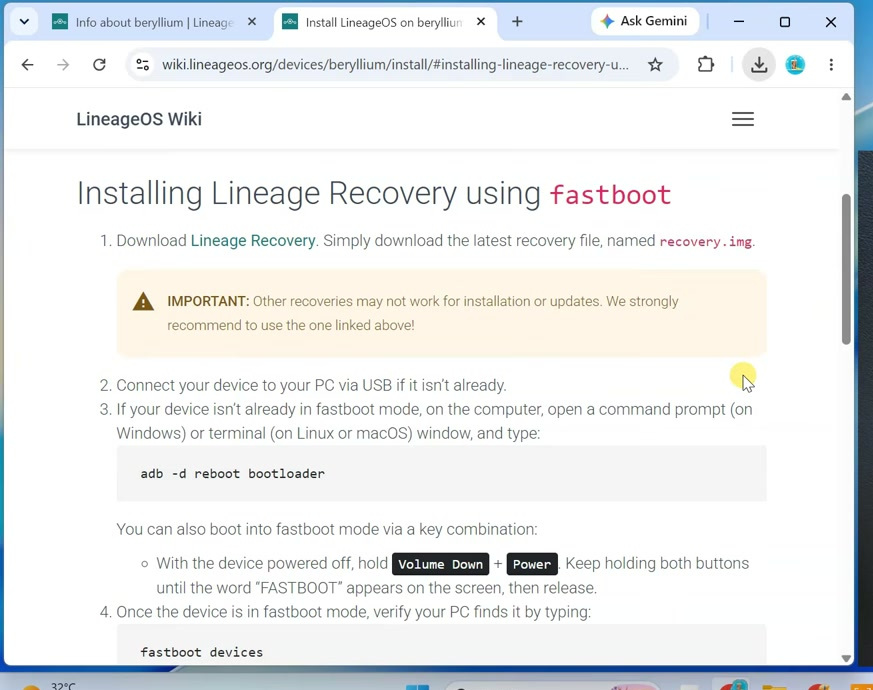
On your phone’s official LineageOS download page, click the Lineage Recovery download link and download the recovery.img file.
Once the recovery file is downloaded, move the recovery.img file into the extracted platform-tools folder.
Step 7: Check ADB Connection
Now open the platform-tools folder on your computer. Click on the address bar, type cmd, and press Enter. This will open Command Prompt inside the Platform Tools folder.
Make sure your phone is connected to the computer with USB Debugging enabled.
Now type this command and press Enter:
adb devicesThe first time you run this command, you may see a USB debugging permission popup on your phone. Tick Always allow from this computer and tap OK.
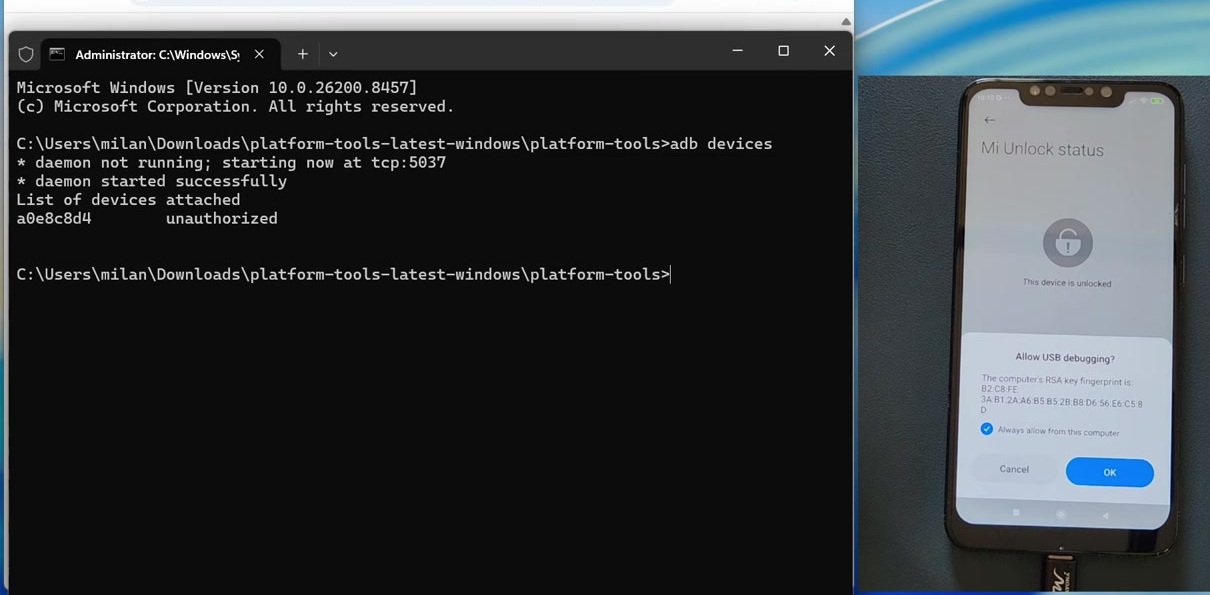
Now run the command again:
adb devicesThis time, you should see your phone’s serial number in the command window. If your device is listed, ADB is working properly.
Step 8: Reboot Into Fastboot Mode
Now enter this command to reboot the phone into Fastboot mode:
adb reboot bootloaderYour phone will now restart into Fastboot mode.
Once the phone is in Fastboot mode, check whether the computer can detect it by entering this command:
fastboot devicesThe command should display your phone’s serial number. If it shows the serial number, Fastboot is working properly.
Step 9: Flash LineageOS Recovery
Now flash the LineageOS Recovery using this command:
fastboot flash recovery recovery.imgWait until the command finishes successfully.
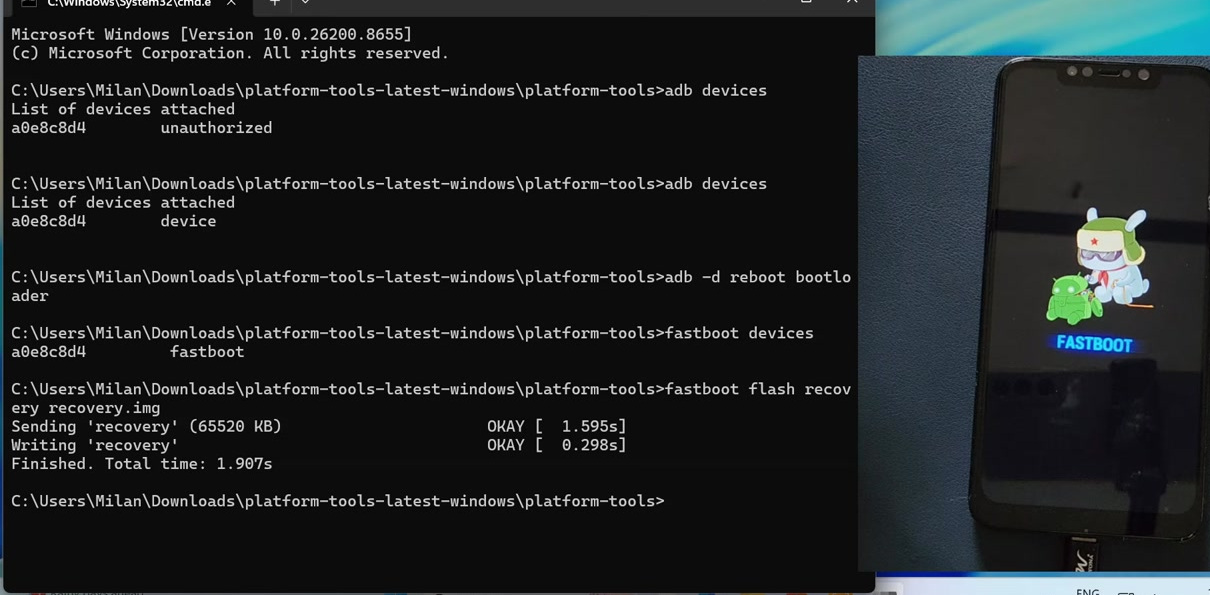
Important: After flashing the recovery, do not allow the phone to boot back into MIUI. The stock operating system may replace the newly installed recovery. You need to boot directly into LineageOS Recovery.
On the POCO F1, press and hold the Volume Up and Power buttons together. Keep holding them until the POCO logo appears, then release the Power button. You should now see the official LineageOS Recovery screen.
Step 10: Download the LineageOS ROM ZIP File
Now we will install the LineageOS ROM from this recovery.
On the official download page for your device, click the LineageOS ZIP file link and download the latest LineageOS ROM ZIP file.
The page may also show other files such as boot.img, SuperEmpty.img, or vbmeta.img. For this installation method on the POCO F1, these files are not required. Only download and use the files mentioned in the official installation guide for your exact device.
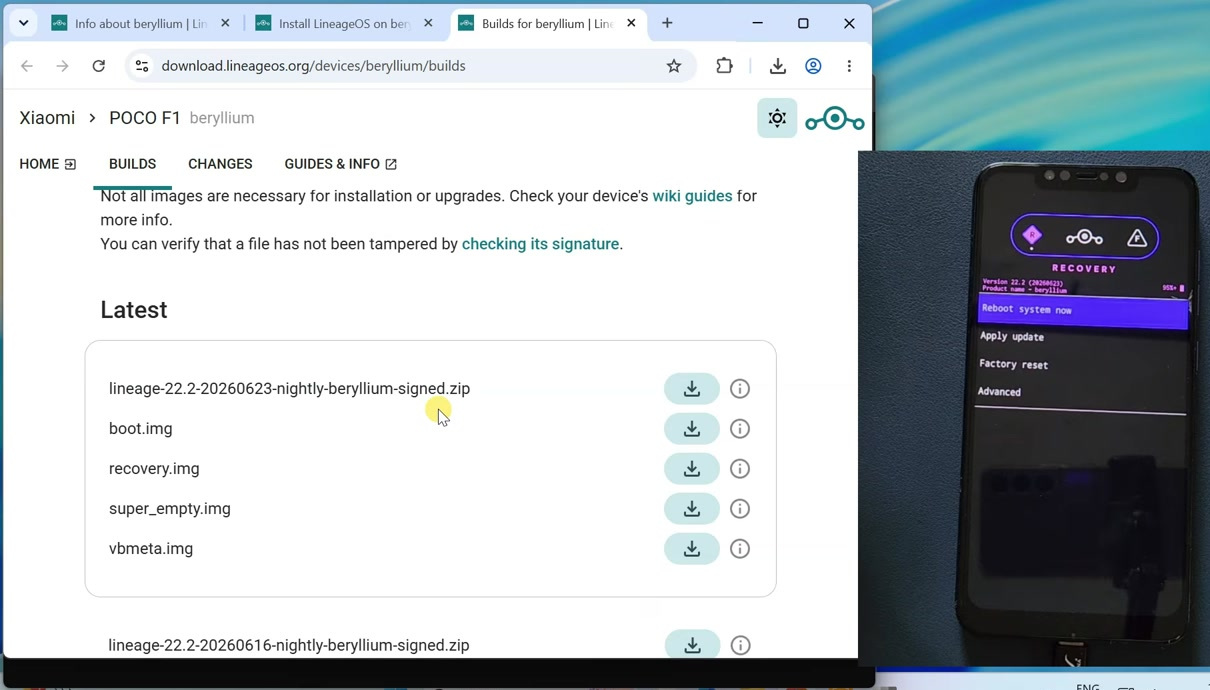
Step 11: Factory Reset From LineageOS Recovery
Now, on the phone, select:
Factory ResetThen select:
Format data / factory resetConfirm the formatting process.
This will erase all files stored in the phone’s internal storage and remove encryption. So make sure your important data is already backed up.
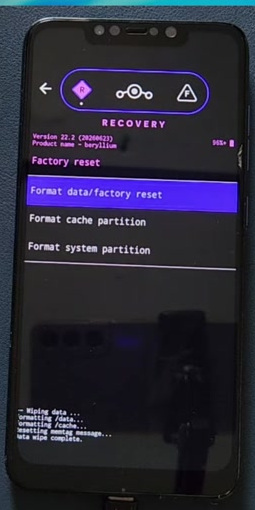
Step 12: Apply Update From ADB
Once formatting is complete, return to the recovery’s main menu.
Now select:
Apply updateThen choose:
Apply from ADBThe phone is now ready to receive the LineageOS installation file from your computer.
On the computer, return to the Command Prompt window and type:
adb -d sideloadAfter that, drag the downloaded LineageOS ZIP file into the Command Prompt window. This will automatically add the file path after the command.
The command will look something like this:
adb -d sideload lineage-xx.x-xxxxxxxx-nightly-beryllium-signed.zipNow press Enter and wait for the installation to finish. Do not disconnect the USB cable during this process.
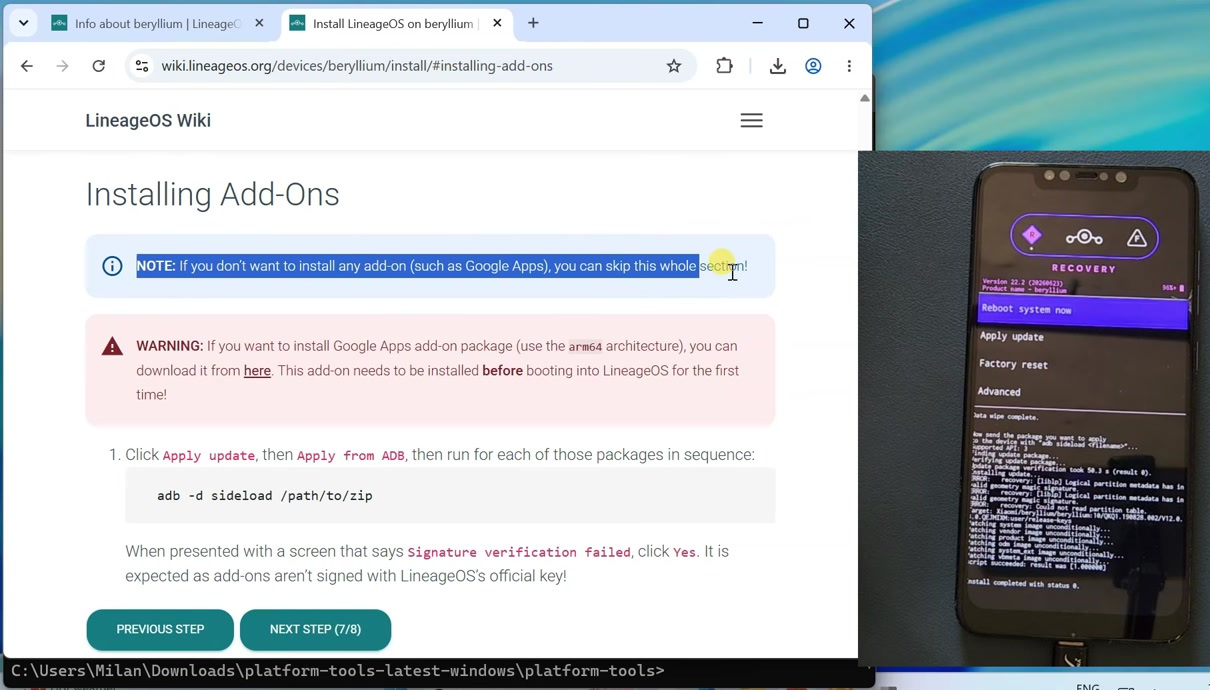
Sometimes, the computer’s progress may stop at around 47%. But do not panic. Check the phone’s recovery screen. If the recovery shows Installation completed with status code 0, the ROM has been installed successfully.
Step 13: Install Google Apps Optional
Do not reboot the phone yet if you want to install Google Apps.
LineageOS does not include Google Play Store and other Google applications by default. Installing Google Apps is completely optional. If you want a Google-free LineageOS installation, you can skip this part.
However, if you want Play Store and Google services, download the correct Google Apps package for your device and LineageOS version. For the POCO F1, select the ARM64 version that matches the LineageOS version being installed.
Important: The Google Apps package must be installed before booting LineageOS for the first time. If you boot the operating system first, you may have to factory reset and reinstall the ROM before adding Google Apps correctly.
On the phone, once again select:
Apply updateThen select:
Apply from ADBOn the computer, enter:
adb -d sideloadNow drag the downloaded Google Apps ZIP file into the Command Prompt window and press Enter.
Because this add-on package is not signed using the official LineageOS signing key, the recovery may display a Signature verification failed warning. This is expected for the add-on package. Select Yes to continue.
Once the installation is complete, return to the main recovery menu.
Step 14: Reboot Into LineageOS
Now select:
Reboot system nowThe phone will now boot into LineageOS for the first time.
The first boot can take several minutes, so be patient. The official guide notes that it can take up to around 15 minutes depending on the device. Do not force restart the phone unless it remains stuck for an unusually long time.
After the setup screen appears, complete the initial setup. Connect to Wi-Fi and sign in to your Google account if you installed Google Apps.
Step 15: Confirm LineageOS Version
After reaching the home screen, open Settings and go to About phone.
Here, you can confirm the LineageOS version, Android version, security patch, build number, and device information.
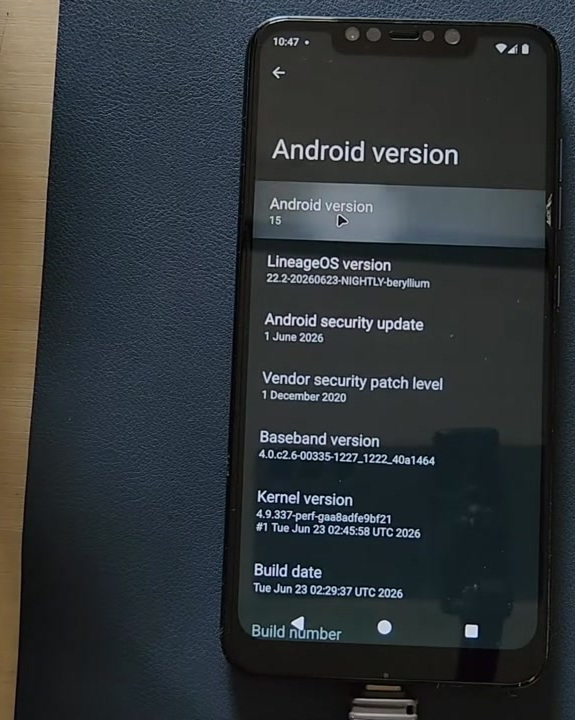
In my case, my eight-year-old POCO F1 is now running the latest officially supported LineageOS build. This is one of the best things about custom ROMs. A phone that may no longer receive official software updates from the brand can still get a fresh Android experience through the custom ROM community.
How to Update LineageOS Later
Future official LineageOS updates can normally be downloaded from the built-in System Updater.
To check for updates, open:
Settings > System > UpdaterFrom there, you can download and install available official LineageOS updates for your device.
Important Things to Remember
After installing LineageOS, do not relock the bootloader unless the official guide for your exact device clearly says that it is supported. Relocking the bootloader on an unsupported custom ROM setup can create serious problems.
Also, banking apps, DRM services, payment apps, and some security-sensitive applications may behave differently on a custom ROM. Some apps may work normally, while others may detect the unlocked bootloader or modified software environment.
Most importantly, do not use files made for another phone. Even if two phones look similar, their device codename, partitions, firmware, and flashing method can be different.
Final Words
So that is how you can install LineageOS on an Android phone using the official method.
Although I used the POCO F1 in this tutorial, do not blindly use the same files or commands on another phone. Open the official LineageOS page for your exact device, check the codename, read the full installation guide, and follow every section carefully.
If this guide helped you, press the Like button and subscribe to TechyDruid for more Android, custom ROM, and technology tutorials.