Android TV 14 can give an old desktop or laptop a TV-focused interface with YouTube, Google Play, streaming apps, and games. This guide walks through downloading the Android TV x86 build, creating a bootable USB drive, installing it to a dedicated SSD or hard drive, and completing first-run setup.
What You Need
Before starting, prepare an 8 GB or larger USB drive. You will use it to create the Android TV installer.
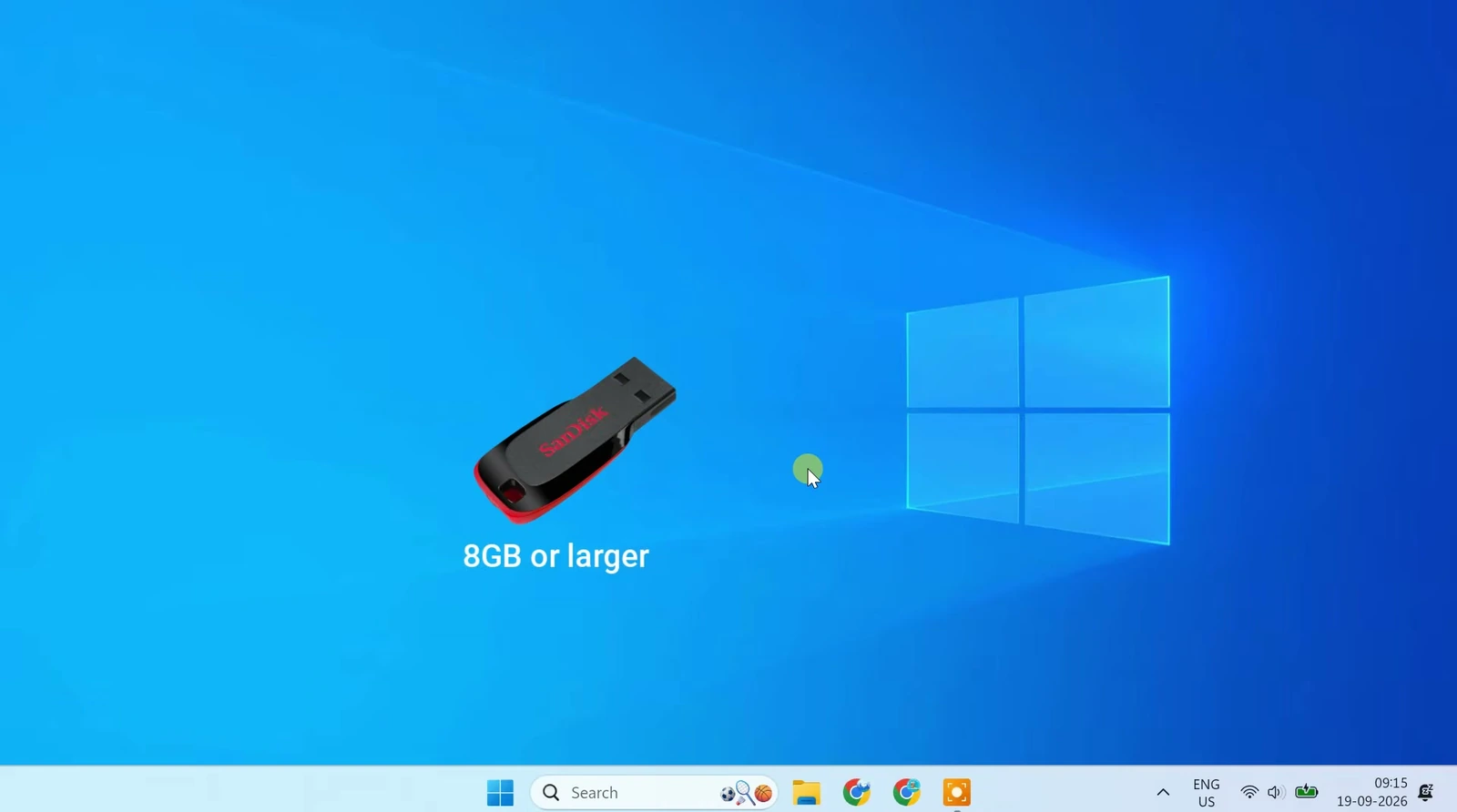
You will also need the PC or laptop that will run Android TV and a destination SSD or hard drive for the installation.
Download the Android TV 14 ISO
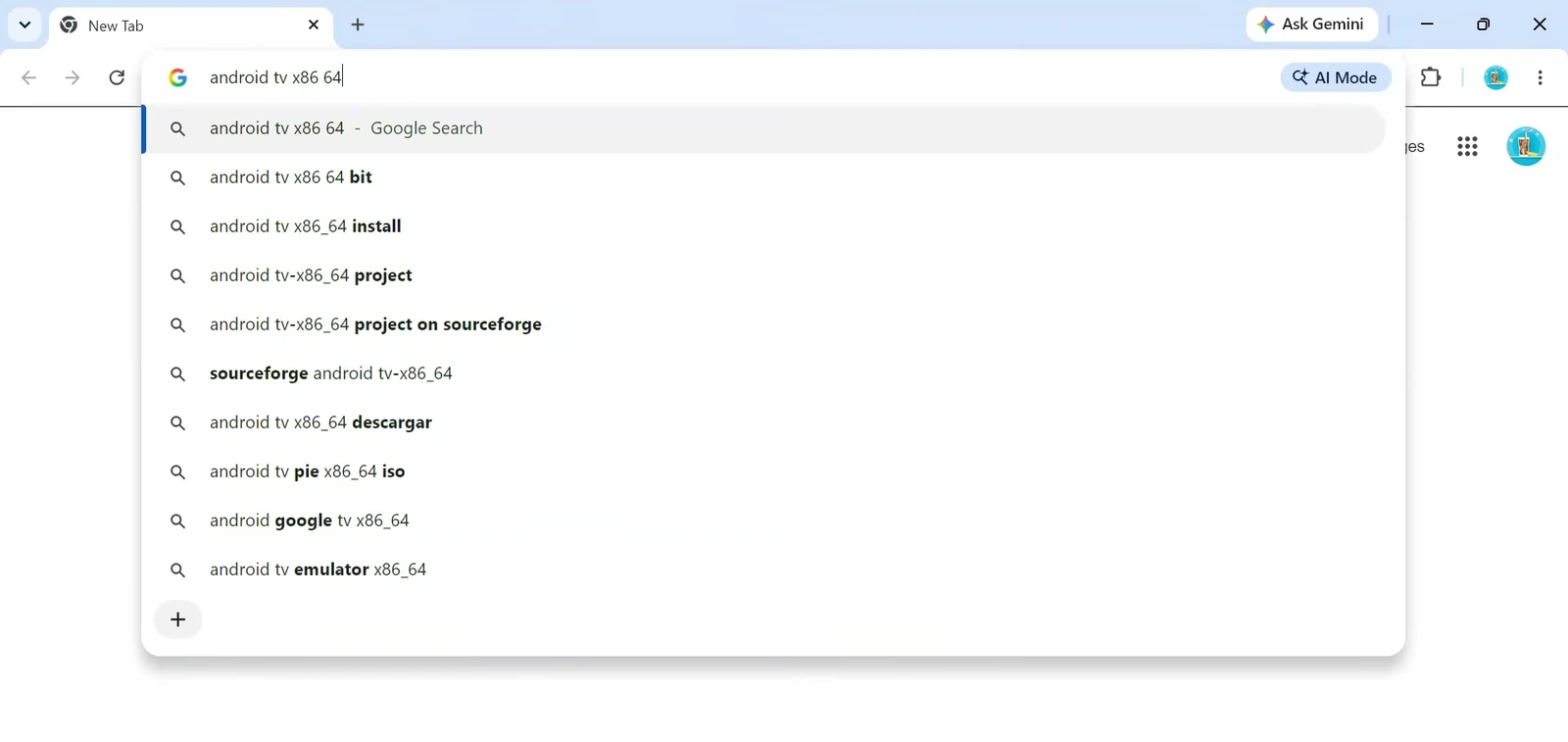
Open a web browser and search for Android TV x86_64, then open the SourceForge result for the AndroidTV-x86_64 project.
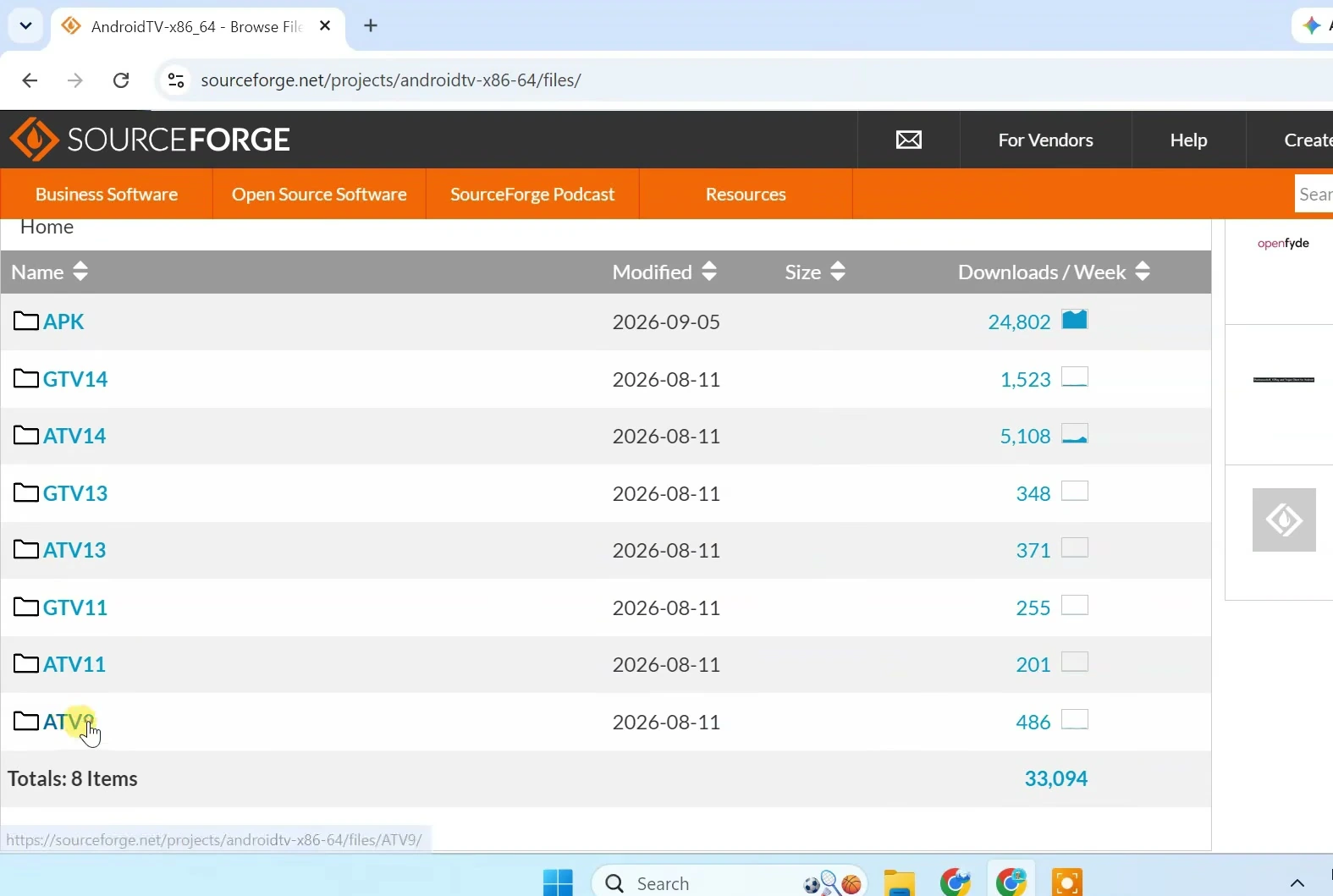
On the project download page, open the Files section. Several releases may be available, including older Android TV versions and Google TV builds. Open the ATV14 folder.
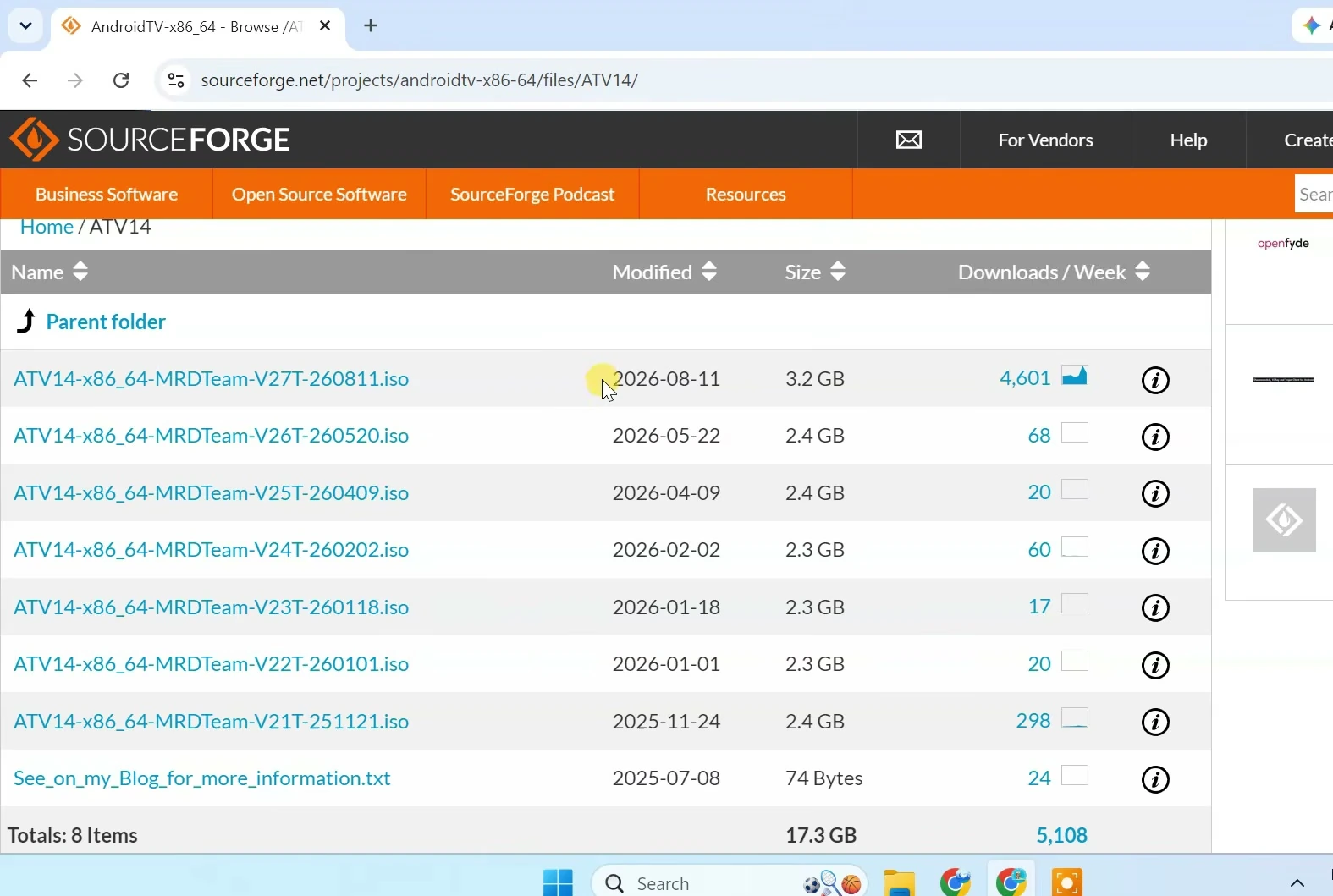
Download the newest Android TV 14 x86_64 ISO in that folder. The ISO is around 3 GB, so allow the download to finish before continuing.
Create a Bootable Android TV USB Drive
Download and open Rufus, then connect the USB drive to the computer.
In Rufus, verify that the correct USB device is selected under Device. Click Select and choose the Android TV 14 ISO you downloaded.
For a UEFI-capable computer, use GPT as the partition scheme and UEFI as the target system. If the PC supports only legacy BIOS, use MBR instead. Leave the file system at Rufus’s default option, which is shown as large FAT32 in this setup.
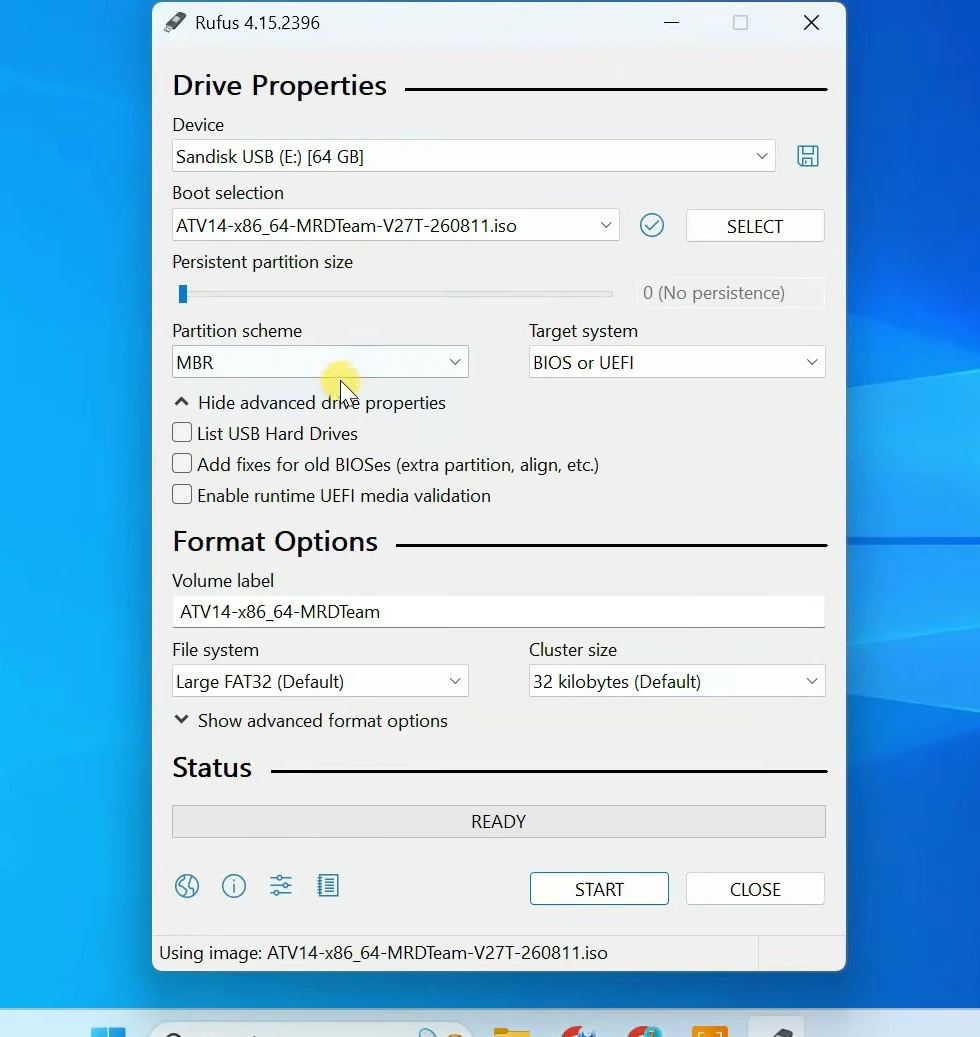
When the settings are ready, click Start. Confirm the erase warning to let Rufus write the installer to the selected USB drive.
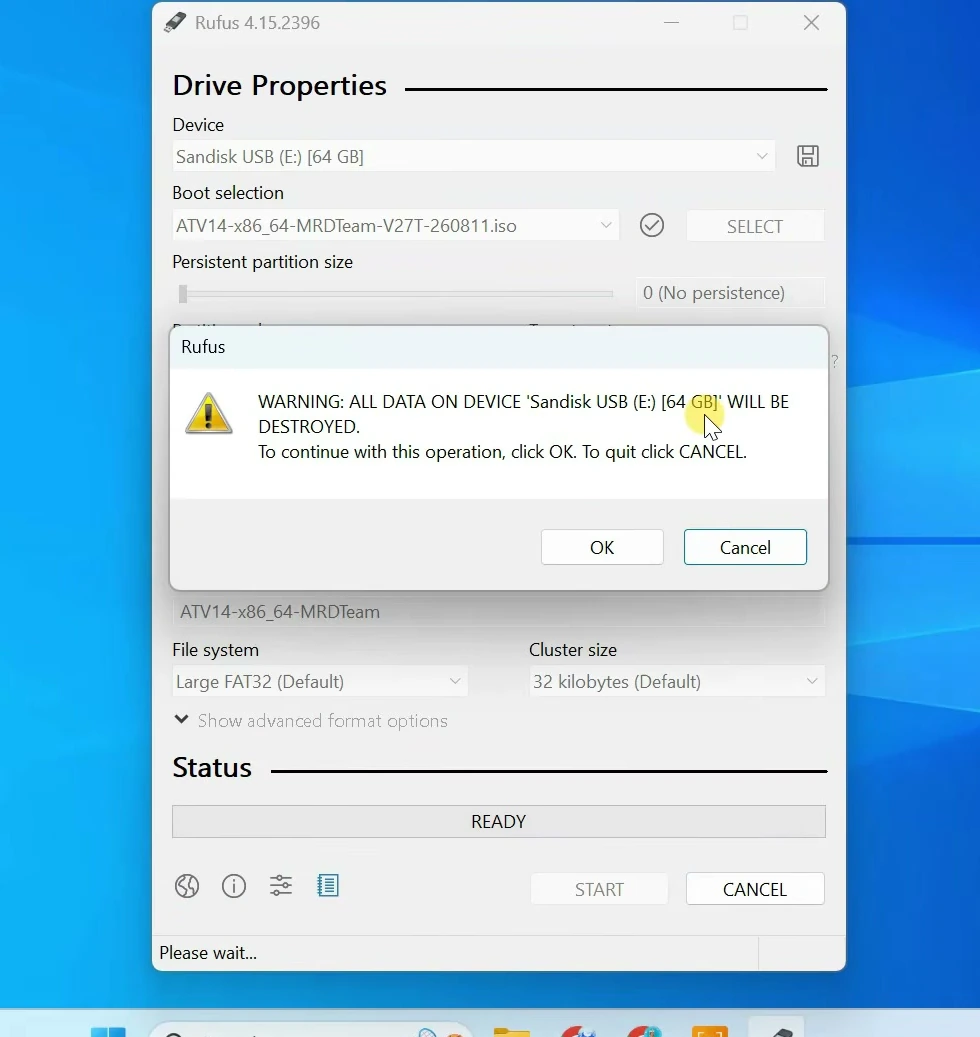
Wait for Rufus to finish, then close it.
Boot the PC From the USB Drive
Connect the bootable USB drive to the PC where you want to install Android TV. Turn it on and immediately press the key that opens its boot menu, then select the USB drive and press Enter.
Android TV will start from the USB drive. At the installer menu, choose Auto Install to specified harddisk.
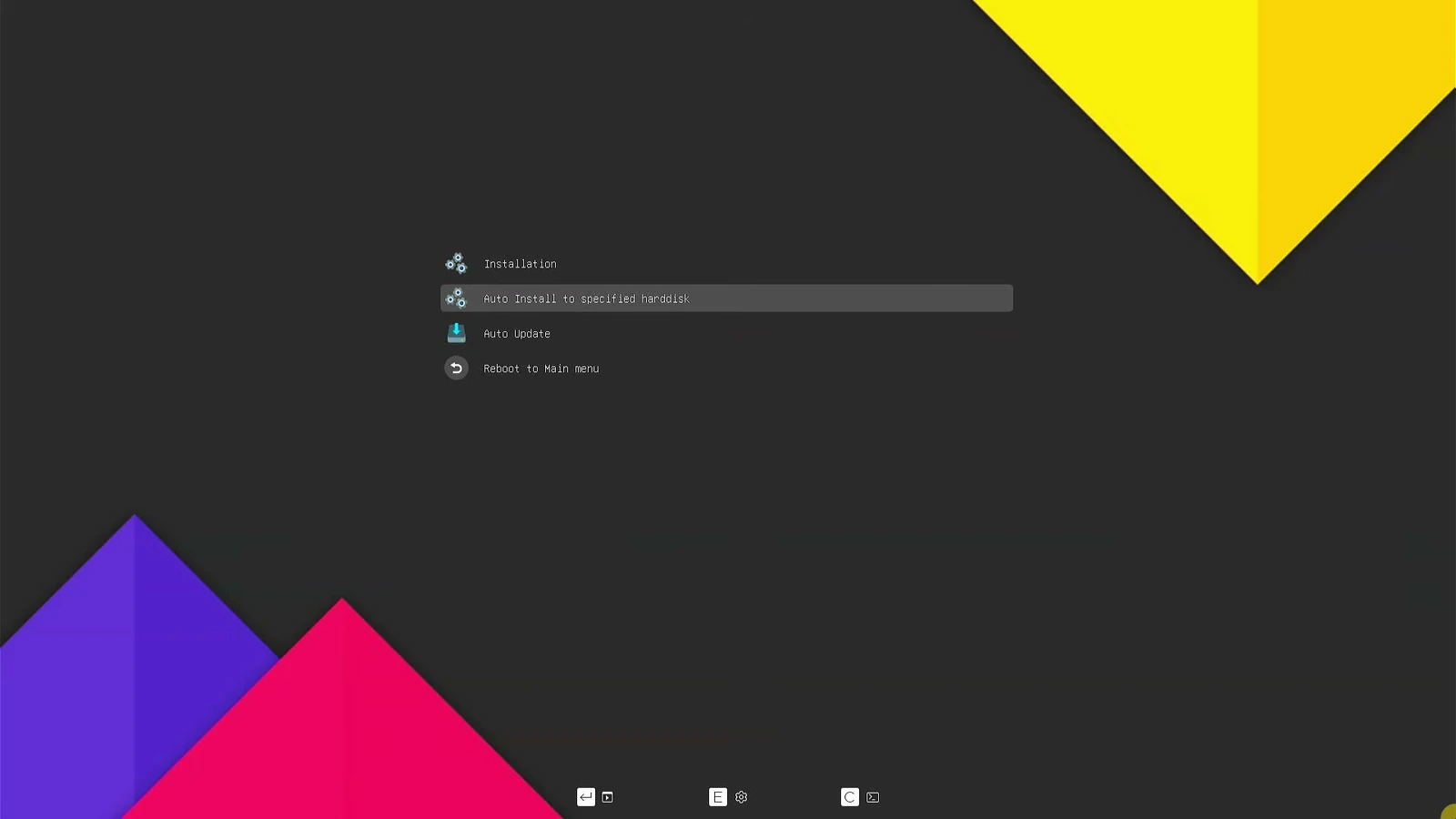
Install Android TV to an SSD or Hard Drive
After the installer loads, it lists the storage drives connected to the computer. Select the SSD or hard drive that will hold Android TV.
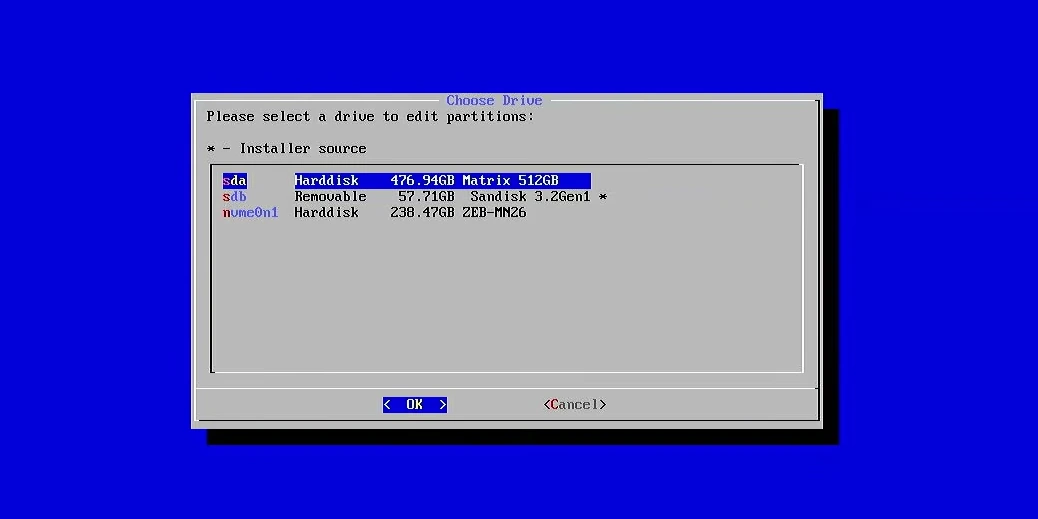
At the final confirmation screen, select Yes to continue.
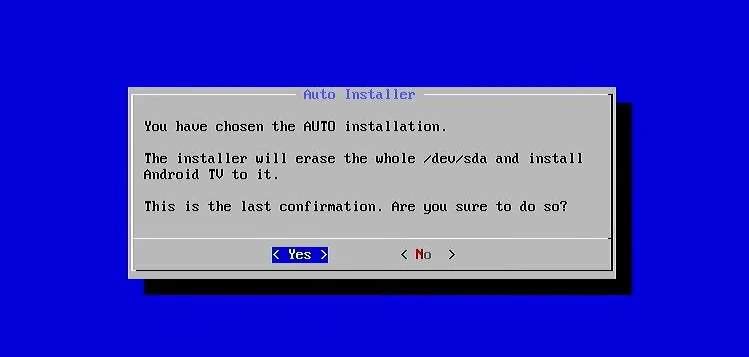
The installer creates and formats the required partitions, then copies Android TV to the drive automatically. Wait for it to complete.
Reboot Into Android TV
When the installer reports that Android TV was installed successfully, select Reboot.
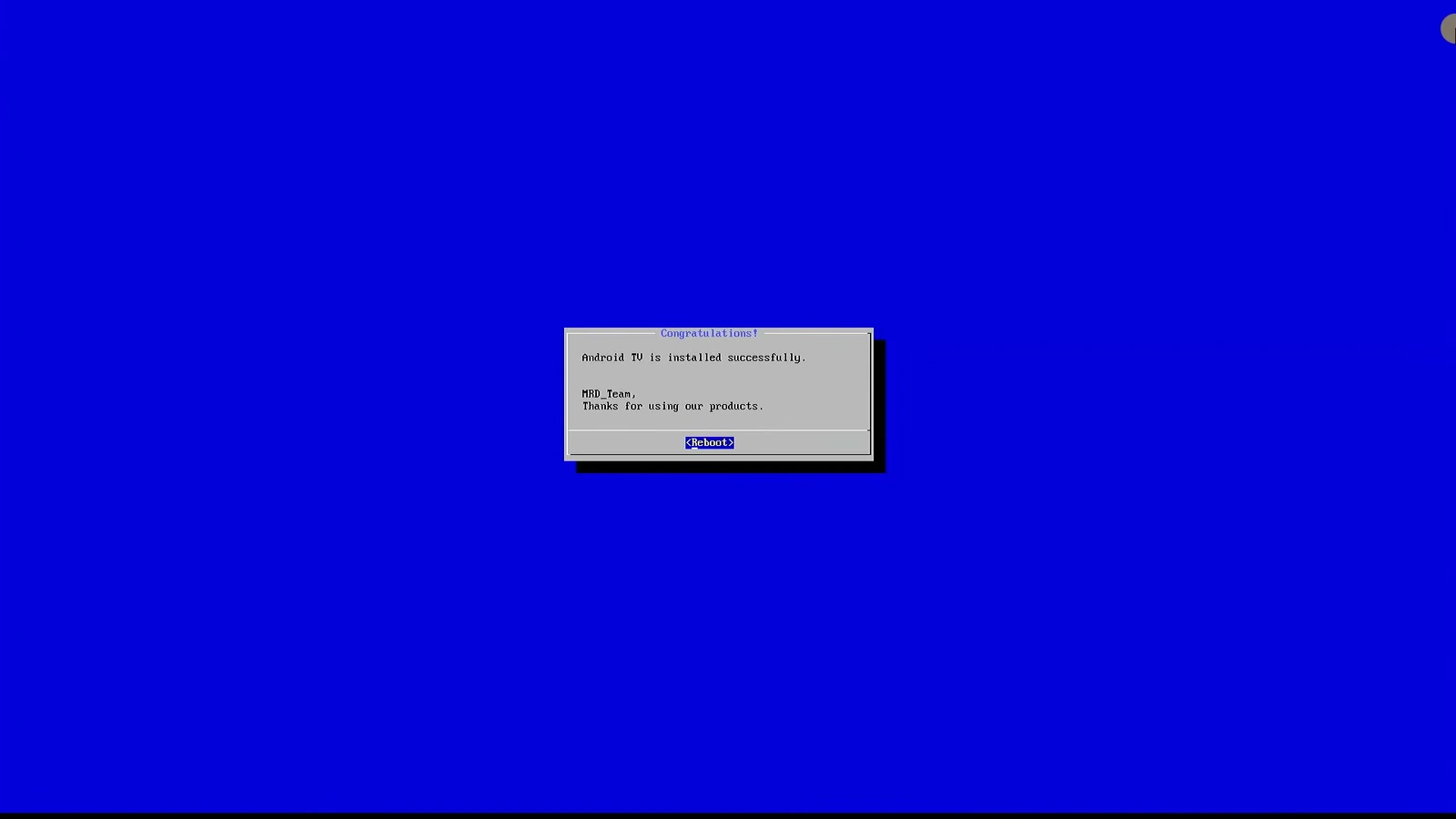
Remove the USB drive before the computer restarts. The PC should now boot Android TV directly from the installed SSD or hard drive.
If a boot menu appears with two Android TV entries, select Android TV for most systems. Use Android TV and video only for systems that need the Nvidia-specific boot configuration.
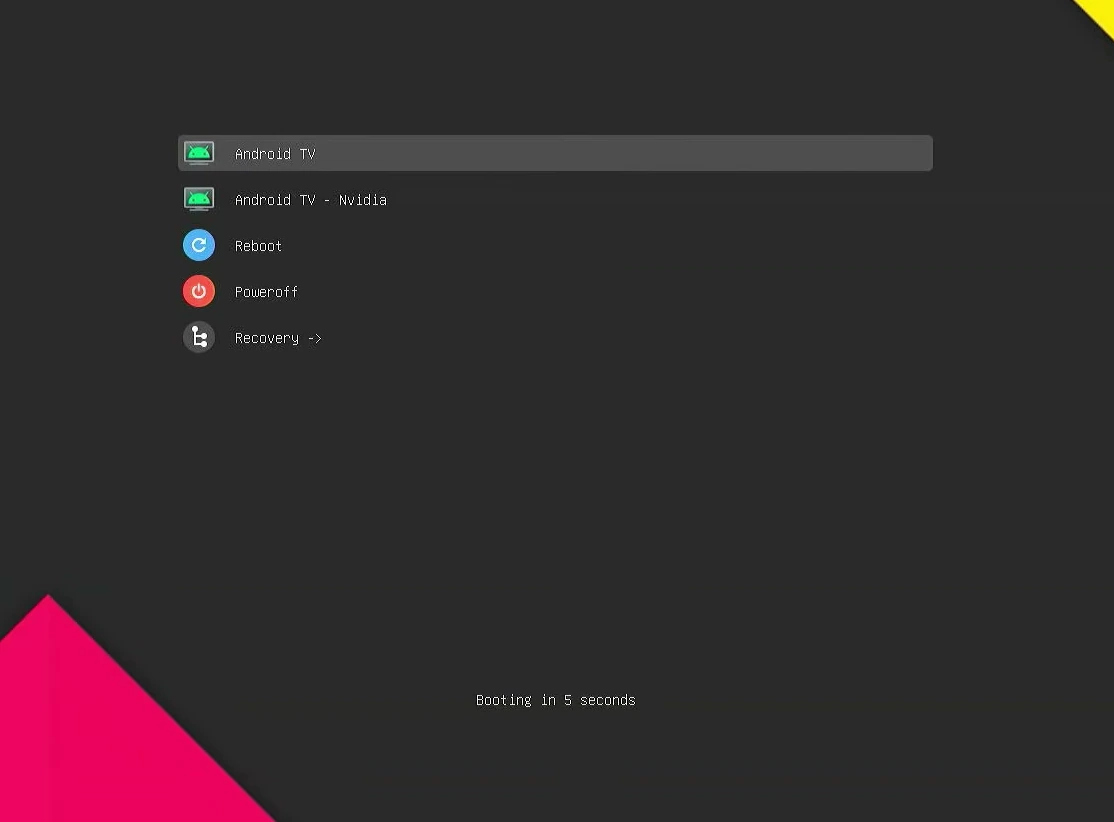
The first boot can take longer than usual. Wait for the Android TV setup screen to appear.
Complete Android TV First-Run Setup
Choose your preferred language on the welcome screen.
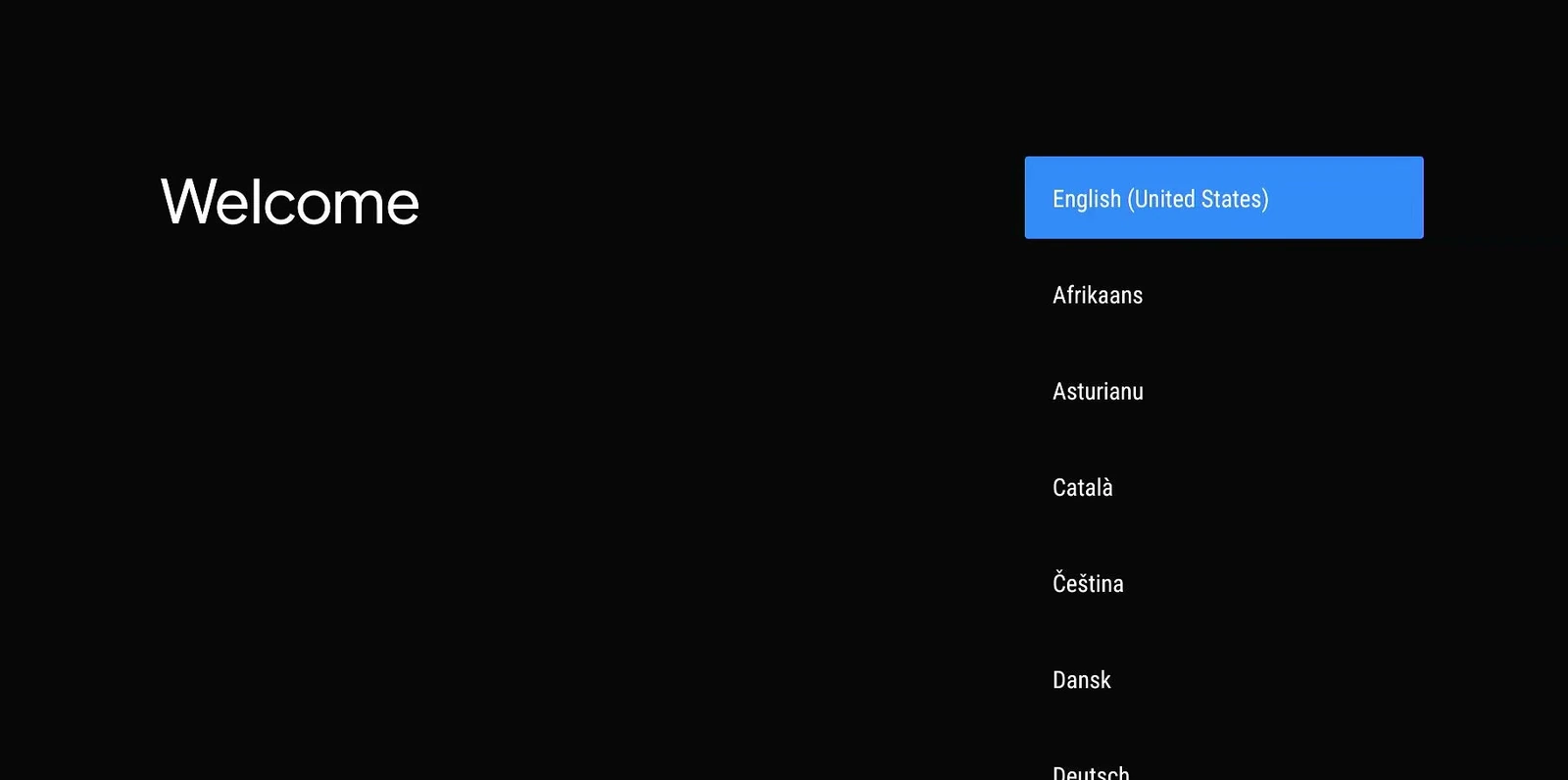
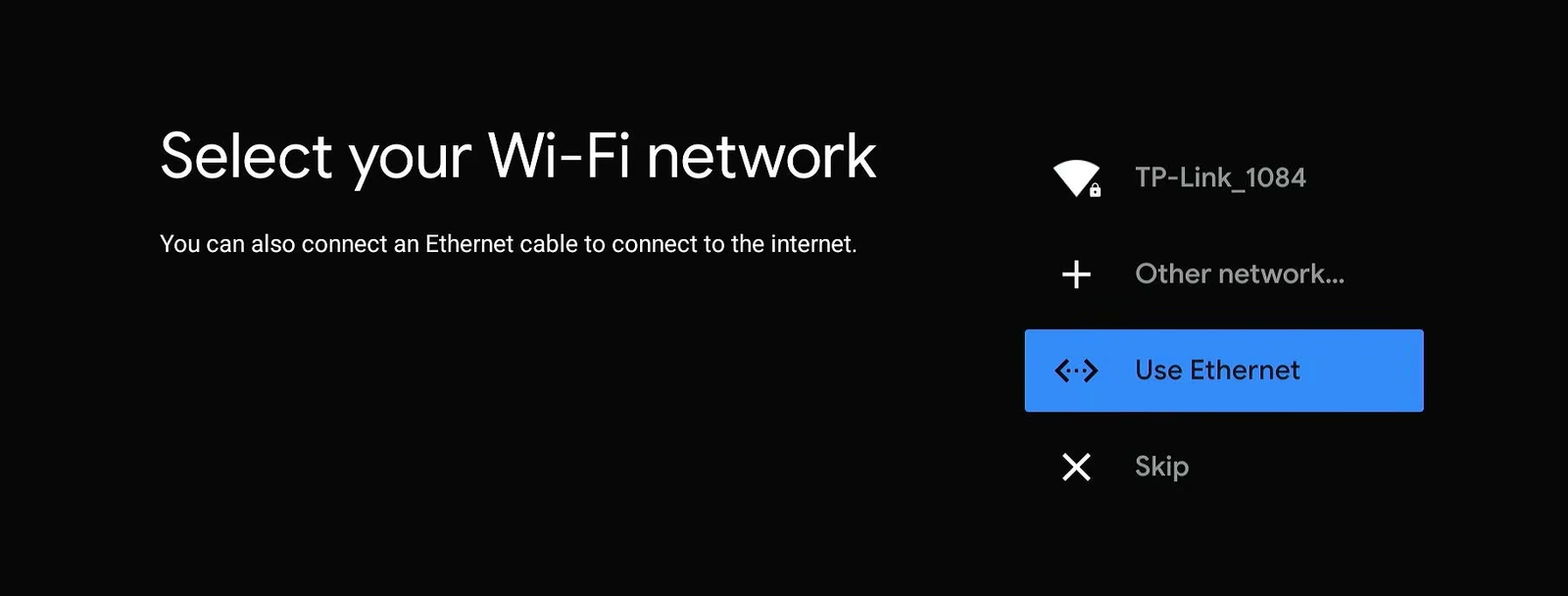
Connect the system to the internet. Ethernet may be detected automatically, or you can choose a Wi-Fi network if the PC has supported Wi-Fi hardware.
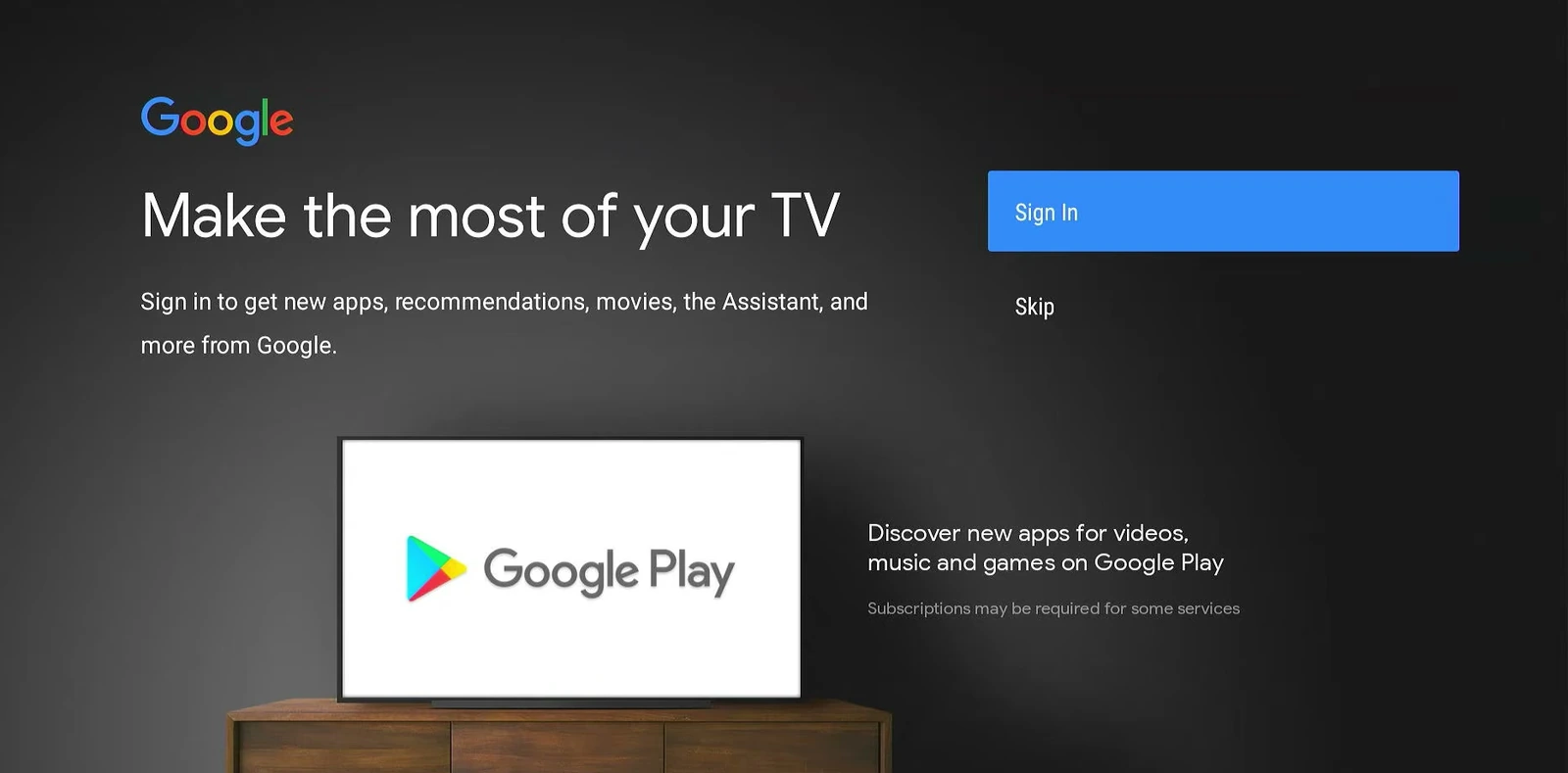
Next, choose whether to sign in to a Google account. Signing in provides access to the Google Play Store, app syncing, recommendations, and other Google services.
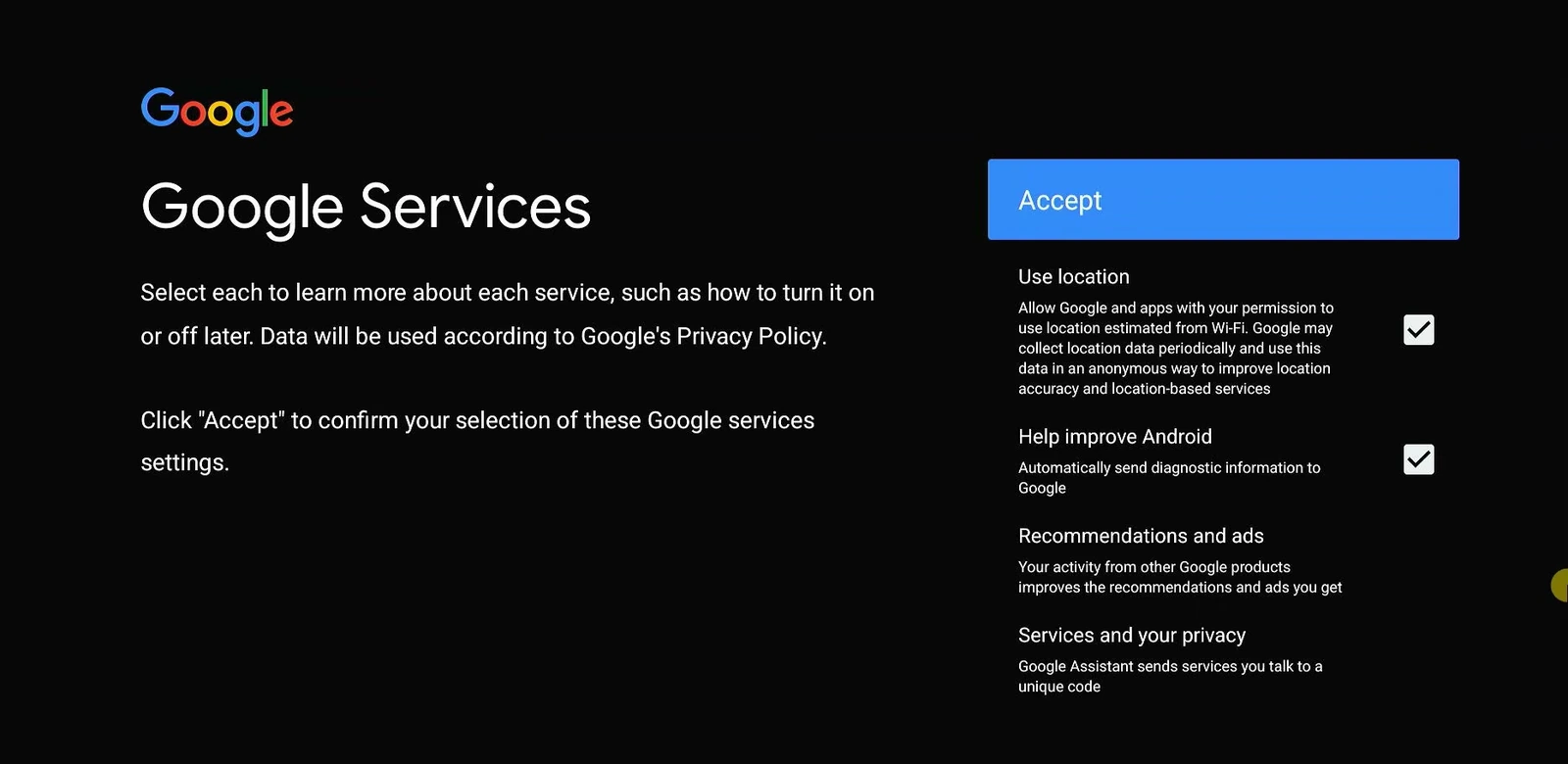
Review the Google Terms of Service and the Google Services options, then select the settings you prefer and continue.
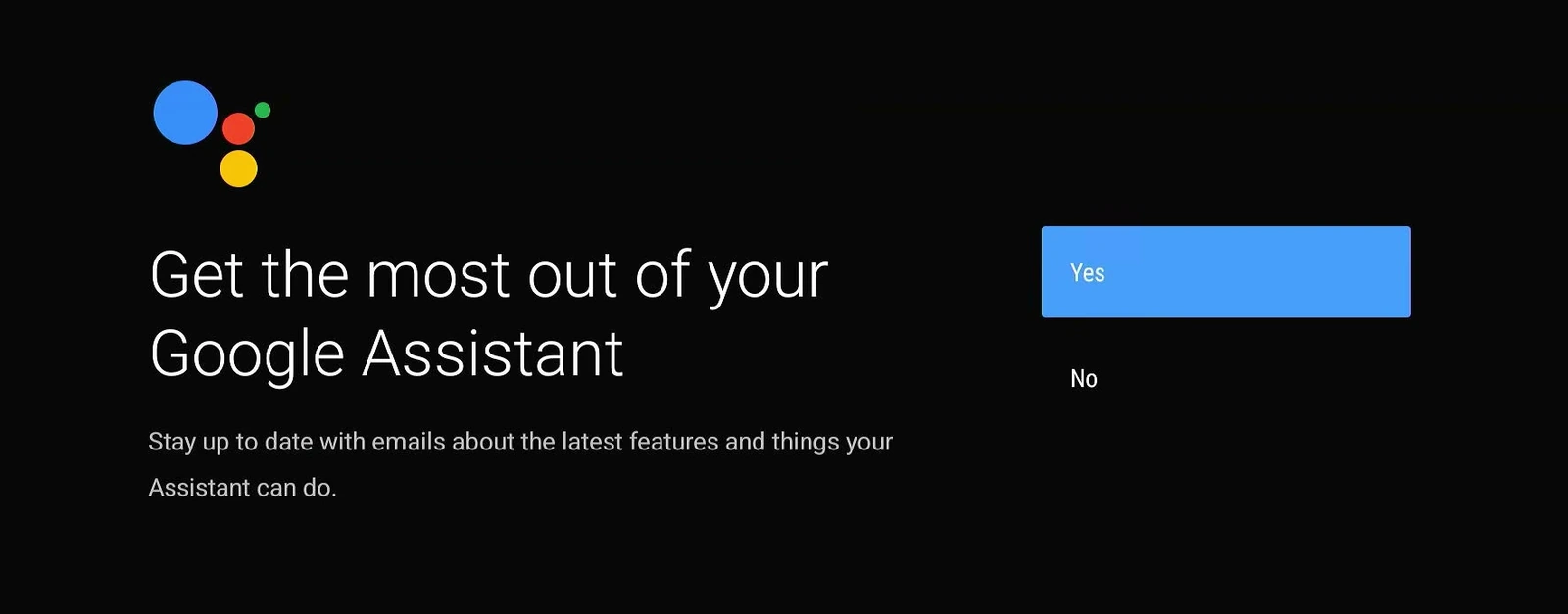
If prompted, choose your preferred Google Assistant setting. This setup is optional.
Use Android TV on Your PC
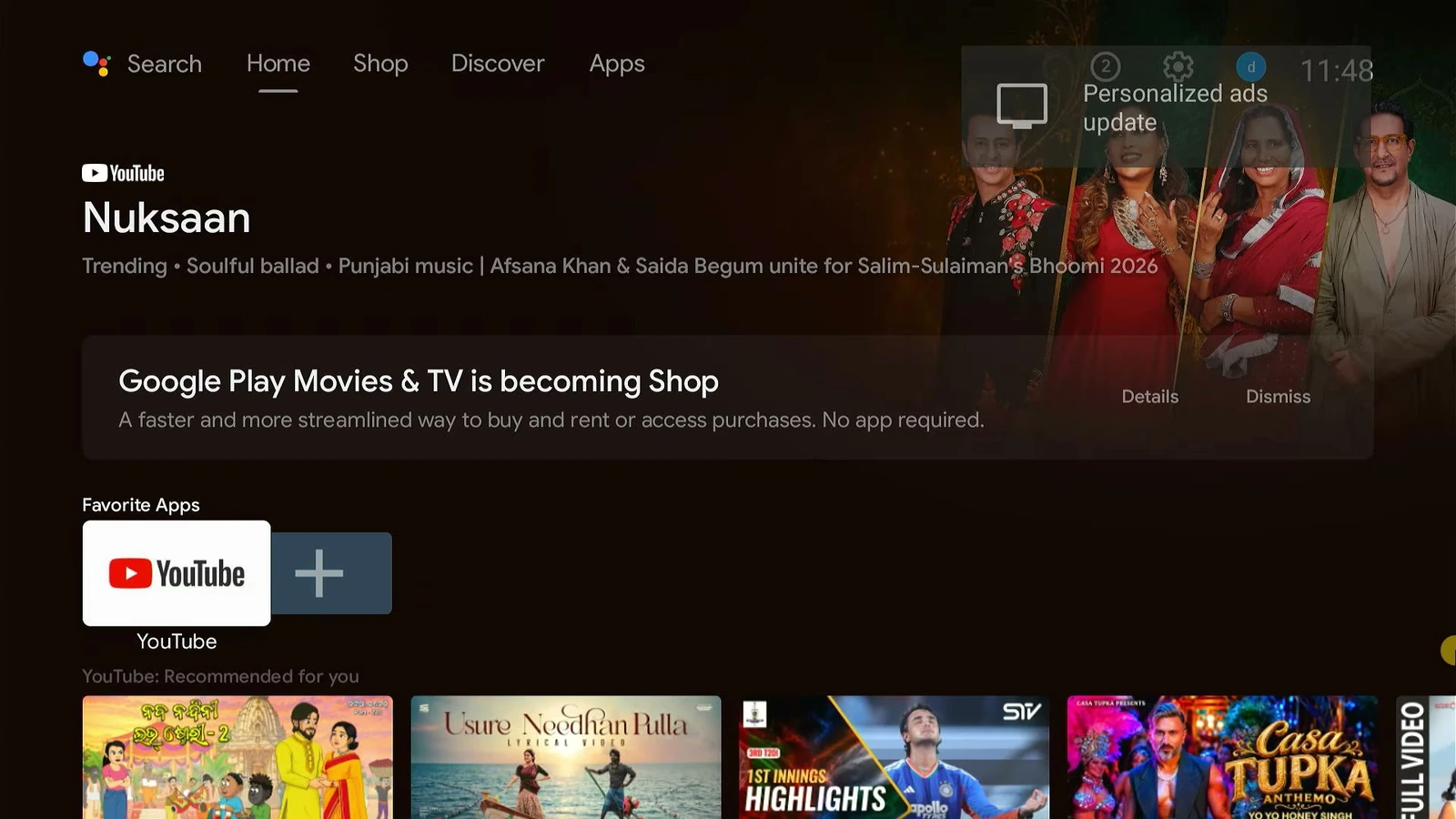
After setup, the Android TV home screen is ready to use. YouTube is already available, and the system can access Google Play.
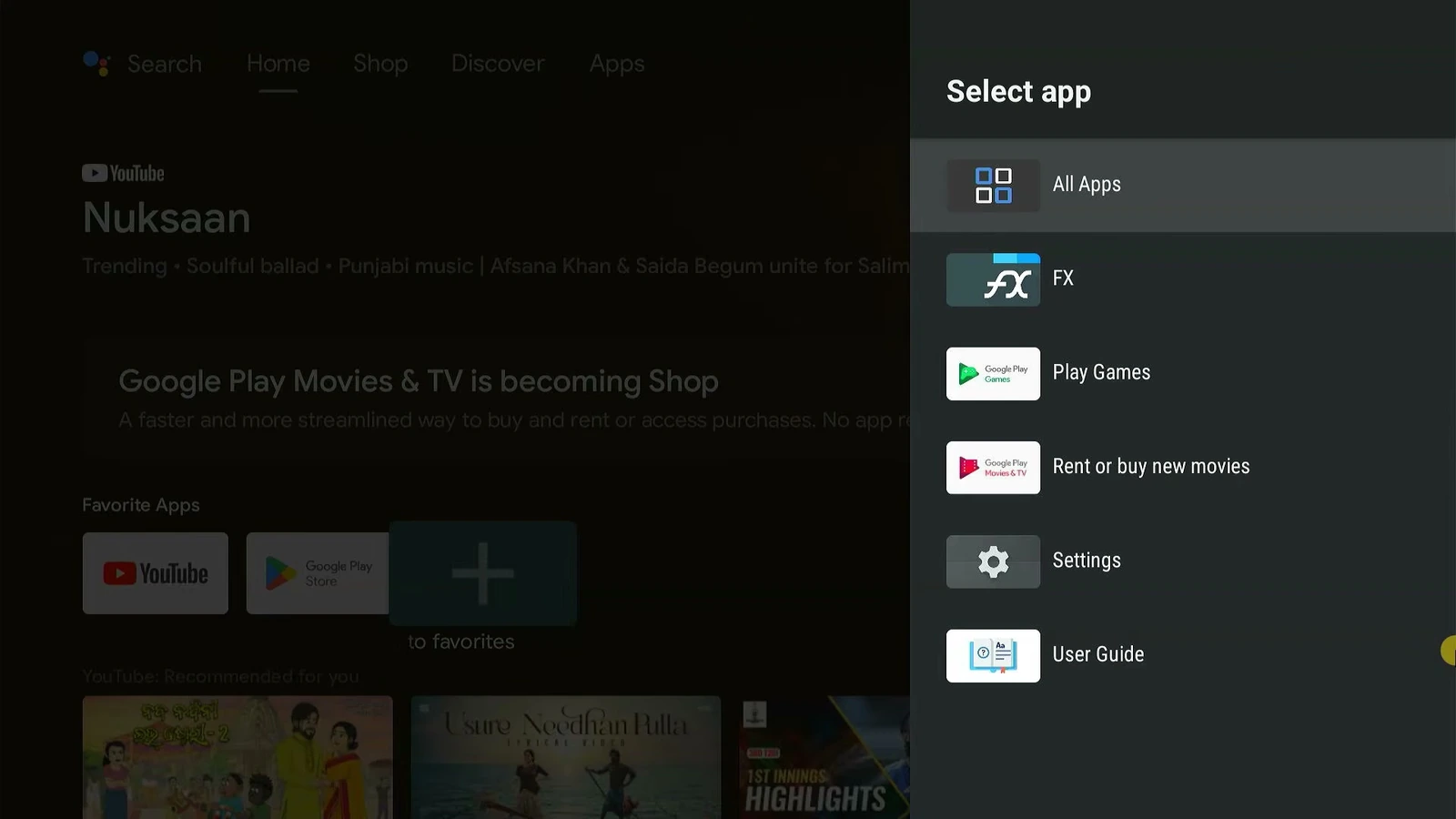
Open the Apps section to view installed apps, including Google Play Store, YouTube, FX File Manager, Settings, and more.
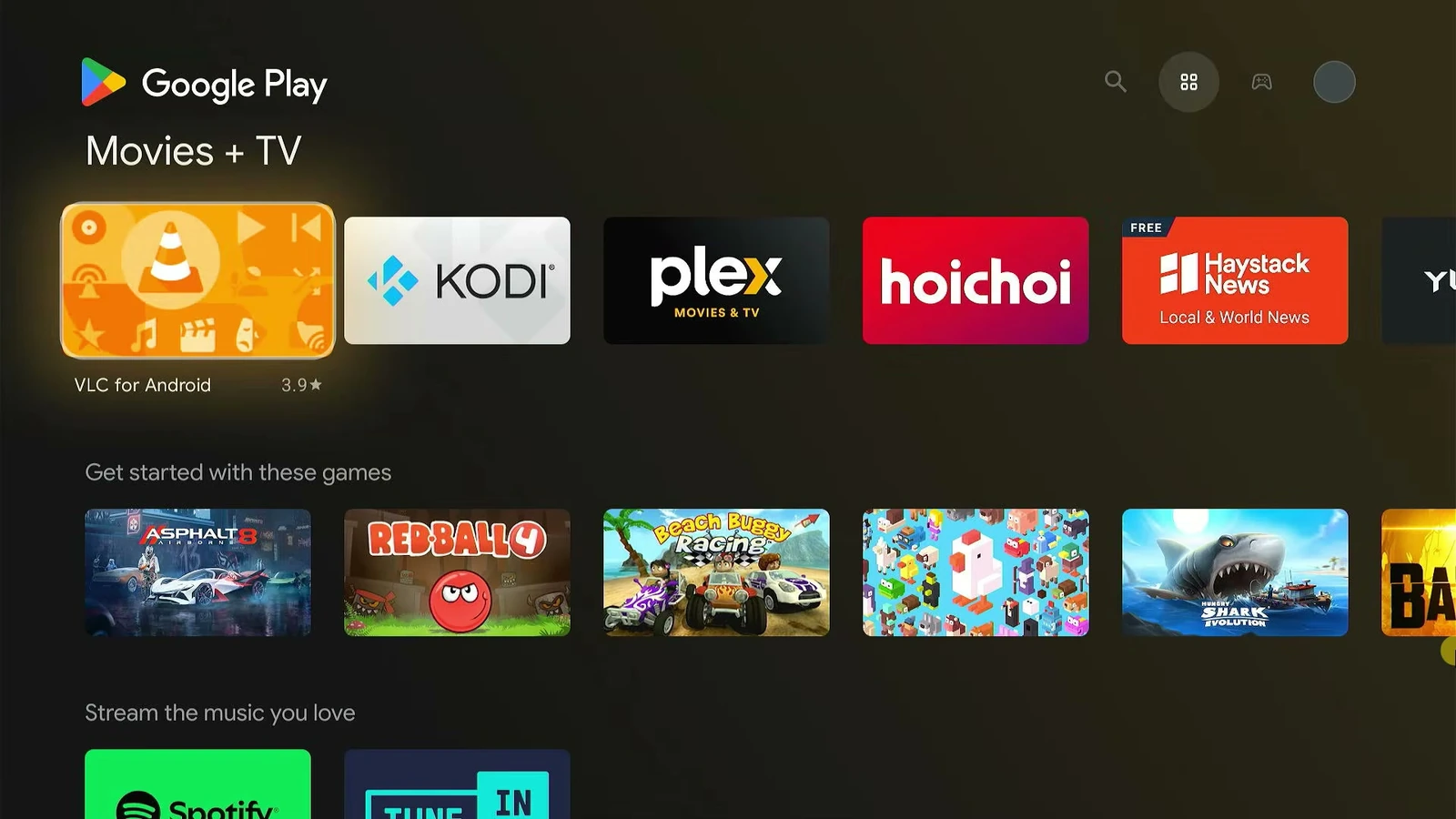
Use Google Play to install additional Android TV apps and games. You can also connect a controller and use the computer as an entertainment and gaming box.
Troubleshooting Android TV Installation
▸ The PC does not boot from the USB drive
Restart the computer and use its one-time boot-menu key immediately after powering on. Select the USB drive from that menu rather than allowing the PC to boot normally.
▸ I need to keep Windows on the computer
Do not select the drive containing Windows during installation. The installer erases the whole selected drive, so install Android TV only to a separate SSD or hard drive.
▸ Which Android TV entry should I select after installation?
Select Android TV in most cases. The separate Android TV and video entry is intended for systems that need the Nvidia-specific video configuration.
Frequently Asked Questions
▸ Can Android TV run directly from the PC’s SSD?
Yes. Once installed, Android TV boots directly from the selected SSD or hard drive without Windows or an emulator running in the background.
▸ How large does the USB drive need to be?
An 8 GB or larger USB drive is sufficient for creating the bootable installer.
▸ Do I need a Google account?
You can choose to skip sign-in, but signing in is recommended for Google Play Store access, app syncing, recommendations, and Google services.
Final Words
You now have Android TV 14 installed directly on an old PC or laptop. Connect it to a TV or monitor to use YouTube, Google Play, streaming apps, games, and other Android TV apps from a dedicated entertainment system.