Your Android phone can provide a desktop-like workspace on your Windows PC without an HDMI adapter or an external monitor. The free, open-source tool scrcpy can create a virtual display: a separate Android screen that appears in a window on your computer and accepts input from your PC’s keyboard and mouse.
On phones with suitable desktop and freeform-window support, this lets you browse, manage files, and use Android apps in movable, resizable windows. It does not turn Android into Windows, and the experience varies by phone and software version. Android 15 or newer is recommended for this setup; no root access or custom ROM is required.
Download scrcpy and prepare your connection
- Windows PC: This procedure uses the Windows ZIP package of scrcpy.
- Android phone: Android 15 or newer is recommended. Older or low-memory phones may provide a less responsive experience.
- USB data cable: Use a cable that supports data transfer, not a charging-only cable.
Open Scrcpy GitHub and select Releases. Open the latest release and find its Assets list. For a 64-bit Windows PC, download the Windows ZIP whose name includes scrcpy-win64.
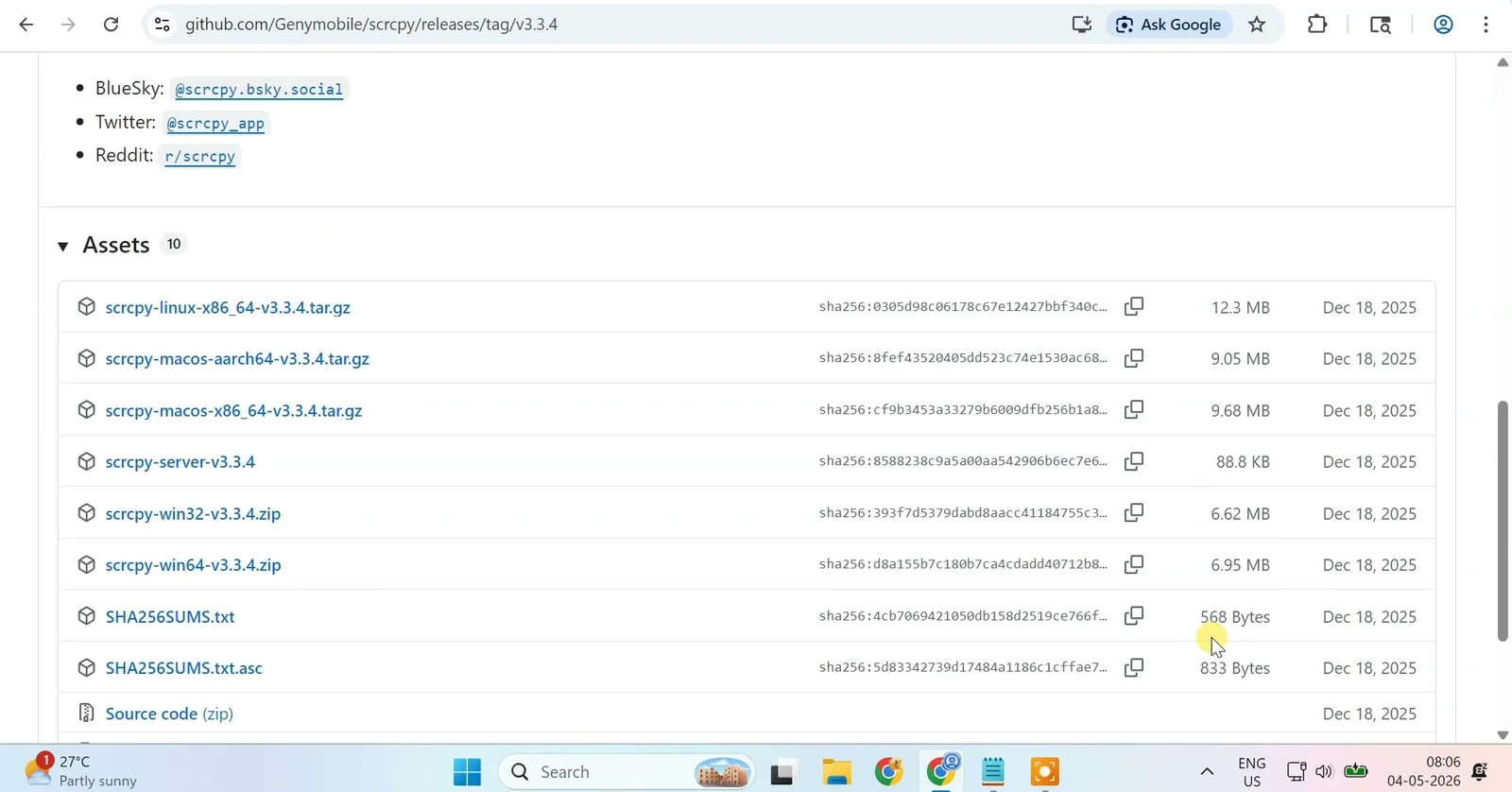
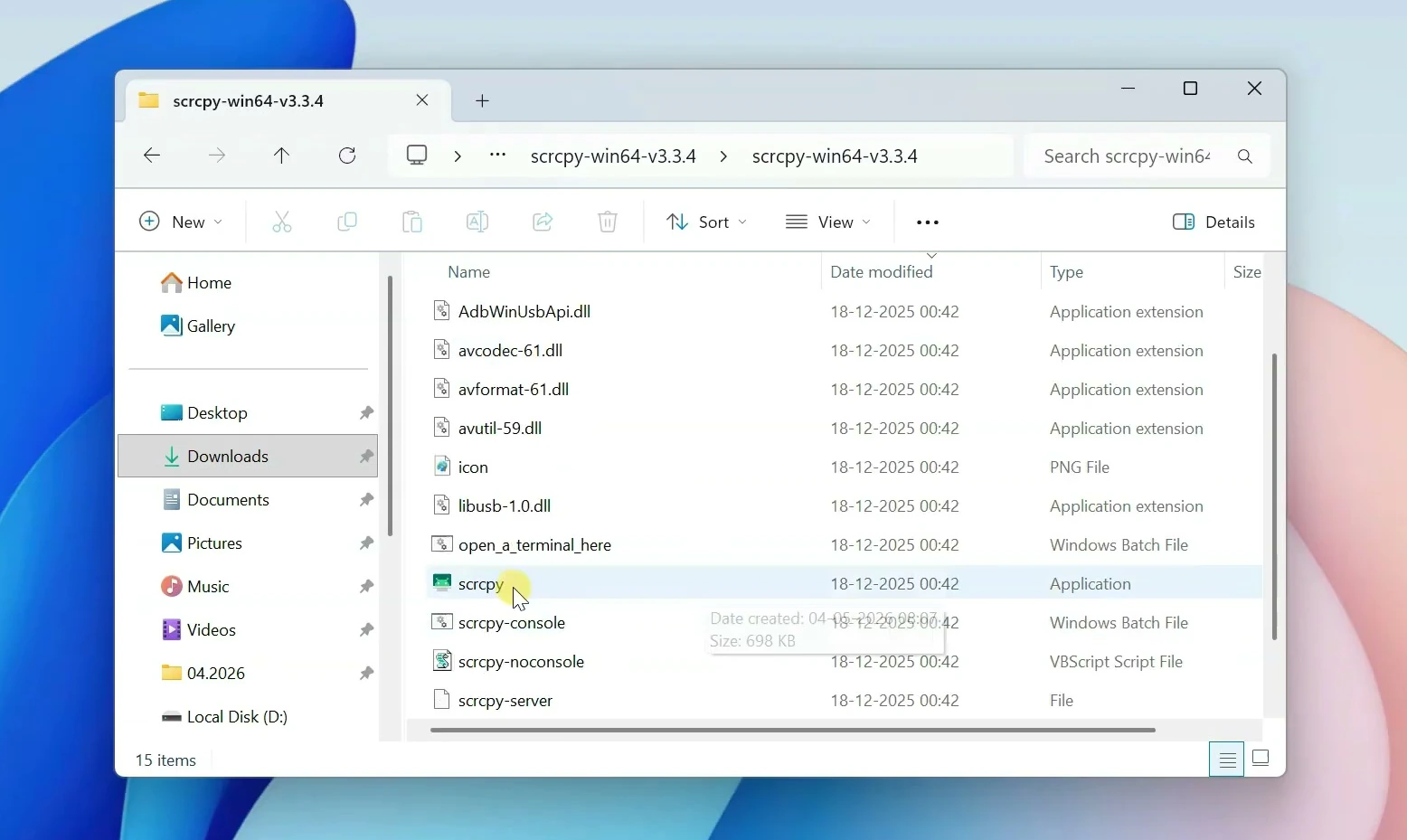
In your Windows Downloads folder, right-click the downloaded ZIP and select Extract All. Complete the extraction, then open the extracted scrcpy folder. Run scrcpy from this folder rather than from inside the ZIP.
If you have a Samsung phone, the Samsung Android USB driver may be needed for Windows to recognize its debugging connection. If detection fails, download the driver from Samsung’s official page, run the installer, and follow its prompts. This driver is for Samsung devices, not a general requirement for every Android phone.
Enable USB debugging and windowed apps
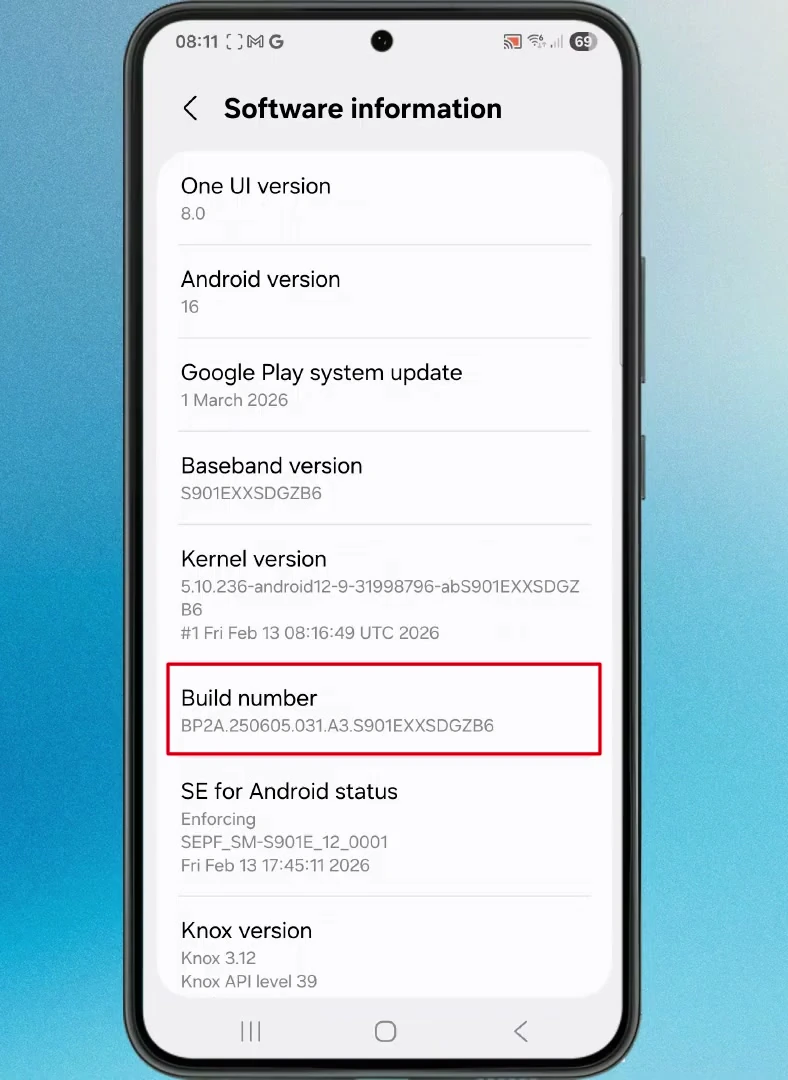
- On your phone, open Settings → About phone. On Samsung phones, continue to Software information.
- Find Build number and tap it repeatedly until developer mode is enabled. Enter your lock-screen PIN, password, or pattern if requested.
- Return to the main Settings page and open Developer options. Menu locations can differ between phone brands.
Inside Developer options, turn on USB debugging. This allows scrcpy to communicate with your phone over USB.
Warning: USB debugging gives an authorized computer access to control your phone. Only approve debugging access on a PC you trust, and turn USB debugging off when you no longer need it.
Next, look for the Window management section in Developer options and enable these settings where available:
- Force activities to be resizable: Allows Android app activities to be resized for multi-window use.
- Multi window for all apps: Allows apps that do not normally support resizing to participate in multi-window mode.
- Enable freeform windows on secondary display: Enables floating windows on the secondary display created by scrcpy. Without it, apps may open only in full-screen mode.
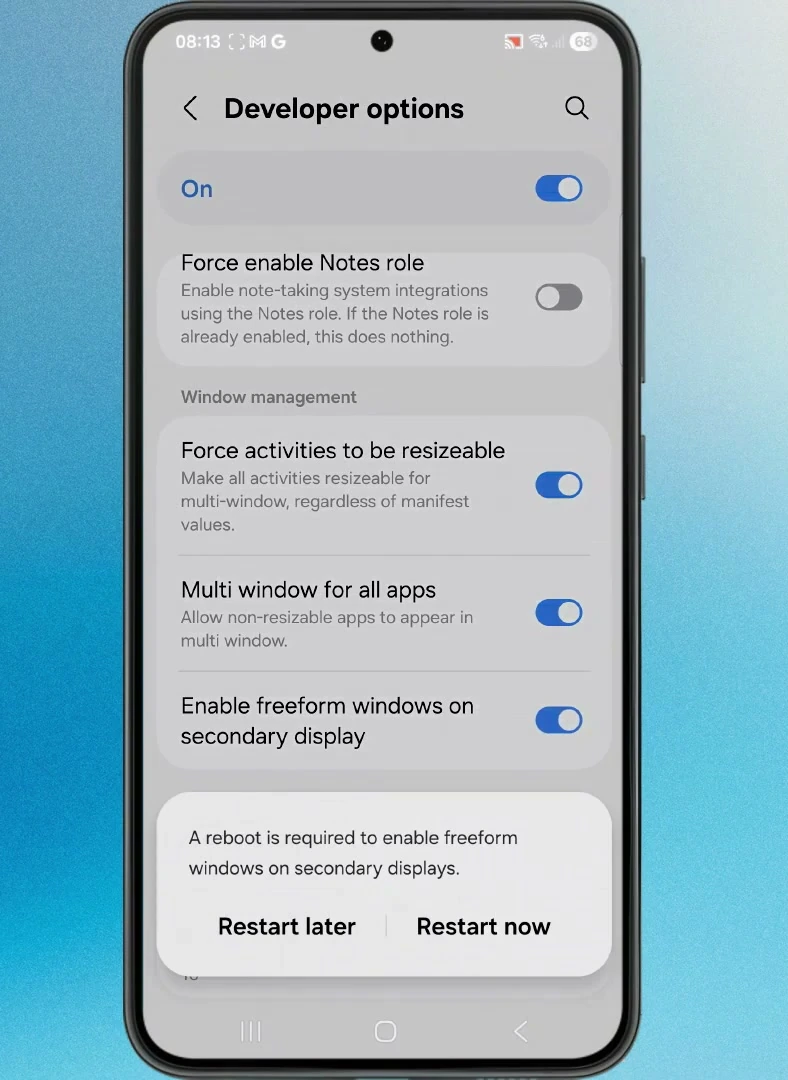
Restart your phone after enabling these options so the window-management changes can take effect.
Note: On Samsung phones, you can also open Settings → Advanced features → Labs and enable Multi window for all apps, if available. This can help additional apps work in windowed mode.
Important: These settings are not present on every phone or Android build. If the secondary-display freeform option is missing, do not assume this procedure will provide the same windowed desktop experience. Creating a virtual display and supporting desktop-style windows are separate capabilities.
Connect your phone and test normal mirroring
Connect your phone to the PC with the USB data cable. Open the phone’s USB connection settings and select File transfer. If an Allow USB debugging prompt appears, approve it for your trusted PC.
On Windows, open the extracted scrcpy folder and launch the scrcpy application. The folder also contains open_a_terminal_here.bat, which you will use for the virtual-display command.
Your phone’s main screen should appear in a scrcpy window. Try clicking an app or typing into a text field with your PC’s mouse and keyboard. This confirms the basic connection before you attempt the separate desktop display.
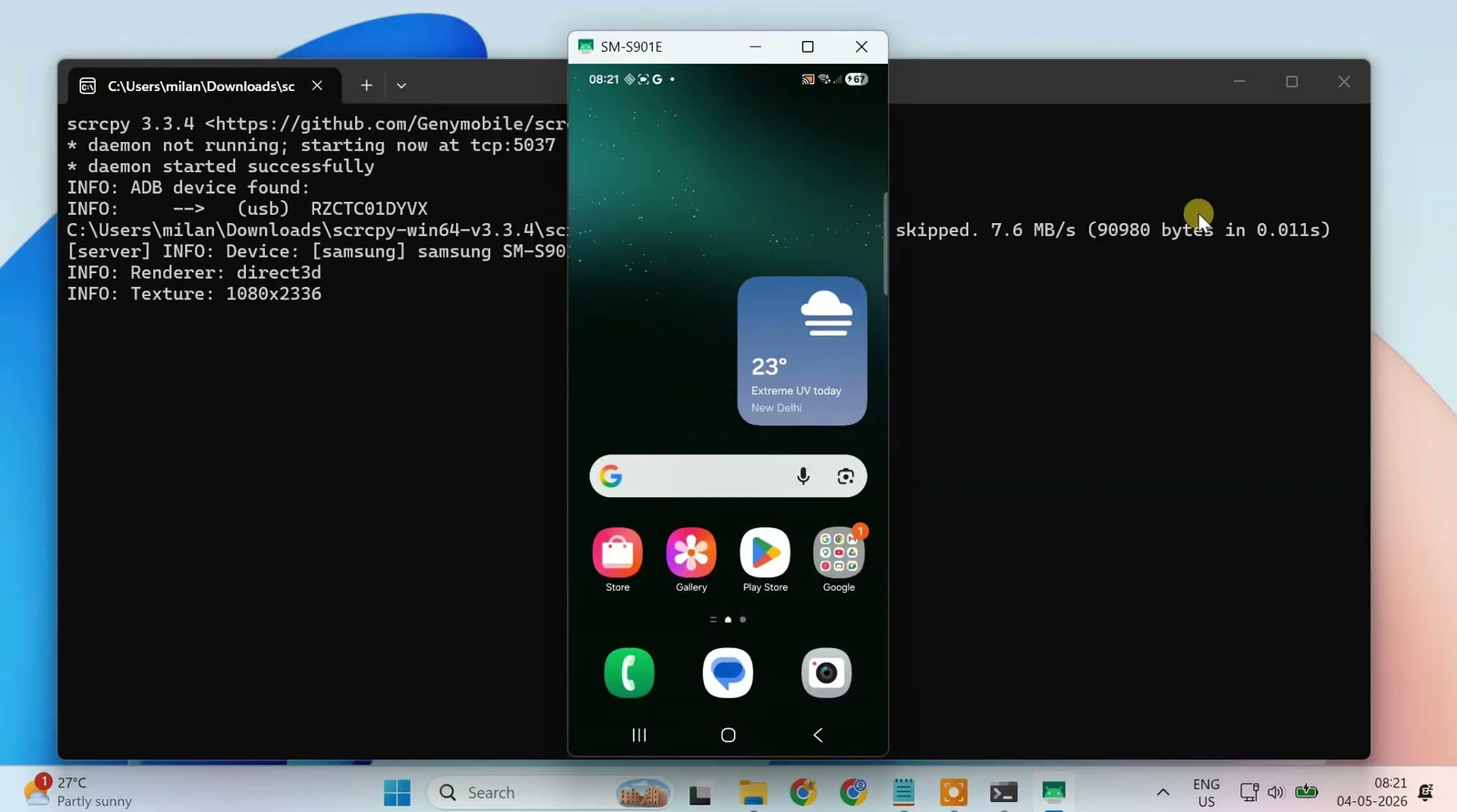
Note: If the phone is not detected, resolve the USB connection first: check that the cable supports data, USB debugging is enabled, and any debugging authorization prompt has been accepted. For Samsung devices, try the official USB driver linked above before continuing.
Create the Android virtual desktop
Close the normal mirroring window after the connection test. In the extracted scrcpy folder, open open_a_terminal_here.bat. This opens a terminal in the correct folder so it can find scrcpy. Enter the following command and press Enter:
scrcpy --new-display=1920x1080/200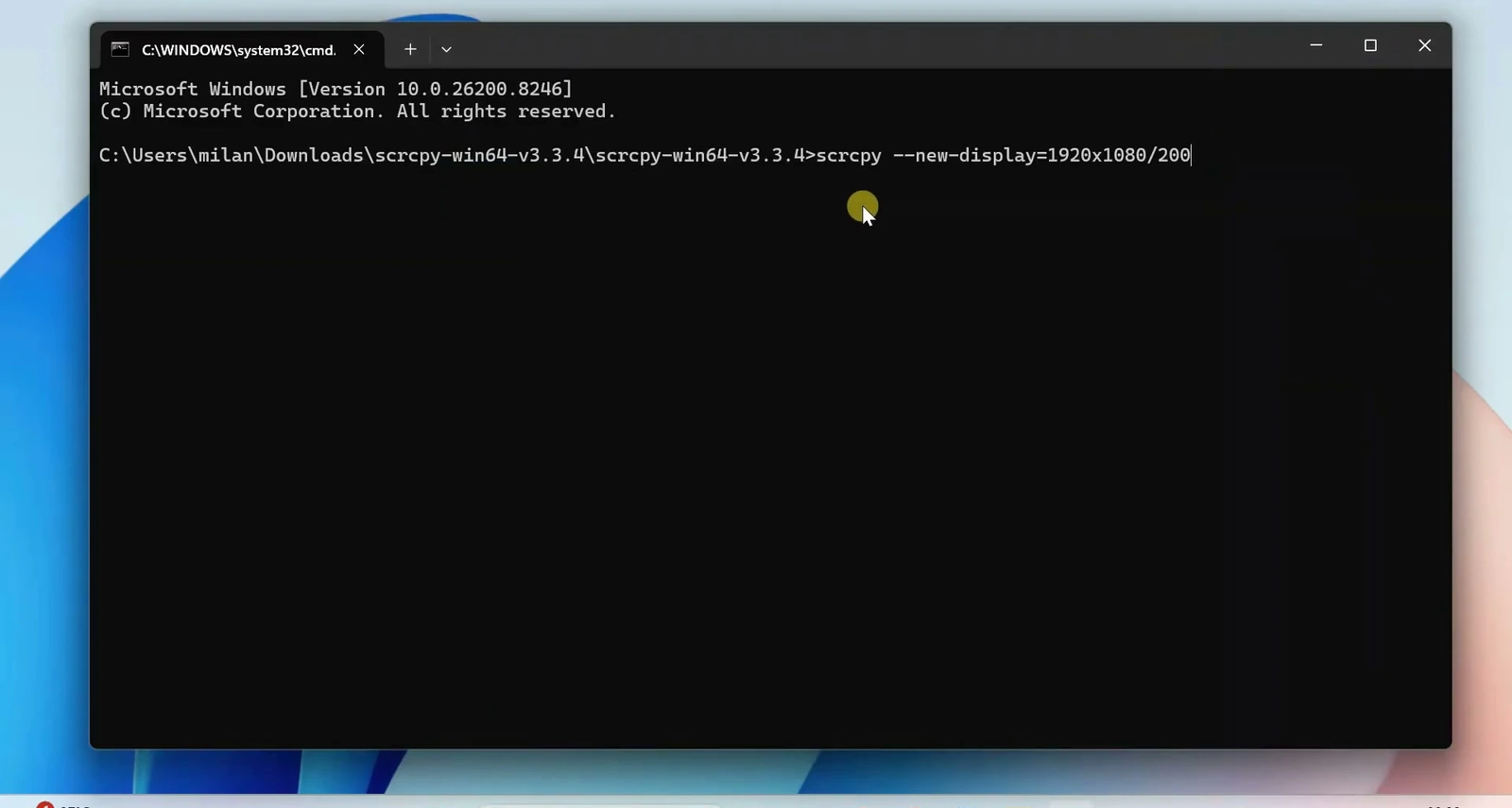
The command creates a new Android display rather than mirroring the phone’s main screen. Its settings are:
- Virtual display: The
--new-displayoption requests a separate display from Android. - Resolution: 1920×1080 creates a Full HD workspace.
- Display density: 200 DPI controls the apparent size of text, icons, and other interface elements. Higher density makes them larger; lower density fits more content but makes it smaller.
On a phone with suitable desktop support, a landscape Android workspace should open in a new scrcpy window. Its appearance may vary by device. The key difference from the earlier test is that this is a separate display, not a copy of your phone’s screen.
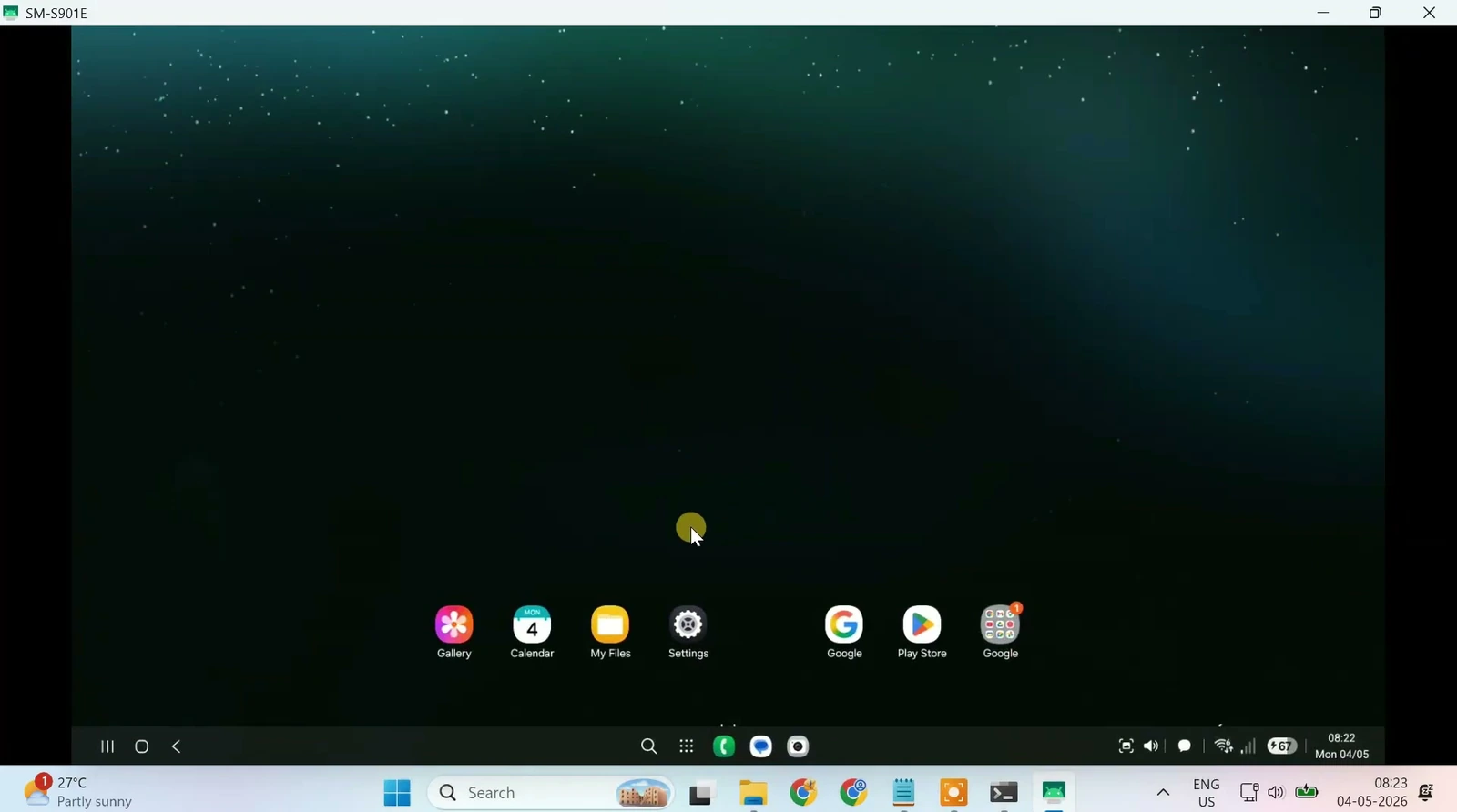
Use apps side by side with your keyboard and mouse
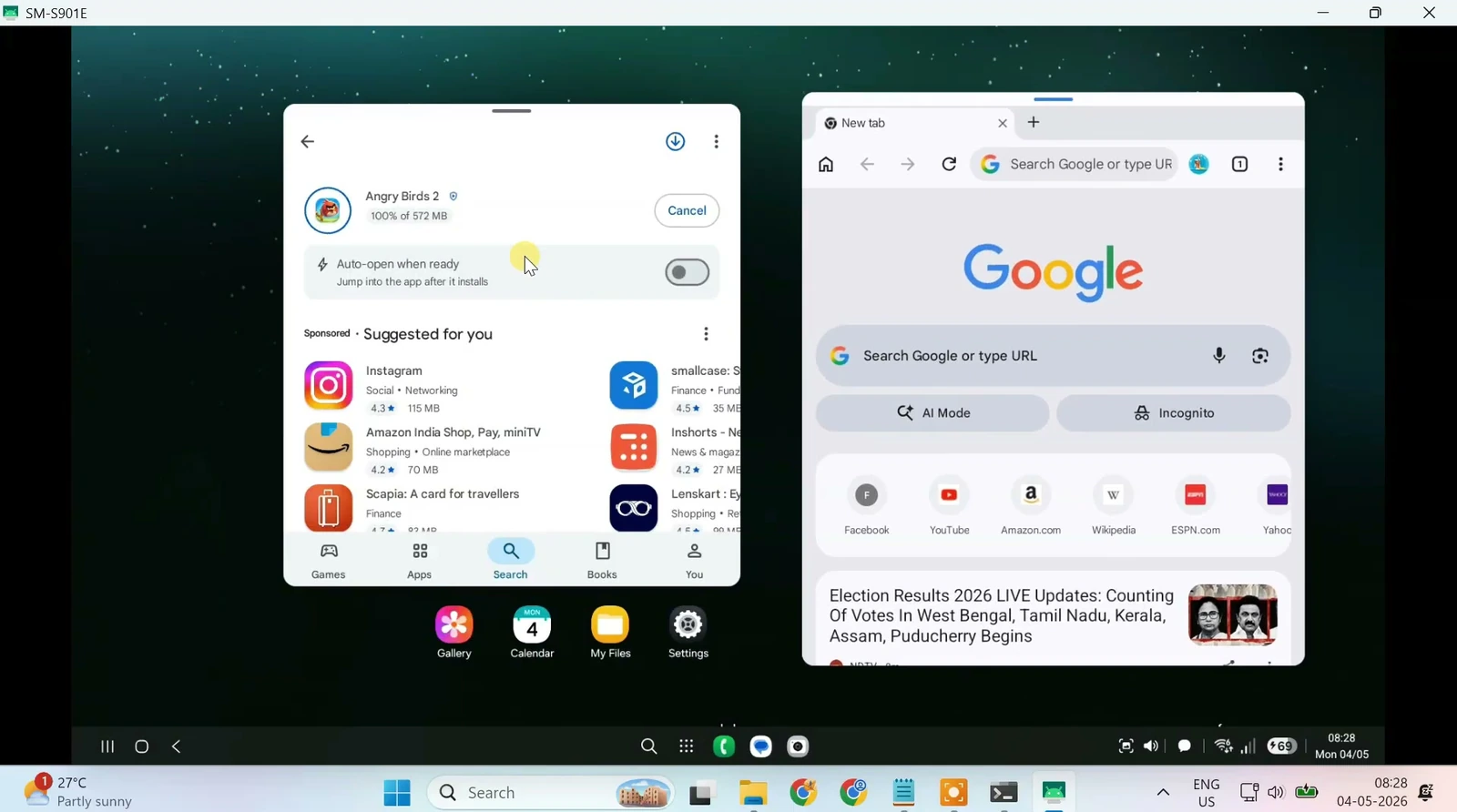
Open an app from the Android workspace, then open a second app to try multitasking. Chrome and the Play Store are useful starting points. Where window controls are available, drag a window’s title bar to move it, drag its borders to resize it, and use its minimize control to clear space.
Arrange the apps side by side and use your PC’s keyboard to type into the active Android app. Not every app will behave well when forced into a resizable window, so test the apps you actually need rather than expecting full desktop compatibility.
Tip: With the scrcpy window focused, press Alt + F to toggle full-screen mode. This gives the Android workspace more room on your PC display.
Because the virtual display is separate, you can still use your phone’s main screen while the workspace is running on your PC. The Android apps continue to run on the phone, so responsiveness and multitasking capacity depend on its hardware. When finished, close the scrcpy window to end the session.