PC gaming gives you plenty of choices, from Steam and Epic Games to Xbox Game Pass. But sometimes you don’t want to sit at a desk clicking through Windows just to start a game. You want to pick up a controller, settle onto the sofa, and play.
That’s the appeal of the Xbox Full Screen Experience on Windows 11. It gives your PC a controller-friendly home screen that feels more like a games console. You can browse your game library, open compatible PC games, and reach gaming features without constantly returning to the normal desktop.
With the community-made Xbox Full Screen Experience Tool, compatible Windows PCs can also gain the fuller handheld-style experience, including options to launch the Xbox interface when Windows starts. Your computer still runs Windows underneath, so you keep your usual PC apps and games. Think of it as giving your gaming PC a console-style front door, rather than turning it into an actual Xbox.
Check Your Windows Version and Get the Xbox App Ready
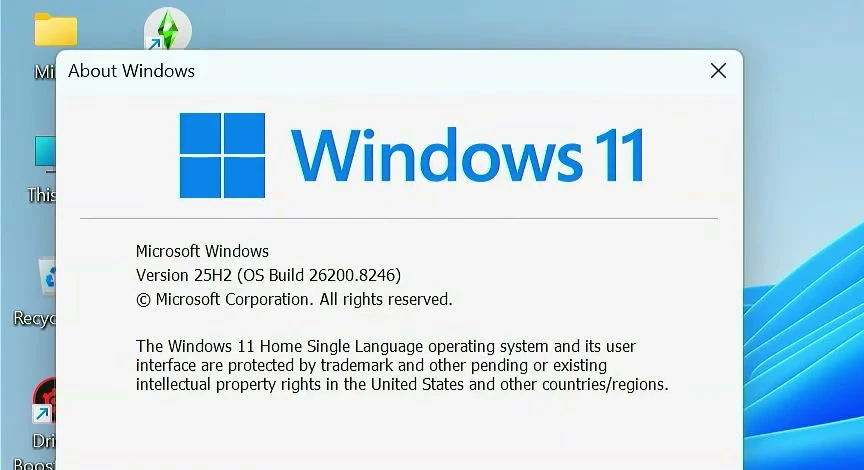
Before changing anything, make sure your PC is running an updated, compatible version of Windows 11. The tool supports certain Windows 11 24H2 and newer builds, but the exact update revision matters. A PC showing “24H2” alone is not a guarantee, so compare your build with the compatibility details on the tool’s GitHub page.
To check, press Windows + R, type winver, and press Enter. The About Windows window shows your version and OS build. The image below highlights where to look.
You’ll also need the Xbox app. If it is already installed, open Microsoft Store and check for updates to Xbox and related gaming components. Otherwise, use the official Microsoft Store page below to install it.
A controller is worth having, particularly if your PC is connected to a television. The interface is designed for gamepad navigation. A keyboard and mouse are still useful during setup and for games that need them.
Download the Xbox Full Screen Experience Tool
Windows may already offer a limited Xbox mode, but the full set of home-app and automatic-start options is not available on every regular desktop or laptop. The open-source community tool used here is designed to enable those additional options on supported systems.
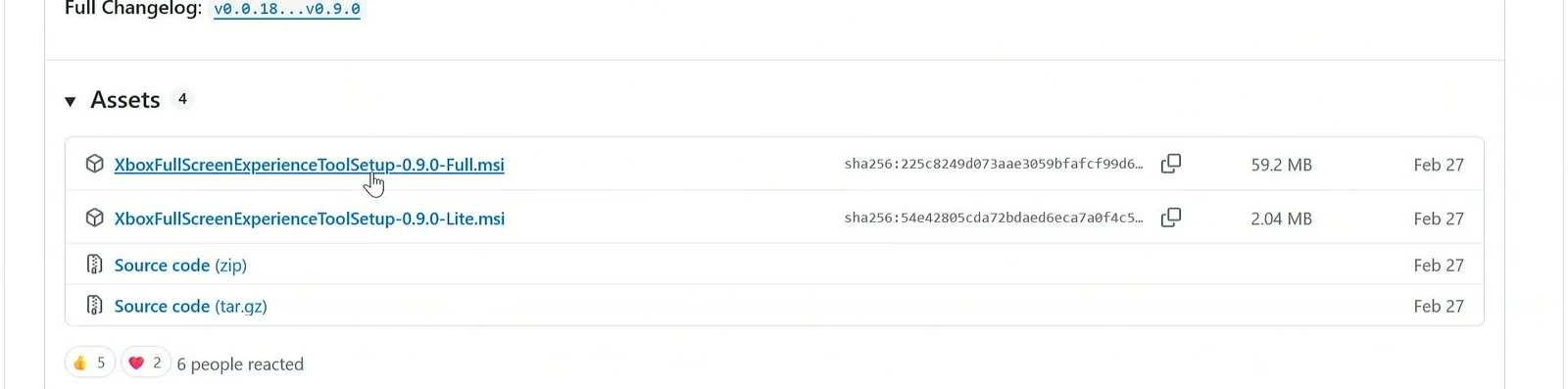
Visit the project’s GitHub page and open Releases. Under Assets, download the latest compatible Full MSI installer. The release page may also offer a smaller Lite package, which can require a separate .NET Desktop Runtime. For a straightforward setup, the Full package is the easier choice.
Install the Tool and Enable Xbox Mode
Open the downloaded .msi file and follow the installation wizard. Once it finishes, launch Xbox Full Screen Experience Tool from the desktop shortcut or Start menu.
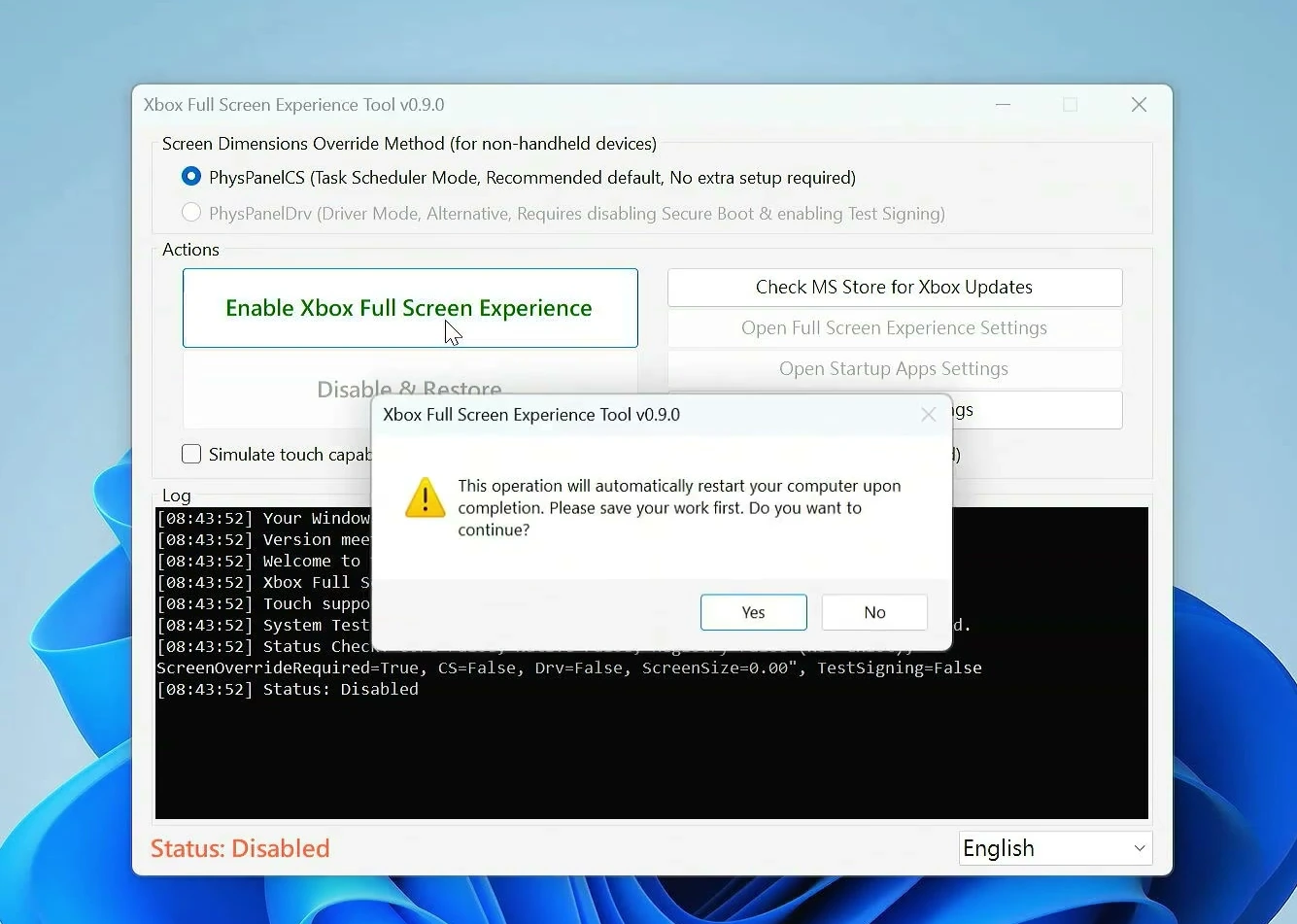
The tool checks whether your version of Windows is supported. If you see a choice of screen-dimension override methods on an older supported build, the default PhysPanelCS option is the recommended starting point in the project’s documentation. The alternative driver-based method can require changes to Secure Boot and test-signing protections, so don’t select it casually.
When you’re ready, choose Enable Xbox Full Screen Experience. A confirmation window warns that your PC will restart when the operation finishes. Save any open work, then select Yes to continue.
You may also see an administrator permission prompt or an option related to simulating touch input for controller-operated keyboards. Confirm permissions only after checking that the installer came from the project’s official release page. Follow the on-screen guidance for your device, then let Windows restart.
Choose Xbox as the Home App
After Windows starts again, open the tool and use Check MS Store for Xbox Updates. Keeping the Xbox app and Xbox Game Bar updated helps the full-screen settings work as intended. If the Store offers updates, install them before moving on.
Next, select Open Full Screen Experience Settings in the tool. You can also look under Settings → Gaming → Full screen experience if that page is available on your Windows build.
There are two important choices here:
- Choose home app: Select Xbox so the full-screen experience opens the Xbox interface.
- Enter full screen experience on startup: Turn this On if you want Windows to open the console-style interface automatically after signing in.
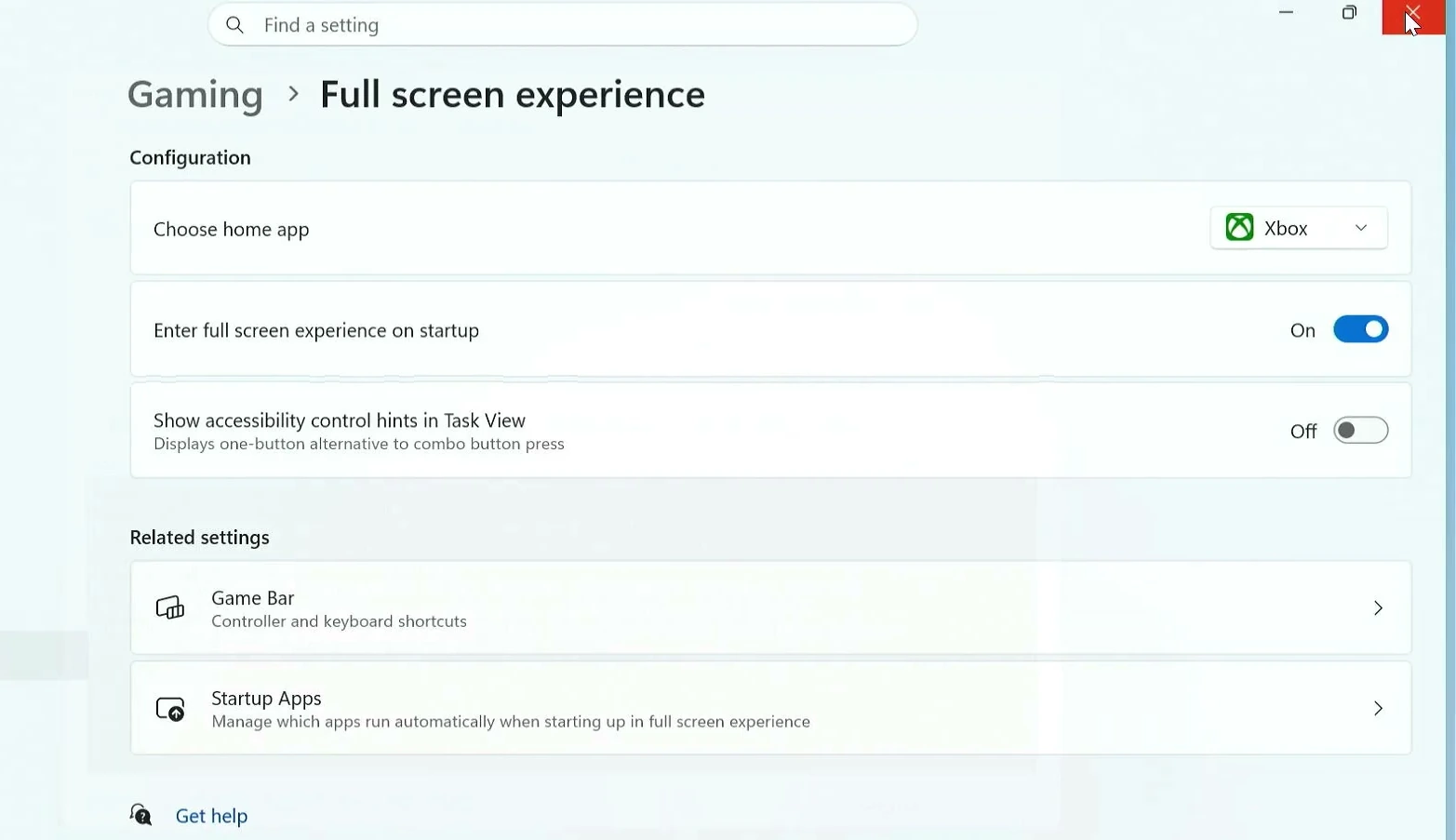
If Choose home app is missing or the Xbox option isn’t available, check the supported Windows build and Xbox app updates again. The tool’s project page also explains the difference between the limited PC experience and the fuller handheld-style mode.
Start the Console-Style Experience
Once the options are configured, you can enter Xbox mode from the Xbox app or an available Xbox mode entry in Windows Task View. With automatic startup enabled, it can also open when you next sign in. Some tool versions offer an additional optimized restart. If you use it, save your work first and allow Windows to reboot.
Back in the tool, the status should indicate that Xbox mode is enabled. The exact status text and available optimization options can differ between tool versions and Windows builds.
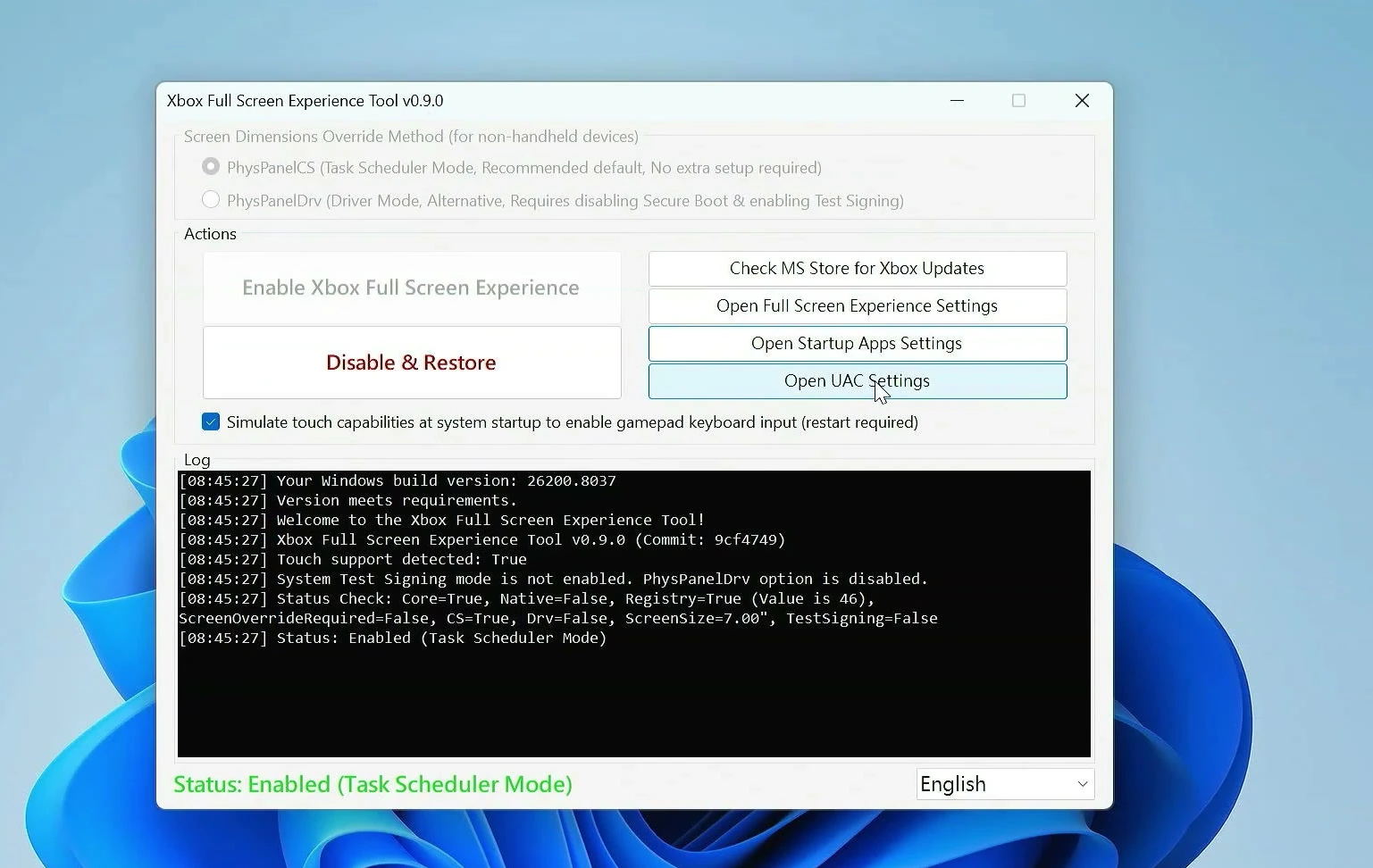
When Xbox opens full screen, the usual desktop gives way to a controller-friendly gaming home screen. You can move through its menus with your gamepad, browse featured games, and open the areas you use most often. It’s a particularly nice way to use a living-room PC without balancing a mouse on the sofa.
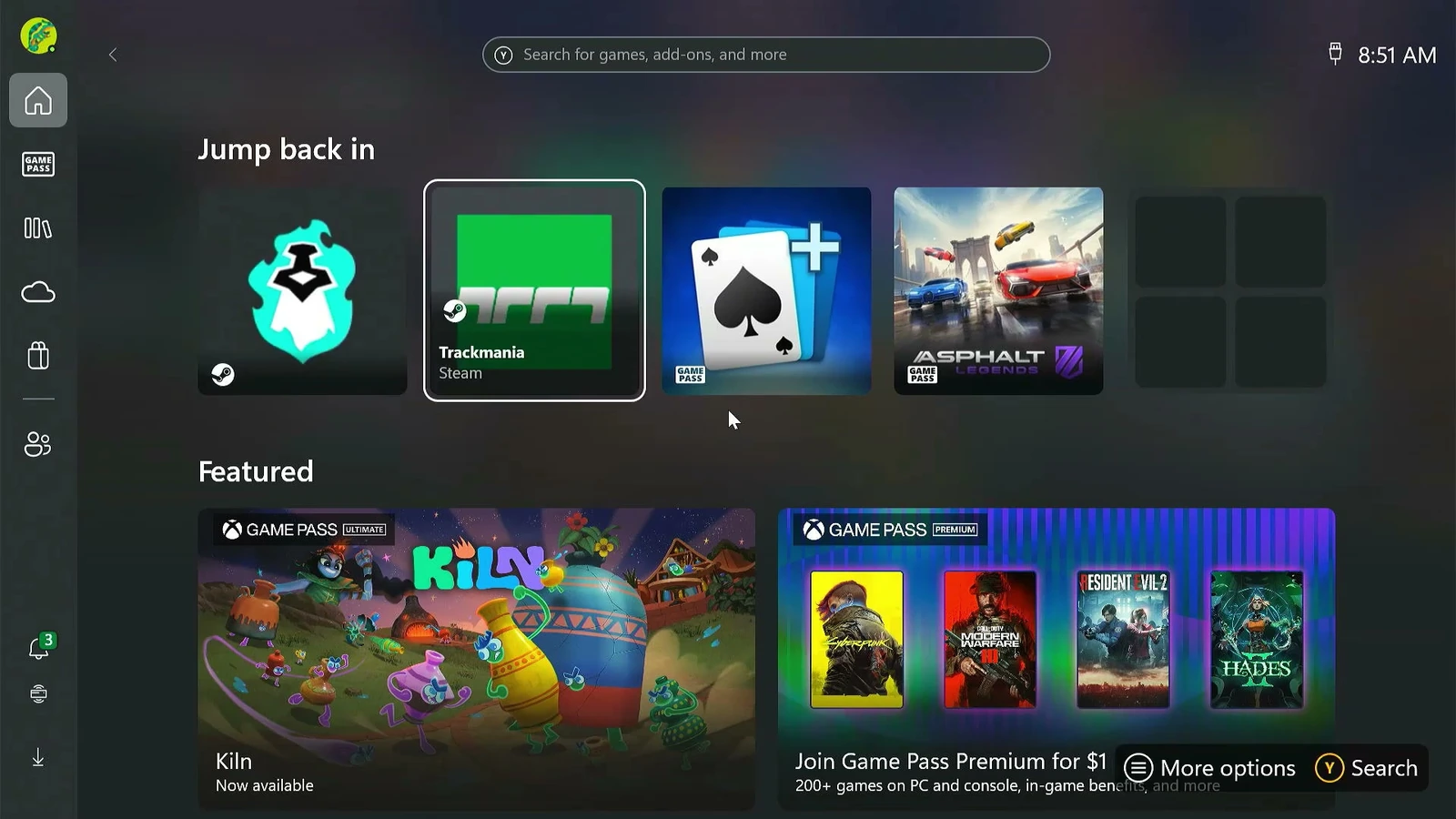
Find Your Games, Game Pass, and Cloud Gaming
Open My games to browse games that the Xbox interface recognizes. Depending on your installed launchers, accounts, and library integration, you may see titles associated with Xbox and other PC gaming platforms. The exact collection will vary from one computer to another.
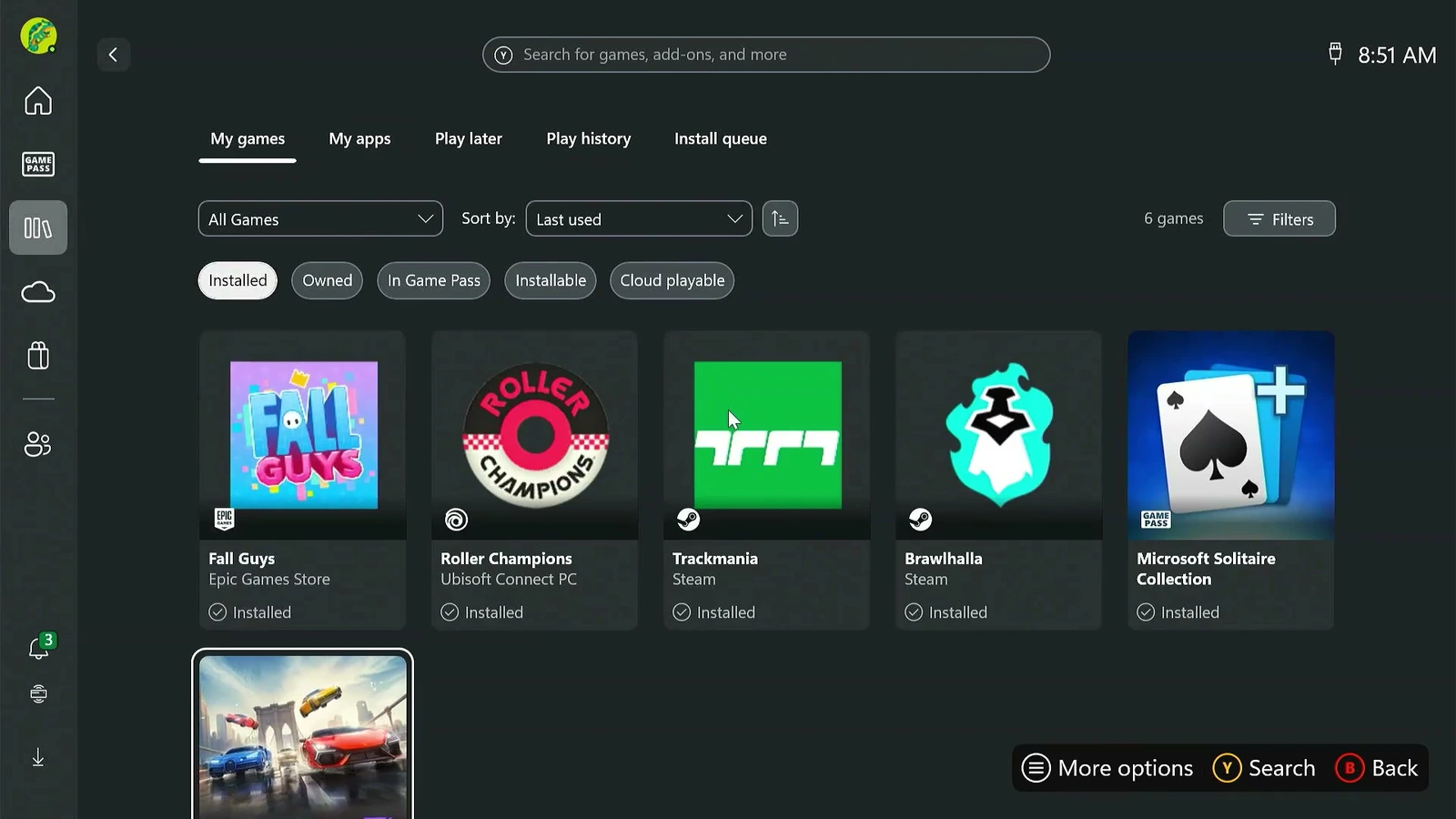
Xbox mode also provides access to Game Pass areas and, where available, cloud gaming. Cloud play is especially interesting on a lower-powered PC because a supported game runs on remote servers rather than relying entirely on your computer’s graphics hardware. You still need a suitable internet connection, and some games and services require an eligible Game Pass subscription.
One thing worth remembering is that this is a Windows PC gaming interface, not an Xbox console emulator. It doesn’t grant ownership of paid games or make console-only titles run natively on Windows. You still launch games supported by your PC, installed services, and accounts.
Return to Windows or Undo the Setup
Need the normal desktop again? Open the Xbox interface’s Settings menu and select Exit full screen experience. Confirm the switch if Windows asks. Your regular Windows desktop should return, with your usual applications and files still available.
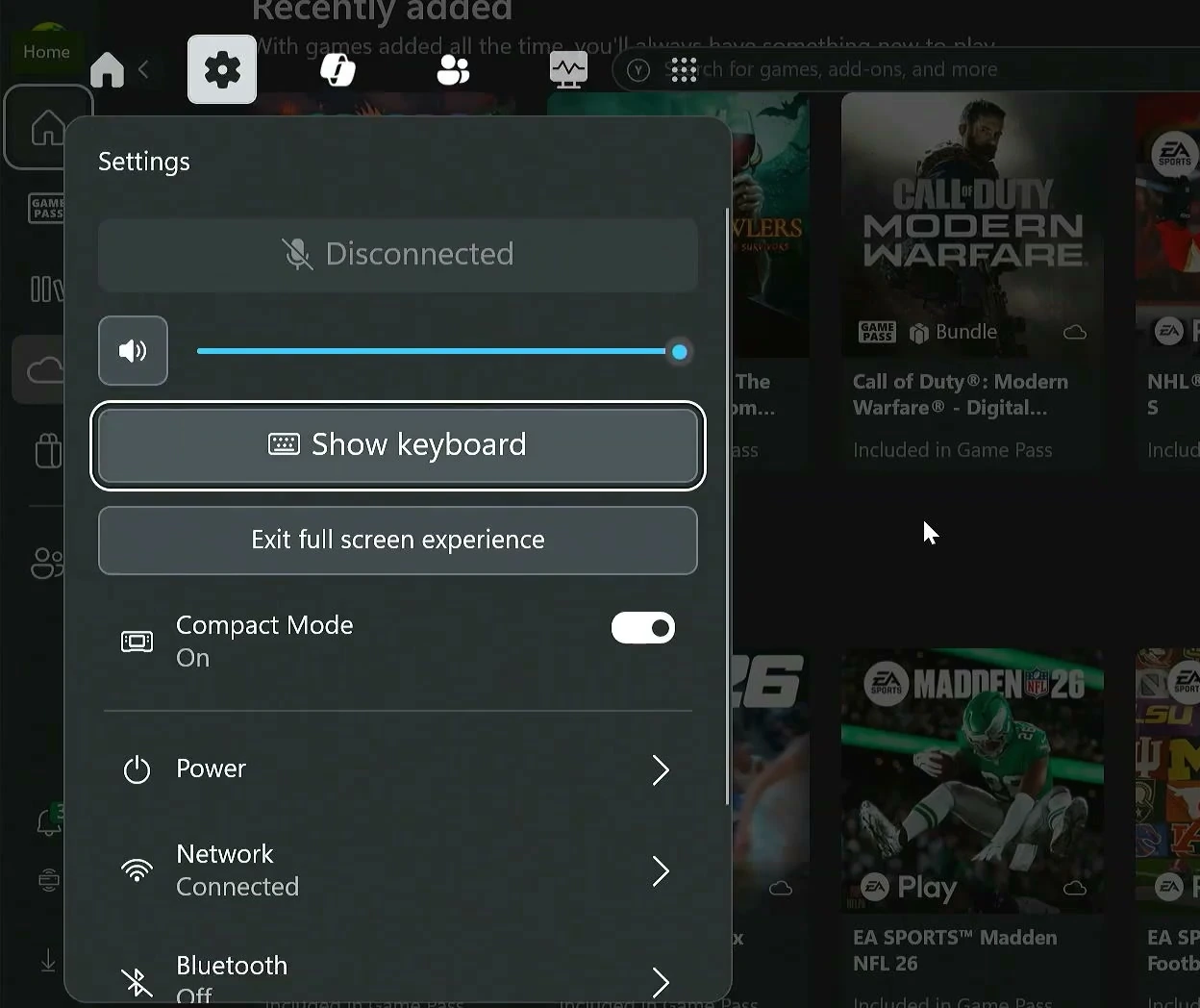
If you no longer want the Xbox-style startup, open the community tool again and use its Disable & Restore option, then restart as directed. The project’s documentation also describes uninstalling the tool through Settings → Apps → Installed apps to revert its changes.
That’s the fun part of this setup: your PC can feel like a console when it’s time to play, then go straight back to being a normal Windows computer when you need it. You don’t need a separate operating system, just compatible Windows software and a little setup time.