My Google TV was full of recommendations and apps I barely used. I wanted a simpler home screen, but I didn’t want to root the device or risk breaking its basic features. So I tried cleaning it up with AI, using an open-source project and a coding assistant.
On my TV, the AI helped me analyze installed applications, disable the ones I no longer needed, and install a cleaner home screen. Below are the full instructions and six copyable prompts, so you can adapt the workflow to your own supported TV.
Requirements and Download Links
You’ll need an Android TV or Google TV, a computer running a supported operating system, and both devices connected to the same local network. Download the two resources below before starting.
- CleanYourTV (Official GitHub Project): Open the repository, click Code, select Download ZIP, and extract the downloaded ZIP file.
- Download OpenAI Codex: Install a compatible version, sign in, and open the extracted CleanYourTV project folder in Codex.
Make sure you have permission to authorize debugging on your TV. You don’t need to install Java, Python, or Android SDK components manually in advance: the first prompt asks Codex to check the repository and prepare the development environment. Some installations may still require your approval.
What changed on my TV?
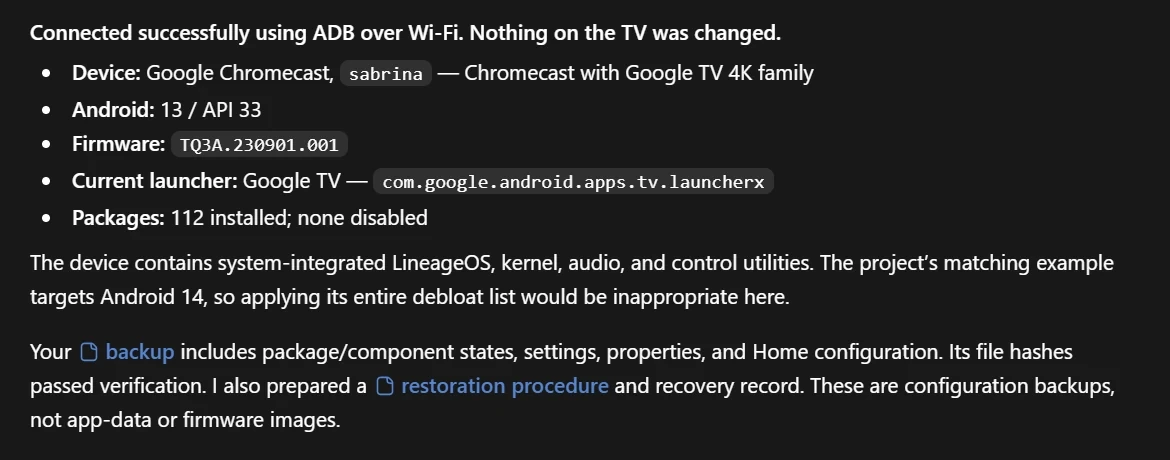
My test device was a Google TV running Android 13. Codex identified 112 installed packages, analyzed their purpose, and created a backup and restoration procedure before changing anything. I chose six apps to keep and let it disable suitable optional packages.
I kept FX File Explorer, Hotstar, Prime Video, SonyLIV, YouTube, and ZEE5. The final checks reported that the remote and playback were working, the custom launcher was installed, and debugging was turned off after the work was complete.
This is a cleanup and home-screen replacement, not a guaranteed speed boost. I didn’t measure an exact RAM increase or benchmark improvement, so I won’t invent one. Your results will depend on the TV and its firmware.
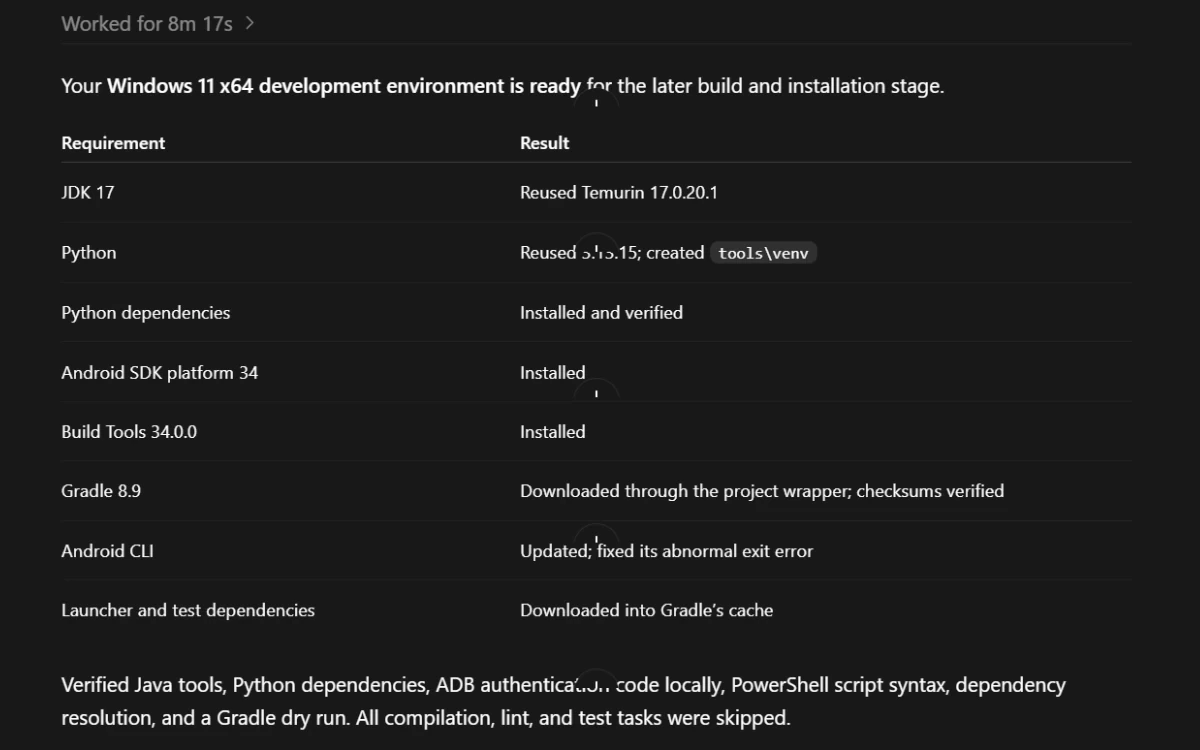
Step 1. Let Codex prepare the computer
If you haven’t downloaded the project yet, use the Requirements and Download Links section above. Extract CleanYourTV and open that folder in Codex before using this prompt.
The project may need tools such as Python, Java, and Android build components. Their compatible versions can change over time, so I prefer not to hardcode them into a tutorial. This prompt asks Codex to inspect the project and choose the appropriate versions for your computer.
Official project: https://github.com/Gathin23/cleanyourtv

Analyze the CleanYourTV project in my current workspace, including its documentation and installation scripts. Identify the tools, dependencies, and compatible versions it currently requires.

Detect my operating system, reuse compatible tools already installed, and install and configure anything missing from official sources. Ask for approval when needed.

Verify that the environment is ready to build the launcher. For now, do not connect to or modify my TV, and do not build the launcher.
Run the prompt inside your extracted CleanYourTV project folder. Review any installation approvals or license requests. Once Codex confirms the environment is ready, move to the TV.
Step 2. Enable debugging and connect to the TV
On the TV, open Settings and find About. Depending on the brand, it may be under System or Device Preferences. Select Android TV OS build or Build number seven times to enable Developer Options.
Return to Developer Options and enable the available USB Debugging, ADB Debugging, Network Debugging, or Wireless Debugging option as appropriate for your device. The exact names vary.
Now use this prompt. Codex will attempt to discover your TV on the local network. If several devices are found, you should choose the correct one. Some devices require a pairing code or manual IP address if automatic discovery fails.
Using the CleanYourTV project in this workspace, automatically discover and connect to my Android TV or Google TV using the appropriate ADB method.

Avoid asking for an IP address unless automatic discovery fails. If multiple devices are found, show their available details and let me choose. Guide me through any debugging authorization or wireless pairing.

Identify the TV, check compatibility, back up its package states and relevant settings, and prepare a restoration procedure. Do not disable anything yet.

Keep debugging enabled and ADB connected throughout the remaining stages. Do not intentionally disconnect, close its port, or revoke authorization until I explicitly request this at the very end.
Watch the TV for a debugging authorization prompt. Only approve the connection if it matches your own computer. Codex should then detect your device details and save the information needed to undo later package changes.
Step 3. Review the installed apps before disabling them
Every TV comes with a different set of apps and services. That’s why I wouldn’t recommend copying a fixed list of package IDs from someone else’s device.
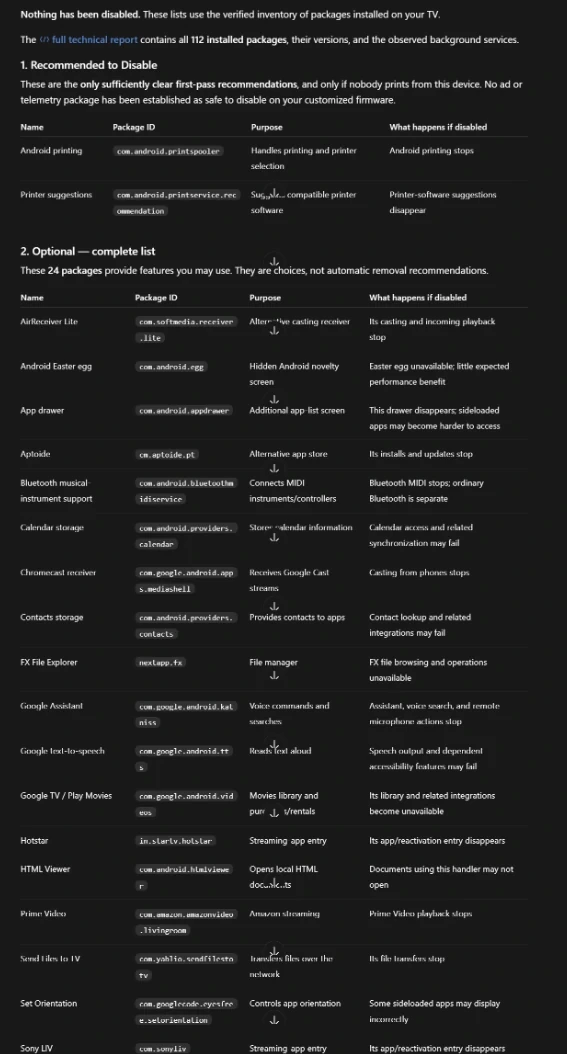
Instead, I asked Codex to organize the actual installed packages into four groups: Recommended to Disable, Optional, Essential, and Unknown or Risky. I wanted the full list for the first two groups, but only a short summary of the system packages that should remain untouched.
Analyze the installed packages on my connected TV and organize them into four categories:

1. Recommended to Disable: Complete list of confirmed low-risk, unnecessary packages.
2. Optional: Complete list of apps and services I may or may not use.
3. Essential — Keep Enabled: Brief summary of important system components.
4. Unknown or Risky: Brief summary of packages that need more investigation.

For every package in the first two categories, show its readable name, exact package ID, purpose, and what functionality would be lost if disabled.

Only list packages actually installed on my TV. Follow the current CleanYourTV safety rules. Keep the result clean and easy to understand.

Do not disable anything yet. Keep ADB connected.
The result includes an easy-to-read name, the package ID, and what could stop working if you disable it. For example, disabling a casting service can affect casting, while disabling an accessibility service can remove a feature someone relies on. A package is not automatically safe just because its name looks unfamiliar.
Step 4. Disable only the apps you don’t use
Here’s where I told Codex what mattered to me. I wanted to keep FX File Explorer, Hotstar, Prime Video, SonyLIV, YouTube, and ZEE5. I didn’t need many of the other optional apps.
Change the app names in this prompt to your own favorites before running it. Codex should skip essential and protected packages, even if they appear in an optional list.
I want to keep these apps: FX File Explorer, Hotstar, Prime Video, SonyLIV, YouTube, and ZEE5.

From the Recommended to Disable and Optional lists, reversibly disable the remaining apps and services that I do not need, but automatically skip anything essential, protected, risky, or required by normal TV functions or the apps I am keeping.

Use the existing backup and restoration procedure. Do not permanently uninstall anything. Verify that the TV, remote, and my chosen apps still work, and restore any change that causes a problem.

Do not disconnect ADB or disable debugging after cleanup. We still need this connection for the launcher installation.
On my TV, Codex finished by disabling 16 optional packages. It did not permanently uninstall anything. The six apps I specified remained enabled, and the remote and playback checks passed.

Step 5. Build and install the clean home screen
Debloating alone doesn’t necessarily remove sponsored rows from the default Google TV home screen. The second part of CleanYourTV replaces that interface with a lightweight launcher that shows your apps instead of the usual recommendation-heavy layout.
Once the cleanup is done, use this prompt to build and install the launcher from the same project. It keeps the original Home app available until the replacement has been verified.
Build and install the CleanYourTV launcher using the project's current official instructions.

Reuse the existing development environment, backup, and ADB connection. Do not repeat setup or disable additional packages.

Keep the original Home launcher available until the replacement is installed and tested. Ask for approval before any essential system change.

Verify Home, remote navigation, Settings, installed apps, and important TV functions. Test again after a restart; reconnect ADB if the restart interrupts it. Restore the original Home configuration if the replacement fails.

Keep debugging enabled and ADB available after testing. I will request the final disconnection separately.
When the installation finishes, press Home on the physical remote. Check that your apps open, Settings is accessible, and the remote still navigates normally. Restart the TV and verify that the new home screen still appears.
CleanYourTV’s launcher can include app tiles, a clock, input controls, and TV settings shortcuts. Available features depend on the current project version and your device.
Step 6. Save the recovery files, then disable debugging
After the launcher and your regular apps work correctly, save the backup and restoration instructions somewhere safe. My setup included a local record of package states and the previous Home configuration. These are not full app-data backups or firmware images.
Only at this final stage should you turn debugging off. Use the last prompt after checking the TV with the real remote.
Review the final CleanYourTV installation and confirm that the backup, applied package list, and restoration procedure are saved and usable.

Wait for me to confirm that Home, Settings, the remote, and my apps work on the actual TV after a restart.

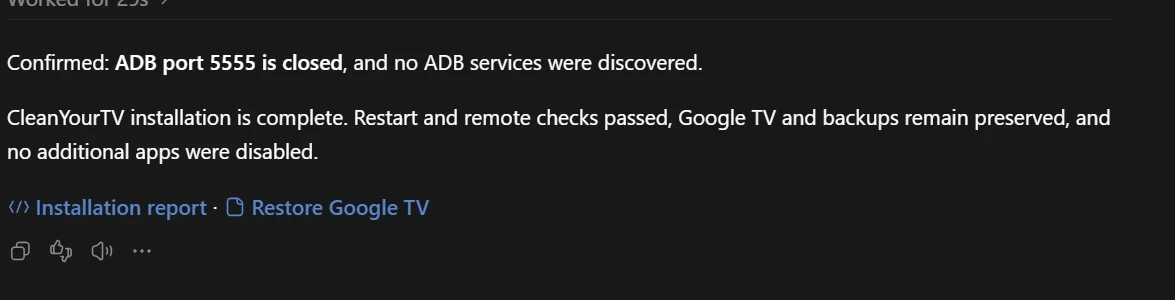
Only after my confirmation, guide me through switching off the applicable USB, Network, or Wireless Debugging settings. Disconnect ADB and verify that the network debugging service is no longer accessible.

Do not disable or uninstall any other packages.
On my TV, Codex confirmed that the network ADB debugging port was closed after I disabled network debugging and restarted the device. This was the final step, not something I repeated after every command.
How to restore the original Google TV home screen
If you change your mind, reconnect with the debugging method supported by your TV and use the same backup, applied package list, and restoration procedure created during the cleanup. Ask Codex to inspect those exact files and follow the current CleanYourTV restore instructions. The scripts can restore the prior enabled or disabled states and the original Home configuration when their recovery record is available.
The custom launcher may remain installed after restoring the previous Home screen. You can remove it later from Settings if you no longer need it.
Will this remove every ad and make any Smart TV faster?
No. Replacing the home screen removes its sponsored recommendations from view, but it will not block ads embedded inside streaming apps such as YouTube. Disabling unused background packages may help some slower devices, but no specific performance gain is guaranteed.
The part I liked most was having a home screen that focuses on my apps. CleanYourTV also let me keep control over which services stayed enabled, without rooting the TV.
Final thoughts
If you have an Android TV or Google TV with a cluttered home screen, CleanYourTV is an interesting way to tidy it up. Start with a backup, review each package category, keep the features you use, and don’t turn debugging off until the entire process has been tested.
These prompts are intentionally written without fixed dependency versions or device-specific IP addresses. That makes them easier to reuse when the project changes, although the official project instructions should always take priority if a later update changes the workflow.
This is an independent tutorial based on my own device test. CleanYourTV is an open-source project by its respective developer. Use it on devices you own and understand that firmware and manufacturer restrictions can affect the results.