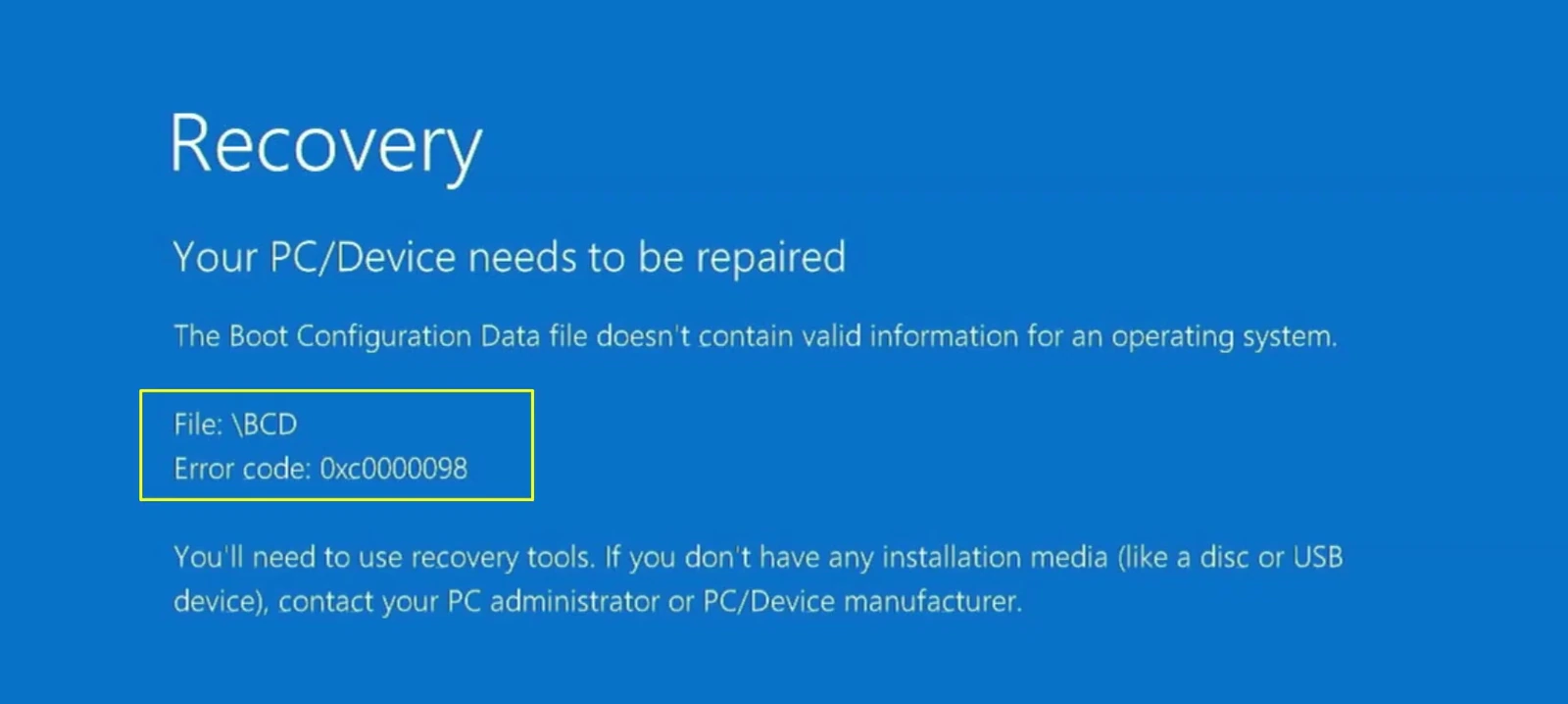
It’s hard not to worry when your Windows PC suddenly refuses to start. Instead of the familiar login screen, you see a blue recovery page saying “Your PC/Device needs to be repaired”, along with error 0xc0000098. The message sounds serious, especially when you have important files on that computer.
But a boot error doesn’t always mean your Windows installation is gone. Sometimes, Windows simply can’t find the information it needs to start. That’s what can happen when its Boot Configuration Data (BCD) becomes damaged or goes missing.
If your Windows 10 or Windows 11 PC uses the modern UEFI boot system, you may be able to repair those boot files without reinstalling Windows. We’ll use two tools already available in the Windows recovery environment. DiskPart helps us find the correct partitions, while BCDBoot rebuilds the Windows boot files.
Open Command Prompt in Windows Recovery
We need to reach the Windows recovery tools before making any changes. If your blue recovery screen offers Press F1 to enter Recovery Environment, use that option.
If you can’t get into recovery that way, start the computer from a Windows installation USB. On the Windows setup screen, choose Repair your computer instead of installing Windows.
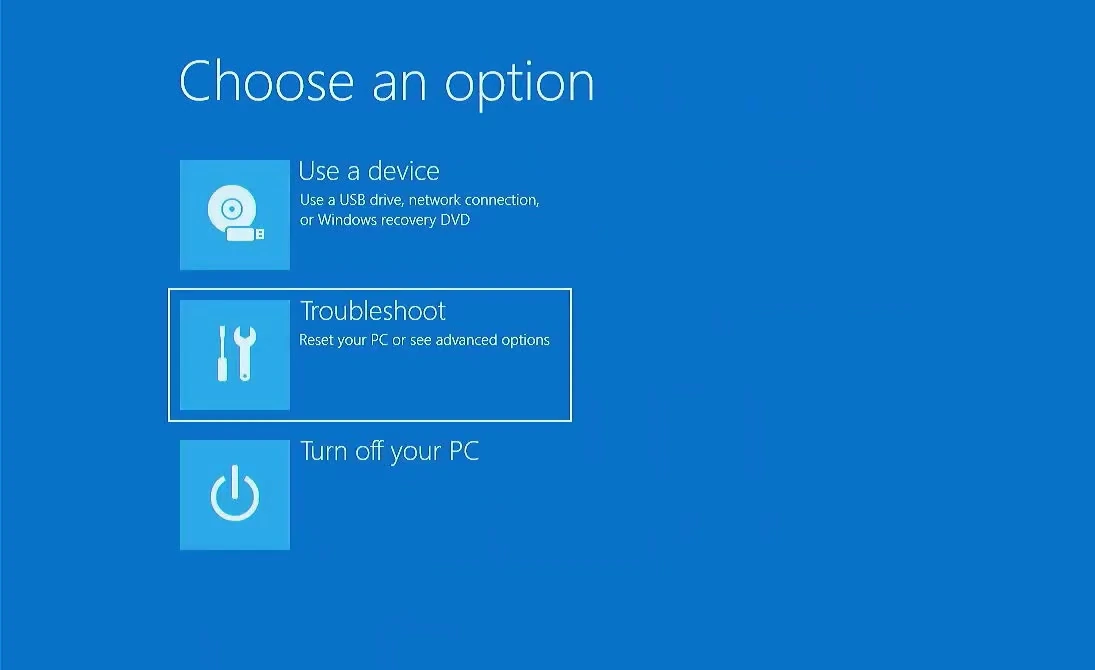
Once you’re in recovery, open Troubleshoot, then choose Command Prompt from the available recovery options. On some screens, you’ll find it under Advanced options.
A Command Prompt window will appear. It may show a path such as X:\Windows\System32. That’s normal. The X: drive belongs to the recovery environment, not necessarily to your installed copy of Windows.
Find the partition containing Windows
Before we repair anything, we need to find out which drive letter Windows is using. Drive letters can change in recovery mode. Your normal C: drive may appear as D: or another letter.
Start the built-in disk management utility by entering this command:
diskpartNow list the available volumes:
list volumeLook for the main NTFS volume containing your Windows installation. It is usually much larger than the small system and recovery partitions. In my example, the Windows volume is C: and has about 237 GB of space.
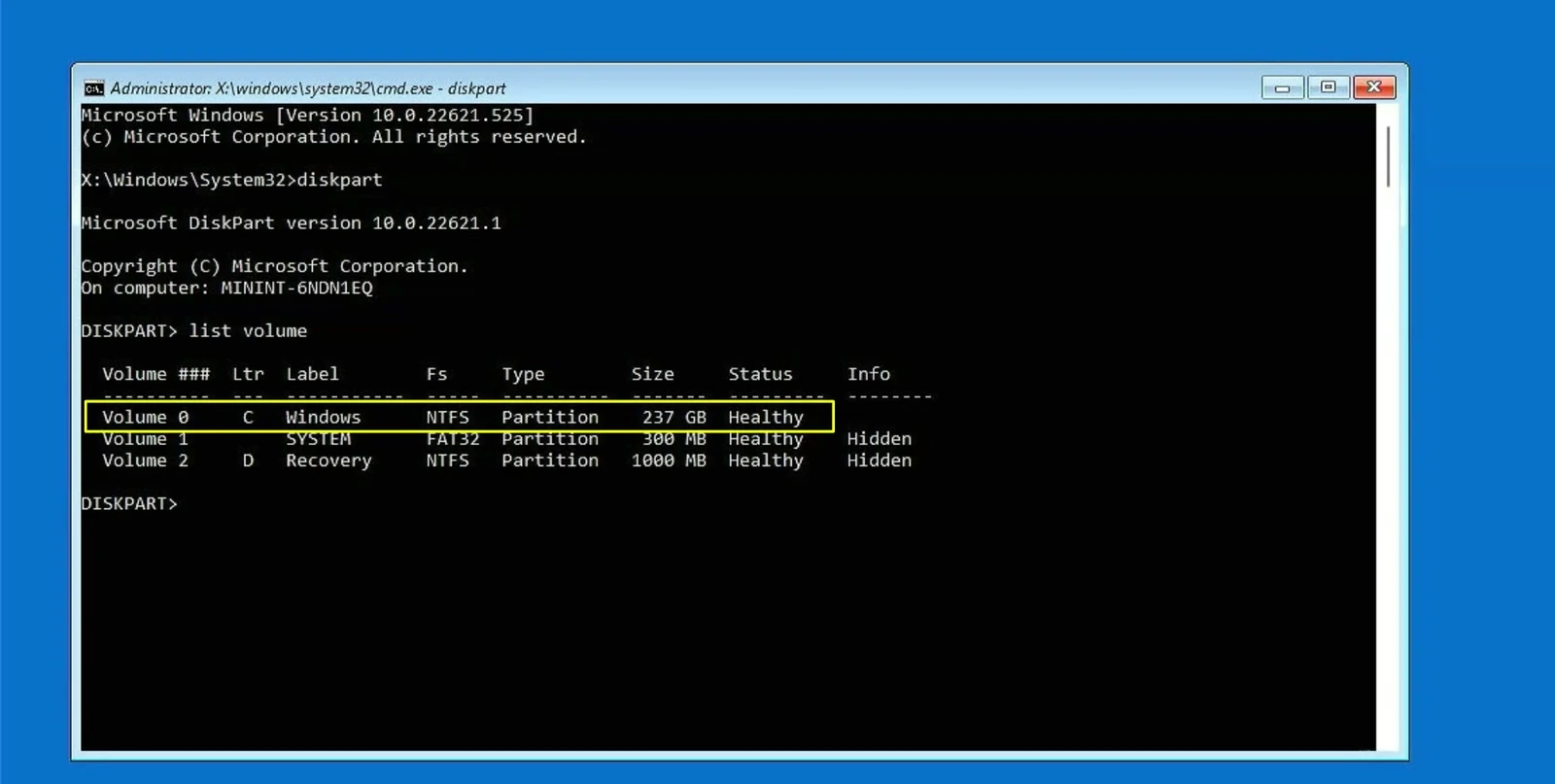
You’ll probably also notice a small FAT32 volume labeled SYSTEM. That is a useful clue for the next step, because UEFI computers keep their boot files in a separate EFI System Partition.
Locate the EFI System Partition
Think of the EFI partition as the small place where a UEFI computer looks for the files that start Windows. To restore those files, we first need to make the partition accessible.
While you’re still in DiskPart, list the physical disks:
list diskIn my setup, Windows is on Disk 0. Yours may be on a different disk, especially if you have more than one SSD or hard drive connected. Confirm the correct disk before entering the next command.
select disk 0Then display its partitions:
list partitionLook for the small partition listed as System. On my 238 GB disk, it’s Partition 1, with a size of 300 MB. The larger primary partition holds Windows, while another partition is reserved for recovery.
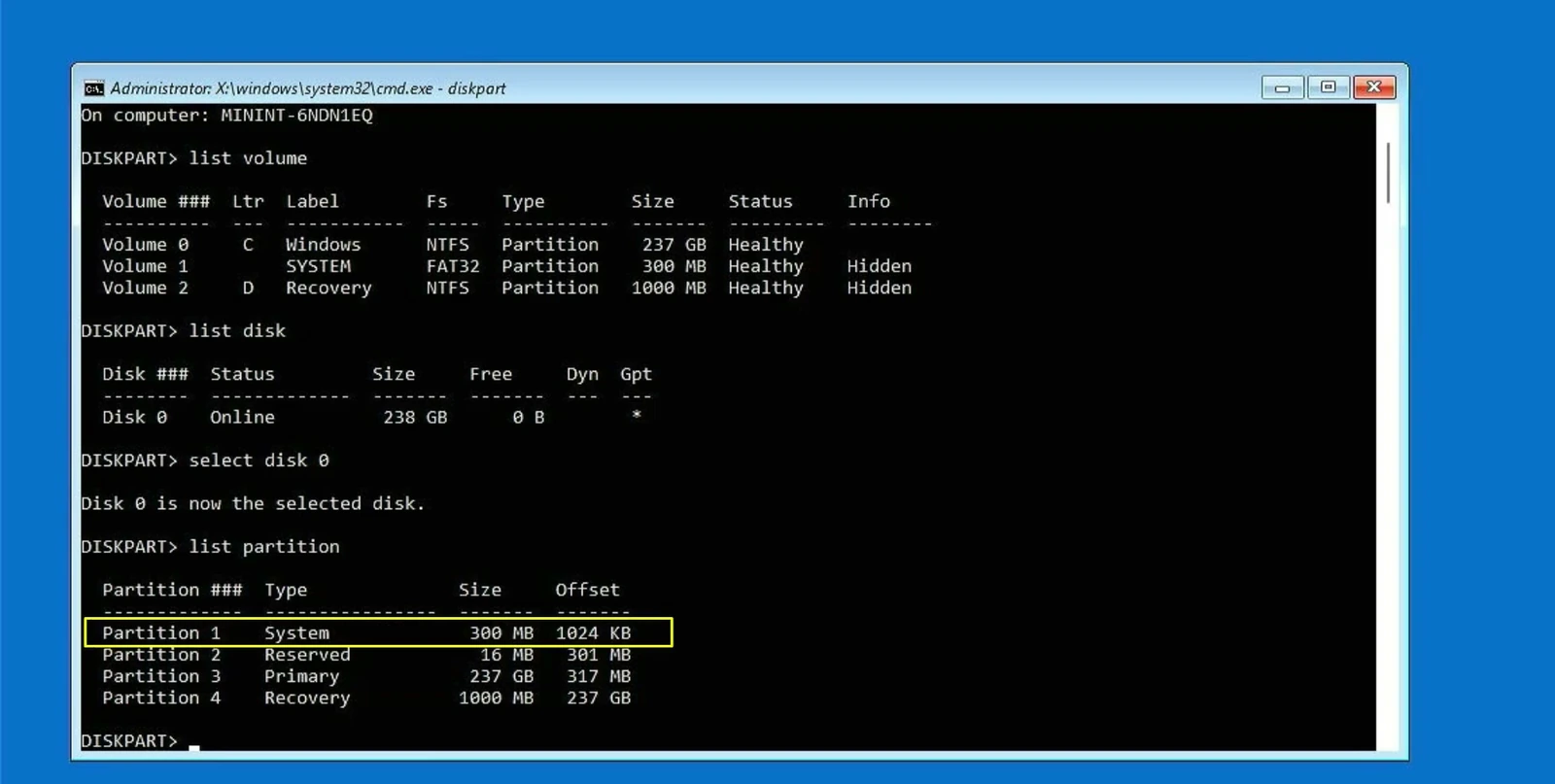
select disk 0 and select partition 1 are the values from my computer, not universal settings. Use the numbers that correspond to your Windows disk and EFI System Partition. Do not select a recovery partition, format any partition, or run a disk-cleaning command.Once you’ve confirmed the EFI partition, select it. In my case, the command is:
select partition 1Now assign it a temporary drive letter. I’m using Z: because that letter isn’t already occupied on this PC.
assign letter=ZDiskPart should confirm that it successfully assigned the drive letter or mount point. That’s all we need here. The EFI partition now has a letter we can use with BCDBoot.
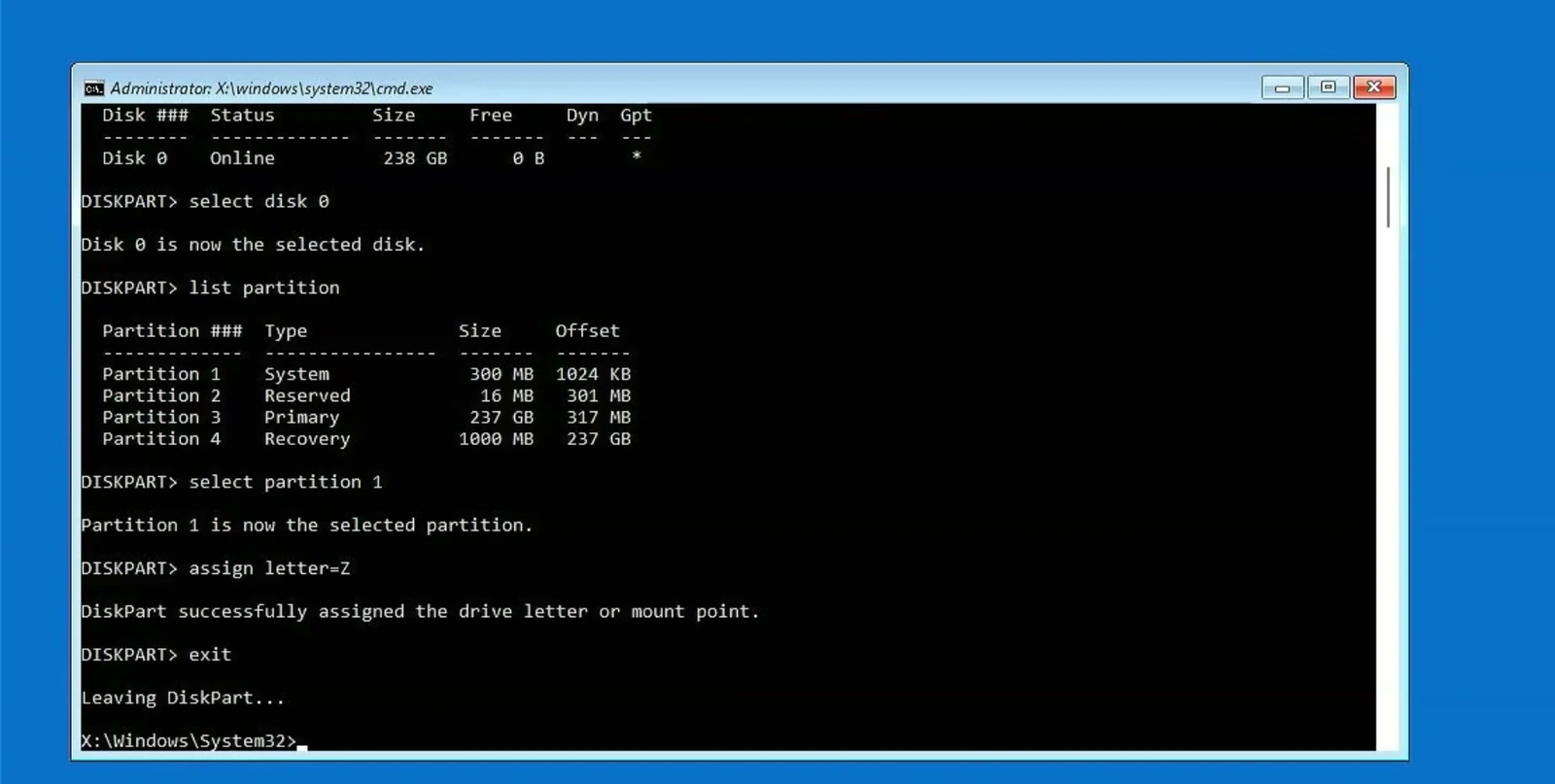
Leave DiskPart and return to the normal Command Prompt:
exitRebuild the UEFI boot files with BCDBoot
This is the step that actually repairs the boot files. BCDBoot takes the necessary startup files from your existing Windows installation and copies them to the EFI partition. You don’t need to reinstall Windows just to recreate those files.
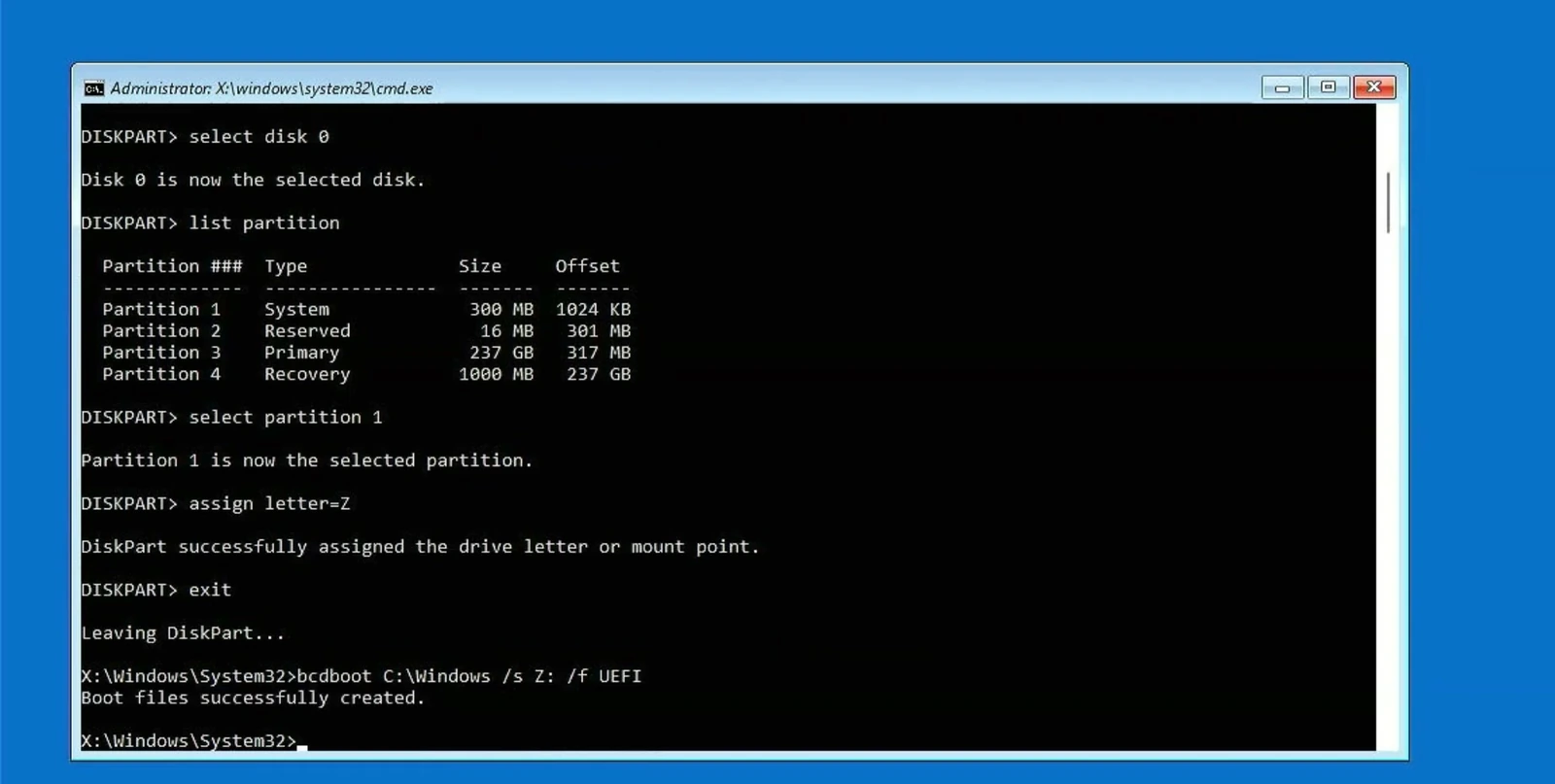
Because Windows is on C: and I assigned Z: to the EFI partition, I’m using this command:
bcdboot C:\Windows /s Z: /f UEFIMake sure you understand the two drive letters before pressing Enter:
- C:\Windows refers to the folder containing the installed Windows system. Replace C: with the actual letter you identified earlier if yours is different.
- /s Z: points to the EFI System Partition we just mounted.
- /f UEFI tells BCDBoot to create boot files for UEFI firmware.
If the command completes successfully, you should see Boot files successfully created. That’s the confirmation we’re looking for.
Restart the PC and check the result
Close Command Prompt with:
exitBack in recovery, select Continue to start Windows, or restart the computer normally. If you booted from an installation USB, remove it when appropriate so the PC tries to start from its internal drive.
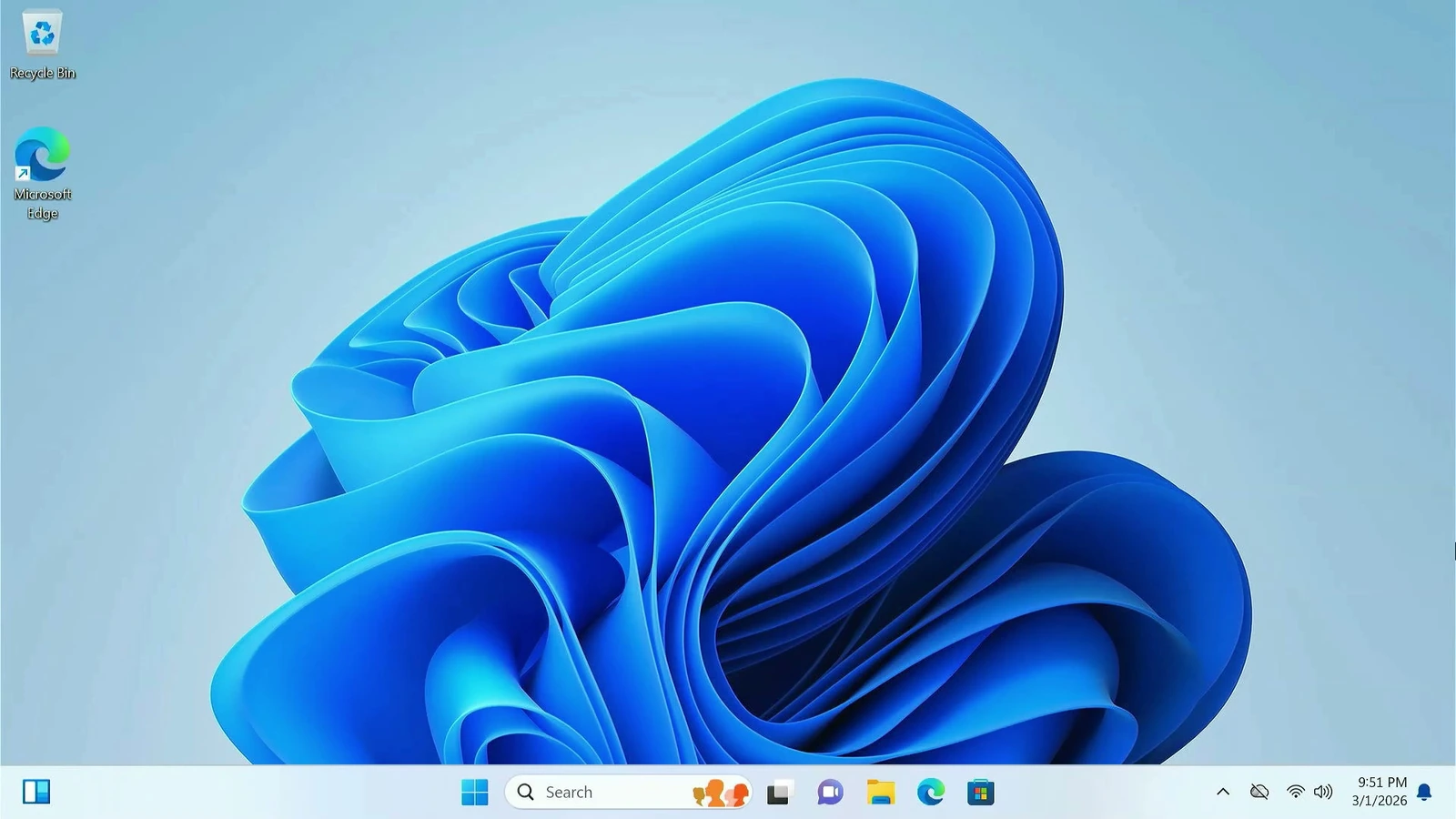
In my test, Windows reaches the login screen and then opens the desktop again. There’s no need to erase the drive or set up all my apps from scratch.
If you’re still seeing error 0xc0000098, double-check which volume contains Windows and which partition is the real EFI System Partition. Avoid trying random disk or partition numbers. UEFI boot settings may also need checking if the machine isn’t starting from the correct Windows Boot Manager entry.
You can read more about how the tool works in Microsoft’s official BCDBoot documentation. The repair shown here targets damaged UEFI startup files. It won’t fix every hardware failure or every kind of Windows corruption, but it can save you a full reinstall when the boot configuration is the real problem.