You have everything ready to install Windows 11. The bootable USB starts correctly, and you reach the screen where you should choose your SSD. But the list is completely empty. Instead of showing your drives, Windows Setup says “We couldn’t find any drives.” It is a frustrating message, especially when you know the SSD is already inside the computer.
Fortunately, a missing drive in Windows Setup does not always mean the SSD has failed. Sometimes the installer simply cannot communicate with the storage controller. This is common on certain Intel-based laptops and desktops that use Intel Rapid Storage Technology (RST), RAID mode, or Intel VMD.
There are a few sensible things to check before you give up on the installation. We will start by checking whether the computer itself can detect the drive. Then we will look at the BIOS storage settings and the option to load a storage driver. You can use the same approach with Windows 10, although the menus may look slightly different.
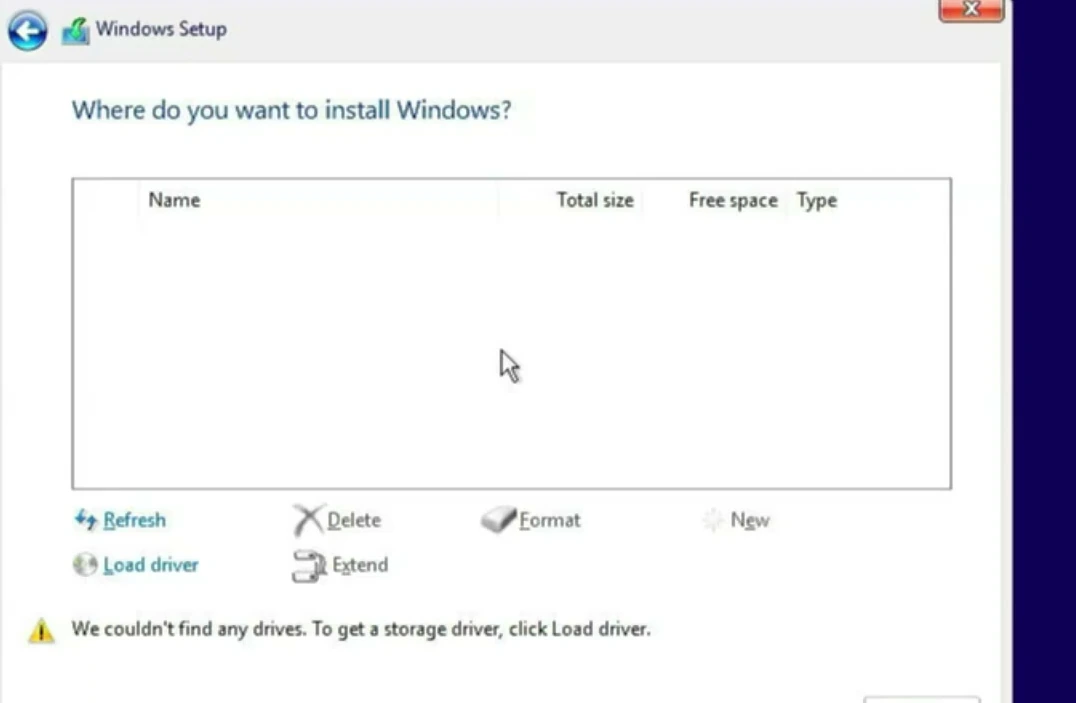
First, check whether the SSD appears in BIOS
Before downloading drivers, make sure the computer can actually see your SSD. This simple check can save a lot of time. If the drive is missing in the BIOS too, Windows Setup is unlikely to find it just by loading a different driver.
Restart the computer and enter its BIOS or UEFI settings. The required key varies by manufacturer. On many Dell computers you can press F2 during startup. Look for a section called System Information, Storage, Drives, or something similar.
In my Dell OptiPlex test system, I can check the storage information from the BIOS menus. Your own computer may arrange these options differently.
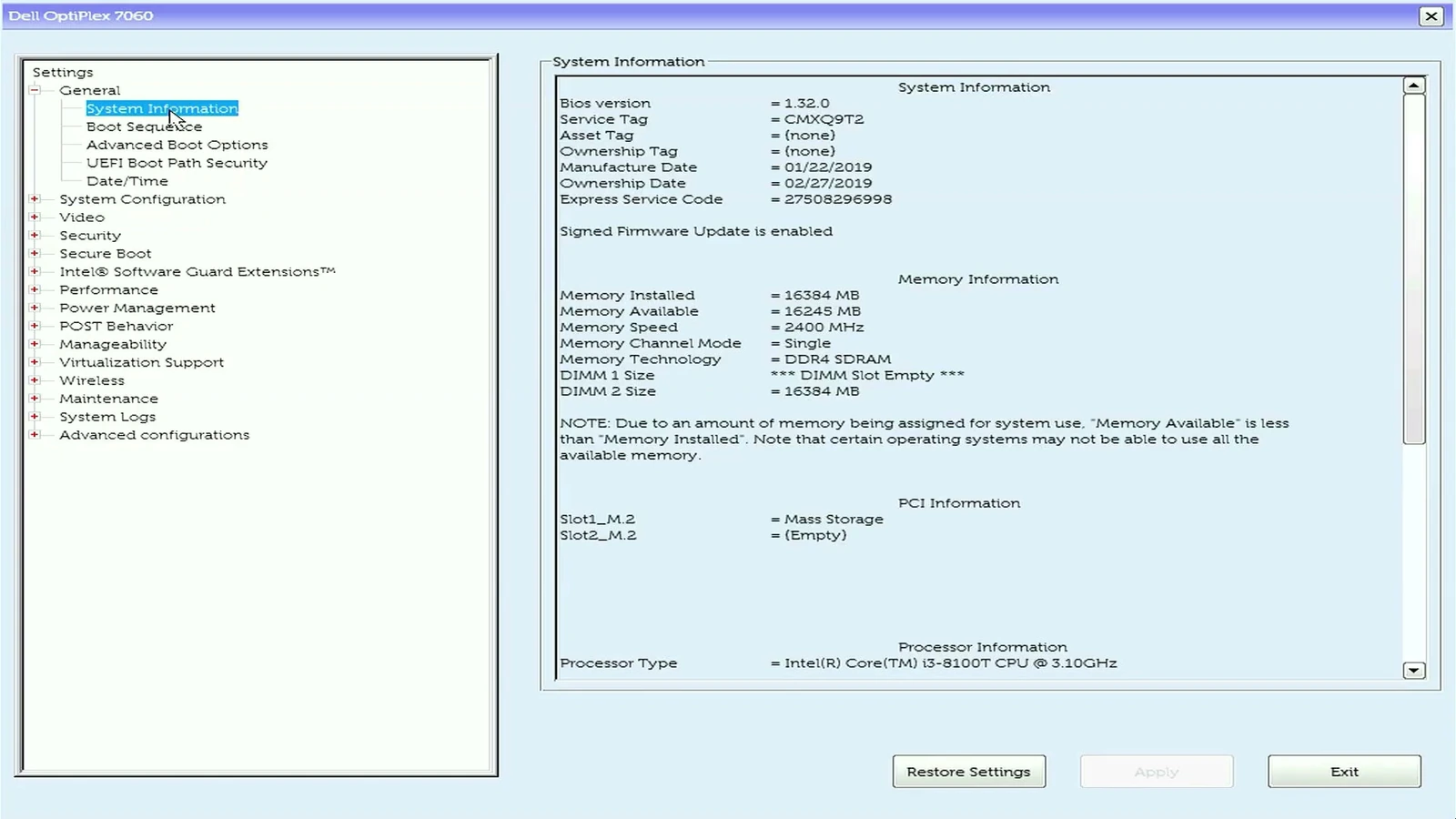
If you see your SSD listed, the physical drive is at least being detected by the firmware. You can move on to the storage-controller settings. If it does not appear, check the drive connection, available M.2/SATA slot, or the drive itself before changing Windows installation options.
Check the storage mode in BIOS
Windows Setup also needs to understand how the computer is communicating with the SSD. Some systems use a standard AHCI mode. Others use RAID On or Intel VMD, which may need an extra storage driver during installation.
On the Dell OptiPlex 7060, open System Configuration and select SATA Operation. Here, the available choices include AHCI and RAID On. The example BIOS initially has RAID On selected.
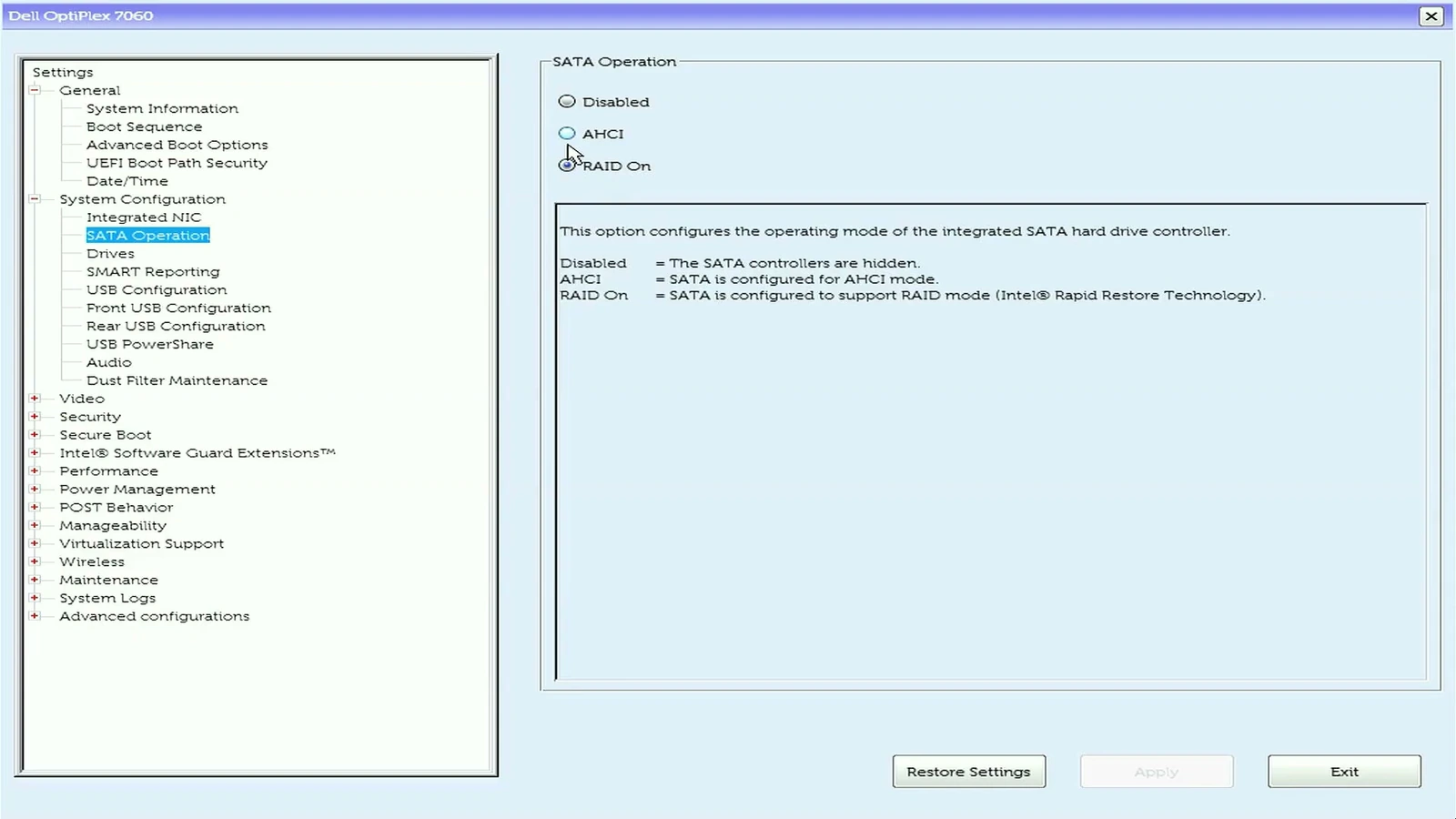
If this is a new or deliberately erased installation, your computer supports a standard AHCI setup, and you are certain there is no RAID or Optane configuration to preserve, you may be able to select AHCI. On systems using Intel VMD, the equivalent option may be located under a separate storage or VMD menu. The exact steps vary between manufacturers.
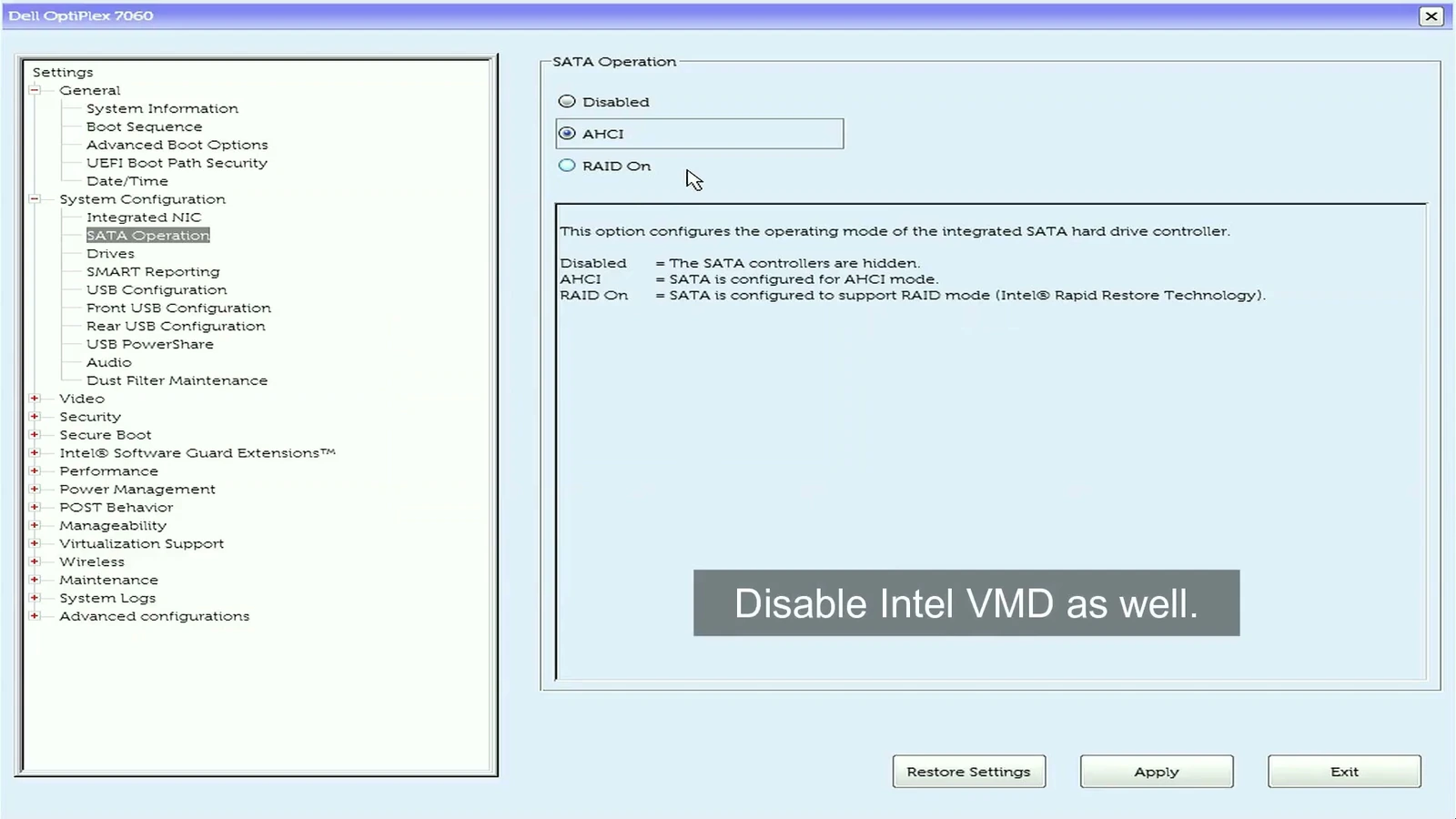
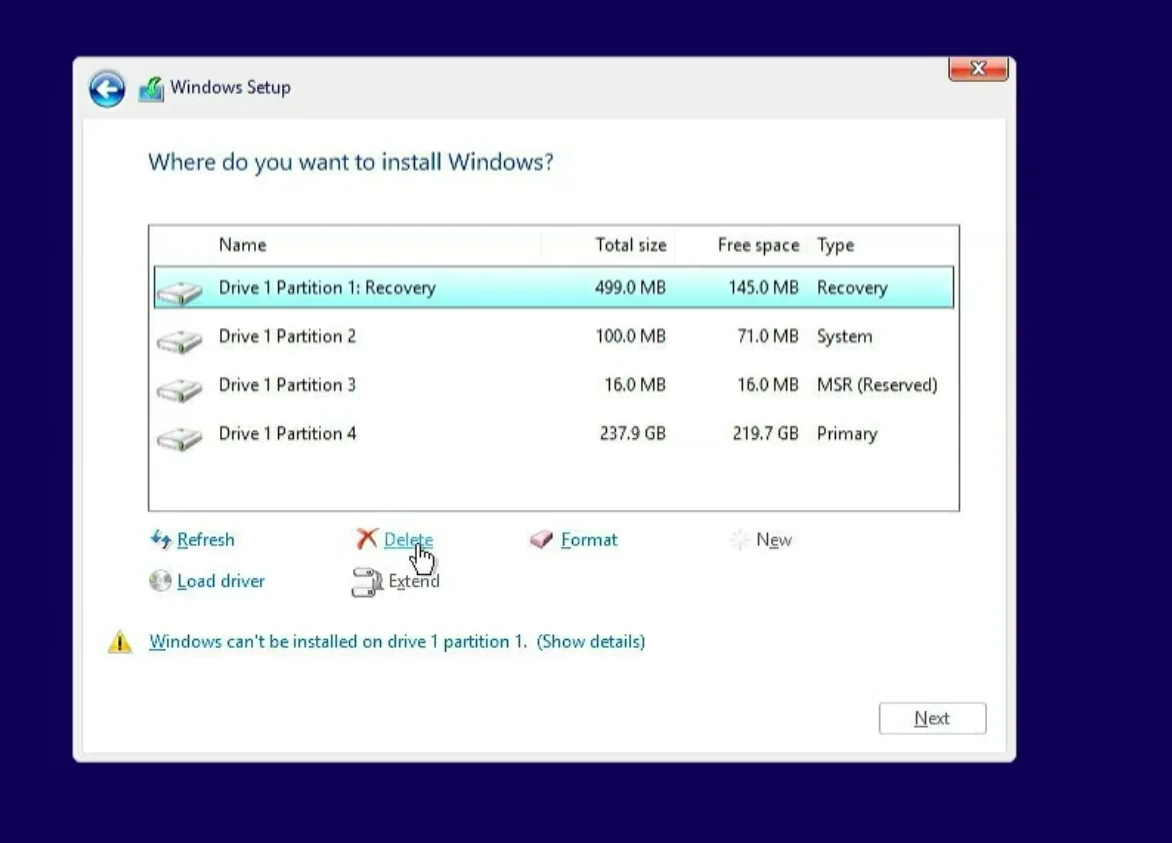
Save the BIOS settings and return to Windows Setup. Check the installation drive list again. In this test, the previously missing partitions appear after the storage mode is changed.
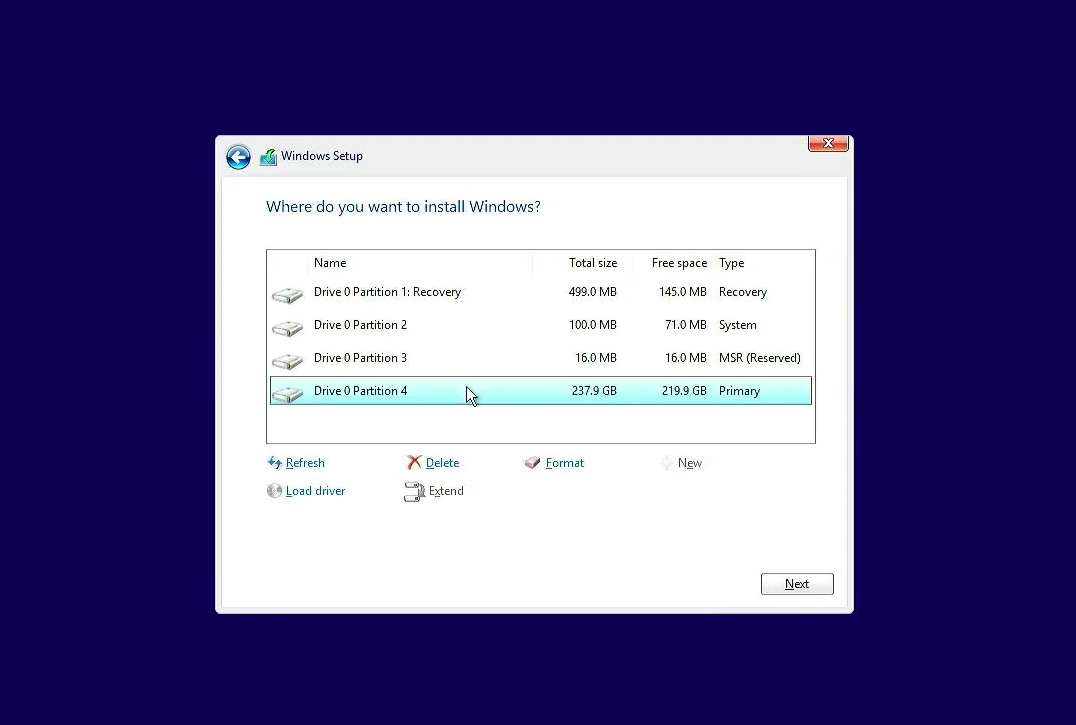
If your SSD now appears, there is no need to load an additional driver just to make the installer detect it. Select the correct installation destination and continue only after checking which partitions contain your existing data.
Keep RAID or VMD enabled? Load the correct storage driver instead
Changing the BIOS setting is not always possible or advisable. Many newer Intel-based computers use Intel RST or Volume Management Device (VMD) to manage storage. If Windows Setup does not include the right driver, it can show an empty drive list even though the BIOS detects the SSD.
In that situation, you can supply the driver during Windows installation. This is often called an F6 storage driver. You download it on a working computer, extract its files, copy them to the Windows installation USB, and load them from the installer.
Download the driver that matches your computer
Start with the support page for your exact laptop or desktop model. The manufacturer may supply a customized Intel RST driver that is better matched to its storage configuration. Dell users can look up their service tag or model on the official driver page.
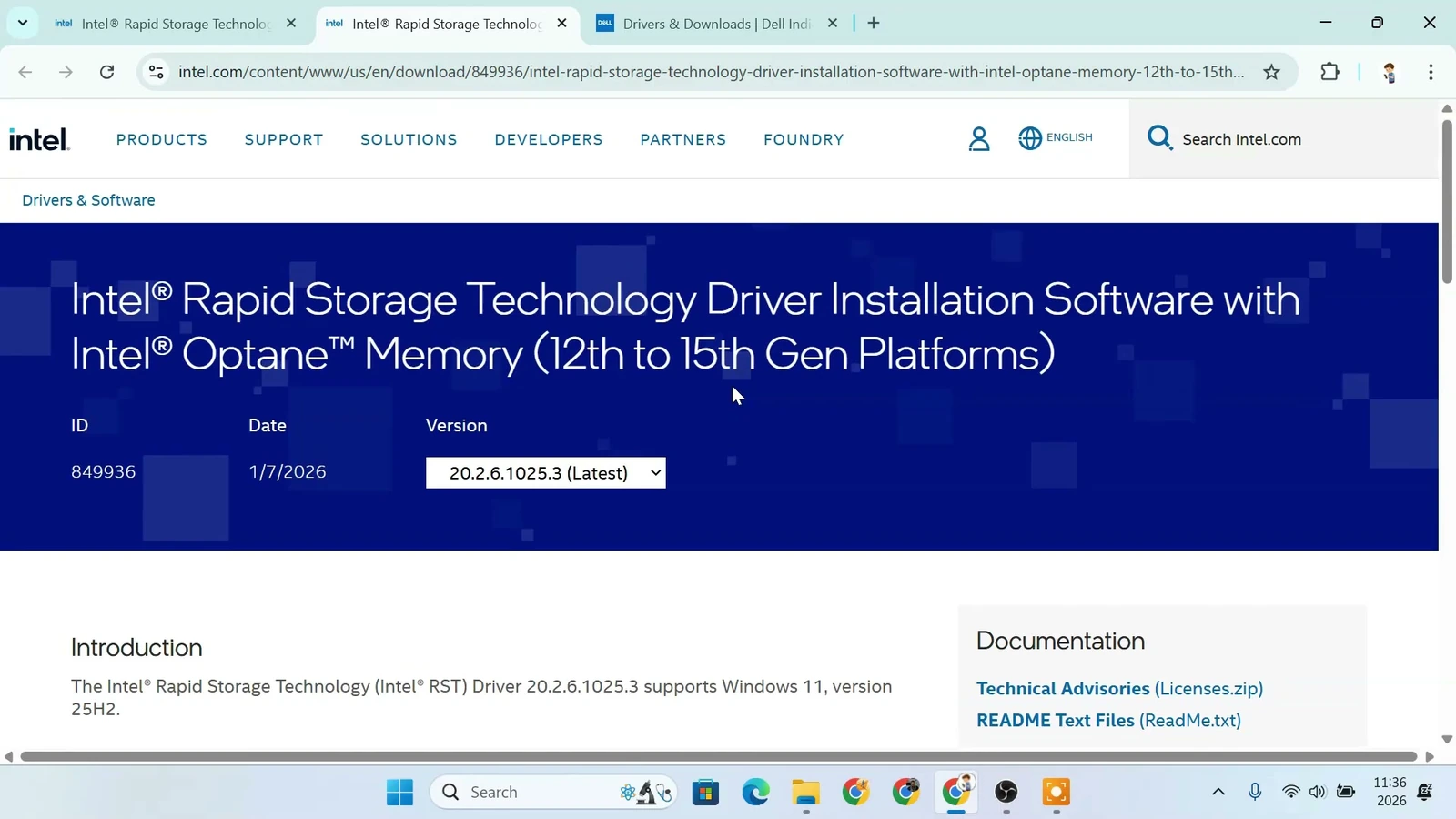
Intel also provides driver downloads for supported platform generations. These are the official download pages linked in the source material. Be sure to check the supported hardware on the download page rather than choosing a file based on the generation name alone.
- Intel 10th and 11th Gen platforms: Use the appropriate RST package only if your system is listed as supported.
- Intel 12th to 15th Gen platforms: Check the newer RST package and your manufacturer’s driver recommendations.
For example, the Intel download page may offer a file named SetupRST.exe. That file is an installer, but Windows Setup needs the extracted driver files instead of the installer itself.
Extract the RST driver files
There are two common ways to prepare the files. The correct one depends on whether you downloaded a manufacturer-specific package or Intel’s SetupRST installer.
Option A — Use the manufacturer’s Extract feature
Some Dell driver packages open a Dell Update Package window. Instead of choosing Install, select Extract. Choose a folder that is easy to find, and let the package unpack its contents.
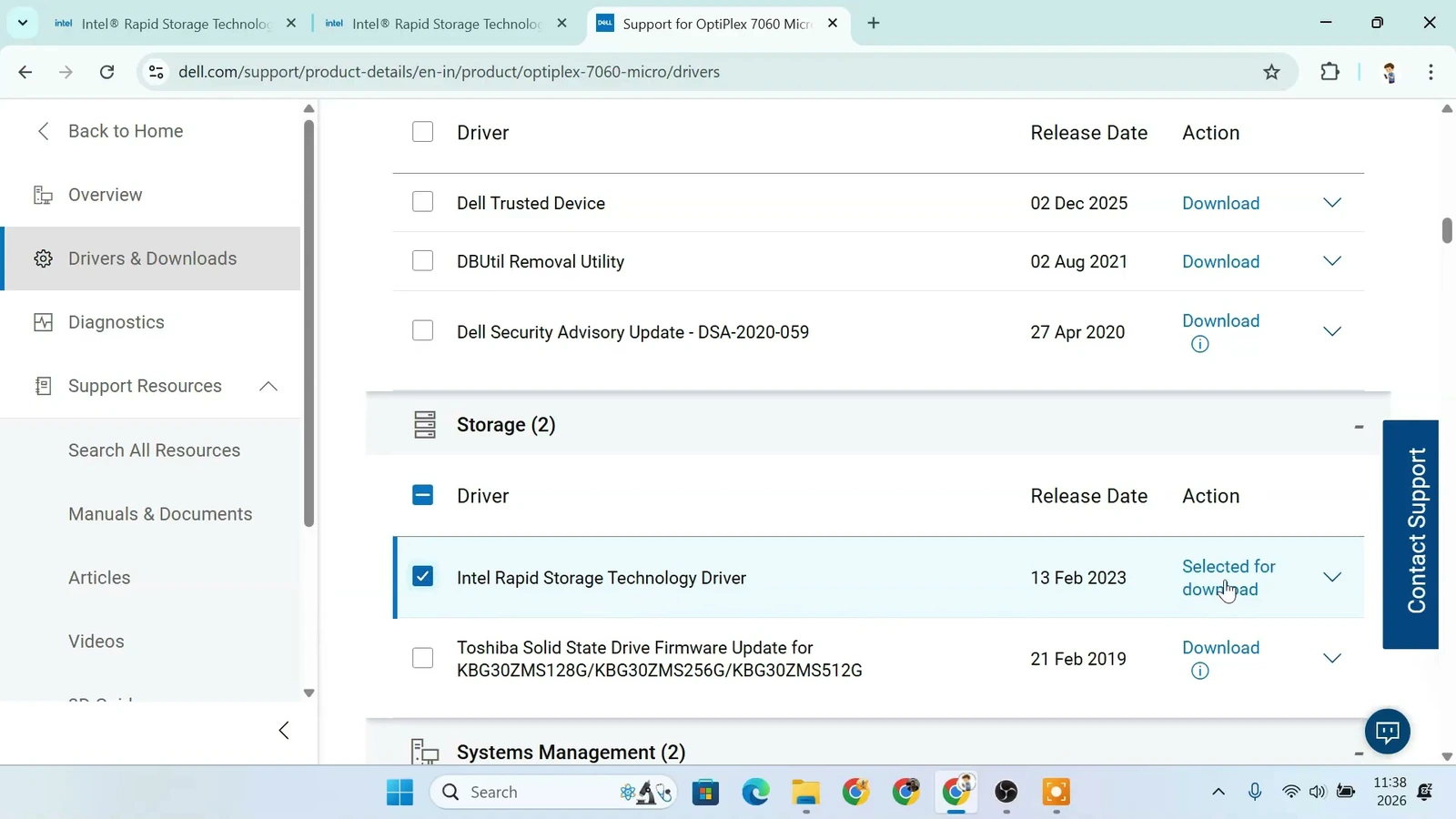
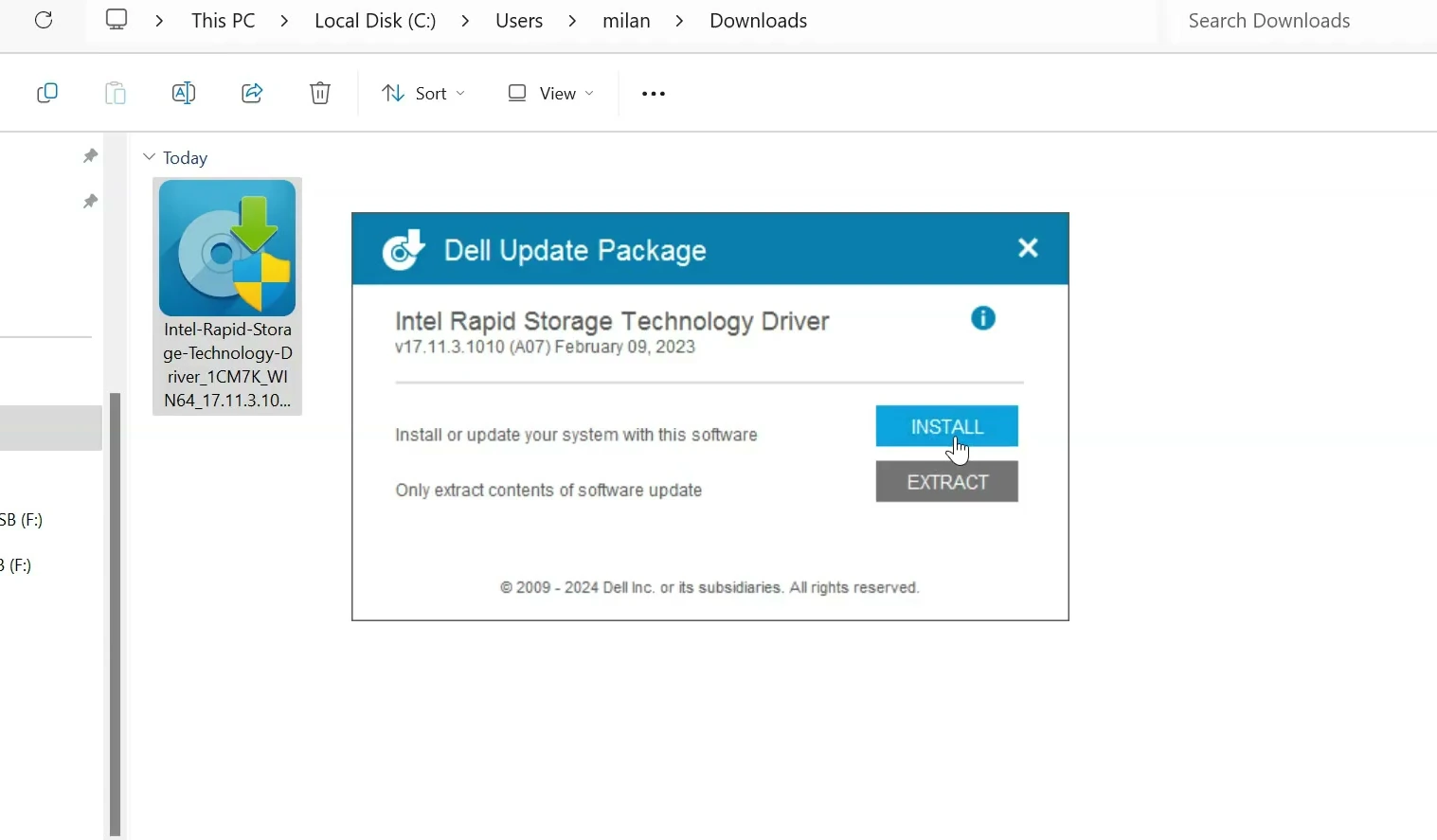
Open the extracted folder in File Explorer. Look for folders containing the storage-controller driver files. The exact structure and names vary by driver version, but you should generally find files with extensions such as .inf, .sys, and .cat.
Option B — Extract Intel SetupRST.exe using a command
If you downloaded Intel’s SetupRST.exe, you can extract the driver files without installing RST on the computer you are currently using. This is useful when you are preparing the driver for another PC.
Open Command Prompt as administrator. The source uses the following command:
"C:\Path\To\SetupRST.exe" -extractdrivers "C:\RST-Intel"Replace C:\Path\To\SetupRST.exe with the real location of the downloaded file before running it. The second path, C:\RST-Intel, is the example destination folder. This command will not work unchanged unless the installer actually exists at that path.
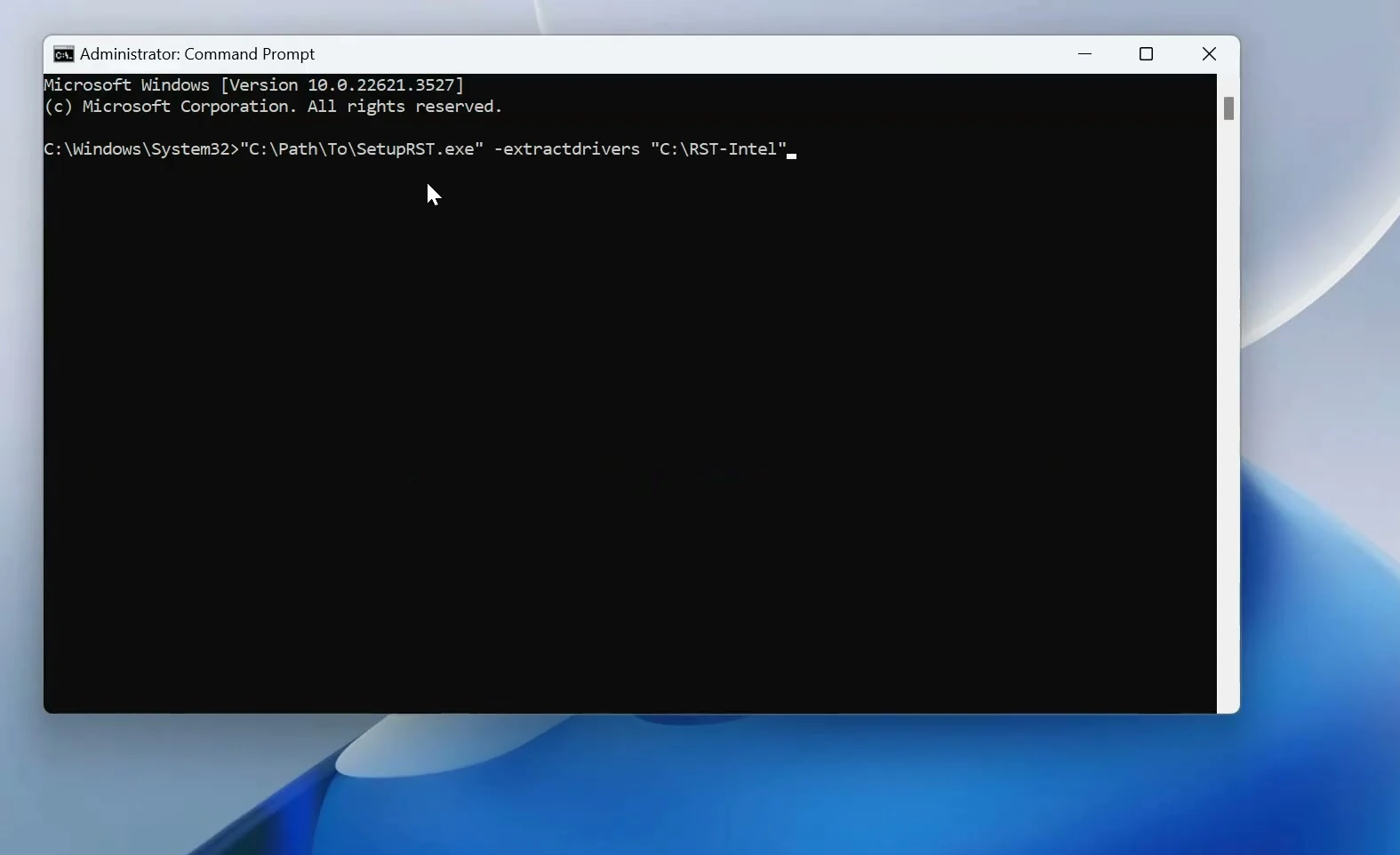
Once extraction finishes, open the destination folder. Find the appropriate F6 or VMD driver subfolder for your hardware. Do not choose a driver just because the folder name looks similar to your CPU generation.
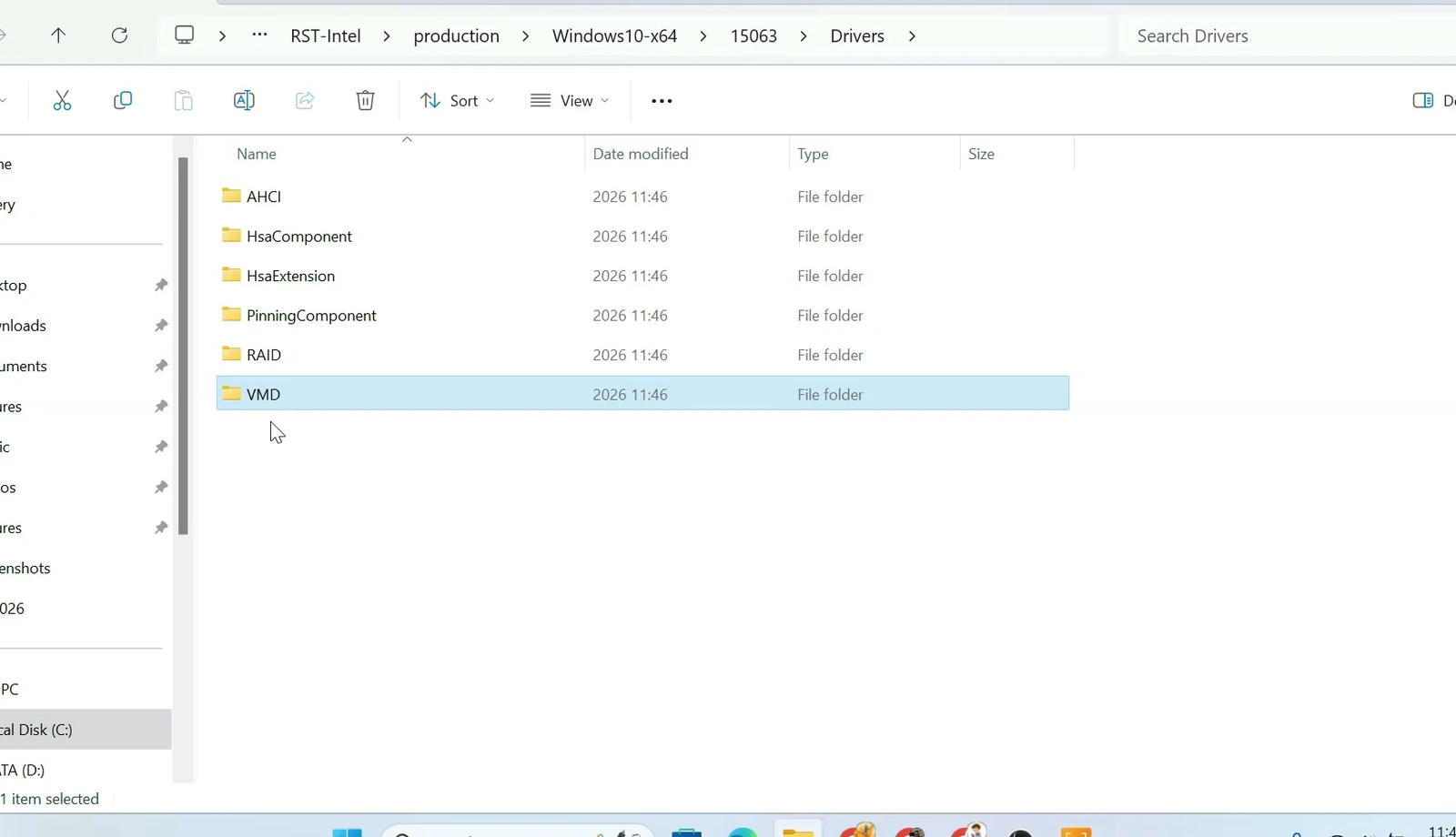
Load the driver in Windows Setup
Copy the extracted driver folder to your Windows installation USB or another USB drive. Keep the folder structure intact, including its .inf files. You can do this on a second working computer.
Start Windows Setup on the PC that cannot see its SSD. When you reach the drive selection screen, click Load driver. In some installer versions, the button may appear at a slightly different point in the setup process.
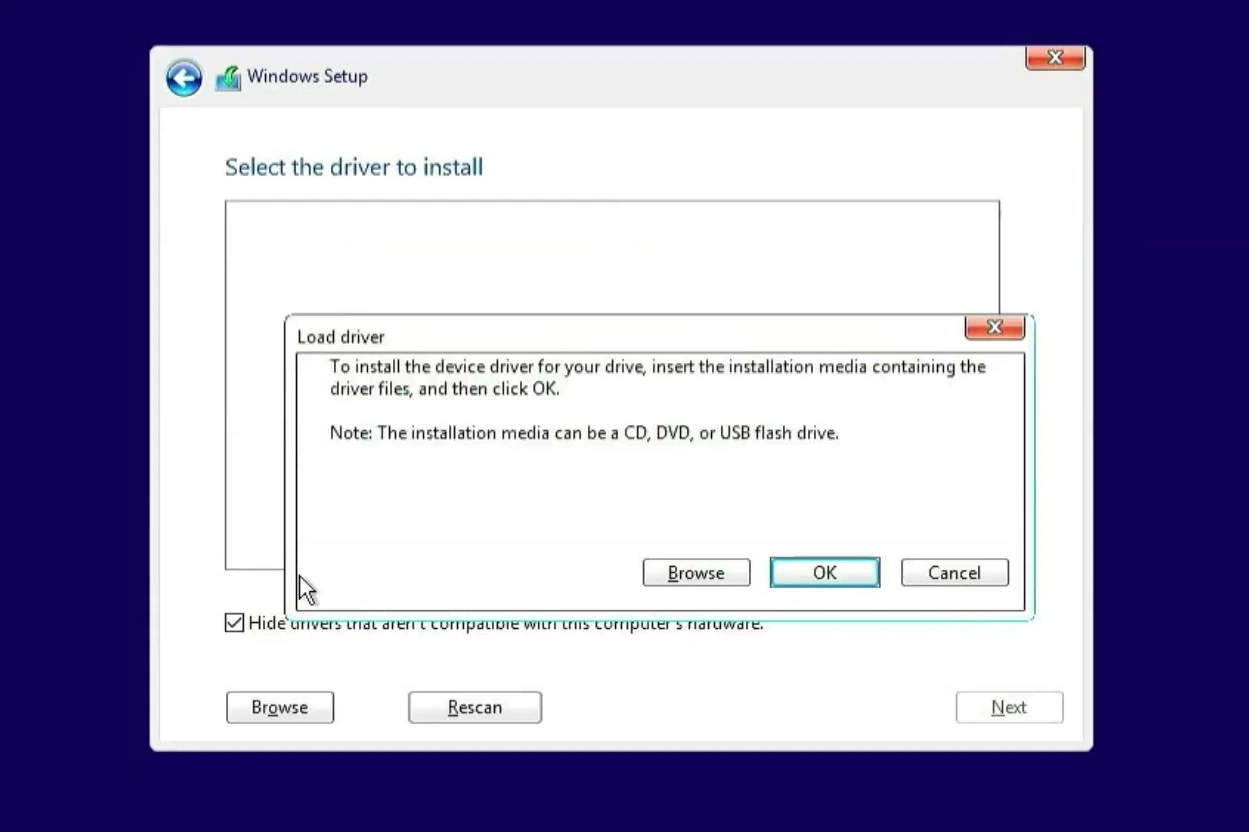
Select Browse, open the USB drive, and locate the extracted RST or VMD driver folder. Choose the folder that contains the appropriate driver information, then confirm with OK.
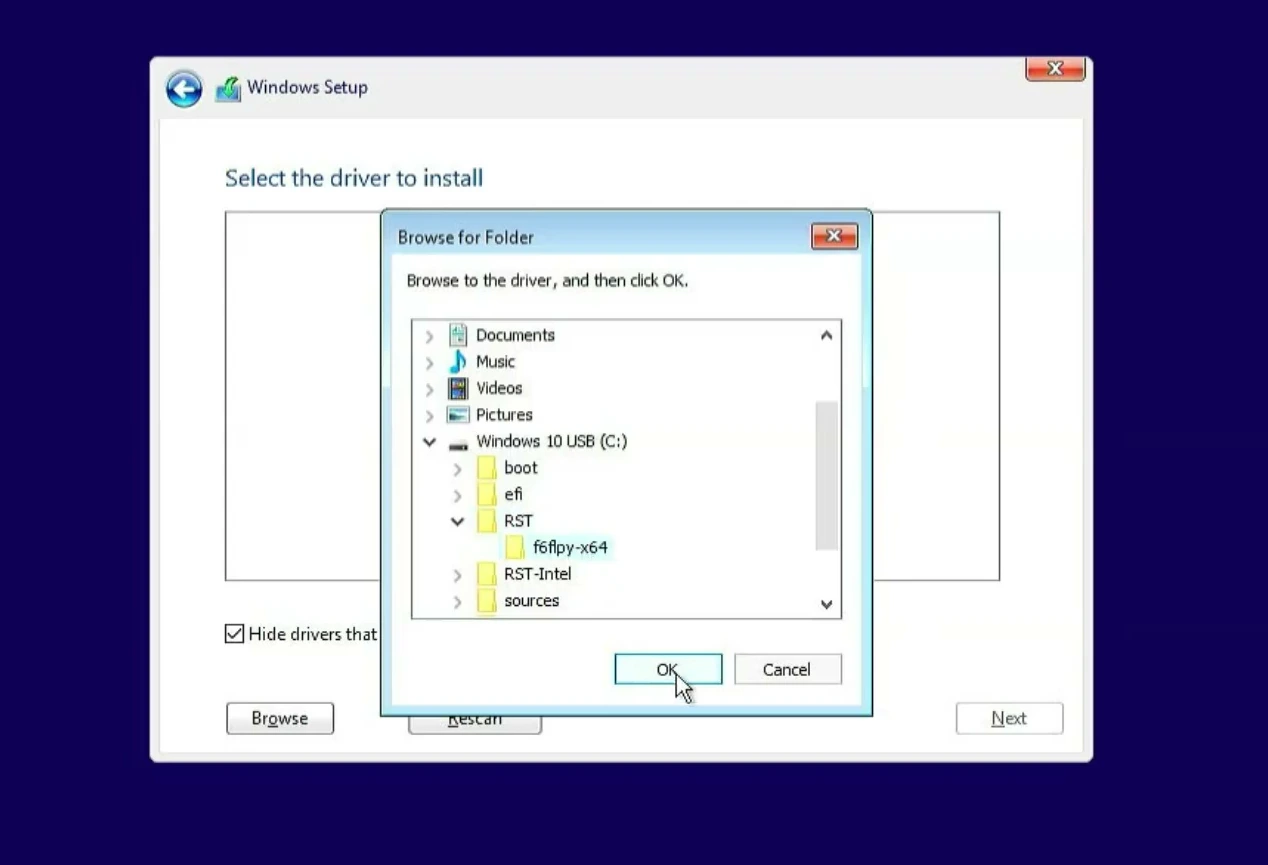
Windows Setup should list compatible drivers. Select the one matching your storage controller and proceed. When the driver loads correctly, return to the installation destination screen and check whether the SSD now appears.
If the drive is still missing
If Windows Setup still shows no drives, the next useful check is whether you have the correct driver for that particular PC. A driver intended for a different Intel platform may not detect your storage controller.
- Confirm the BIOS detects the SSD. If it does not, investigate the physical connection or drive health.
- Check RAID, AHCI, and VMD settings. Record the existing configuration before making changes.
- Try the PC manufacturer’s F6 driver. It may contain a platform-specific driver that the generic Intel package does not.
- Browse to the correct extracted folder. Windows Setup needs driver files, not just
SetupRST.exe. - Check the installer and USB drive. A damaged installer or unreadable USB drive can introduce other installation problems.
When the correct SSD finally appears, you can continue with Windows installation. The most important thing is to understand why it was missing in the first place. Sometimes the fix is a BIOS setting. On other systems, keeping the storage configuration unchanged and loading the proper RST driver is the better approach.