aX360e brings experimental Xbox 360 emulation to Android. You can point it at a compatible game dump, configure the virtual controller, and test graphics options directly on a phone or tablet. It is promising software, but compatibility is still limited and demanding games may be slow, glitchy, or unable to start.
This tutorial shows how to install aX360e, add your own Xbox 360 game files, choose sensible starting settings, and fix the most common setup problems. It follows the workflow in the video while correcting several settings that should be treated as per-game experiments rather than universal performance tweaks.
What Is aX360e?
aX360e is an Android Xbox 360 emulator whose public source follows development from Xenia and Xenia Canary. It uses Vulkan for graphics and includes a customizable on-screen controller. The official app advertises support for ISO and Games on Demand, or GOD, containers, although support for a format does not mean every game using that format is playable.
The recording uses a build from May 2026. The app’s built-in update log in the current public source lists version 1.19, dated August 16, 2026, with newer Xenia Canary code and additional fixes. The same log says version 1.18 added custom configurations and patch support. Menus can therefore look slightly different from the screenshots, so use the option names as the guide.
Requirements Before You Start
- Android 9 or later
- A 64-bit ARM device
- A Vulkan-capable GPU and current system software
- Enough free storage for your own Xbox 360 game dumps
- A recent, powerful processor for the best chance of playable performance
- An optional Bluetooth or USB controller
The developer does not publish a universal RAM minimum or require a Snapdragon processor. A high-end phone helps, but the individual game’s compatibility can matter as much as raw hardware. Custom GPU-driver support documented by the project is for compatible Adreno GPUs; other devices normally use their system Vulkan driver.
Install aX360e from Google Play
Install aX360e Free from Google Play and verify that the developer is aenu. This exact package is aenu.ax360e.free. Avoid similarly named apps and unofficial APK mirrors.
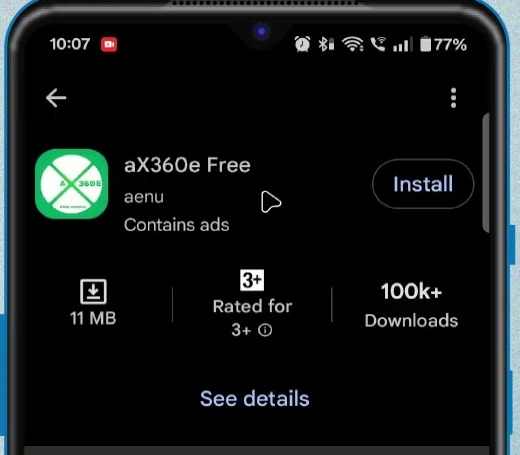
The free edition is supported by ads. The developer also offers a paid, ad-free edition and says its emulator functionality is otherwise the same. Review the current Play Store listing and privacy disclosures before installing either version.
Add Xbox 360 Games to aX360e
Open aX360e after installation. An empty library on the first launch is normal because no game directory has been selected yet.
Prepare a Supported Game Dump
The safest starting point is an ISO or GOD container created from a game you own. Current builds can also recognize some extensionless GOD or STFS files, extracted games containing default.xex, and ZAR packages. The official Xenia game-dumping guide explains the stock Xbox 360 and USB workflow. An Xbox One or Series console cannot create the required dump through that method.
Create a dedicated folder in internal storage, such as Xbox360Games, and copy the supported game file or extracted game folder into it. Digital and XBLA content can still depend on licences that are not portable to an emulator, so a detected file may open only in trial mode or fail to run.
Select the Game Directory
Tap the three-dot menu in the upper corner and choose Set Game Directory.
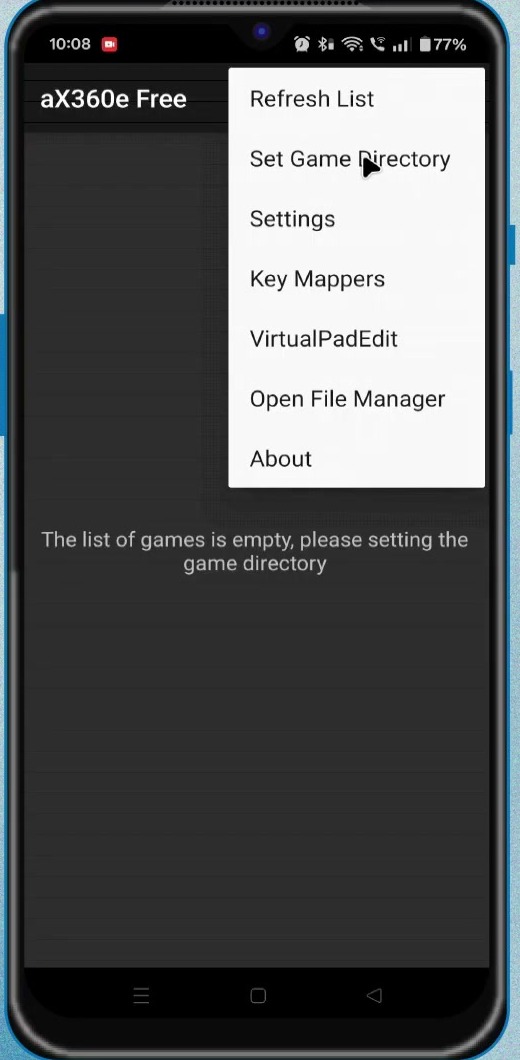
Android’s folder picker will open. Browse to the folder containing your game files, tap Use this folder, and approve the access request. Grant access only to the dedicated game folder rather than a broad storage location.
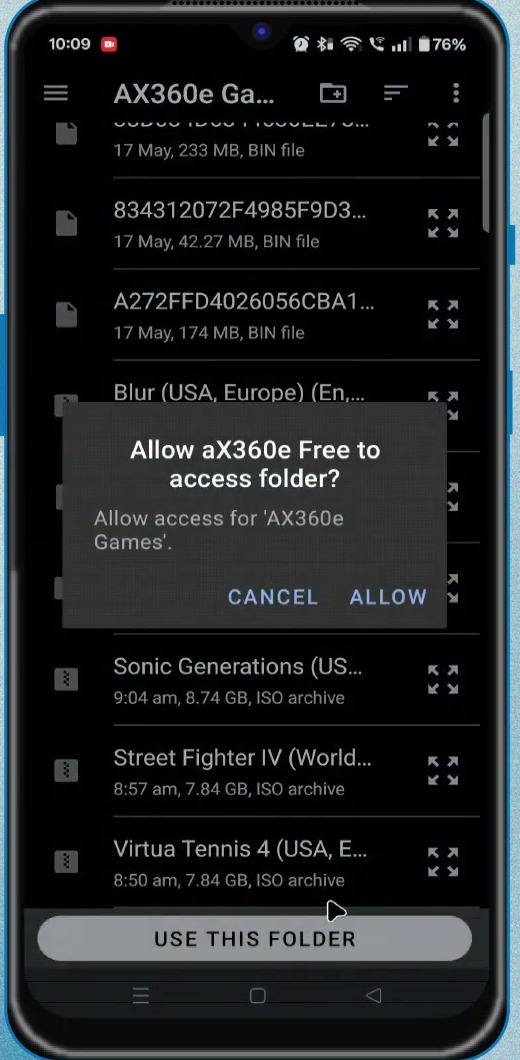
Return to the three-dot menu and choose Refresh List. In the video build, an extensionless game placed several folders deep was not detected. Moving the actual container directly into the selected directory and refreshing made it appear. Keep an extracted game’s files together; do not pull default.xex away from its supporting data.
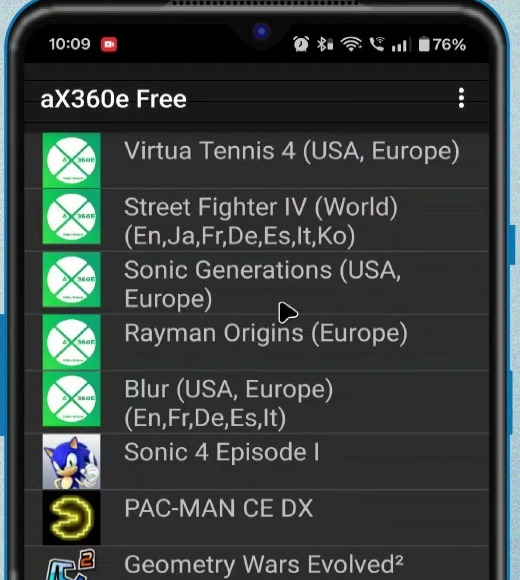
Configure aX360e Safely
Start with the defaults and test one game before changing settings. If the settings are greyed out in the video-era build, launch a detected game once, exit as soon as it opens, and return to Settings. Newer versions may not require this workaround.
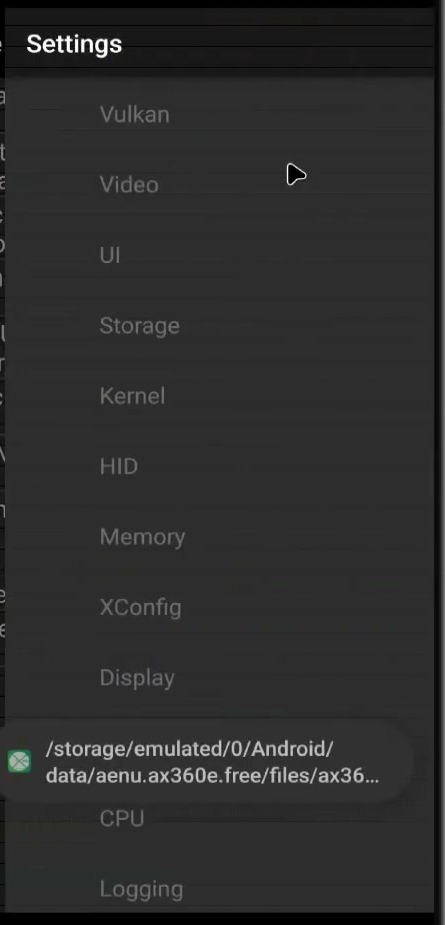
Change one option at a time and retest the same scene. This makes it possible to identify which setting helped or caused a regression. Where the current app offers custom or per-game configurations, prefer them over changing a global setting for every title.
Video and Internal Resolution
Open Video and check Internal Display Resolution. The video shows 1280 × 720 as the starting value. If a game is GPU-limited, try one lower setting and compare performance and image quality. The emulator itself warns that changing this value is not guaranteed to affect every game or improve speed.
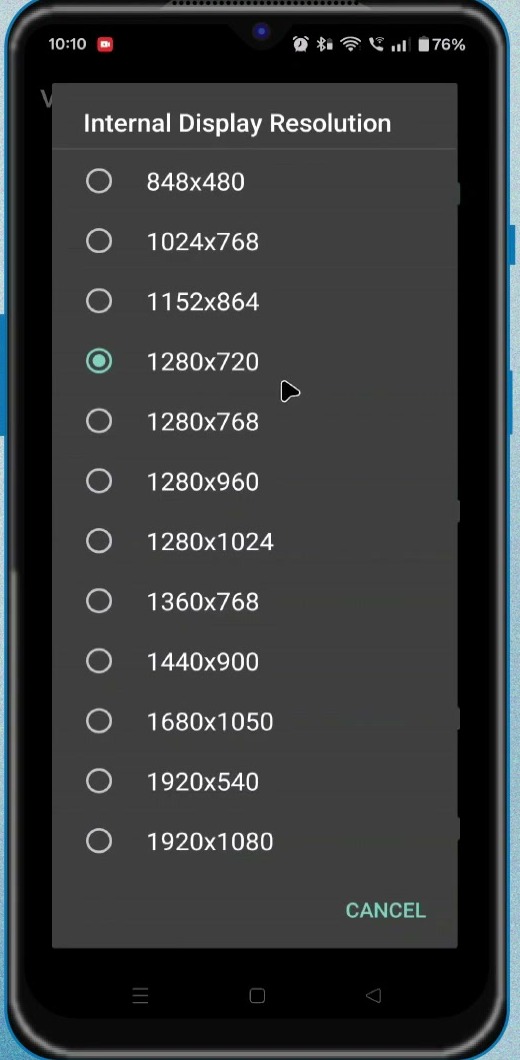
Leave 50 Hz, interlaced, and stereoscopic 3D modes disabled for ordinary NTSC, progressive-scan gameplay. Enable one only when a specific title or display mode needs it.
Display Quality Options
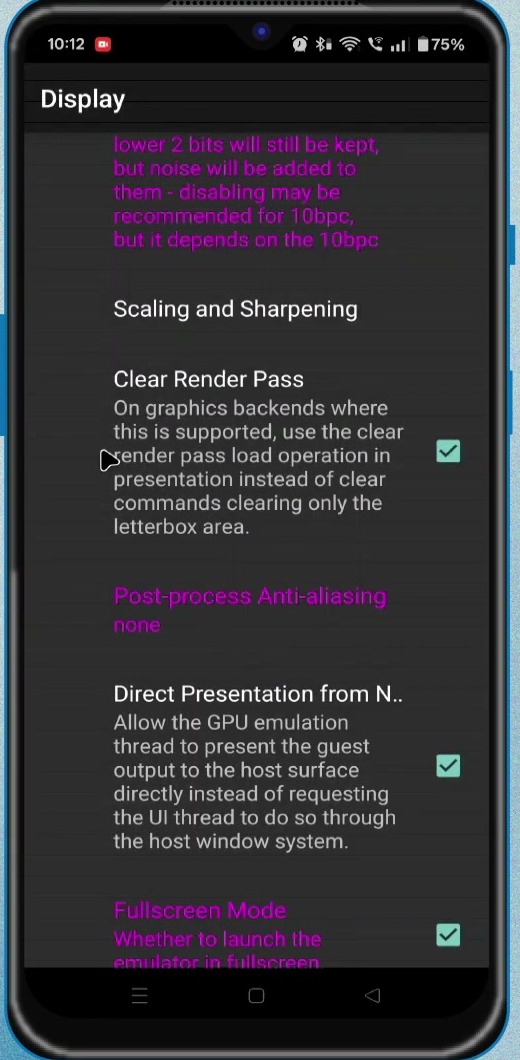
Enable fullscreen if you want the game to fill the device display. Treat post-process dithering and anti-aliasing as image-quality trade-offs, not switches that must always be disabled. Dithering can smooth gradients, and the current app recommends post-process anti-aliasing when CAS or FSR sharpening is active. Lower these options only when testing shows a useful gain for that game.
Vulkan Options
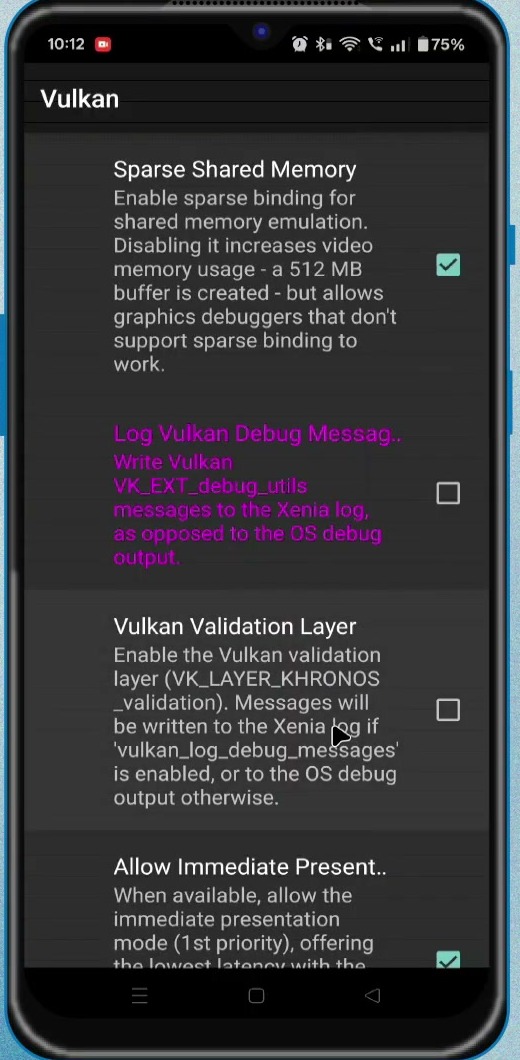
Vulkan debug messages and the validation layer are developer diagnostics. Start with the current build’s defaults; validation normally remains off, while the default for message logging can change between versions. Keep the present-mode options at their defaults unless you are troubleshooting a specific title. Immediate presentation can allow tearing, while mailbox and FIFO modes behave differently depending on the phone’s driver and display.
GPU and VSync
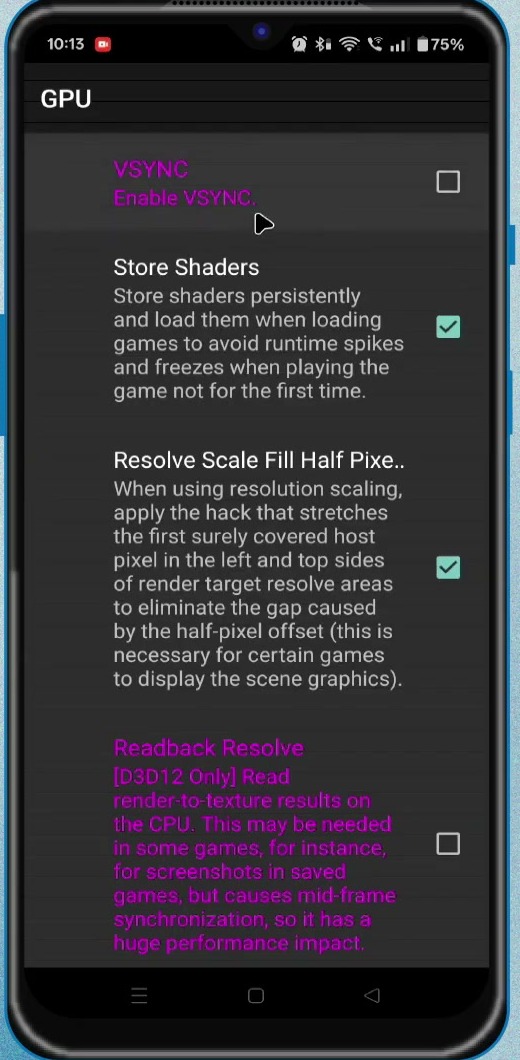
Keep VSync at its default starting value. Disabling it does not make underpowered hardware render faster; it mainly removes the emulator’s frame cap and can make some Xbox 360 games run at the wrong speed. If a title-specific test benefits from an uncapped frame rate, watch for tearing, uneven pacing, or accelerated game logic and restore VSync if any appear.
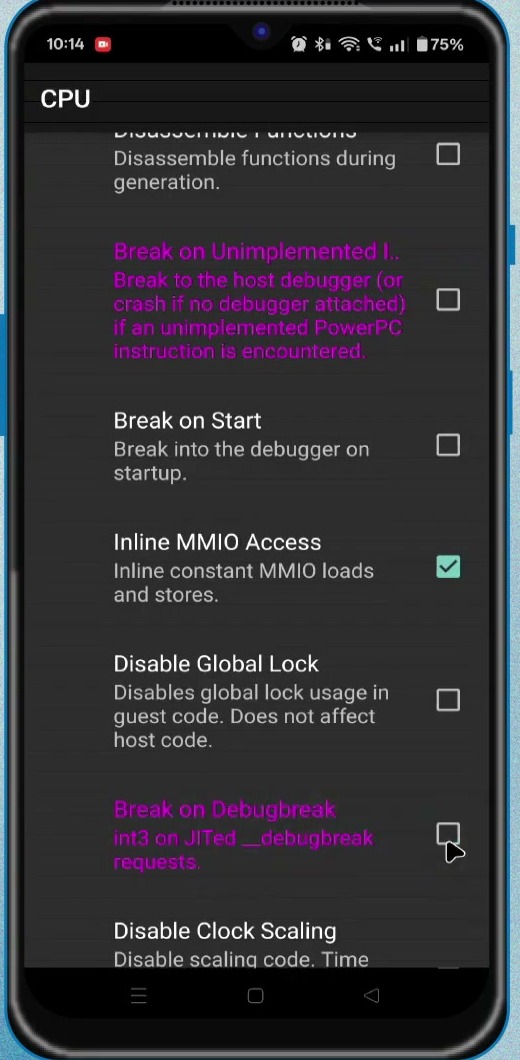
CPU Debug Settings
Developer options such as breaking on an unimplemented instruction or debug break can interrupt execution for diagnosis. Start with the current defaults because they have changed between releases. If a game halts on one of these conditions, test disabling that specific break option instead of changing every CPU switch.
Set Up Touch Controls or a Gamepad
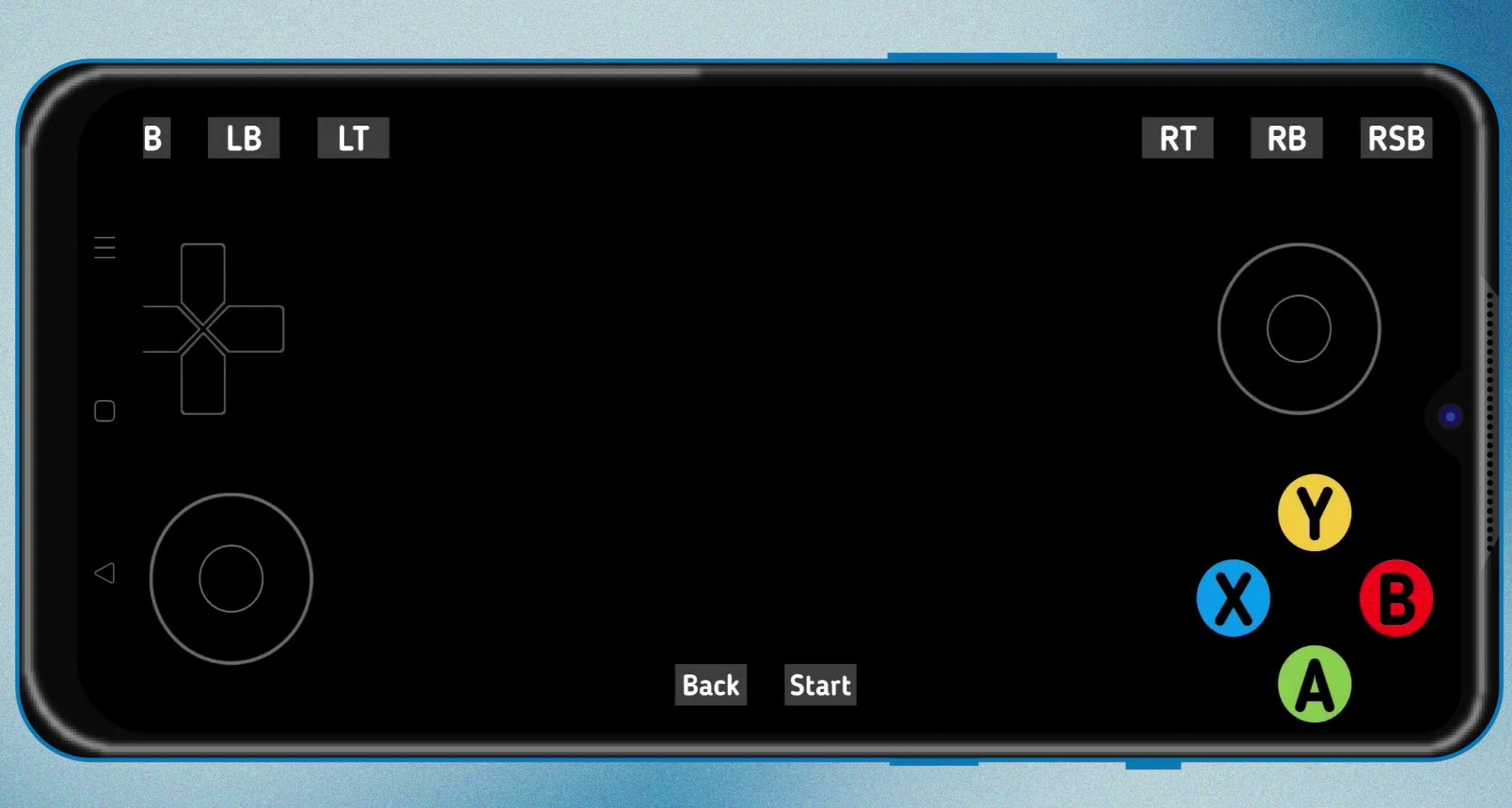
Open the three-dot menu and select VirtualPadEdit to arrange the on-screen controls. Move and resize the sticks, directional pad, triggers, and face buttons so they do not cover important game information. A racing game may need a different layout from a fighting or platform game.
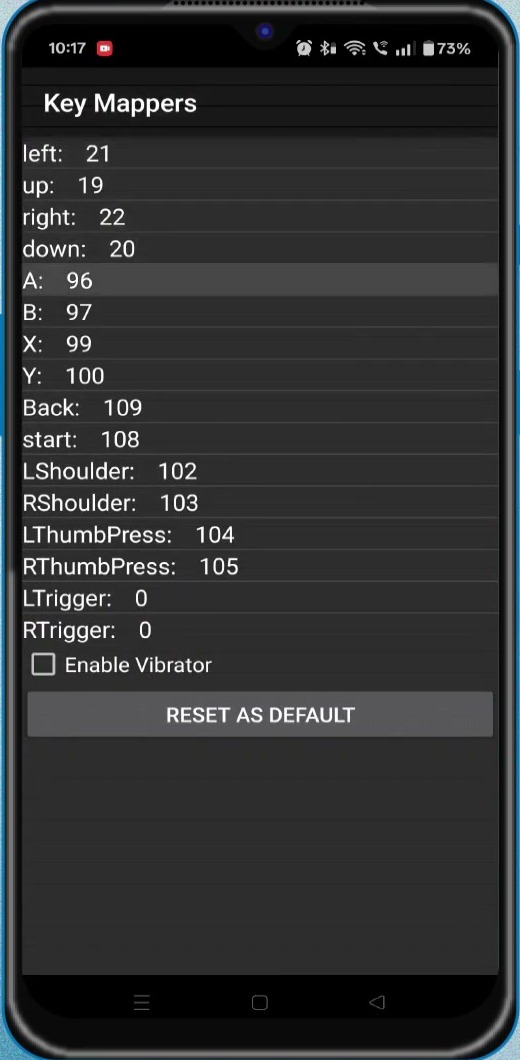
For a physical Bluetooth or USB controller, open Key Mappers and map each input. A gamepad is usually more comfortable and accurate because Xbox 360 games were designed around controller input.
Test a Game and Set Realistic Expectations
Select a game from the library and allow the first launch extra time. Test a lightweight or 2D title before a demanding open-world or racing game. A title can reach its menu yet still crash in gameplay, show missing graphics, display a black screen, or run below full speed.
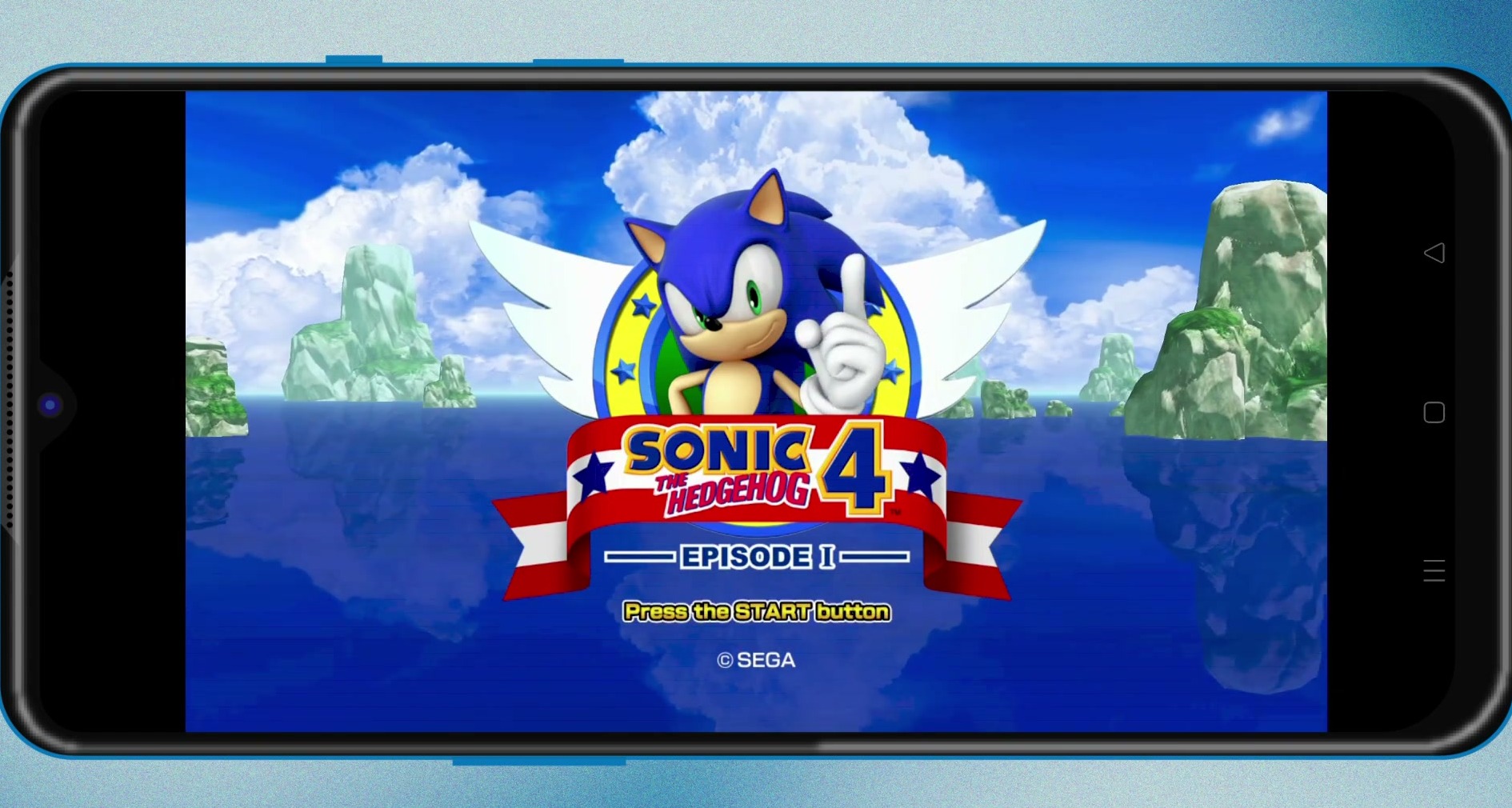
Hardware, driver quality, emulator version, and the individual game all affect the result. A desktop Xenia compatibility report can offer a clue, but it is not a promise that the Android port will behave the same way. Xbox Live and other online-dependent features should not be expected.
Useful Starting Settings
| Option | Starting point |
|---|---|
| Internal resolution | Default, then test one lower value if GPU-limited |
| 50 Hz, interlaced, 3D | Off unless a specific title needs one |
| Dithering and anti-aliasing | Default; change only after comparing quality and speed |
| Vulkan diagnostics | Current defaults; validation is normally off |
| Present modes | Default |
| VSync | Default/on; uncap only for a tested title |
| CPU debug breaks | Current defaults; adjust only for a specific halt |
| Configuration scope | Per-game when available |
Troubleshooting aX360e
The Game Does Not Appear
Confirm that aX360e still has permission to the selected folder, that the file is in a recognized format, and that an extracted game contains default.xex. Move an extensionless GOD or STFS container closer to the selected directory root, then use Refresh List.
The Game Shows a Black Screen or Crashes
Restore default settings, close and reopen the emulator, and test a different known-lightweight title. Update aX360e through Google Play before spending time on advanced options. Some failures are compatibility problems that settings cannot fix yet.
Performance Is Too Low
Lower internal resolution by one step, close heavy background apps, keep the device cool, and test with the phone unplugged if charging causes thermal throttling. Revert any change that makes frame pacing or graphics worse. A lower setting cannot overcome an unimplemented emulator feature or an incompatible game.
The Game Runs Too Fast or Tears
Restore VSync and the Vulkan present-mode defaults. Uncapping an Xbox 360 title can affect game speed, while immediate presentation can expose tearing.
The Play Store Says the App Is Incompatible
Check that the device runs Android 9 or later, uses a 64-bit ARM processor, and supports Vulkan. Regional or device filtering can also affect availability. Do not work around the warning with an APK from an unknown mirror.
Final Thoughts
aX360e makes Xbox 360 emulation possible to test on an Android device, but it is not a replacement for original hardware or a mature desktop emulator. Install the official build, start with a legally created compatible dump, keep the defaults, and adjust one per-game setting at a time. That approach gives you the clearest picture of what your phone and the current emulator version can actually run.