If you are trying to use an app that requires Shizuku permission, but the Shizuku app is showing “Shizuku is not running”, then don’t worry. This is a very common issue on Android phones, especially when you are using Shizuku without root access.
The good thing is that you do not need to root your phone, and you also do not need a computer to fix this problem. You can start Shizuku directly from your Android phone using the Wireless Debugging method.
In this guide, I will show you how to fix the Shizuku not running problem step by step.
What Is Shizuku?
Shizuku is an Android tool that allows supported apps to use system-level features without requiring full root access. Many advanced Android apps use Shizuku to perform tasks that normal apps cannot do with regular Android permissions.
For example, some apps use Shizuku to manage installed apps, remove bloatware, control app permissions, or access advanced Android features.
You can download Shizuku from the official website using the button below.
Why Does Shizuku Show “Not Running”?
Shizuku needs to start a background service before other apps can use it. If that service is not active, the Shizuku app will show the message “Shizuku is not running”.
This usually happens because Shizuku has not been started yet, Wireless Debugging is not enabled, the phone was restarted, notification permission was denied, or pairing was not completed properly.
If you are using Shizuku without root access, you usually need to start it manually using Wireless Debugging.
Requirements Before Starting
Before following the steps, make sure you have these things ready:
- An Android phone
- Shizuku app installed
- A stable Wi-Fi connection
- Developer Options enabled
- Wireless Debugging support on your phone
This method does not require root access and does not require a PC. However, Wireless Debugging requires Wi-Fi, so make sure your phone stays connected to a stable Wi-Fi network during the setup.
Step 1: Connect Your Phone to Wi-Fi
First, connect your Android phone to a stable Wi-Fi network.
This is important because Shizuku uses Android’s Wireless Debugging feature to start the service without a computer. If your Wi-Fi disconnects during the process, pairing may fail or Shizuku may not start properly.
You do not need mobile data for this method. A normal Wi-Fi connection is enough.
Step 2: Enable Developer Options on Android
Now you need to enable Developer Options on your Android phone.
Open your phone’s Settings and go to:
Settings > About Phone
Now look for the Build Number option.
On some phones, the Build Number option may be available inside:
Settings > About Phone > Software Information
Once you find Build Number, tap on it 7 times.
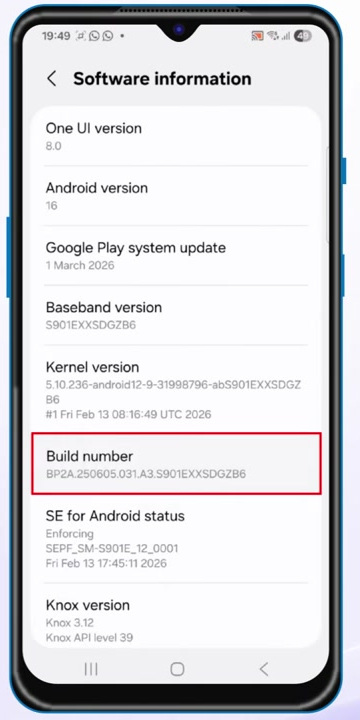
Your phone may ask you to enter your lock screen password, PIN, or pattern. Enter it, and Developer Options will be enabled.
After this, you may see a message like “You are now a developer” or “Developer mode has been enabled.”
Step 3: Enable USB Debugging
After enabling Developer Options, go back to your phone’s main Settings page.
Now open:
Settings > Developer Options
On some phones, Developer Options may be available under:
Settings > System > Developer Options
Now scroll down and enable USB Debugging.
A warning popup may appear. Tap OK or Allow.
Even though we are not using a USB cable or computer in this method, USB Debugging is still required for the Shizuku setup process.
Step 4: Enable Wireless Debugging
Inside Developer Options, scroll down and find Wireless Debugging.
Turn on Wireless Debugging.
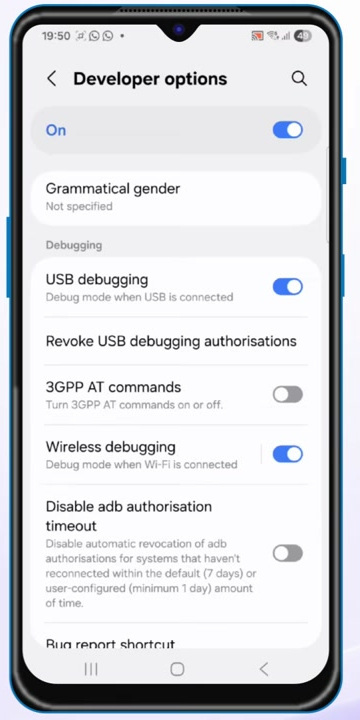
Your phone may show a confirmation popup. Tap Allow.
Wireless Debugging is the main feature that allows Shizuku to start without using a PC. Without this option, you cannot start Shizuku using the no-root, no-PC method.
Step 5: Open the Shizuku App
Now open the Shizuku app on your phone.
If Shizuku is currently not active, you will see the message:
Shizuku is not running
Do not worry. This is the problem we are going to fix.
Inside the Shizuku app, look for the Pairing option and tap on it.
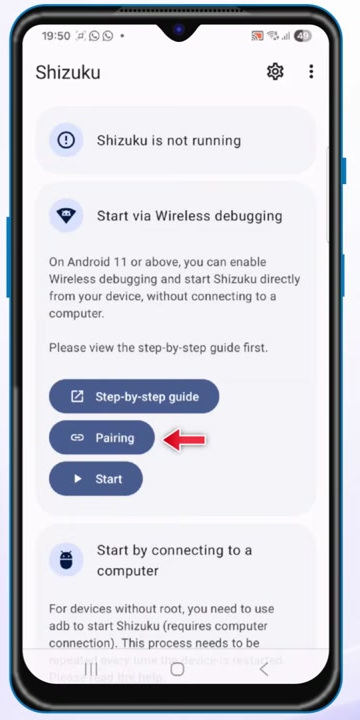
Shizuku may ask for notification permission. Make sure you allow notification permission because Shizuku uses a notification to complete the pairing process.
If you deny the notification permission, you may not receive the pairing notification, and the setup may not work properly.
Step 6: Start Pairing in Shizuku
After tapping the Pairing option, Shizuku will start searching for the Wireless Debugging pairing service.
Keep the Shizuku app running in the background and go back to your phone’s Wireless Debugging settings.
Do not completely close Shizuku from recent apps while doing this process.
Step 7: Open Wireless Debugging Pairing Code
Now go to:
Settings > Developer Options > Wireless Debugging
Tap on Wireless Debugging.
Now tap on:
Pair device with pairing code
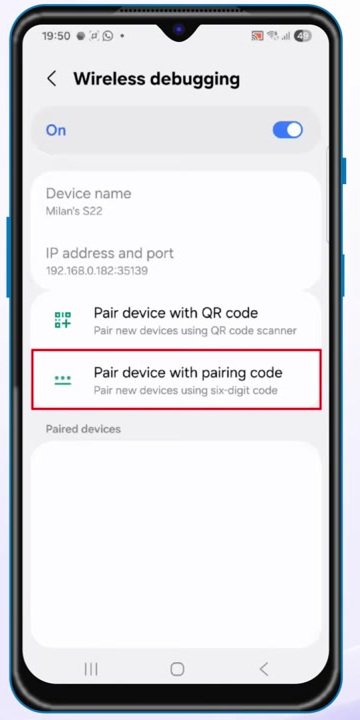
Your phone will now show a 6-digit pairing code.
Keep this screen open because you will need this code in the next step.
Step 8: Enter the Pairing Code in the Shizuku Notification
After opening the pairing code screen, you should receive a Shizuku notification saying that a pairing service has been found.
Open that Shizuku notification.
Now enter the 6-digit pairing code that is shown on your Wireless Debugging screen.
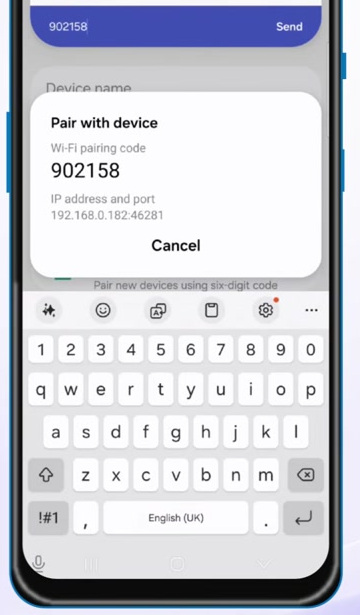
After entering the code, tap Send.
If everything is correct, you should see a message saying that pairing was successful.
Step 9: Go Back to Shizuku and Tap Start
Now go back to the Shizuku app.
You should now see a Start button.
Tap on Start.
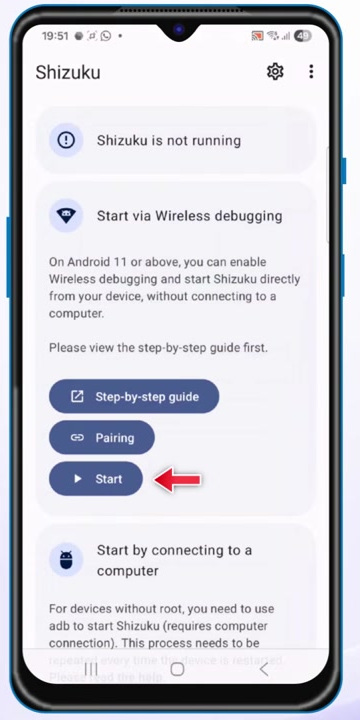
Shizuku will now start the service using Wireless Debugging.
Wait for a few seconds. The pairing window should close automatically, and Shizuku should start running.
Step 10: Confirm That Shizuku Is Running
Once the process is complete, open the Shizuku app again.
This time, instead of showing “Shizuku is not running”, it should show that Shizuku is running successfully.
That means the problem is fixed.
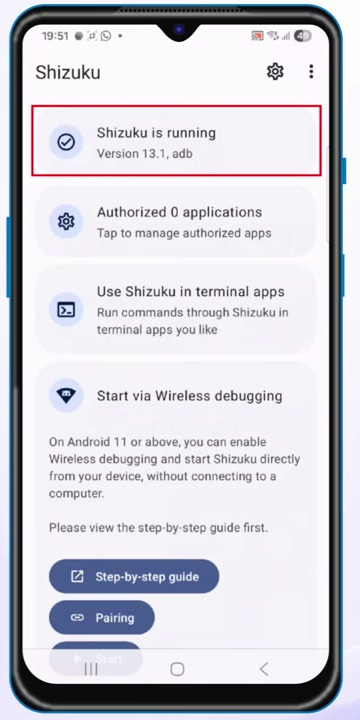
Now you can use apps that require Shizuku permission.
Apps That Can Use Shizuku Permission
After Shizuku starts running, you can grant Shizuku permission to supported apps.
Some apps that may require Shizuku access include:
- Hail
- Canta
- Key Sync
- App manager tools
- Permission manager apps
- Android customization tools
- Bloatware removal tools
When you open a supported app, it may ask for Shizuku permission. Allow the permission only if you trust the app.
Important: Shizuku Stops After Restart
One important thing to remember is that if you restart your phone, Shizuku will stop running.
This is normal for non-rooted devices.
If your phone is not rooted, Shizuku usually cannot start automatically after reboot. So, after restarting your phone, you need to start Shizuku again using Wireless Debugging.
Rooted devices may support automatic start on boot, but for non-rooted devices, you generally need to start it manually.
Fix: Shizuku Pairing Notification Not Showing
If you do not receive the Shizuku pairing notification, first make sure notification permission is enabled for Shizuku.
Go to:
Settings > Apps > Shizuku > Notifications
Now allow notifications for Shizuku.
After that, open Shizuku again and start the pairing process.
Also make sure Shizuku is not restricted by battery optimization. Some Android phones may stop background apps aggressively, which can prevent the pairing notification from appearing.
Fix: Pairing Code Not Working
If the pairing code is not working, make sure you are entering the correct 6-digit code.
Also remember that the pairing code changes every time you open the pairing screen. So, do not use an old code.
If pairing fails, close the pairing window, open Pair device with pairing code again, and enter the new code in the Shizuku notification.
Fix: Wireless Debugging Option Not Showing
If you cannot find Wireless Debugging in Developer Options, your phone may not support it, or your Android version may be too old.
Wireless Debugging is usually available on newer Android versions. If your phone does not have this option, you may need to use the PC method with ADB instead.
You can also try searching inside Settings using the search bar. Search for:
Wireless Debugging
If the option appears, open it from there.
Fix: Shizuku Starts But Stops Again
If Shizuku starts but stops after some time, your phone may be killing the Shizuku process in the background.
To reduce this issue, open:
Settings > Apps > Shizuku > Battery
Now set battery usage to Unrestricted or Don’t optimize, depending on your phone.
Also avoid clearing Shizuku from recent apps immediately after starting it.
Some phones with aggressive battery management may still stop Shizuku after some time, so you may need to start it again manually.
Fix: Shizuku Not Working After Reboot
If Shizuku is not working after restarting your phone, this is normal for non-rooted devices.
After reboot, simply repeat the Wireless Debugging start process and tap Start again inside the Shizuku app.
You do not always need to pair again, but if the Start button does not work, then pair again using the pairing code method.
Is Root Required for Shizuku?
No, root is not required to use Shizuku.
You can use Shizuku without root by using Wireless Debugging. This is the method explained in this guide.
However, rooted phones may get some extra convenience, such as automatic start after reboot.
For most users, the no-root Wireless Debugging method is enough.
Do You Need a PC to Start Shizuku?
No, you do not need a PC if your phone supports Wireless Debugging.
Earlier, many users used ADB commands from a computer to start Shizuku. But with Wireless Debugging, you can start Shizuku directly from your Android phone.
That is why this method is useful for users who do not have a laptop or desktop computer.
Frequently Asked Questions
Why does Shizuku say “not running”?
Shizuku says “not running” when its background service is not active. You need to start the service using Wireless Debugging, ADB, or root access.
Can I fix Shizuku not running without root?
Yes. You can fix Shizuku not running without root by using the Wireless Debugging method.
Can I use Shizuku without a PC?
Yes. If your phone supports Wireless Debugging, you can use Shizuku without a PC.
Why is Wireless Debugging required?
Wireless Debugging allows Shizuku to start its service without using a USB cable or computer.
Does Shizuku stay running forever?
No. On non-rooted phones, Shizuku may stop after reboot or if the system kills the background process.
Do I need to pair Shizuku every time?
Not always. Sometimes you only need to tap the Start button again. But if Shizuku does not start, you may need to pair again using the pairing code.
Is Shizuku safe to use?
Shizuku itself is a popular tool, but you should only grant Shizuku permission to apps that you trust. Apps with Shizuku permission can access advanced Android functions.
Final Words
This is how you can fix the “Shizuku is not running” problem on Android without root and without using a PC.
The main steps are simple. First, enable Developer Options, then enable USB Debugging and Wireless Debugging. After that, pair Shizuku using the pairing code and tap the Start button inside the Shizuku app.
Once Shizuku starts running, you can use supported apps that require Shizuku permission.
If Shizuku stops after restarting your phone, just start it again using Wireless Debugging. This is normal for non-rooted Android devices.
“`