When I opened Winux 11 for the first time, I had to look twice. The wallpaper, centered taskbar and Start-style menu looked remarkably close to Windows 11. But this wasn’t Windows at all. It was Linux with a very familiar-looking desktop.
That caught my attention because switching from Windows to Linux usually means relearning a few everyday habits. Finding settings, navigating folders and connecting to Wi-Fi can all feel different. With Winux, I could find my way around almost immediately.
I was curious how far that familiarity would go once I started using the computer normally. As it turned out, the interface was only one part of what made this distribution interesting.
Download Winux 11
Start with the official Winux download page. It offers the current 64-bit installation image, which you’ll use to create a bootable USB drive. Choose Download Current Release or the available release-download button. The download may redirect you to SourceForge.
Save the ISO file somewhere easy to find. The release I downloaded was roughly 6.2 GB, so allow enough time and free space. The download size and available build may change with newer releases.

Winux’s download page recommends a 64-bit processor, around 4 GB of RAM for comfortable use, and at least 32 GB of available storage. Those are useful starting points, but checking your own hardware in live mode is still worthwhile before installing anything.
Create a bootable USB with Rufus
To start Winux on a real computer, you’ll need a USB drive and a tool that writes the ISO to it. On Windows, Rufus is a convenient choice. Download it from its official site and open the executable; there’s no complicated setup required.
Connect your USB flash drive. In Rufus, check the Device field carefully, then click SELECT beside Boot selection. Find the Winux ISO you downloaded and open it.
For my installation, I used the MBR partition scheme. However, this isn’t a universal setting: check the Target system shown in Rufus and match the USB to your computer’s actual BIOS or UEFI boot mode. A UEFI-only system may need a different selection. Don’t assume MBR will boot on every PC.

Before writing the USB, take one last look at the Device and Target system fields. Both need to match the drive and PC you intend to use.
Click START, accept the erase confirmation only after checking the selected drive, and let Rufus finish writing the image. Once its status returns to READY, the installer USB is prepared.
Start Winux without installing it
Move the USB drive to the computer where you want to use Winux. Turn it on and open the motherboard or laptop’s boot menu, then choose the USB device. The key for this menu varies by manufacturer, so use the key shown during startup or check your PC’s documentation.
Winux presents a boot menu with a normal startup option and a safe graphics option. Try the normal choice first. If your display stays blank or the graphics behave strangely, restart and try safe graphics instead.
It will then open a live desktop. This is a useful chance to try Winux before changing your internal drive. You can open its file manager, connect to Wi-Fi, explore Settings, and check that the keyboard, mouse, display, and other basic hardware work.
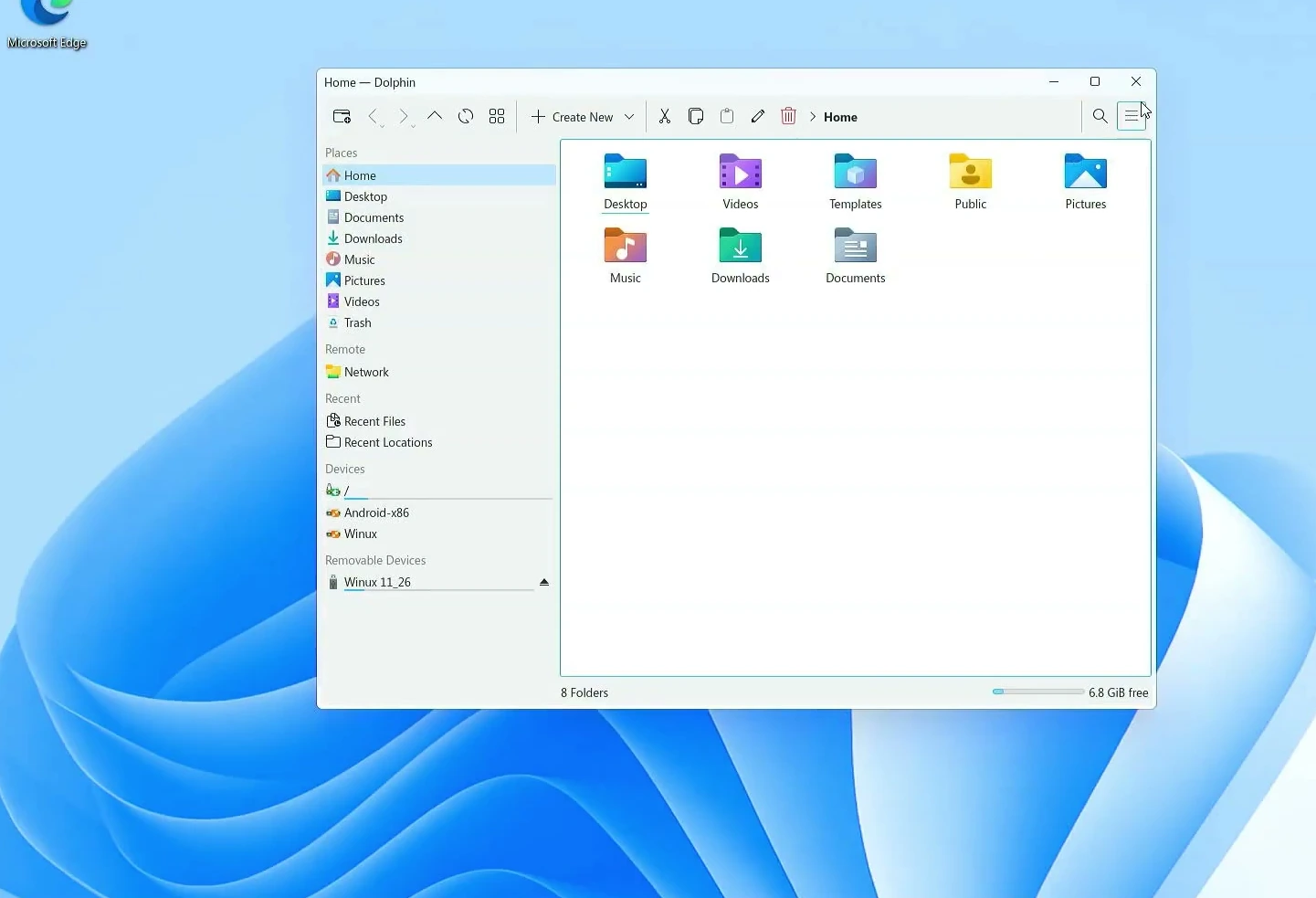
I was able to use Wi-Fi and navigate the desktop in live mode, so I continued with the installation. If your essential hardware isn’t working here, investigate that before installing Winux permanently.
Install Winux 11 on the computer
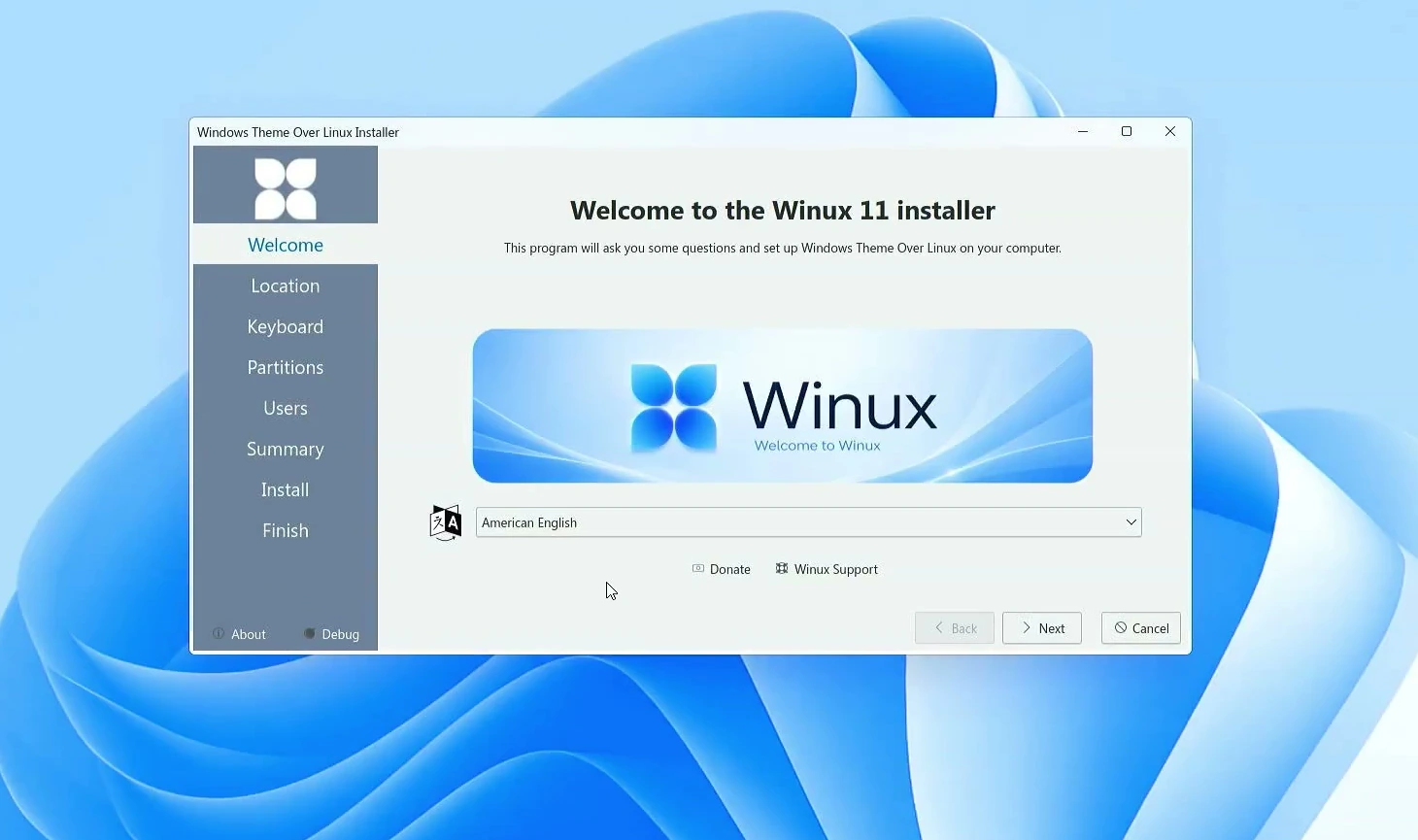
On the live desktop, open Install Winux 11 LTS. This launches the graphical installer. Choose your preferred language, location and time zone, then select the keyboard layout you actually use.
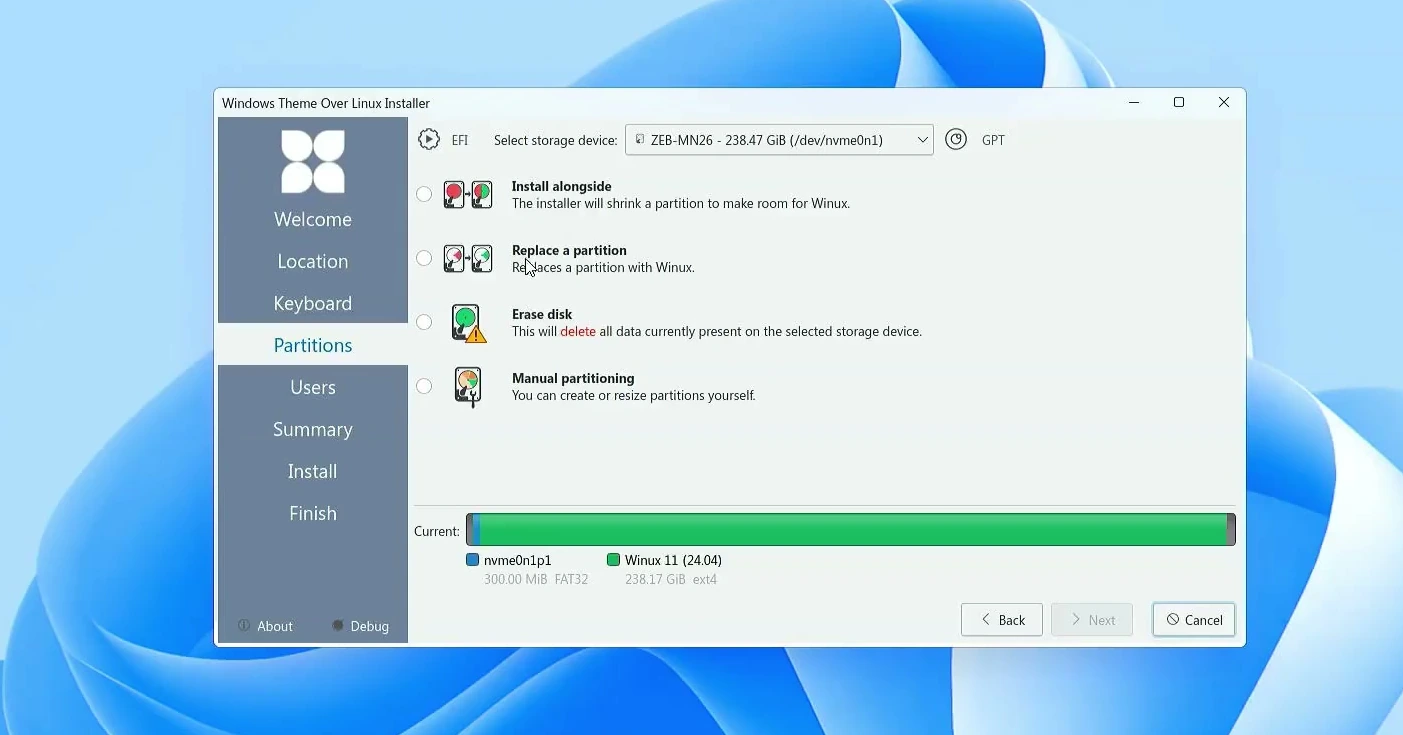
Next comes the Partitions screen. This is the most important decision in the installation because it determines what happens to the files already on your PC. The installer offers choices such as Install alongside, Replace a partition, Erase disk, and Manual partitioning.
If you want to keep an existing operating system, the alongside option may let you set up dual boot when your disk layout supports it. Replacing a partition affects the chosen partition, while manual partitioning is for people comfortable managing disks themselves.
I used a dedicated installation drive, so I chose Erase disk for a clean installation. That was a choice for my PC, not a requirement for everyone.
After selecting the disk option, create your user account. Enter your name, login username, computer name, and password. You’ll use that password to sign in after the first restart.
Before proceeding, review the Summary screen. Pay special attention to the storage device and partition changes, not just the language and account details. When everything is correct, click Install.

The installer handles the partition changes, file copying, and bootloader setup. When it finishes, leave Restart now selected and click Done. Remove the USB drive when prompted and press Enter to continue restarting.
Winux should now start from the internal drive. Sign in using the password you created during installation.
A Linux desktop that feels like Windows 11
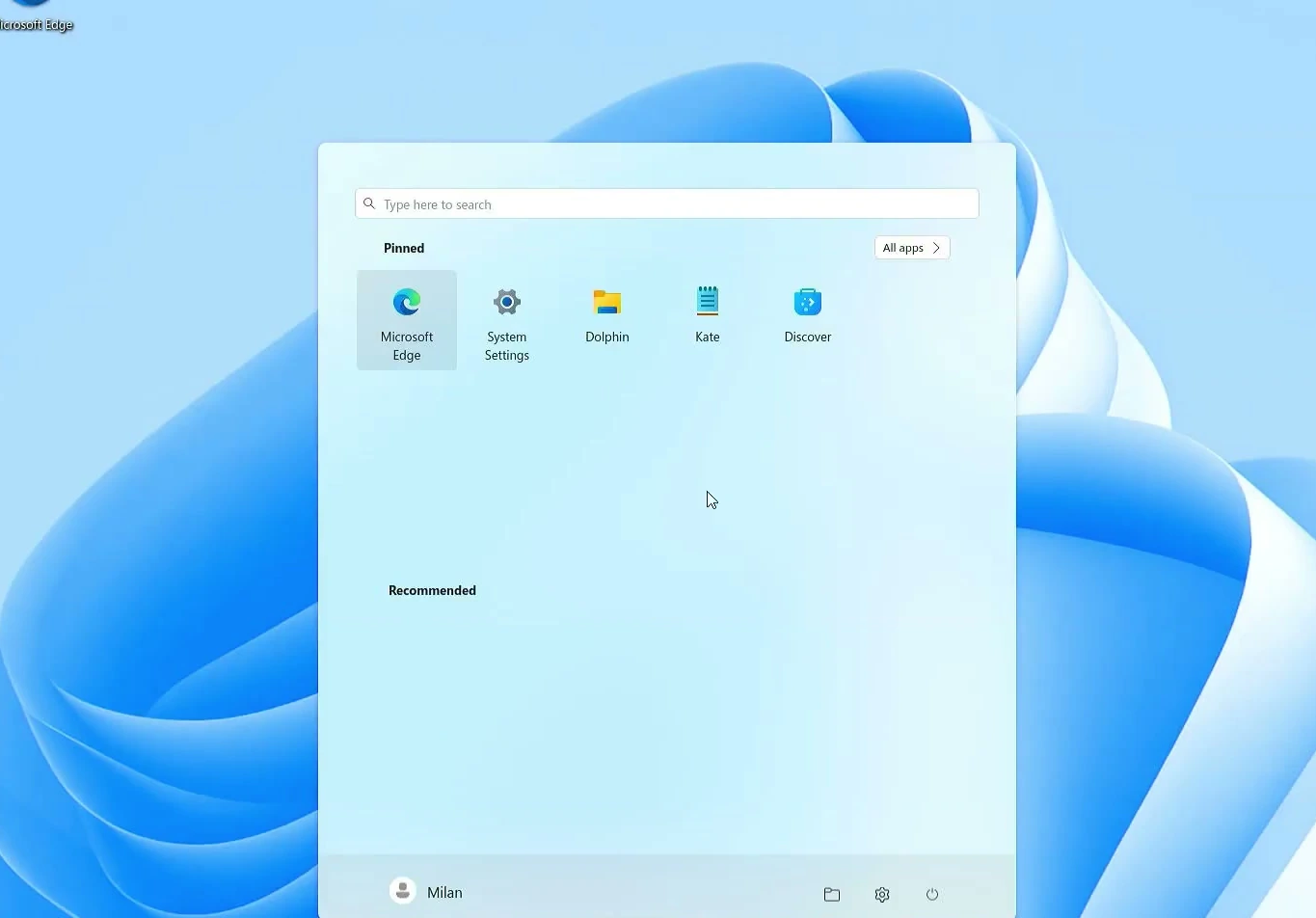
The first thing I noticed after logging in was how convincingly the desktop resembles Windows 11. The taskbar is centered, the tray icons sit in familiar places, and opening the Start-style menu reveals pinned applications, an application list, and power controls.
Even the file manager feels familiar. It’s actually Dolphin, a Linux file manager, but it has been styled to fit the rest of the interface. You can browse Documents, Downloads, Pictures, and other folders without having to learn a completely new layout.

Open Settings and you’ll find Windows-inspired sections for system options, networking, Bluetooth, apps, accounts, and customization. The appearance is familiar, although the underlying controls belong to Linux.
In Customization, I tried the included light and dark themes, along with the Windows-inspired appearance options. You can change the overall look without hunting for a separate theme package.
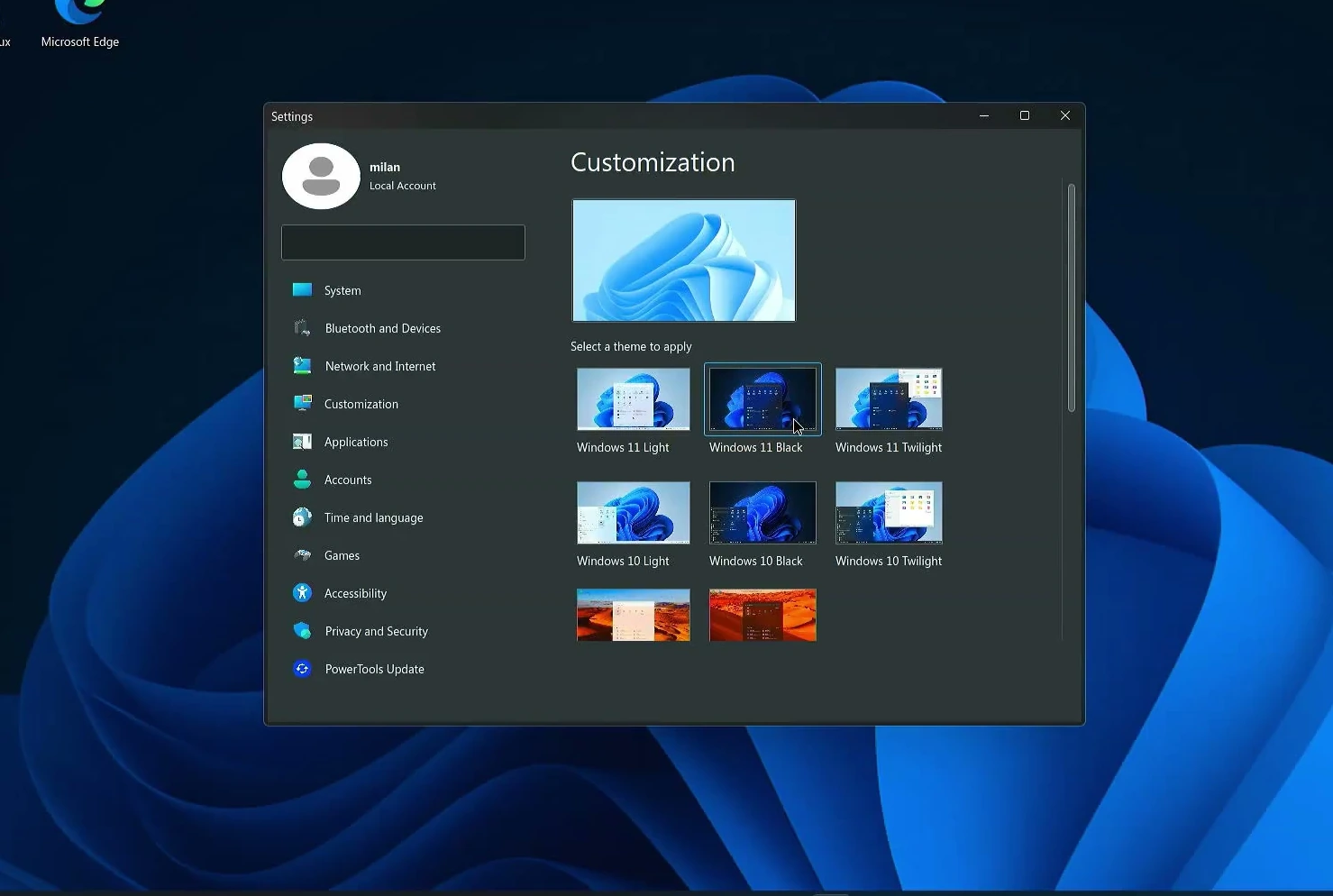
I tried both light and dark appearances. The colors changed, but the familiar taskbar and menu layout stayed in place.
Office applications and Microsoft services
Winux comes with several familiar applications and shortcuts. I found Microsoft Edge, Steam, and links to services such as Word, Excel, PowerPoint, OneDrive, and Outlook.
There’s an important difference here: the Microsoft shortcuts generally open web-based services, not full Windows desktop versions of Office. You’ll typically need an internet connection and, for some services, a Microsoft account.
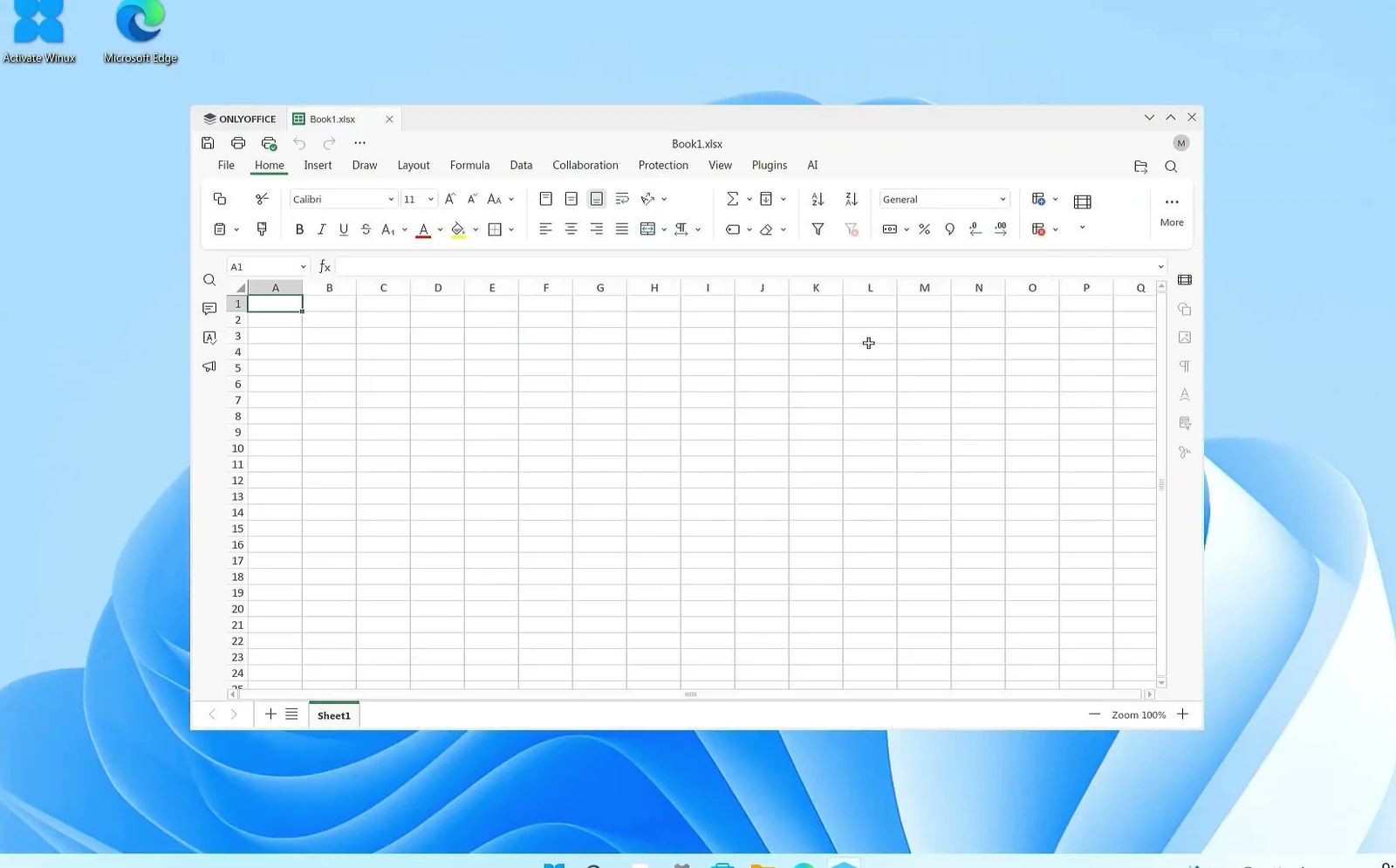
For documents you want to edit directly on the computer, Winux also includes ONLYOFFICE. I opened its spreadsheet editor and could work in a desktop application rather than a browser tab.
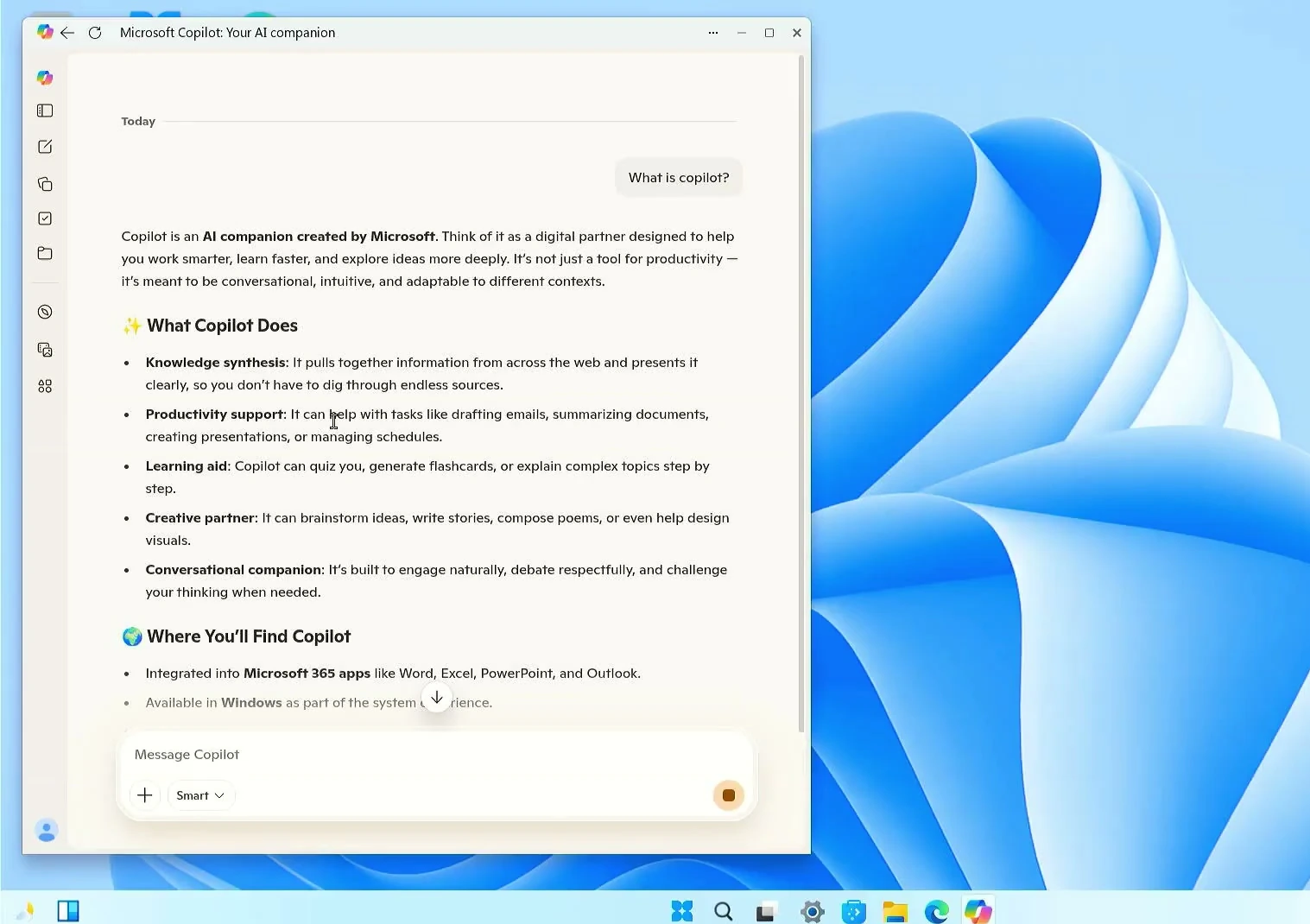
I also tried the Copilot shortcut. After signing in with my Microsoft account, I was able to ask a question and receive a response. As with the other Microsoft web services, that depends on internet access and the service being available to your account.
The online shortcuts are convenient when I need them, but I also wanted to see what would happen with traditional Windows desktop installers.
Running Windows EXE programs with Wine
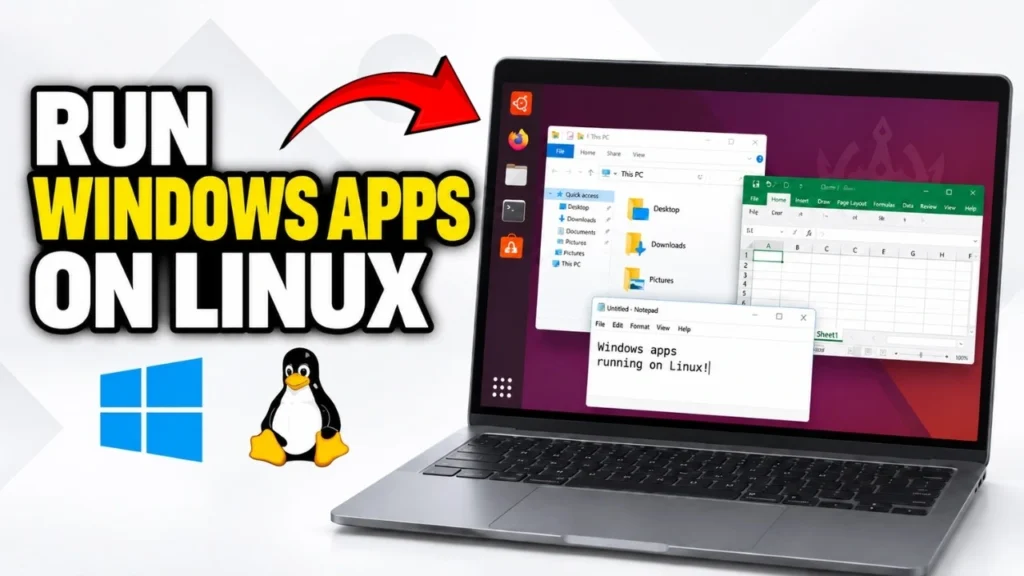
A Windows-like desktop wouldn’t be nearly as interesting if it couldn’t open some of the Windows programs people already use. Winux includes Wine, a compatibility layer that allows many Windows applications to run on Linux without installing Windows itself.
To try it, I downloaded a few Windows installers. When I opened the WinRAR executable, Winux offered an option to execute it. The familiar Windows-style installer then opened, and I completed the installation.
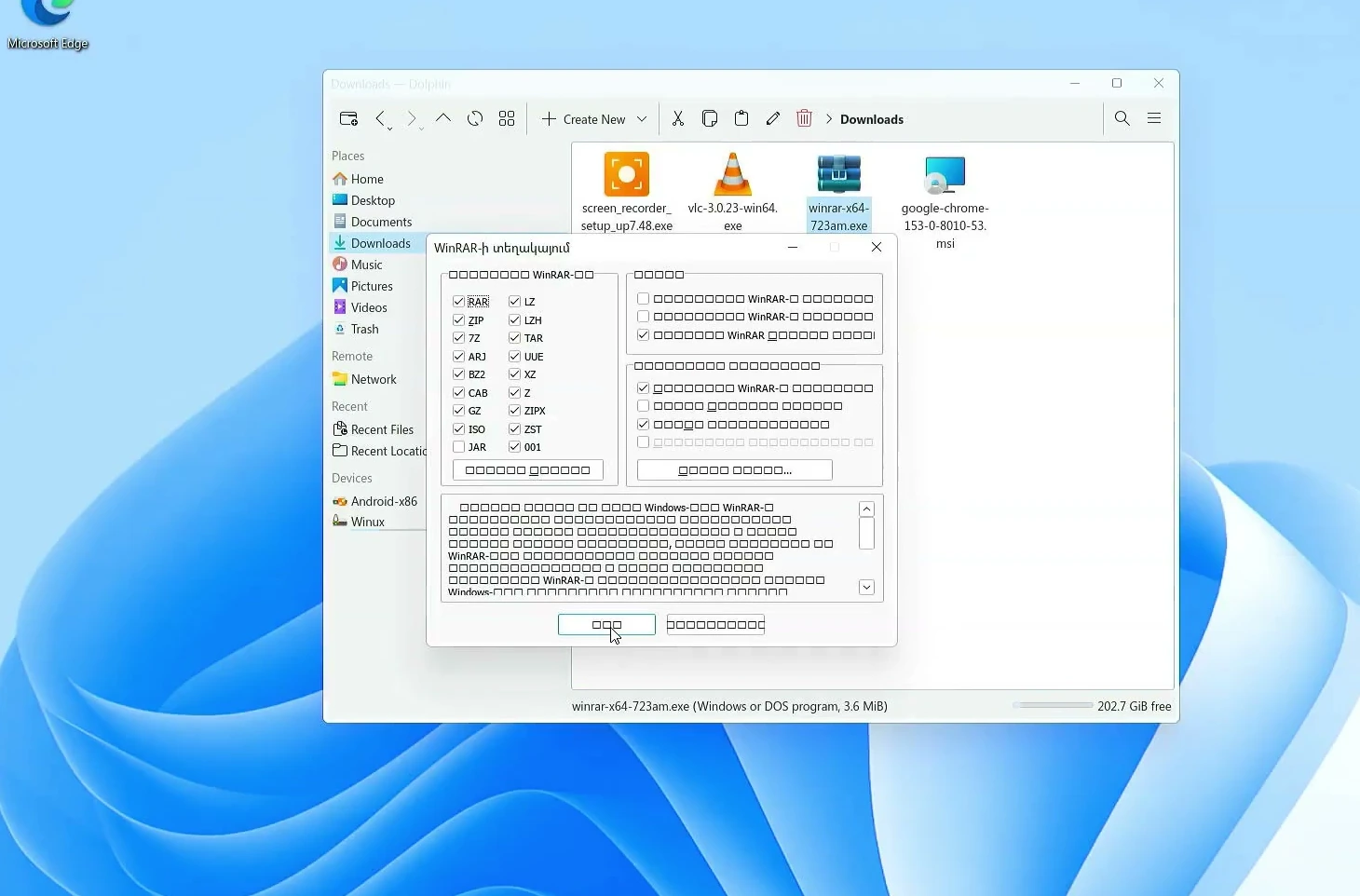
I repeated the test with Icecream Screen Recorder, which installed and appeared among my applications. I also installed the Windows version of VLC media player, and it opened after setup.
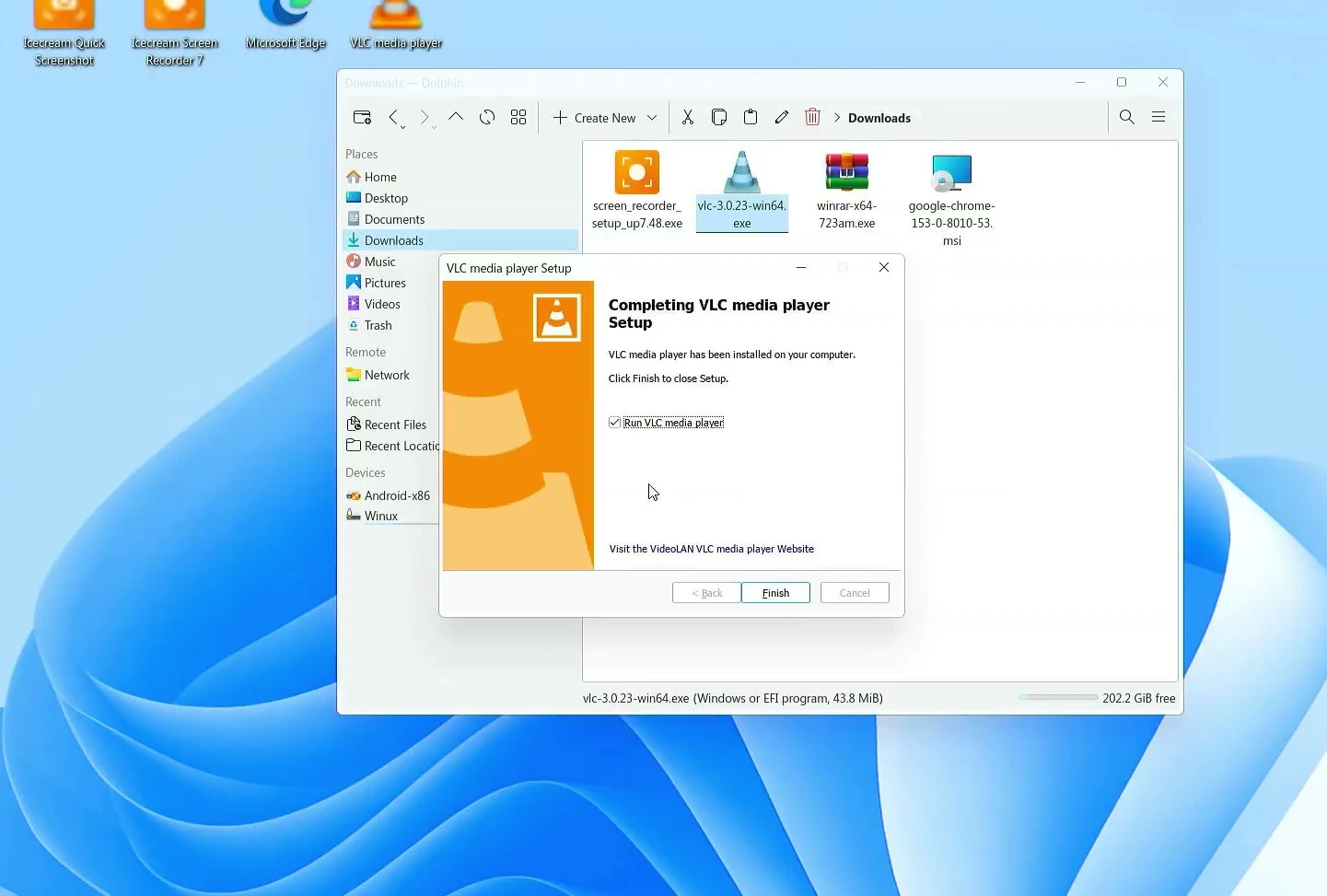
These results were encouraging, but Wine isn’t a guarantee that every Windows EXE will work. Apps that need Windows-specific drivers, anti-cheat software, or low-level system components can fail or behave differently. For software that has a native Linux version, that’s usually the simpler option to try first.
Installing native Linux applications
Winux also has Discover, a graphical software store for Linux applications. Open it from the applications menu to browse categories such as development, graphics, multimedia, internet, office software, and utilities.
Unlike the Windows installers used through Wine, applications available here are intended for the Linux environment. That’s helpful when you’re gradually moving away from software that only runs on Windows.
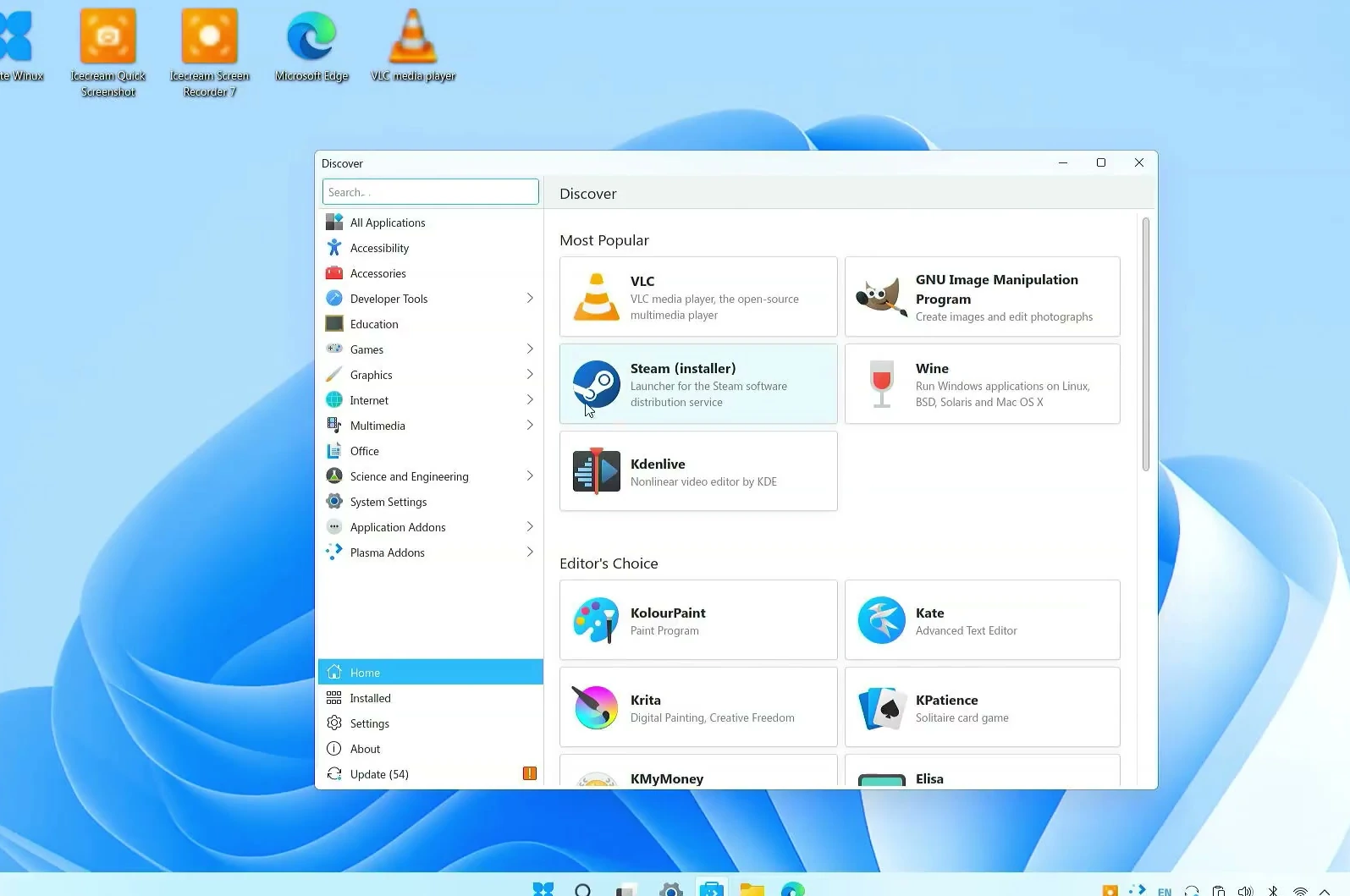
For everyday software, checking Discover first is often easier than trying to make a Windows installer work through Wine.
Performance and desktop widgets
With 16 GB of RAM available on my test system, I checked the memory usage in System Monitor. It showed roughly 2 GB in use during a light desktop session. That’s a useful reference point, but it isn’t a benchmark for every computer.

Performance will change with your processor, storage, graphics hardware, open applications, and background activity. Heavier work—especially running a virtual machine—will need more resources than simply browsing the desktop.
Another feature I liked was the built-in widget support. The widget browser includes clocks and other small desktop utilities without requiring a separate Windows-style gadget application.
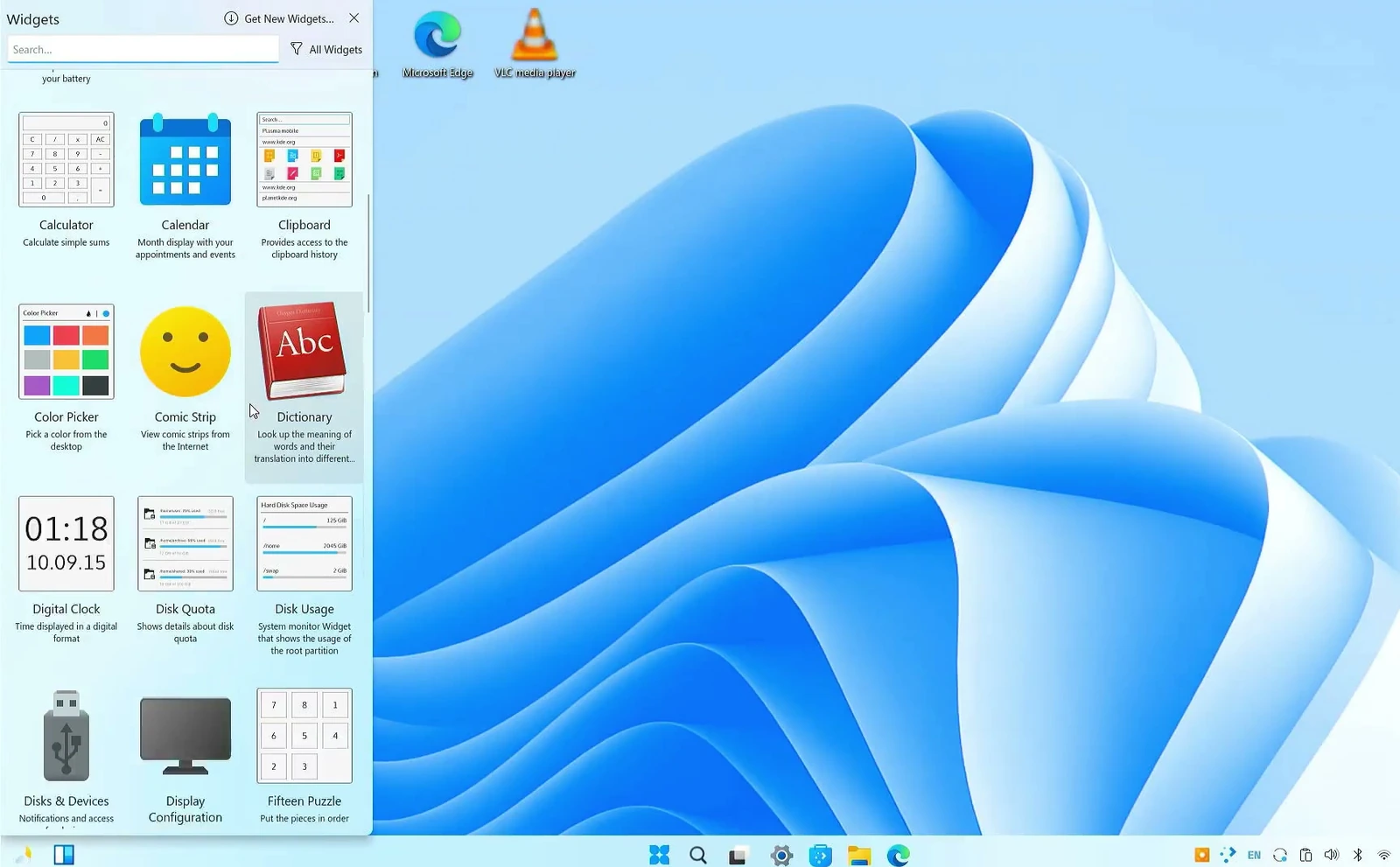
I added an analog clock to my desktop and kept the rest of the layout exactly as it was.
Running Android through PrimeOS
One of the more unusual extras in Winux is an Android environment. This doesn’t mean Android applications run as ordinary native Linux programs. Instead, Winux provides a PowerTools Android Support utility that can download an Android image and start it in a virtual machine using QEMU.
Open the Android support tool and select Android Settings. If no images appear, refresh the available list and download the offered PrimeOS image. This is a separate download, so an internet connection is required.
Once it’s available locally, select the image and create a virtual disk. The tool lets you adjust Disk size, Amount of memory, and Virtual Cores (CPU). I increased the resources for my test and kept OpenGL acceleration enabled, but the appropriate settings depend on the RAM and CPU available on your PC.
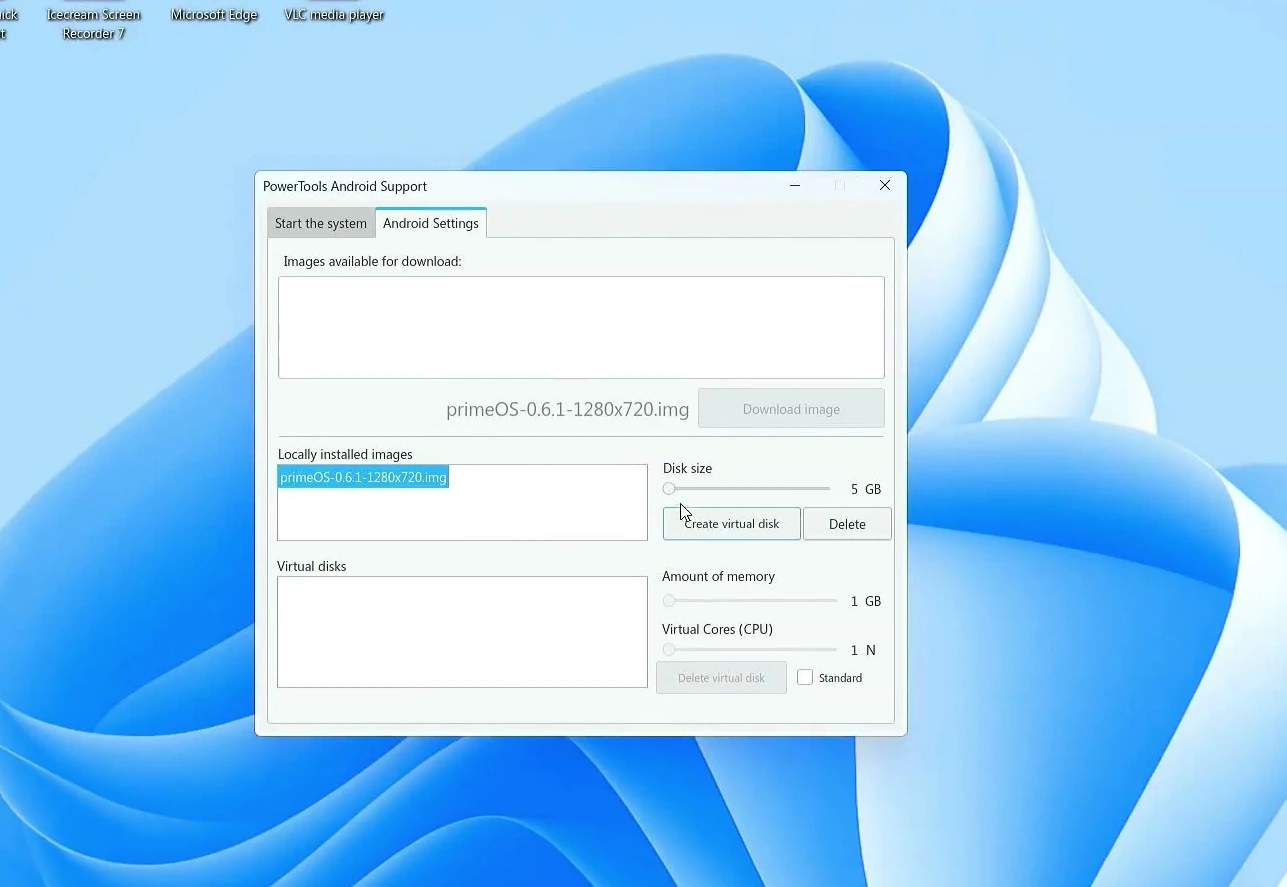
Return to Start the system and launch Android. A QEMU window opens and PrimeOS boots to its own desktop, with Android applications and the Google Play Store inside that window.
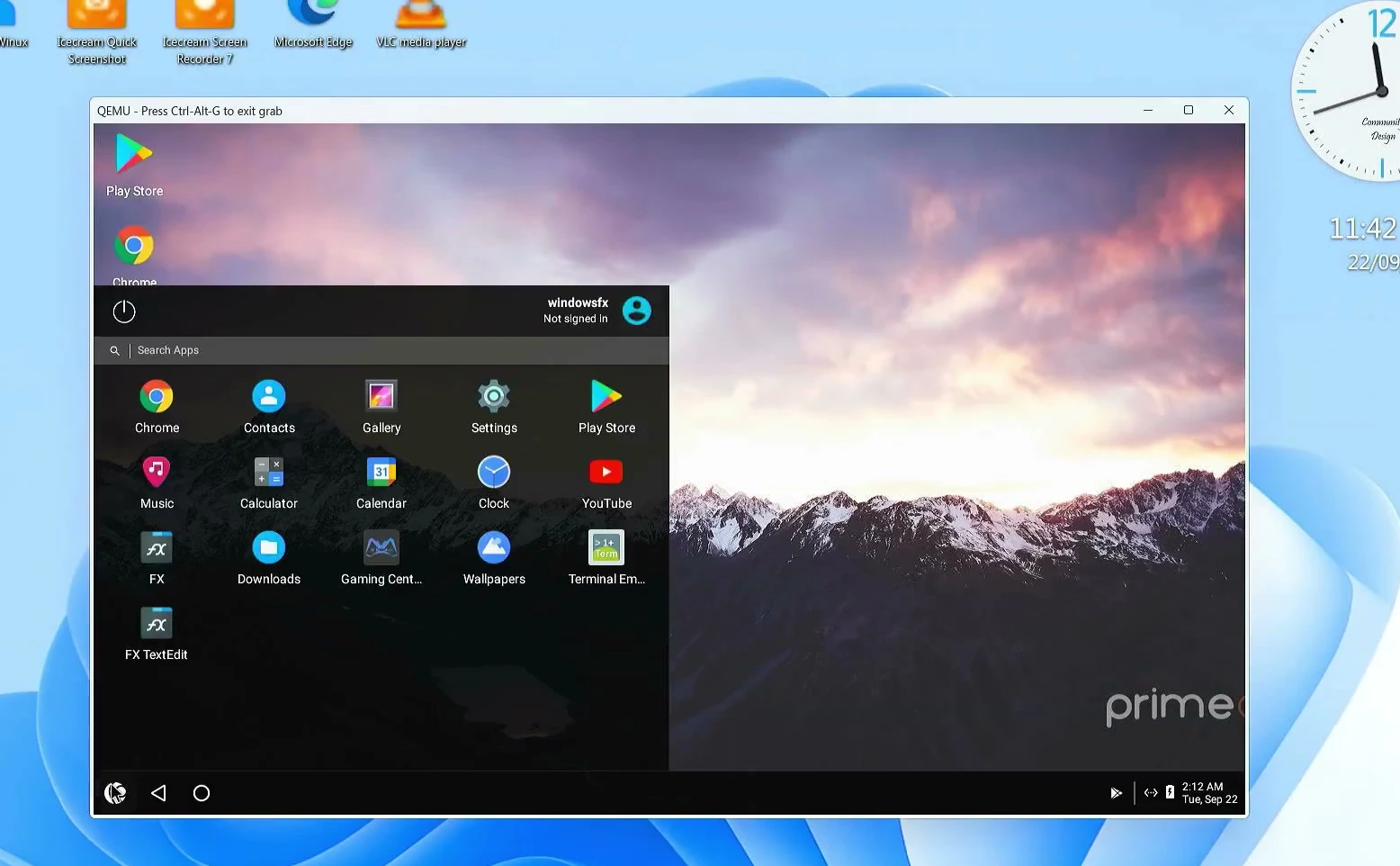
I used the Play Store to install Subway Surfers, and the game launched successfully. I also installed WhatsApp, which opened normally in my test.
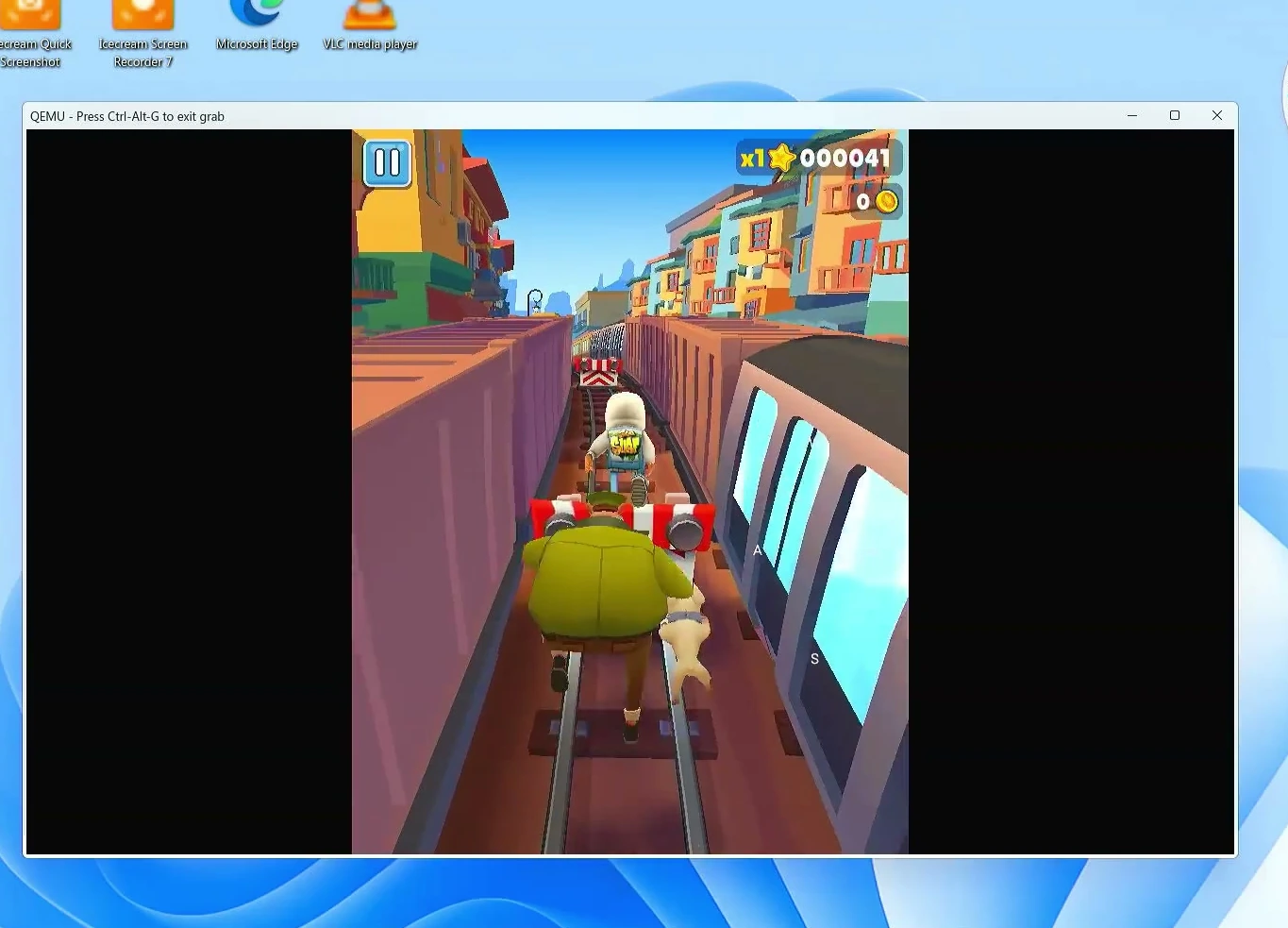
Android performance depends heavily on virtualization support, the resources you allocate, graphics acceleration, and the particular app. Some games and services may not work inside a virtual machine even if they run on a normal Android phone.
Is Winux 11 worth trying?
What I found interesting about Winux wasn’t just how closely the interface resembles Windows 11. It’s that the familiar desktop sits on top of a Linux system where you can use native Linux software, experiment with compatible Windows programs through Wine, and launch Android separately through PrimeOS.
It won’t replace every Windows application or run every Android game, and you should test your hardware before committing to an installation. But if you’re curious about Linux and don’t want the desktop to feel completely unfamiliar on day one, Winux is an interesting system to explore.