Ever needed a file from your Ubuntu computer while you’re working on Windows? Maybe it’s a video, a project folder, or a backup that’s too large to keep moving with a USB drive. If both computers are on the same network, there’s an easier way to reach those files.
You can share a Linux folder with a Windows PC over Wi-Fi or Ethernet and open it straight from Windows File Explorer. It feels much like opening a folder on your own computer. You can browse files, copy what you need, and even move files in the other direction when the folder allows writing.
We’ll set this up on Ubuntu using Samba. It’s software that lets Linux share files through SMB, the network-sharing system Windows understands. Once it’s configured, you won’t need to email yourself files or keep plugging in a flash drive.
Get the two computers ready
First, connect your Ubuntu PC and Windows PC to the same home or office router. Wi-Fi works, and Ethernet is also fine. You don’t need an active internet connection to transfer files after the setup, although Ubuntu needs access to its software repositories when you first install Samba.
Choose a folder specifically for sharing rather than exposing your entire home directory. Keep important personal files somewhere else until you’ve confirmed the connection works the way you expect.
Install Samba on Ubuntu
On the Ubuntu computer, open Terminal. Samba isn’t just a folder-sharing app with an icon. It runs as a background service that makes the selected folder available to other computers.
Start by updating Ubuntu’s package information.
sudo apt updateOnce that finishes, install Samba with this command.
sudo apt install sambaIf Ubuntu asks for confirmation, press Y and then Enter. You’ll see the installation progress in Terminal.
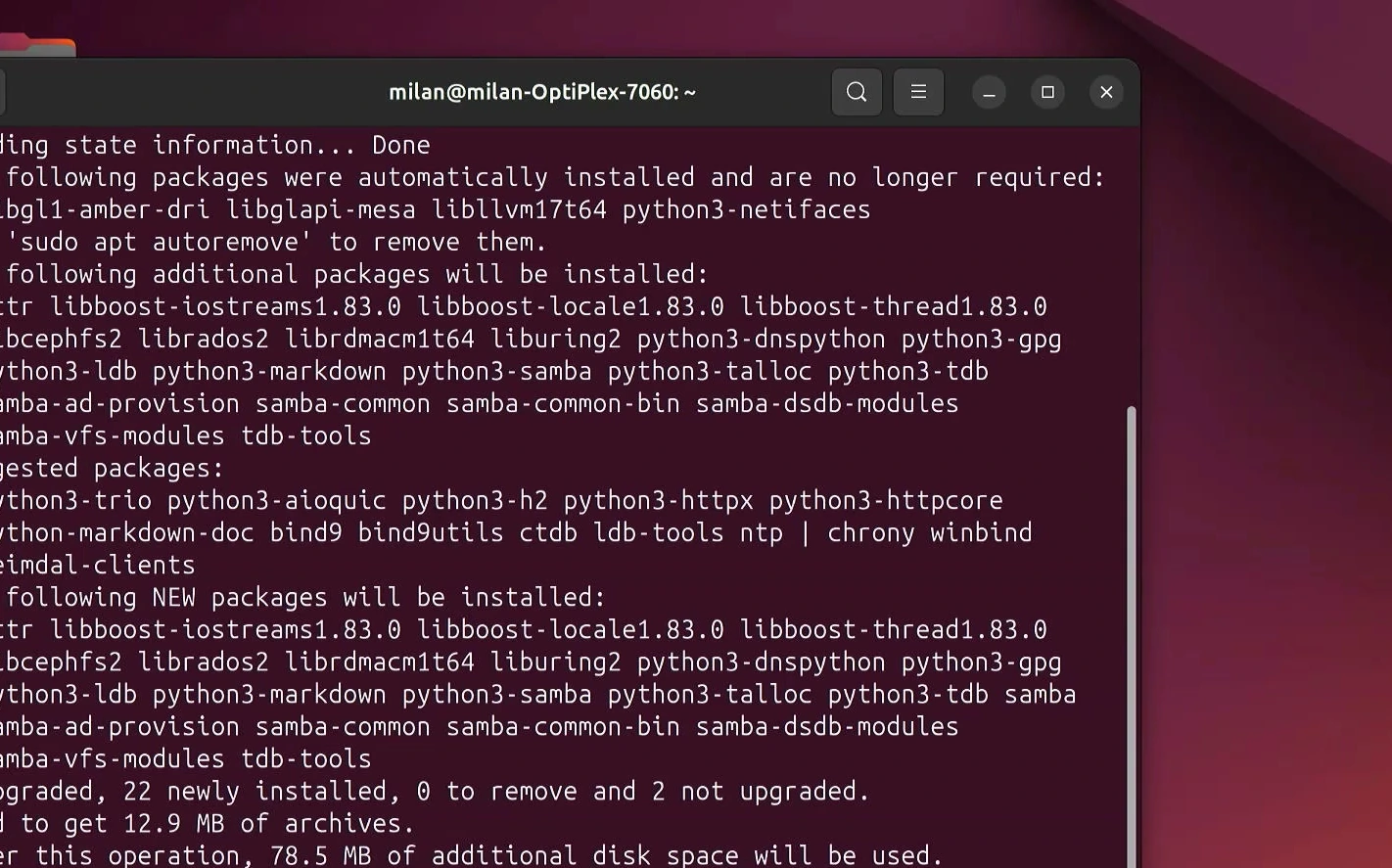
Now Ubuntu has the software it needs to share folders with Windows. We still have to tell Samba which folder to make available.
Create a folder for Windows to access
Open Ubuntu’s Files app and go to your Home folder. Right-click an empty area and choose New Folder. Name it Shared.
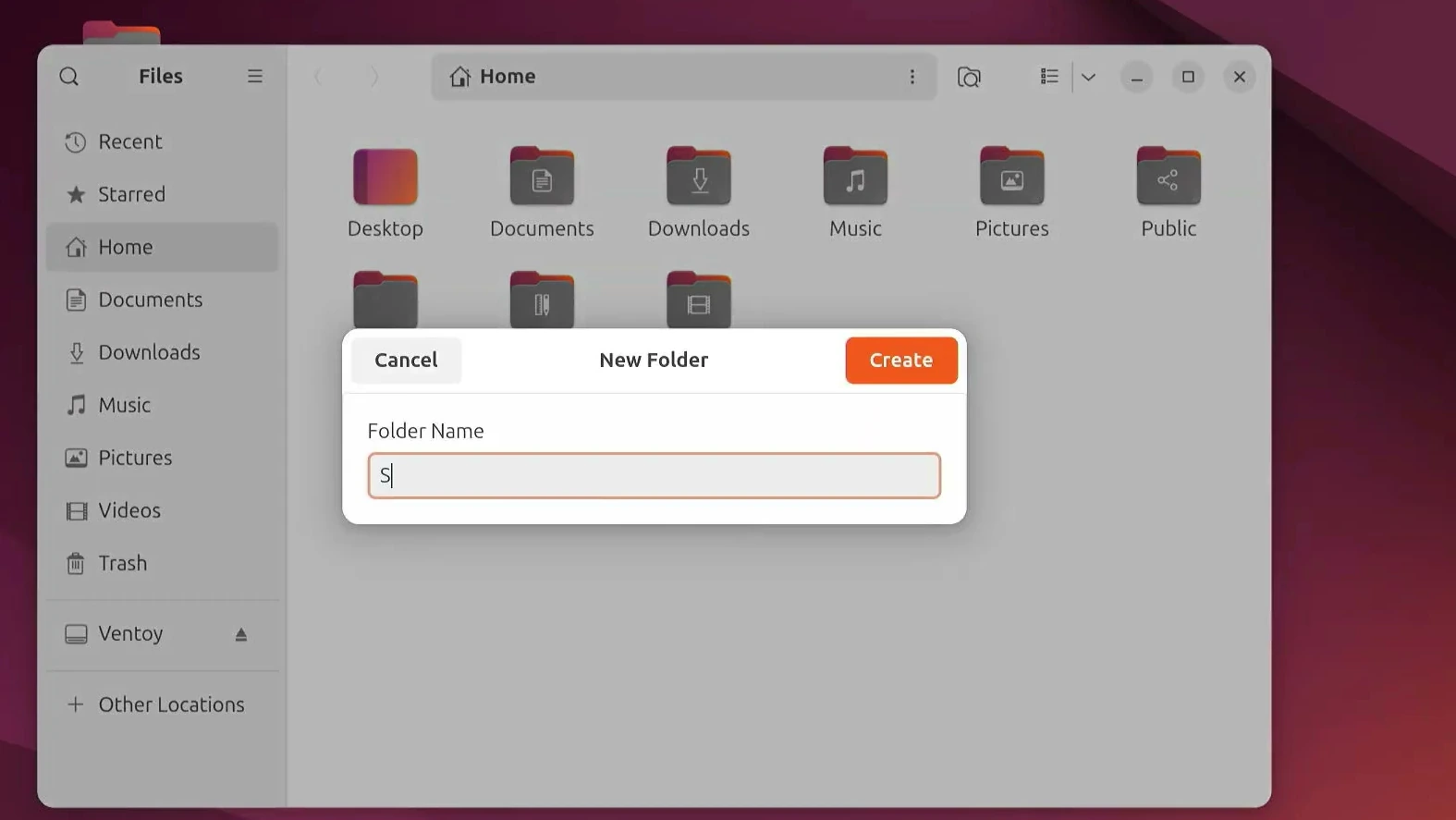
You can choose a different name, but I’ll use Shared throughout this guide so the folder path and Samba settings match. It’s best to create the folder first, before editing the configuration file.
Configure the Samba share
Samba keeps its main settings in a file called smb.conf. This is where we choose the shared folder, its network name, and whether Windows can write files to it.
Back in Terminal, open the file with:
sudo nano /etc/samba/smb.confThe command opens the configuration in the nano text editor. Use the arrow keys to move to the bottom of the file, then add the following share section.
[Shared]
path = /home/USERNAME/Shared
browseable = yes
read only = no
writable = yes
guest ok = yes
force user = USERNAME
create mask = 0777
directory mask = 0777
Replace USERNAME in both lines with the actual Linux account name on your computer. For example, if your username is milan, the folder path would be /home/milan/Shared and force user would be set to milan. Linux paths are case-sensitive, so the folder name needs to match exactly.
Here’s what the important options mean.
- [Shared] is the name Windows will see on the network.
- path points Samba to your folder in Ubuntu.
- read only = no and writable = yes allow writes when the underlying Linux permissions permit them.
- guest ok = yes permits guest access without Samba authentication.
- force user makes file operations use the specified Linux account. The 0777 masks are permissive and should not be copied into a sensitive or public-facing share.
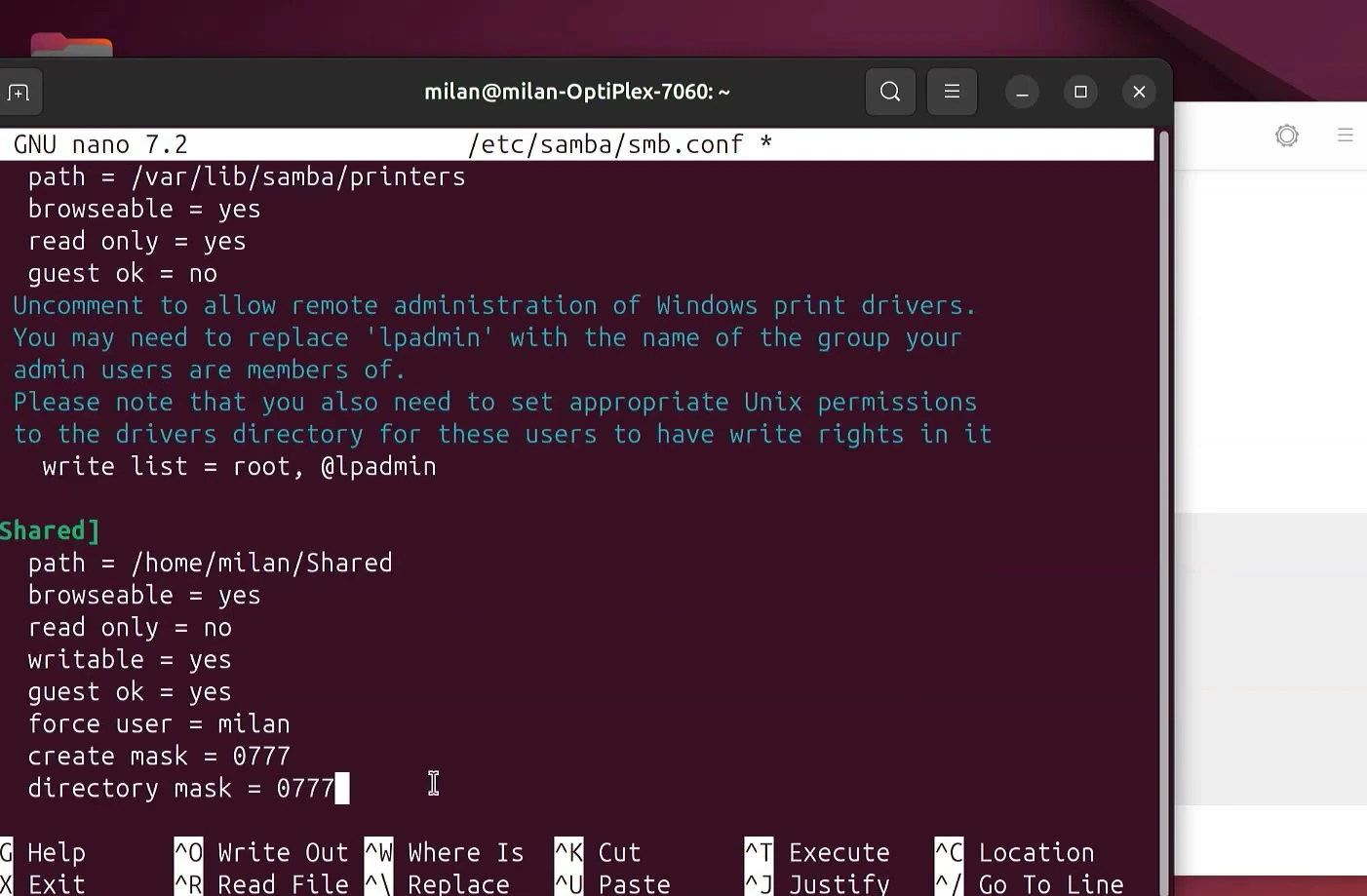
When you’ve finished, press Ctrl + O and then Enter to save the changes. Press Ctrl + X to close nano.
Restart Samba and find the Ubuntu IP address
Changes to smb.conf won’t take effect until Samba reloads its configuration. Run this command in Terminal.
sudo systemctl restart smbd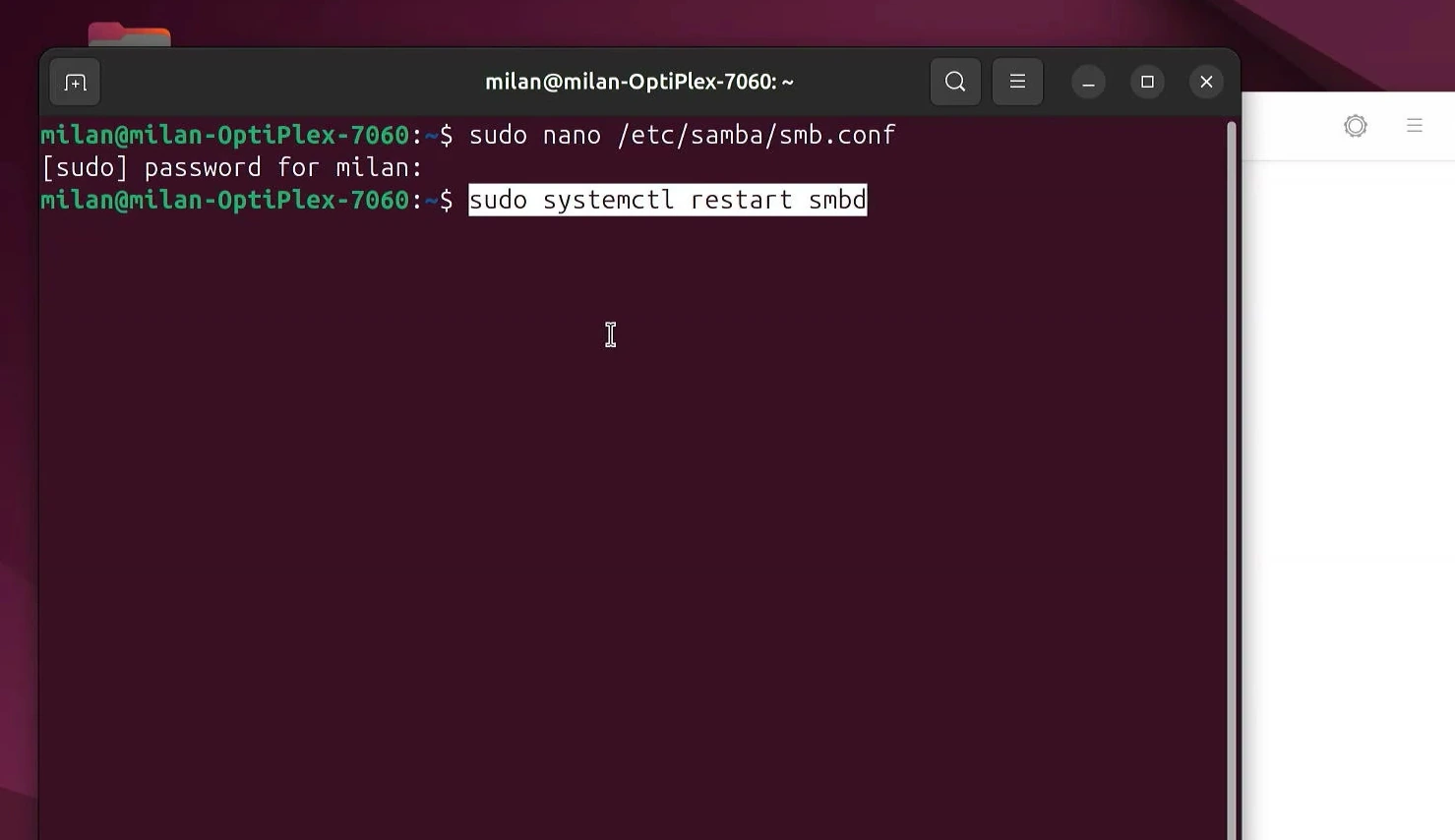
Next, find Ubuntu’s local IP address. Windows needs this address to locate the Linux computer on your network.
Open Ubuntu Settings and select Wi-Fi or Network, depending on how you’re connected. Open the details for the active connection and look for its IPv4 Address.
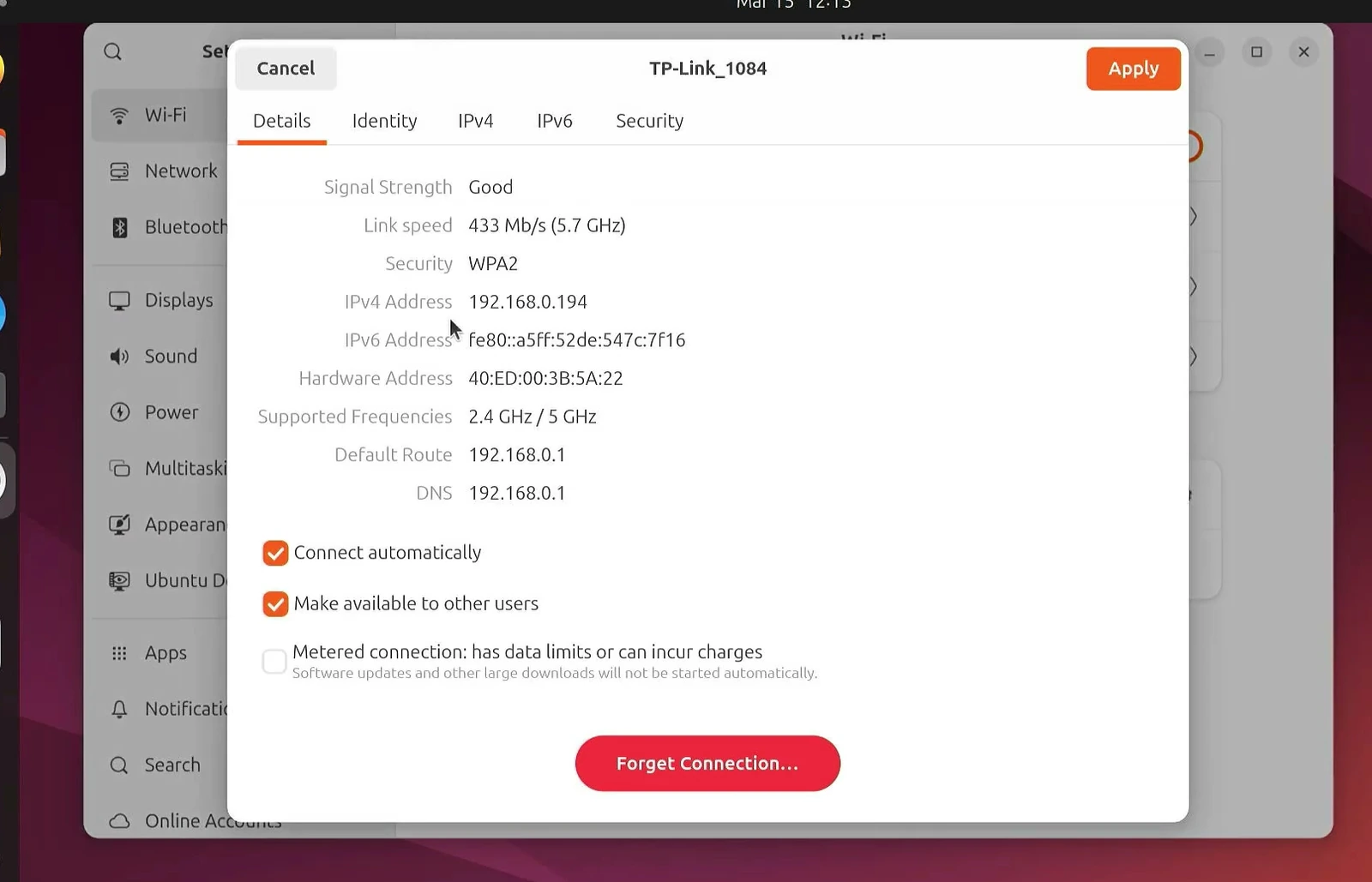
Make a note of the address. The PC in this tutorial uses 192.168.0.194, but yours will almost certainly be different. If Ubuntu gets a new IP address later, you may need to use that new address on Windows too.
Open the shared Linux folder in Windows
Switch to the Windows PC and open File Explorer. Click its address bar and enter two backslashes followed by the Ubuntu computer’s IP address.
For example, using the IP address from the tutorial, you’d enter \\192.168.0.194 and press Enter. Use your own Ubuntu IP address rather than copying this example unchanged.
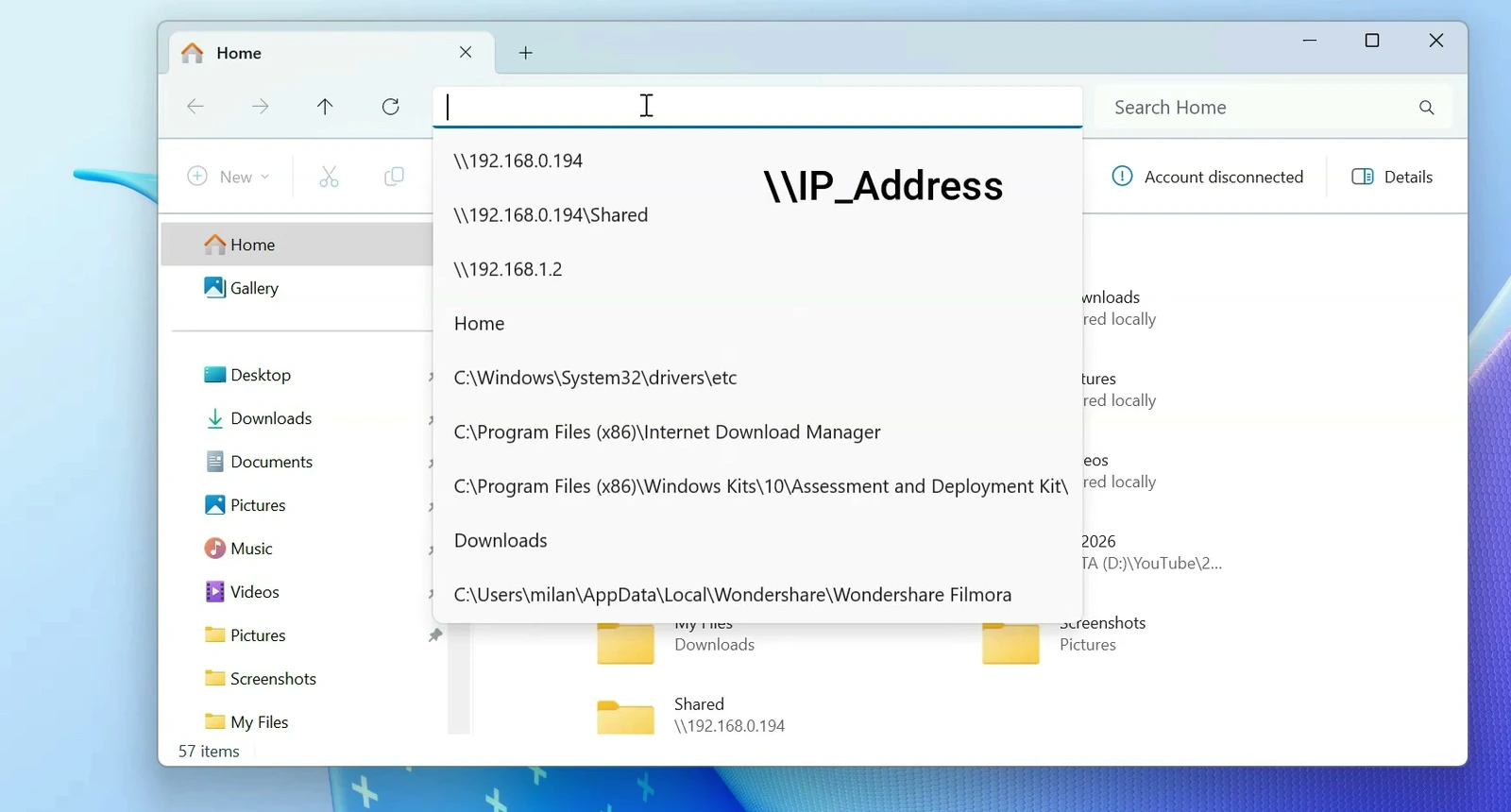
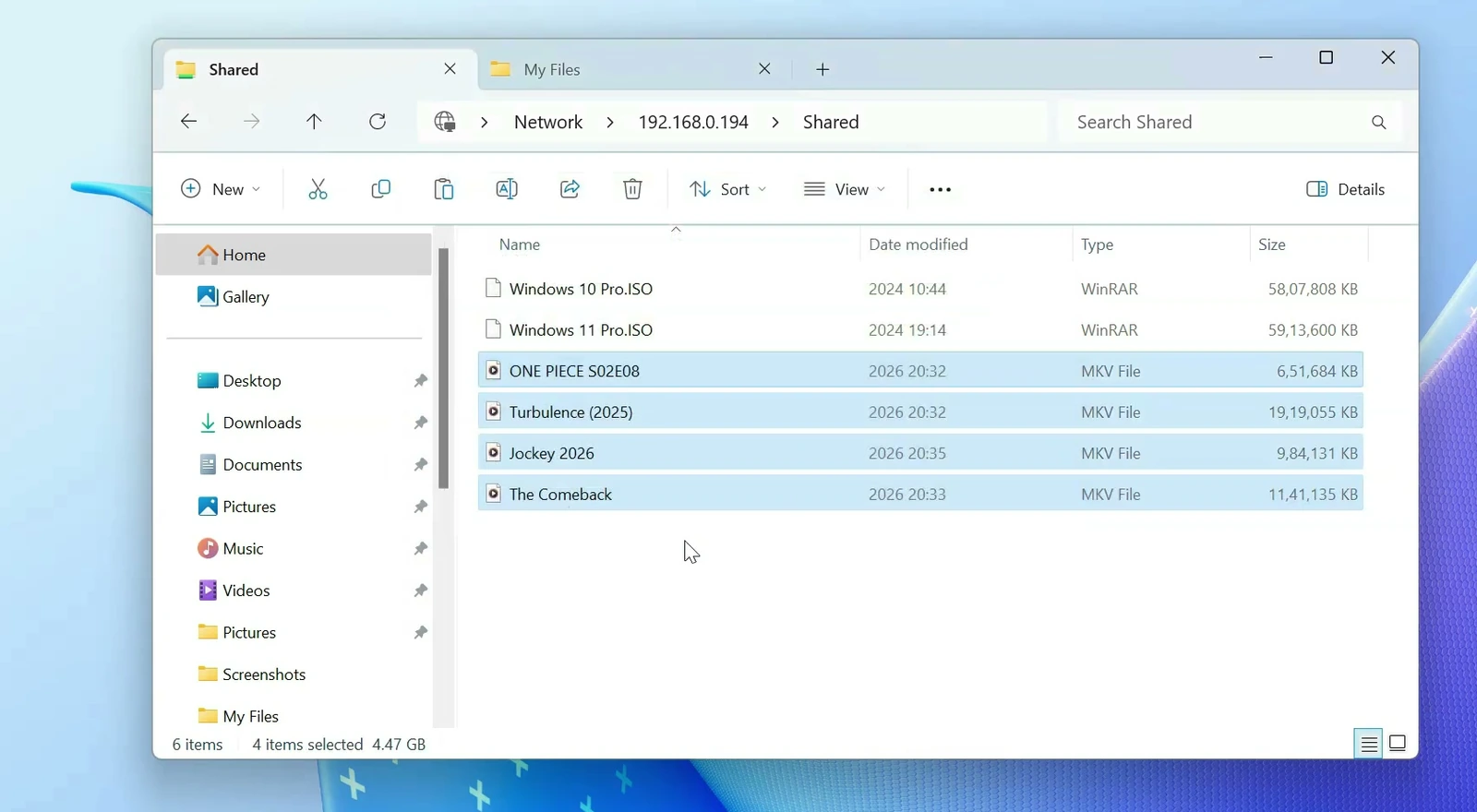
If the connection is accepted, Windows will show the available network shares. Open Shared to view the Linux folder.
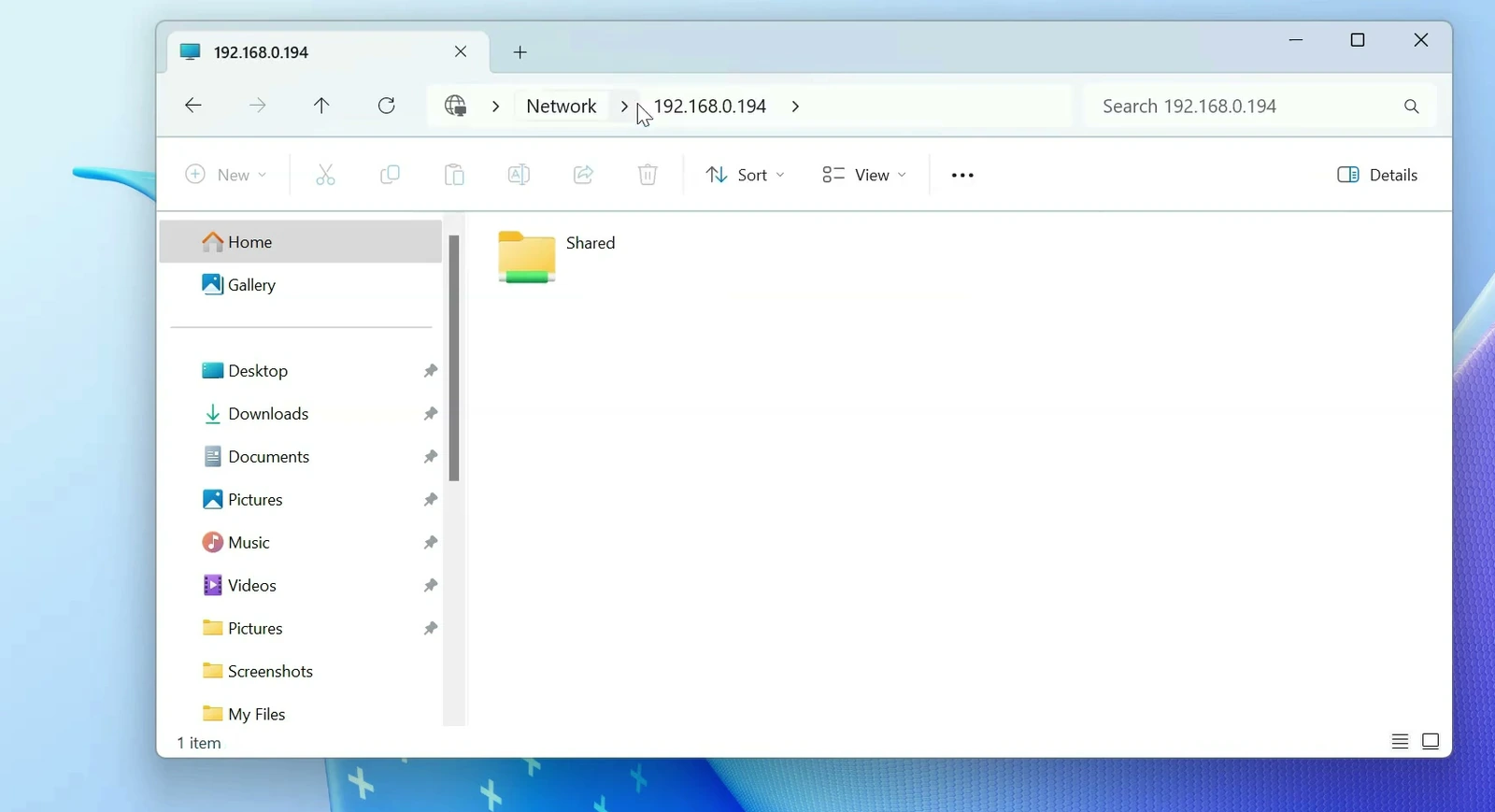
You can now work with its contents using the familiar File Explorer interface. There’s no special transfer application to learn on Windows.
Transfer files in either direction
Open another File Explorer window if you want to keep your Windows folders and the Linux share side by side. From there, you can copy files in either direction, much like moving files between two local folders.
In my test, I copied a large file from the Ubuntu share into Windows Downloads. The normal File Explorer progress window showed the transfer as it happened.
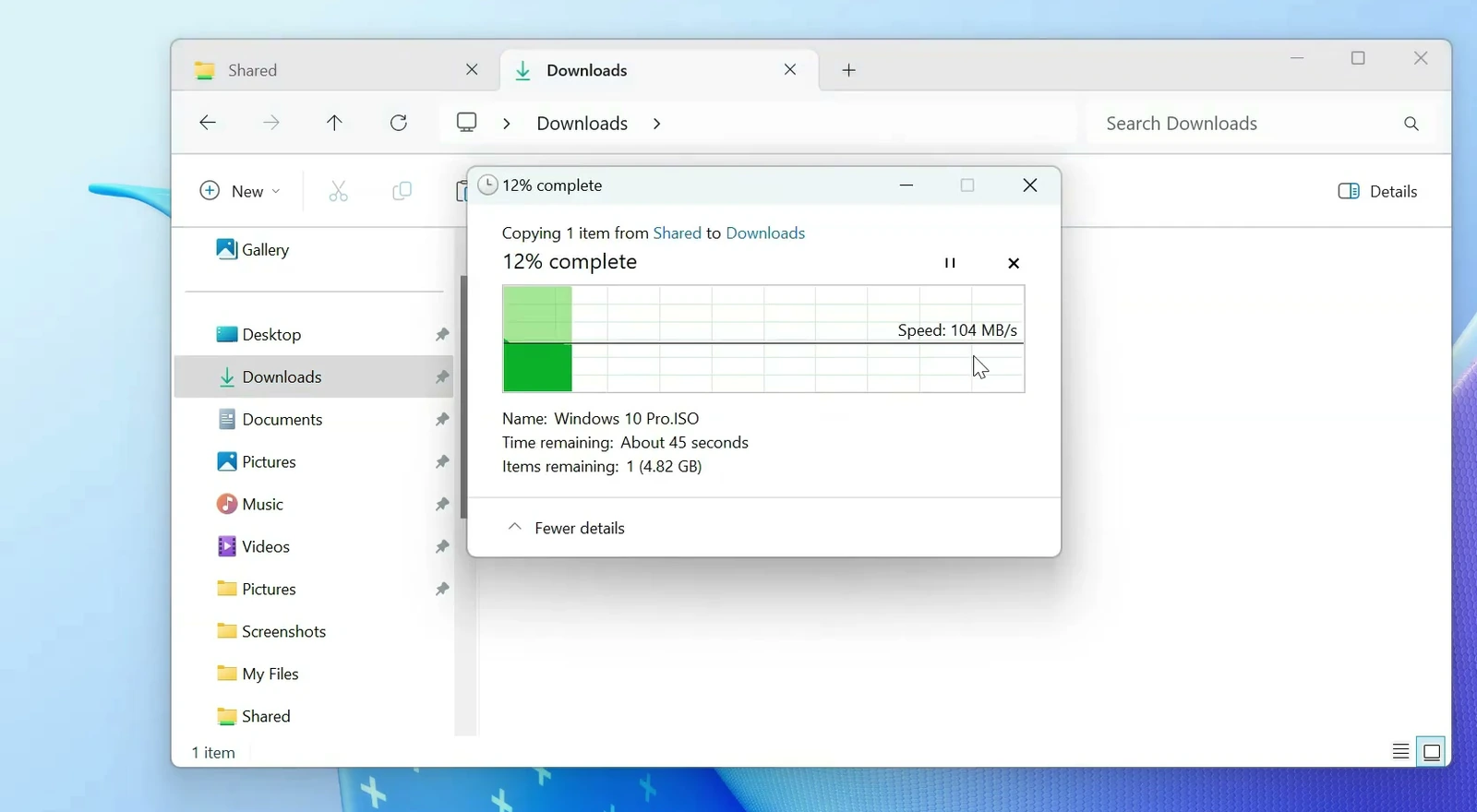
You can also paste files into Shared from your Windows computer when the Samba share and Linux folder permissions allow writing. They’ll then appear in the same shared folder on Ubuntu.
Wi-Fi is convenient, but speeds can change with signal strength, router quality, and the drives in each computer. If you transfer large recordings or backups regularly, connecting both PCs to the router with Ethernet cables can give you a faster and more consistent connection.
If Windows can’t connect
First, check that both computers are on the same local network and that you’re entering Ubuntu’s current IPv4 address. Also confirm that the Shared folder exists and the username and path in smb.conf match your Ubuntu account.
If the address is correct but the share still won’t open, check whether Ubuntu’s firewall is blocking Samba traffic on your trusted local network. Also remember that newer Windows versions can reject unauthenticated guest access. Don’t disable important Windows SMB security features just to make a guest share work.
Once the connection is working, this setup is a handy way to keep two computers in sync during everyday work. You can leave your files on Ubuntu and reach the shared folder from Windows whenever both devices are connected to your network.