WinBoat lets you run Windows in the background and open its applications individually on your Linux desktop. This Ubuntu walkthrough covers the required Docker and FreeRDP setup, Windows installation, scaling, file sharing, and launching newly installed Windows programs.
Check the WinBoat Requirements
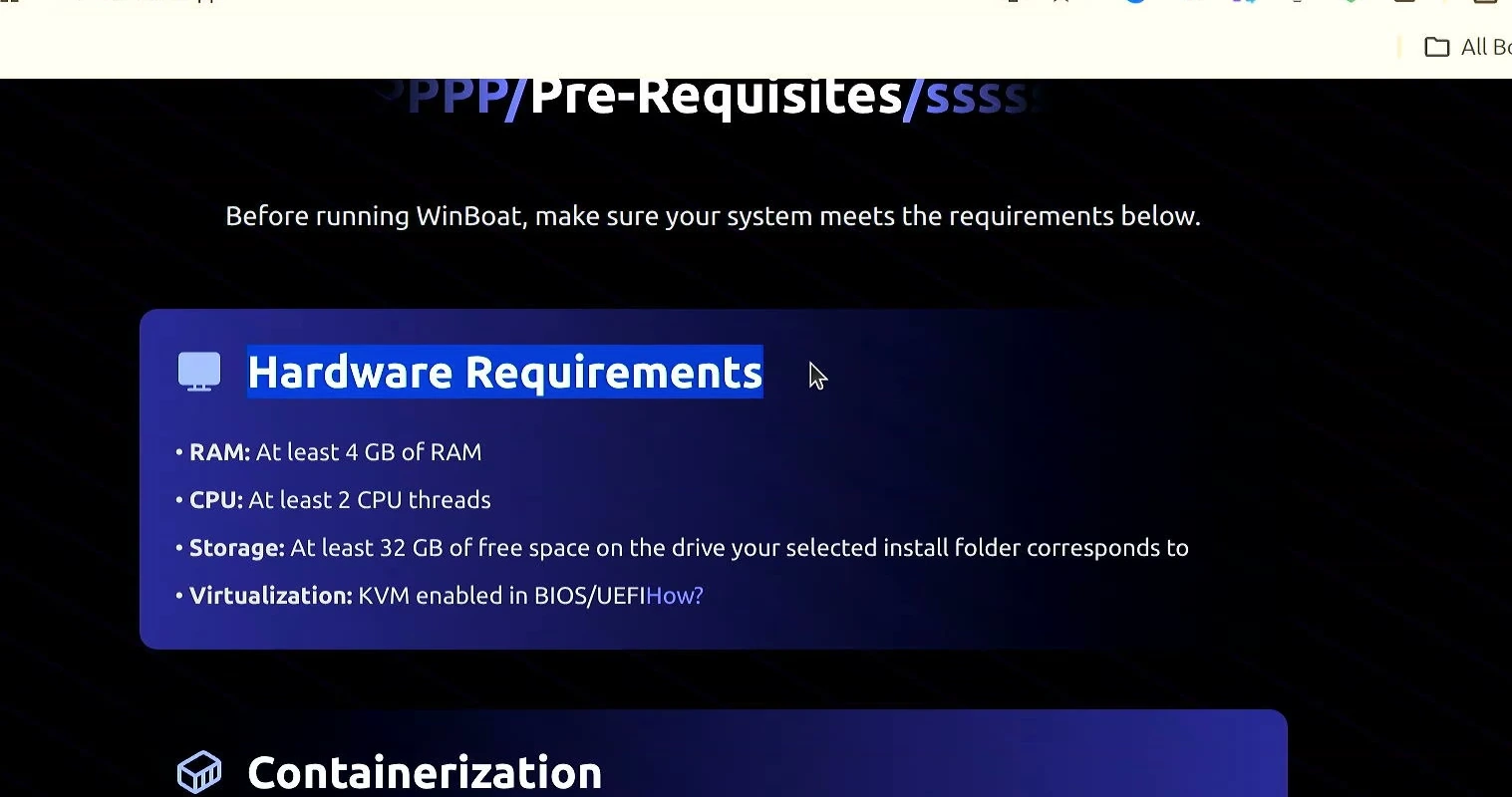
Before installing anything, confirm that your computer has at least 4 GB of RAM, two CPU threads, 32 GB of free storage, and KVM virtualization available.
If hardware virtualization is disabled, enable Intel Virtualization Technology or AMD-V in your computer’s BIOS or UEFI settings.
Install Docker Engine on Ubuntu
Open Terminal, update the package list, then install the certificates and curl needed for the Docker repository.
sudo apt updatesudo apt-get install ca-certificates curlCreate the directory for Docker’s signing key, download the official key, and make it readable.
sudo install -m 0755 -d /etc/apt/keyringssudo curl -fsSL https://download.docker.com/linux/ubuntu/gpg -o /etc/apt/keyrings/docker.ascsudo chmod a+r /etc/apt/keyrings/docker.ascAdd Docker’s repository to APT.
echo \
  "deb [arch=$(dpkg --print-architecture) signed-by=/etc/apt/keyrings/docker.asc] https://download.docker.com/linux/ubuntu \
  $(. /etc/os-release && echo "${UBUNTU_CODENAME:-$VERSION_CODENAME}") stable" | \
  sudo tee /etc/apt/sources.list.d/docker.list > /dev/null
Update the package list again, then install Docker Engine, Docker Compose, and the required Docker components. Press Y if prompted.
sudo apt updatesudo apt-get install docker-ce docker-ce-cli containerd.io docker-buildx-plugin docker-compose-pluginAdd your current account to the Docker group so WinBoat can access Docker without running everything as root.
sudo usermod -aG docker $USERRestart your computer to apply the new group membership. After signing in again, open Terminal and test Docker.
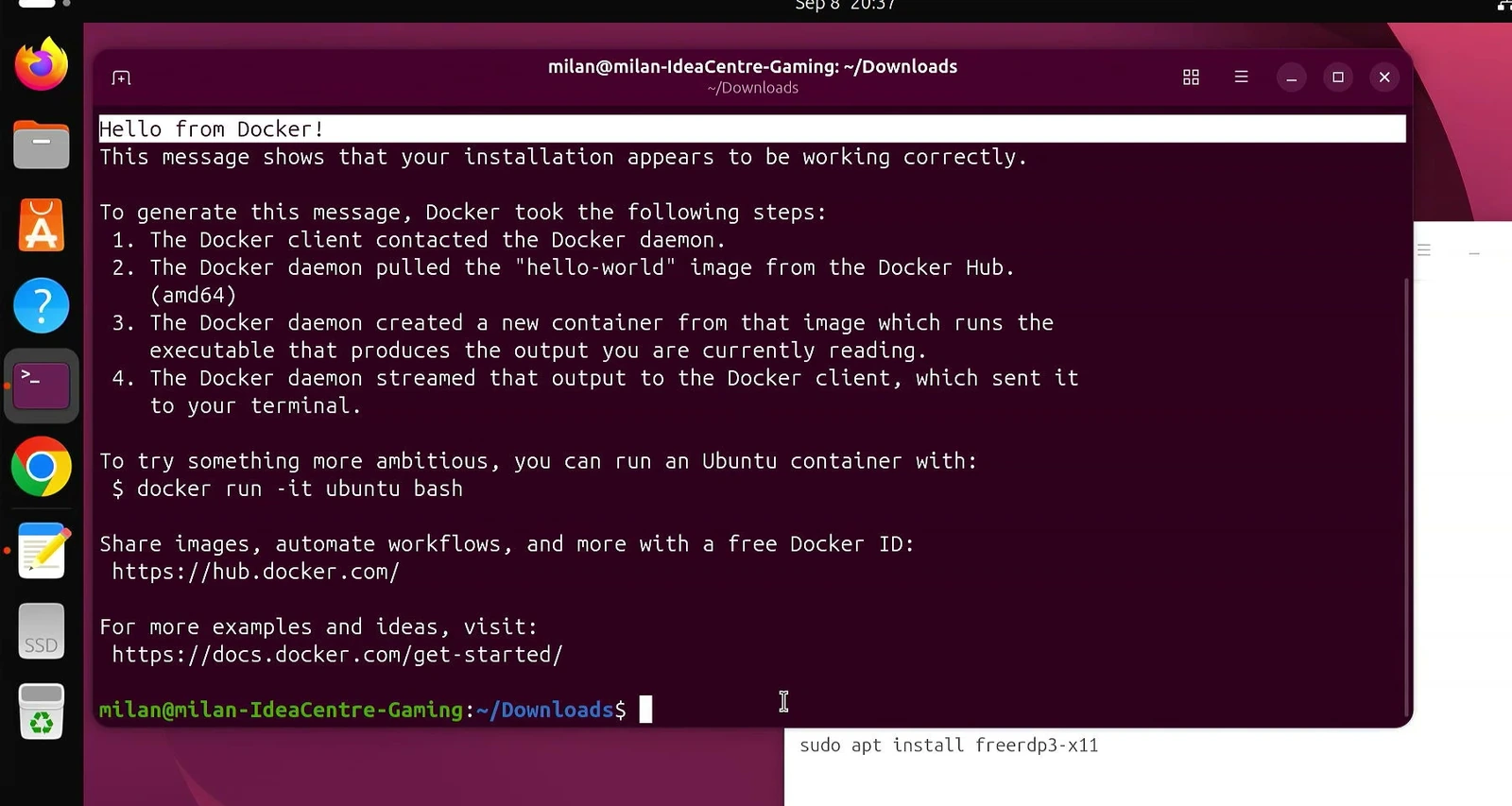
docker run hello-worldContinue when the terminal displays the Hello from Docker! message.
Install and Verify FreeRDP
WinBoat uses FreeRDP to display Windows applications on the Linux desktop. Install it, pressing Y if confirmation is requested.
sudo apt install freerdp3-x11Check the installed version and make sure it is FreeRDP version 3.
xfreerdp3 /version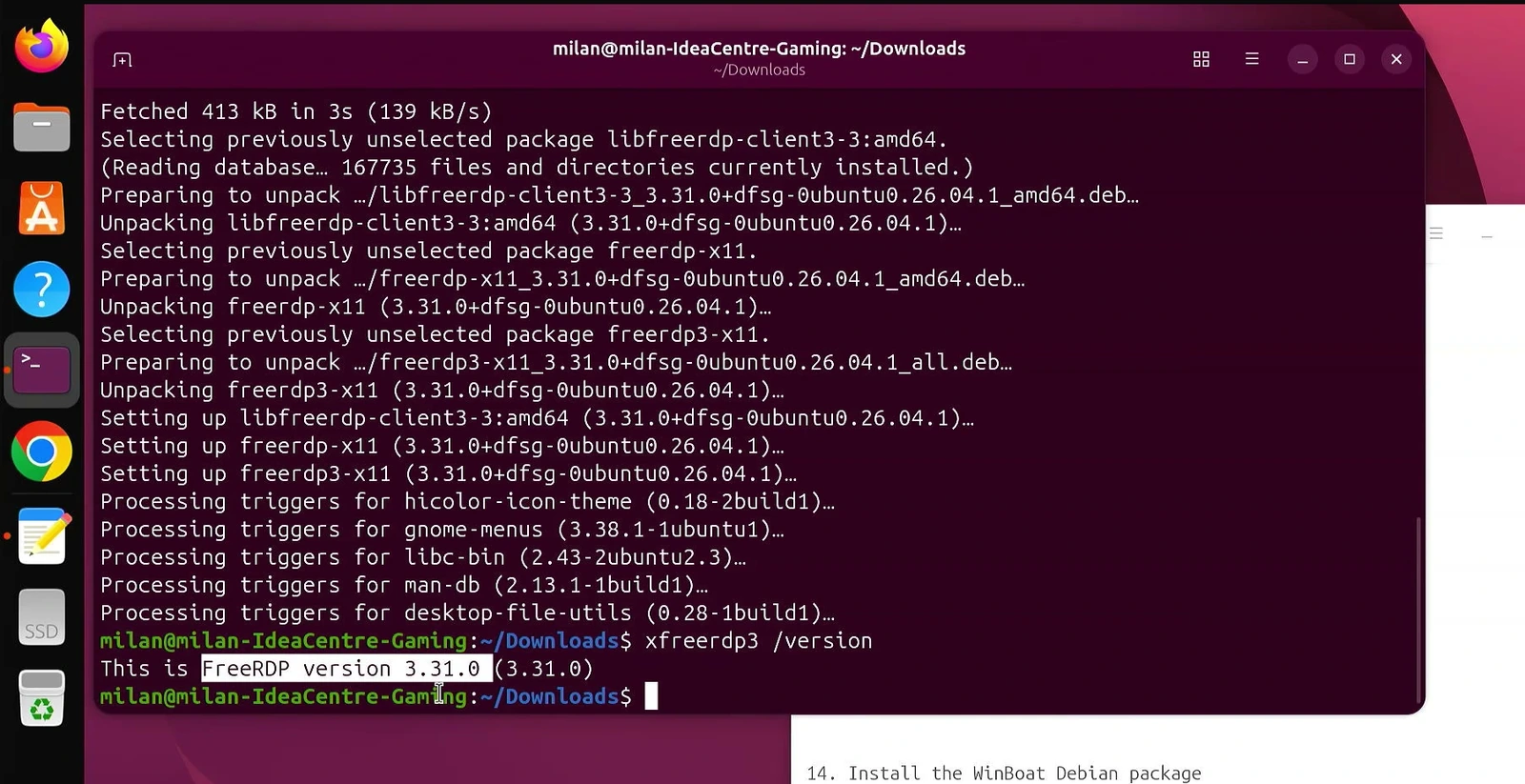
Download and Install WinBoat
Visit the WinBoat website and select the Debian download option to get the .deb package for Ubuntu.
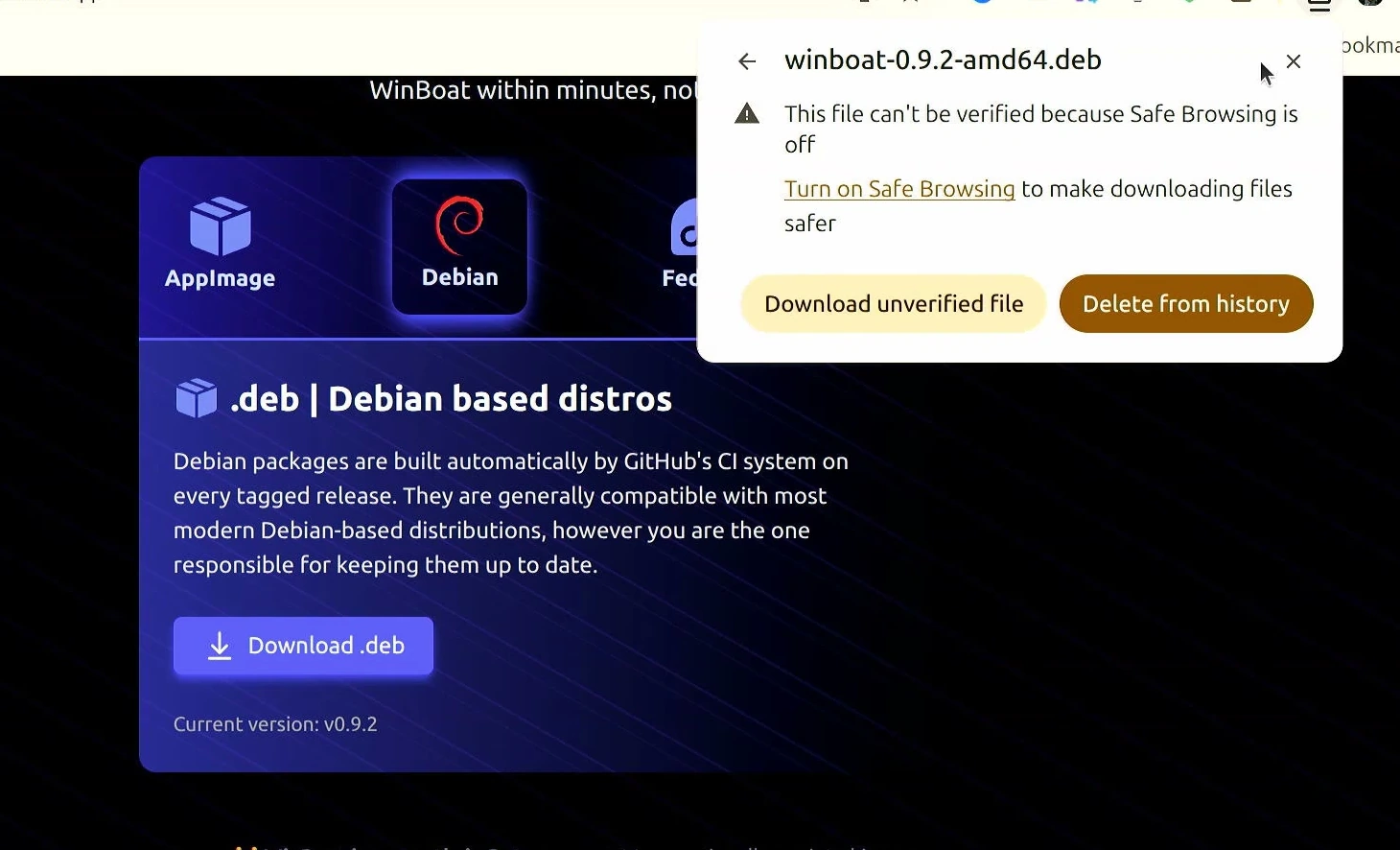
After the download finishes, rename the package to winboat.deb. Open Terminal in the Downloads folder and install it.
sudo apt install ./winboat.deb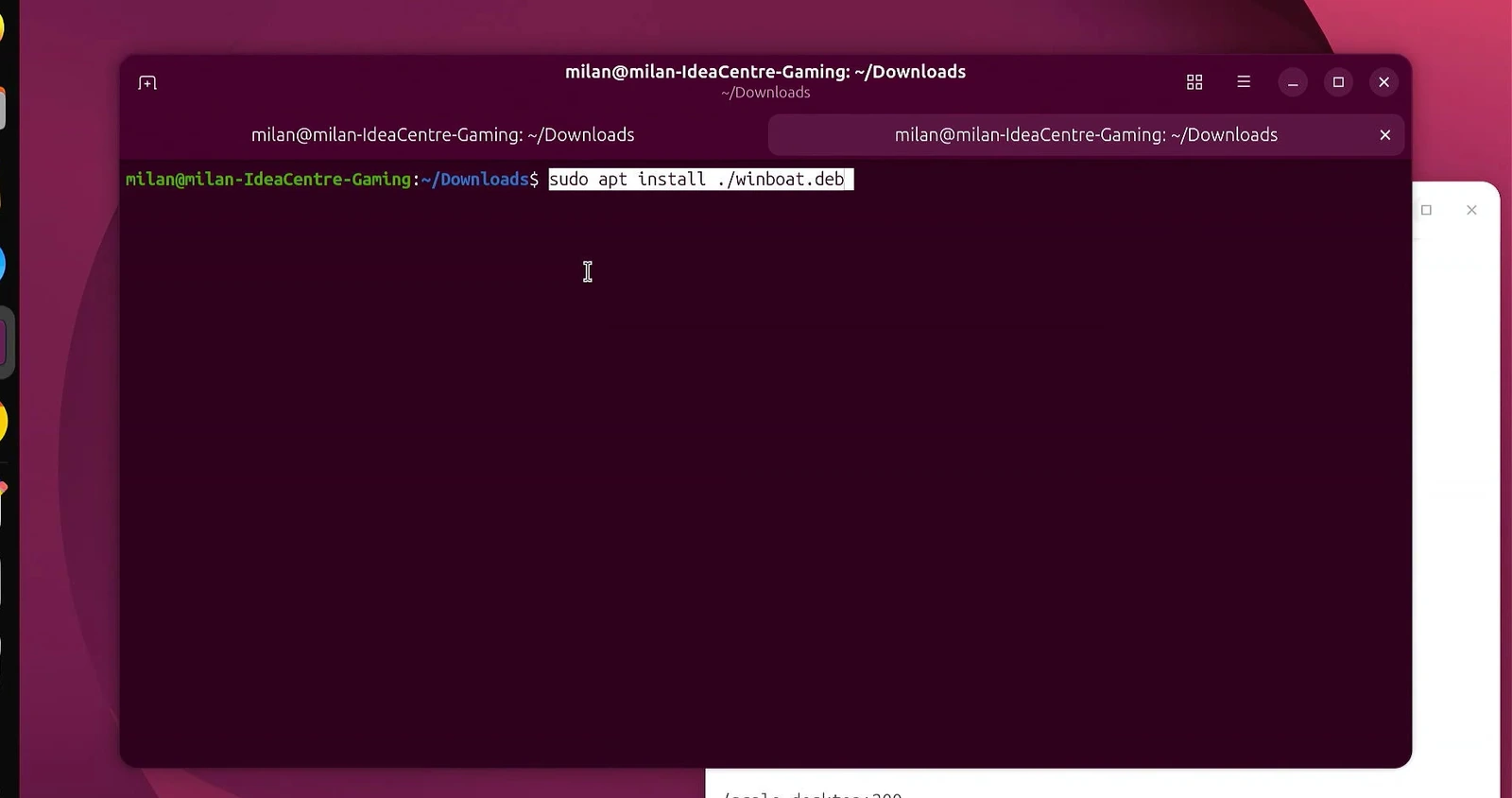
Create the Windows Environment
Open WinBoat from the application menu. On the welcome screen, select Next, review the MIT license, and click I Agree.
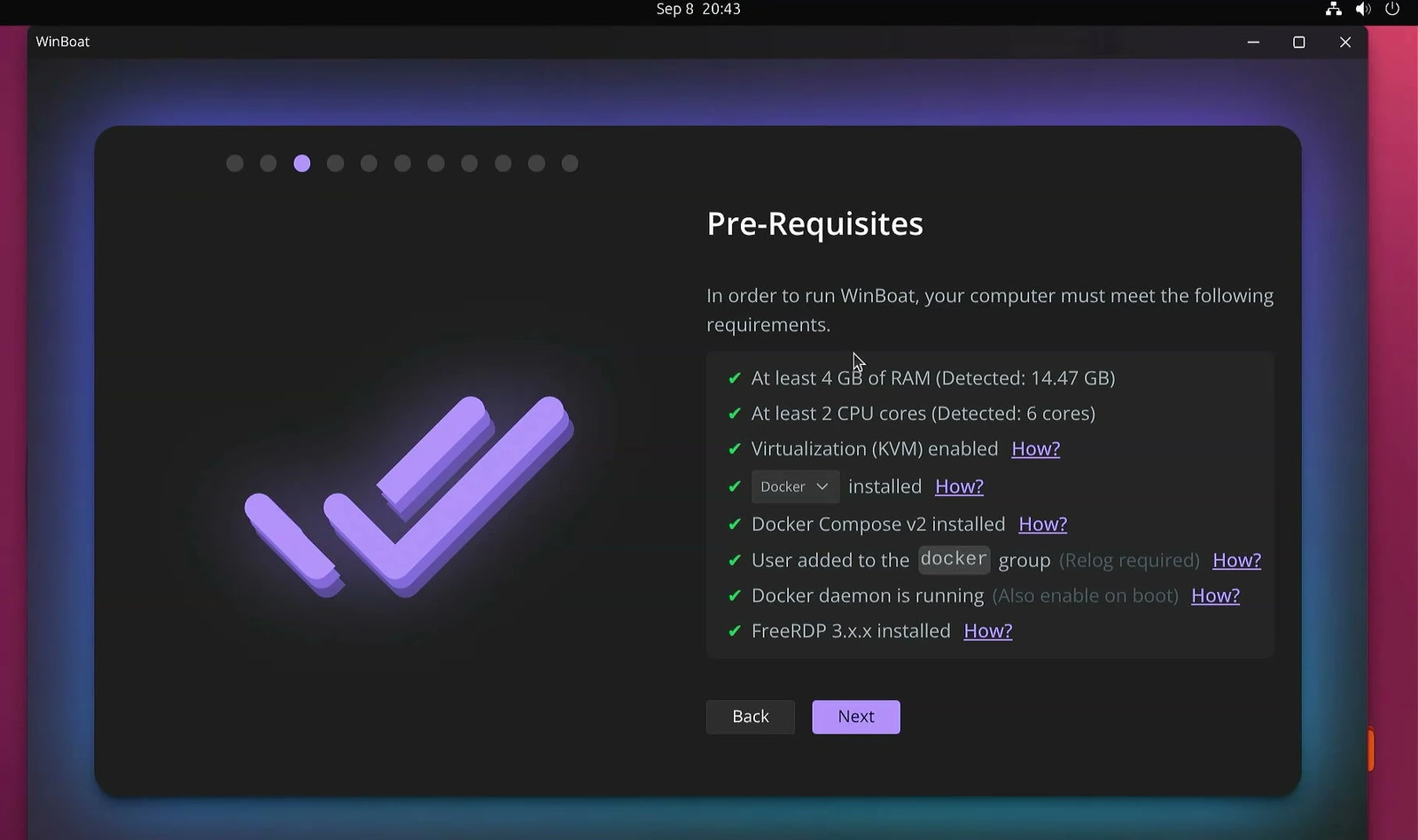
WinBoat checks RAM, CPU, virtualization support, Docker, Docker Compose, Docker group access, the Docker daemon, and FreeRDP. Confirm every item has a green checkmark, then click Next.
Choose Where Windows Will Be Stored
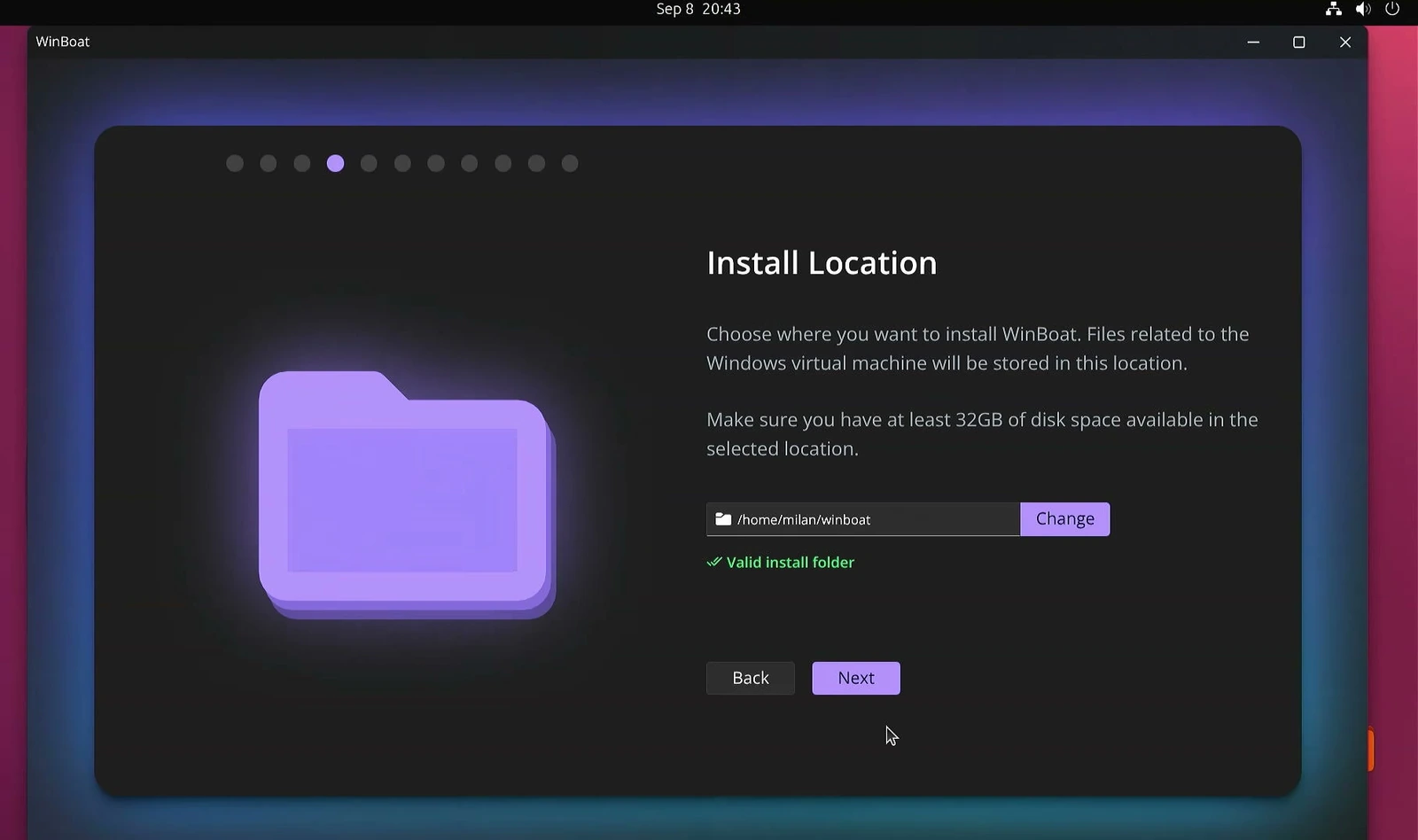
Select the install location for the Windows virtual machine files. Keep the default path or click Change to select another folder. When WinBoat marks the folder as valid, click Next.
Select a Windows Edition or ISO
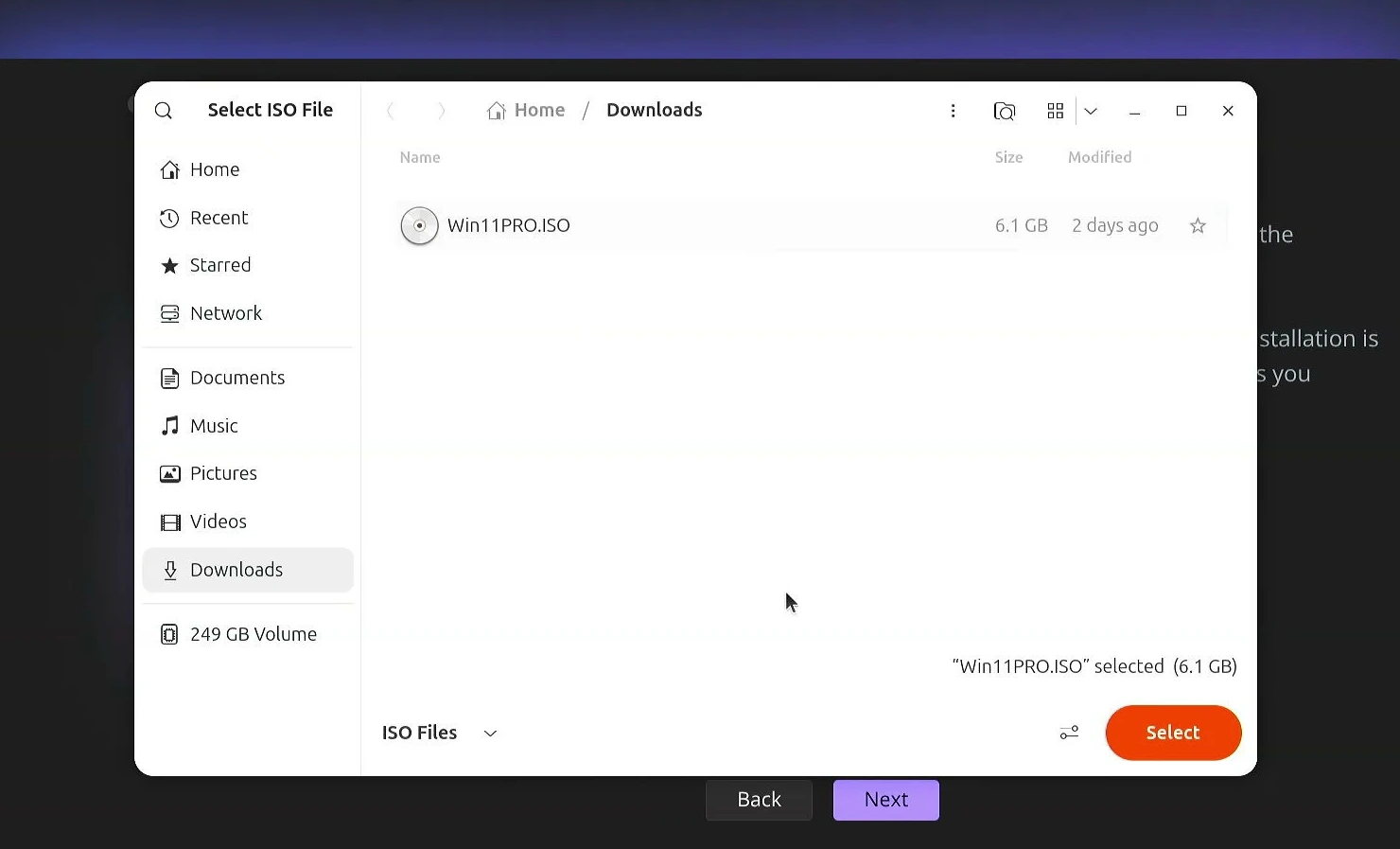
Open the Windows edition list and choose one of the available Windows editions, or select the option to use your own Windows ISO. This example uses a custom Windows ISO.
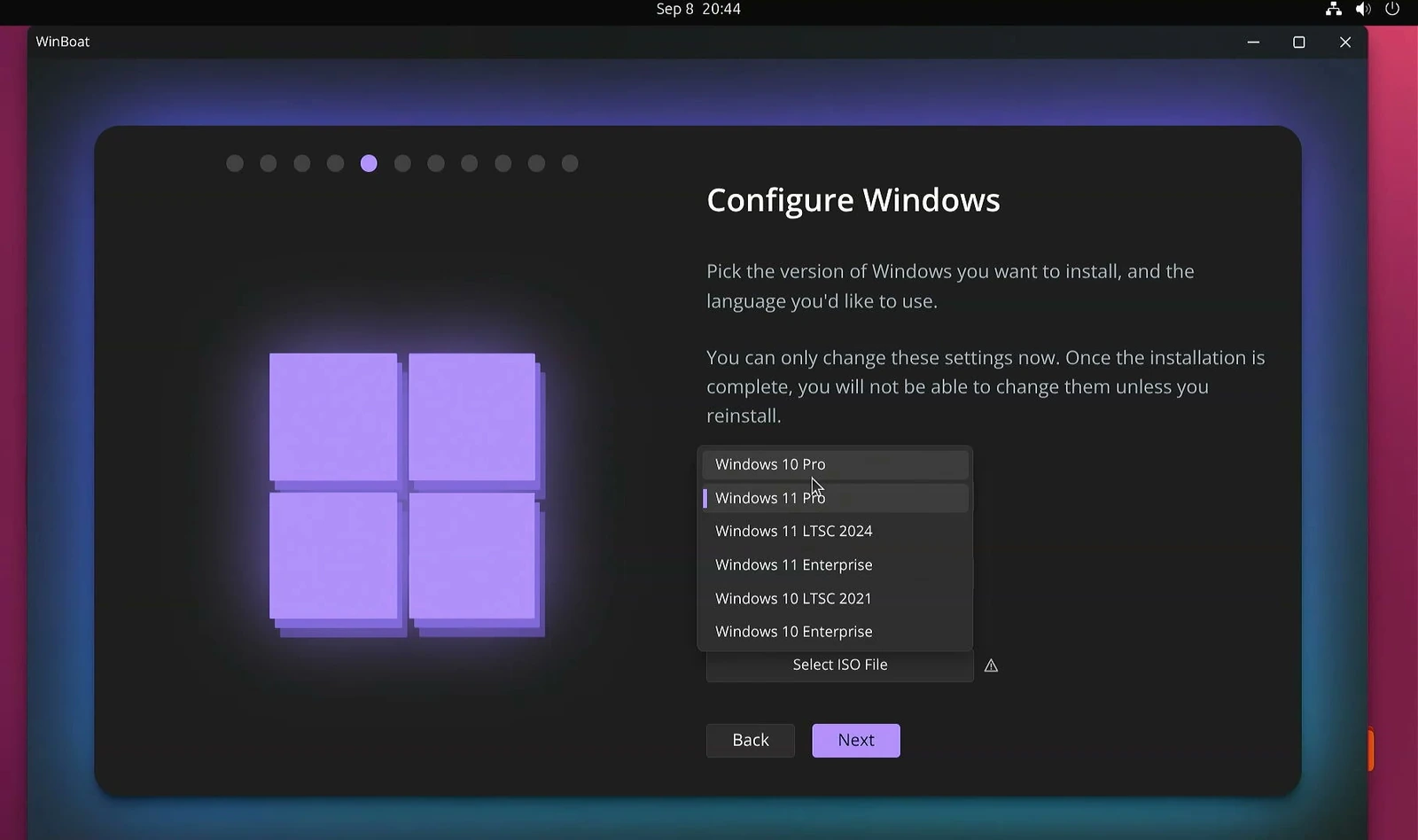
Browse to the ISO file, select it, and click Select. Then click Next in WinBoat.
Create Your Windows Account
Enter a Windows username, password, and matching password confirmation. These credentials are used to sign in to Windows and connect through Remote Desktop, so keep them somewhere safe.
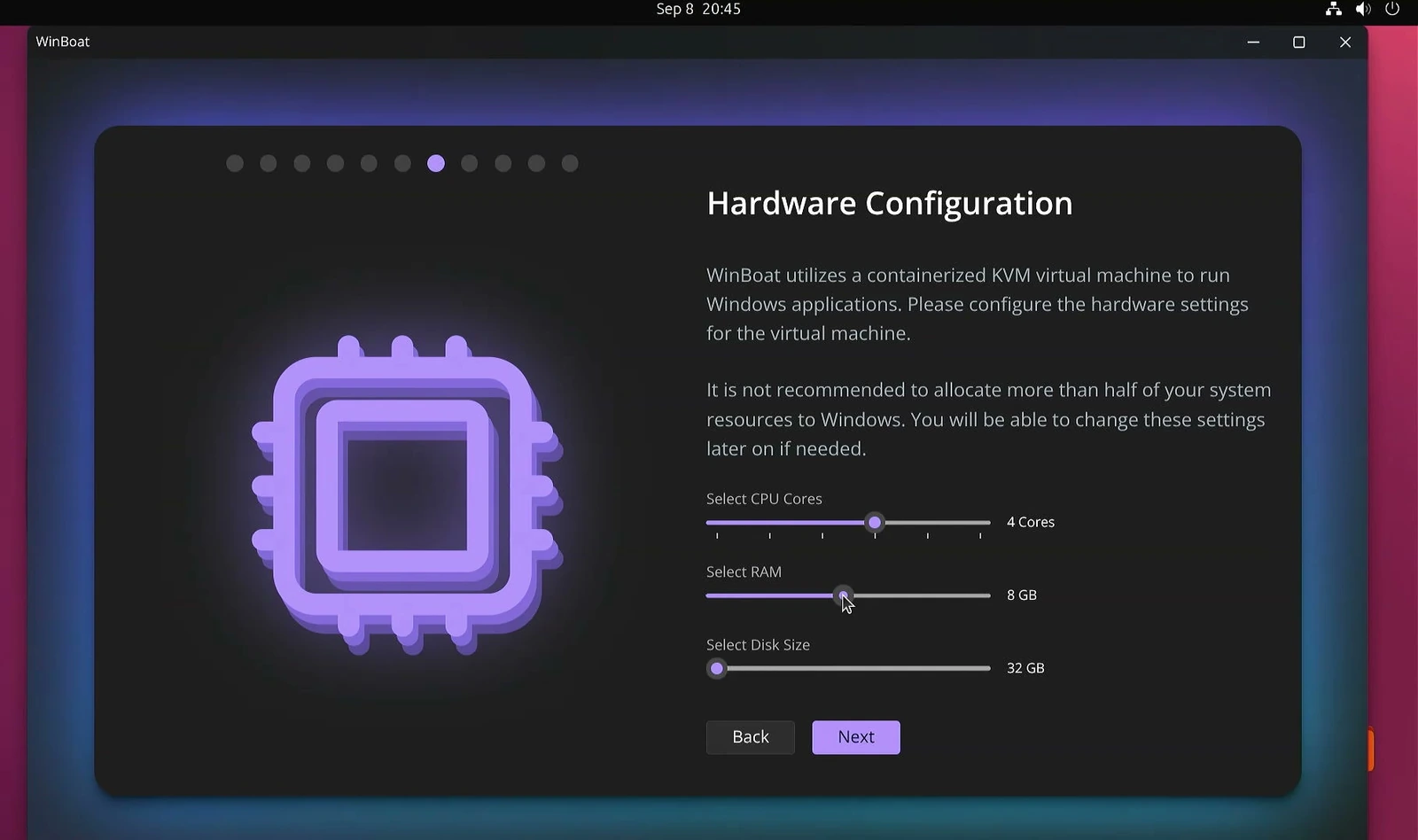
Assign CPU, RAM, and Disk Space
Choose the CPU cores, memory, and disk size for Windows. Do not assign more than half of your computer’s CPU and RAM resources to Windows, because Linux also needs resources to remain responsive.
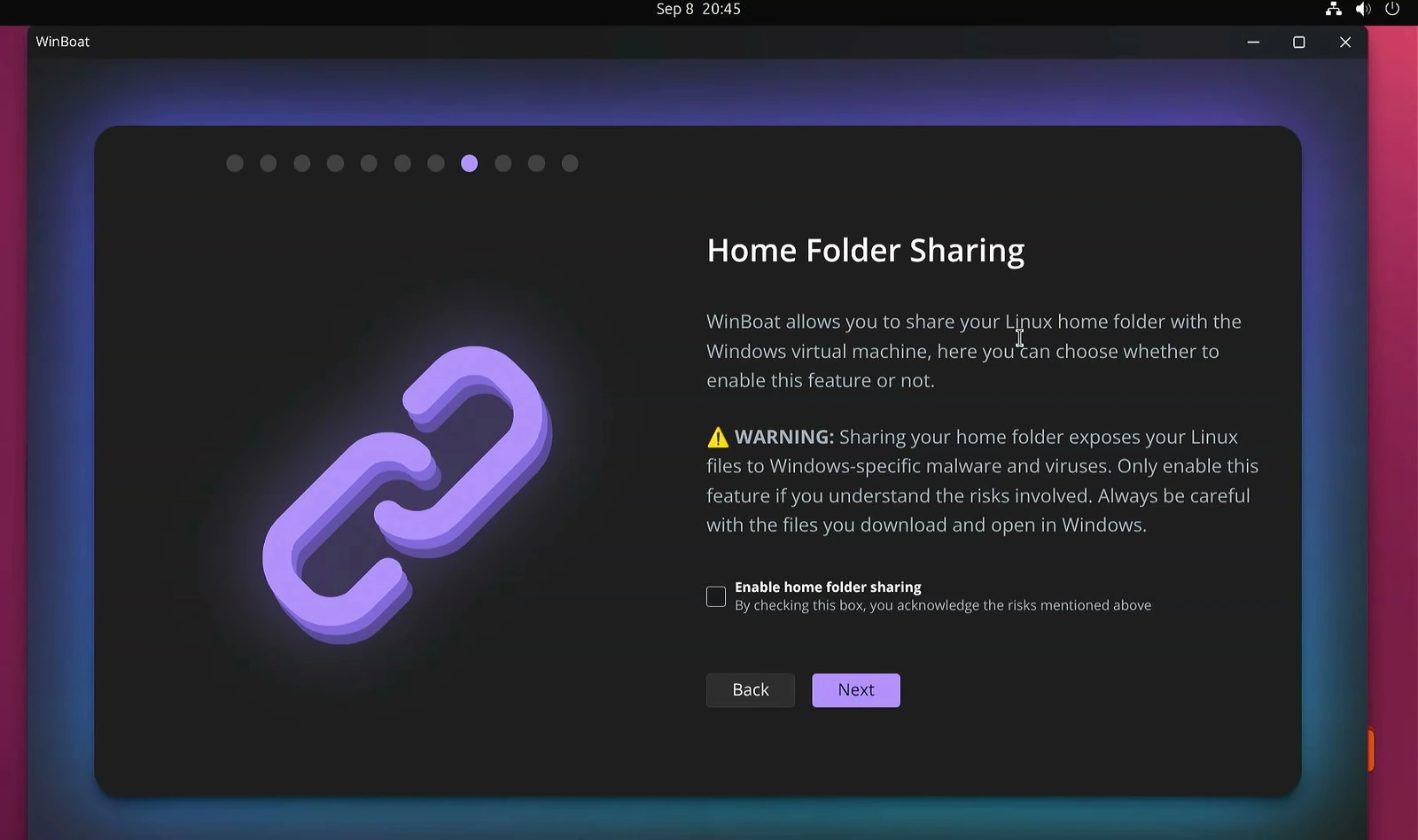
Choose Whether to Share Your Linux Home Folder
Enable Home Folder Sharing if you want your Linux home folder to be accessible from Windows. This can make transferring files between the two environments much easier.
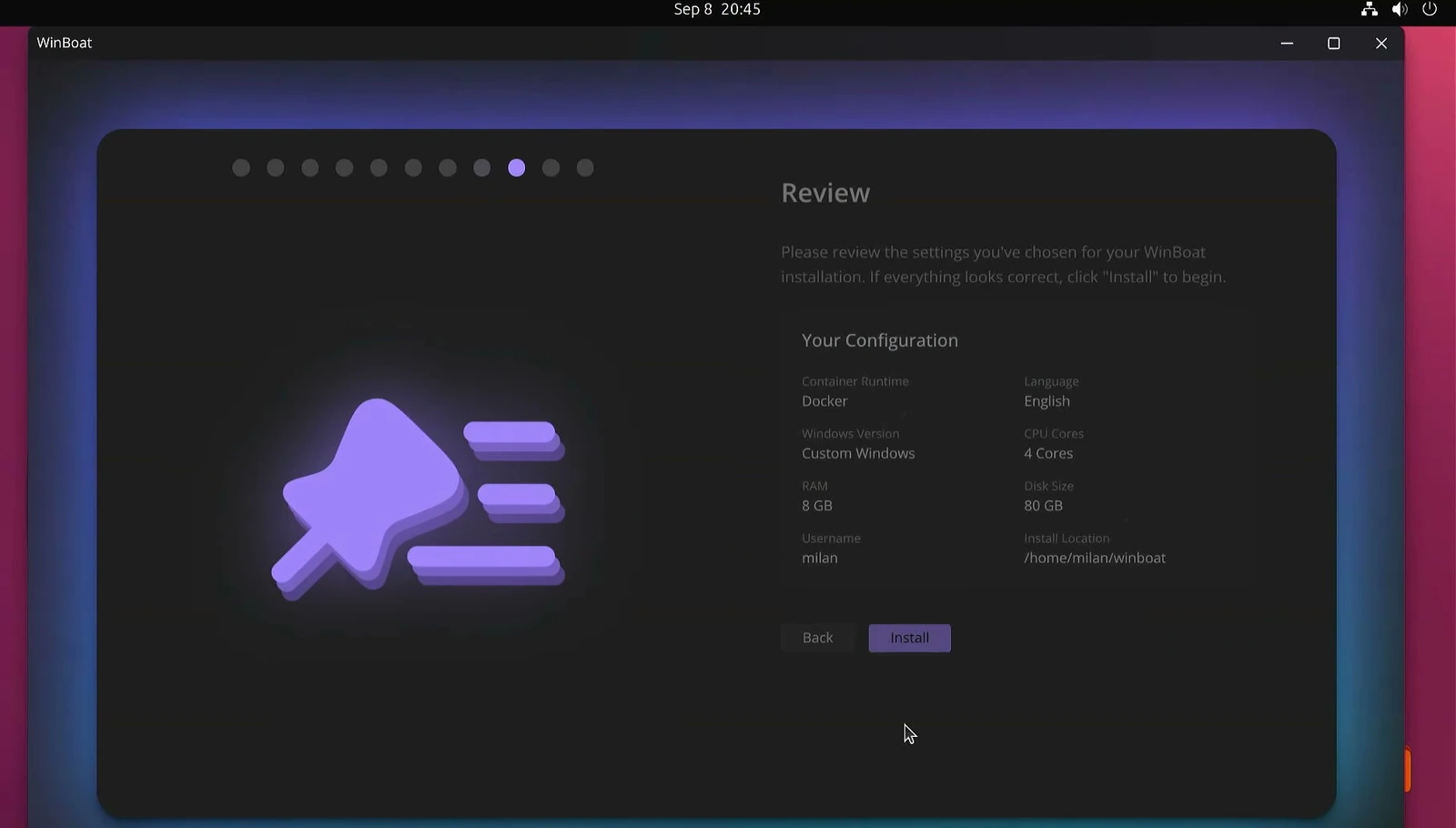
Review the selected Windows image, account, hardware allocation, and install location. Click Install when the summary is correct.
Leave the computer running while WinBoat installs Windows. The setup is handled automatically, so you do not need to complete the usual Windows installation screens manually. When it reports that Windows was installed successfully, click Finish.
Launch Windows Apps on Your Linux Desktop
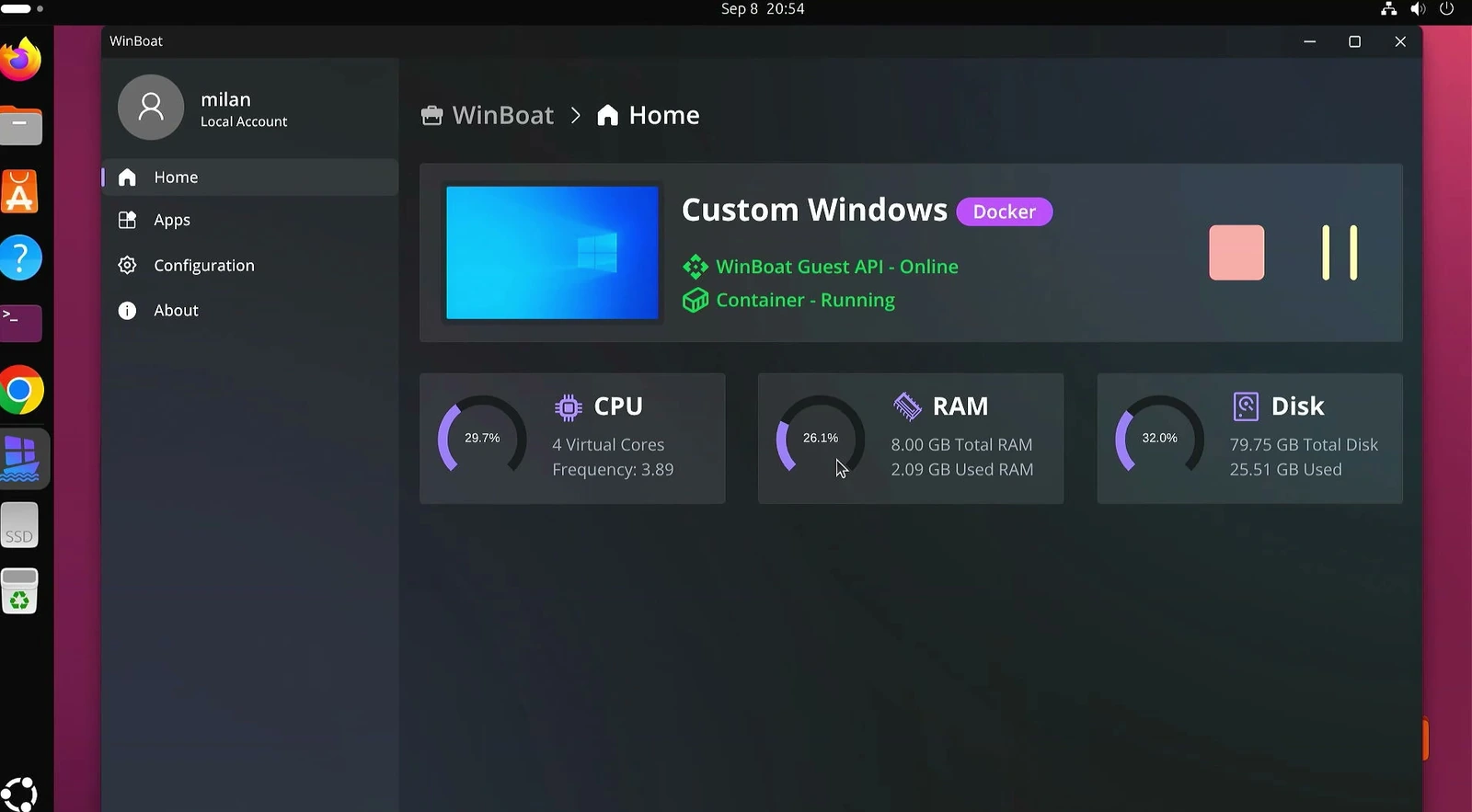
On the WinBoat Home page, check that the Guest API is online and the container is running. The dashboard also shows current CPU, RAM, and disk use.
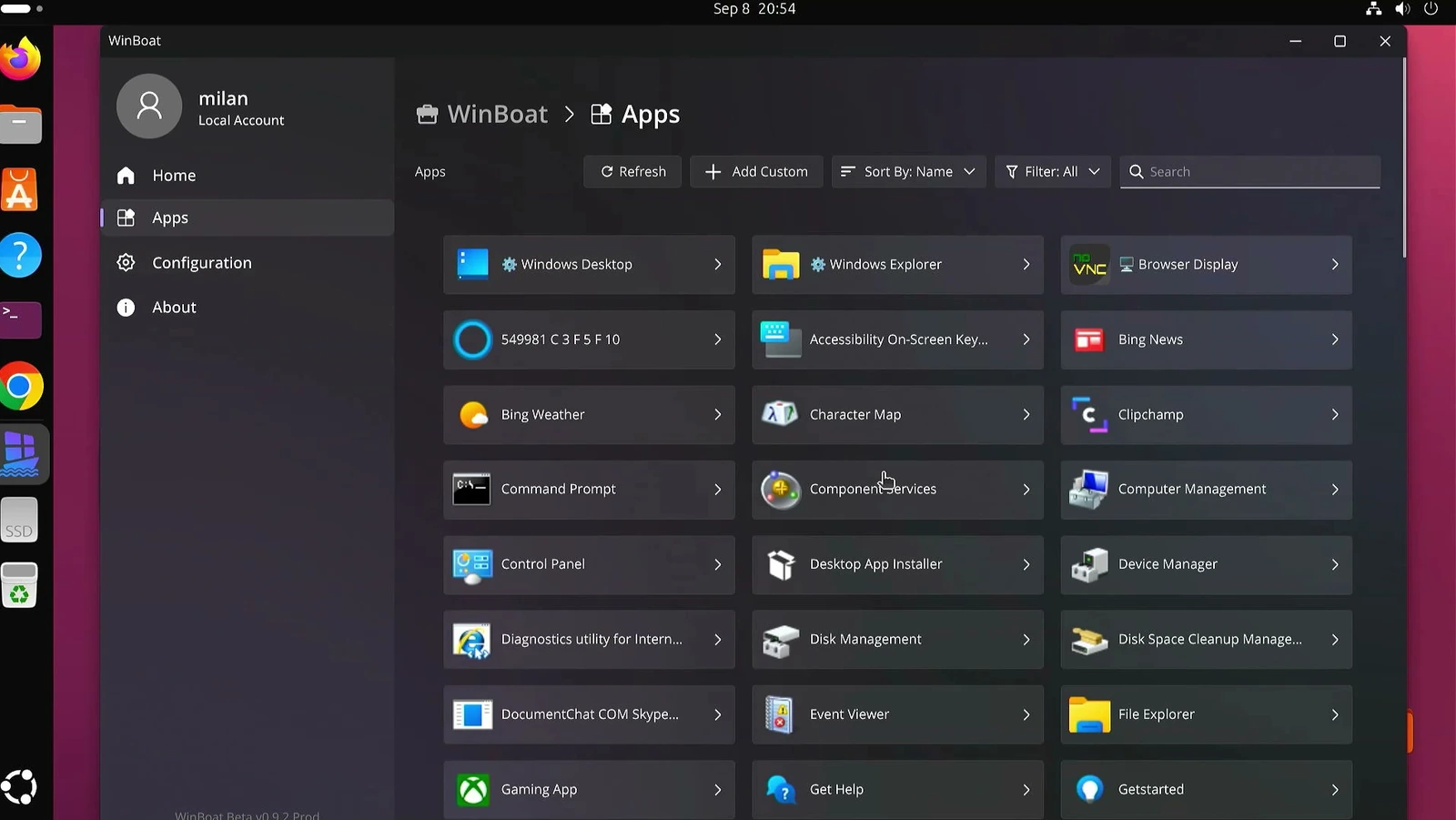
Open the Apps section to view the Windows applications WinBoat detected.
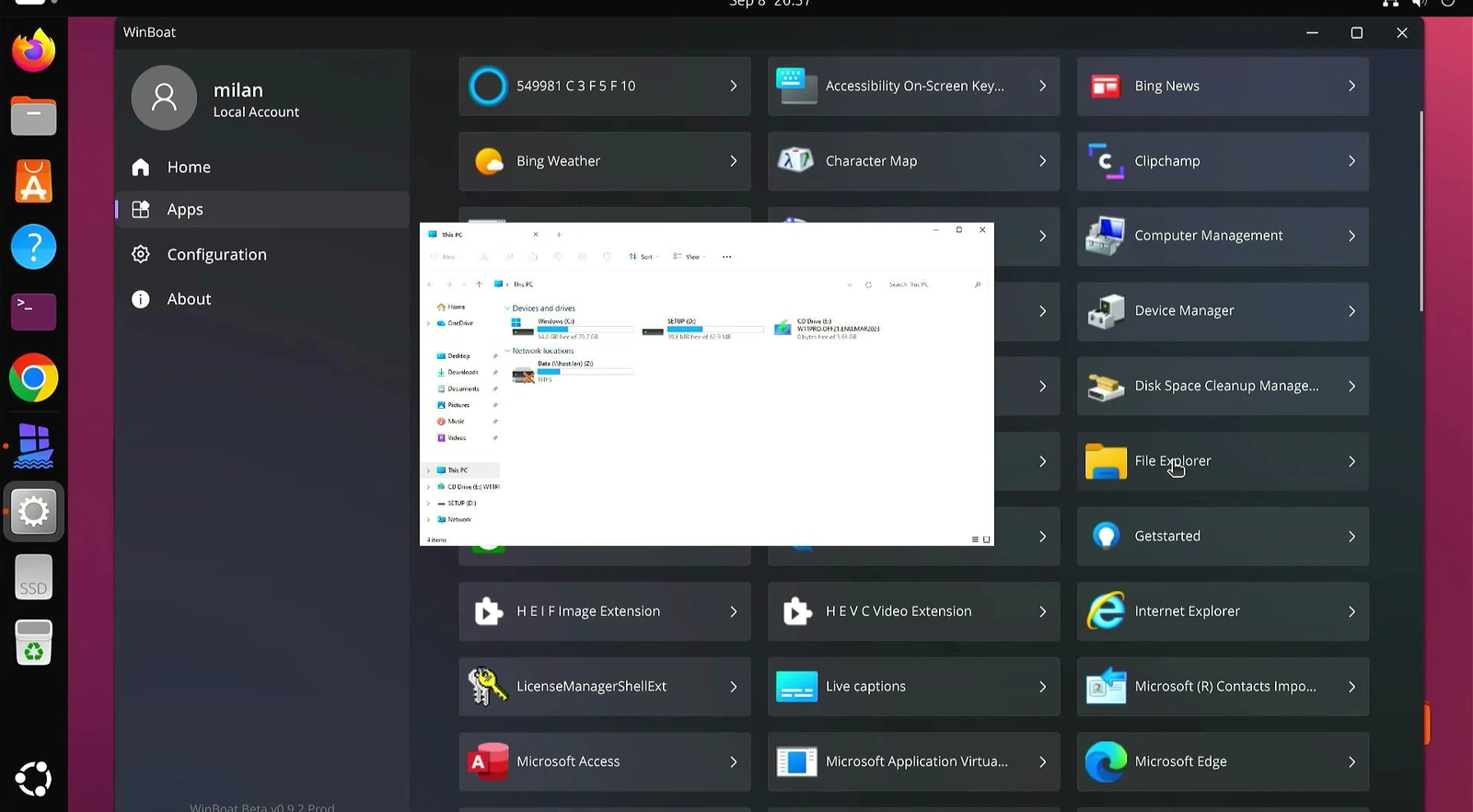
Select Windows Explorer to open File Explorer in its own window on the Linux desktop. You can move and resize it like a normal Linux application. You can also launch Command Prompt and other detected Windows programs from this list.
Improve Small Windows App Text With Scaling
If Windows app text looks too small, open Configuration in WinBoat. Under General, set Application Scaling to 200% and Display Scaling to 180%.
Scroll down, enable Advanced Settings, then return to FreeRDP Arguments. Click Add Argument and enter the following value. Click outside the field to save it automatically.
/scale-desktop:200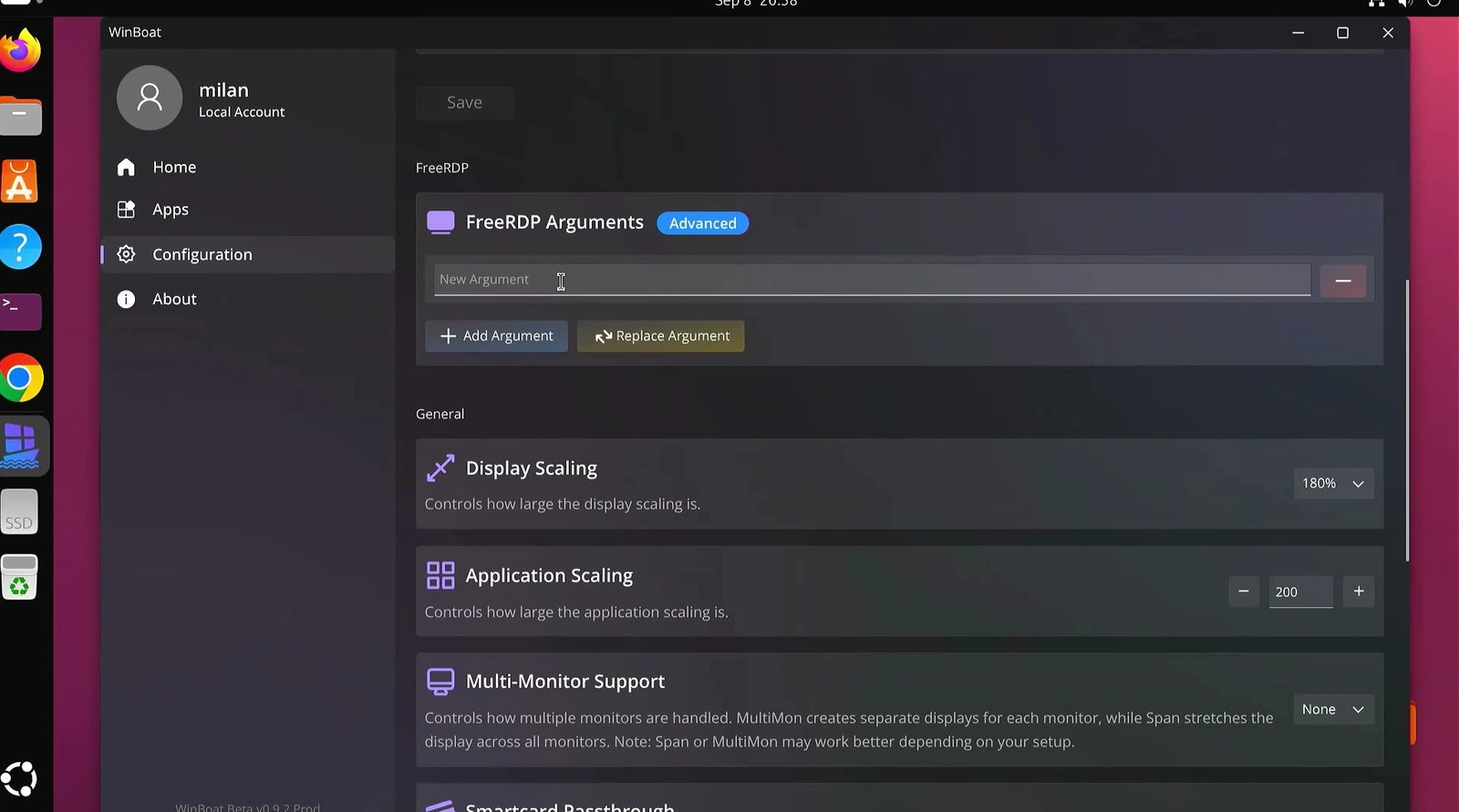
Restart the Windows connection, then open an app again from the Apps section to use the larger interface.
Use the Full Windows Desktop
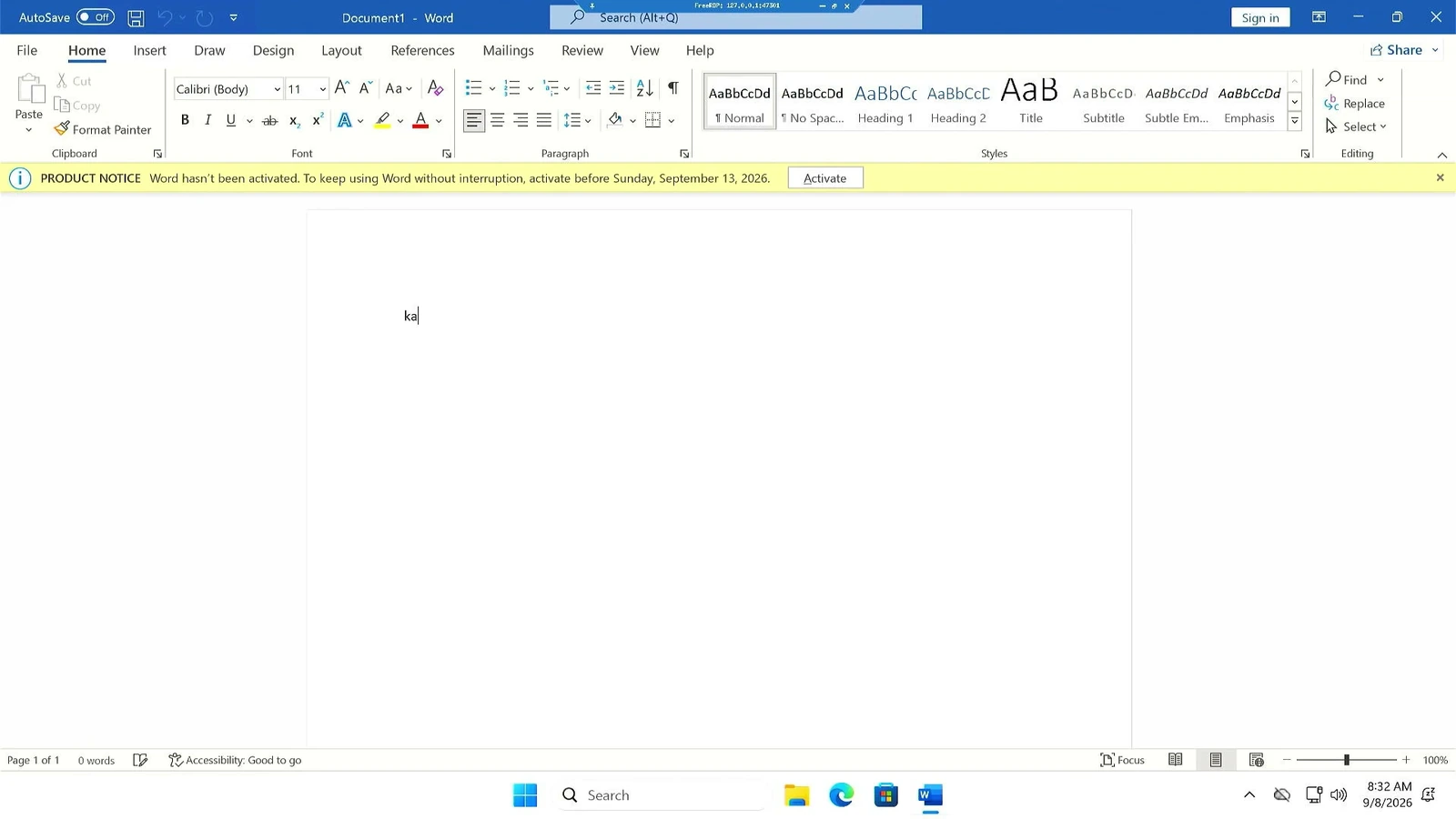
Return to Apps and open Windows Desktop when you need the complete Windows environment. It opens the full Windows desktop through FreeRDP, where you can use the Start menu, Settings, File Explorer, Microsoft Edge, Microsoft Office, and other installed applications.
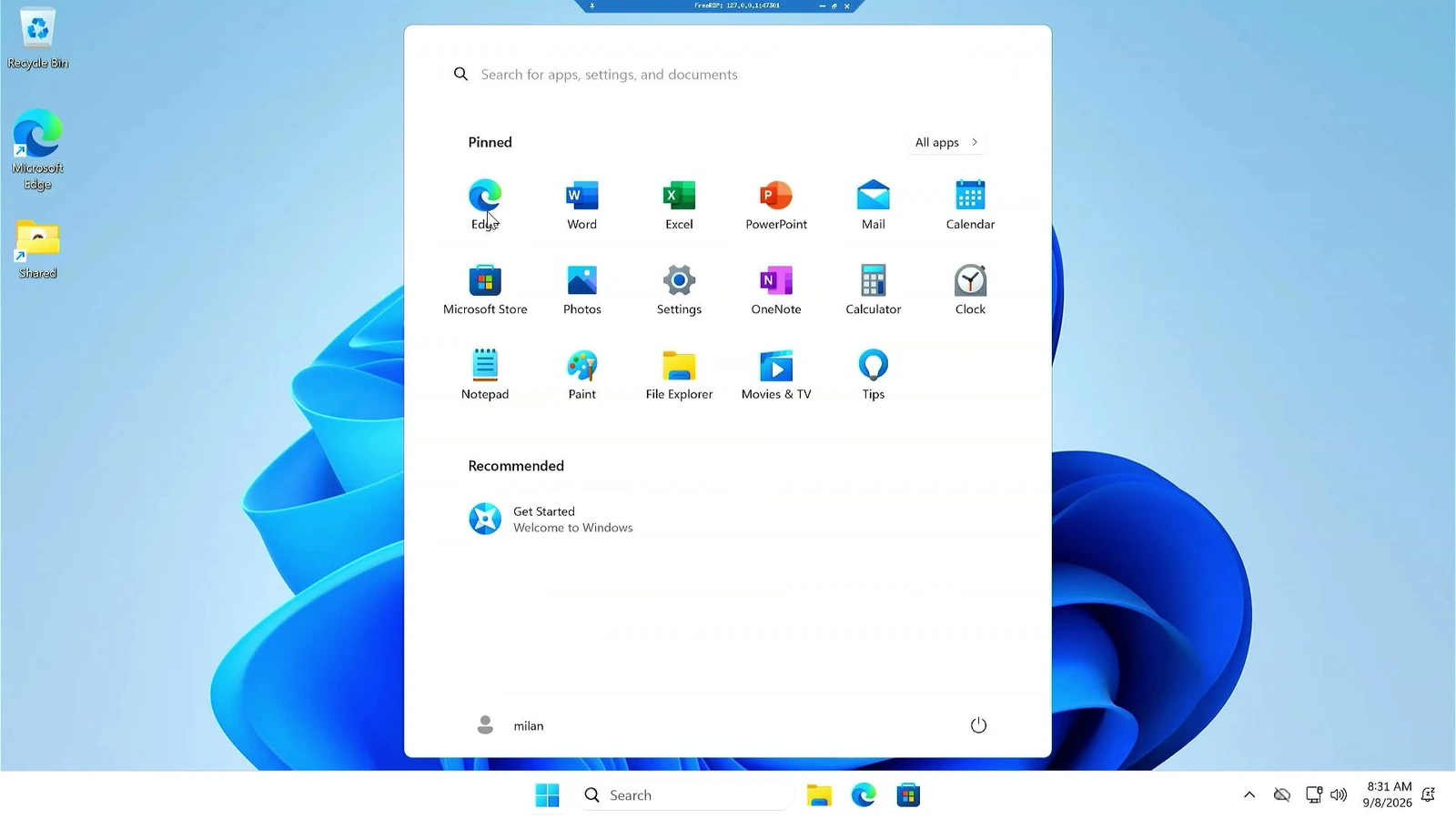
For example, open Microsoft Word or Excel from Windows and use them normally.
Install Another Windows Program
Use the full Windows desktop to download and install a standard Windows EXE application. In this example, the 64-bit Notepad++ installer is downloaded from its official website.
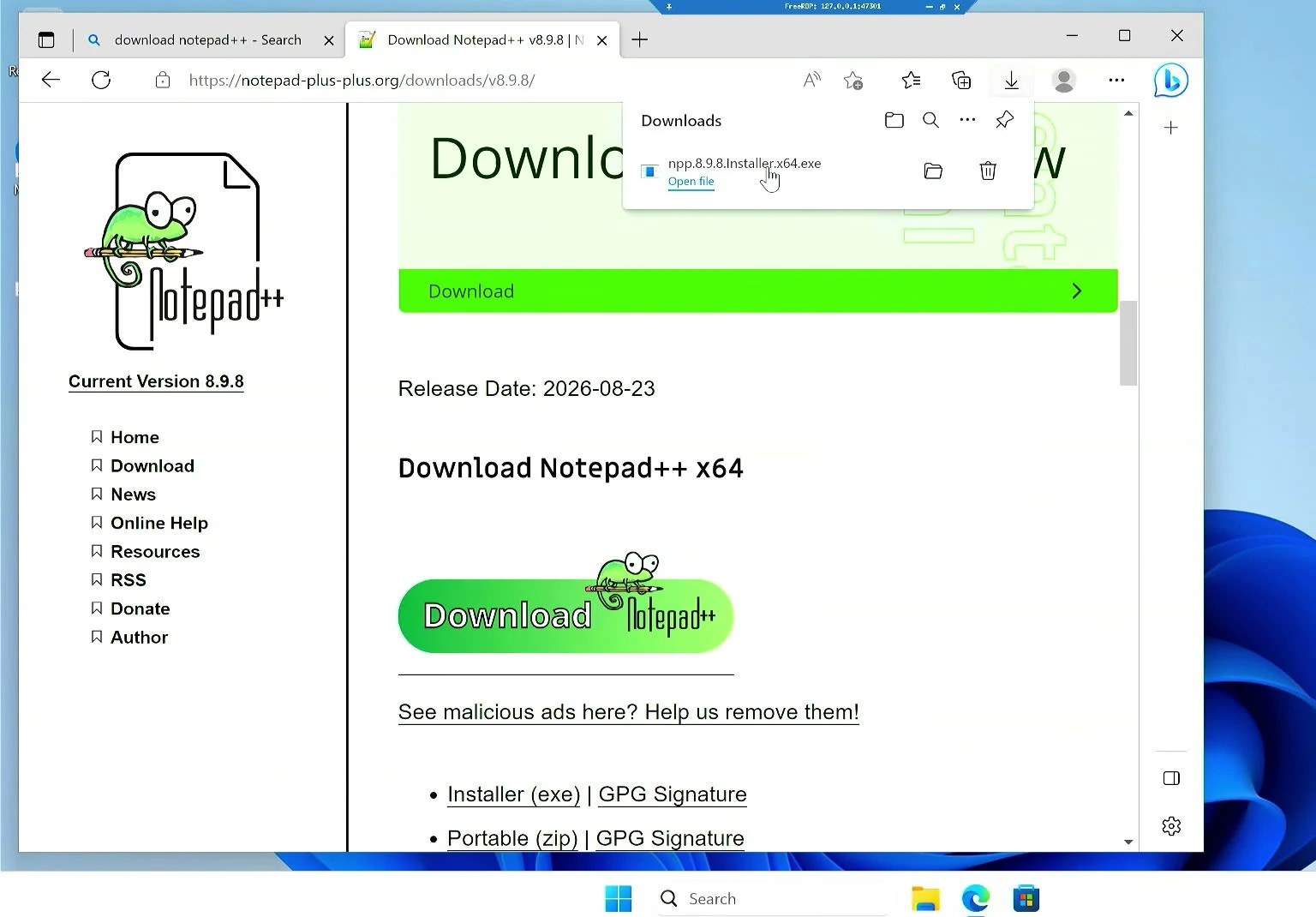
Open the downloaded EXE file and continue through its normal installation process.
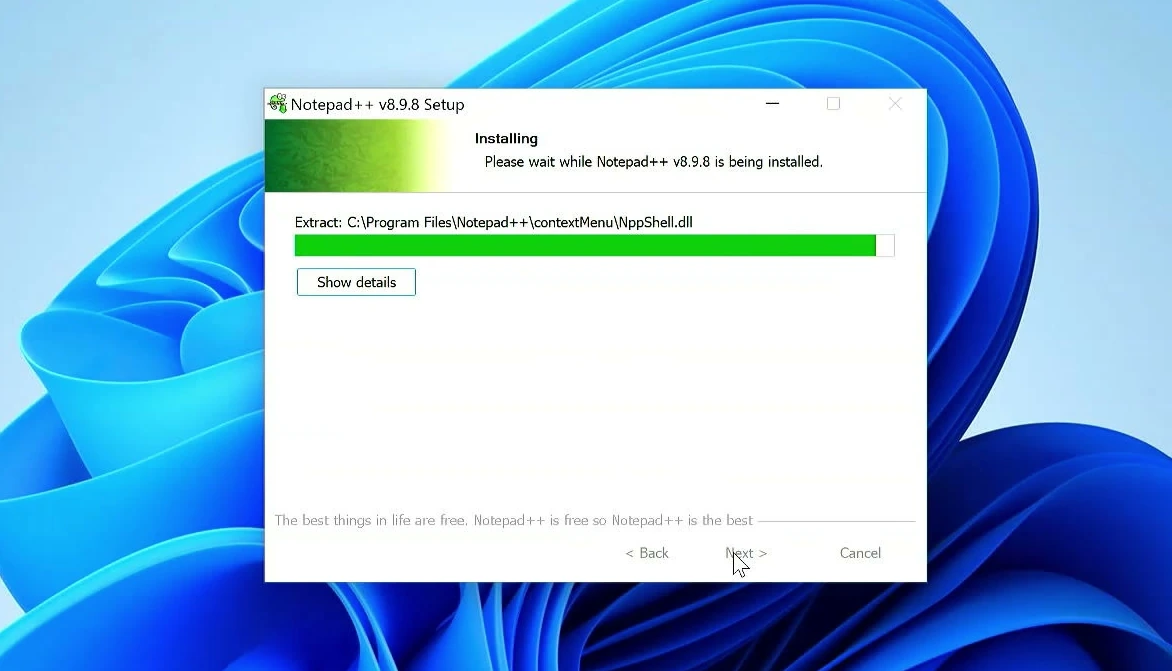
After installation, close the Windows desktop and return to WinBoat. Search for the new program in Apps, then click Refresh so WinBoat scans the Windows environment again.
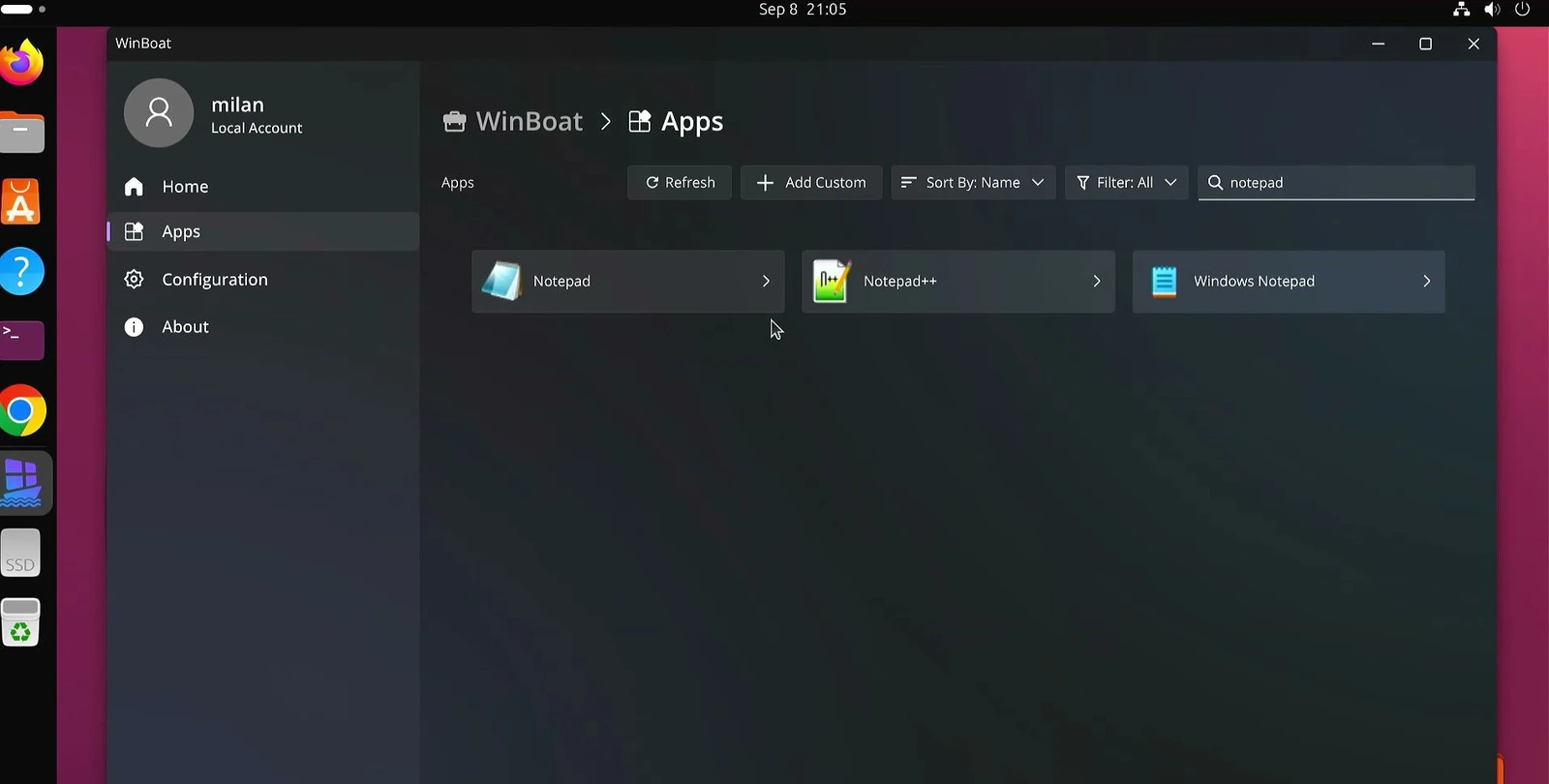
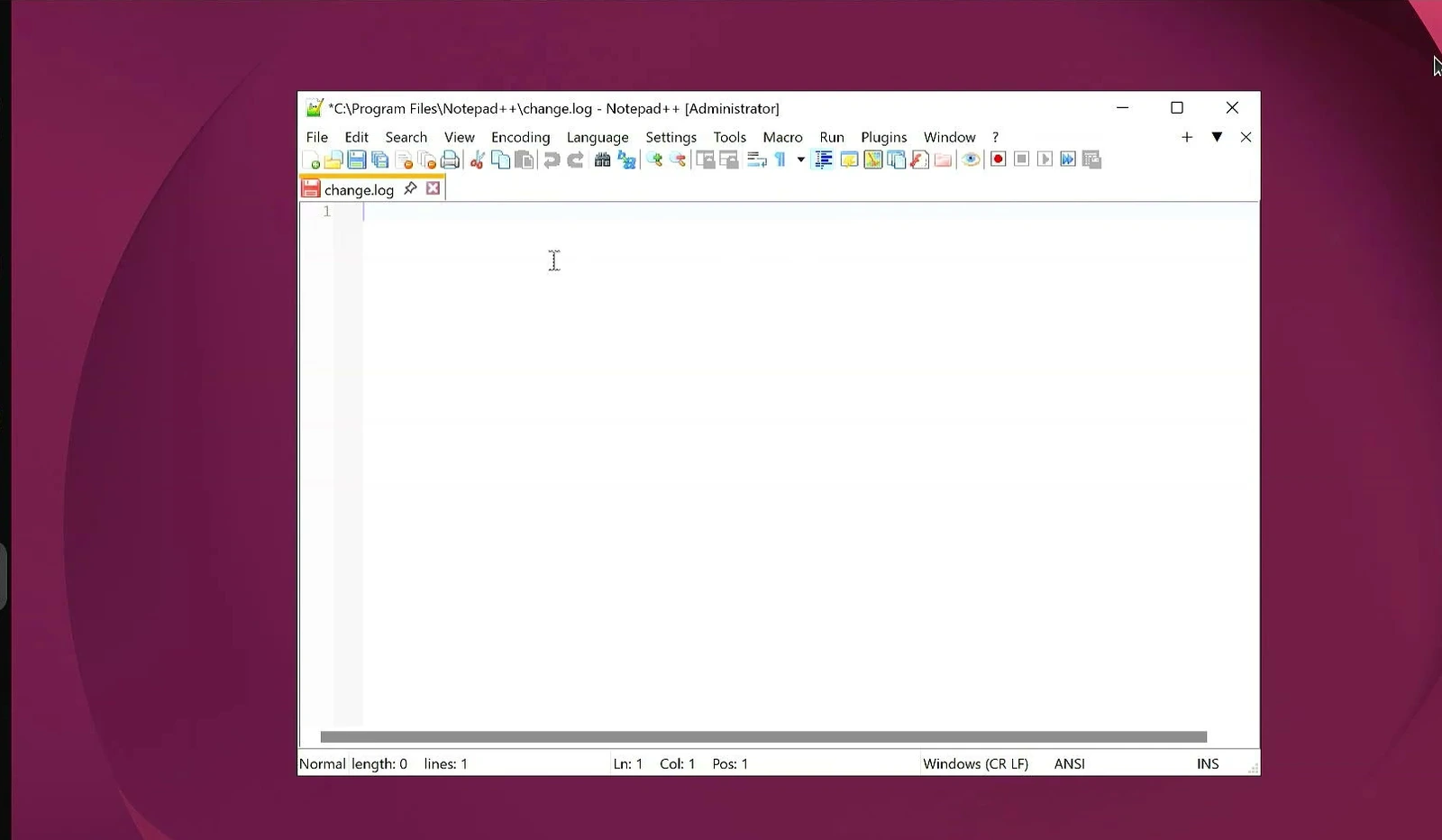
Select the newly detected application. It now opens in its own window directly on the Linux desktop, without opening the complete Windows desktop first.
Manage WinBoat Configuration Later
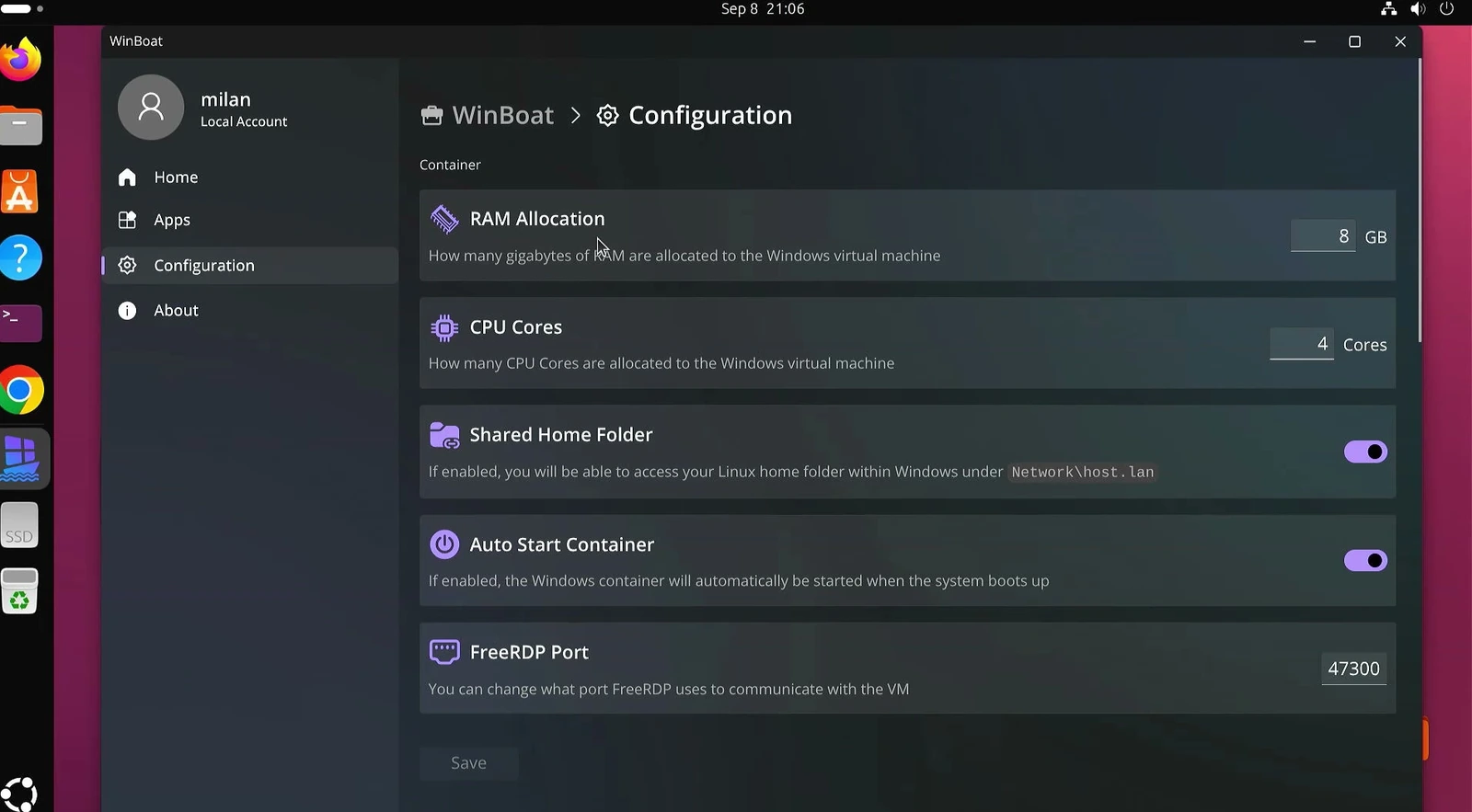
Open Configuration whenever you need to change the CPU cores or RAM allocated to Windows, enable or disable home-folder sharing, or turn on Auto Start Container so the Windows container starts with Linux.
This area also includes the FreeRDP port plus advanced options for multi-monitor support, smart card pass-through, RDP monitoring, and other settings.
Troubleshooting WinBoat Setup
▸ The WinBoat prerequisite check does not show green checkmarks
Review the missing item in the setup wizard. WinBoat checks virtualization, Docker, Docker Compose, Docker group access, the Docker daemon, FreeRDP, RAM, and CPU resources. If Docker group access is missing, restart after adding your user to the Docker group.
▸ Windows applications are difficult to read
Use WinBoat Configuration to set Application Scaling to 200%, Display Scaling to 180%, and add the FreeRDP scaling argument shown above. Restart the Windows connection after saving the settings.
▸ A program installed in Windows is missing from Apps
Return to WinBoat after closing the Windows desktop, search for the program, and select Refresh to scan the Windows environment again.
Frequently Asked Questions
▸ Can I use the full Windows desktop instead of individual app windows?
Yes. Choose Windows Desktop in WinBoat’s Apps section to open the full Windows environment through FreeRDP.
▸ Can Windows access my Linux files?
Yes, if you enable Home Folder Sharing during setup or later in Configuration. Only enable it if you are comfortable sharing your Linux home folder with Windows.
▸ Can I install additional Windows software?
Yes. Open the full Windows desktop, install the program normally from its EXE installer, then refresh WinBoat’s app list to detect and launch it separately.
Final Words
You now have a Windows environment managed by WinBoat on Ubuntu, with the ability to open individual Windows applications beside your Linux software, use the complete Windows desktop when needed, and optionally access shared Linux home-folder files.