An old PC doesn’t necessarily need replacing just because Windows feels slow. Sometimes, a different operating system is enough to make everyday tasks enjoyable again. Linux Mint is worth exploring if you want a clean desktop, familiar controls, and a computer that feels straightforward to use.
One reason Linux Mint is so approachable is that it doesn’t expect you to become a Linux expert on day one. You get a traditional desktop, a file manager, a web browser, and a place to install more apps. If you’ve spent years using Windows, a lot of it will already feel familiar.
You can even try Linux Mint from a USB drive before installing it. If you like what you see, you can install it on a PC or laptop. You may be able to keep Windows alongside it, or start fresh with Linux Mint as the only operating system. The important part is choosing the right option for your own computer.
Before you begin
You’ll need a USB drive and a computer that can boot from USB. For this walkthrough, I’m creating the installer on Windows and then using it to install Linux Mint.
- USB drive: Use an empty drive with at least 8 GB of space. Creating the installer will erase its contents.
- Internet connection: You’ll need it to download Linux Mint and the USB-writing tool.
- Important files: Copy anything you cannot afford to lose to another drive or cloud storage before changing disk partitions.
Download Linux Mint
Start with the official Linux Mint website. You’ll find several editions, but Cinnamon is a good starting point if you want a modern desktop that feels familiar to Windows users. It’s also the edition I’m using here.
If your computer has limited resources, you can explore the lighter Xfce edition instead. The installation process is similar, although the desktop looks different.
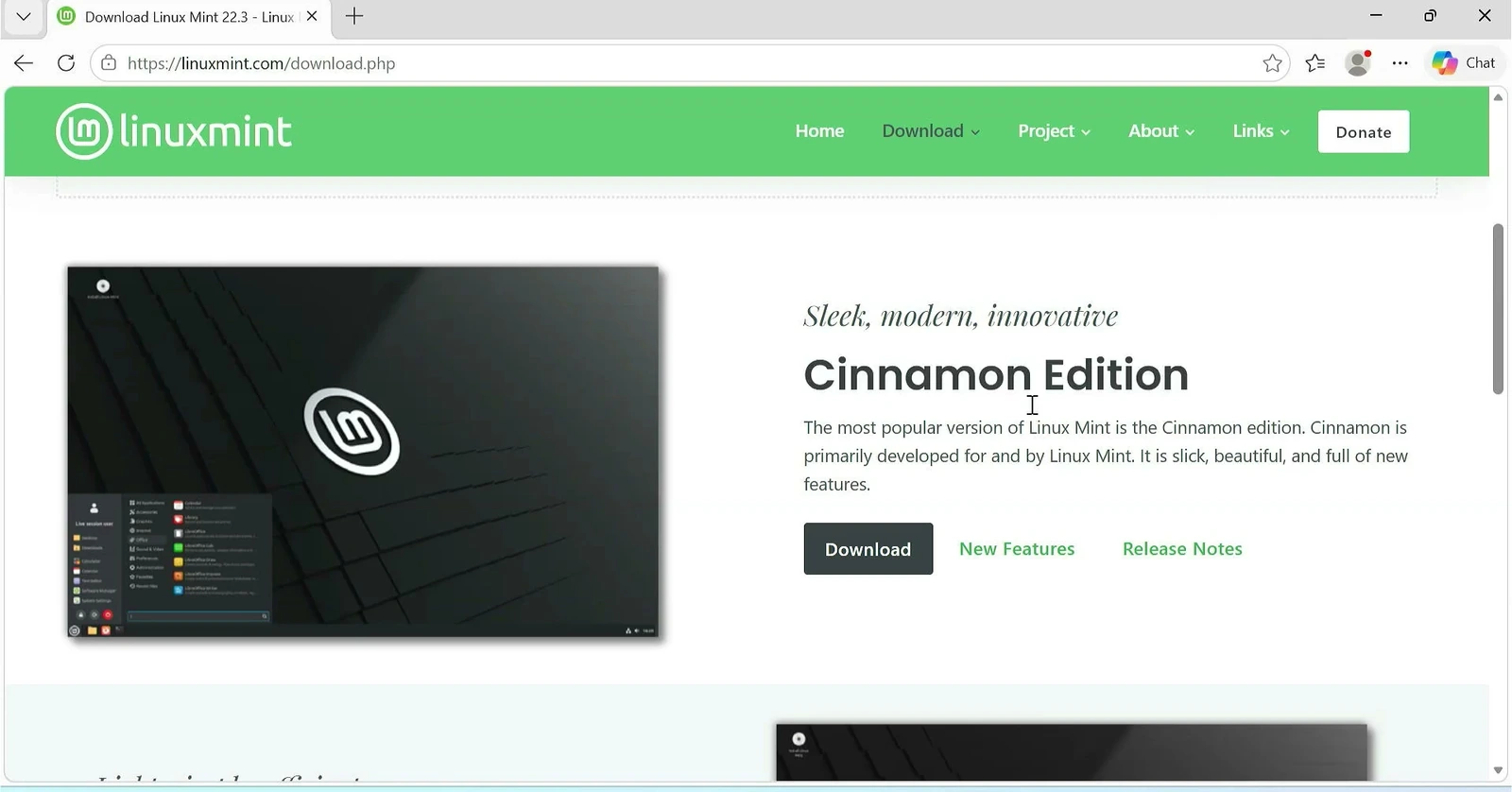
Choose your preferred edition and open its download page. Linux Mint provides several download mirrors, which are servers hosting the same ISO image. Pick a suitable mirror and save the ISO file to your computer.
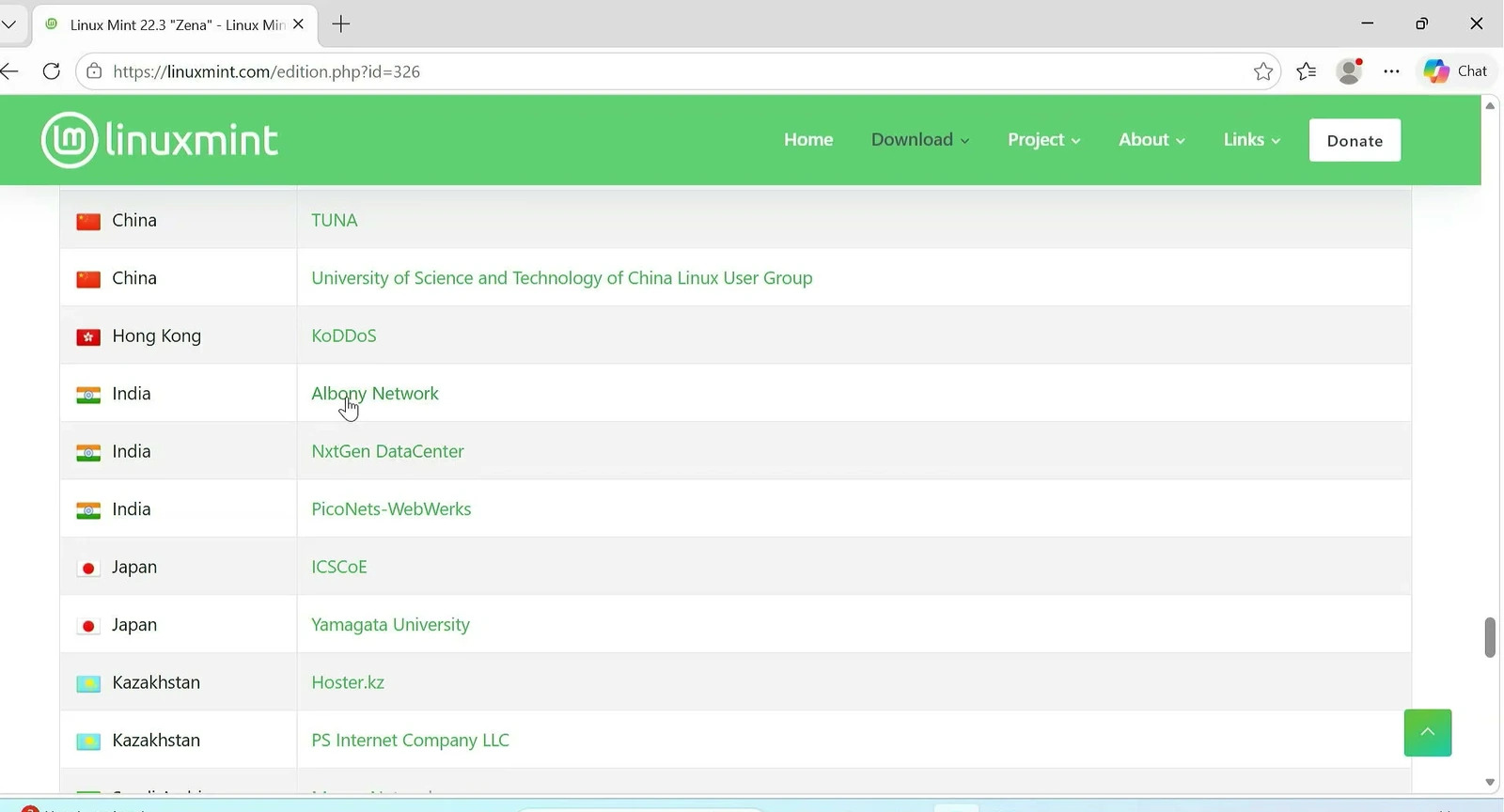
The ISO is the installation image we’ll write to the USB drive. Download it completely before moving on. If you want to check release information or the available editions, you can also visit the official Linux Mint homepage.
Create a bootable USB using balenaEtcher
A downloaded ISO file isn’t enough to boot a PC by itself. We need to write it to a USB drive in a way that makes the computer recognize it as installation media.
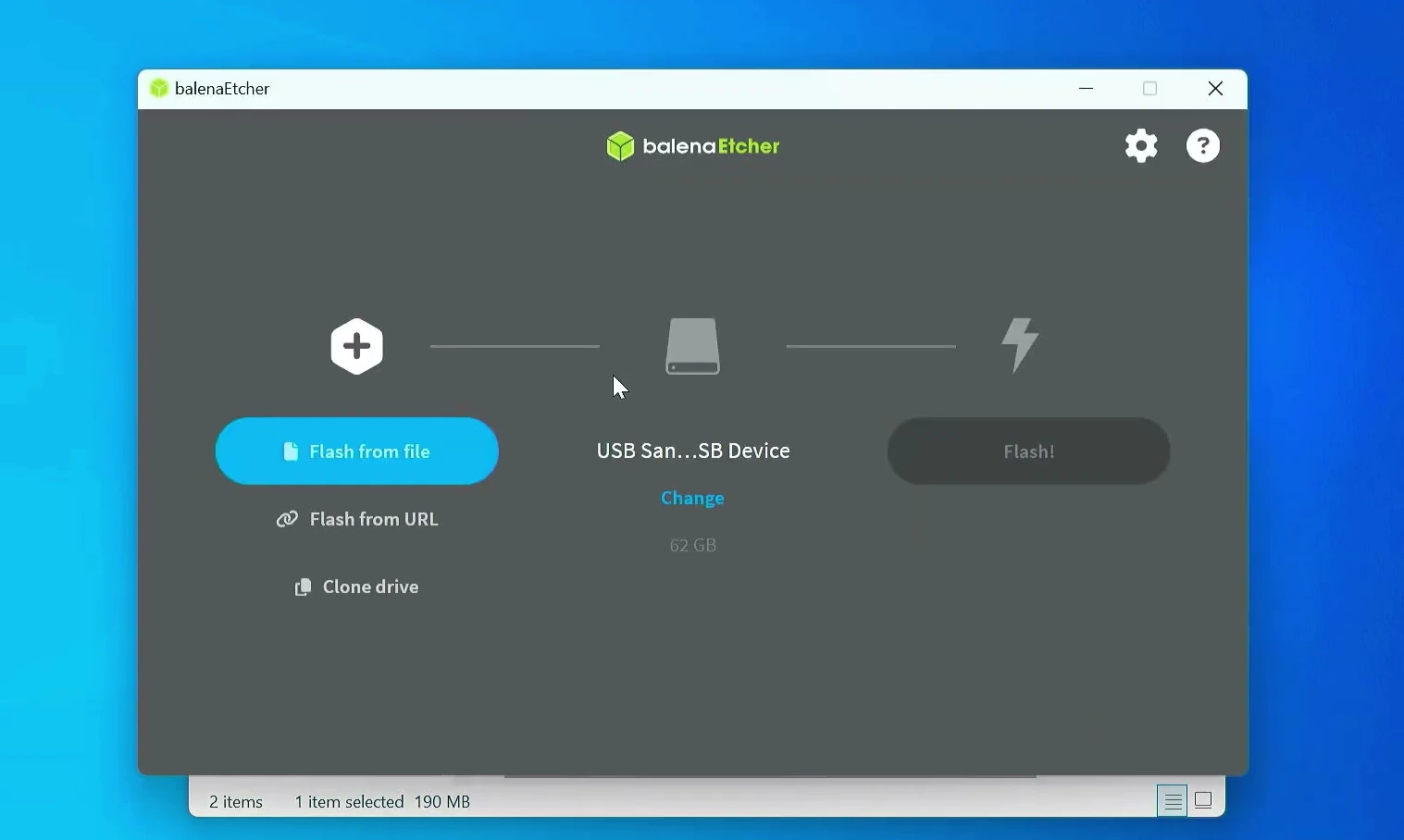
For this, I’ll use balenaEtcher. It’s a simple program that writes operating-system images to USB drives. You don’t need to configure complicated partition options manually.
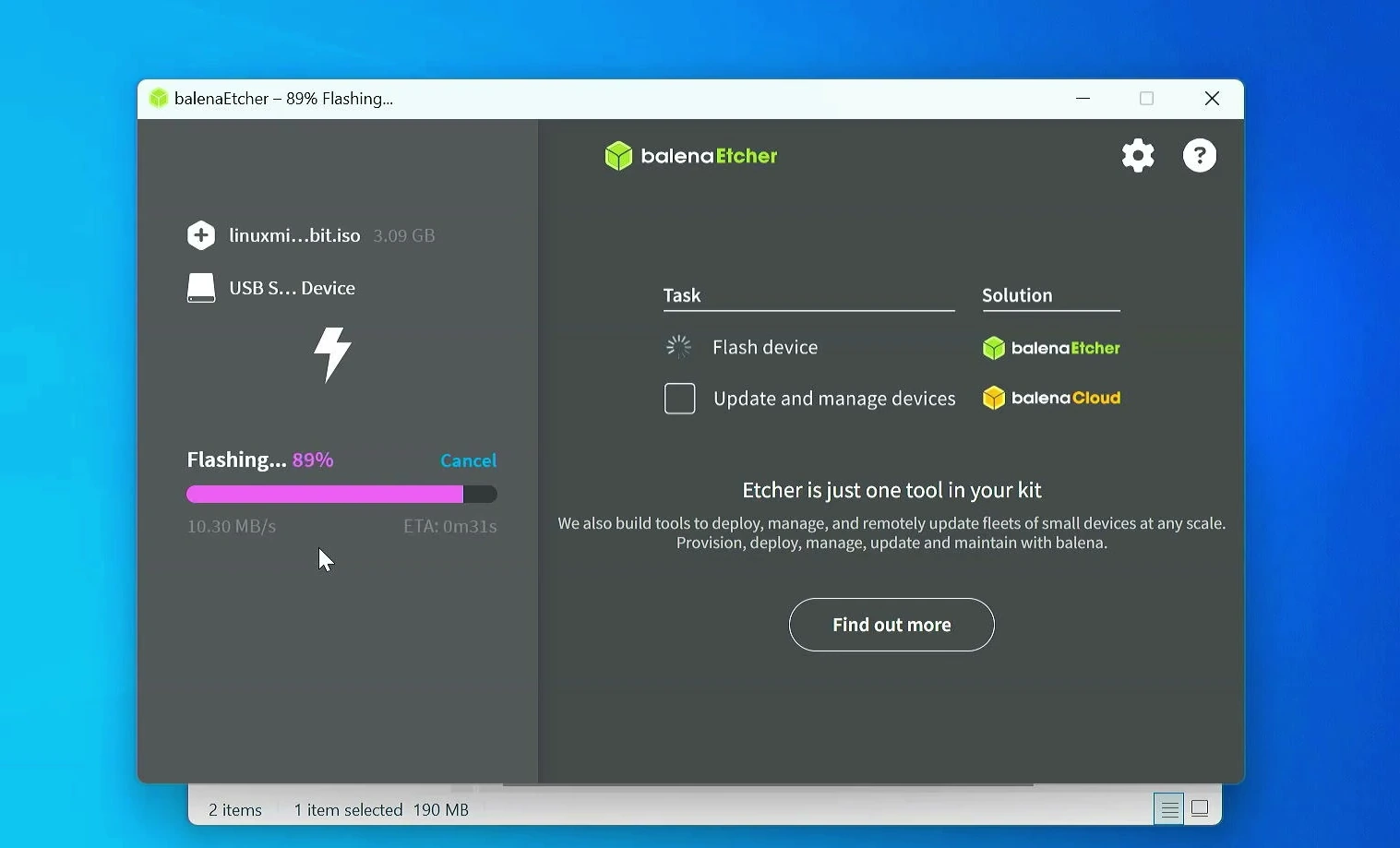
Install and open balenaEtcher, then connect the USB drive. Click Flash from file and select the Linux Mint ISO you downloaded.
Next, choose Select target and make sure the correct USB drive is selected. Double-check its name and capacity, especially if you have more than one drive connected.
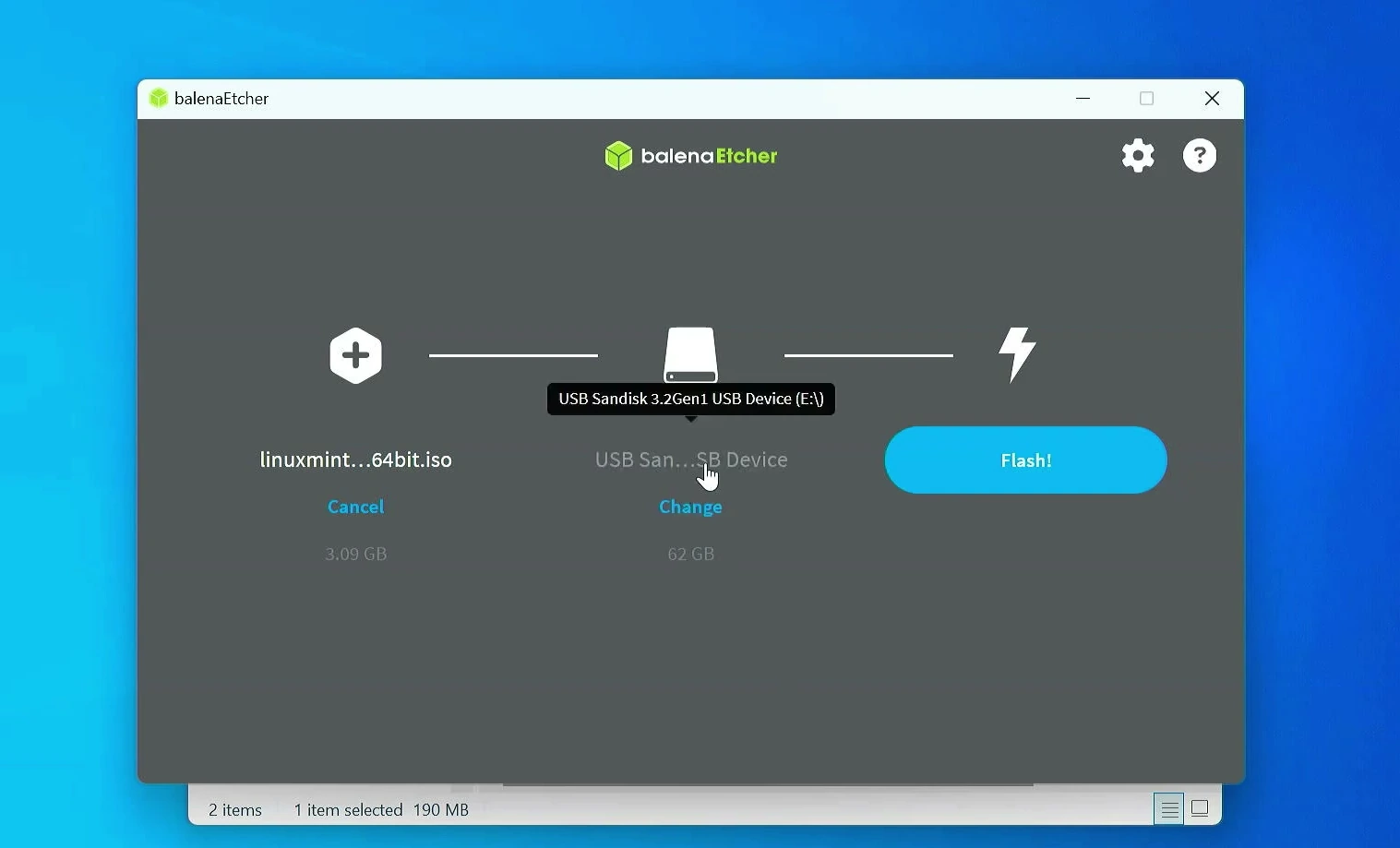
Now click Flash! and allow balenaEtcher to finish writing and verifying the image. When it reports completion, the USB installer is ready.
Boot your computer from the Linux Mint USB
Leave the USB drive connected to the computer where you want to install Linux Mint. Restart the PC and open its boot-device menu. The key varies by manufacturer. Common options include F12, F11, Esc, or F9.
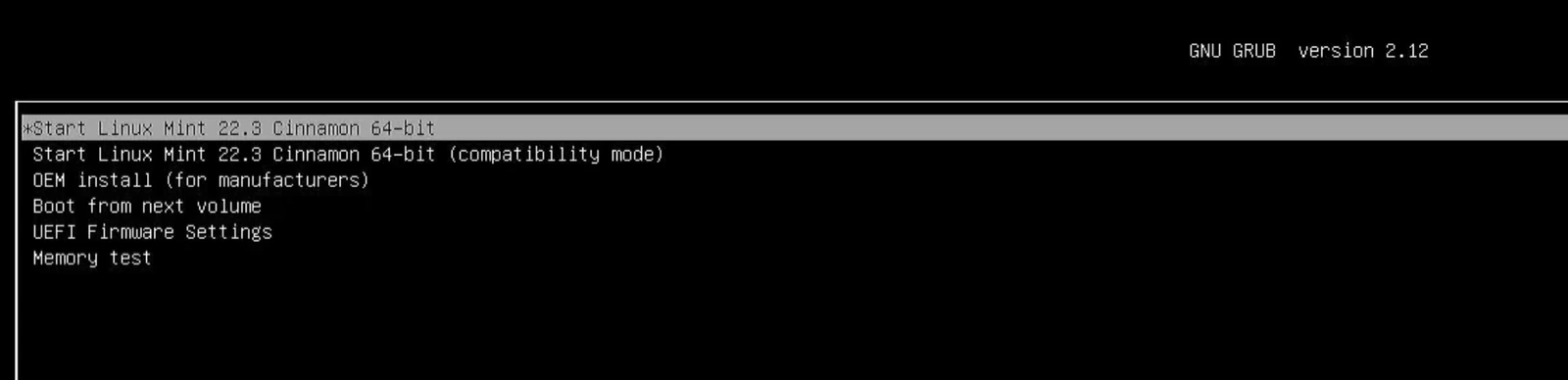
Select the USB drive from the list. On a UEFI computer, you’ll usually see the Linux Mint boot menu. Choose Start Linux Mint and press Enter.
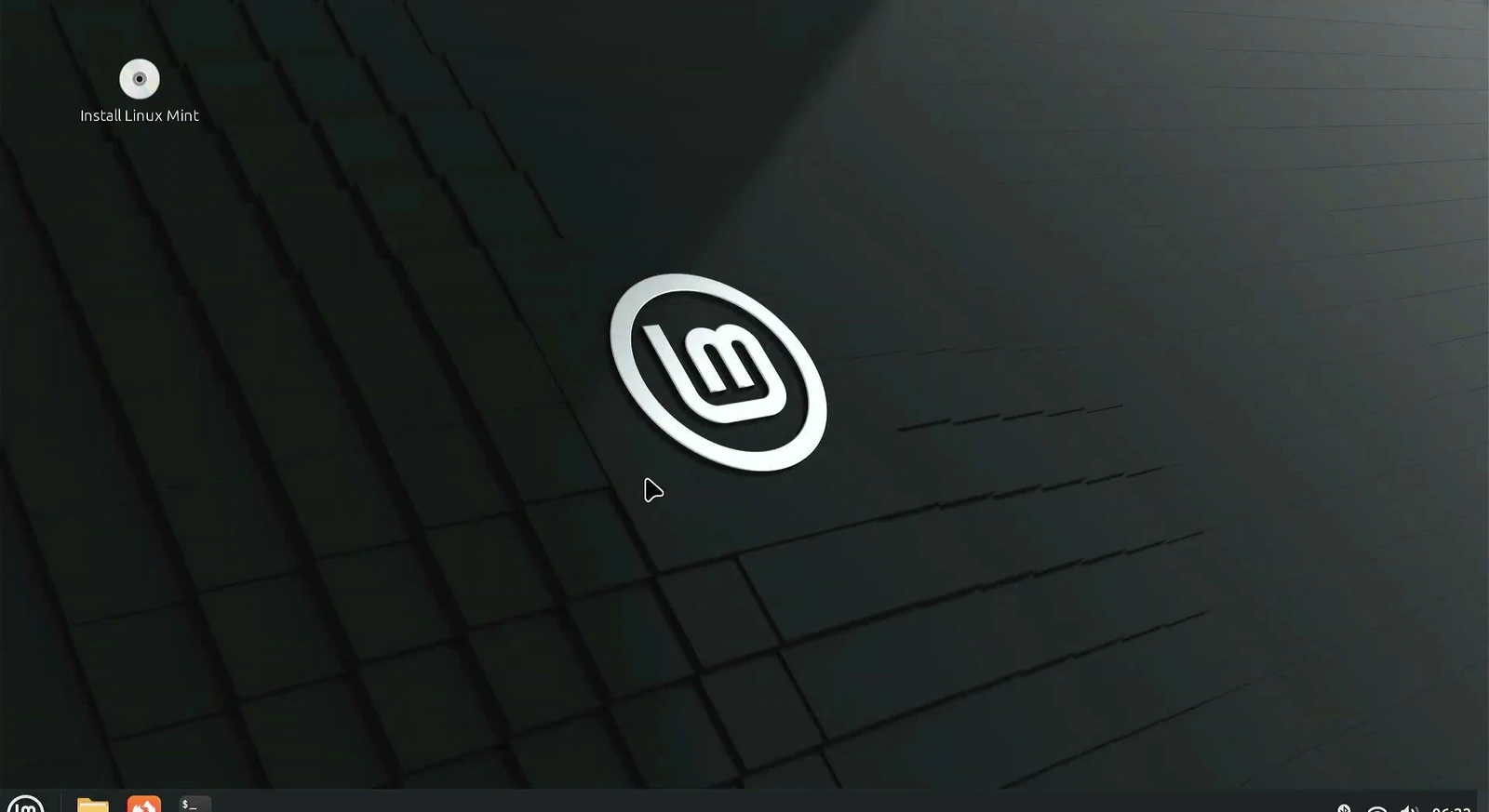
Linux Mint should open in a temporary live session. This is one of my favorite parts of trying Linux. You can explore the desktop before committing to an installation. Open the file manager, test Wi-Fi, check the sound, and see how the keyboard and touchpad behave.
Start installing Linux Mint
When you’re happy with the live desktop, double-click Install Linux Mint. The installer will guide you through language, keyboard, network, and disk settings.
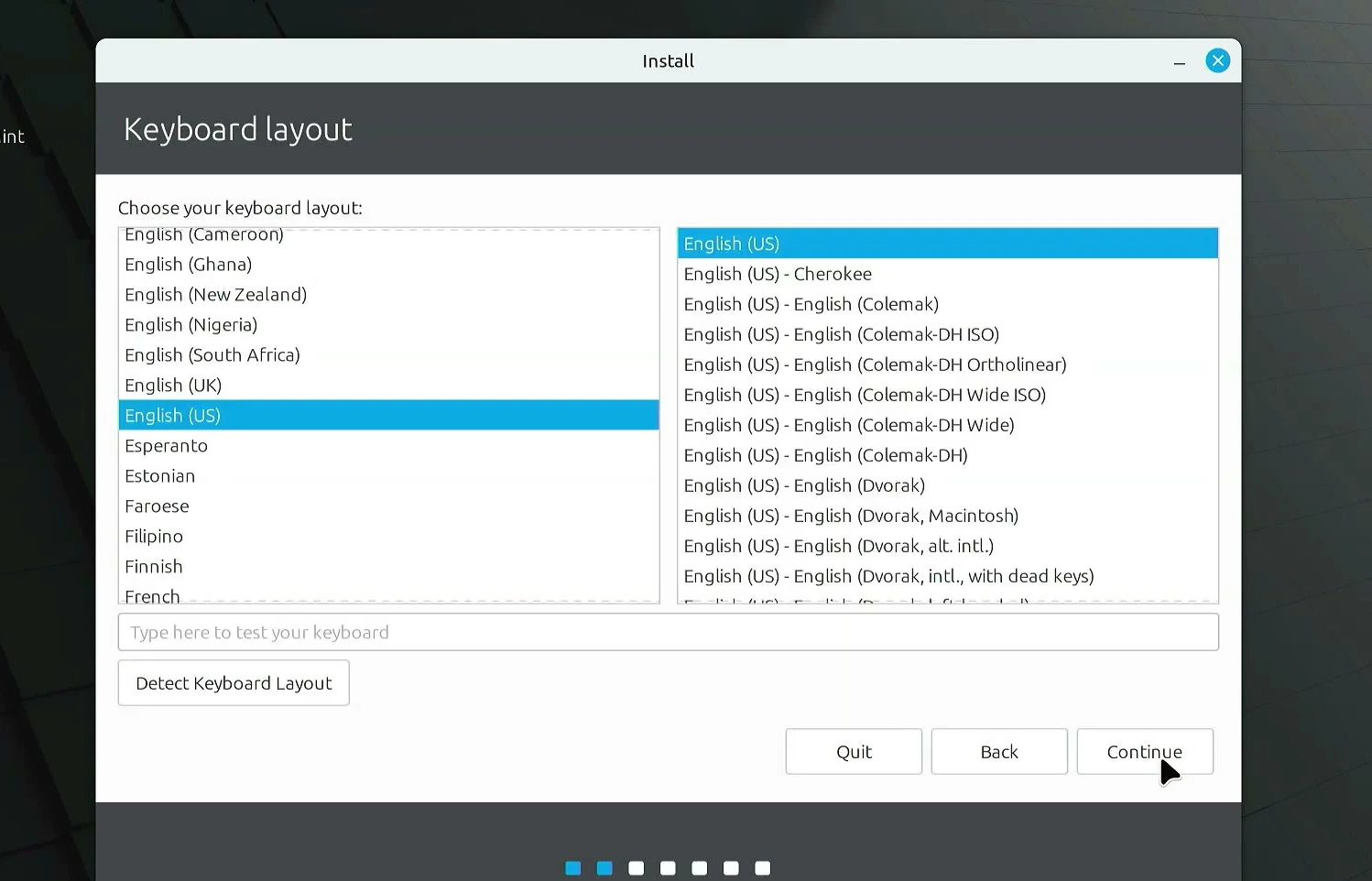
Choose your preferred language, then select the keyboard layout you actually use. The layout matters because it affects what appears when you type, especially symbols in passwords. You can test your keyboard in the field provided before continuing.
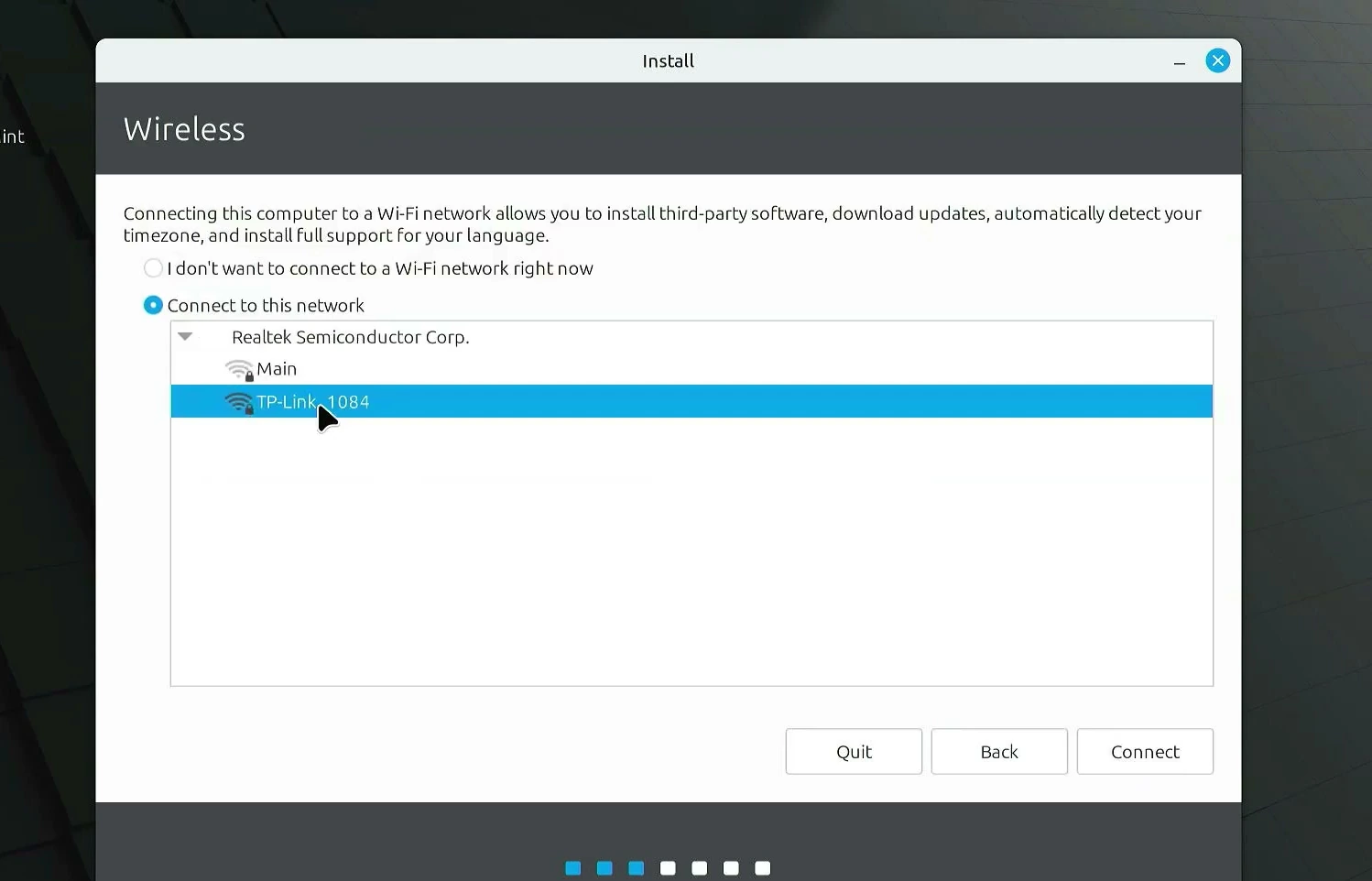
If your computer has Wi-Fi, the installer may ask you to connect to a wireless network. Select your network and enter its password. A wired connection may already be active. You can continue without internet in some cases, but having it available helps with updates and additional components.
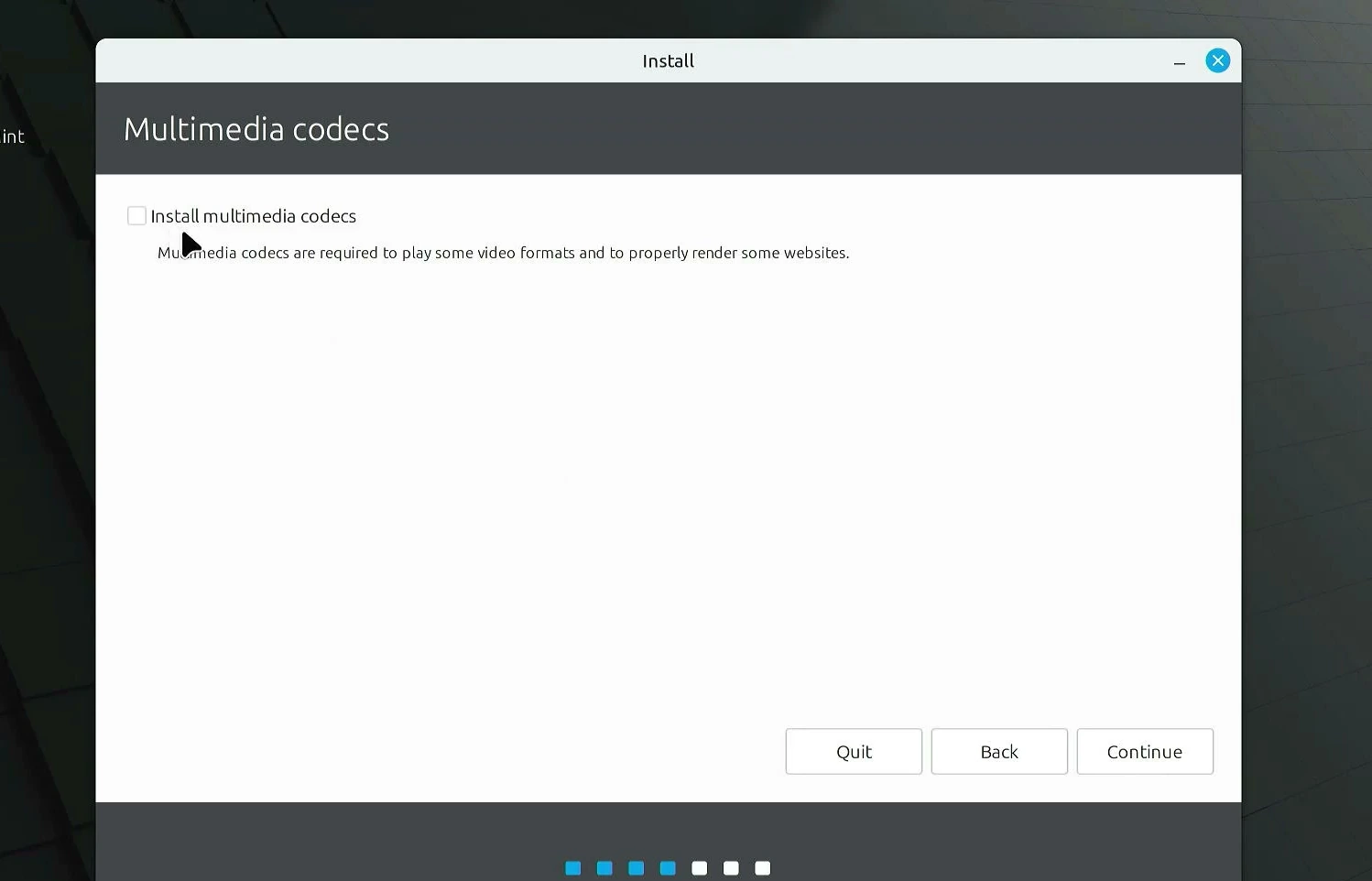
You’ll also see an option to install multimedia codecs. These help Linux Mint handle certain audio and video formats. Enable the option if you want those codecs installed during setup and the option is available.
Choose whether to keep Windows or erase the drive
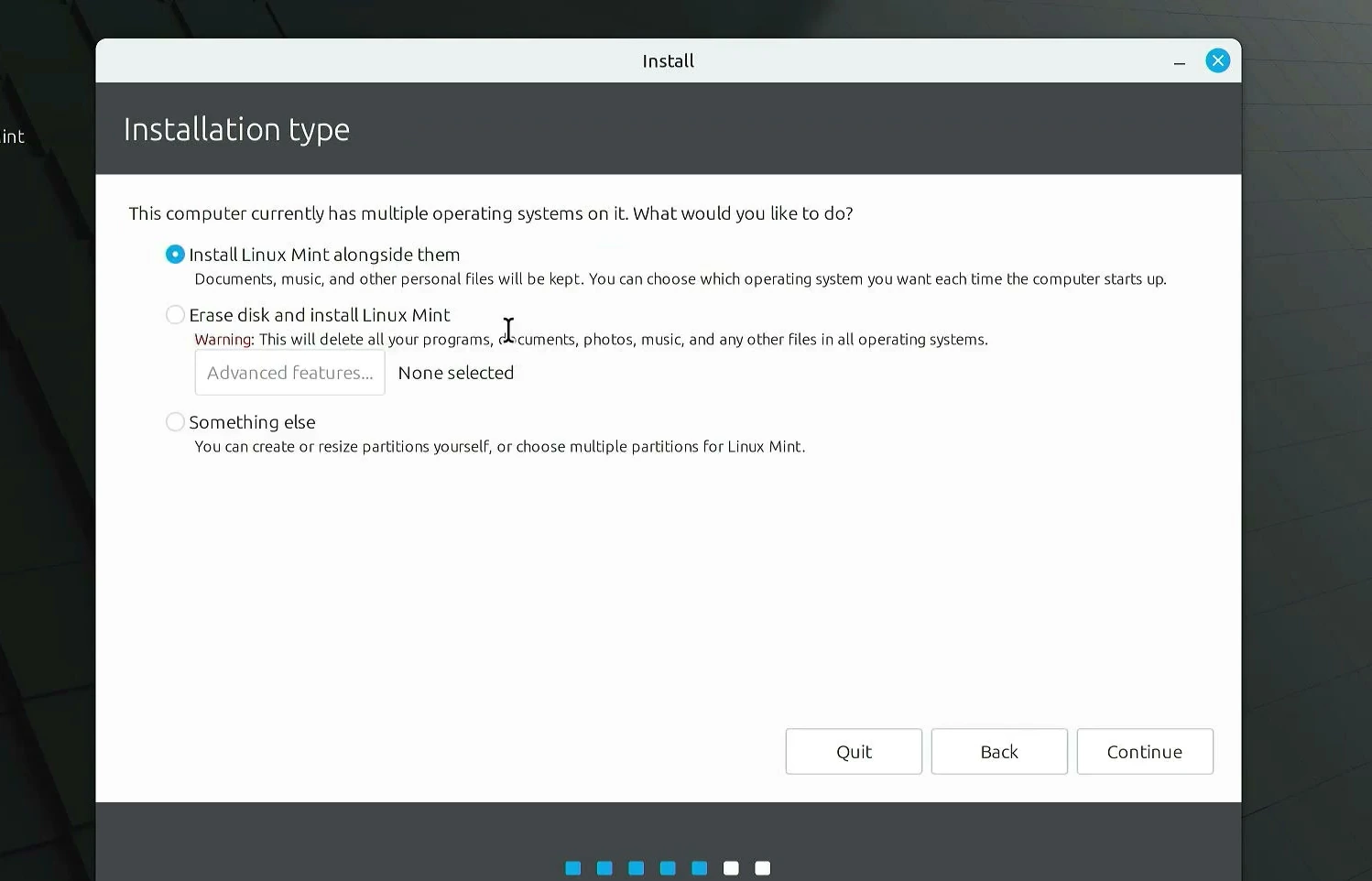
This is the most important decision in the entire installation. Linux Mint may offer different choices depending on how your computer’s storage is configured.
- Install Linux Mint alongside them: Keeps the detected operating systems and installs Linux Mint alongside them. You can choose which system to start later. This option only appears when the installer can offer it.
- Erase disk and install Linux Mint: Deletes the existing systems and files on the selected disk. Choose it only when you’re certain you want to replace everything on that drive.
- Something else: Allows manual partition selection. This is best left to readers who already understand partitions and mount points.
On my test computer, the installer detects multiple existing operating systems, so the alongside option is available. If your goal is a Windows and Linux dual-boot setup, examine that option carefully and review the proposed partition changes before accepting anything.
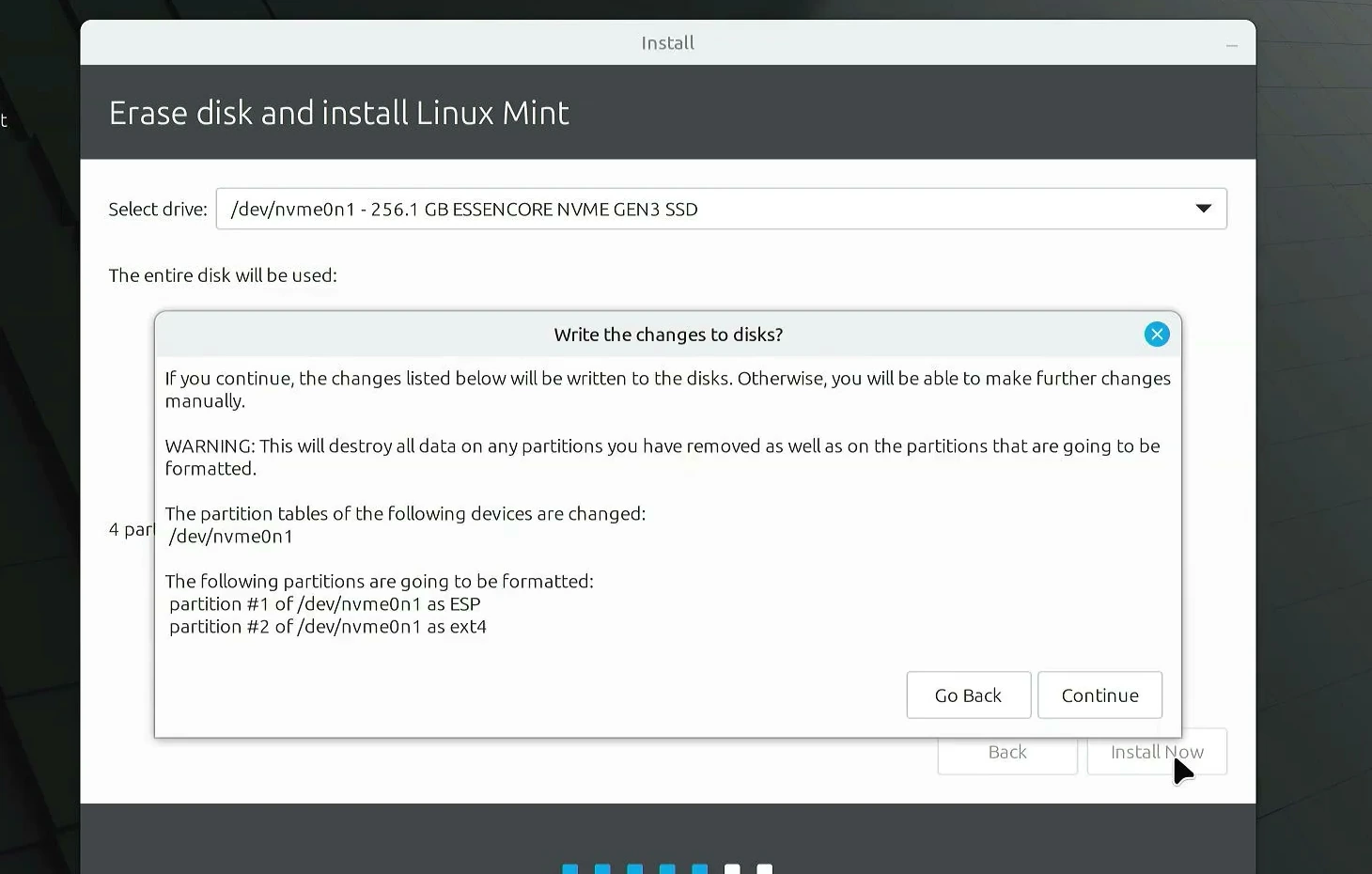
For a full replacement, the option is Erase disk and install Linux Mint. That’s the choice I select in this installation. It is not the option to choose if you want to preserve Windows on the selected drive.
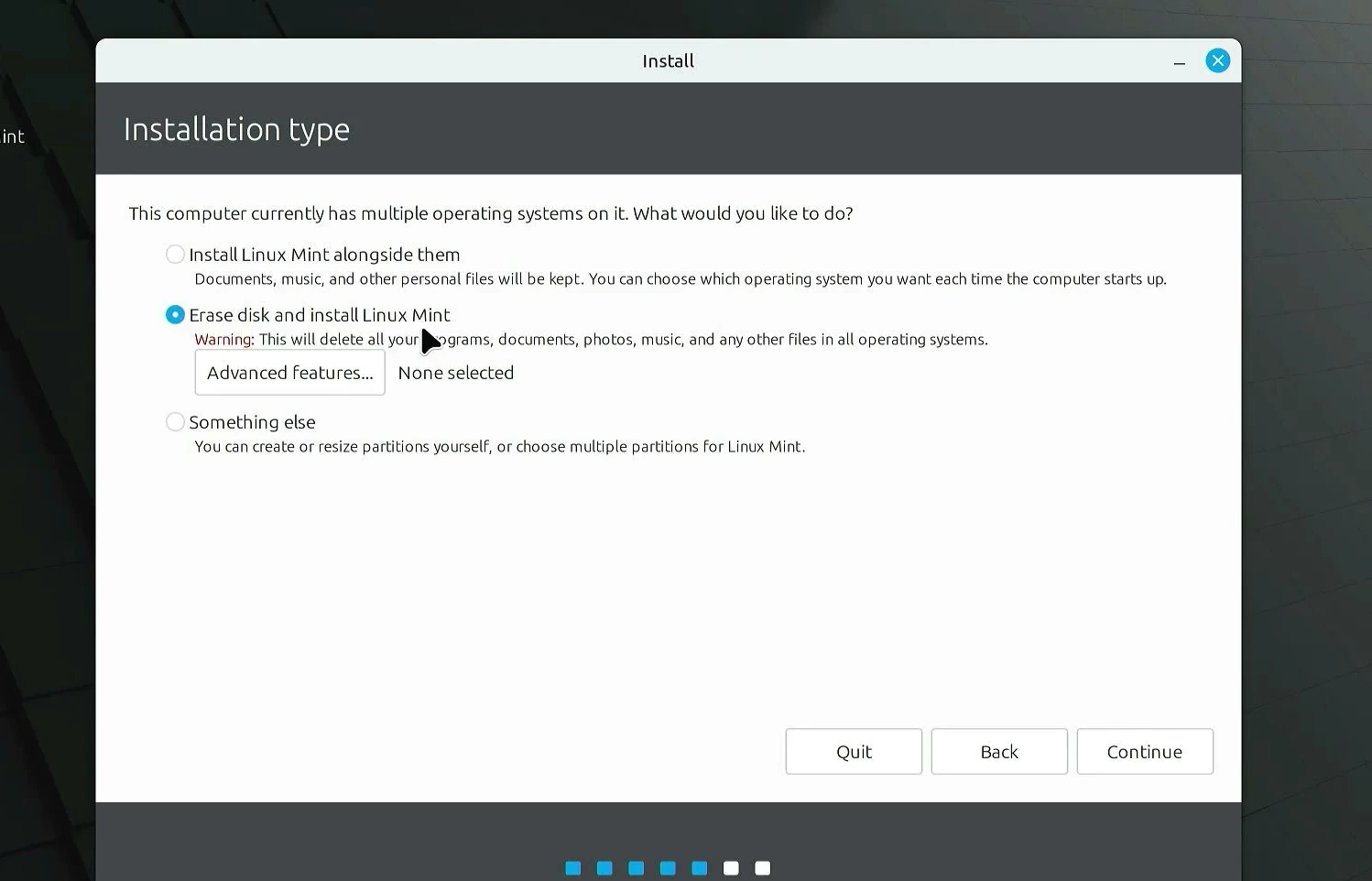
Before writing anything to the disk, the installer shows which drive and partitions will be changed. Read this screen slowly. Confirm the drive name and size, and make sure there is nothing left on it that you need. Only then click Continue.
Set your location and create a user account
Next, choose your time zone. You can select it on the map or by entering a nearby city. Linux Mint uses this information to show the correct local time.
Then fill in your account details. Enter your name, give the computer a recognizable name, and choose a username. Create a strong password you can remember. You’ll use this password to sign in and approve certain system changes later.
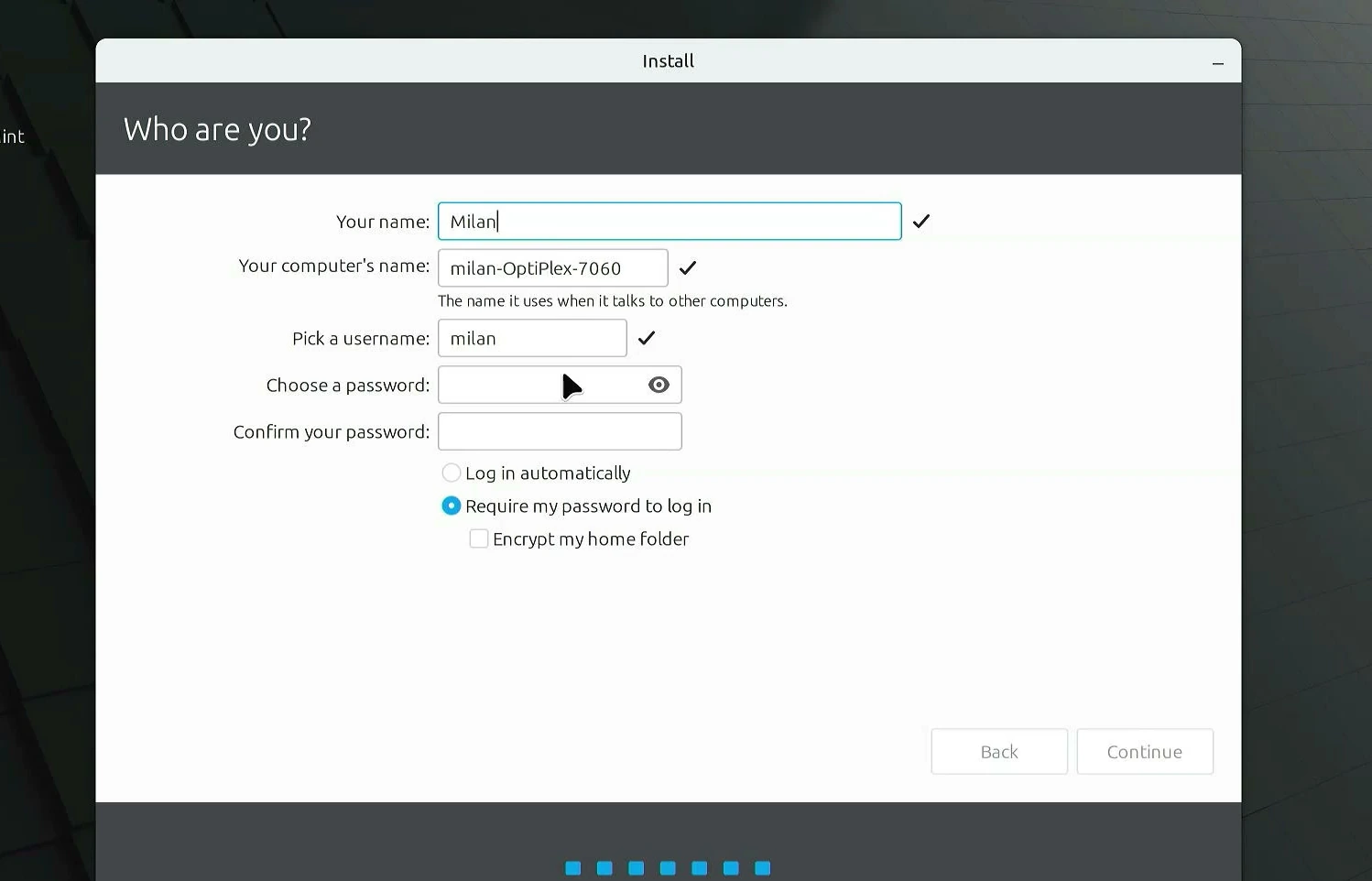
You may see options for automatic login or requiring a password. Requiring a password is the safer choice, especially if other people can access the computer.
Linux Mint will now copy the files and finish installing. You might see a few introductory screens while it works. When the installer reports completion, choose Restart Now. Remove the USB drive when prompted so the computer starts from its internal disk.
Your first Linux Mint desktop
After restarting, Linux Mint should open from your SSD or hard drive instead of the USB. Sign in using the account you created. You’ll arrive at a familiar desktop with an application menu, panel, file manager, and web browser.
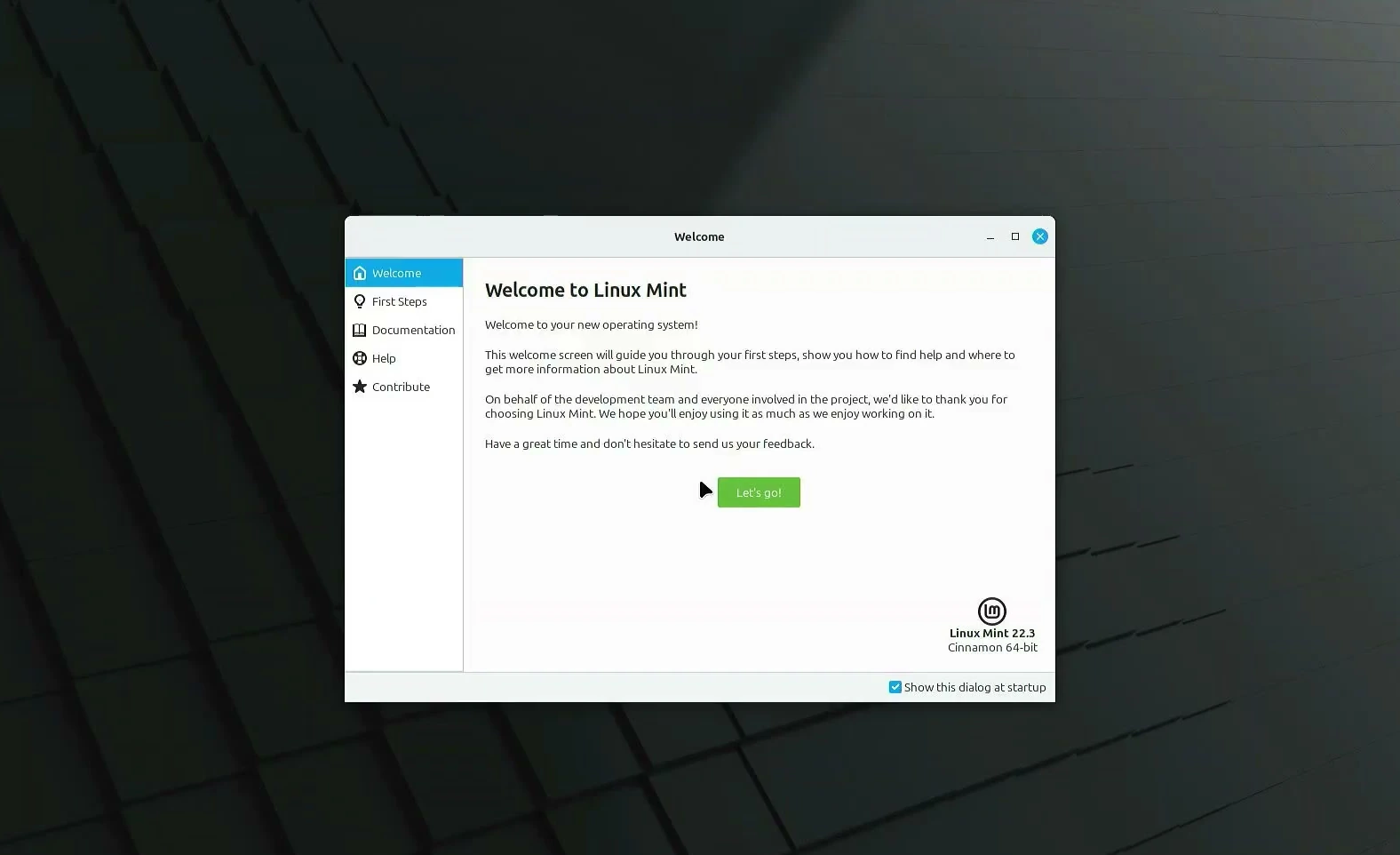
Take a moment to look around. Open the browser, explore the applications menu, and check that your internet connection works. You can also open the Update Manager to install available updates before settling in.
And that’s the appeal of Linux Mint. You can give an older computer a new purpose without having to learn everything from scratch. Whether you replace Windows or keep both systems, you now have a practical Linux desktop ready for everyday use.