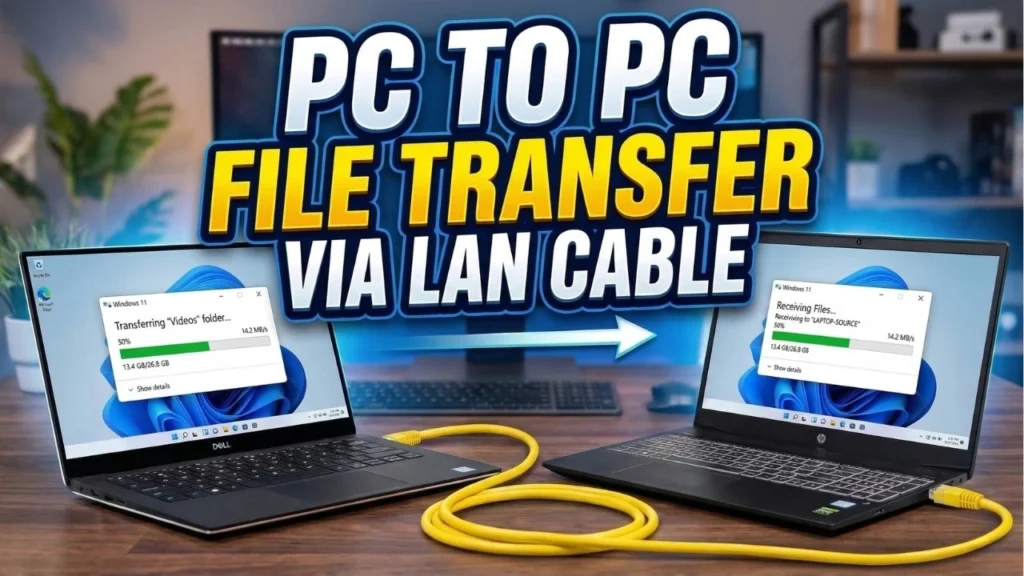
Moving a big folder between two computers shouldn’t feel like a workout for your USB drive. But if one PC runs Windows and the other runs Linux, sharing files can seem more complicated than it needs to be. The good news is that you can connect them directly with an Ethernet cable and transfer files without relying on Wi-Fi, cloud storage, or even an internet connection.
For this setup, I’m using a Windows 11 PC and a computer running Ubuntu. Windows makes a folder available on the local network, and Ubuntu opens it using SMB, the file-sharing system that Windows already supports. Once everything is connected, copying a large video or backup feels much like moving files between two folders on the same computer.
This method is especially handy when you’re moving large files to a new PC, working between Windows and Linux, or just want a dependable wired connection. You can transfer files in either direction, provided the shared folder permissions allow it.
Connect the two computers with an Ethernet cable
Start by connecting one end of a normal Ethernet cable to your Windows PC and the other end to your Ubuntu computer. Most modern Ethernet adapters support a direct connection, so you normally don’t need a special crossover cable.
Because there’s no router handing out addresses, we’ll give each computer a fixed IP address. That simply tells them where to find each other on this small, two-device network. We’re using 192.168.1.1 for Windows and 192.168.1.2 for Ubuntu.
Set a static IP address on Windows 11
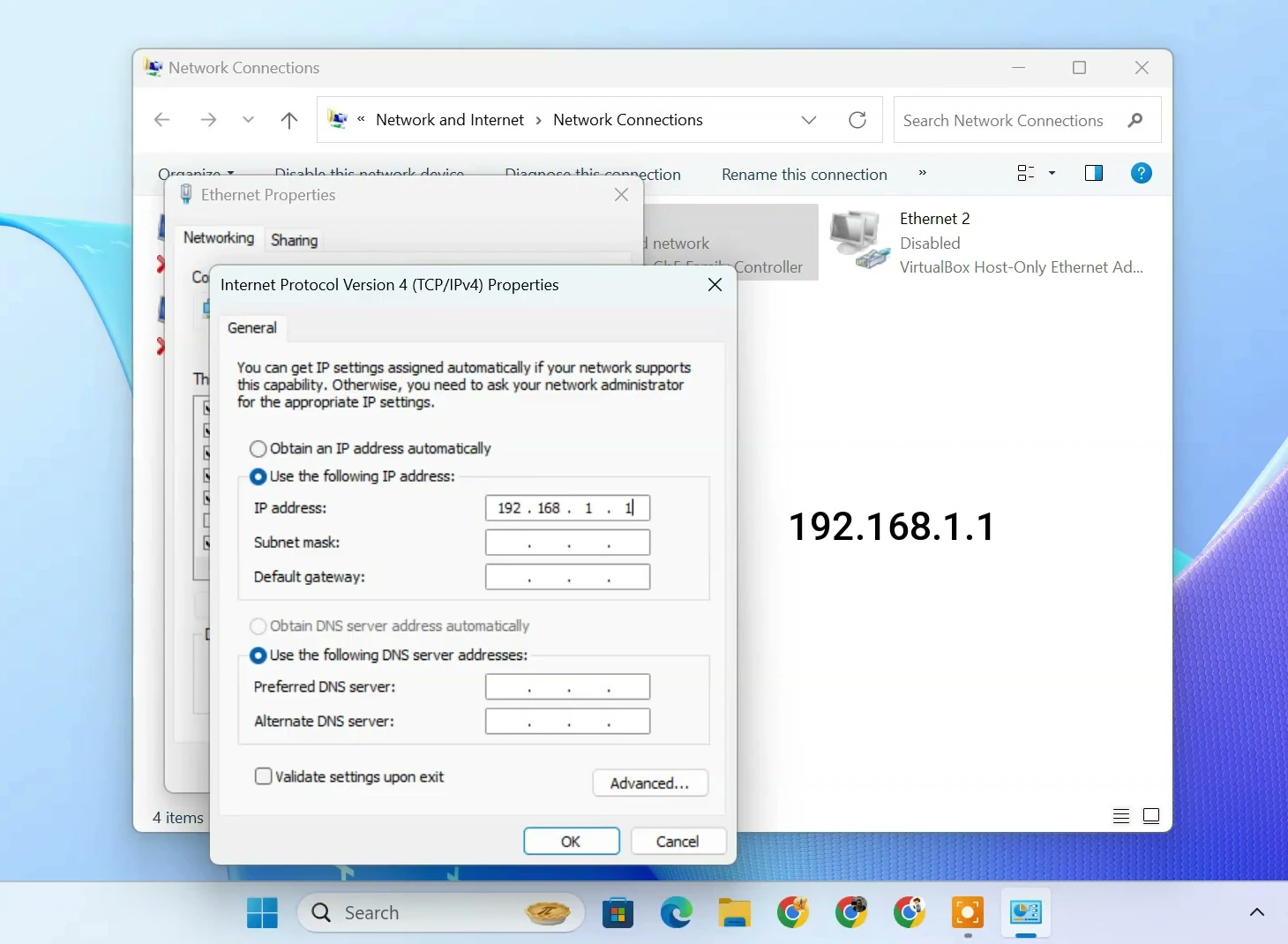
On the Windows PC, search for View network connections and open it. Find the Ethernet adapter connected to Ubuntu, right-click it, and choose Properties.
Select Internet Protocol Version 4 (TCP/IPv4), then click Properties again. Choose Use the following IP address and enter these values.
- IP address:
192.168.1.1 - Subnet mask:
255.255.255.0 - Default gateway: Leave it empty.
There is no gateway because these two computers are talking directly to each other, not through a router. Click OK to save the address.
Allow Windows to share files
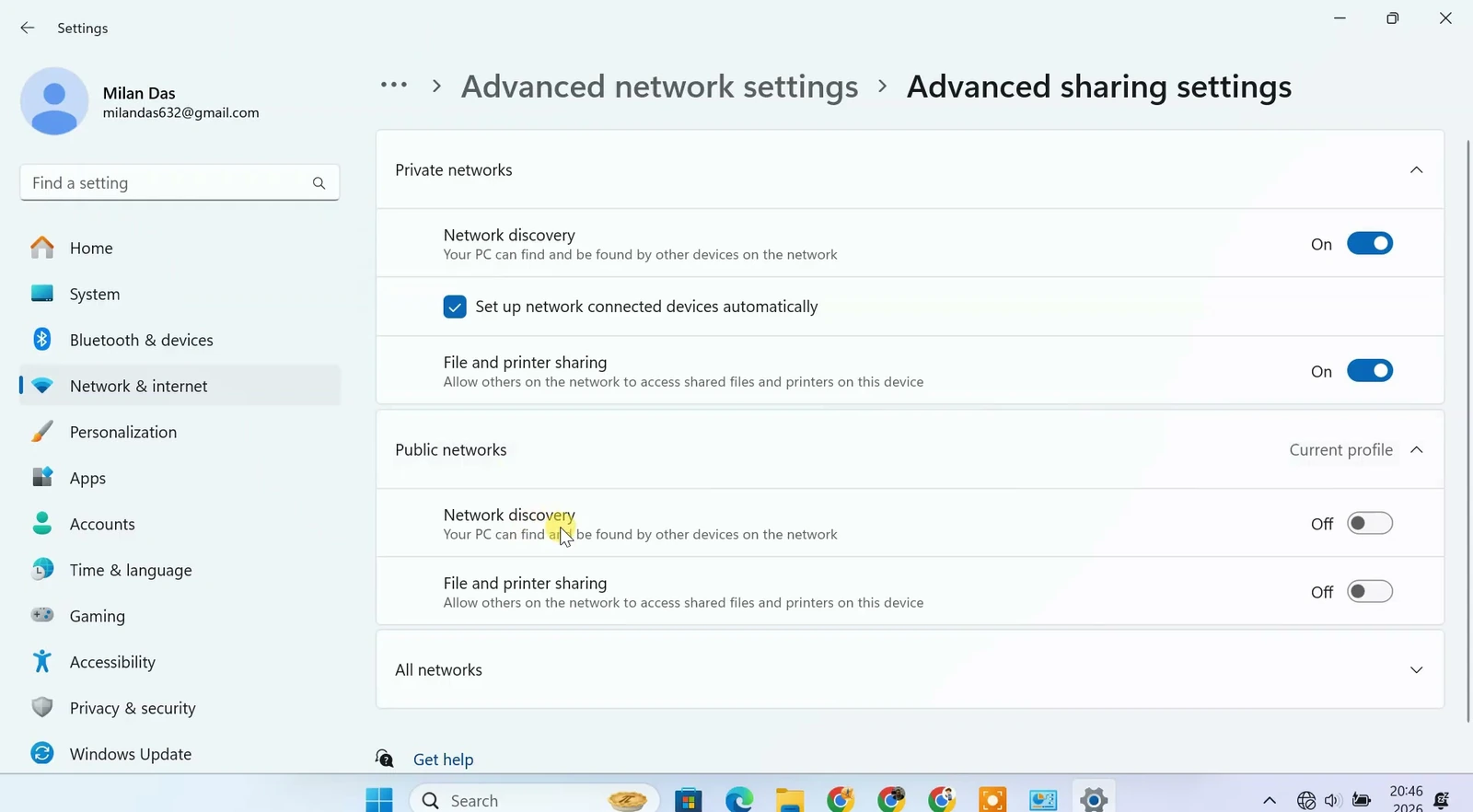
Next, we need to let Ubuntu access a folder on the Windows computer. Open Settings → Network & internet → Advanced network settings → Advanced sharing settings. The wording may vary slightly depending on your Windows version.
For a trusted direct connection, use the Private network profile and turn on Network discovery and File and printer sharing. These options allow Windows to make its shares available to other devices on that network.
Create a Windows account for file sharing
Instead of giving Ubuntu access through your everyday Windows account, you can create a separate local account for file transfers. That keeps the login details for this connection separate from the account you normally use.
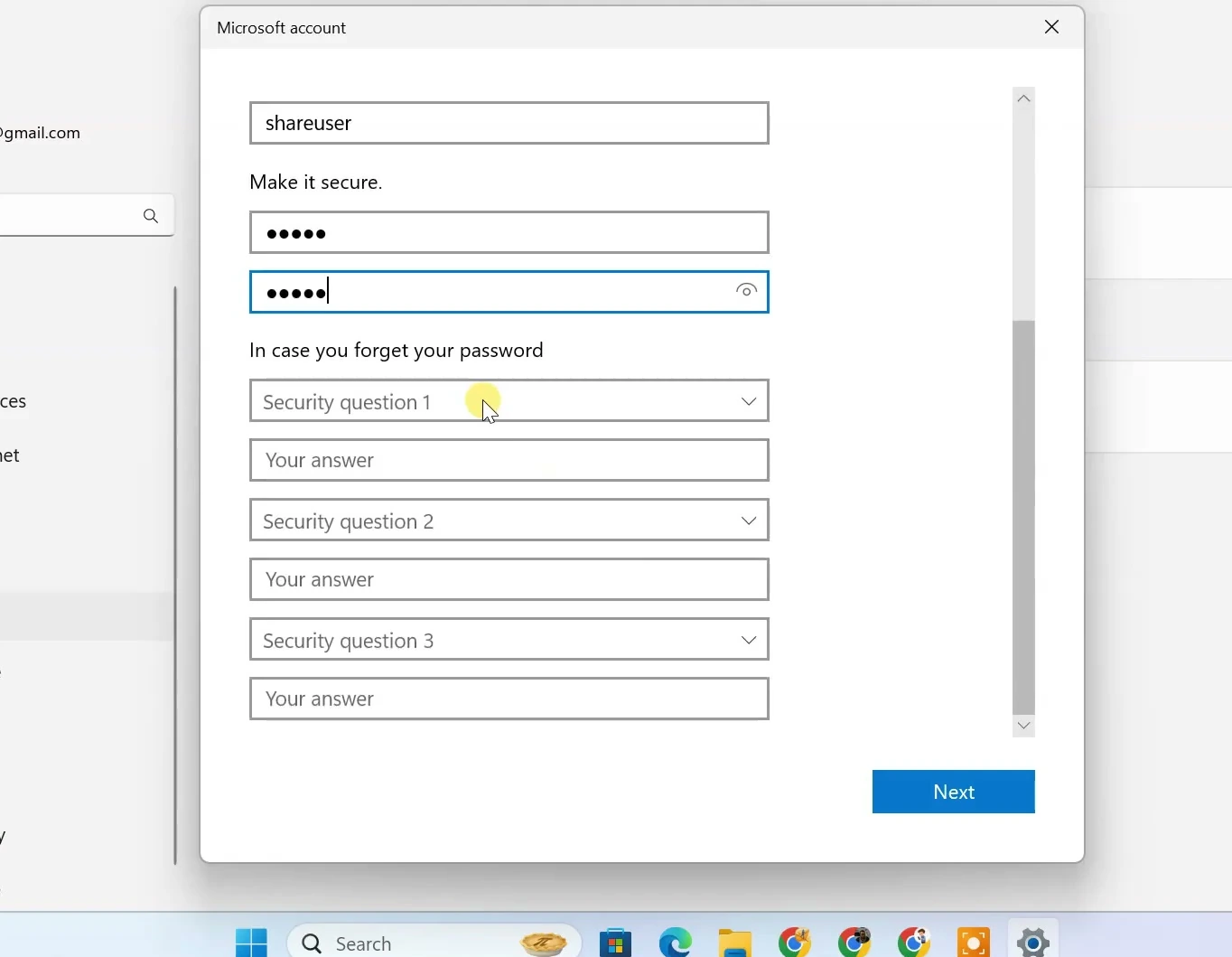
Go to Settings → Accounts → Other users and select Add account. Choose the option to add a user without a Microsoft account. Give it a simple name such as shareuser and set a strong password.
Keep those details handy. Ubuntu will ask for this Windows username and password when it connects to the shared folder.
Choose a folder and set its permissions
Now create a folder on Windows for the files you want to share. I’ll call mine Shared Folder and place some videos and other files inside it. Using one dedicated folder is easier than exposing an entire drive.
Right-click the folder, open Properties, then go to Sharing → Advanced Sharing. Enable Share this folder and open Permissions.
Click Add, enter the local account name you created, and select Check Names. Once Windows recognizes the account, add it to the permissions list.
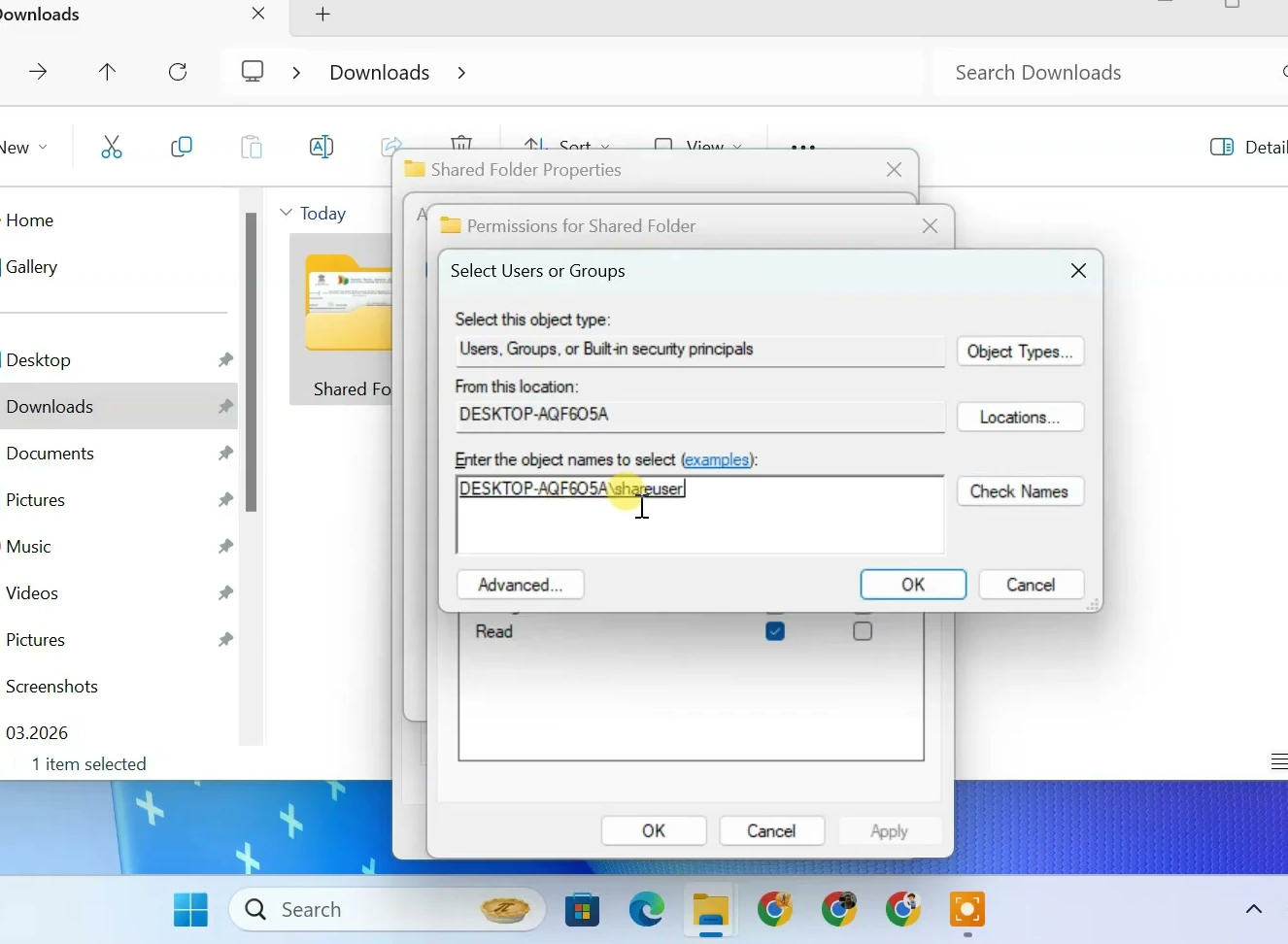
Choose the access this person actually needs. Read is enough if Ubuntu will only download files from Windows. If you want to copy files back into this folder, allow Change as well. The video also uses broader Full Control permissions, but they aren’t necessary for ordinary file transfers.
There’s one more permission screen to check. Open the folder’s Security tab, select Edit, and add the same local account if it’s missing. Give it matching read or write access there too. Windows applies both the sharing permissions and the Security tab permissions, so an account needs access in both places.
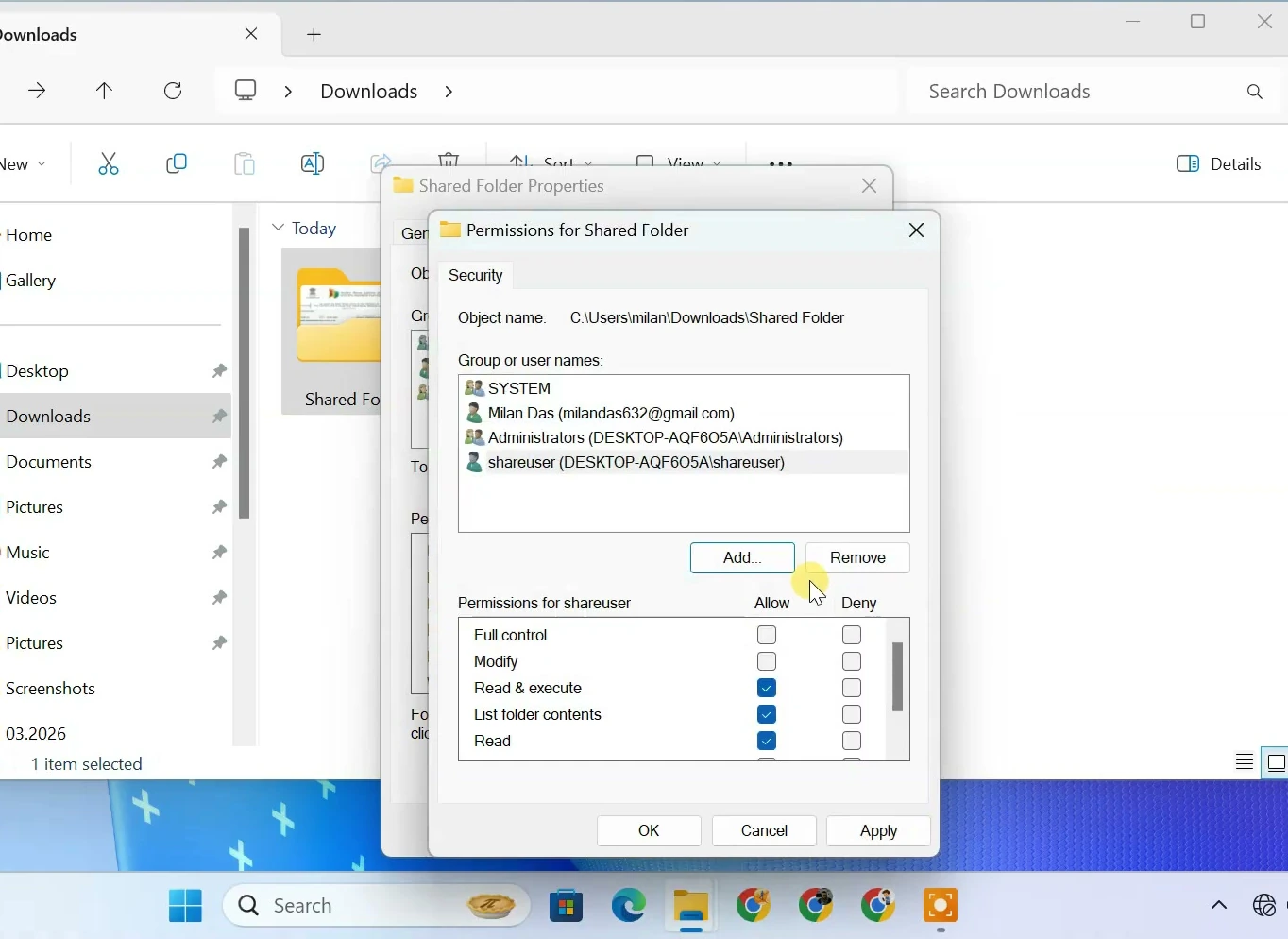
Once these settings are saved, the Windows side is ready. Leave the PC switched on while you transfer files.
Give Ubuntu its own IP address
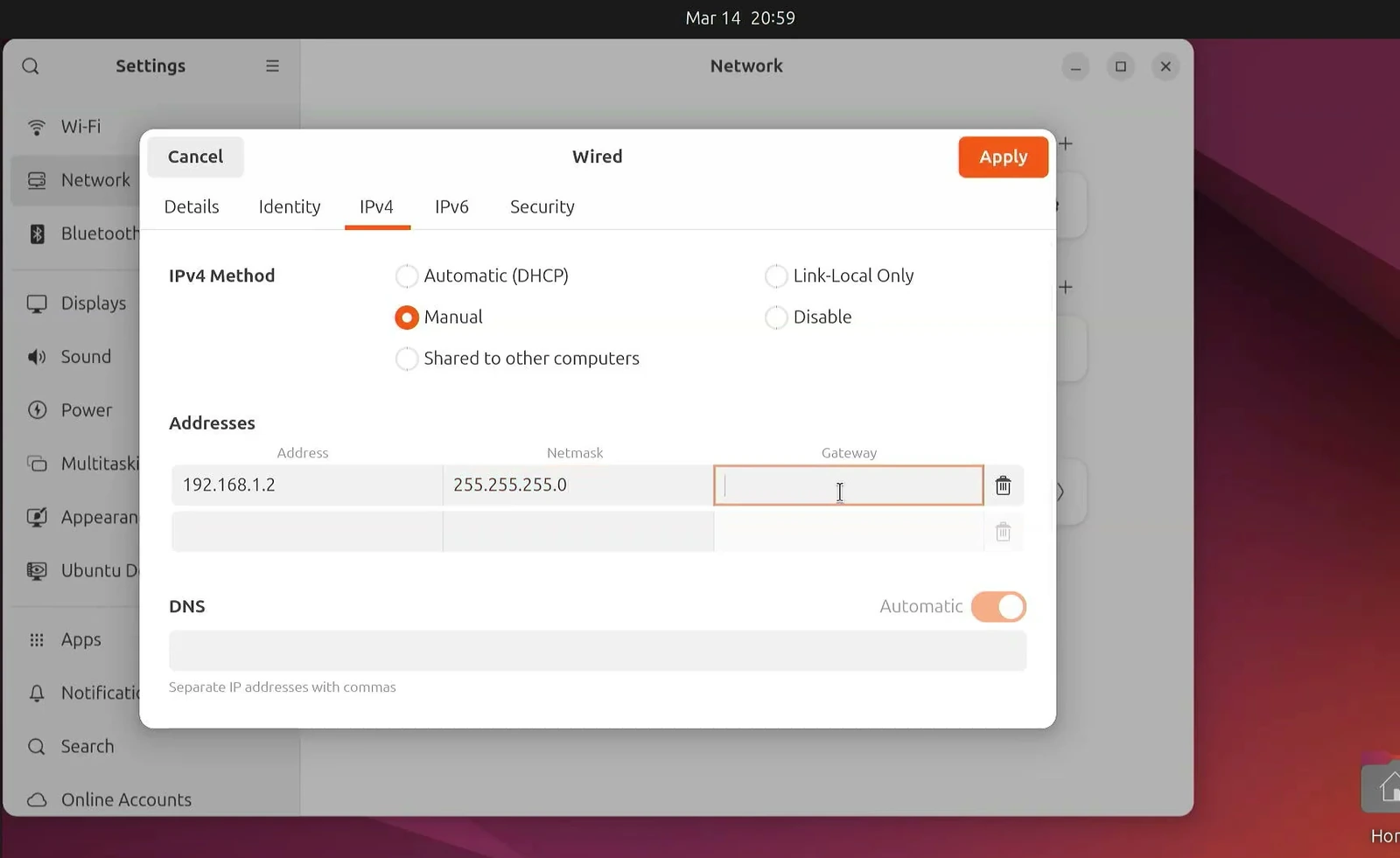
Let’s move over to Ubuntu. Open Settings → Network, find your Wired connection, and click the gear icon beside it.
Open the IPv4 tab and change the method to Manual. Add the following address information.
- Address:
192.168.1.2 - Netmask:
255.255.255.0 - Gateway: Leave it empty.
Both computers now have different addresses in the same network. Click Apply and toggle the wired connection off and on if Ubuntu doesn’t activate the new settings immediately.
Open the Windows folder from Ubuntu
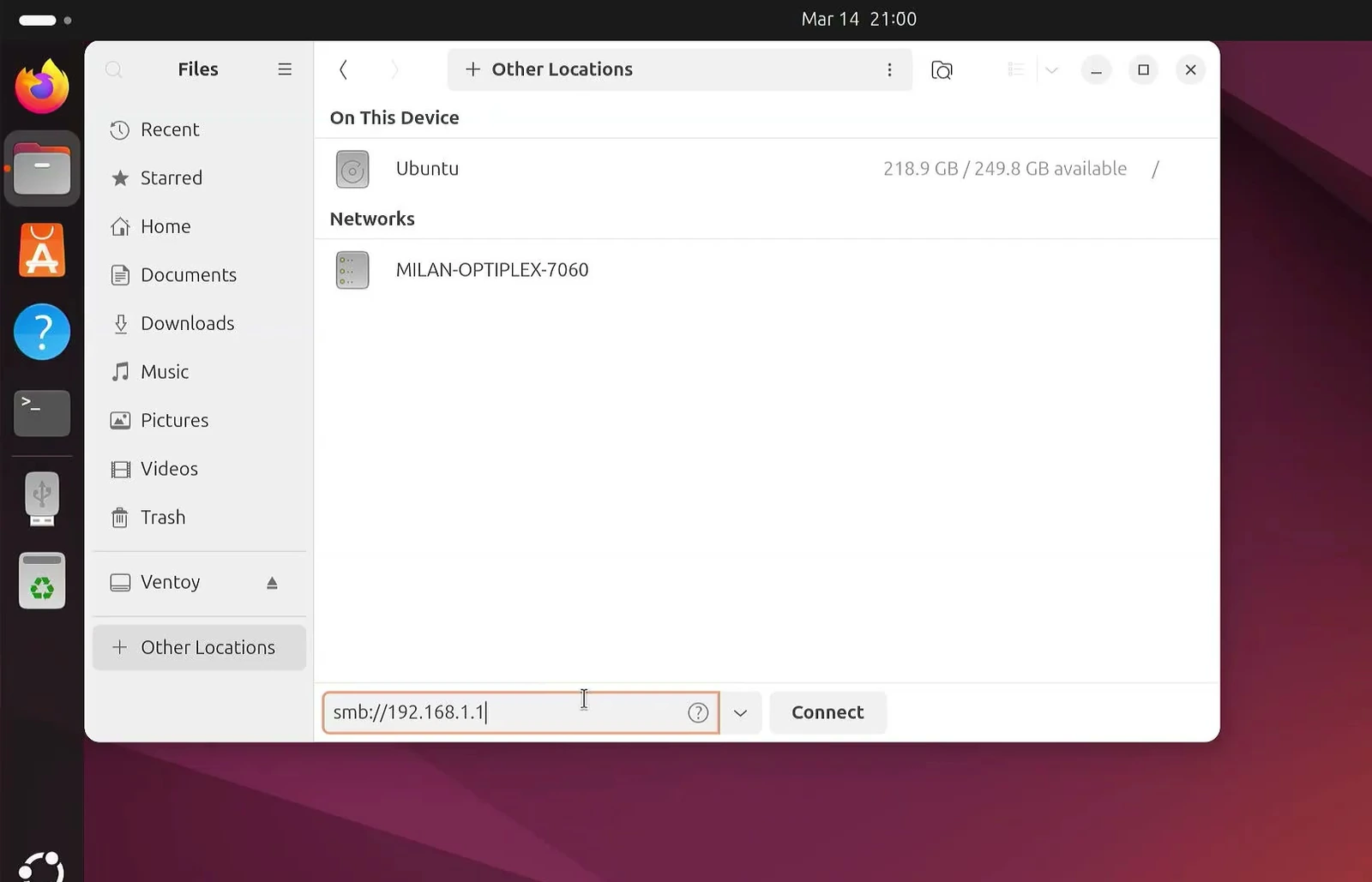
With the wired connection ready, open Ubuntu’s Files app. Select Other Locations from the sidebar. At the bottom, you’ll find a field for connecting to a server.
Enter smb://192.168.1.1 and click Connect. The smb:// part tells Ubuntu that you’re connecting to a Windows-style network share. The IP address identifies the Windows PC.
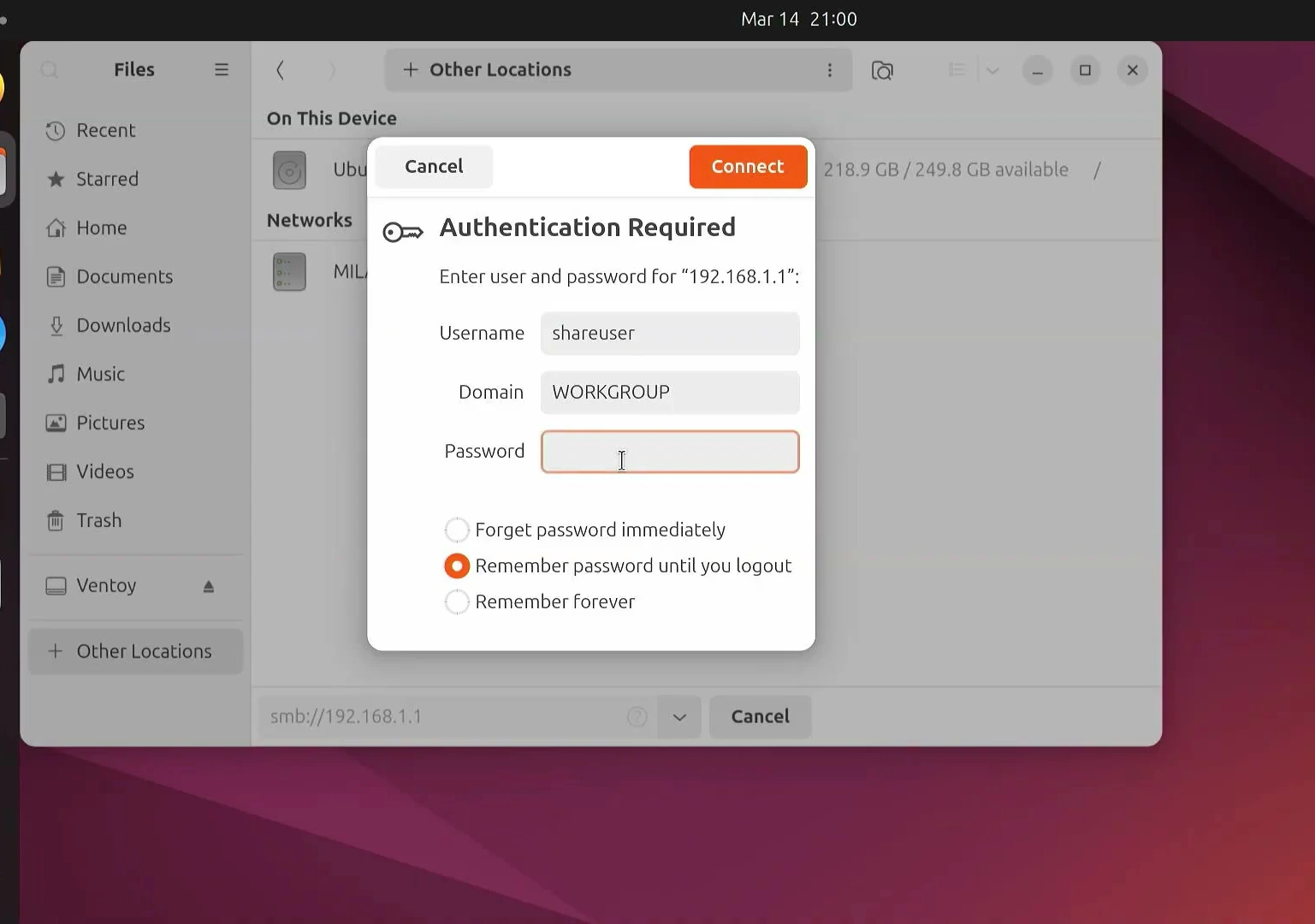
Ubuntu should ask for the login details of the Windows account. Enter the username you created earlier, such as shareuser, along with its password. If a domain field appears, the default WORKGROUP value is usually suitable for a simple Windows workgroup setup.
Once connected, you’ll see the available Windows shares. Open Shared Folder to view the files you placed inside it. You can now browse them from Ubuntu just as you would open a local folder.
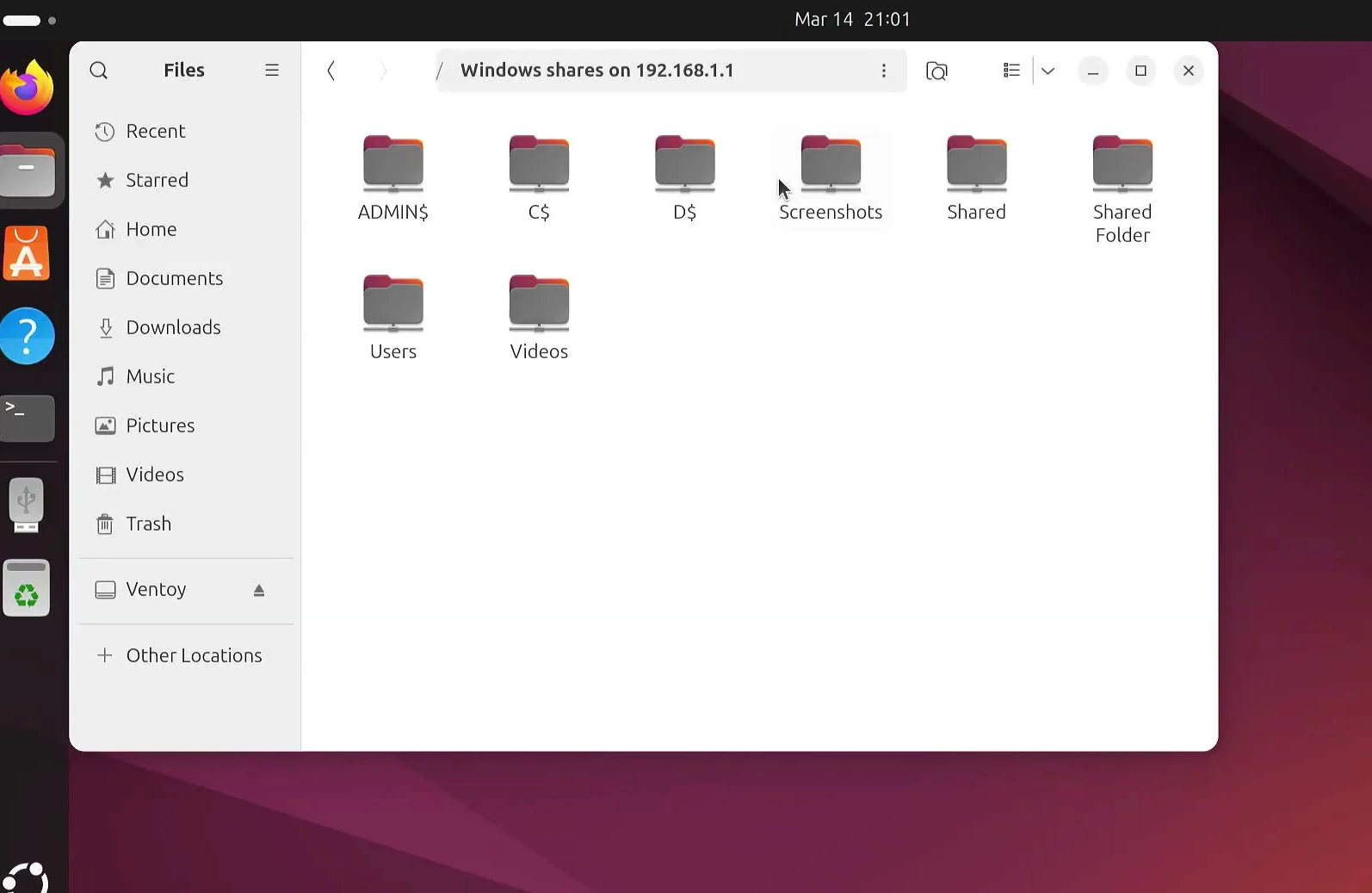
Copy files in either direction
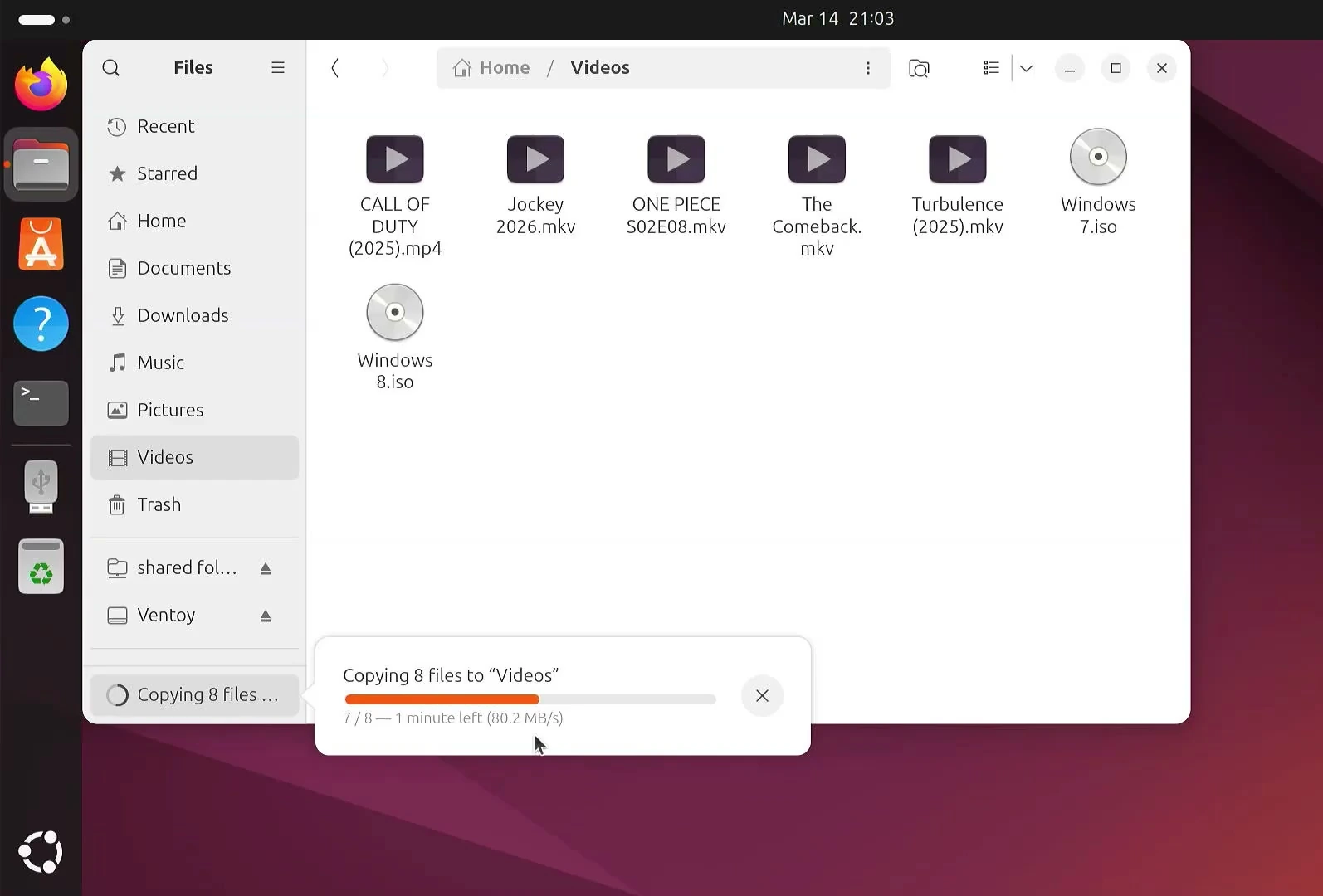
Here comes the useful part. To transfer files from Windows to Ubuntu, select the files in the shared folder and copy them into a local Ubuntu folder. I copied several large files into Ubuntu’s Videos folder during my test.
For the opposite direction, drag files from Ubuntu into the shared Windows folder. As long as the Windows account has write permission, they’ll be copied back across the Ethernet cable.
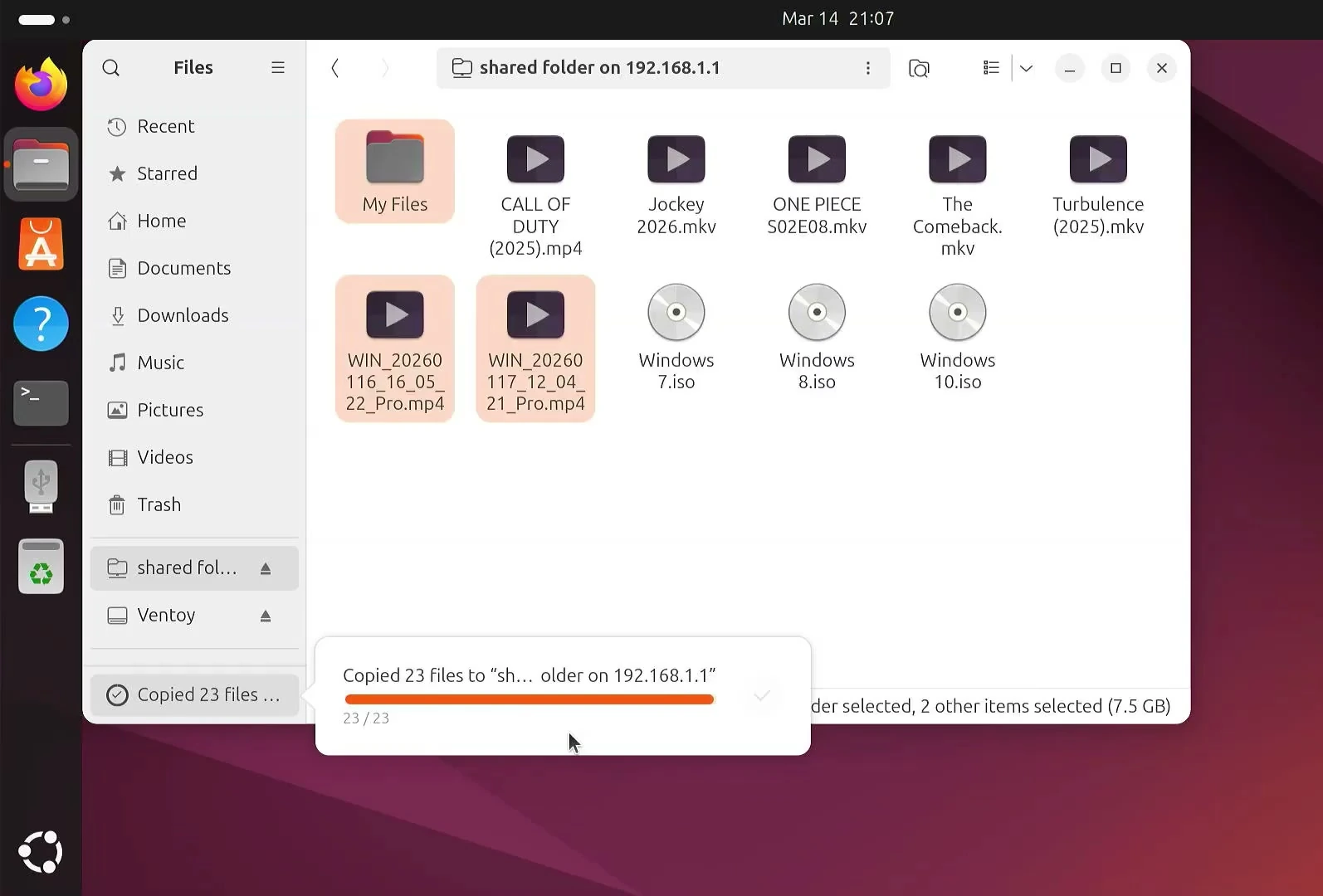
During one copy, Ubuntu showed a transfer rate of roughly 80 MB/s. That’s a result from this particular setup, not a guaranteed speed. The actual rate depends on both computers’ Ethernet adapters, the cable, storage drives, and the files being transferred. A gigabit connection can be very convenient for moving large videos, backups, and installation images.
If the folder doesn’t connect
If Ubuntu can’t reach Windows, first check the cable and make sure you’re editing the correct wired adapters. Confirm that Windows uses 192.168.1.1 and Ubuntu uses 192.168.1.2, both with the same subnet mask.
Then check that File and printer sharing is enabled for the trusted Windows network profile. If you’re asked for credentials again, use the dedicated Windows account and its actual password. A folder that opens but won’t accept uploads usually needs its Sharing and Security permissions checked.
Once the connection works, you have a straightforward way to move files between Windows and Ubuntu without a router, USB drive, or cloud upload. And because the connection uses a standard shared folder, you can return to it whenever you need to transfer another batch of files.