Winlator Ludashi is a community-modified Winlator build intended to run Windows applications and games on Android. This walkthrough follows the tested setup on a Snapdragon phone, from choosing the APK and graphics driver through creating a game shortcut and configuring GTA V.
Check Your Android Hardware
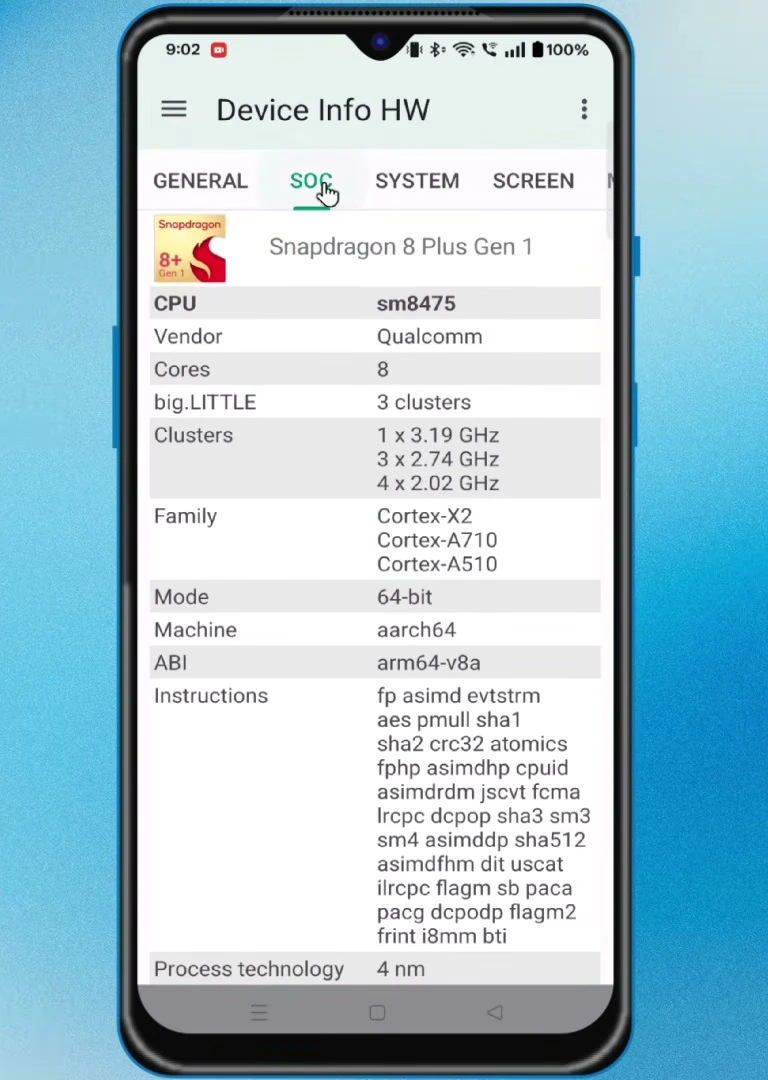
Performance depends heavily on your phone’s processor, RAM, and GPU. The test device used here is a OnePlus 10T with a Snapdragon 8 Plus Gen 1 and an Adreno 730 GPU.
Snapdragon phones with Adreno graphics can use a Turnip GPU driver, which can offer better performance and compatibility in many games. Phones with less RAM may need a lower resolution and lighter games.
If you need to identify your own hardware, use Device Info HW and check the processor, GPU, and available RAM.
Download and Open Winlator Ludashi
Open the Winlator Ludashi releases page and scroll to the Assets section. For most standard Snapdragon phones from brands such as OnePlus, Xiaomi, Poco, Realme, or Samsung Snapdragon variants, download ludashi-bionic.apk.
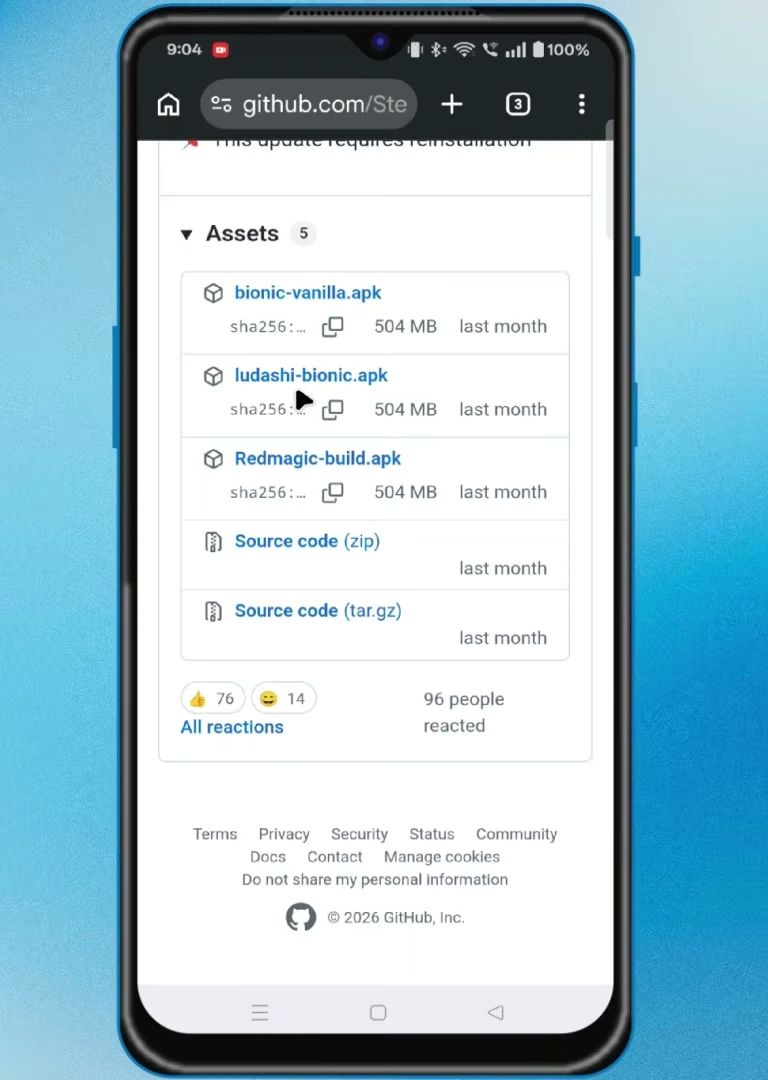
bionic-vanilla.apk is a more basic build, while Redmagic-build.apk is intended for Red Magic gaming phones. Install the downloaded APK, then open Winlator Ludashi.
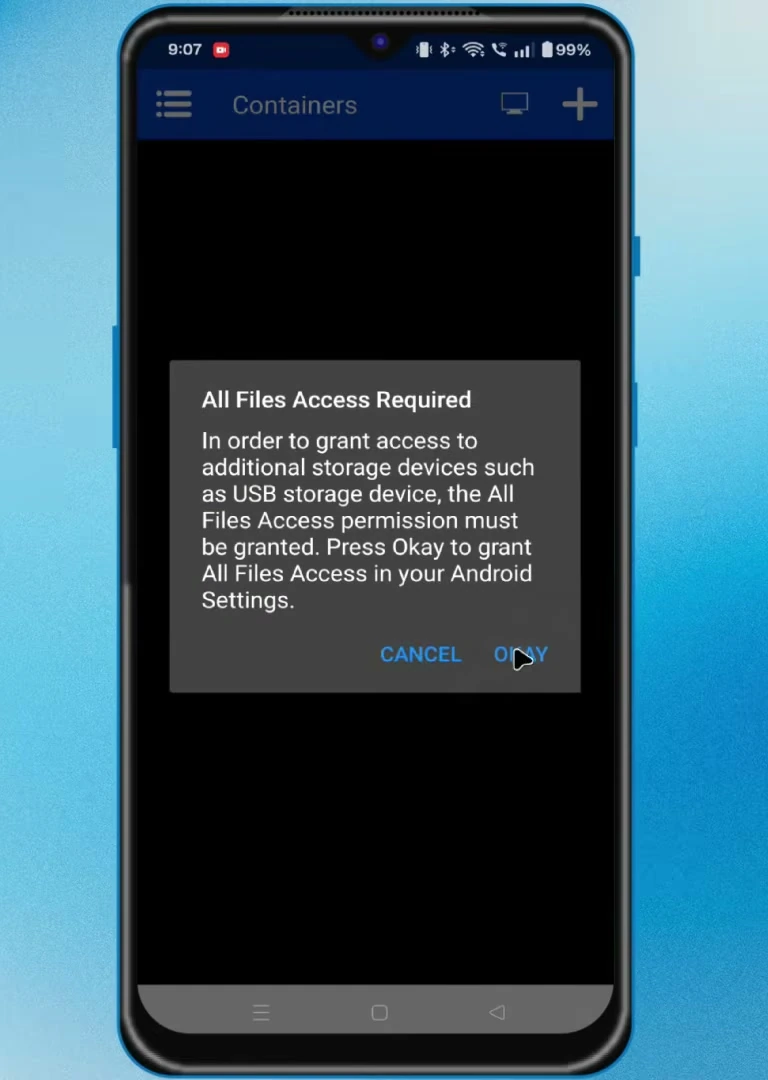
On first launch, allow the requested storage access. Winlator then installs its required system files; wait for that process to finish before continuing.
Set the Global Performance Options
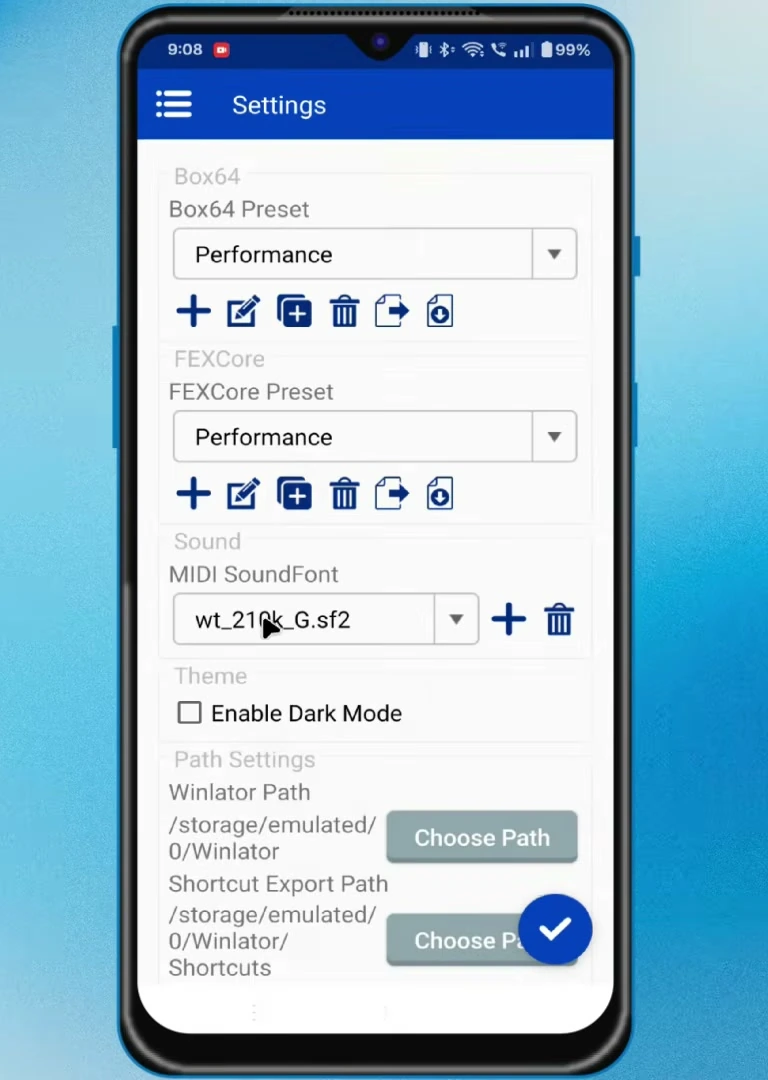
From the Winlator main screen, open the menu and choose Settings. You can disable dark mode here if you prefer.
Set Box64 Preset to Performance. Set FEXCore Preset to Performance as well, then save the changes.
Scroll to Cursor Speed and set it to around 200%. This makes mouse movement faster and smoother in the Windows-like environment.
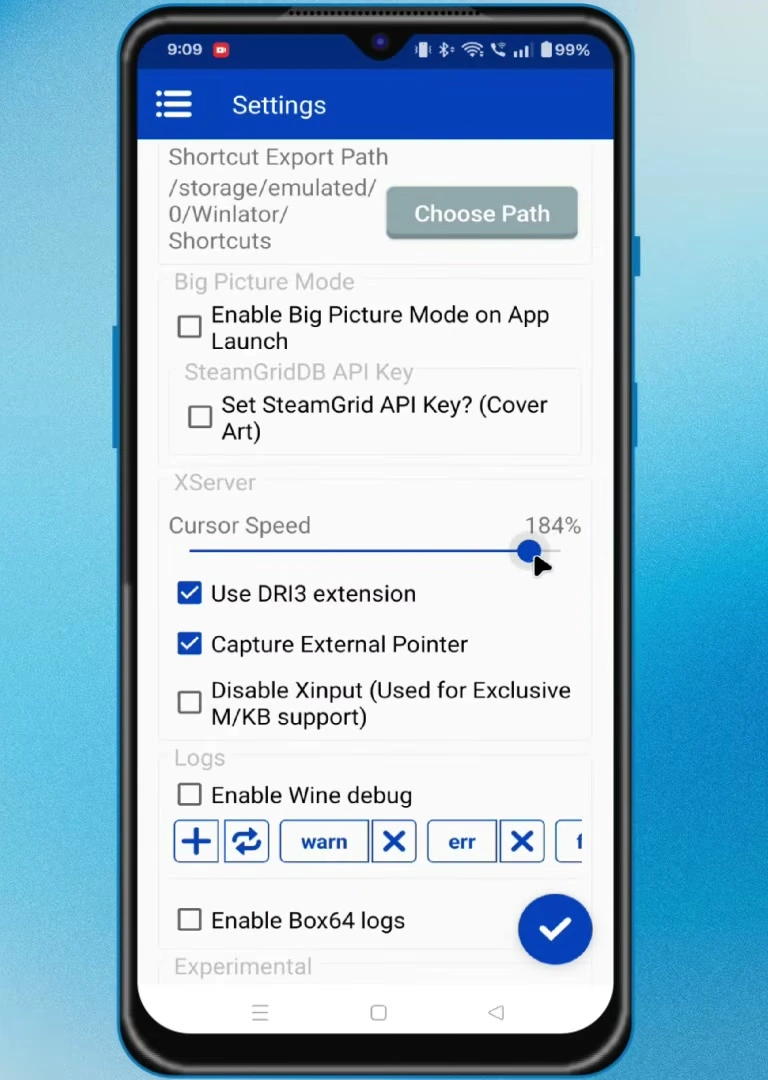
Create a Winlator Container
A container is the virtual Windows environment where each game runs. Tap the plus icon to create one.
For a mid-range or high-end phone, choose 1280×720 as the screen resolution. It provides a balance between image quality and performance. Use a lower resolution if your device has limited RAM or a weaker processor.
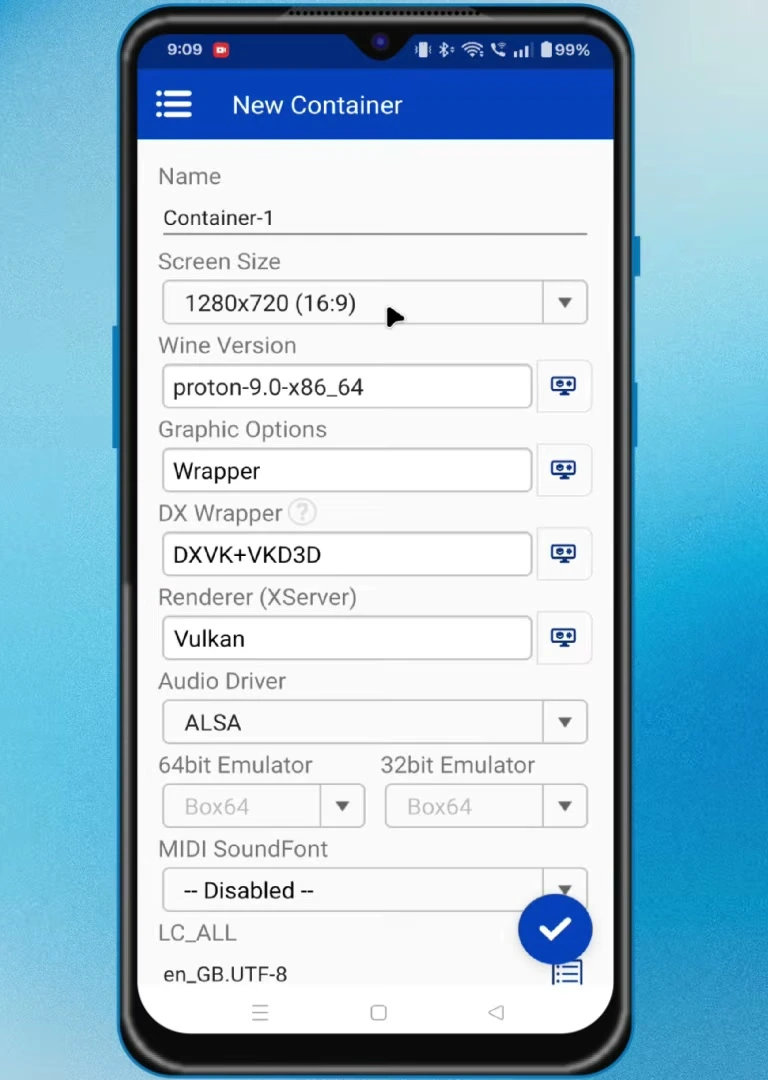
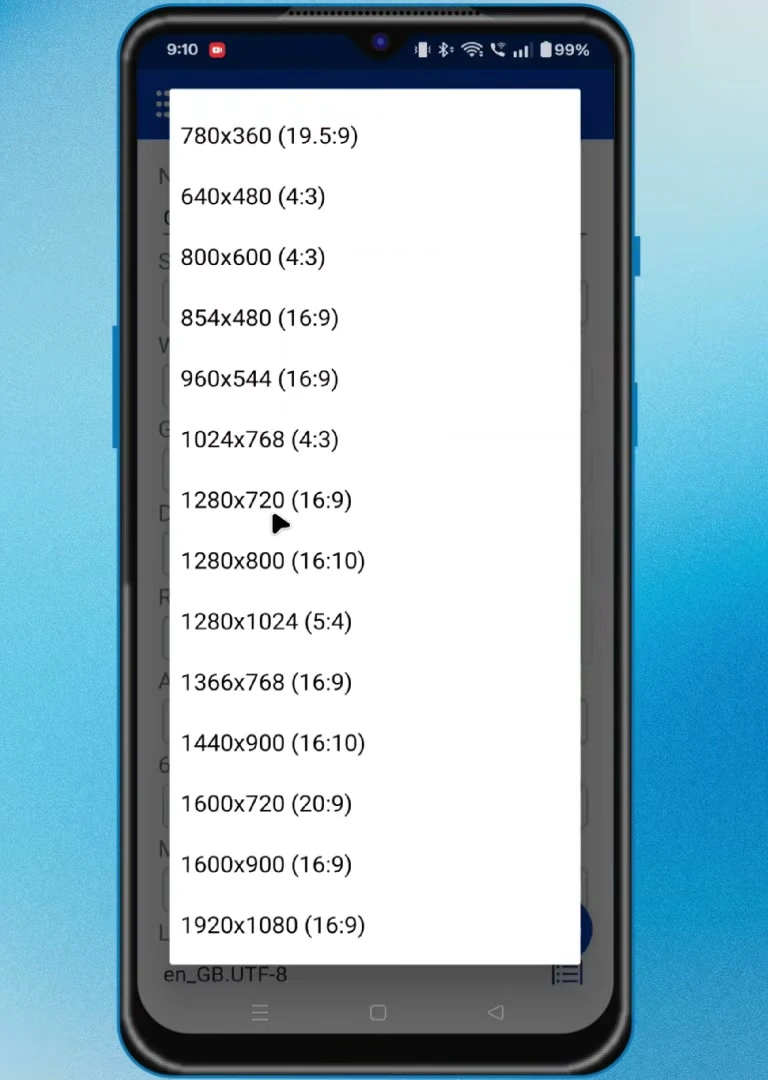
Under Wine Version, select Proton 9.0 arm64.
Install and Select a GPU Driver
Open the container’s graphics settings. Snapdragon devices can benefit from a Turnip driver. MediaTek, Mali, and Exynos devices may need the System Driver instead.
If only the system driver is available, return to Winlator’s main screen and open Adreno Tools. Tap the download icon, then open StevenMX Turnip Drivers.
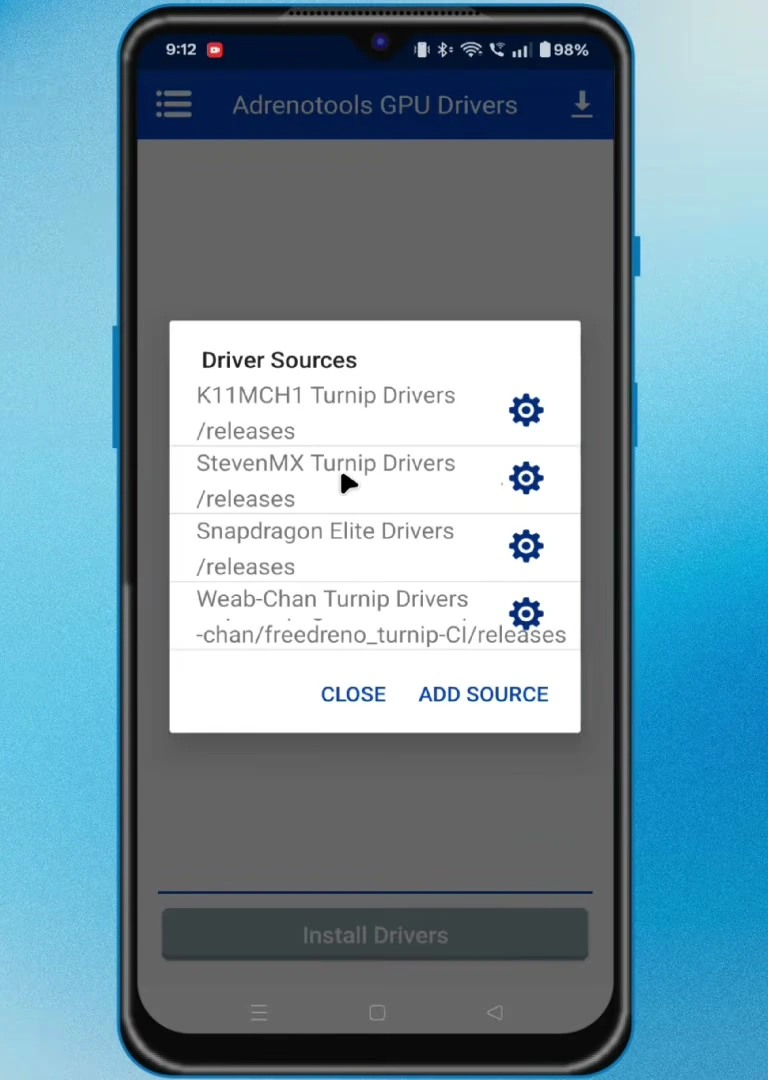
Choose a driver appropriate for your GPU. In this setup, the Adreno 730 belongs to the A7XX family, so V863.1 A7XX and E6XX was downloaded. Tap the download icon beside the driver and wait for it to install automatically.
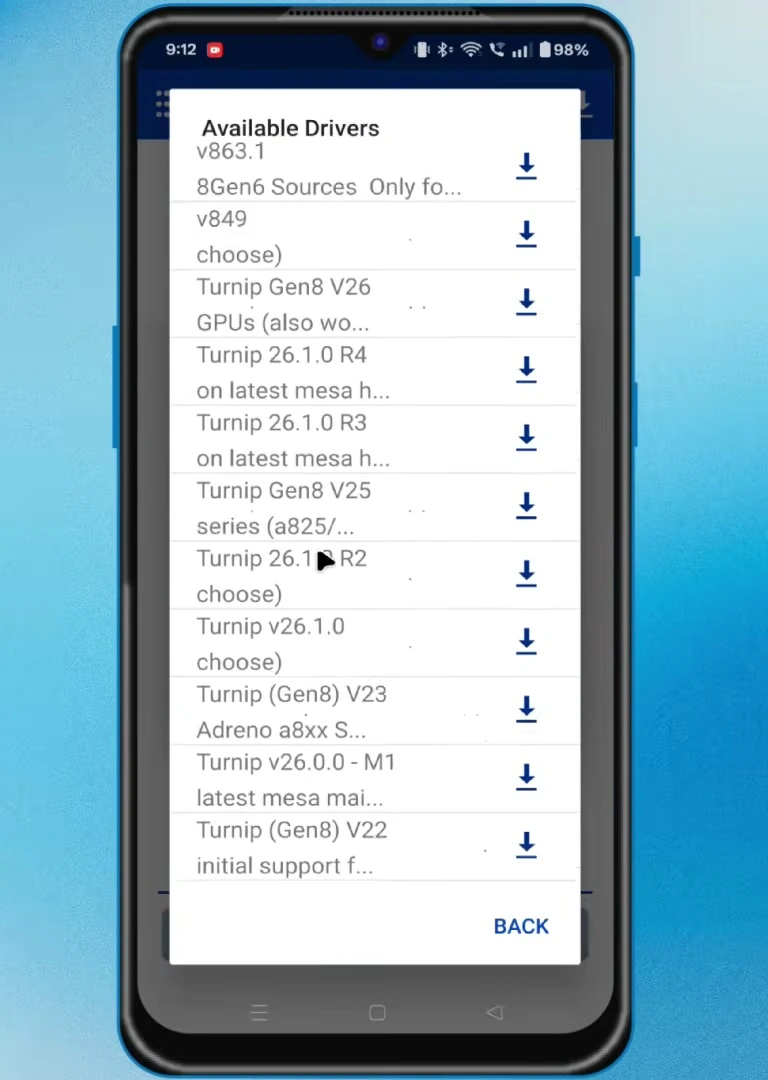
If that driver does not work, try another available version such as Turnip V26.2.0R4. Return to the container settings, open Graphics Driver, and select the newly installed driver.
Configure DXVK, Audio, and Advanced Container Settings
Set DX Wrapper to DXVK + VKD3D. DXVK handles DirectX 10 and DirectX 11 games, while VKD3D is used for DirectX 12 games.
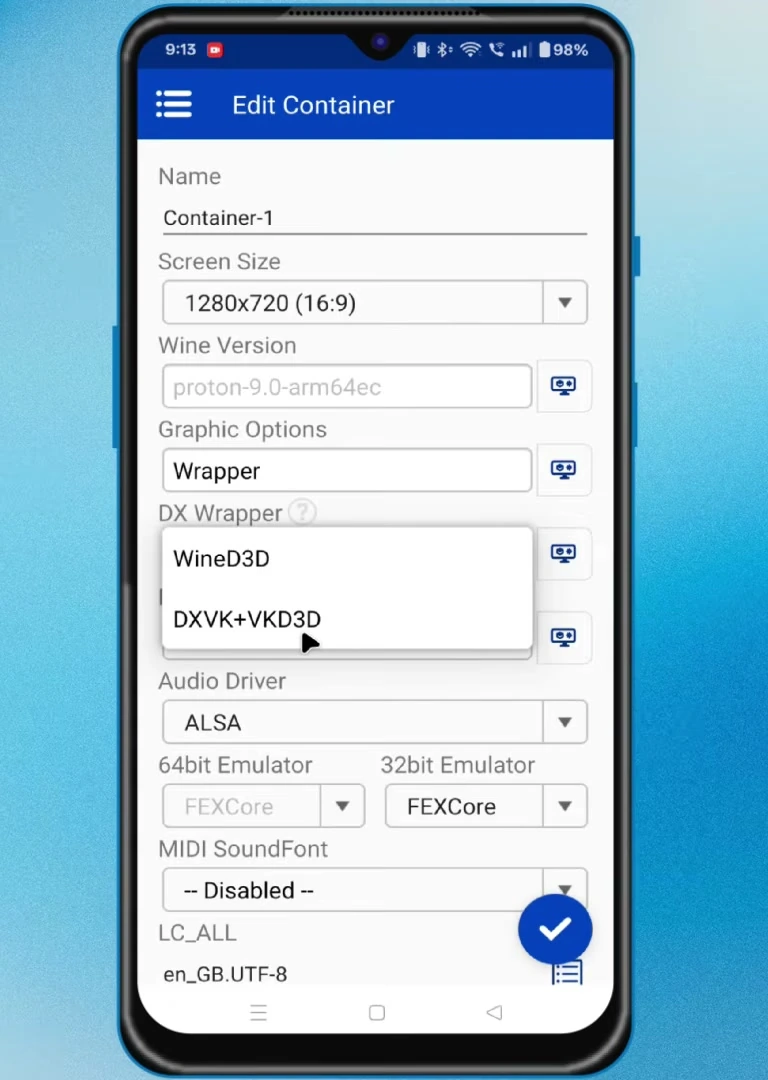
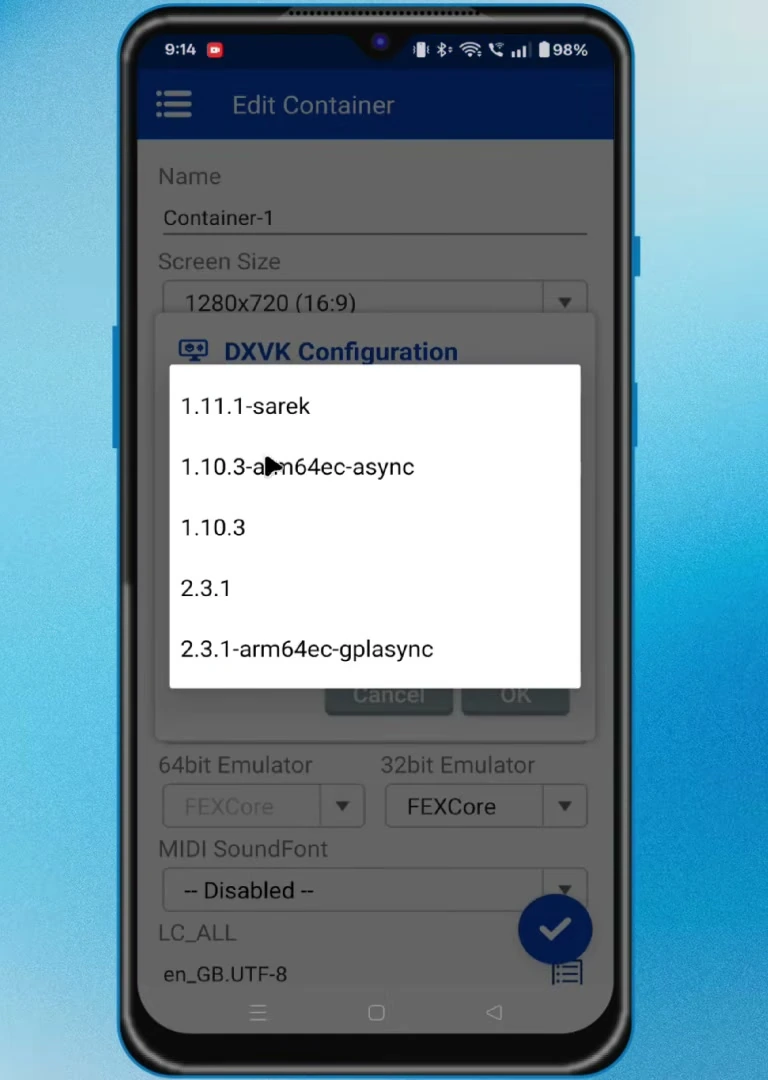
Open DX Wrapper Settings. On a Snapdragon phone, select DXVK 2.3.1 async. On a MediaTek or Exynos device, try DXVK 1.11, which may work better on some non-Snapdragon hardware.
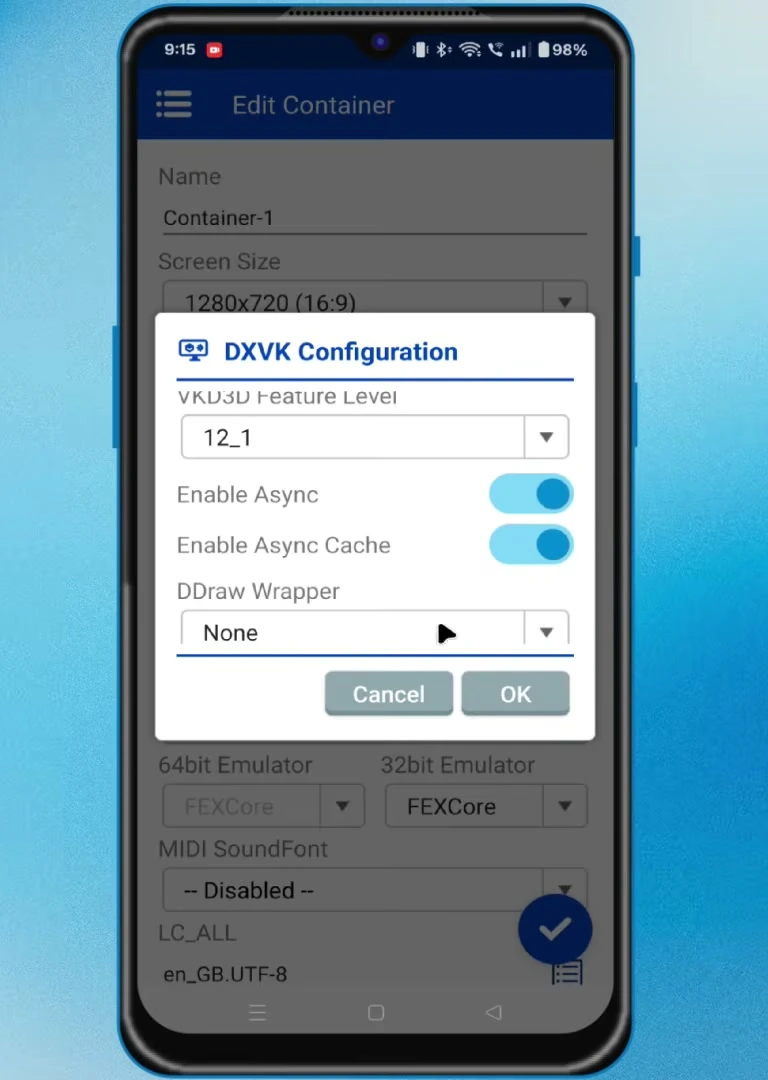
Enable Async and Async Cache to help reduce stutter from shader compilation and caching.
Back in the container settings, select PulseAudio as the audio driver and enable Fullscreen (Stretched).
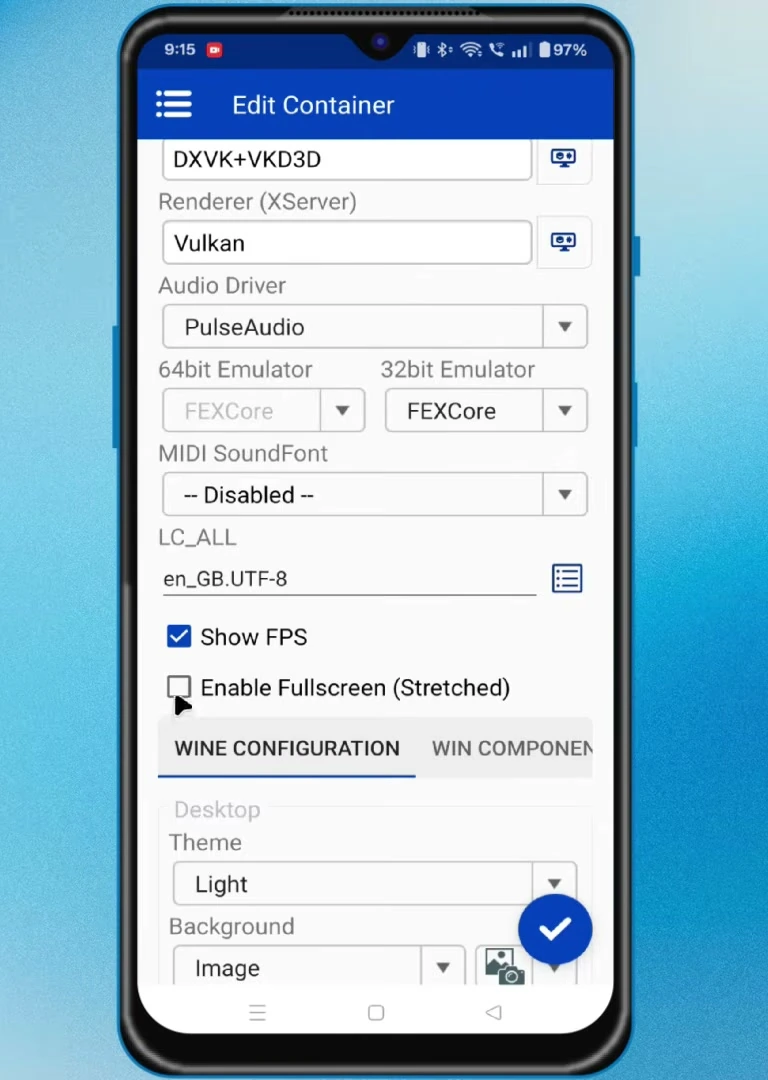
Open Advanced Settings. Set Startup Selection to Aggressive, then enable the available Processor Affinity options. Save the container when finished.
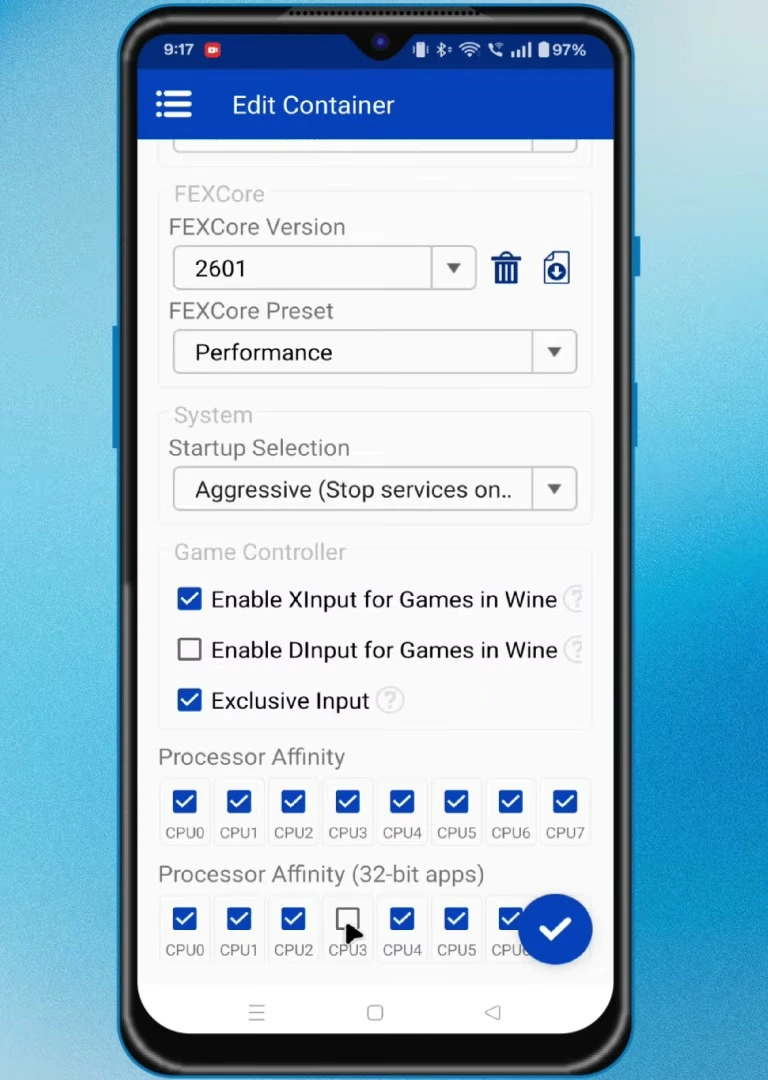
Add a Windows Game Folder
Before launching the container, copy or install the PC game’s folder on your phone storage. In most cases, you need the complete installed game folder: install the game on a Windows PC first, then copy the full folder to Android.
Open the container. Once the Windows-like interface appears, browse to the folder holding the game. In this setup, the phone’s Download folder is available as the D: drive.
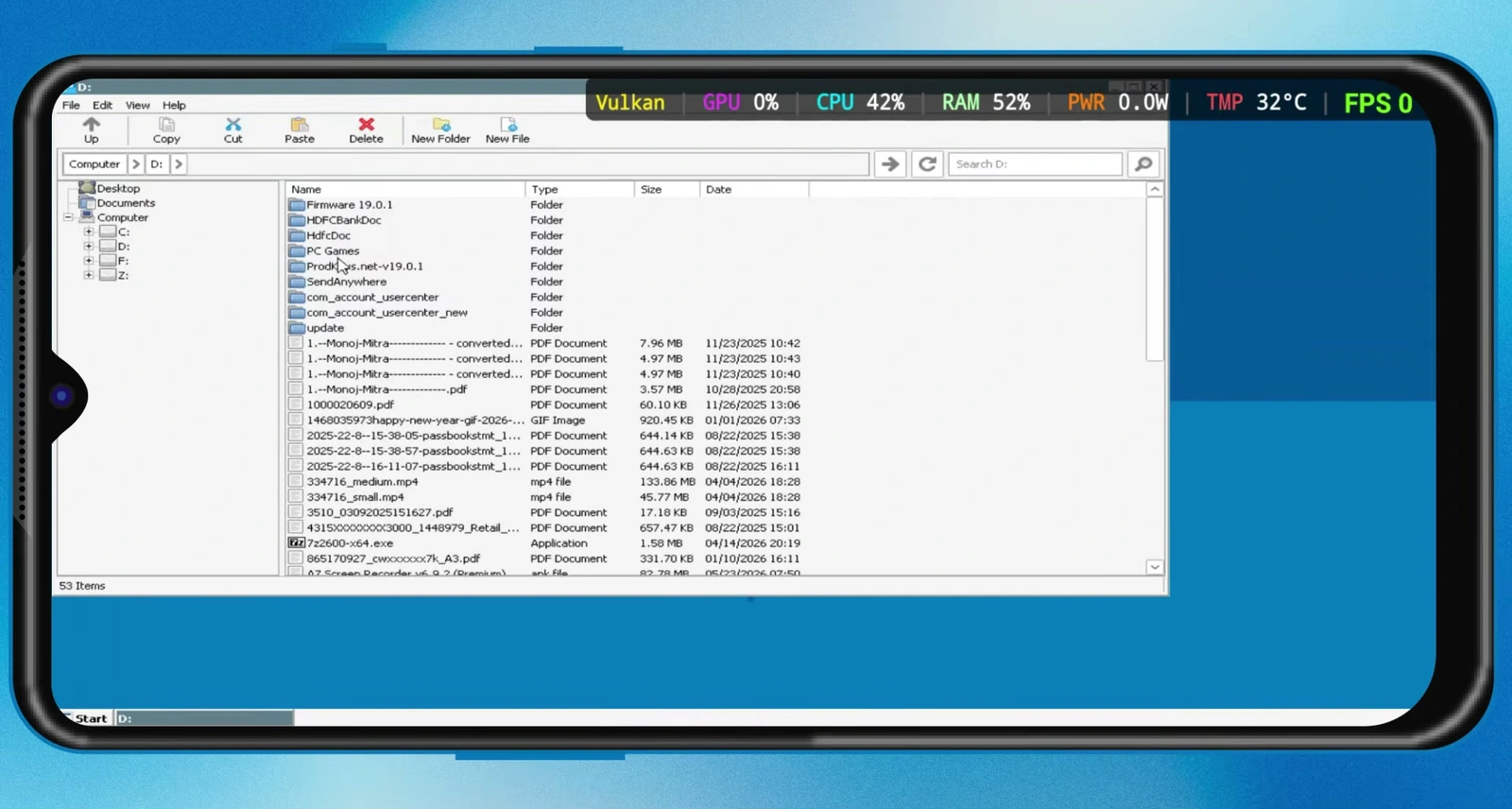
Locate the main game application, which usually ends in .exe. Use a two-finger tap on the EXE to right-click it, then select Create Shortcut.
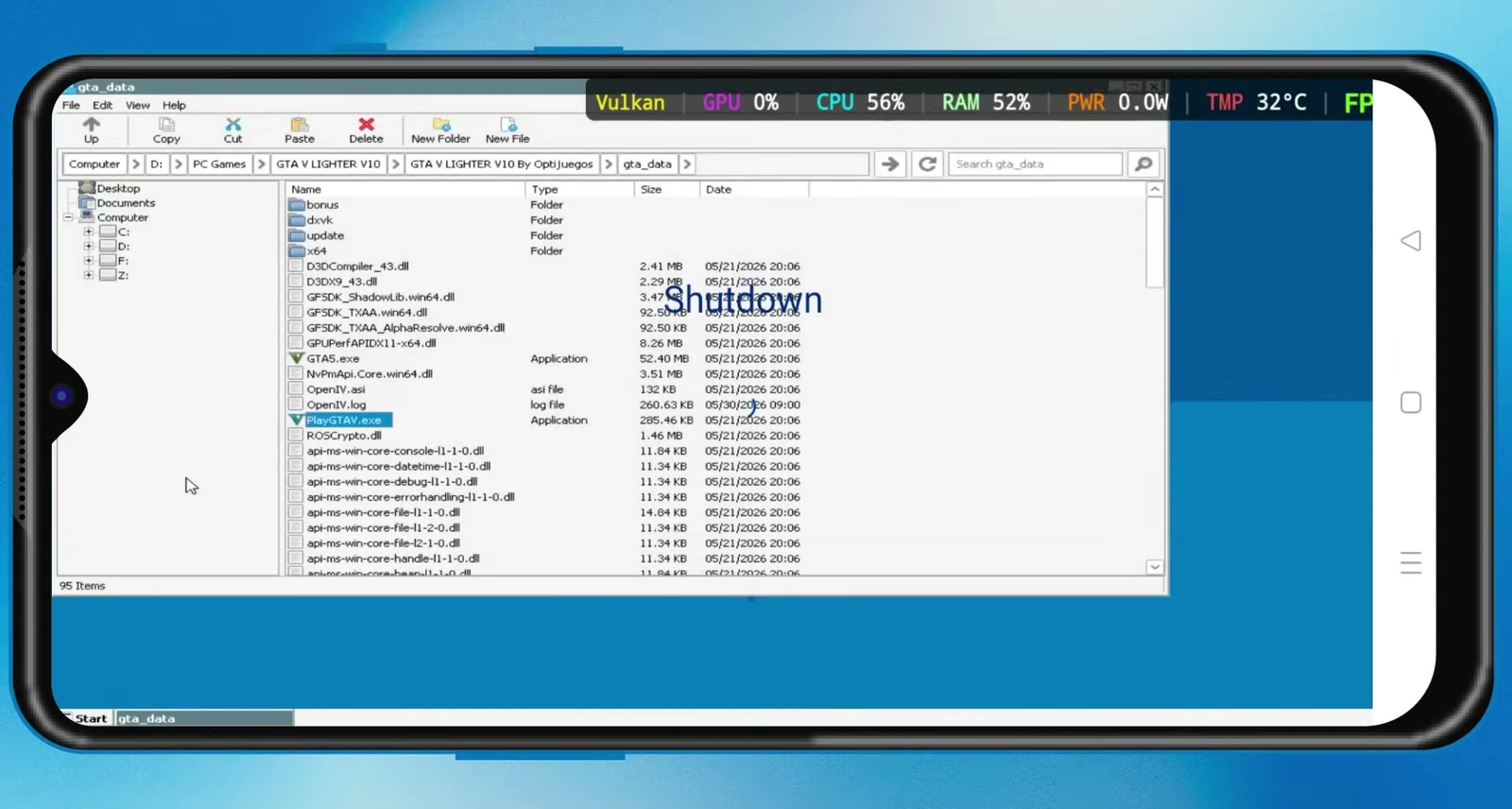
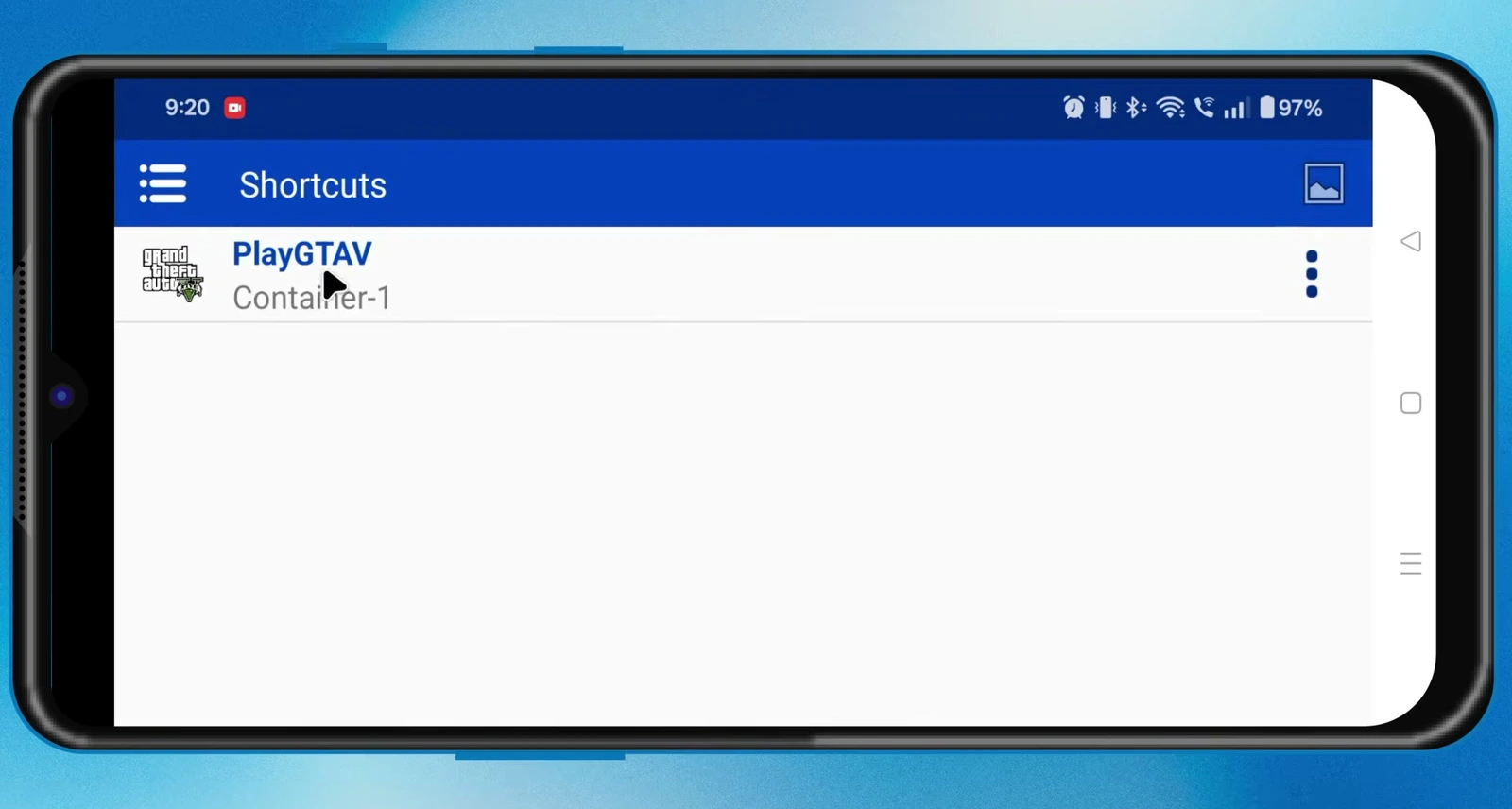
Return to Winlator’s main screen and open Shortcuts to confirm the new game entry. You can tap the three-dot menu on a shortcut and choose Change Icon to select an image from phone storage.
Enable GTA V Touch Controls
To use on-screen controls, launch GTA V. While it loads, press the Android back button to open the Winlator menu, then go to Input Controls and tap the settings icon.
Select Import File to import an existing control profile from storage. Alternatively, choose the GTA V on-screen touch-control profile from Winlator’s built-in profiles. Return to Input Controls, select the GTA V profile, and enable touchscreen controls.
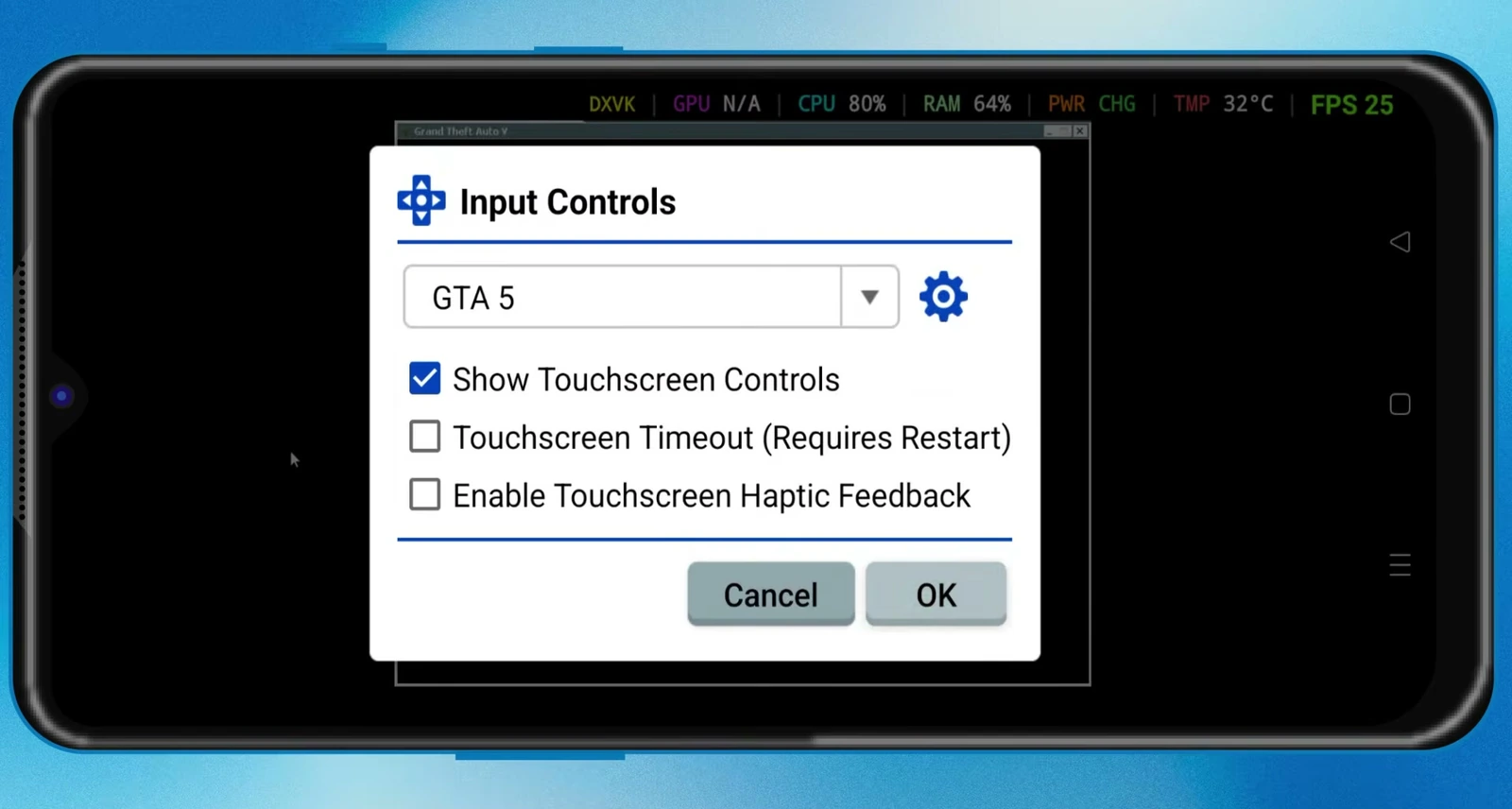
The virtual buttons can be used for movement, running, aiming, shooting, vehicles, and other actions. A Bluetooth or wired controller can provide a smoother, more console-like experience.
Match GTA V Display Settings
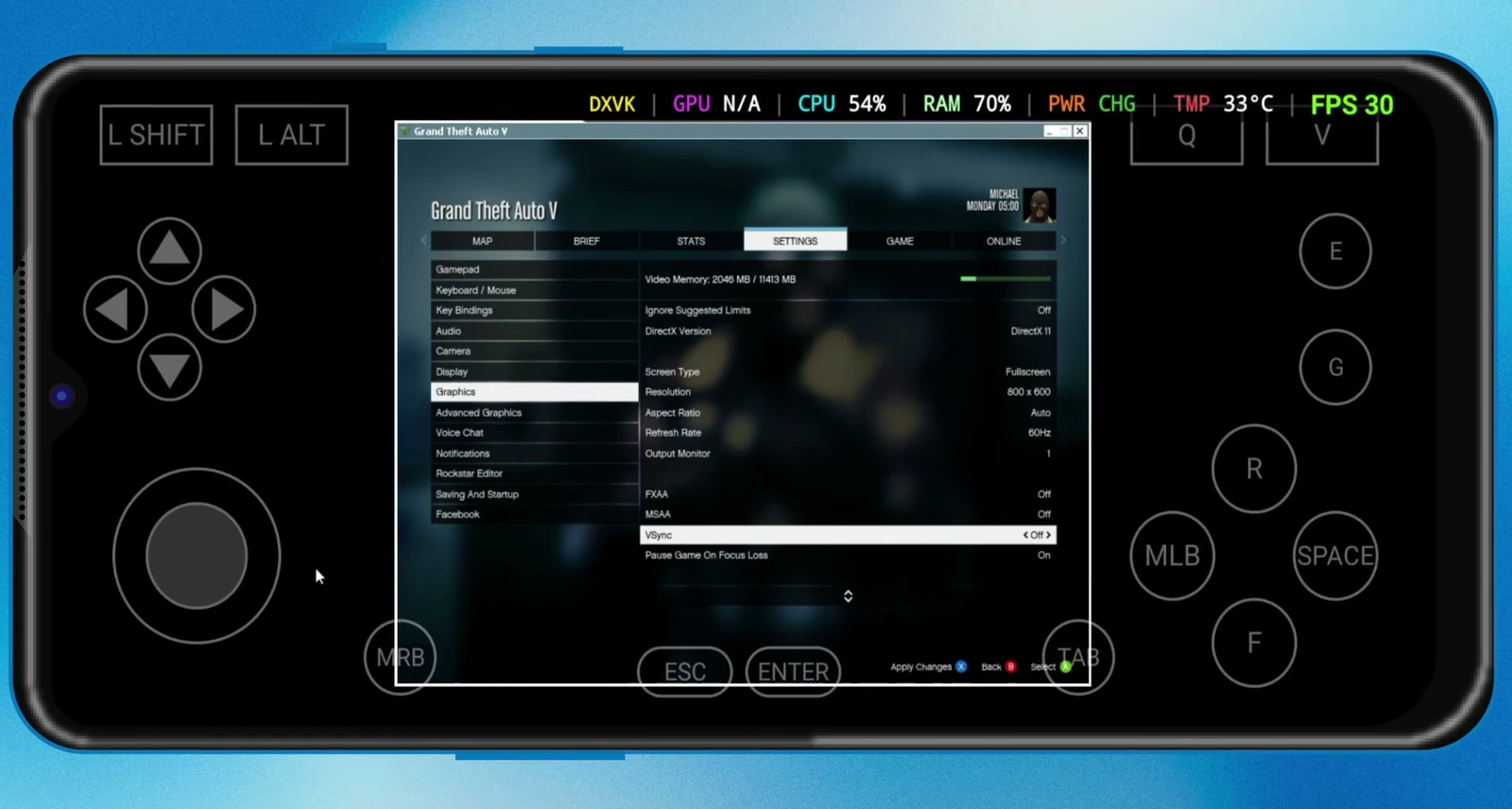
If GTA V opens in a small window or at an incorrect resolution, open its graphics settings. Set Screen Type to Fullscreen, turn VSync off, and select the same resolution used by the Winlator container.
For example, a container configured for 1280×720 should use 1280×720 in GTA V.
Tune Performance and Test the Game
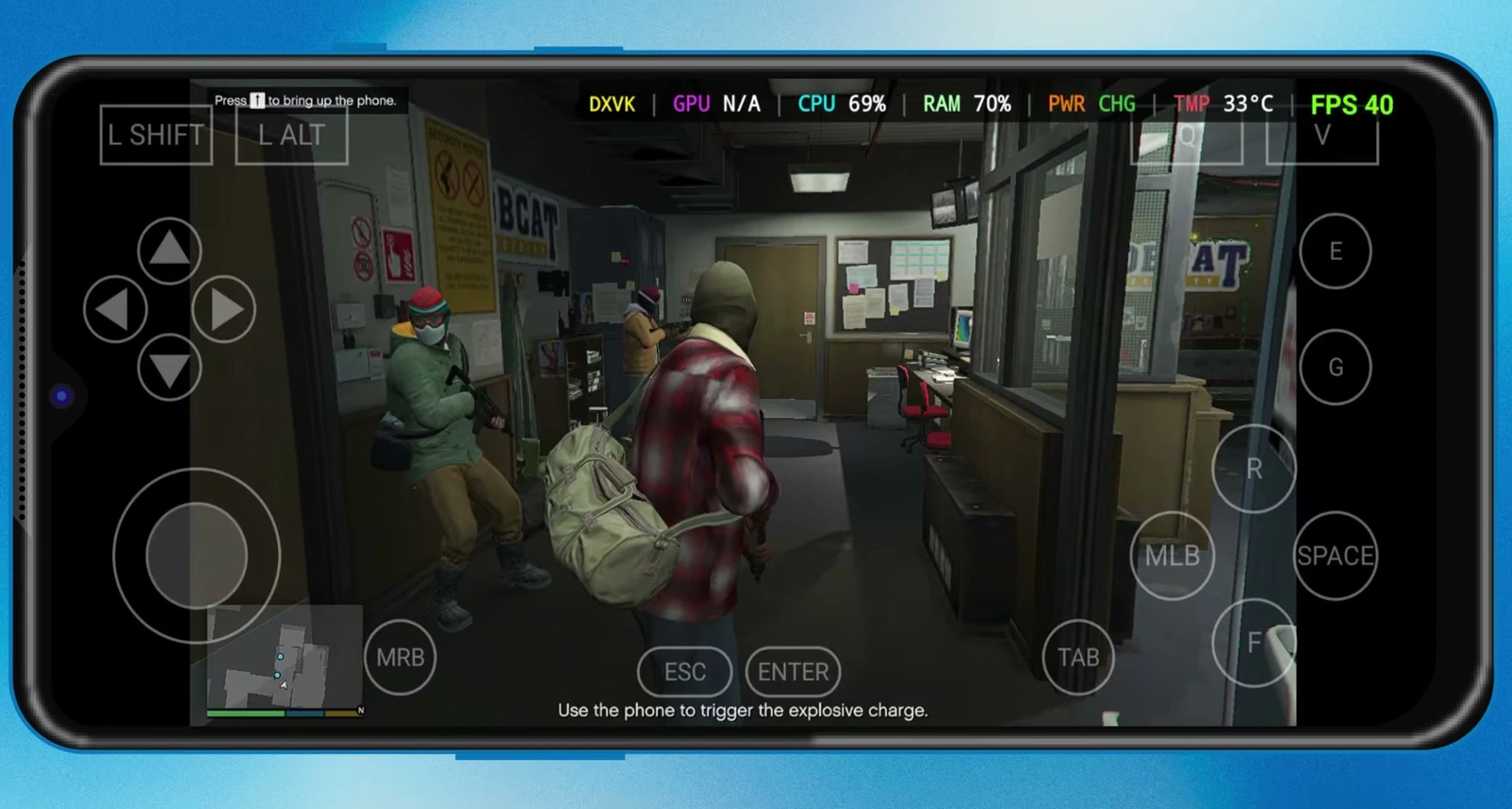
The DXVK HUD at the top of the screen can show FPS, CPU usage, GPU activity, and other useful performance information while playing.
In the updated graphics engine settings, set the FPS Limit to 60 FPS. This is smooth for mobile gaming while helping to limit heat and battery drain. Super resolution and color-profile options are optional visual adjustments.
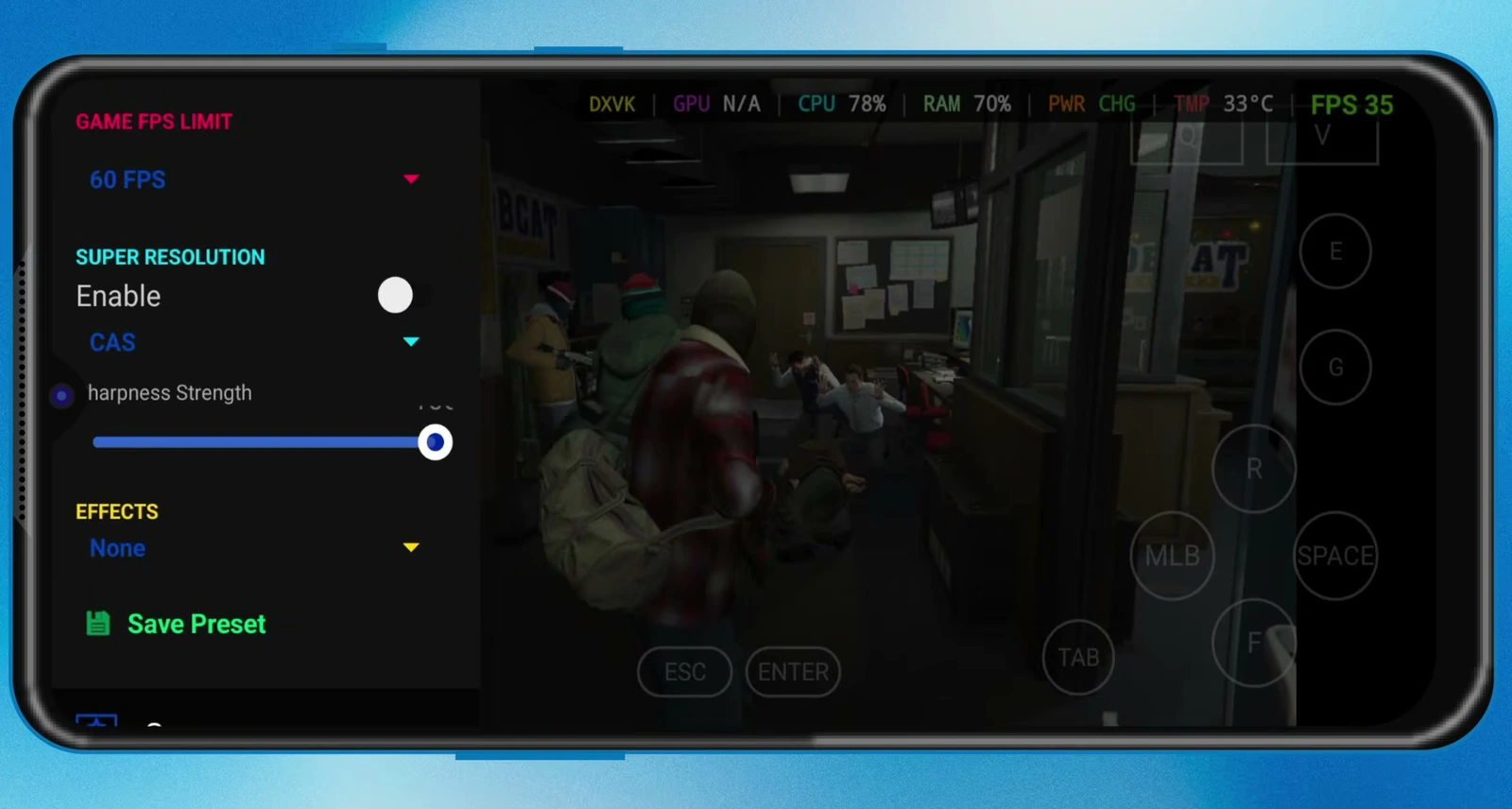
The completed setup can run GTA V with the Winlator touch overlay and DXVK performance HUD visible during gameplay.
Troubleshooting Winlator Ludashi
▸ The game is slow or the phone gets too hot
Lower the container resolution, set the FPS limit to 30 FPS, and reduce the game’s graphics settings. You can also try the Bionic Vanilla build, which may generate less heat but can provide slightly lower performance.
▸ A game does not start or runs incorrectly
Try a different DXVK version, GPU driver, resolution, or in-game graphics setting. Snapdragon/Adreno devices can use a Turnip driver, while MediaTek, Mali, and Exynos devices may need the system driver.
▸ The game does not fill the screen
Enable Fullscreen (Stretched) in the container. In the game itself, choose fullscreen and match its resolution to the container resolution.
Frequently Asked Questions
▸ Which Winlator Ludashi APK should most Snapdragon phones use?
Use ludashi-bionic.apk for most normal Snapdragon phones. The Red Magic build is specifically for Red Magic gaming phones.
▸ Do I need a controller for GTA V?
No. You can select the GTA V on-screen touch-control profile in Winlator. A wired or Bluetooth controller is recommended for a smoother experience.
▸ Why does performance differ between phones?
Results depend on the processor, GPU, RAM, game optimization, selected driver, and the container and in-game settings you use.
Final Words
You now have a Winlator Ludashi container configured for PC gaming on Android, with a game shortcut, graphics settings, and optional GTA V touch controls. Adjust the driver, DXVK version, resolution, and in-game settings as needed for each game and device.