There is something frustrating about an old computer that still works perfectly well, but takes forever to open a browser or finish starting Windows. Replacing the PC might seem like the obvious solution. But sometimes, trying a different operating system is all it takes to make that machine useful again.
That’s where BigLinux gets interesting. It combines a modern, customizable KDE Plasma desktop with everyday tools for browsing, documents, multimedia, and more. Unlike some lightweight systems that look as though they belong to another decade, BigLinux offers several desktop layouts and plenty of ways to make it feel like your own computer.
Best of all, you can try it directly from a USB drive before deciding whether to install it. And if you’re not ready to say goodbye to Windows, you can set up BigLinux alongside it and choose which system to start when you turn on your PC.
Is BigLinux a good fit for your old computer?
BigLinux is built around the Manjaro Linux ecosystem and uses KDE Plasma for its desktop. That gives you a familiar applications menu, windows you can move and resize, a taskbar, and a control center with plenty of customization options.
The official BigLinux requirements list 2 GB of RAM as the minimum, but minimum doesn’t mean every app will feel fast. A PC with 4 GB can be worth testing, especially for basic tasks. The project’s current recommendation is 8 GB or more for a more comfortable experience. Your processor, storage, graphics hardware, and chosen apps also make a difference.
Before getting started, have a 64-bit Intel or AMD computer, a USB drive you can erase, and an internet connection ready. A 16 GB USB drive is a practical choice because the BigLinux ISO is roughly 5 GB.
Download the right BigLinux ISO
Start at the official BigLinux website and open its download area. You may notice that there isn’t just one ISO file. BigLinux provides builds with different Linux kernels and graphics stacks so people with older and newer hardware can choose a suitable starting point.
Here’s an easy way to think about the available versions.
- Older-kernel build: Worth trying on older hardware that has trouble with newer graphics or drivers. The download shown here uses kernel 6.12.
- Recommended build: The sensible first choice for most computers. The referenced download page marks kernel 6.18 as recommended.
- Newer-kernel build: Intended for certain very new computers or graphics hardware that need newer support. The exact kernel number can change between releases.
If you’re unsure, start with the Recommended version. Download numbers may change as BigLinux releases new images, so follow the labels on the current official page rather than selecting the highest kernel number automatically.
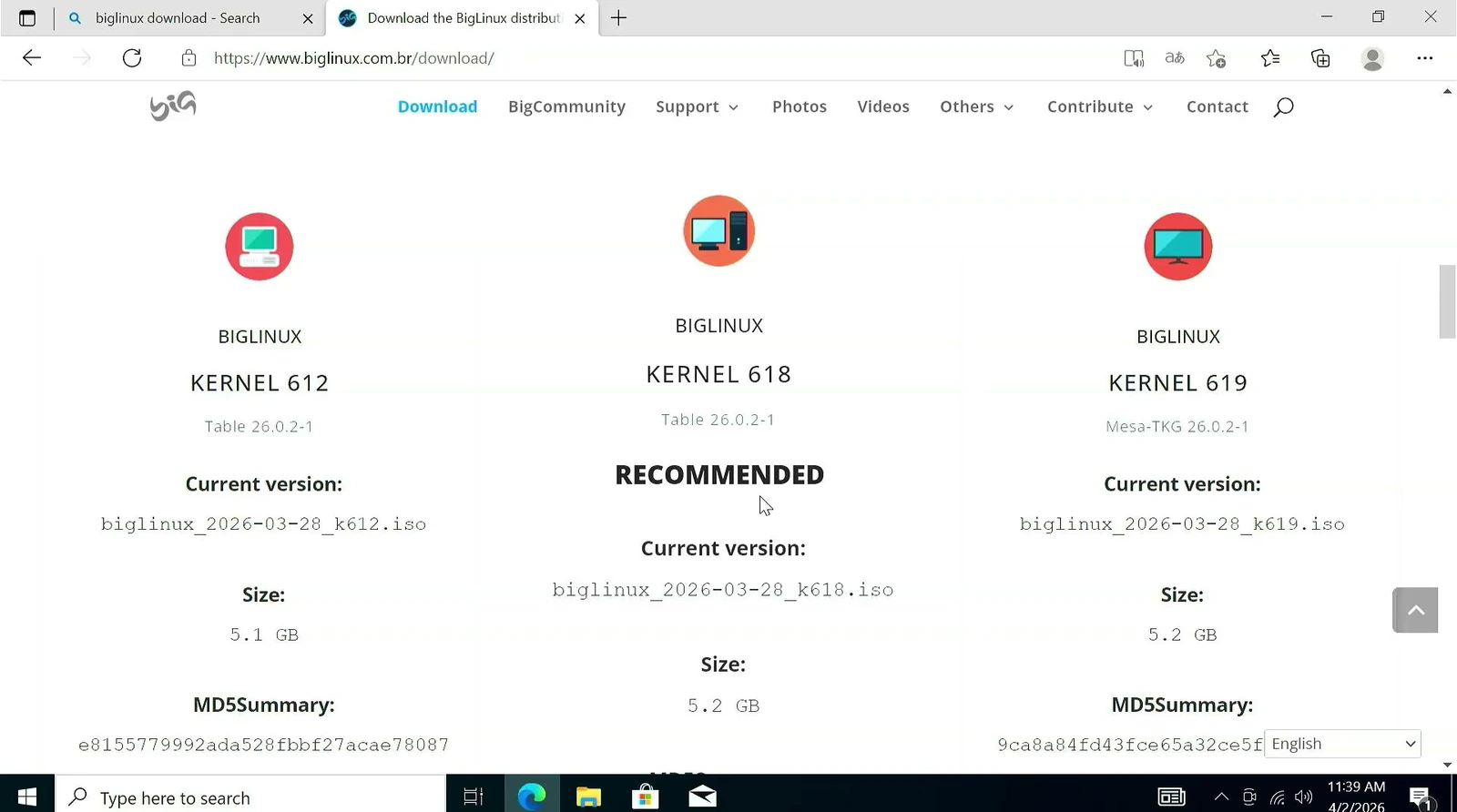
Choose the normal download or torrent option, whichever is more convenient. You’ll receive an ISO file containing the live system and installer. If the main domain isn’t accessible, you can also open the project’s official download page.
Create a bootable USB with Ventoy
Now we need a way to start BigLinux without loading the Windows installation already on your PC. Ventoy makes this simple. Once Ventoy has been installed on a USB drive, you can copy ISO files onto it like ordinary files. You don’t need to reflash the entire USB every time you want to try another operating system.
Download the Windows package, extract its ZIP file, and run Ventoy2Disk.exe from the extracted folder. Connect your USB drive and make sure Ventoy has selected the correct device.
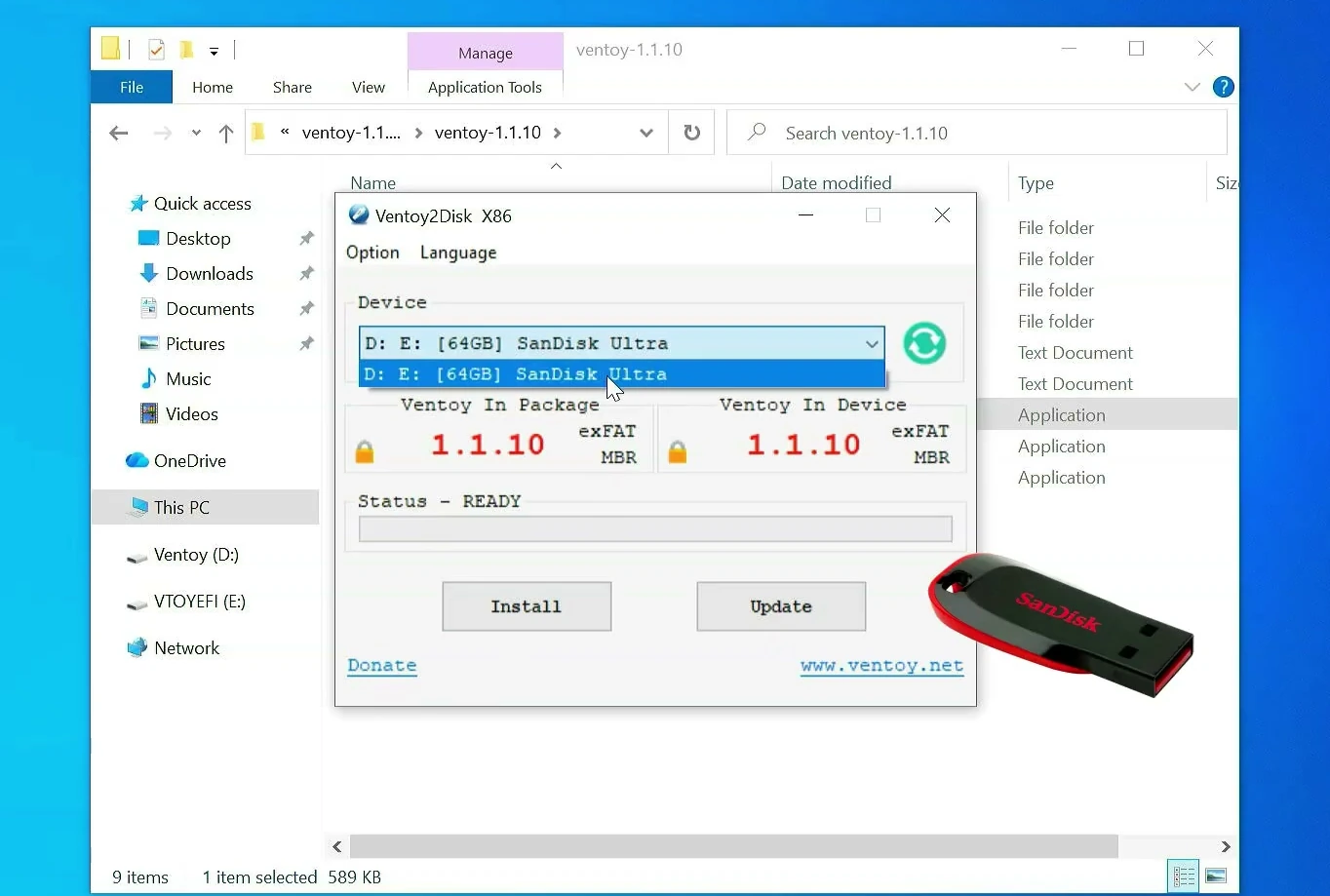
Click Install and confirm the warning. When Ventoy finishes, open the USB drive in File Explorer and copy the downloaded BigLinux ISO onto its large data partition. Leave the ISO as a single file. You don’t need to extract its contents.
That’s your installation USB ready. You can even keep other ISO files on the same Ventoy drive for future experiments.
Boot BigLinux and try it without installing
Restart the computer with the USB connected and open its boot menu. The key varies by manufacturer, so look for the boot-menu prompt or check your PC’s instructions. Select the USB drive.
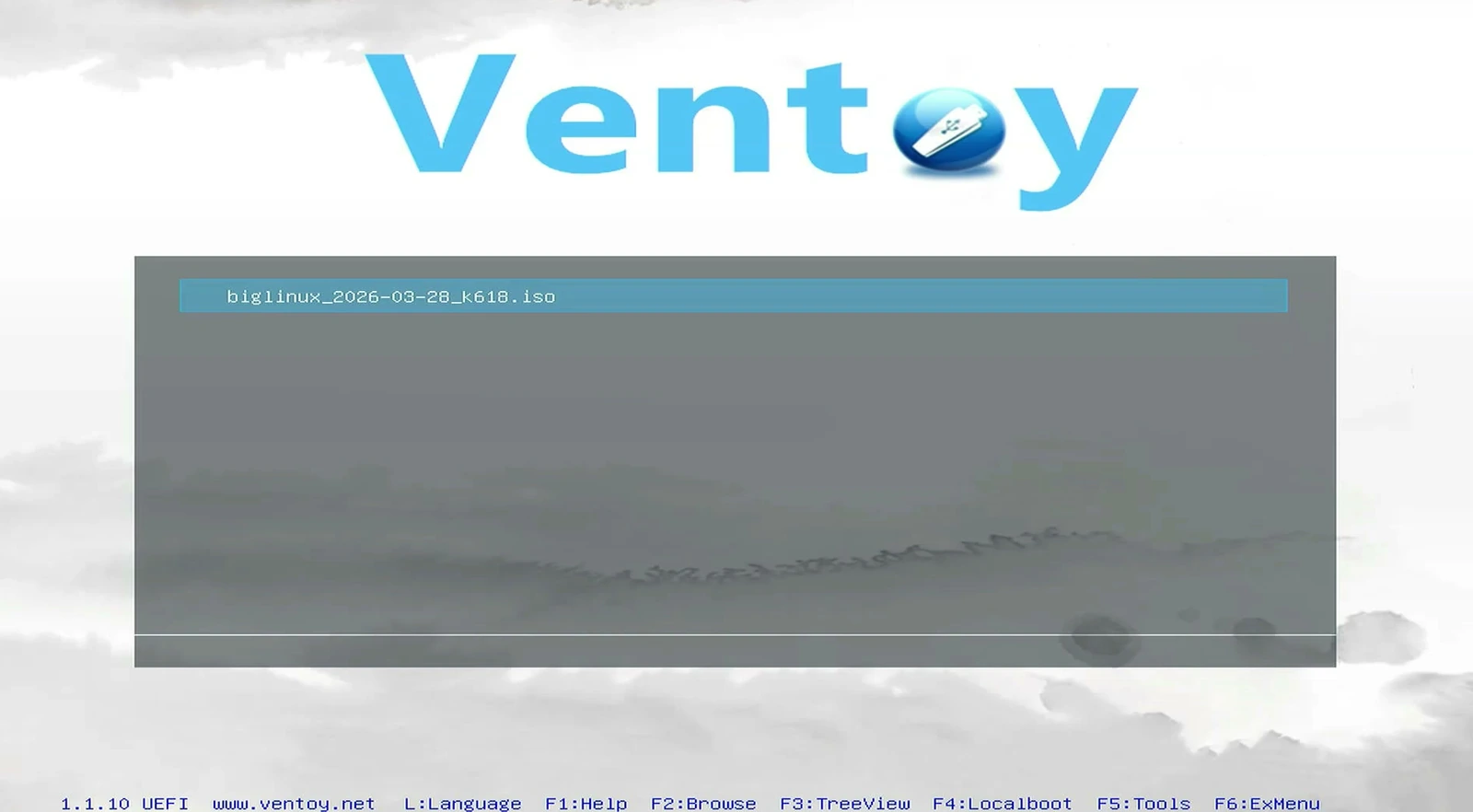
Ventoy will list the ISO files you’ve copied onto it. Highlight the BigLinux ISO, press Enter, and select Boot in normal mode if that option appears.
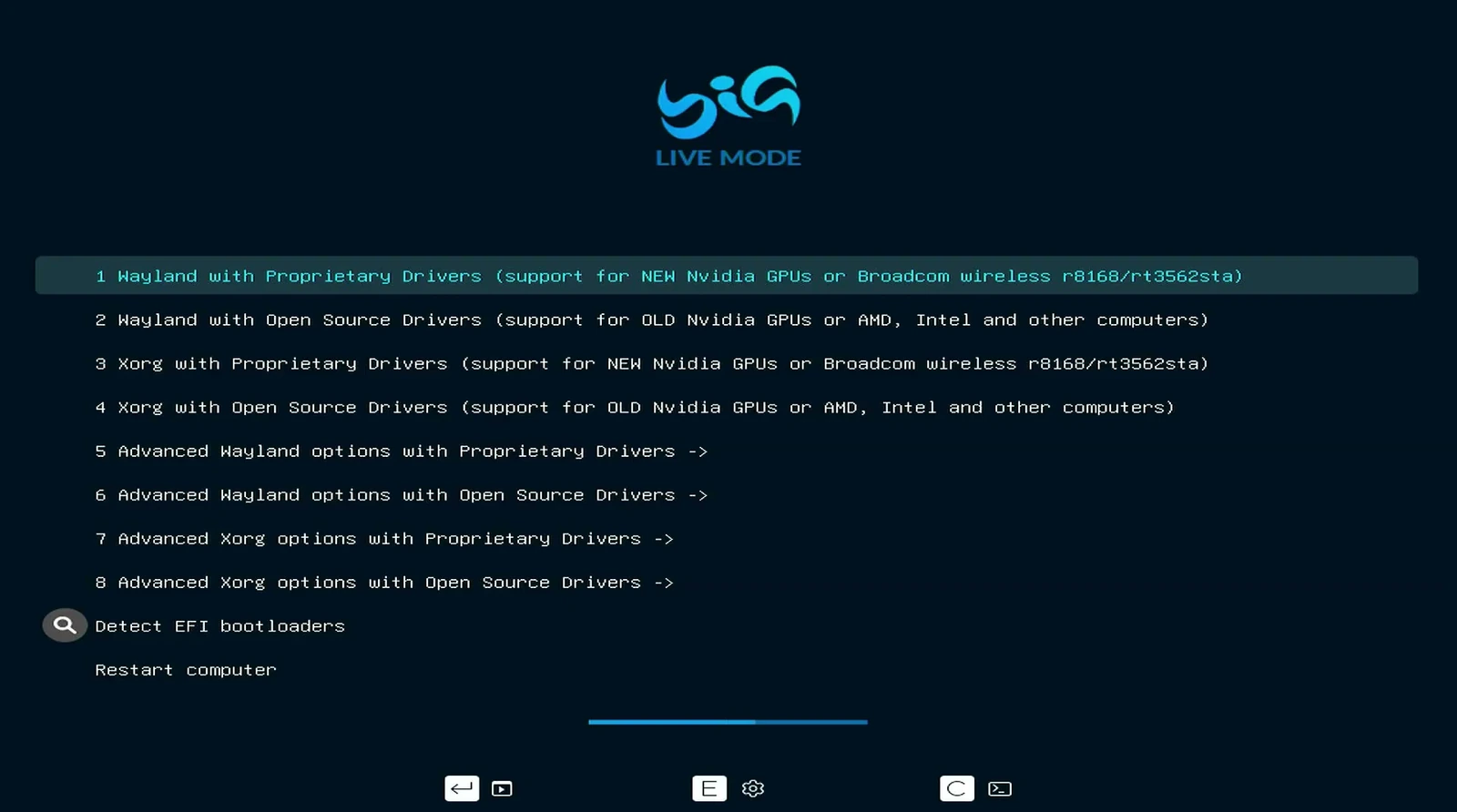
BigLinux may then offer several startup choices using Wayland or Xorg with open-source or proprietary graphics drivers. These are different ways to handle the desktop display and graphics support.
For a typical Intel or AMD system, Wayland with Open Source Drivers is a reasonable first option to try. If you get a black screen or graphics glitches, restart and try a suitable Xorg or alternative driver entry. Hardware compatibility varies, so don’t assume one entry will work on every PC.
After the live system loads, choose your language, then pick a desktop layout. Classic is a good starting point if you prefer a familiar Windows-style desktop. There are also more modern layouts to explore, along with light and dark themes.
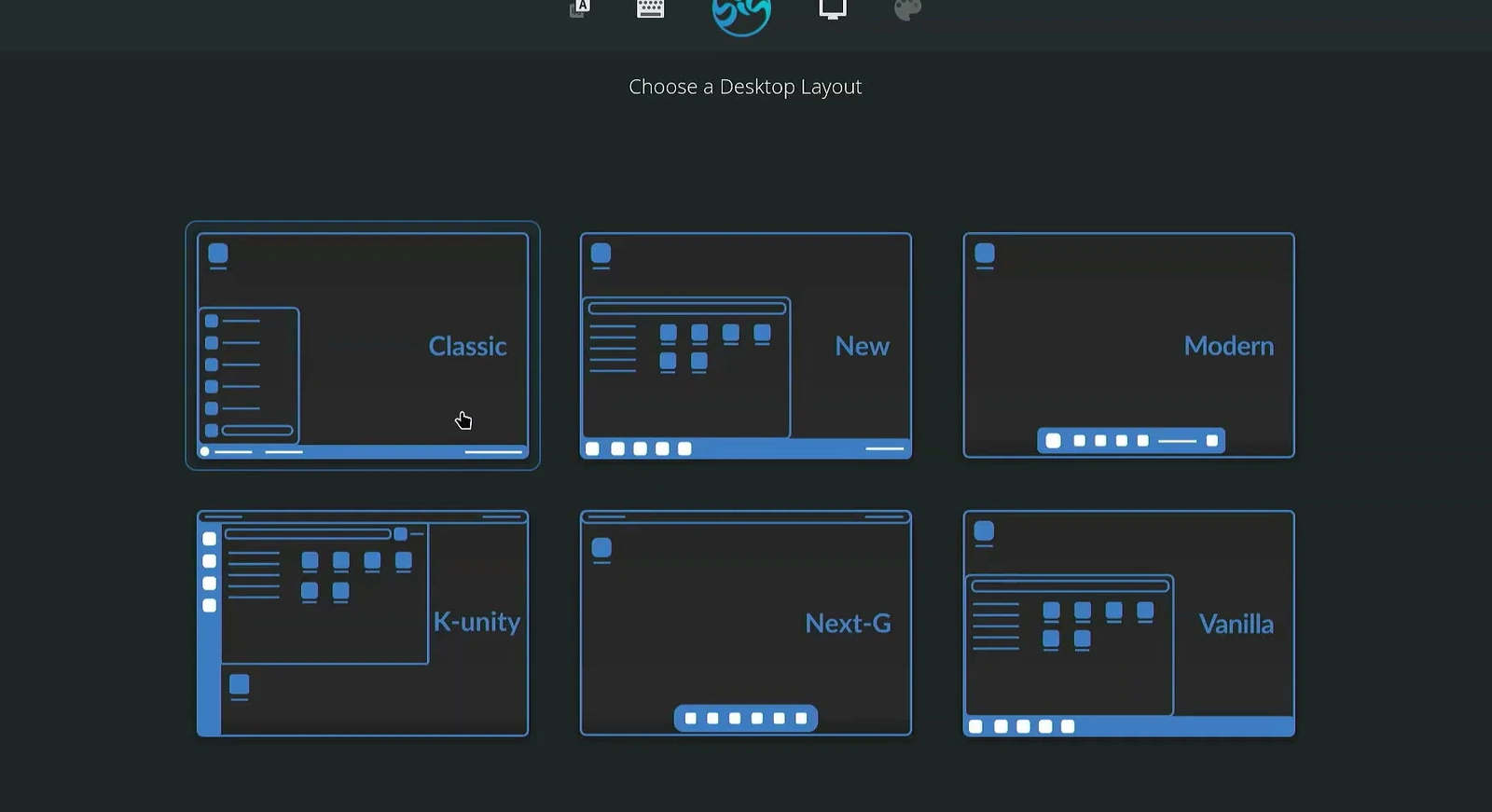
These appearance choices aren’t permanent. You can customize the desktop again after installation, so there’s no need to spend too long deciding now.
Check that your hardware works in live mode
Once the desktop appears, resist the temptation to install immediately. This is one of the best parts of a live Linux USB. You can try the system first, without committing to any disk changes.
Connect to Wi-Fi and open a web page. Try your speakers or headphones, test the keyboard and touchpad, and check Bluetooth if you rely on it. On a desktop PC, it’s also worth making sure the display runs at a suitable resolution.
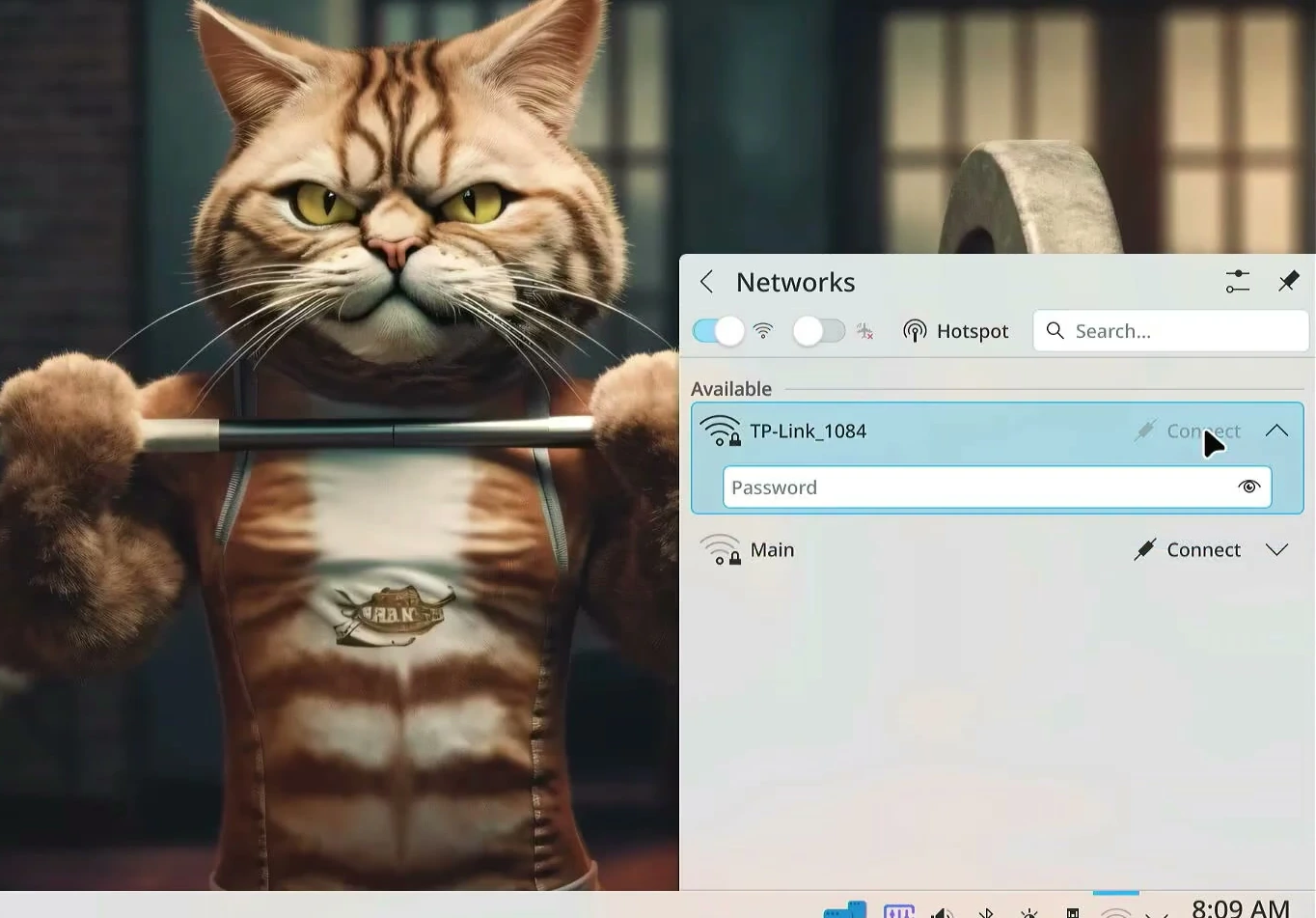
If something important isn’t working here, investigate it before installing. A fresh installation won’t automatically solve every Wi-Fi, graphics, or audio compatibility problem.
Install BigLinux alongside Windows
When you’re satisfied with the live session, double-click Install System on the desktop. BigLinux first offers a few setup routes. Choose Installation to open the normal installer. Maintenance and Minimal have different purposes and aren’t needed for this walkthrough.
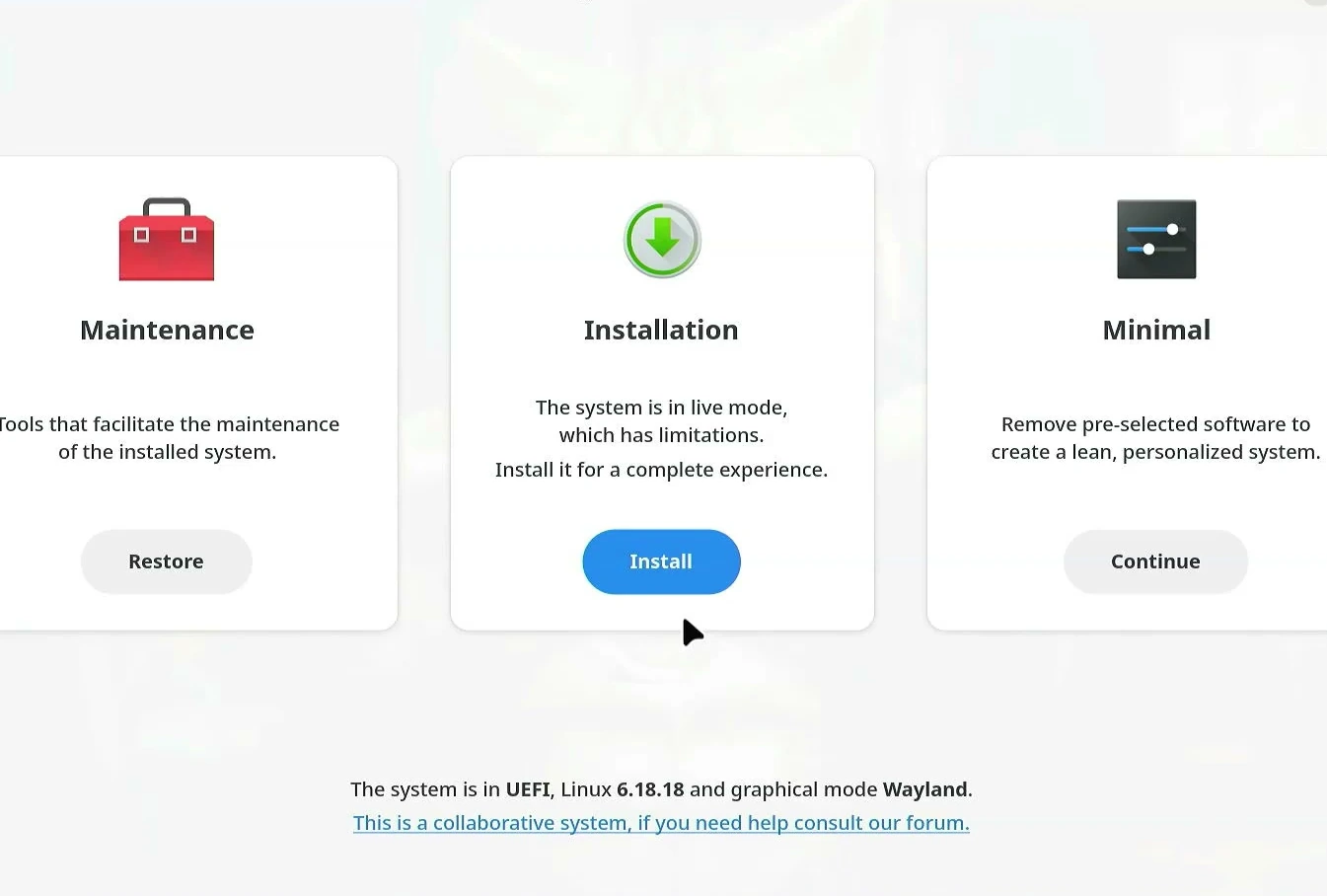
Select your location and keyboard layout. Then you’ll reach the most important screen of the installation, where BigLinux asks how it should use your drive.
Choose the disk option carefully
If you want to keep Windows, select Install alongside when it is offered for the correct internal drive. This option makes room for BigLinux by shrinking an existing partition, allowing the two operating systems to share the computer.
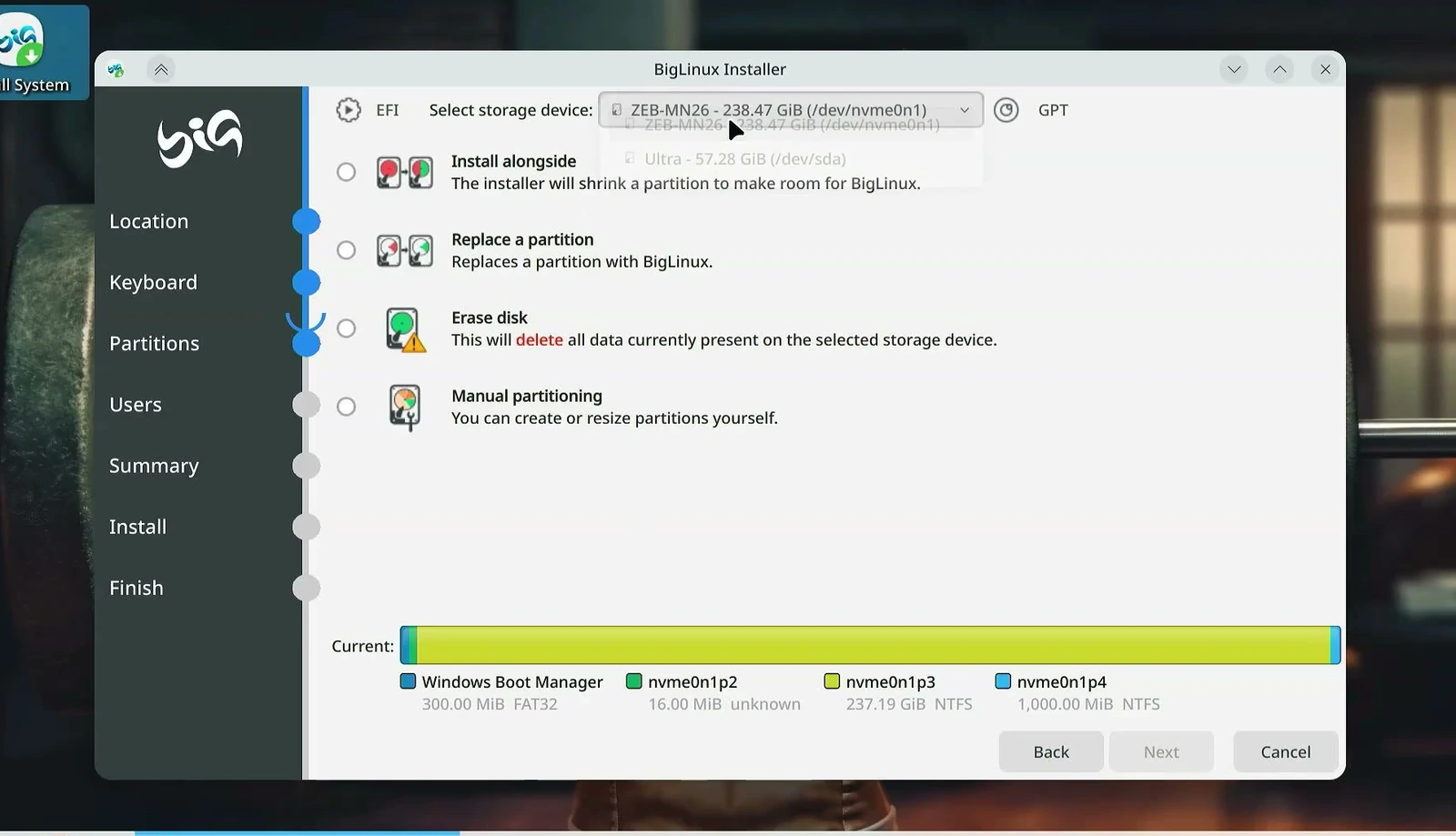
You may also see Replace a partition, Erase disk, and Manual partitioning. These are not interchangeable. In particular, Erase disk removes the existing partitions and data from the selected drive, including Windows if that’s where it is installed.
With Install alongside selected, the installer presents a disk-space slider. Drag it to decide how much space Windows will retain and how much BigLinux will receive. Around 50–100 GB for BigLinux is a useful target when you have enough free storage, but the right amount depends on your drive size and the applications you plan to use.
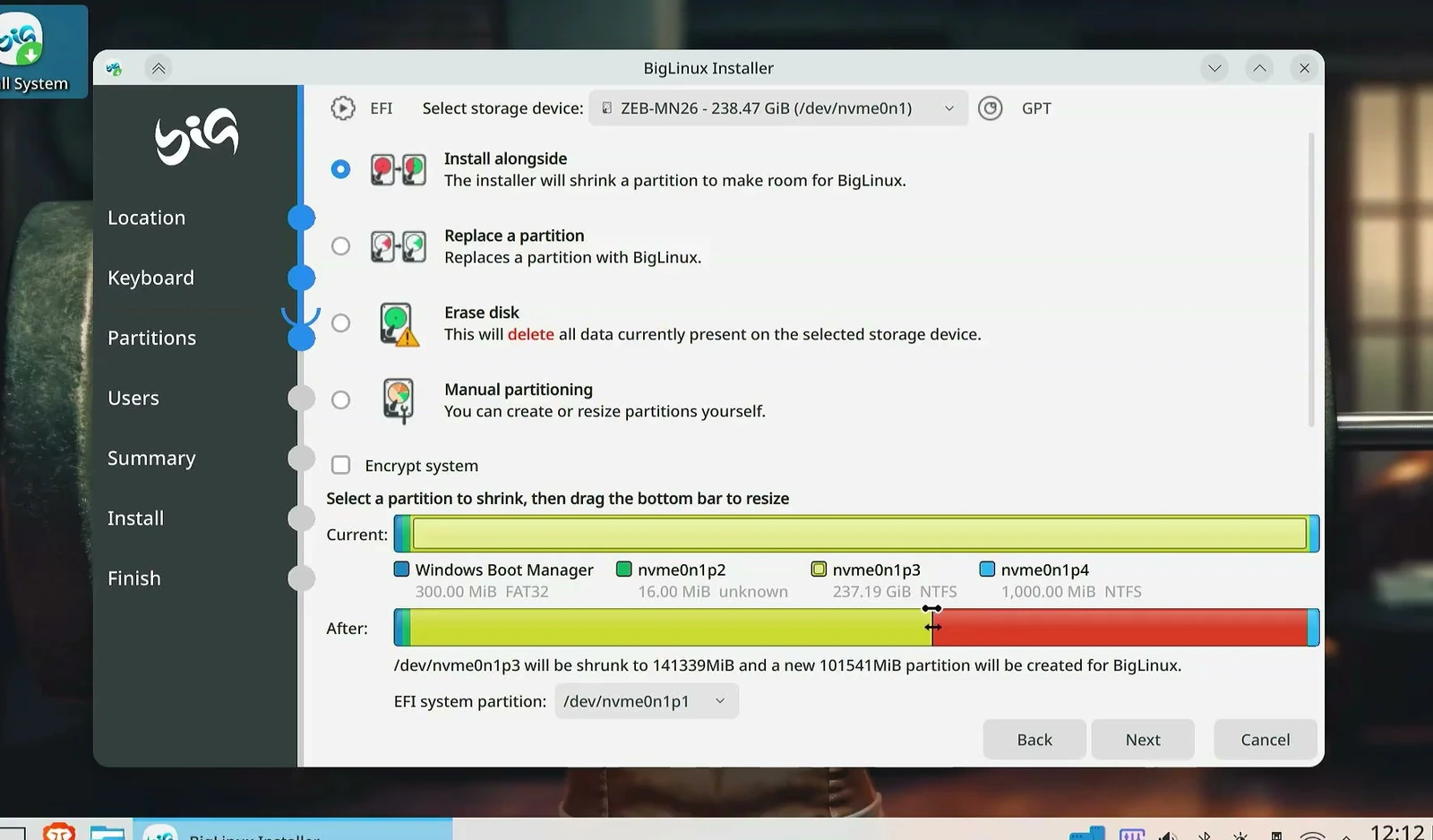
Read the Current and After layouts carefully. The preview shows which partition will shrink and where the new BigLinux partition will be created. Leave enough free space for Windows as well.
Create your account and review the changes
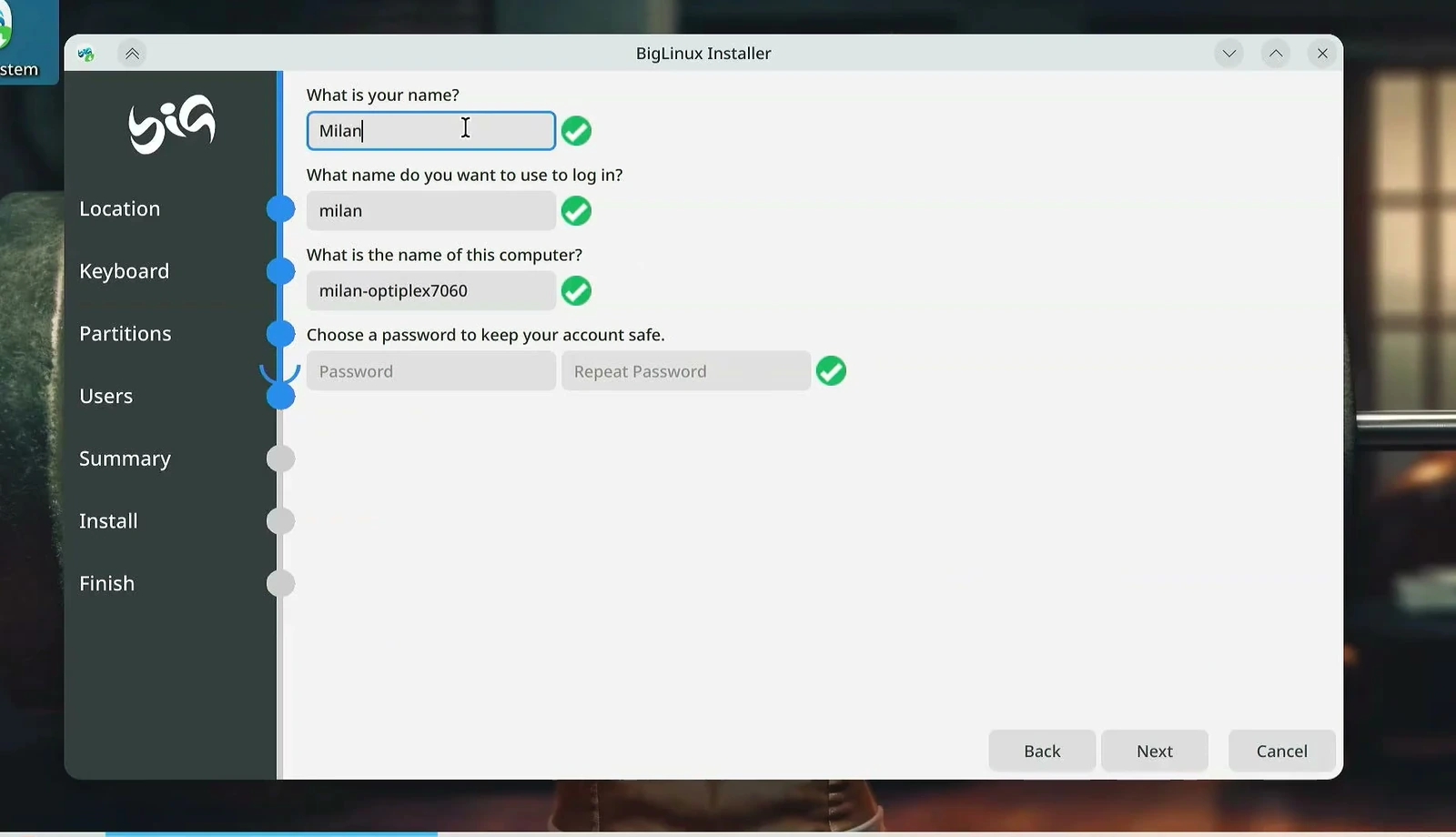
Enter your name, a username, and a password for BigLinux. Choose a password you can remember, because you’ll need it to sign in and authorize some system changes later.
Before installing, take a moment to review the summary. Check the destination drive, the Windows partition being resized, and the new BigLinux partitions. It’s much easier to correct a mistake here than after the installer has started writing changes.
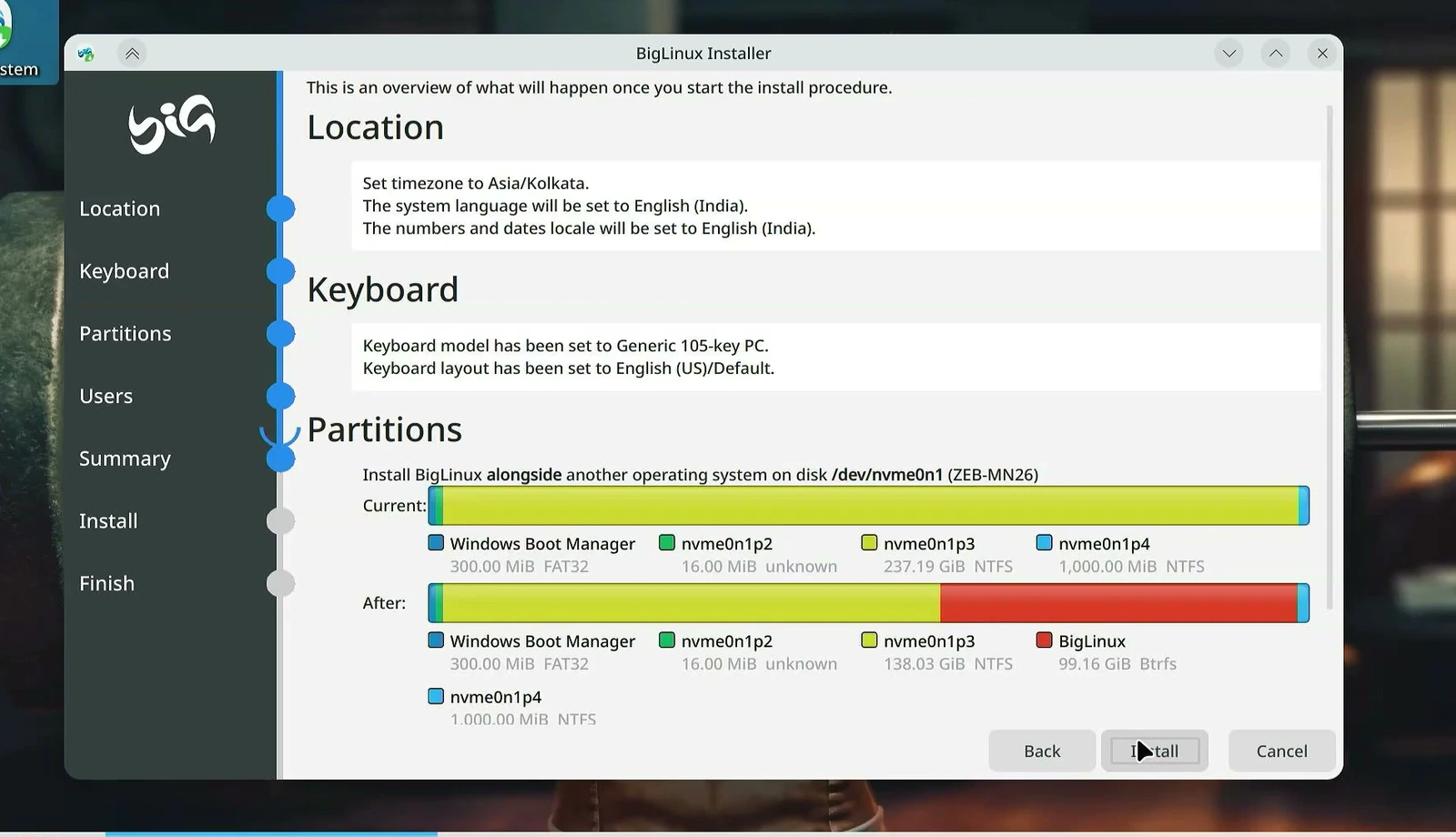
When everything is correct and your backup is complete, click Install and confirm with Install now. The process copies system files, prepares partitions, and sets up the bootloader. The time required will depend on your storage and hardware.
You’ll see installation progress on the screen. There may even be a little game to keep you occupied while the files are copied. Whether you play or not, avoid switching off the computer during installation.
Start BigLinux for the first time
Once installation finishes, choose Restart or Done as prompted. Remove the USB when appropriate so the computer starts from its internal drive rather than returning to the live installer.
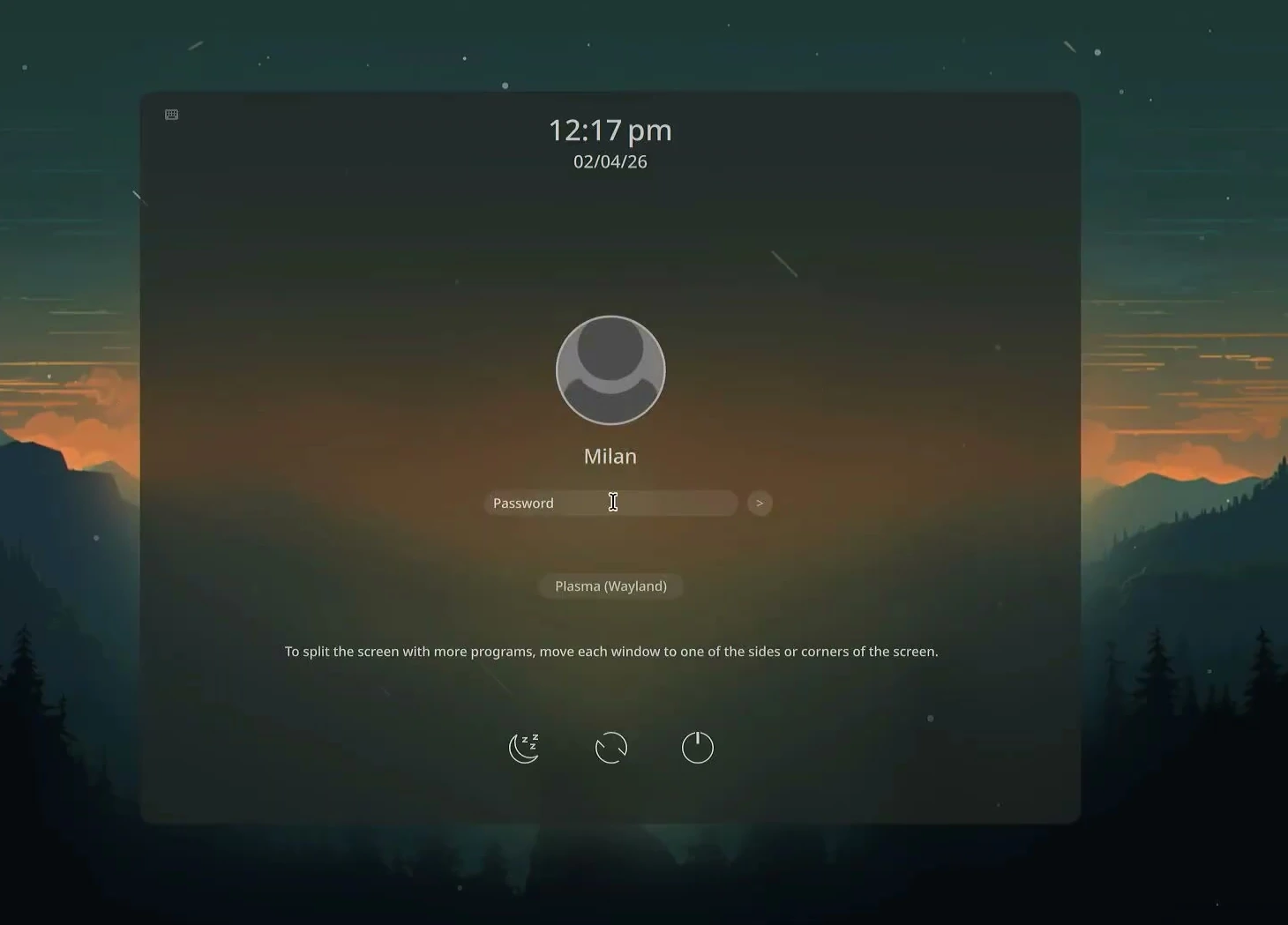
On a successful dual-boot setup, the boot menu should let you choose between BigLinux and Windows Boot Manager. Select BigLinux and sign in with the password you created during installation.
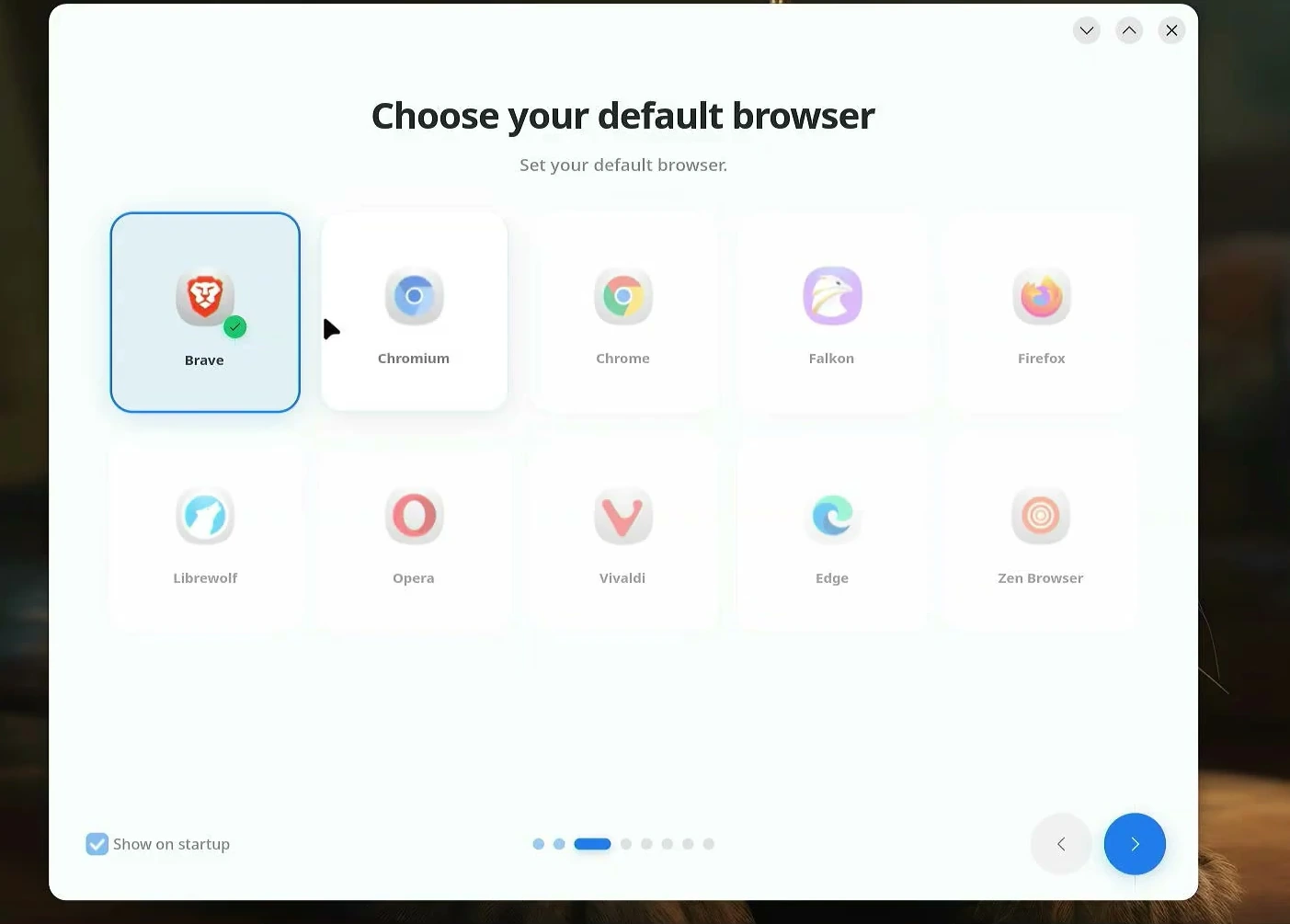
A welcome wizard helps you finish setting up the new system. You can review system details and initial settings, then choose a default browser from the available options.
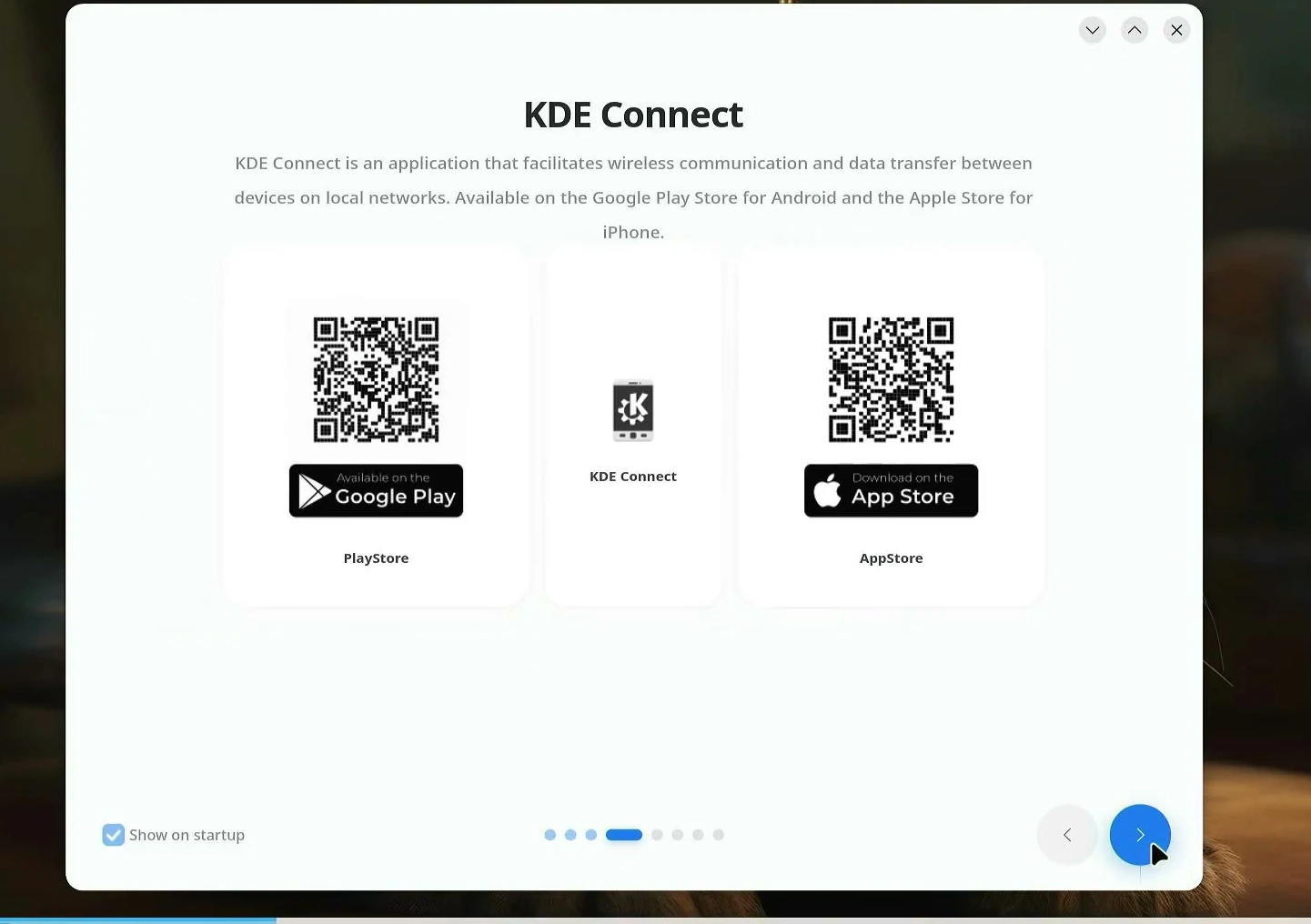
You’ll also be introduced to KDE Connect, a handy way to link an Android phone with your computer for features such as file sharing, clipboard access, and media controls. You can set it up now or skip it and come back later.
The remaining welcome pages introduce hardware tools, parental controls, and some built-in BigLinux features. Explore anything you need, then select Get Started when you’re ready to use the desktop.
What can you actually do with BigLinux?
Installing an operating system is only half the story. The real question is whether it makes everyday work easier on the computer you already own.
BigLinux gives you an applications menu with categories for office work, internet tools, graphics, multimedia, and system utilities. The live system shown here includes familiar applications such as LibreOffice and the Brave browser, though the exact installed apps may differ by edition or update.
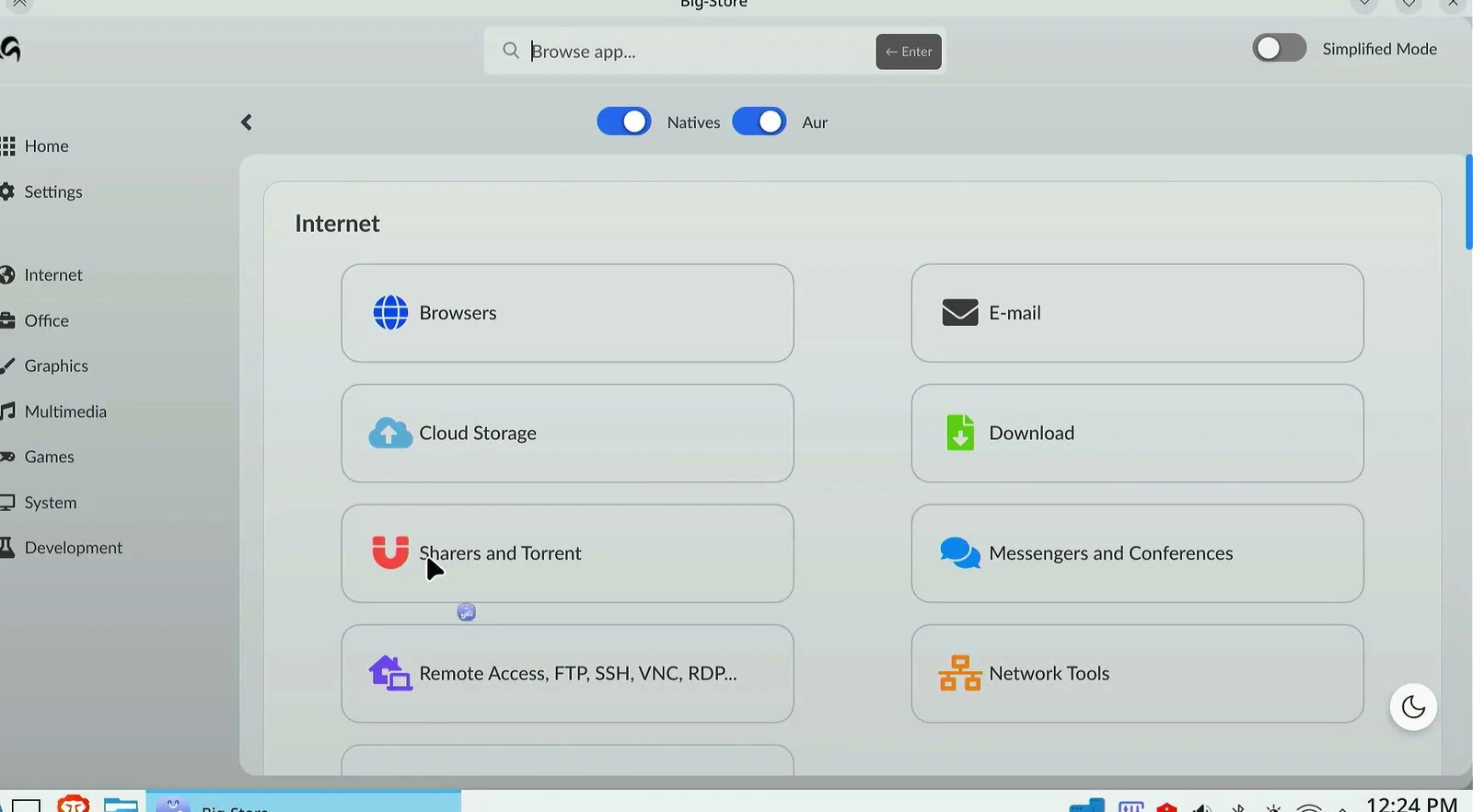
One useful place to explore is Big Store. It organizes software into categories, which is friendlier than having to remember terminal commands just to find a browser or everyday utility.
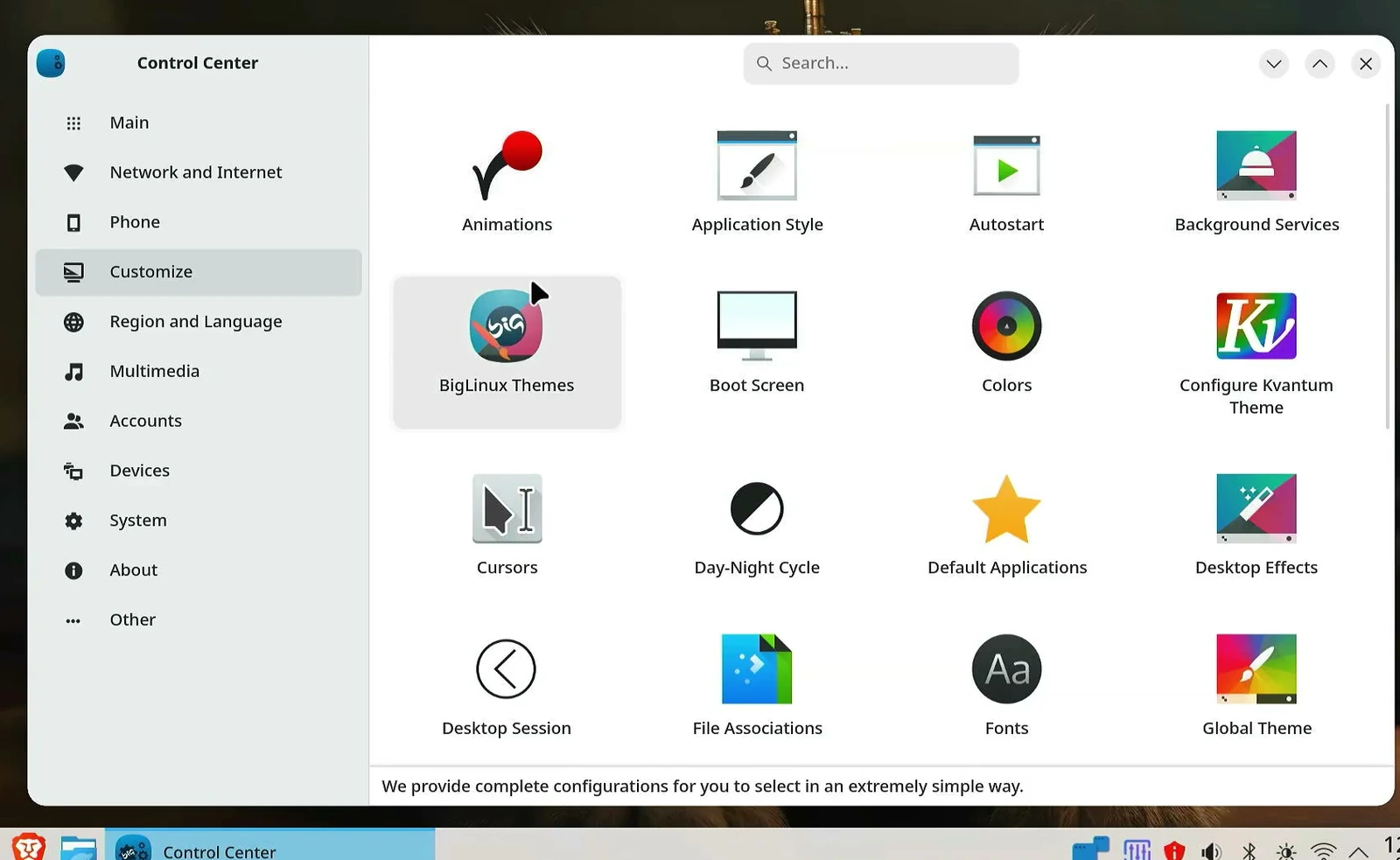
And if the default desktop doesn’t quite feel right, open the Control Center. You can change themes, window behavior, panel layout, background, icons, and other appearance settings. The visual flexibility is one of the things that makes BigLinux fun to explore.
BigLinux also introduces tools for hardware information, driver management, multimedia work, and phone integration. Steam and Proton can be useful for compatible games, but gaming support doesn’t mean every Windows game will run. The actual experience depends on your GPU, drivers, game, and available memory.
Should you use BigLinux on a low-end PC?
If your current computer struggles with everyday Windows tasks, BigLinux is worth testing before you decide the hardware is finished. It offers a more customizable desktop than many people expect from a distribution aimed at older PCs, and the live USB lets you check compatibility without installing anything first.
Just keep your expectations realistic. 2 GB is a minimum, not a performance promise. A machine with 4 GB may be usable for light tasks, but browser tabs, multitasking, and heavier software can still consume memory quickly. On suitable hardware, more RAM and an SSD can make a big difference.
For a first try, I would start with the recommended ISO, test everything in live mode, and choose Install alongside only after backing up your files and verifying the disk layout. That gives you a chance to explore Linux while keeping Windows available when you need it.