Reinstalling Windows can make a slow or troublesome computer feel fresh again. But there is one problem that can turn a simple reinstall into a headache. You finish setting up Windows, only to find that the Wi-Fi is missing, the speakers are silent, or the screen resolution looks completely wrong.
That’s why it’s a good idea to back up your Windows drivers before formatting your PC. You can save the drivers already available on your computer and keep them ready for the next installation. If Windows cannot find a compatible driver afterward, you won’t have to start searching for it on another device.
And the useful part is that you don’t need to install a separate driver-backup application. Windows already includes a tool called DISM that can export third-party driver packages. With a USB drive and a few minutes of preparation, you can save yourself quite a bit of trouble later.
Save a driver backup to your USB drive
First, connect a USB flash drive or external hard drive to the PC you’re planning to reinstall. You can also use another storage location, but an external drive is the safer choice. You won’t accidentally erase the backup while formatting the Windows drive.
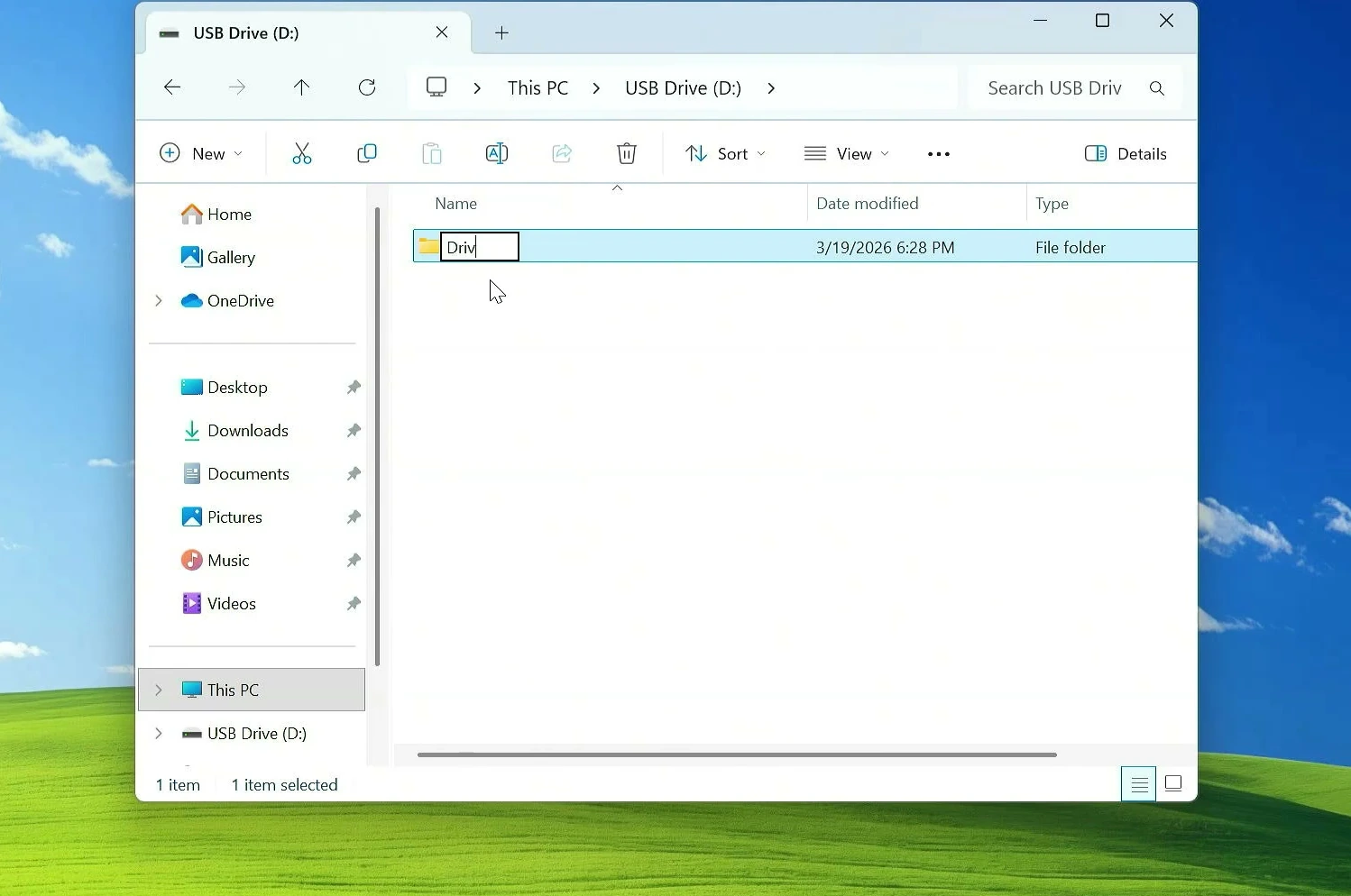
Open File Explorer, select your USB drive, and create a folder named Drivers. In this example, the USB drive has the letter D:, so the folder is located at D:\Drivers.
Your USB may appear as E:, F:, or another letter. Check its actual drive letter before moving on. The command we’ll use needs to point to the right folder.
Export your drivers with DISM
Now we’ll ask Windows to copy its third-party driver packages into that folder. DISM stands for Deployment Image Servicing and Management. The name sounds complicated, but we only need one command.
Open the Start menu and search for CMD. Right-click Command Prompt and choose Run as administrator. Approve the Windows permission prompt if one appears.
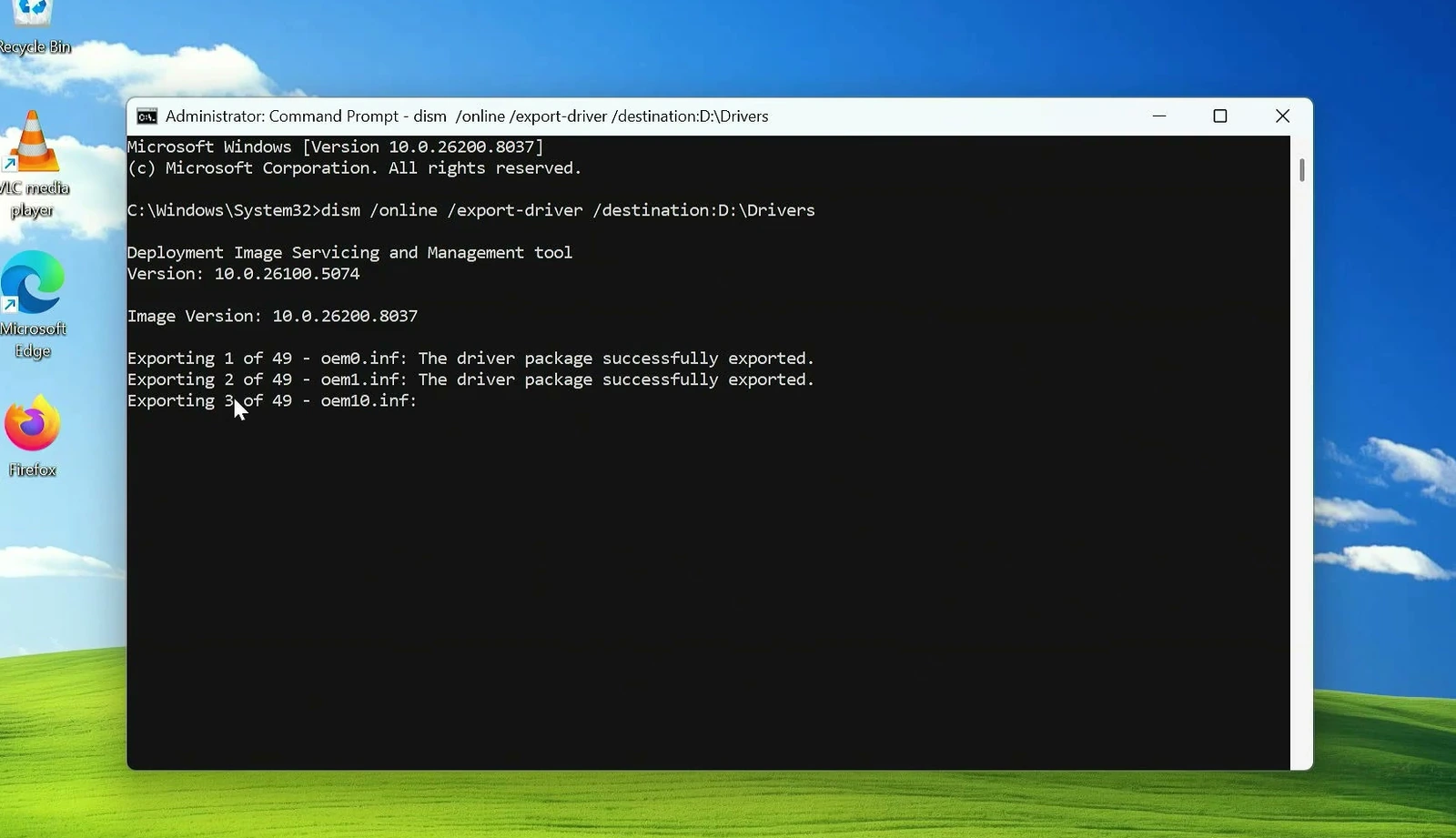
Copy the following command into the Administrator Command Prompt.
dism /online /export-driver /destination:D:\DriversMake sure D:\Drivers matches the folder on your USB drive. For example, if the USB drive is E:, change the destination to that drive before running the command.
Here’s what the command does. /online tells DISM to work with the Windows installation currently running. /export-driver copies third-party driver packages from its driver store. The /destination part tells DISM where to save them.
Press Enter to begin. You’ll see the driver packages being exported in the Command Prompt window. This may take a few minutes, depending on how many packages are stored on your computer.
When Windows displays The operation completed successfully, the export is finished.
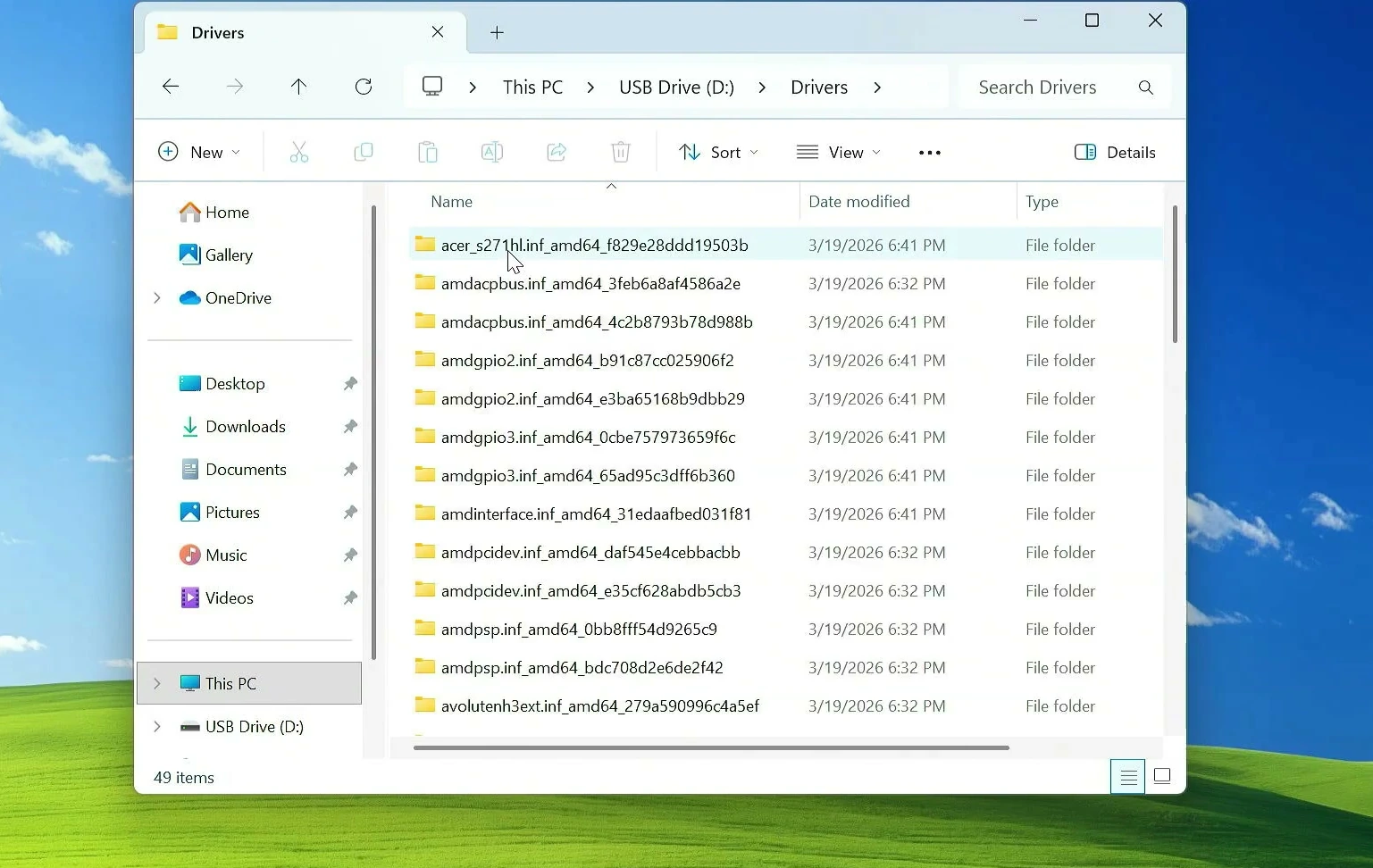
Close Command Prompt and open the Drivers folder on your USB drive. Instead of one giant backup file, you’ll find several folders containing driver files. That’s normal. Each folder holds files for a particular driver package.
Restore the backup after reinstalling Windows
Once you’ve reinstalled Windows, some devices might work immediately. Others may need their drivers again. You might find that Wi-Fi and Bluetooth are unavailable, audio isn’t working, or Device Manager shows yellow warning symbols.
You can see those warning symbols under Other devices when Windows hasn’t found a suitable driver. They are a useful clue, but they don’t always mean that the driver is simply missing. A device can also have another problem.
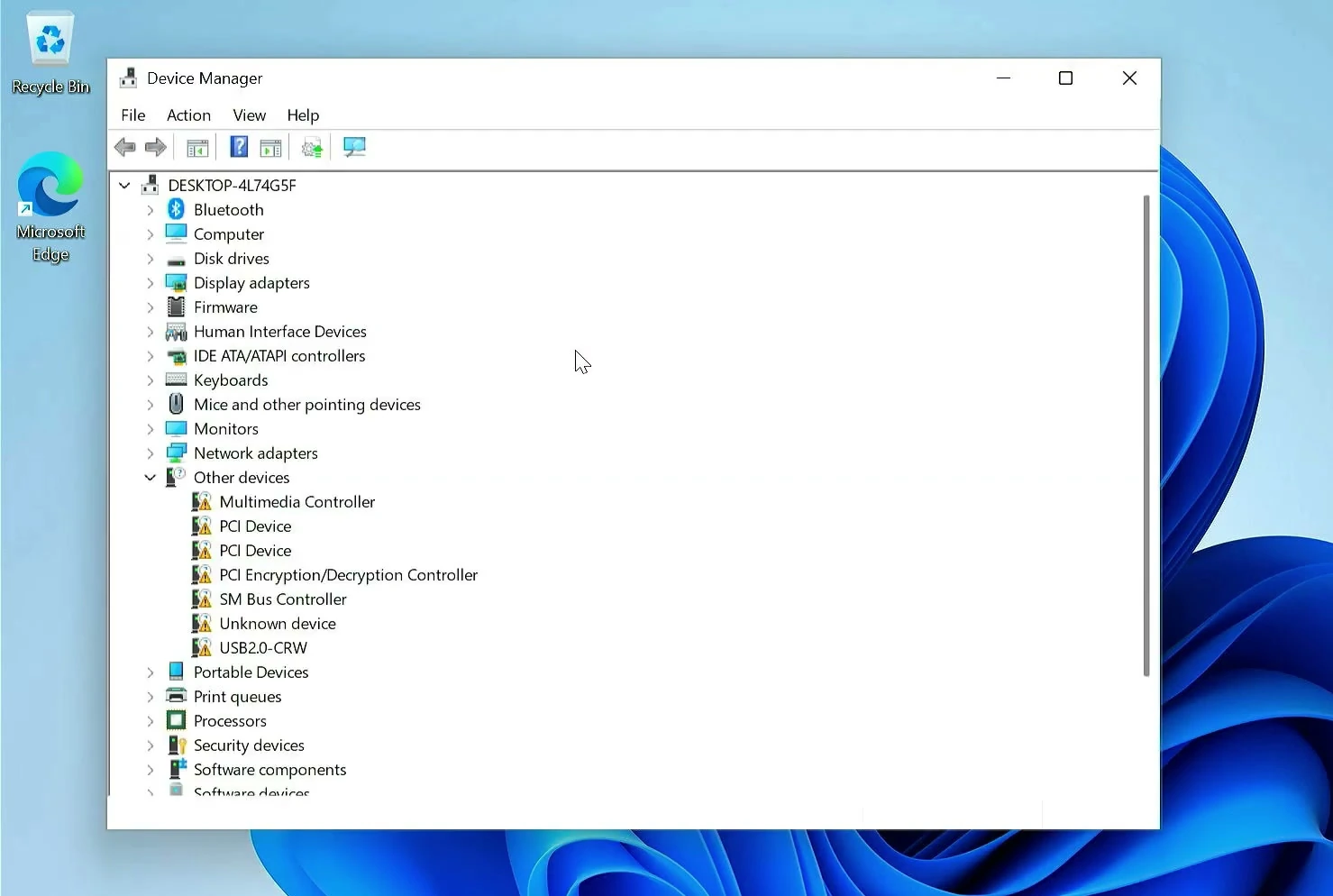
Reconnect the USB drive containing your backup. Then right-click the Start button and open Device Manager.
At the top of the device list, right-click your computer’s name and choose Add drivers. On Windows builds that provide this option, you can point Device Manager to the entire backup folder instead of handling every device one by one.
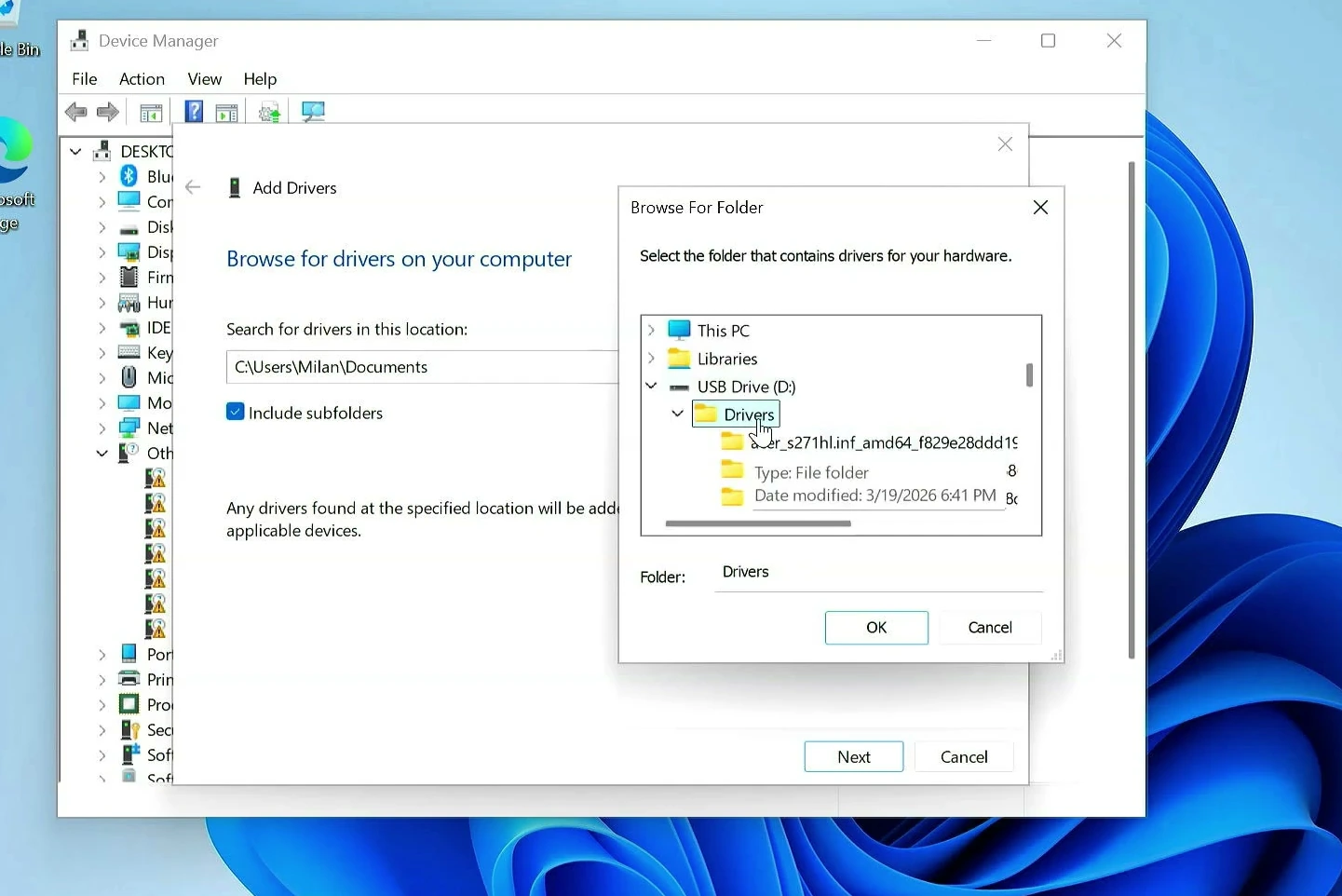
In the Add Drivers window, click Browse and locate the Drivers folder on your USB drive.
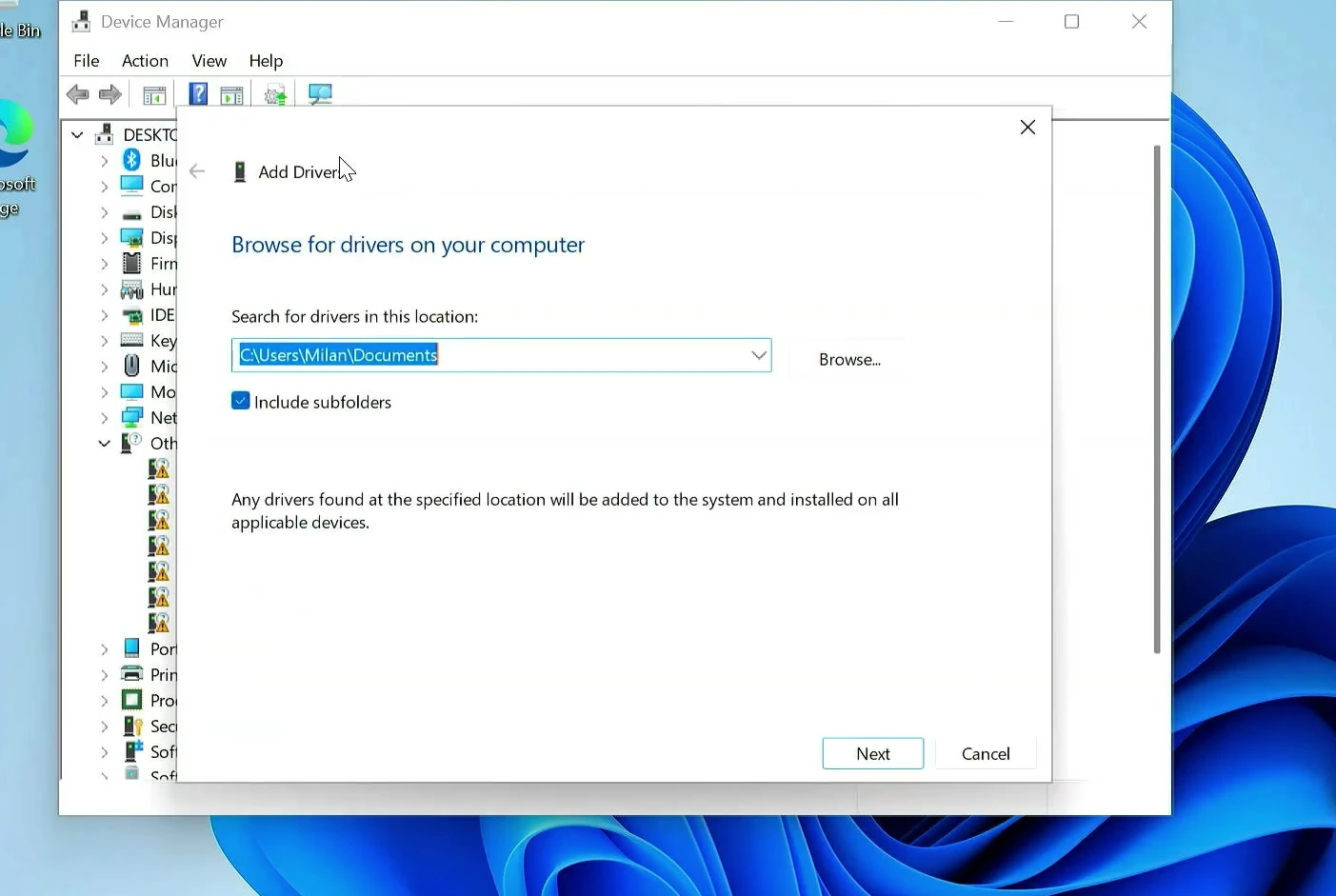
Choose the folder itself, not just one of the individual files inside it. Then make sure Include subfolders is checked. This matters because DISM saved the packages across many separate folders, and Windows needs to search through them.
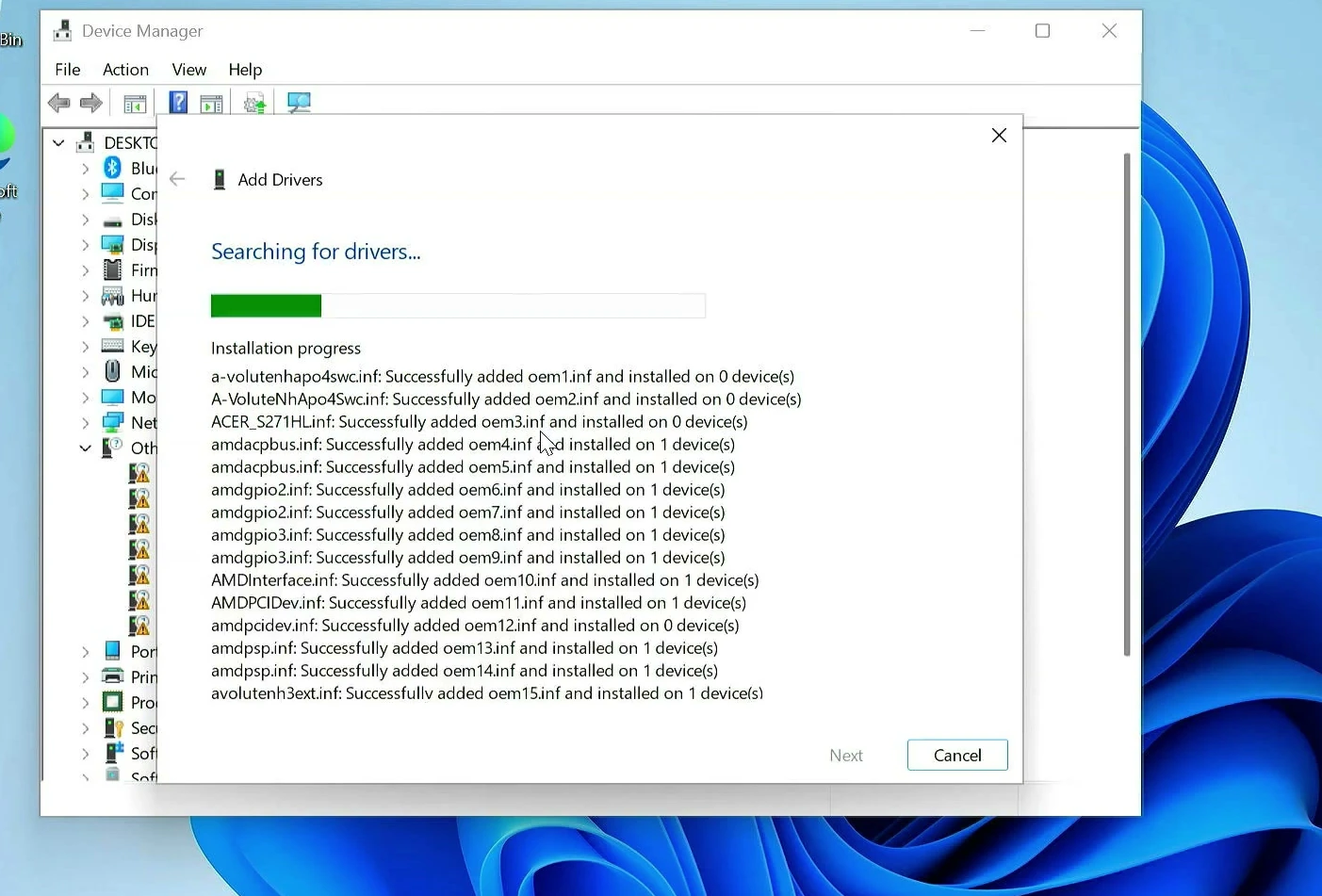
Click Next. Windows will search the selected location for compatible driver packages and attempt to add or install them where applicable. You can follow the progress in the installer window.
Once the process finishes, restart your computer. A restart can be necessary before audio, networking, or graphics devices start working properly.
Open Device Manager again and check the devices that were missing before. If compatible packages were found, you should now see their proper device names rather than generic entries with warning icons.
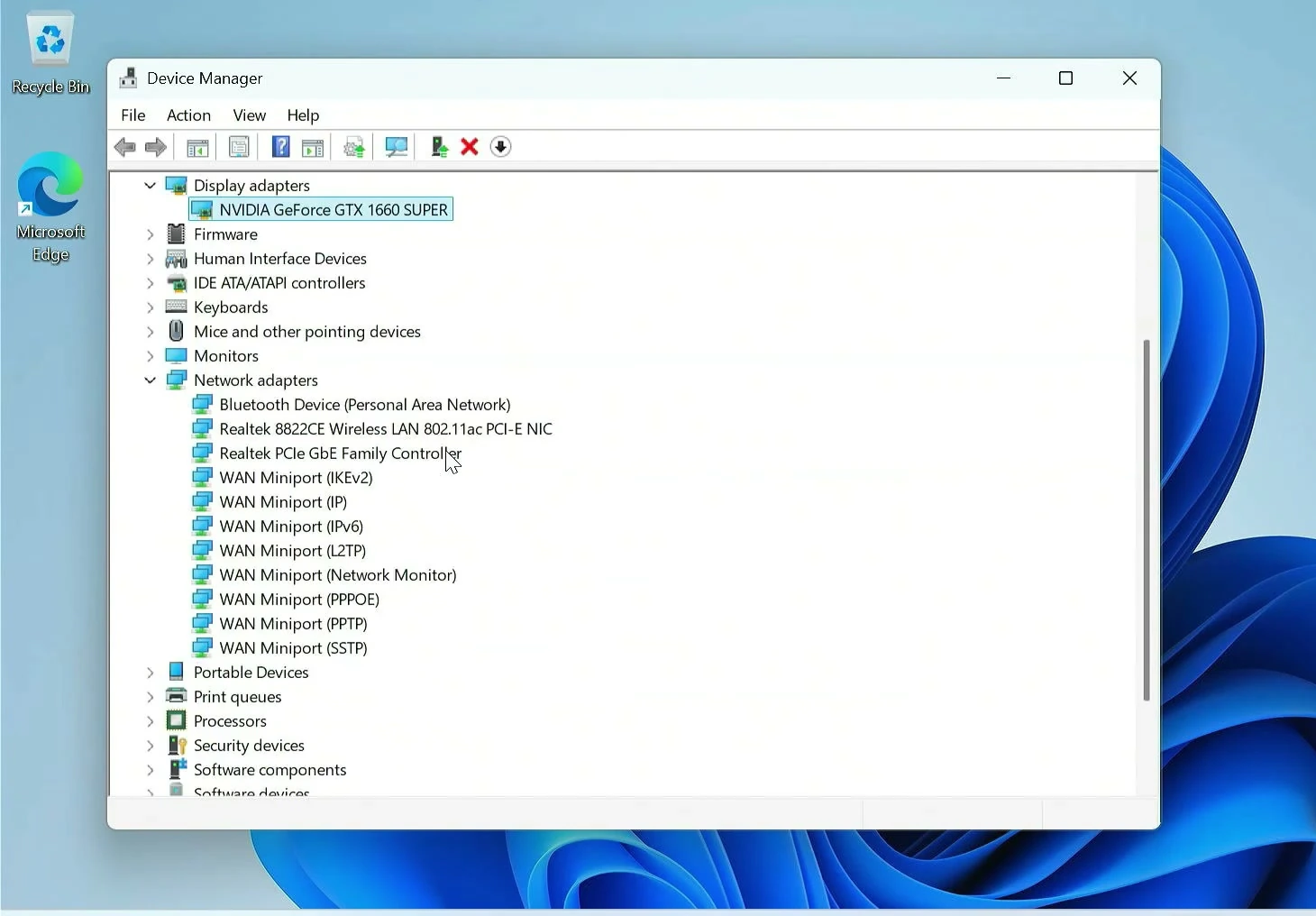
It’s also worth testing the features themselves. Connect to Wi-Fi, check Bluetooth, play a little audio, and confirm that the display uses the expected resolution. A device appearing in Device Manager is a good sign, but testing it tells you whether everything is really working.
Restore just one driver when you need it
You don’t have to use the whole backup every time. Maybe Windows is working well, but the Wi-Fi adapter develops a driver problem later. You can return to the same USB backup and look for a suitable driver for that particular device.
Open Device Manager, right-click the affected device, and select Update driver.
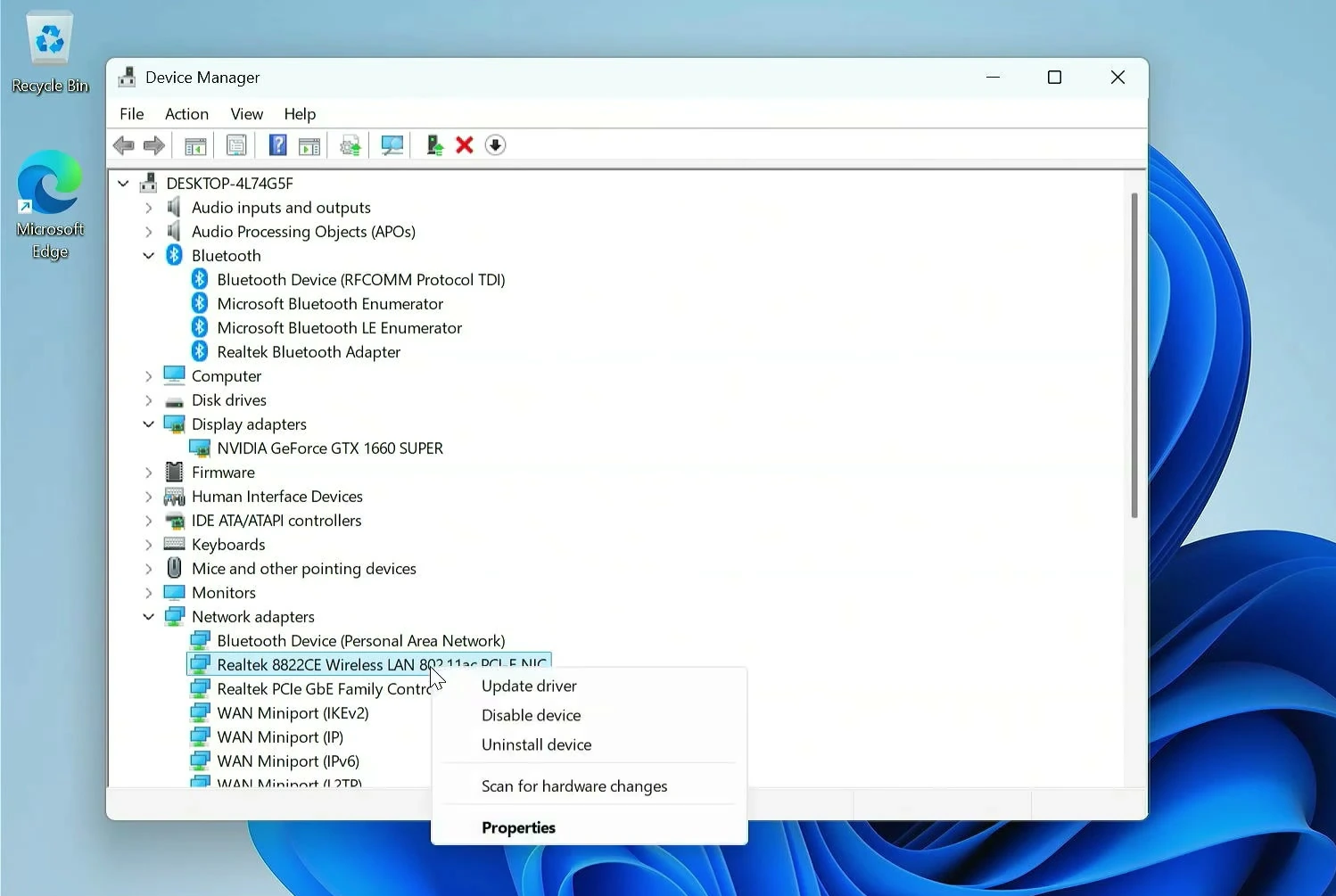
Choose Browse my computer for drivers, then select the saved Drivers folder. Keep Include subfolders enabled and click Next. Windows will check that folder for a compatible driver.
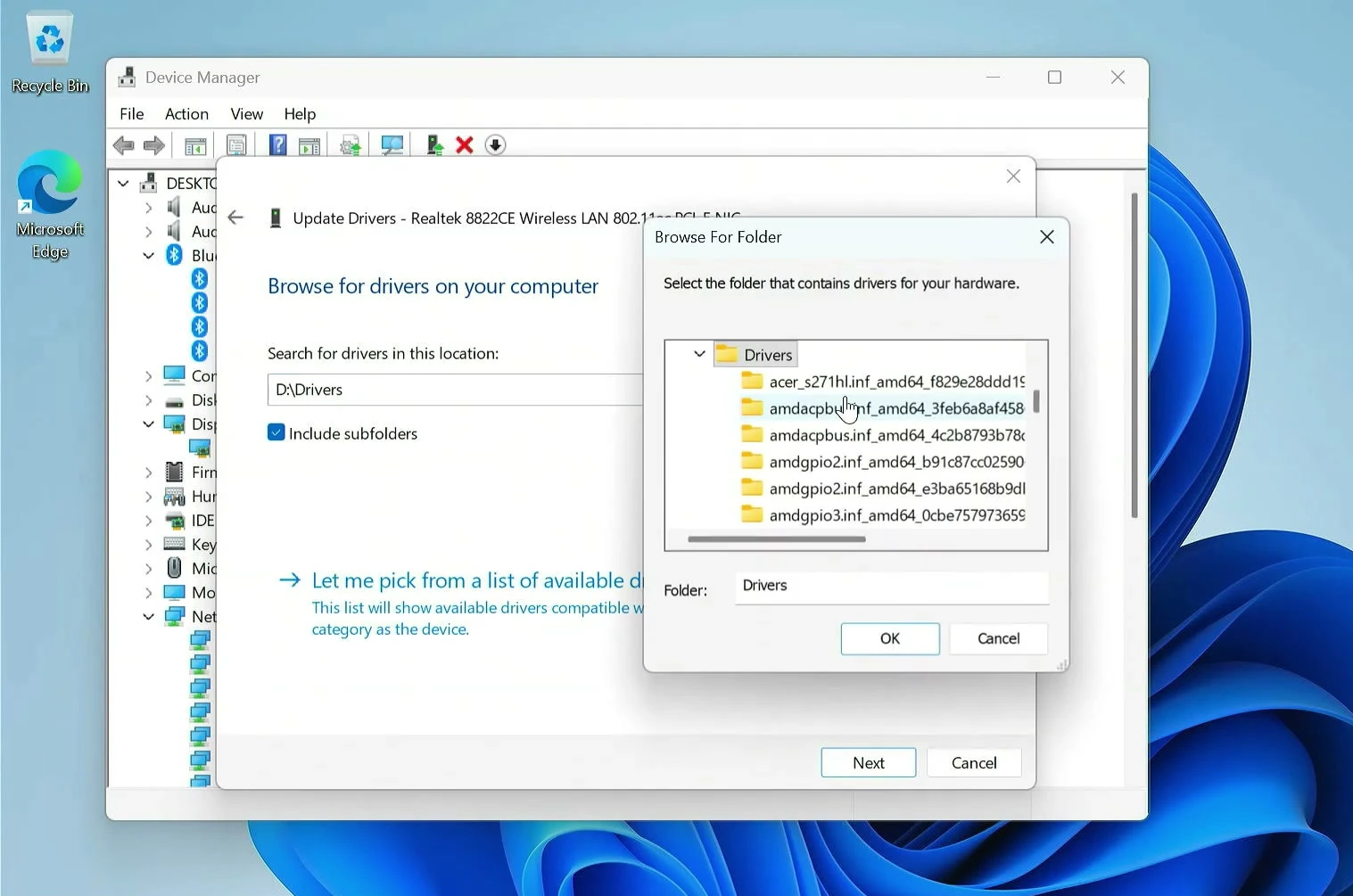
If Windows doesn’t find one, the backup may not contain a suitable package for that device. In that case, check the PC or device manufacturer’s official support page when you have internet access. Avoid guessing or installing drivers from random download websites.
A few things to keep in mind
This method is especially useful when you’re reinstalling Windows on the same computer. The exported packages are much more likely to match the hardware they originally came from.
It’s also handy when you’re setting up Windows without an internet connection. You can restore compatible drivers from your USB drive first, then connect to the internet later for Windows updates and any additional manufacturer software you might need.
Before you format your PC, open the USB backup once and make sure those driver folders are really there. That one quick check is worth the effort. Your future self will appreciate not having to hunt down a Wi-Fi driver just to get back online.