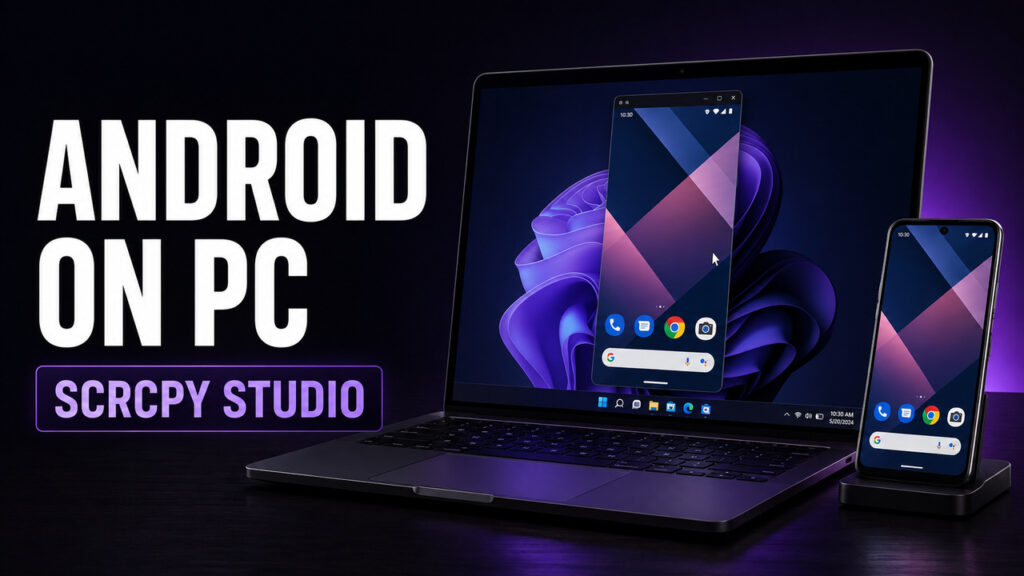
Do you want to get a Samsung DeX-style desktop experience on a normal Android phone? In this guide, I will show you how to use Android DeX to open and control your Android apps directly on a Windows computer.
With this setup, you can open multiple Android apps in separate desktop-style windows, move them around, resize them, minimize them, and switch between them just like normal Windows applications. You can also control everything using your computer keyboard and mouse, which makes typing, browsing, messaging, and file management much easier.
From this desktop interface, you can access your installed apps, open the Google Play Store, manage notifications, control media playback, make or manage phone calls, and even copy text between Android and Windows. This means you can keep your phone connected to the computer and use many of its features without picking it up again and again.
What is Android DeX?
Android DeX is a free tool that gives your Android phone a desktop-style interface on your Windows computer. It is designed to create a Samsung DeX-like experience on many Android phones, even if you are not using a Samsung device.
The apps are still running on your phone, but Android DeX displays and controls them from your computer. This gives you a more desktop-like experience with windows, a taskbar, app drawer, keyboard control, mouse control, and multitasking.
For this method, root access is not required, and the setup is also quite simple. You can connect your phone using a USB cable or connect wirelessly through Wi-Fi.
What You Need
Before starting, make sure you have these things:
- An Android phone
- A Windows computer
- A good quality USB data cable
- USB debugging enabled on your phone
- Wireless debugging enabled if you want Wi-Fi connection
- Android DeX application for Windows
Root access is not required for this method.
Android DeX GitHub Link
You can get Android DeX from the official GitHub project page.
Step 1: Enable Developer Options on Your Android Phone
First, open Settings on your Android phone.
Now go to About phone. Depending on your device, you may also need to open Software information.
Find the Build number or Version number, and tap on it seven times continuously. After that, Developer Options should be enabled on your phone.
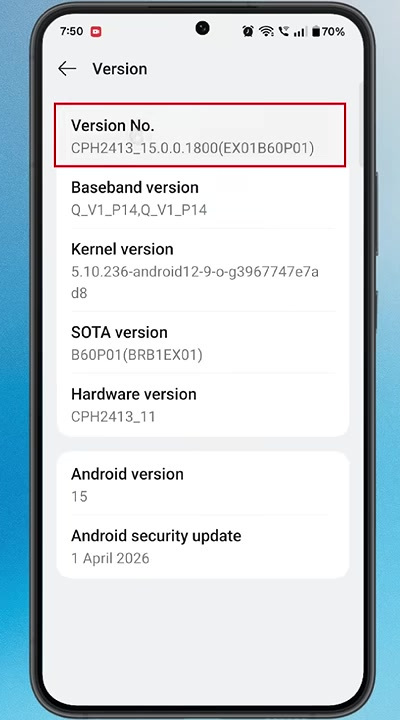
Step 2: Enable USB Debugging
Now go back to the main Settings page and open Developer Options.
On some phones, Developer Options may be inside System, Additional settings, or a similar section.
Inside Developer Options, scroll down and enable USB debugging.
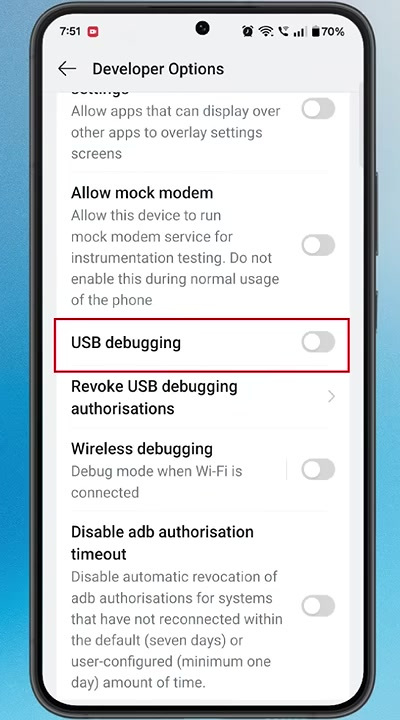
This option is required because Android DeX needs debugging access to connect your phone with the computer.
Step 3: Enable Wireless Debugging Optional
If you want to connect your phone to the computer without a USB cable, you can also enable Wireless debugging.
This step is optional. For the first setup, I recommend using the USB method because it is easier and usually more stable.
Once everything works properly through USB, you can try the wireless method later.
Step 4: Enable Freeform Window Options Optional
Inside Developer Options, you may also find options like:
- Force activities to be resizable
- Enable freeform windows
If these options are available on your phone, you can enable them. These settings can improve app compatibility and window resizing.
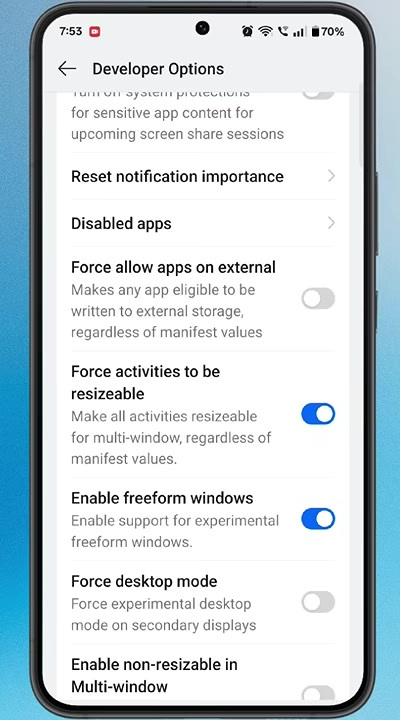
However, these options are not available on every Android phone. So, if you cannot find them, you can still continue with the setup.
Step 5: Get Android DeX on Your Windows PC
Now move to your computer.
Open any browser and go to the Android DeX GitHub page. Then open the Releases section.
Scroll down to the Assets section. Here, you will find versions for different operating systems. Since we are using Windows, download the Windows ZIP file.
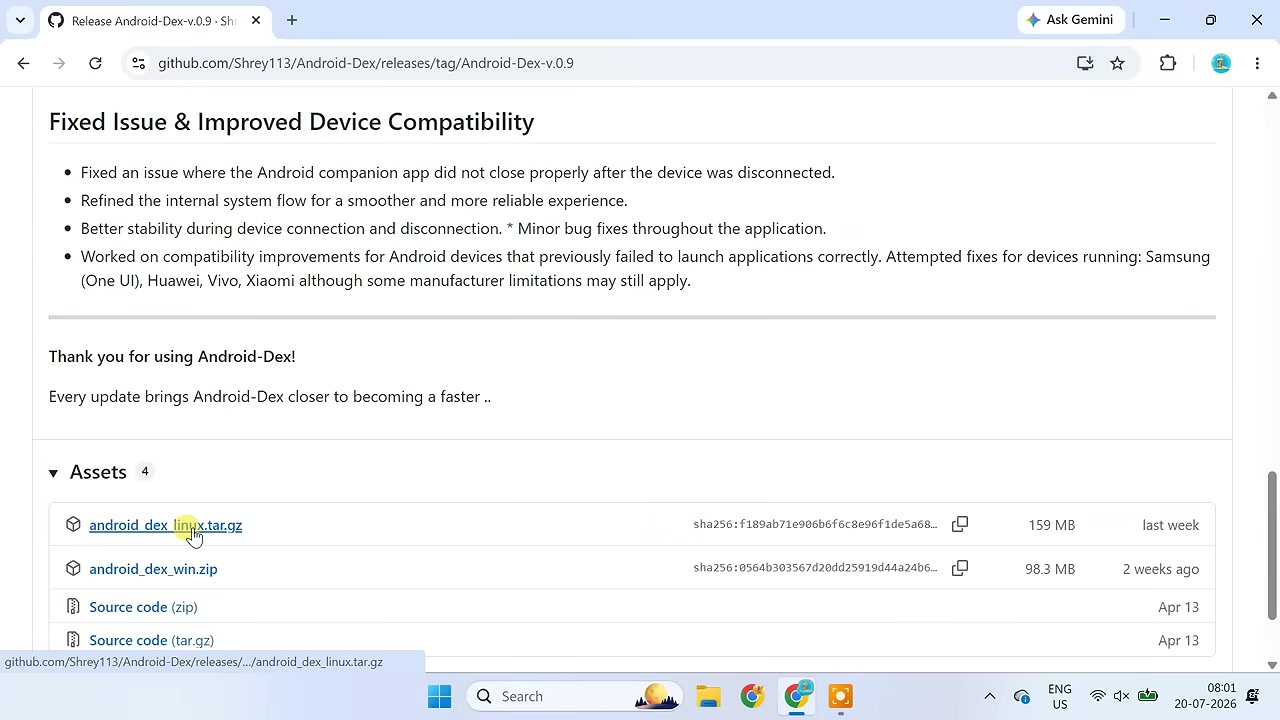
After the ZIP file is saved on your computer, extract it.
Now open the extracted Android DeX folder and double-click the Android DeX application to launch it.
The Android DeX connection screen should now appear.
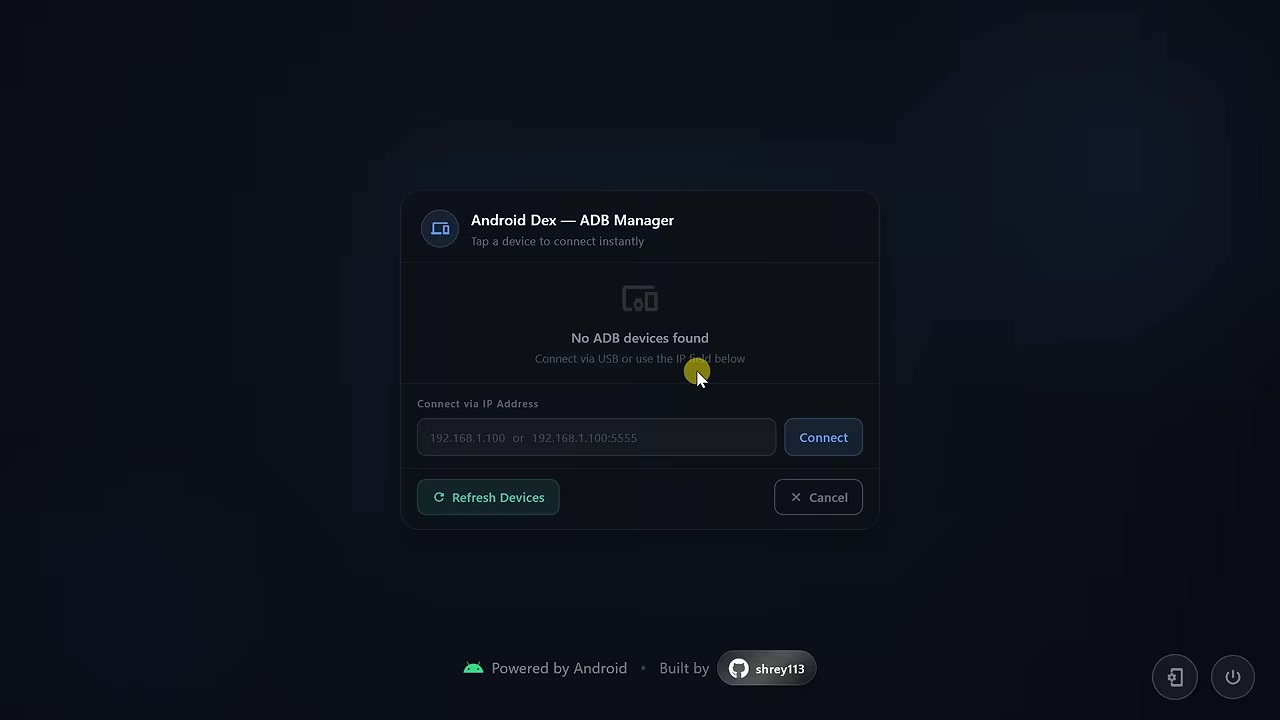
Step 6: Connect Your Phone Using USB Cable
There are two ways to connect your phone with Android DeX:
- USB cable
- Wi-Fi using wireless debugging
We will start with the USB method because it is easier and usually provides better speed and stability.
Connect your Android phone to the computer using a good quality USB data cable.
Now check your phone screen. You should see a USB debugging permission message.
Enable Always allow from this computer and then tap on Allow.
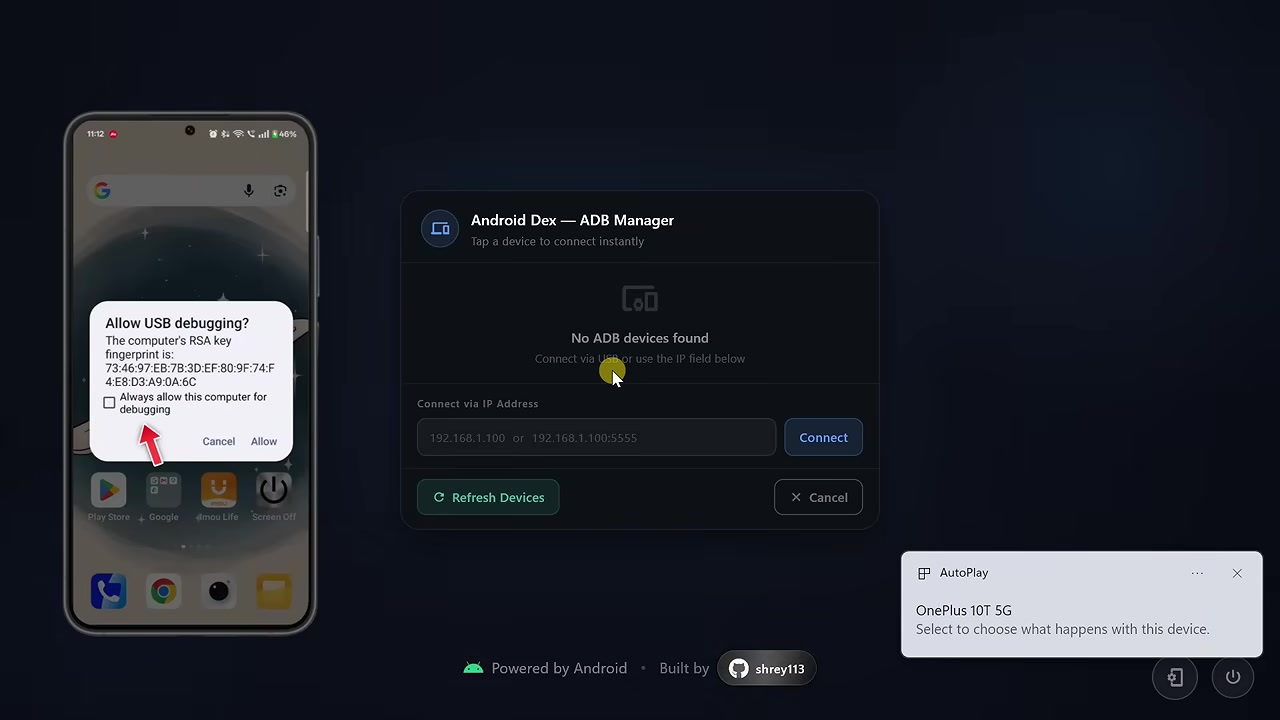
Android DeX should now start detecting your connected phone. If your phone does not appear automatically, use the Refresh devices option inside Android DeX.
Once the connection is successful, the Android DeX desktop interface should appear on your Windows computer.
Step 7: Connect Android DeX Wirelessly
Now let’s see how to connect without a USB cable.
Make sure your phone and computer are connected to the same Wi-Fi network.
Open Wireless debugging settings on your phone. Here, you will see an IP address and port number.
In the Android DeX application on your computer, enter the IP address and port shown on your phone.
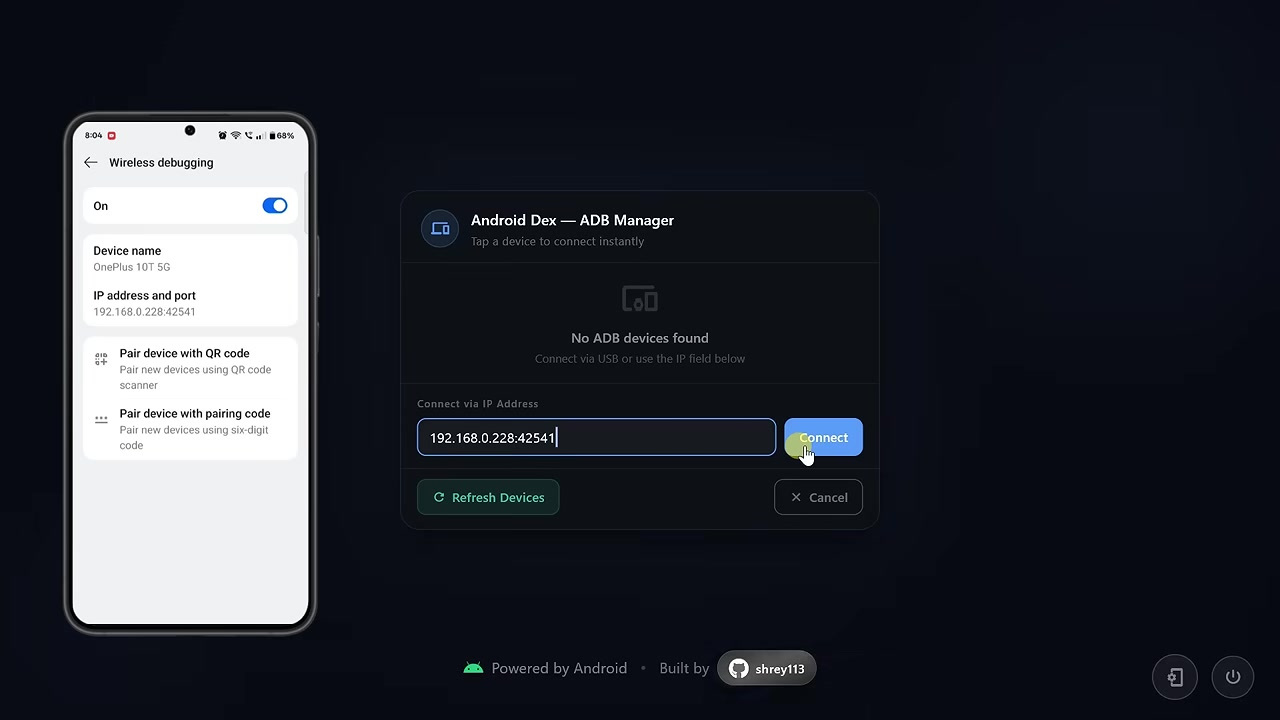
Then click on Connect.
After the connection is successful, the Android DeX desktop should load wirelessly.
Step 8: Understand the Android DeX Desktop Interface
The Android DeX interface looks similar to a desktop operating system.
At the bottom, you will find Android navigation controls, the application drawer, opened applications, the notification panel, battery information, quick settings, and time.
You can use your mouse to click, drag, resize, and control apps. You can also use your keyboard for typing inside supported apps.
Step 9: Open Android Apps in Desktop Windows
Click on the application drawer button.
At the top, you will find Android DeX system applications such as:
- Mirroring
- Audio
- Call
- Contacts
- Settings
- Widgets
Below them, you will find the applications installed on your phone.
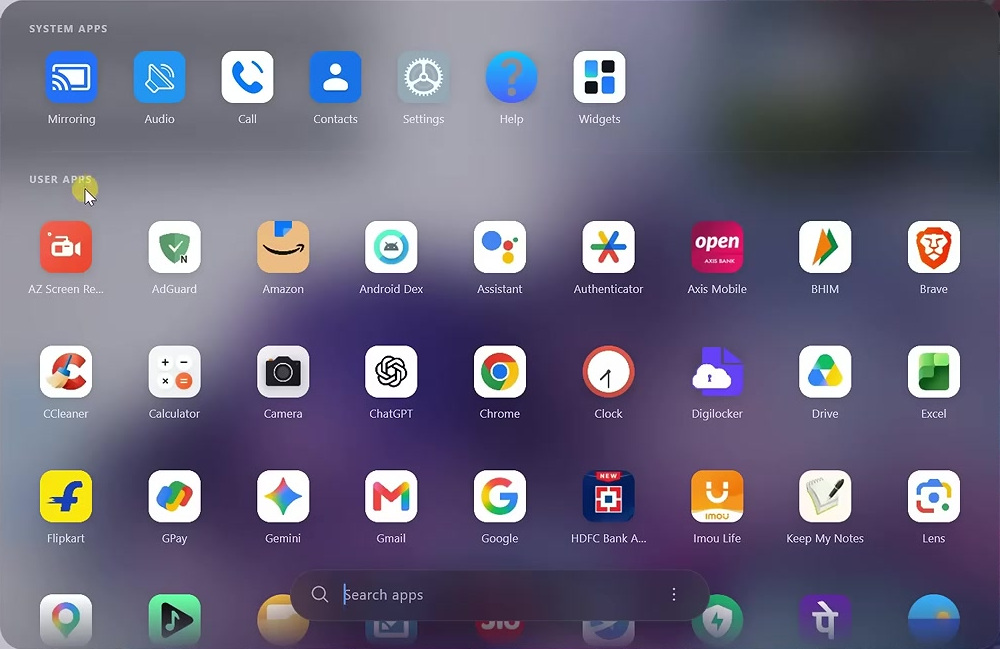
Click any app to open it. The application will open inside its own window. You can move the window, minimize it, maximize it, and resize it.
This means you can keep several Android applications open and switch between them using the taskbar.
The apps are still running on your phone. Android DeX is just displaying and controlling them through the computer.
Step 10: Add Apps to the Desktop
You can add your frequently used applications directly to the desktop.
To do this, open the app drawer, click and hold an app icon, and drag it onto the desktop.
The app shortcut will now appear on the desktop screen.
To remove a shortcut, right-click on it and select Remove from desktop.
Step 11: Add Widgets to the Desktop
To add a widget, right-click on an empty area of the desktop and select Add Widget.
Now select a widget and add it to your desktop screen.
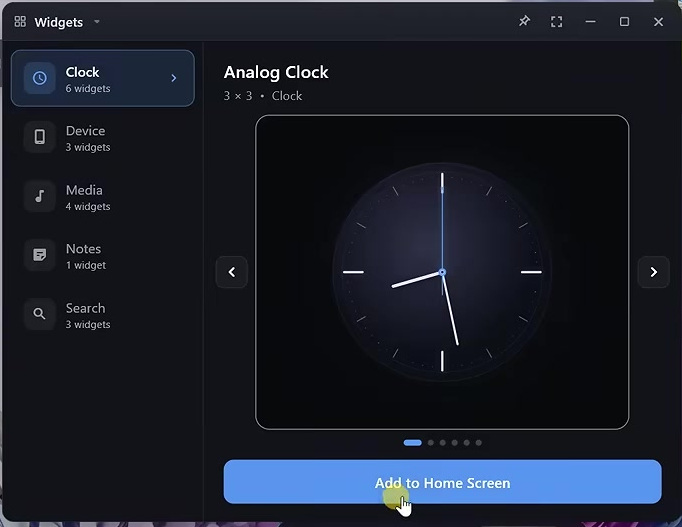
The same right-click menu also allows you to add applications or change the wallpaper.
Step 12: Change Display and UI Settings
Now let’s check the important Android DeX settings.
Open Settings inside Android DeX and go to Display and UI.
Here, you can turn on dark mode, adjust the overall appearance, and change the display size so the interface looks comfortable on your monitor.
If the icons and text look too big or too small, adjust the display size based on your screen.
Step 13: Change Language and Font
Next, open Language and Font.
From here, you can select your preferred language. Android DeX supports multiple languages, so choose the one that works best for you.
Step 14: Change Wallpaper
Now go to the Wallpaper section.
From here, you can change the desktop background. If the icons are not clearly visible, use a darker or simpler wallpaper for better visibility.
Step 15: Configure Scrcpy Settings
Now open Scrcpy Config.
This section controls how apps open and how the screen is displayed.
Keep Default opening selected if you want apps to open inside the Android DeX desktop.
For multitasking, you can use Resizable or Flex Display mode. These modes can help apps behave more like desktop windows.
But if any app opens incorrectly, looks broken, or does not resize properly, switch back to Normal mode.
Also, keep the video encoder set to Auto unless you face display problems.
Step 16: Enable Clipboard Sync
Finally, open Clipboard Manager.
Enable clipboard syncing if you want to copy text between Android and Windows.
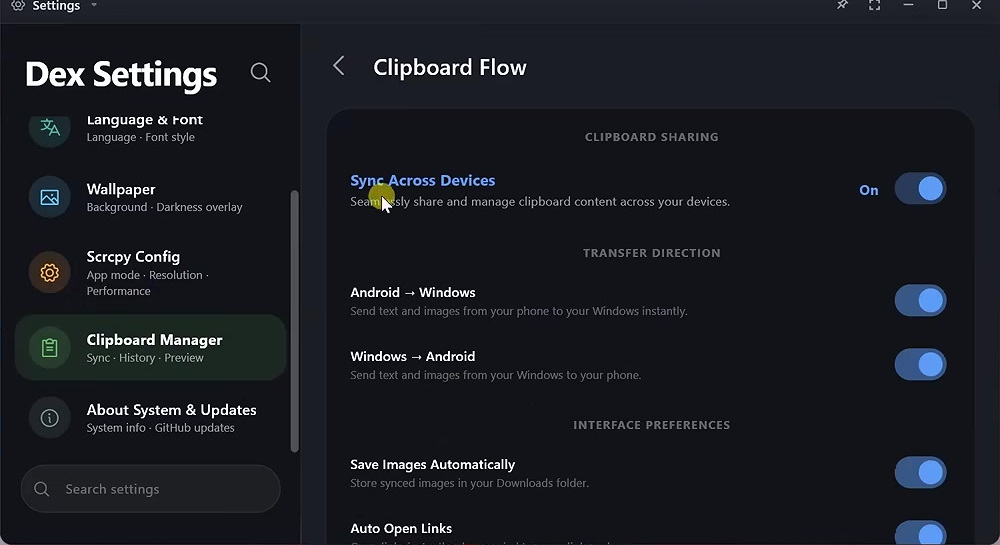
This is very useful when you are working with messages, documents, websites, notes, or any text-based app.
For example, you can copy text from your Windows computer and paste it inside an Android app, or copy something from Android and use it on your PC.
Using Google Play Store in Android DeX
You can also open the Google Play Store from Android DeX and install apps on your phone.
Most regular apps should work, but some apps may open in the wrong orientation or may not resize properly.
If an app does not work properly in desktop mode, try switching the opening mode from Resizable or Flex Display back to Normal mode in Scrcpy Config.
App Compatibility and Limitations
Android DeX works well for many regular Android apps, but not every app will behave perfectly.
Some apps may not resize correctly. Some may open only in portrait mode. Banking apps, protected streaming apps, and other security-focused applications may also have compatibility issues.
So, this tool is best for normal productivity tasks, browsing, messaging, media control, file management, and using Android apps from your computer.
Can You Play Android Games?
Android games can be opened inside Android DeX, but the experience depends on the game.
There is no universal keyboard mapping for all games. The mouse and arrow keys may work in some games, but controls such as W, A, S, and D may not work automatically.
You may also notice some input delay, especially when using Wi-Fi.
So, Android DeX is more useful for browsing, messaging, productivity, media, and file management than serious gaming.
USB vs Wi-Fi: Which Connection is Better?
Both USB and Wi-Fi methods can work, but USB is usually better for most users.
With USB, the connection is more stable, faster, and less likely to lag. It is also easier to set up for beginners.
Wi-Fi is useful if you do not want to keep your phone connected with a cable. But for wireless connection, your phone and computer must be on the same Wi-Fi network, and the connection quality depends on your router and signal strength.
Best Uses of Android DeX
Android DeX can be useful for many things, such as:
- Opening Android apps on a Windows PC
- Typing messages using a computer keyboard
- Managing phone files from a desktop interface
- Using Android apps in resizable windows
- Controlling media playback
- Accessing notifications from your computer
- Using apps while your phone stays connected to the PC
- Copying text between Android and Windows
Is This the Same as Samsung DeX?
No, this is not the official Samsung DeX feature.
Official Samsung DeX is built into supported Samsung phones and tablets. Android DeX is a separate tool that creates a similar desktop-style environment using your Android phone and computer.
So, the experience may not be exactly the same as official Samsung DeX. However, for a free tool that works on many Android phones without root, it can be a useful Samsung DeX alternative.
Troubleshooting
Phone is not detected
If your phone is not detected, make sure USB debugging is enabled. Also check your phone screen and allow the USB debugging permission popup.
If it still does not appear, use the Refresh devices option inside Android DeX.
USB debugging popup is not showing
Try reconnecting the USB cable. You can also try a different USB port or a different data cable.
Make sure you are using a proper USB data cable, not a charging-only cable.
Wi-Fi connection is not working
Make sure your phone and computer are connected to the same Wi-Fi network.
Also check the IP address and port carefully. If the port changes, update it inside Android DeX and try again.
Apps are not resizing properly
If apps do not resize correctly, open Scrcpy Config and try switching between Normal, Resizable, and Flex Display modes.
You can also enable Force activities to be resizable and Enable freeform windows from Developer Options if your phone supports these settings.
Display is black or broken
If the display does not appear correctly, keep the video encoder on Auto first. If the issue continues, try changing the display mode or reconnecting the phone.
You can also restart Android DeX and connect your device again.
Frequently Asked Questions
Can I use Samsung DeX on any Android phone?
You cannot install the official Samsung DeX feature on every Android phone. But you can use Android DeX to get a similar desktop-style experience on many Android devices.
Does Android DeX require root?
No, root access is not required for this method.
Can I use Android DeX on Windows?
Yes, Android DeX has a Windows version. You can run it on your Windows PC and connect your Android phone through USB or Wi-Fi.
Can I connect Android DeX wirelessly?
Yes, you can connect wirelessly using Wireless debugging. Your phone and computer must be connected to the same Wi-Fi network.
Can I use keyboard and mouse?
Yes, you can control your Android apps using your computer keyboard and mouse.
Can I copy text between Android and Windows?
Yes, you can enable clipboard syncing from Clipboard Manager to copy text between Android and Windows.
Will all apps work perfectly?
No, some apps may not resize properly or may have compatibility issues. Banking apps and protected streaming apps may also have issues.
Conclusion
So, this is how you can get a Samsung DeX-style desktop experience on almost any Android phone.
This method does not install the official Samsung DeX system, but it gives you a very similar desktop-style interface on your Windows computer. You can open Android apps in windows, resize them, multitask, use your keyboard and mouse, manage notifications, access phone features, and copy text between Android and Windows.
For a free tool that works without root access, Android DeX is a useful way to turn your Android phone into a desktop-style setup.