An upgrade can stop before it starts when Windows reports “This PC can’t run Windows 11.” If your computer already supports the necessary security features, the missing piece may be a firmware setting rather than a new component.
TPM 2.0, short for Trusted Platform Module, supports security features such as BitLocker encryption. Secure Boot helps ensure that only trusted operating-system software can start. Enabling these features can address security-related compatibility checks, but it does not guarantee that your PC meets every Windows 11 requirement.
Check what Windows already detects
Check both settings before opening the BIOS. If either feature is already enabled, you can leave that setting alone.
Press Windows + R, enter tpm.msc in the Run dialog, and press Enter to open TPM Management. If the status says The TPM is ready for use, TPM is already enabled. Also check that Specification Version is 2.0, since a ready TPM is not necessarily TPM 2.0.
If you see Compatible TPM cannot be found, Windows is not detecting a compatible TPM. It may be disabled in the firmware, but this message alone does not establish whether your computer supports TPM 2.0.
Press Windows + R again, enter msinfo32, and press Enter. In System Information, look for these two entries:
- Secure Boot State: On means Secure Boot is already active. Off means it is not active.
- BIOS Mode: The firmware steps below follow an existing UEFI setup, so this should read UEFI.
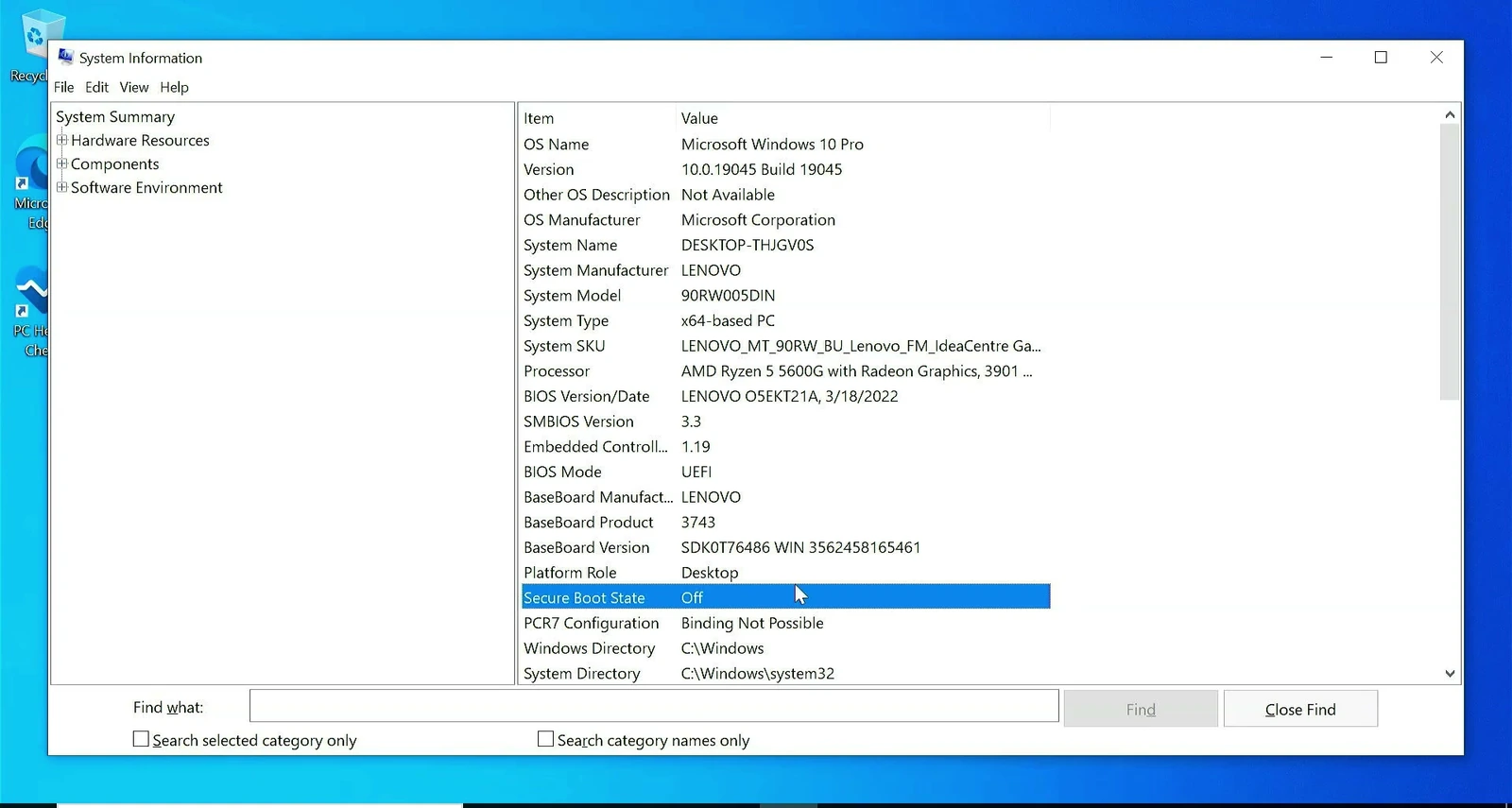
Important: If BIOS Mode reads Legacy rather than UEFI, do not switch boot modes just to follow these instructions. That requires a separate procedure. Check your PC or motherboard manufacturer’s guidance before proceeding.
Restart into UEFI firmware settings
You can reach the firmware settings through Windows without trying to catch a startup key. Save any open work first, because this process restarts the computer.
- Open Settings, search for Recovery, and select Recovery options. In Windows 10, you can also open Settings → Update & Security → Recovery.
- Under Advanced startup, select Restart now.
- On the recovery screen, choose Troubleshoot → Advanced options → UEFI Firmware Settings.
- Select Restart to enter the firmware settings.
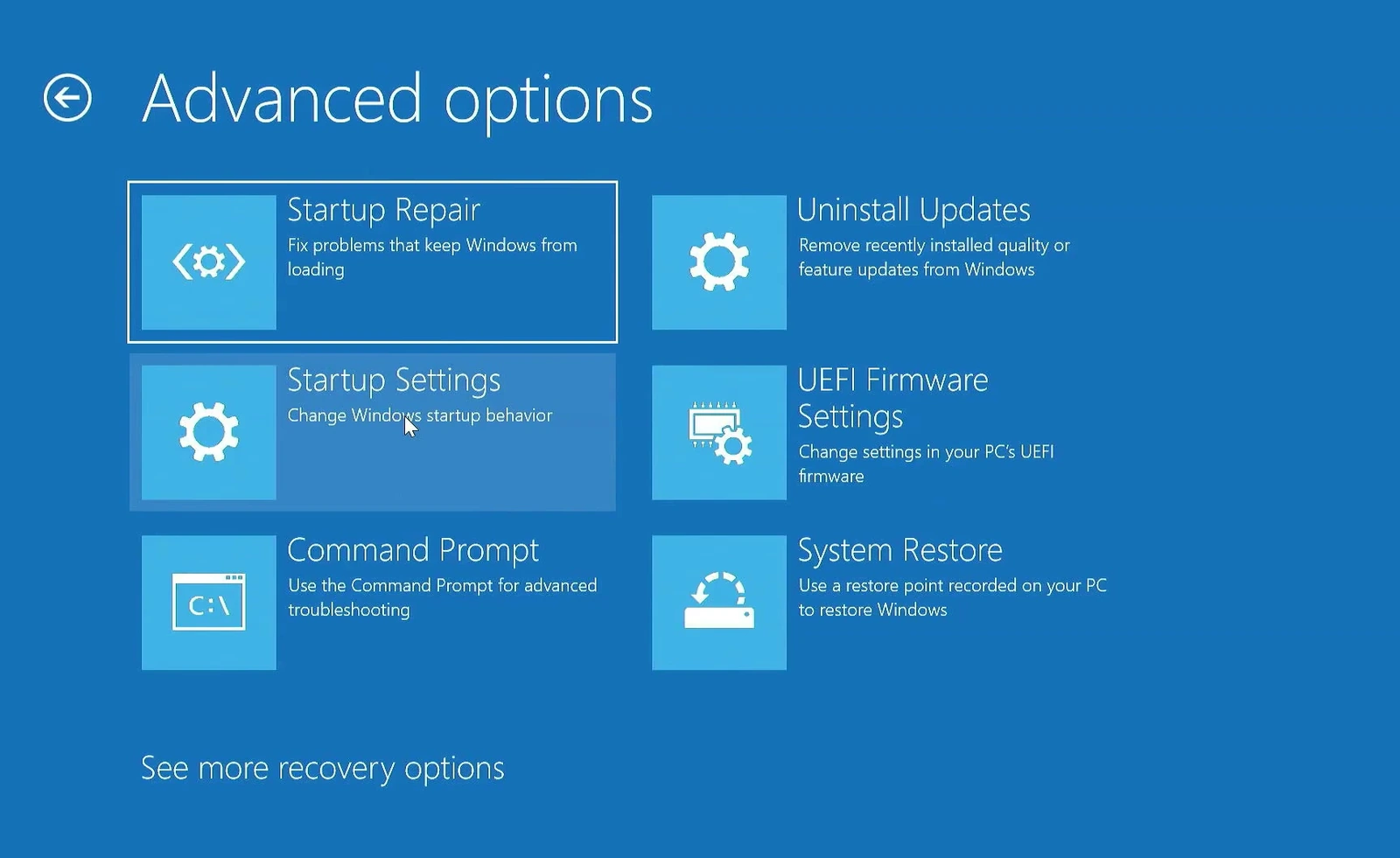
Note: BIOS layouts and option names vary by manufacturer. If UEFI Firmware Settings is unavailable, consult your manufacturer’s instructions for entering the firmware rather than changing unrelated recovery options.
Enable TPM 2.0 in the BIOS
Open the Security tab and look for the TPM settings. In the Lenovo BIOS layout pictured below, TCG Feature Setup contains the TPM control, while Secure Boot has its own submenu.
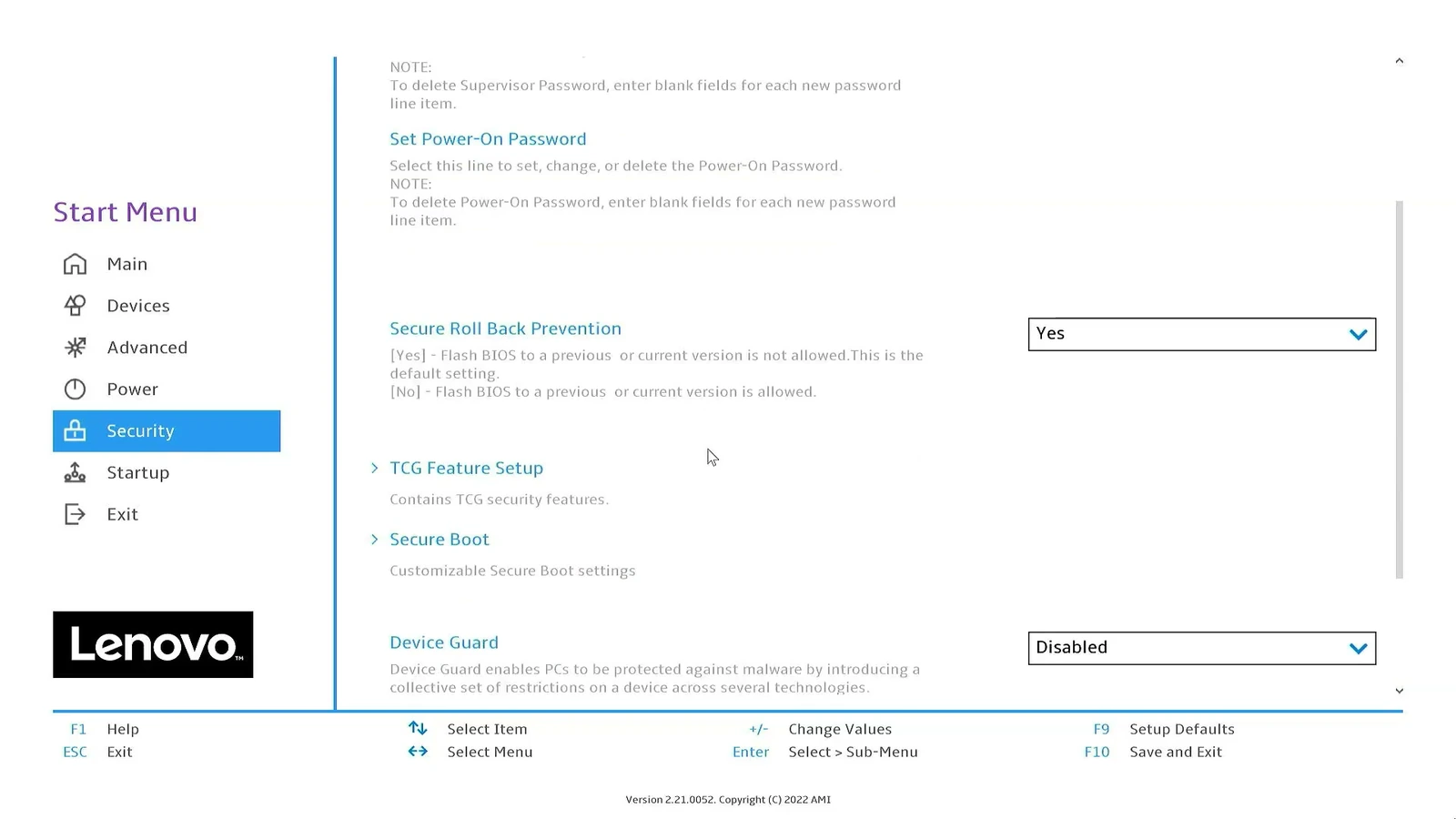
With this Lenovo layout, open Security → TCG Feature Setup, select Security Chip 2.0, and change it from Disabled to Enabled. This enables the firmware TPM.
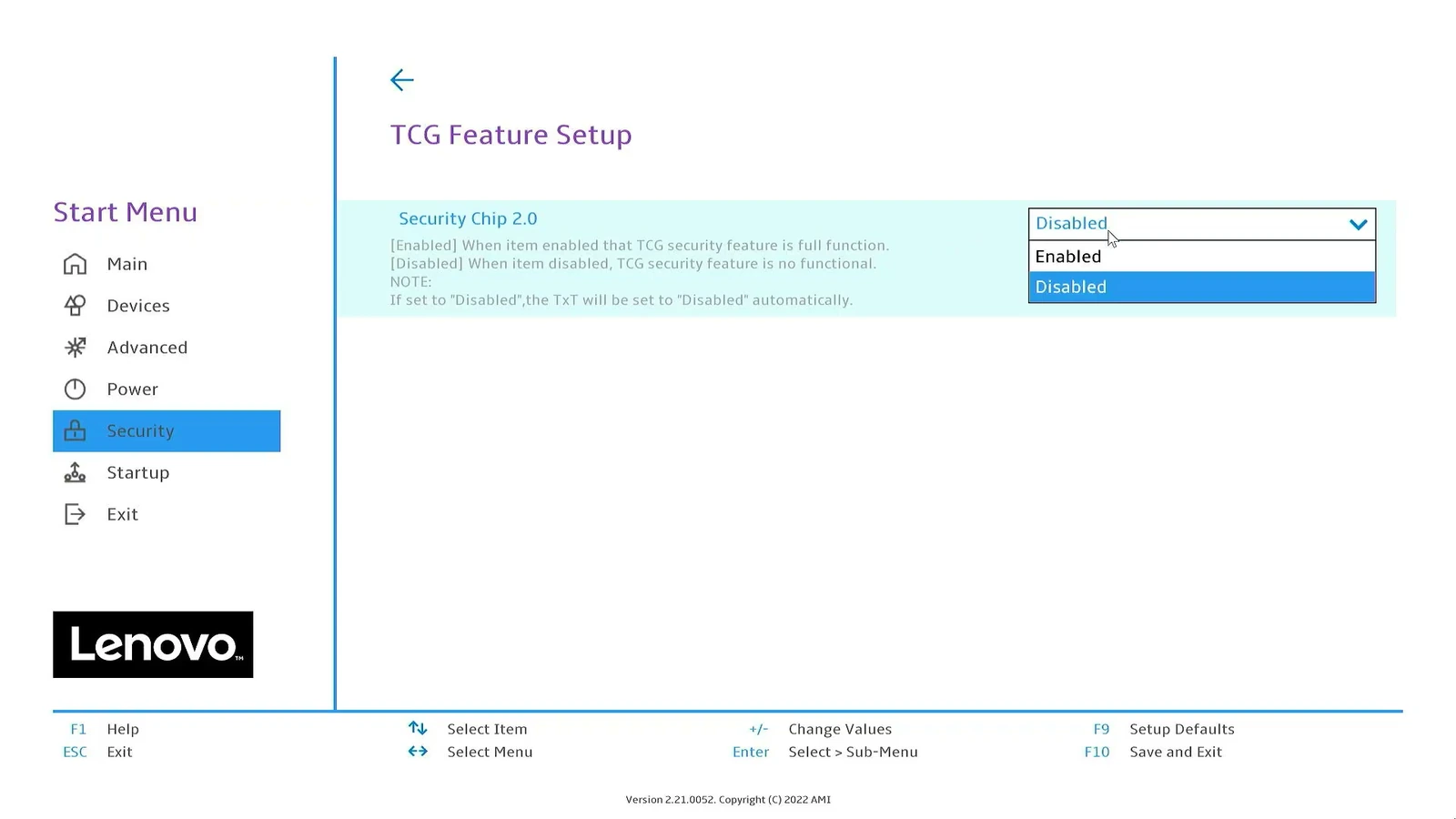
Your computer may use a different name for the same function. Common labels include:
- Intel systems: Platform Trust Technology, often shortened to PTT.
- AMD systems: fTPM.
- Other firmware layouts: TPM settings may appear under Trusted Computing.
Enable the identified TPM, PTT, or fTPM setting. If you cannot confidently identify it, check your manufacturer’s guidance rather than enabling every security-related option.
Turn on Secure Boot and save the changes
Return to the Security tab and open Secure Boot. In the Lenovo layout, select the Secure Boot setting inside that submenu and change it from Disabled to Enabled.
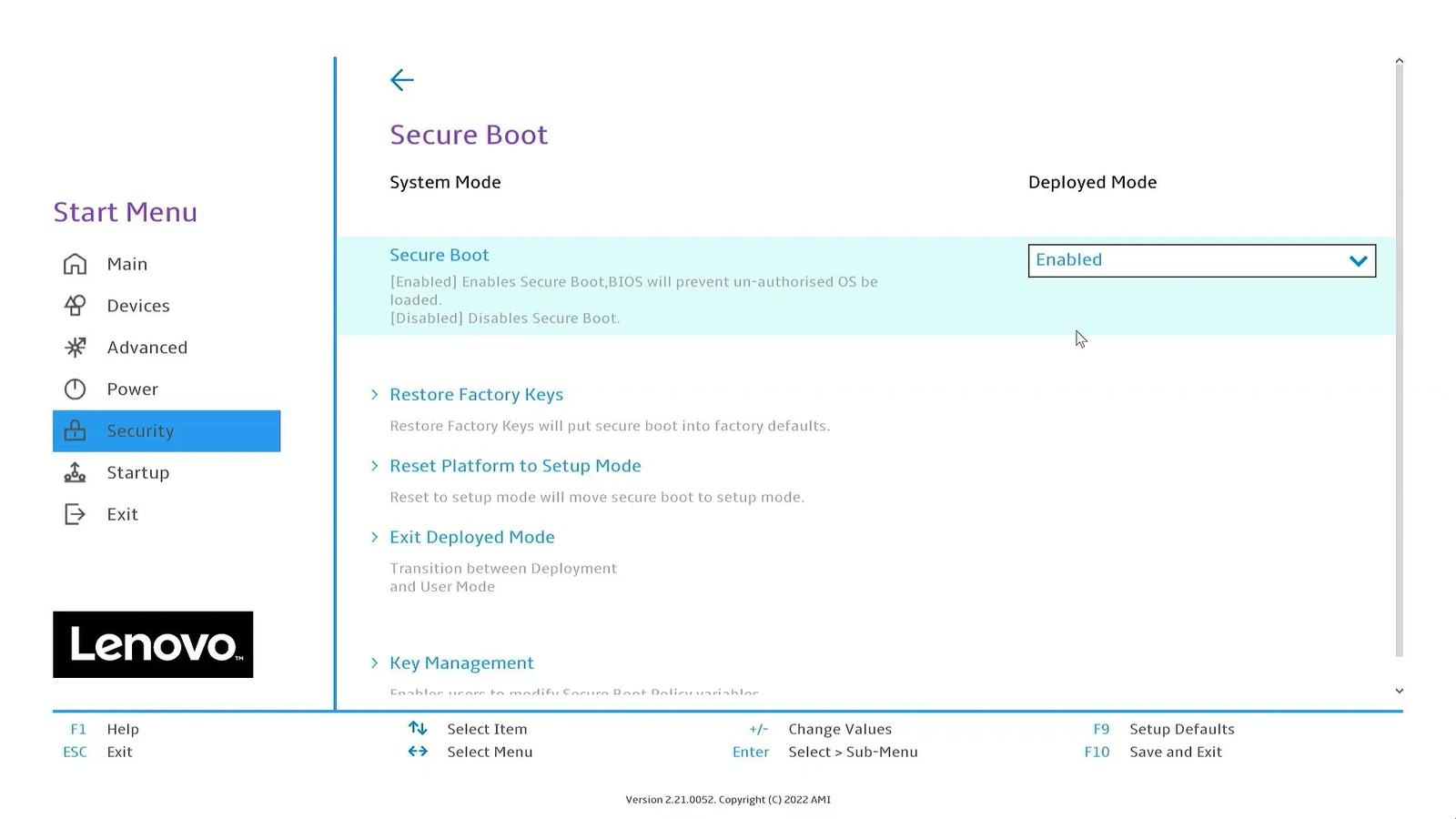
Once both settings are enabled, press F10 to save the changes and select Yes when prompted. If your firmware lists a different save key, follow its on-screen instructions. The computer should restart into Windows.
Confirm both changes in Windows
The final check is whether Windows recognizes the settings, not just whether the BIOS menus show Enabled.
Press Windows + R, enter tpm.msc, and press Enter. Confirm that TPM Management reports The TPM is ready for use and shows Specification Version 2.0.
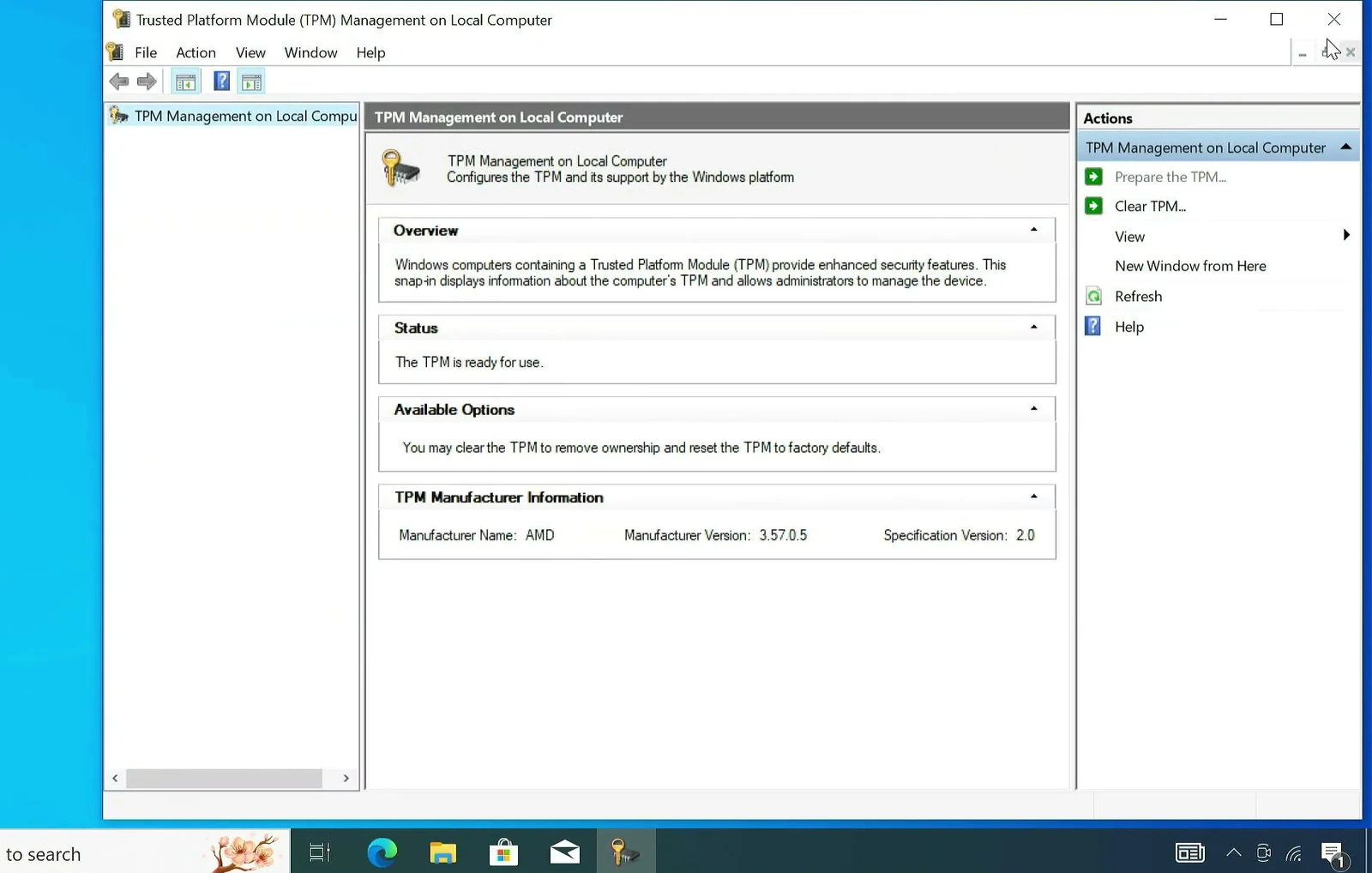
Open Run again, enter msinfo32, and press Enter. Check that Secure Boot State now reads On.
With TPM 2.0 ready and Secure Boot On, both changes have taken effect. You can retry the Windows 11 installation or upgrade. If a compatibility warning remains, check the remaining Windows 11 requirements rather than assuming another BIOS security setting needs changing.