Replacing an old drive with a faster SSD can make your computer feel much more responsive. The only unpleasant part is thinking about setting up Windows all over again. Reinstalling apps, signing back into accounts, and finding all your old settings can take longer than the hardware upgrade itself.
Fortunately, you don’t always need to start from scratch. With DiskGenius, you can move an existing Windows installation to another SSD. The idea is to bring your system, installed programs, and files along to the new drive, so you can carry on where you left off.
I tried this with a Windows installation on a 238 GB SSD and a larger 477 GB drive as the destination. Here’s how to prepare the drives, migrate Windows, and check that your computer is starting from the right SSD.
Make sure your drives are ready
Before opening the migration software, connect the new SSD to your computer. It can be a SATA or NVMe drive, as long as your computer can access it. If you’re using a USB enclosure during the transfer, make sure the drive can be connected in its intended boot configuration afterward.
There are a few things worth checking first.
- Back up your important files. Disk operations are not a good place to rely on luck, even when the migration tool is designed to preserve Windows.
- Check the destination SSD. Everything already stored on the drive you choose as the target can be erased during migration.
- Make sure the SSD has enough space. A smaller destination can work in some situations, but it must hold the Windows data and required system partitions.
- Keep power connected. On a laptop, use the charger. Don’t disconnect either drive while the transfer is running.
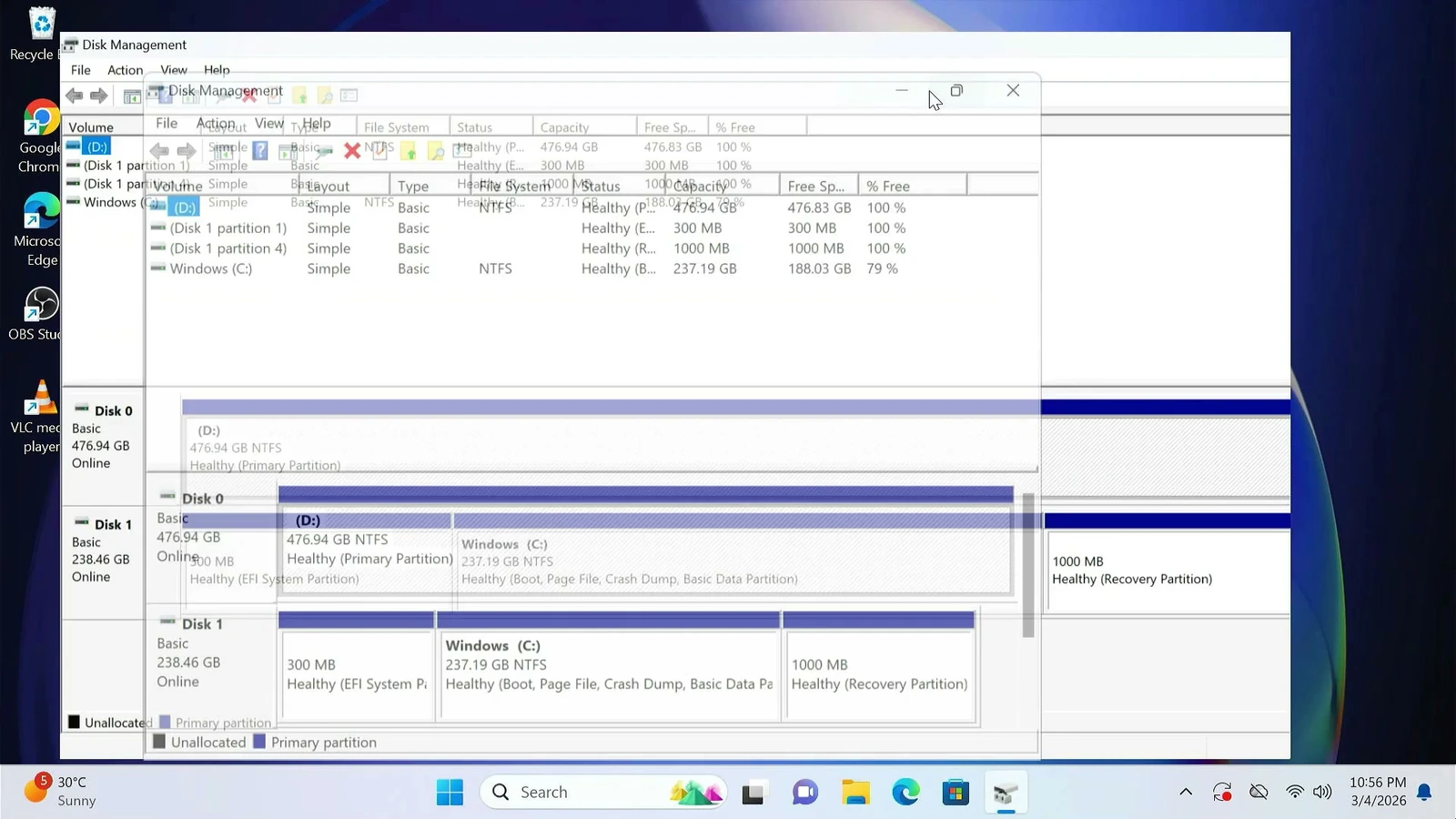
Open Disk Management in Windows to identify the two physical disks. You can right-click the Start button and select Disk Management. Look at each disk’s capacity and existing partitions, not just its drive letter.
In my setup, the smaller SSD contained Windows, while the new, larger drive was prepared as the migration target. The disk numbers on your PC may be completely different.
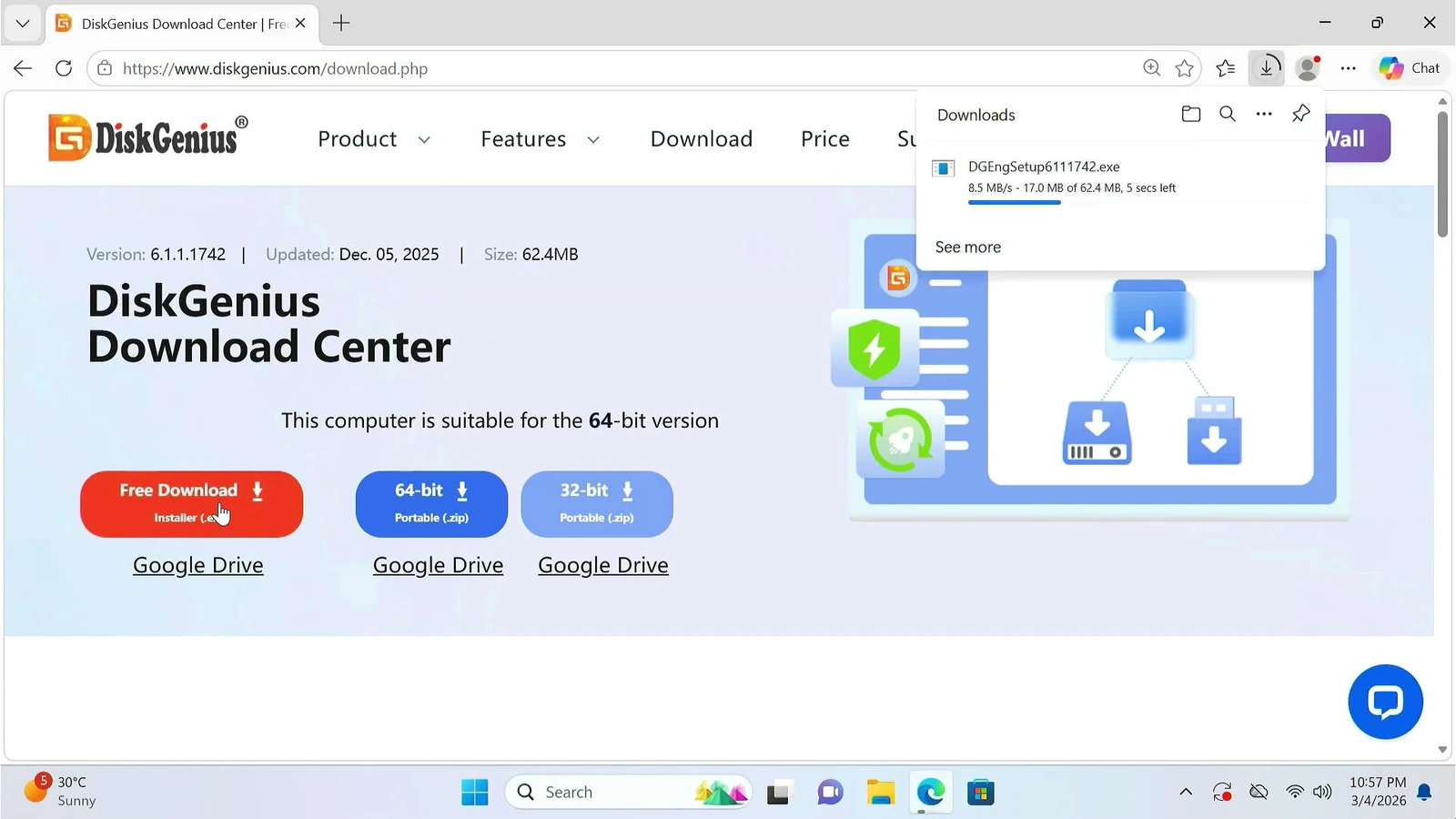
Download DiskGenius
We’ll use DiskGenius, a Windows utility for managing disks and migrating an operating system. Its OS Migration feature can copy Windows and its boot-related partitions to another drive without requiring a fresh Windows installation.
Download the software from its official website and install it in Windows. The Free edition includes system migration, although the available features and interface may differ between versions.
Run DiskGenius once installation is complete. You may see a Windows permission prompt because the program needs access to your storage devices.
Choose the Windows migration option
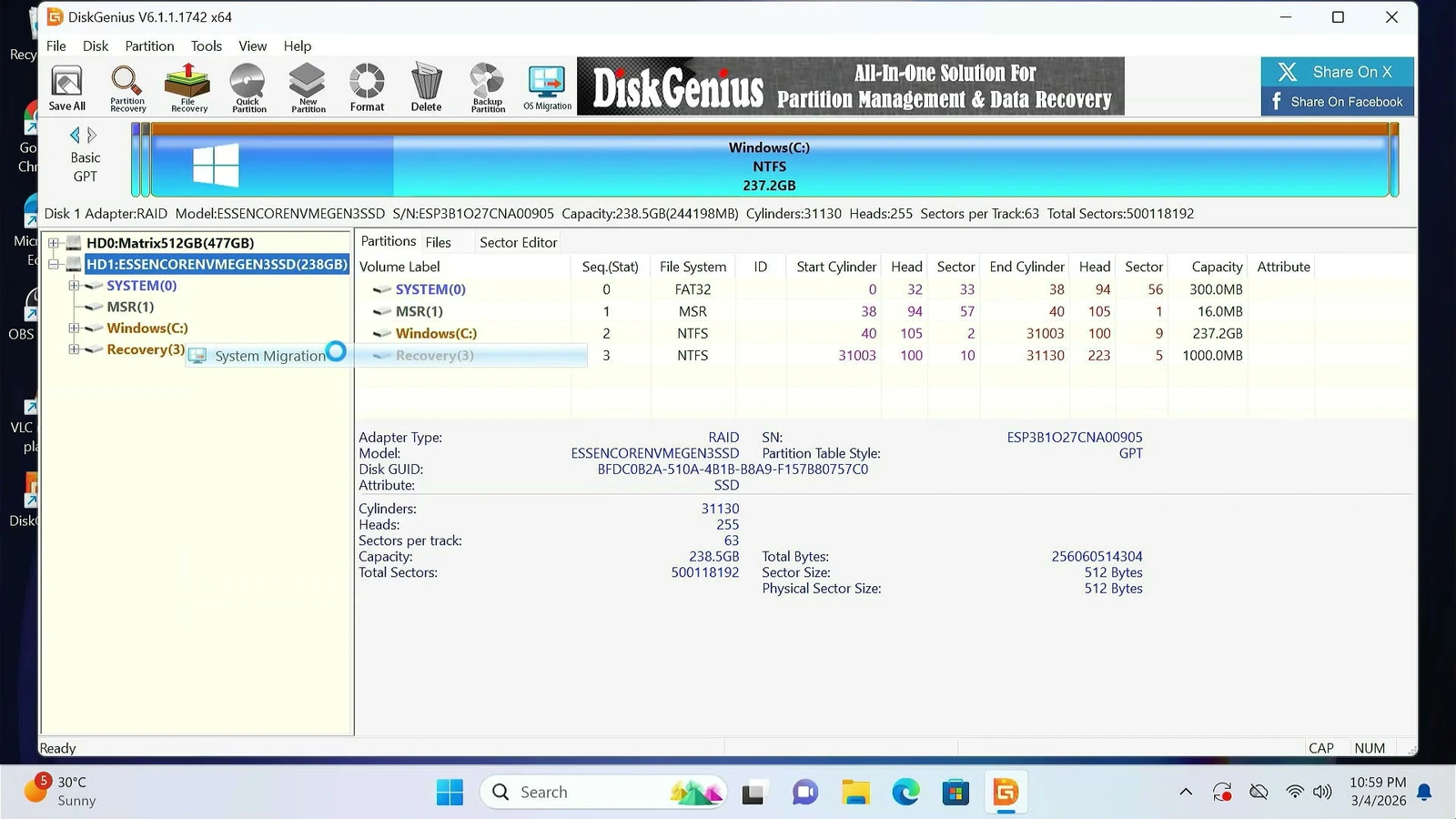
DiskGenius lists the connected disks on the left. This is a good moment to check their capacities again. In the recorded setup, Windows was installed on the 238 GB SSD, and the destination was the 477 GB drive.
Click OS Migration on the toolbar. In some versions, you’ll find the same feature under Tools → System Migration.
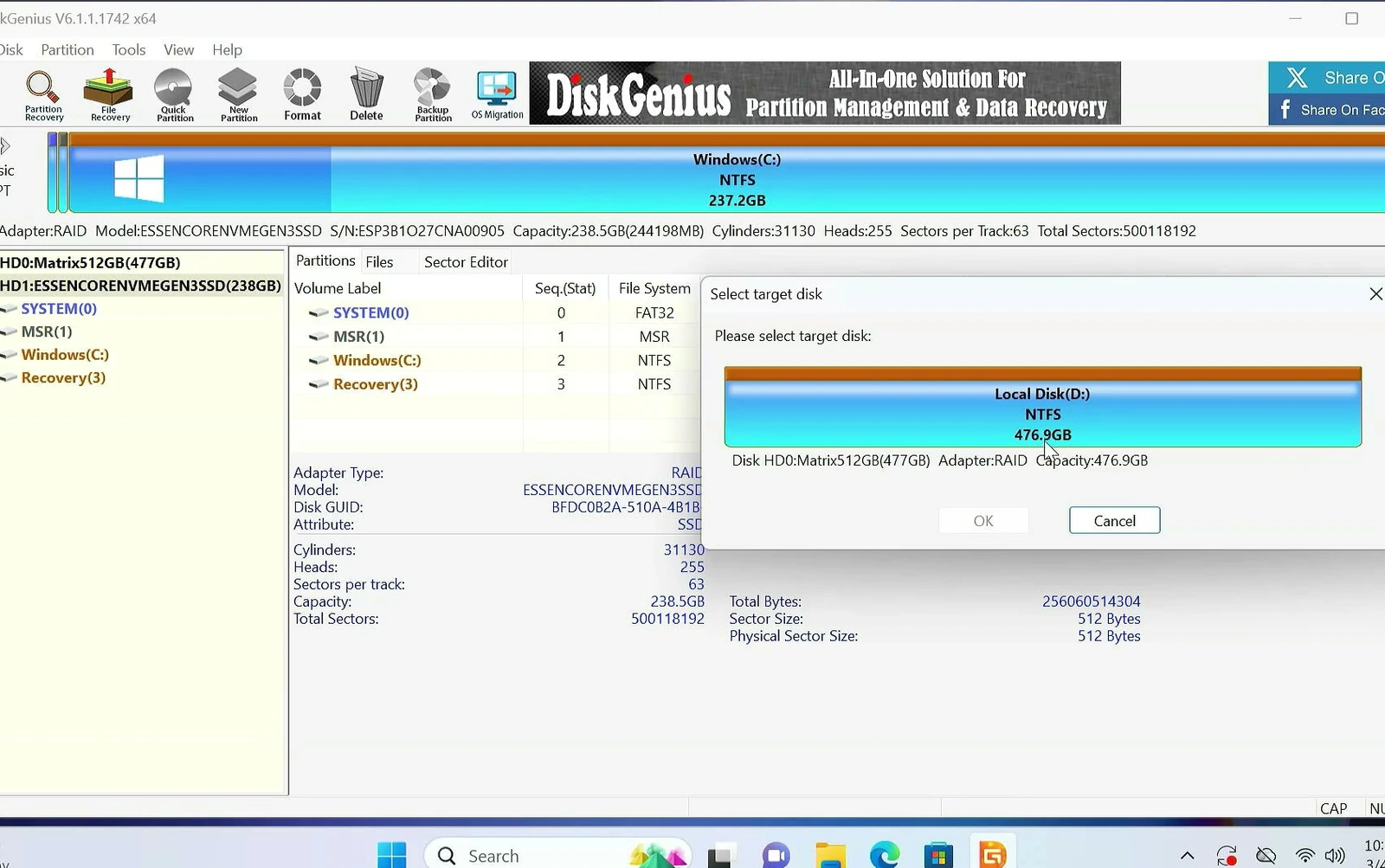
When the destination selection window appears, choose the new SSD where you want Windows to be moved. Check the drive’s model name and capacity carefully, then confirm your selection.
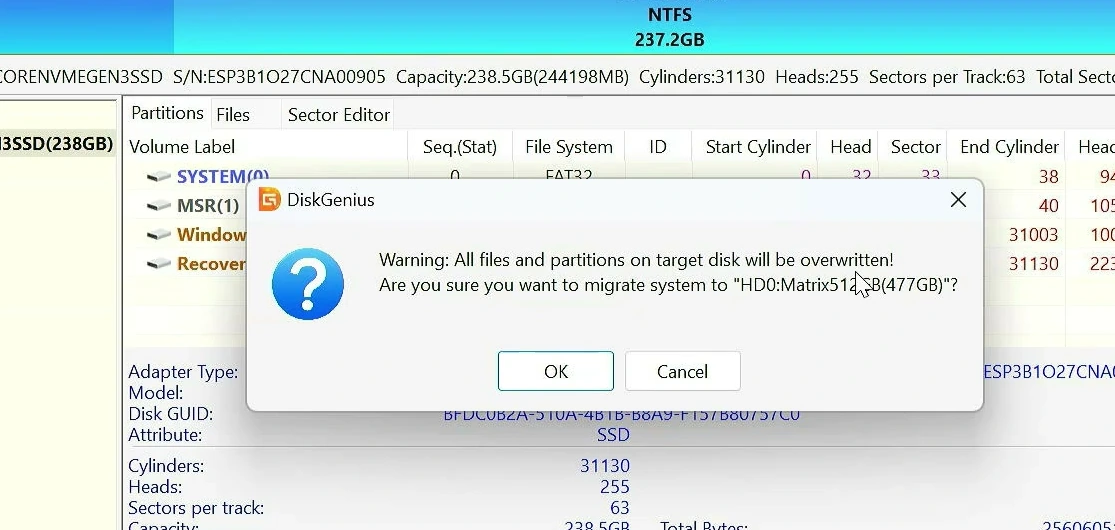
DiskGenius will warn that the target disk’s existing files and partitions will be overwritten. This is not a routine permission message. If the drive holds anything you need, select Cancel and back it up first.
Use the space on your new SSD
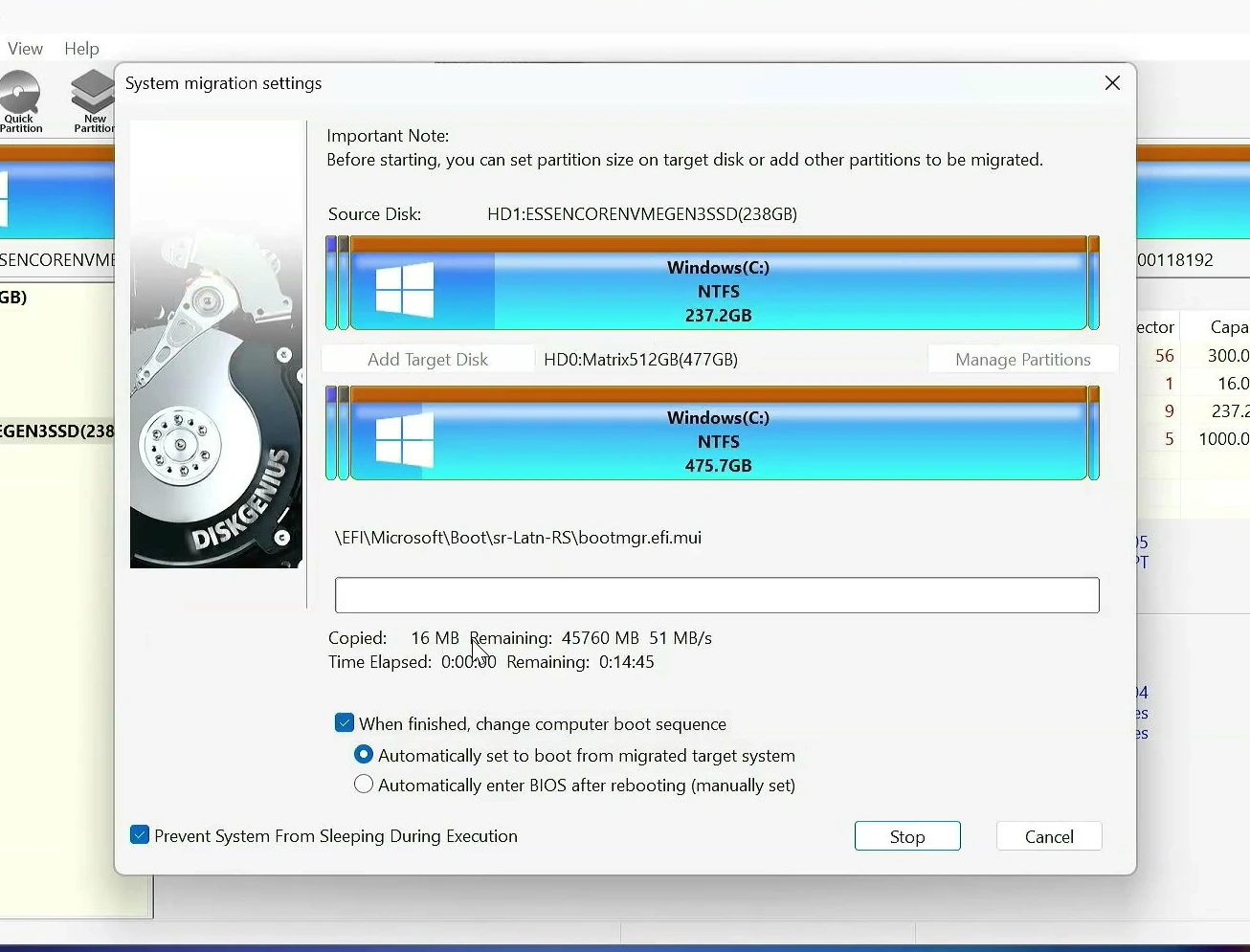
Next, DiskGenius displays the System migration settings. You’ll see the original Windows partition on top and a preview of its layout on the target drive below.
When the new SSD is larger than the old one, the target partition may initially keep the original size. That can leave a large area unused. In my case, the Windows partition initially occupied about 237 GB on the larger disk, with the remaining space shown as free.
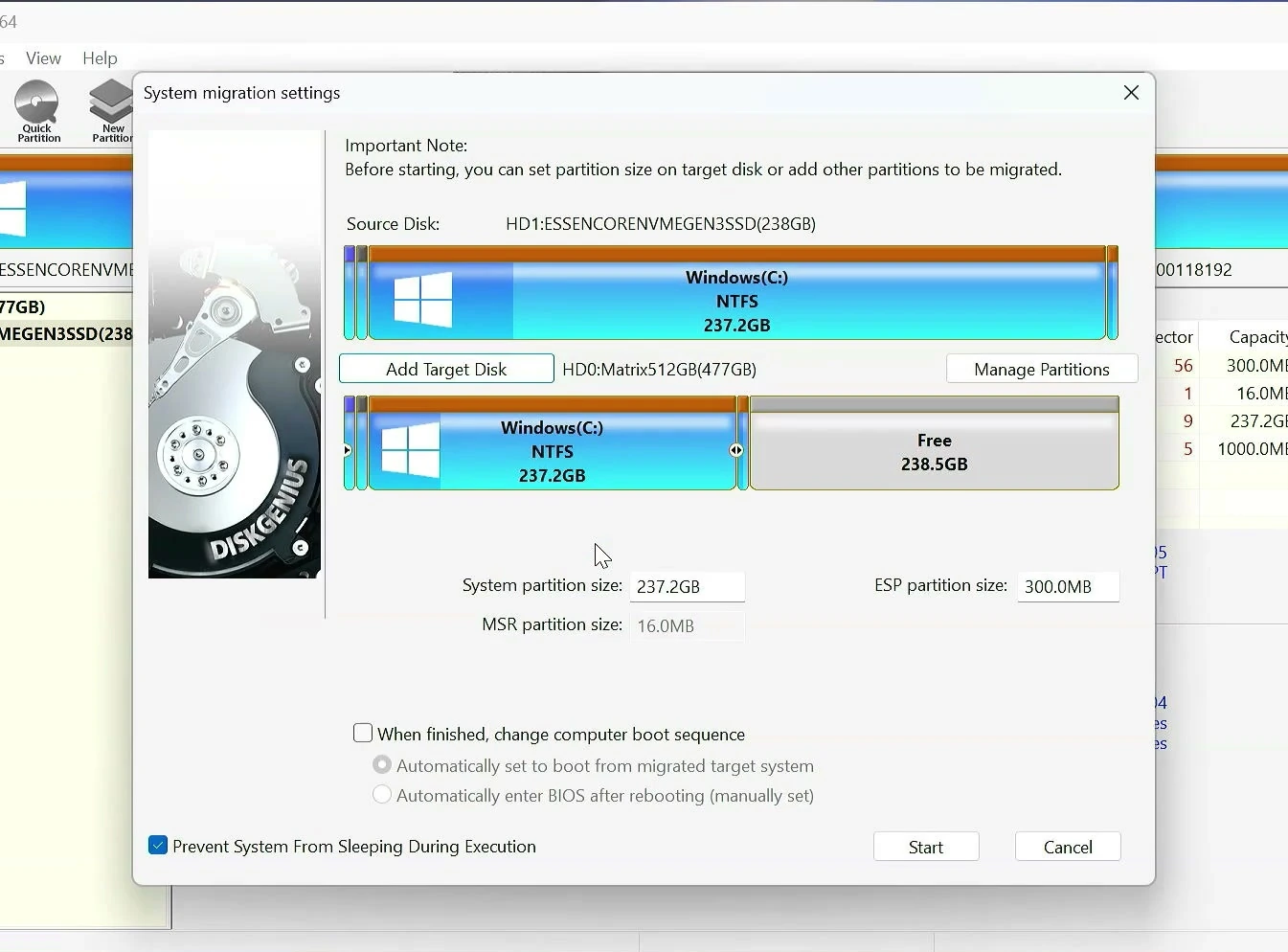
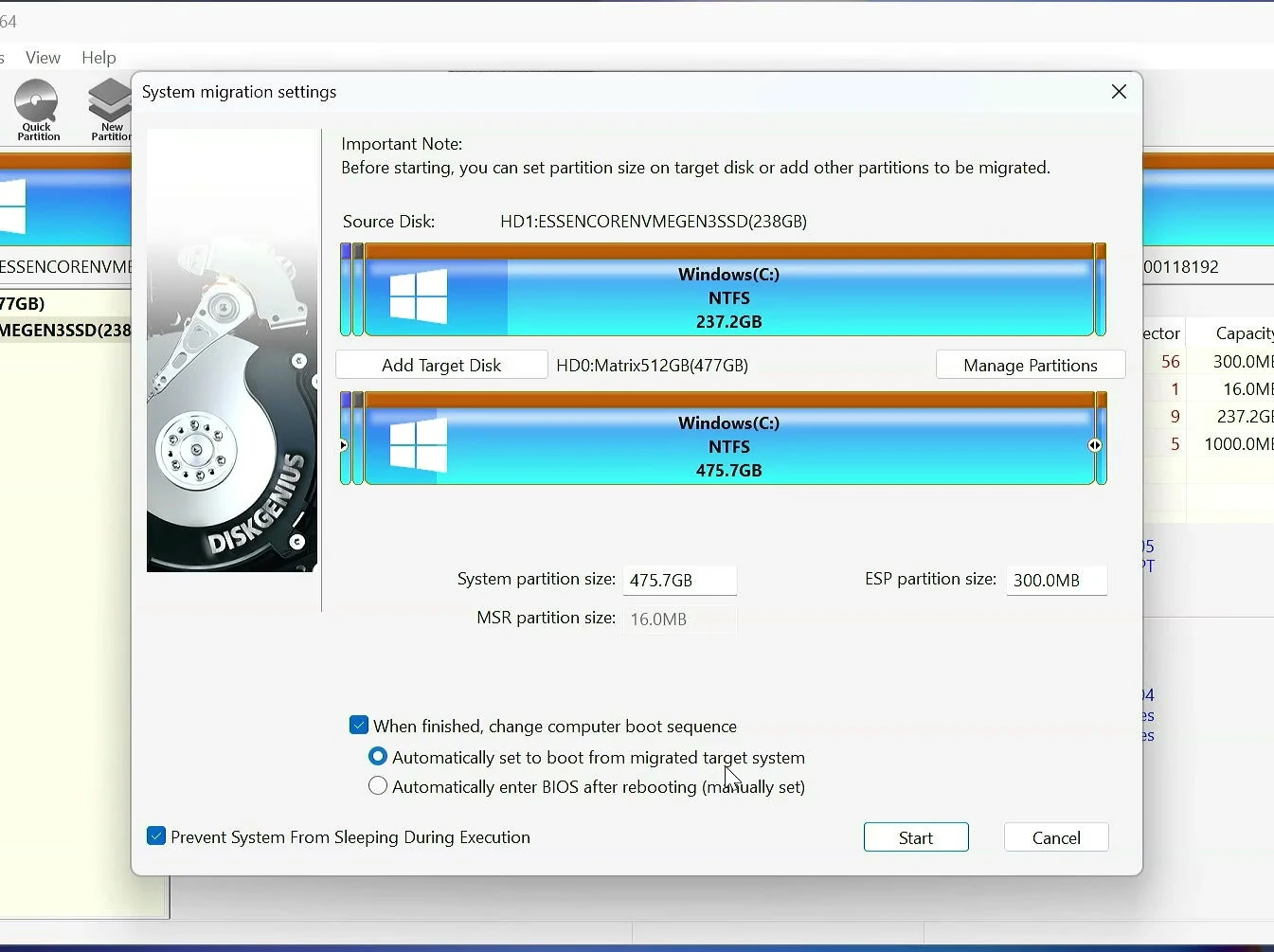
To give Windows more room, drag the partition boundary or adjust the System partition size field. I expanded the Windows partition to use most of the available space on the 477 GB destination.
Leave the small system partitions that DiskGenius creates for Windows booting in place. They may be labeled ESP and MSR on a UEFI/GPT installation. They are not spare space.
You can also enable When finished, change computer boot sequence. Then choose Automatically set to boot from migrated target system if supported on your computer. This tells DiskGenius to try starting Windows from the new drive after the transfer. You can also set the boot drive manually in UEFI/BIOS later.
Start migrating Windows
Once you’re confident that the correct target disk is selected, click Start. Read the final warning carefully and confirm only if you’re ready for the destination drive to be overwritten.
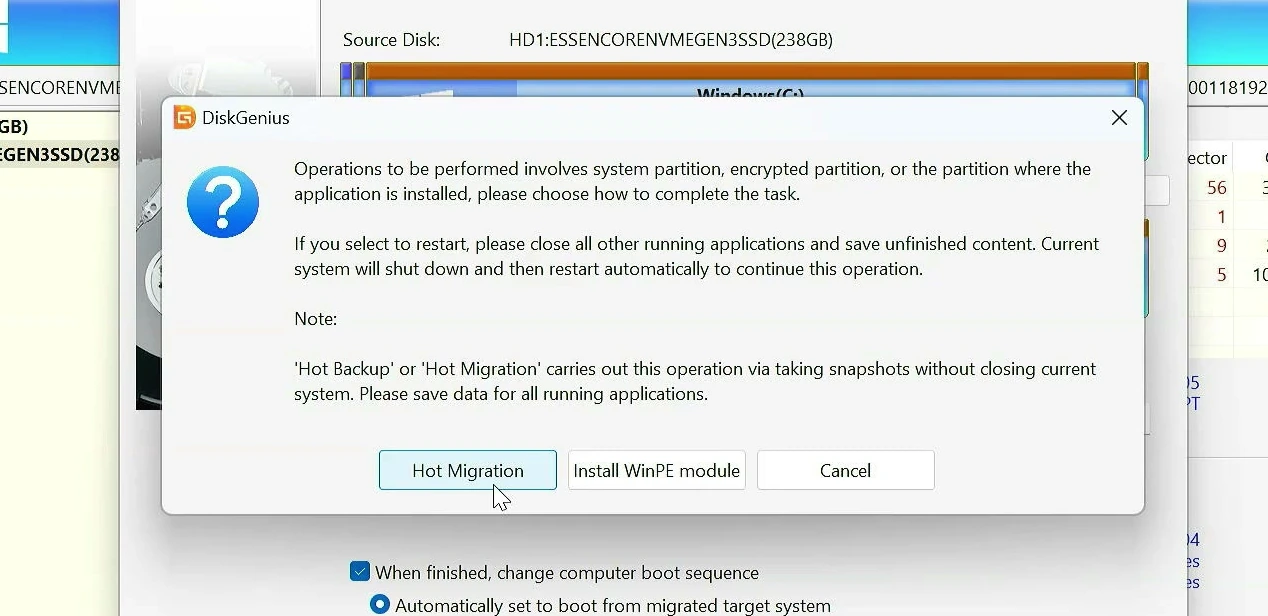
DiskGenius may offer two ways to complete the migration.
- Hot Migration copies the running Windows installation using a snapshot-based method, without first restarting into a separate environment.
- WinPE migration restarts the computer into a dedicated recovery-style environment to perform the transfer.
I used Hot Migration. Save your open documents before proceeding, and avoid heavy disk activity while the files are being copied. If Hot Migration doesn’t work on your system, the WinPE method may be an alternative.
You’ll see the progress as Windows and its required boot files are copied. The time depends on how much data you have, how fast the drives are, and how they’re connected. Keep both drives connected until DiskGenius reports that the migration is finished.
Start Windows from the new SSD
Once the transfer finishes, DiskGenius asks whether you want to restart. Save anything still open and restart when you’re ready.
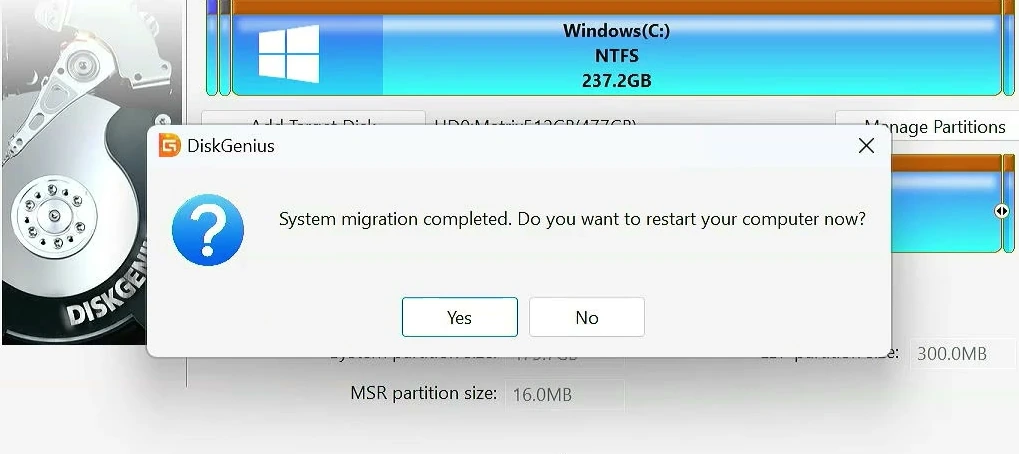
If you enabled the automatic boot-sequence option, Windows may start from the new SSD on its own. Otherwise, open your computer’s UEFI/BIOS boot settings and select the Windows Boot Manager associated with the destination drive.
After signing in, open File Explorer. Your Windows partition should normally appear as C:, even though it’s now on a different physical SSD. The old drive might appear with another letter. In my test, both drives were visible after migration.
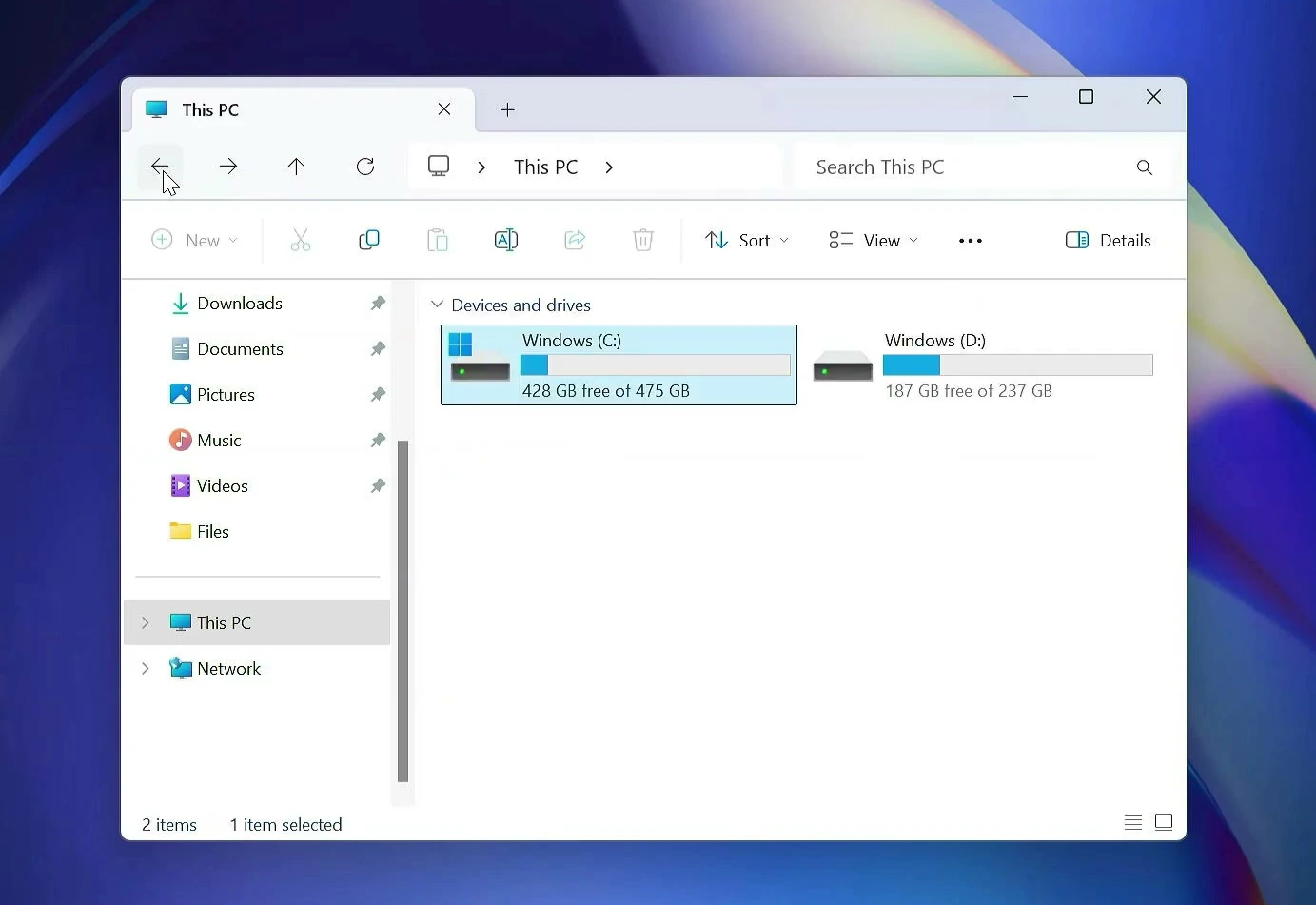
Before doing anything else, check that the new SSD really is the boot drive. The safest way is to verify the physical disk in Disk Management or temporarily disconnect the old drive when you can do so safely with the PC shut down. Make sure Windows starts and that your programs, files, and settings are present.
What about the old drive?
You don’t have to erase the original SSD immediately. I’d keep it untouched until you’ve used the migrated Windows installation for a while and confirmed that everything important works.
Later, you can reuse the old drive for extra storage. But first identify it by its physical model and capacity, make a separate backup of any files you still need, and confirm the new drive boots independently. Drive letters such as C: and D: can change after migration, so they are not enough to identify which physical disk is safe to format.
Moving Windows this way can save a lot of setup time. You still need to be careful when selecting disks, but once the migrated SSD boots correctly, your familiar desktop and applications should be waiting for you—without reinstalling everything from scratch.