Moving a big game, video project, or backup from one PC to another can be surprisingly annoying. A USB drive gets the job done, but copying files onto it and then copying them again takes extra time. And uploading a huge folder to the cloud just to download it on the computer beside you feels a little unnecessary.
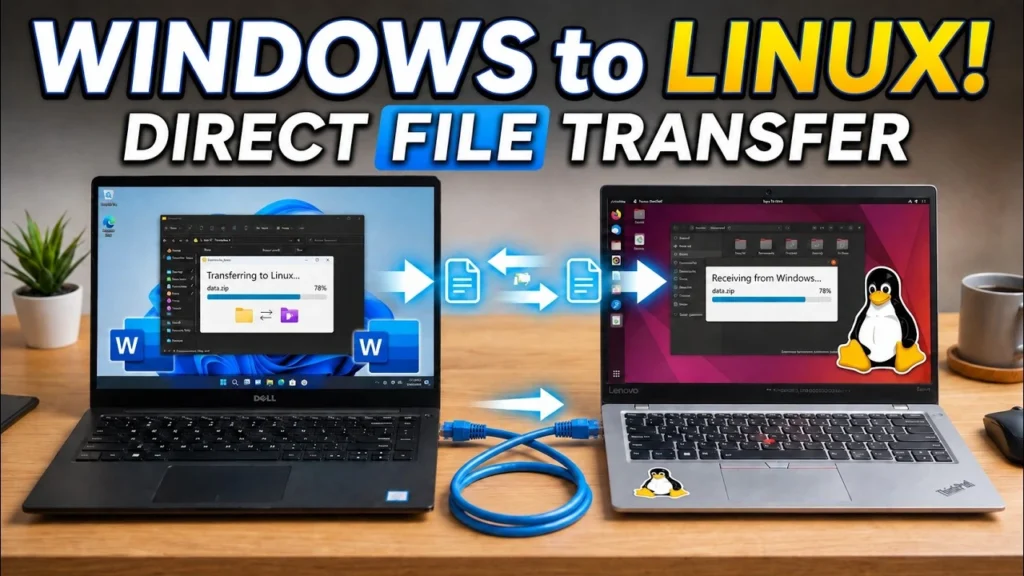
There’s a simpler option. You can transfer files directly between two Windows PCs using a LAN cable. You don’t need Wi-Fi, a router, or an internet connection. Just connect the computers with an Ethernet cable and let Windows handle the sharing.
This is especially handy when you’re moving large recordings, games, or backups. Once the connection is ready, the shared folder appears in File Explorer. You can copy files almost as if the other computer were another drive on your desk.
What you’ll need
This method works with the file-sharing features already built into Windows 11 and Windows 10. You only need a few things to get started.
- Two Windows PCs with working Ethernet ports or compatible Ethernet adapters.
- One Ethernet cable. A regular cable works on most modern computers, so a special crossover cable usually isn’t necessary.
- Access to network and account settings on the computer that will share its files.
- One folder to share and enough free storage on the receiving computer.
I’ll call the computer holding the files Computer 1 and the one receiving them Computer 2. We’re going to configure the first computer before moving to the second one.
Connect the cable and set up Computer 1
First, plug one end of the Ethernet cable into Computer 1 and the other end into Computer 2. Both computers can stay powered on. Modern Ethernet adapters generally establish the physical link automatically.
Now we need to give the connection an address. Normally, a router takes care of this. Since these two PCs are connected directly, we’ll assign their IP addresses ourselves so they can find each other.
On Computer 1, open Windows Search and type View network connections. Open the result, right-click your Ethernet adapter, and select Properties.
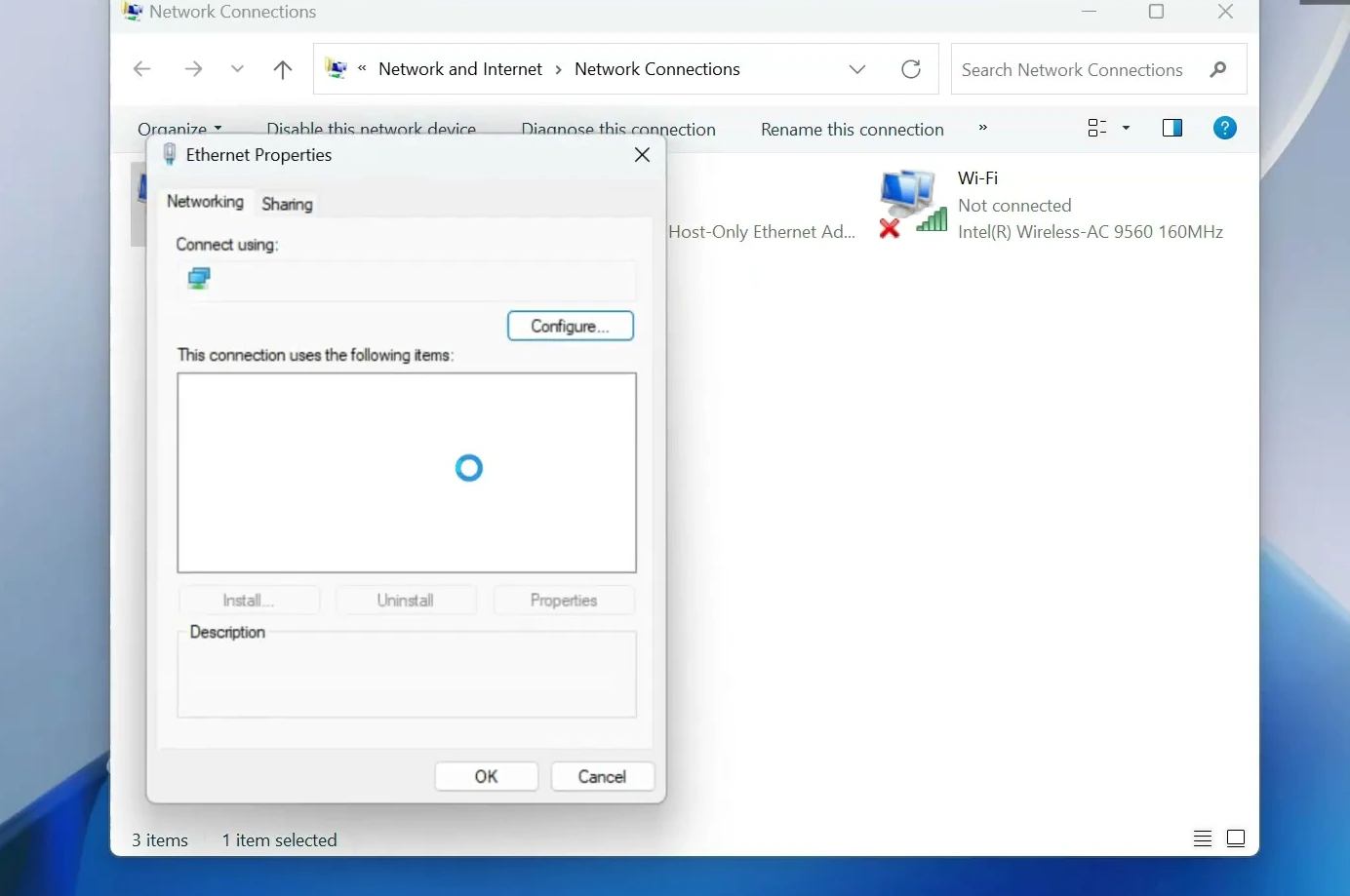
Double-click Internet Protocol Version 4 (TCP/IPv4). Choose Use the following IP address, then enter these values.
- IP address:
192.168.1.100 - Subnet mask:
255.255.255.0 - Default gateway: Leave blank
You can leave the DNS fields blank too. Neither PC needs to reach the internet through this isolated cable. Click OK to save the settings, then close the adapter properties.
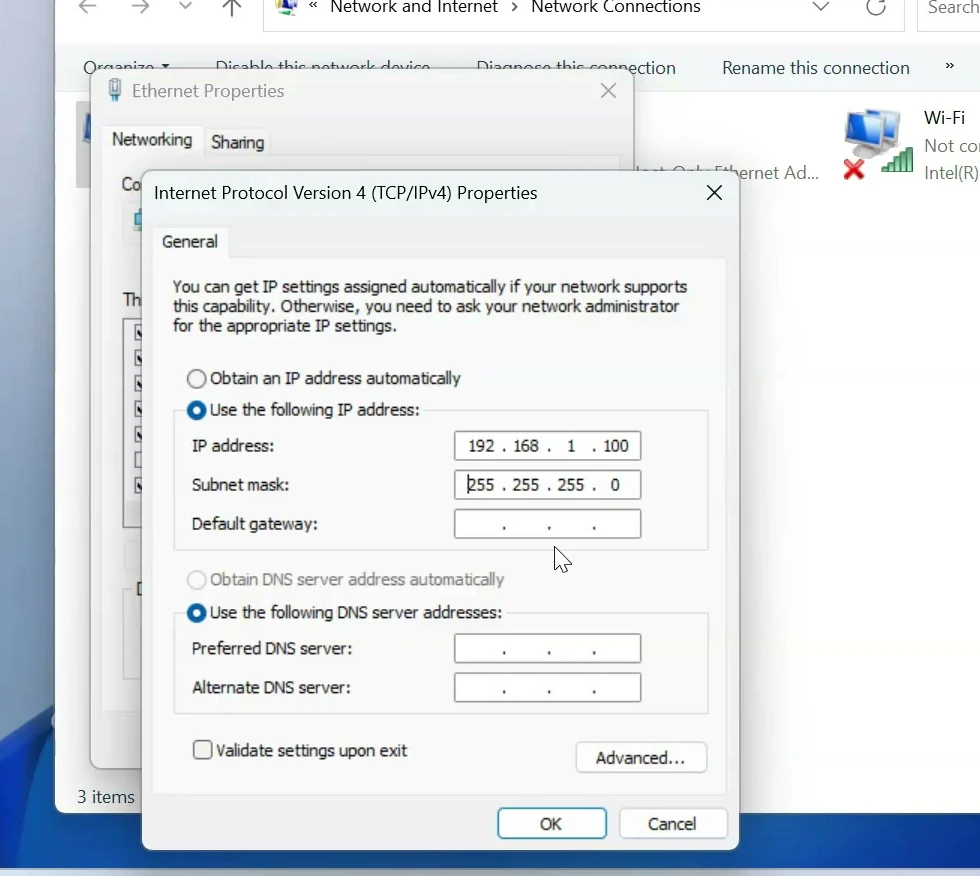
The important thing is that both computers will use the same local address range, but each must have a different IP address. We’ll give Computer 2 an address ending in 101 later.
Turn on sharing for the trusted connection
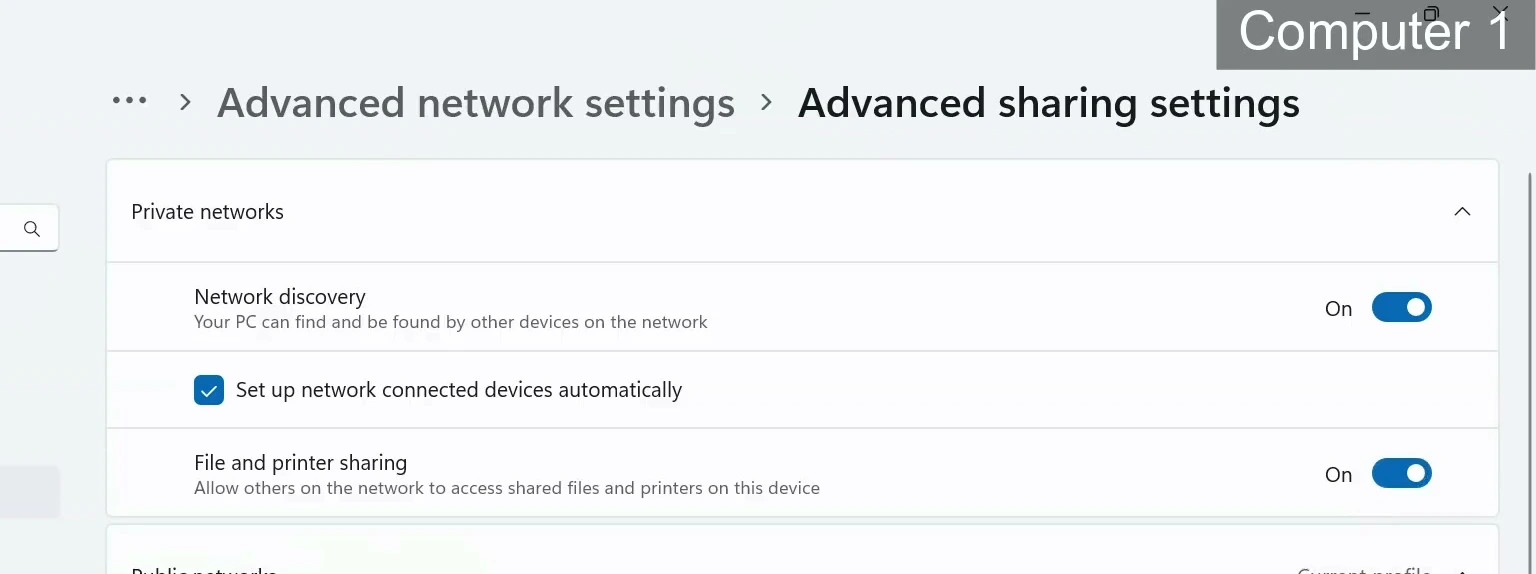
Next, we need to tell Windows that Computer 1 is allowed to share files. Open Settings, select Network & internet, and find Advanced sharing settings. Depending on your Windows version, you may find this under Advanced network settings, or through Control Panel and Network and Sharing Center.
For a direct Ethernet connection that you control, set its network profile to Private if Windows allows it. Then, under Private networks, turn on Network discovery and File and printer sharing. This lets Windows share the folder and makes nearby trusted devices easier to discover.
Create a separate account for sharing files
It’s better not to give another computer the password for your everyday Windows account. Instead, create a separate local account on Computer 1 just for the shared folder.
Open Settings, go to Accounts, then Other users, and select Add account. Choose the option to add a user without a Microsoft account. Create a username such as shareuser and give it a strong password.
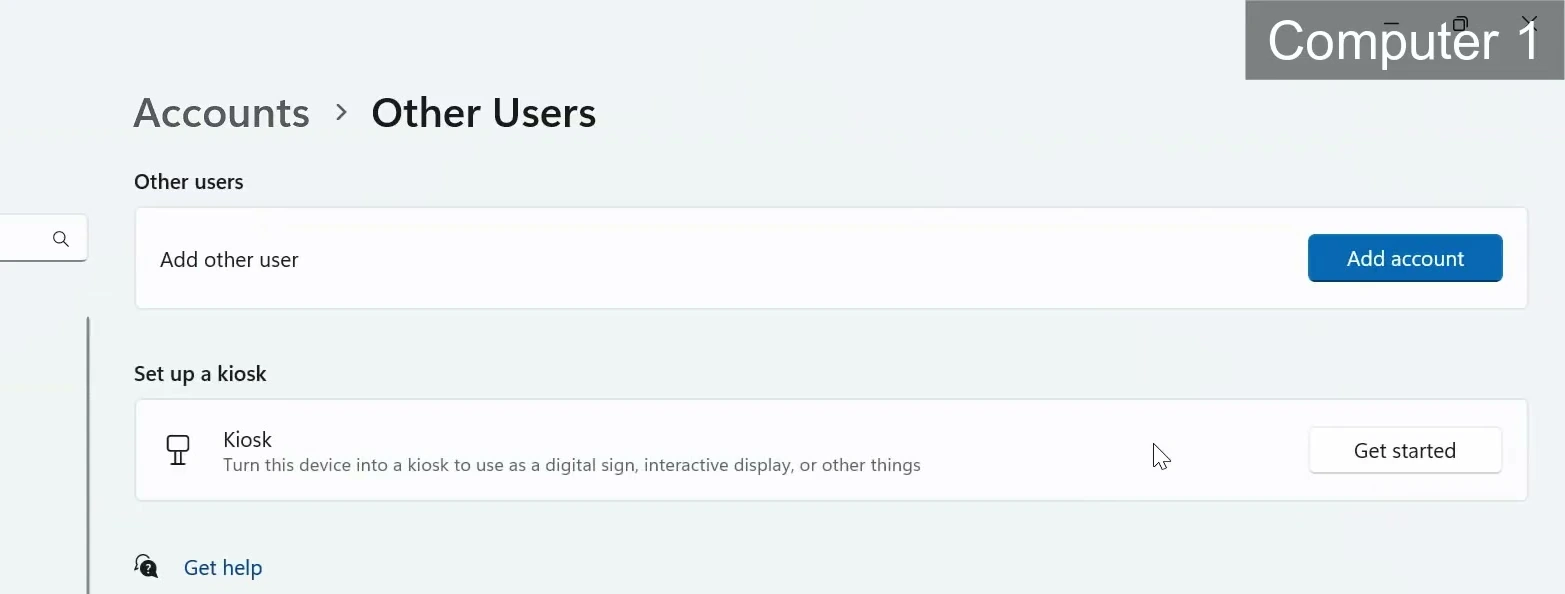
Keep that username and password handy. You’ll enter them on Computer 2 when Windows asks who is allowed to open the shared folder. The account only needs standard-user permissions. There’s no reason to make it an administrator just for file transfers.
Share a folder and give the account access
Create a folder on Computer 1 and put the files you want to transfer inside it. For this example, I’ll use a folder named Shared Folder. Sharing one dedicated folder is much easier to manage than exposing an entire drive.
Right-click the folder and open Properties. Select the Sharing tab, then choose Advanced Sharing. Check Share this folder. You can keep the share name as Shared Folder or use another simple name.
Next, select Permissions and then Add. Enter the local username you just created and select Check Names. If Windows recognizes the account, confirm it and return to the permissions window.
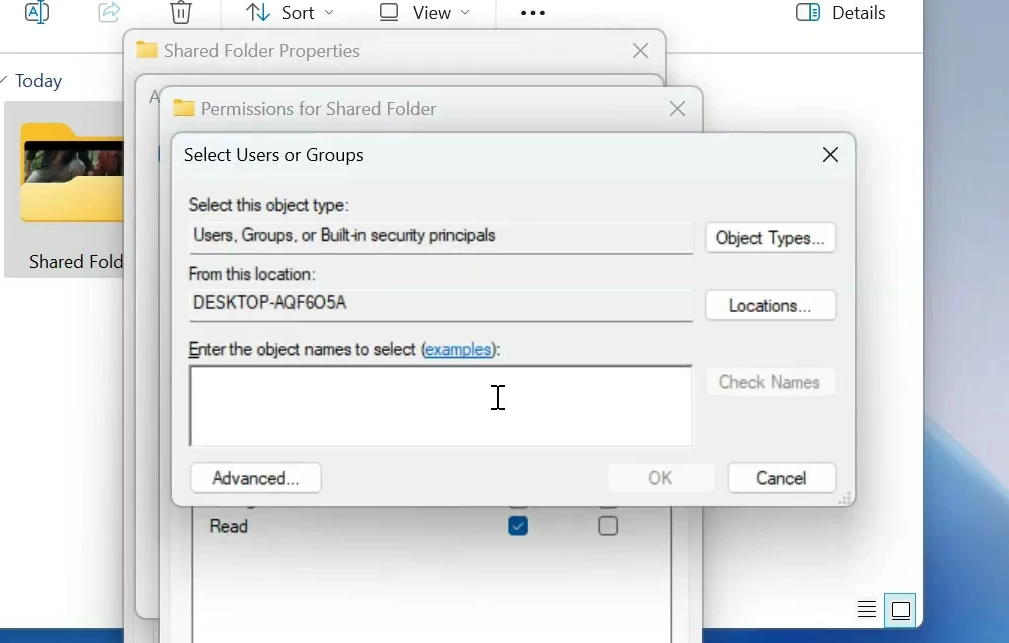
Give that account Read access if the second computer only needs to download files. If you want to copy files into this folder from Computer 2, allow Change as well. You usually don’t need Full Control for everyday transfers.
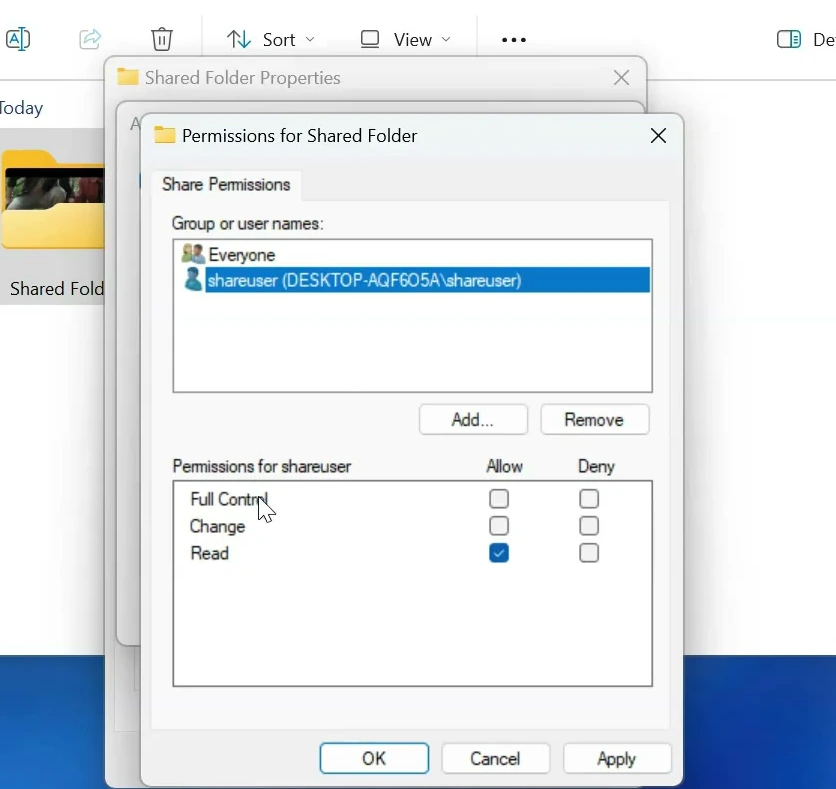
There’s one more permission setting that matters. Back in the folder’s Properties window, open the Security tab and select Edit. Add the same local account if it isn’t listed. Give it Read access, or Modify if it should be able to upload, rename, and delete files.
Windows checks both the share permissions and the folder’s own security permissions. If one allows access but the other blocks it, the transfer still won’t work. That’s why both tabs matter.
Configure the Ethernet connection on Computer 2
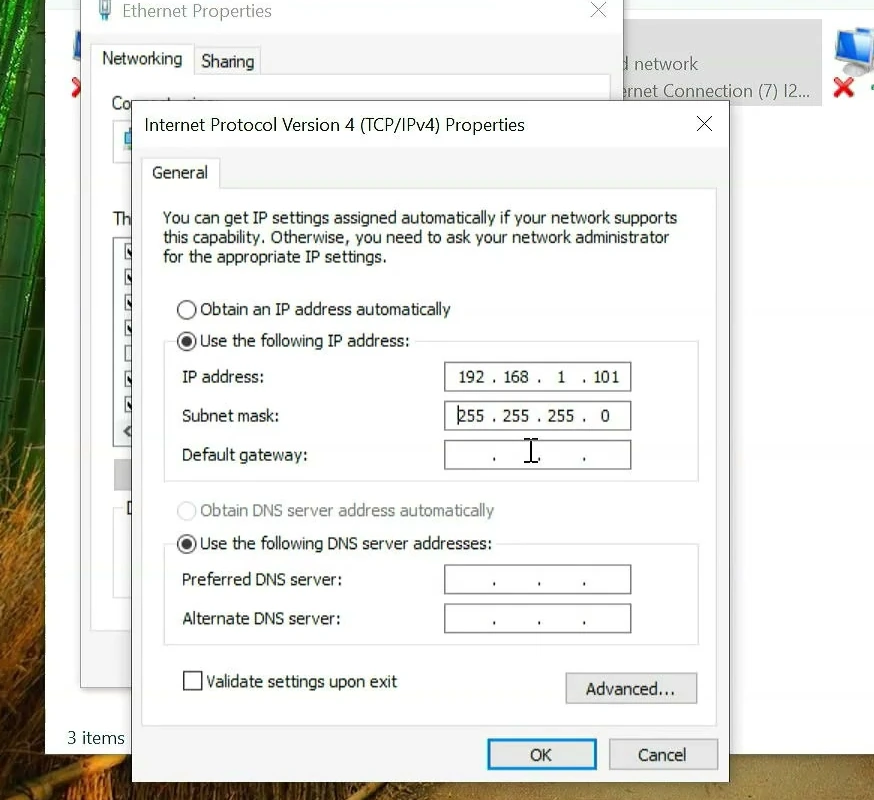
With Computer 1 ready, let’s move to Computer 2. Open View network connections again, right-click Ethernet, and open its TCP/IPv4 Properties.
Select Use the following IP address, but this time use a different address.
- IP address:
192.168.1.101 - Subnet mask:
255.255.255.0 - Default gateway: Leave blank
Click OK and close the windows. Both PCs now have unique addresses on the same local network. Computer 1 ends in 100, while Computer 2 ends in 101.
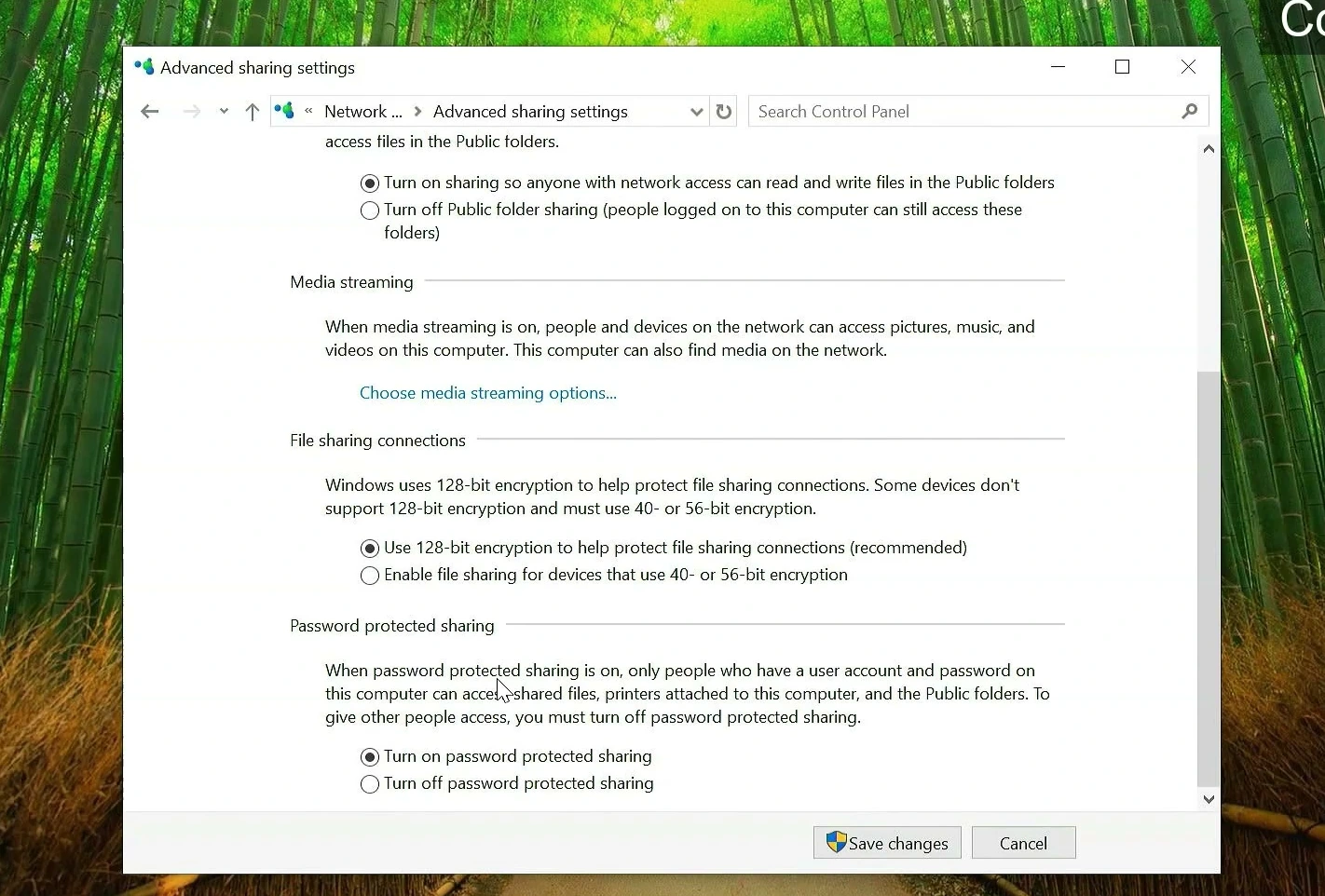
For this connection, make sure Computer 2 can access the trusted private network. You may turn on Network discovery if you want Windows to list other network devices automatically. You only need File and printer sharing on Computer 2 if you also plan to share folders from it.
Open the shared folder in File Explorer
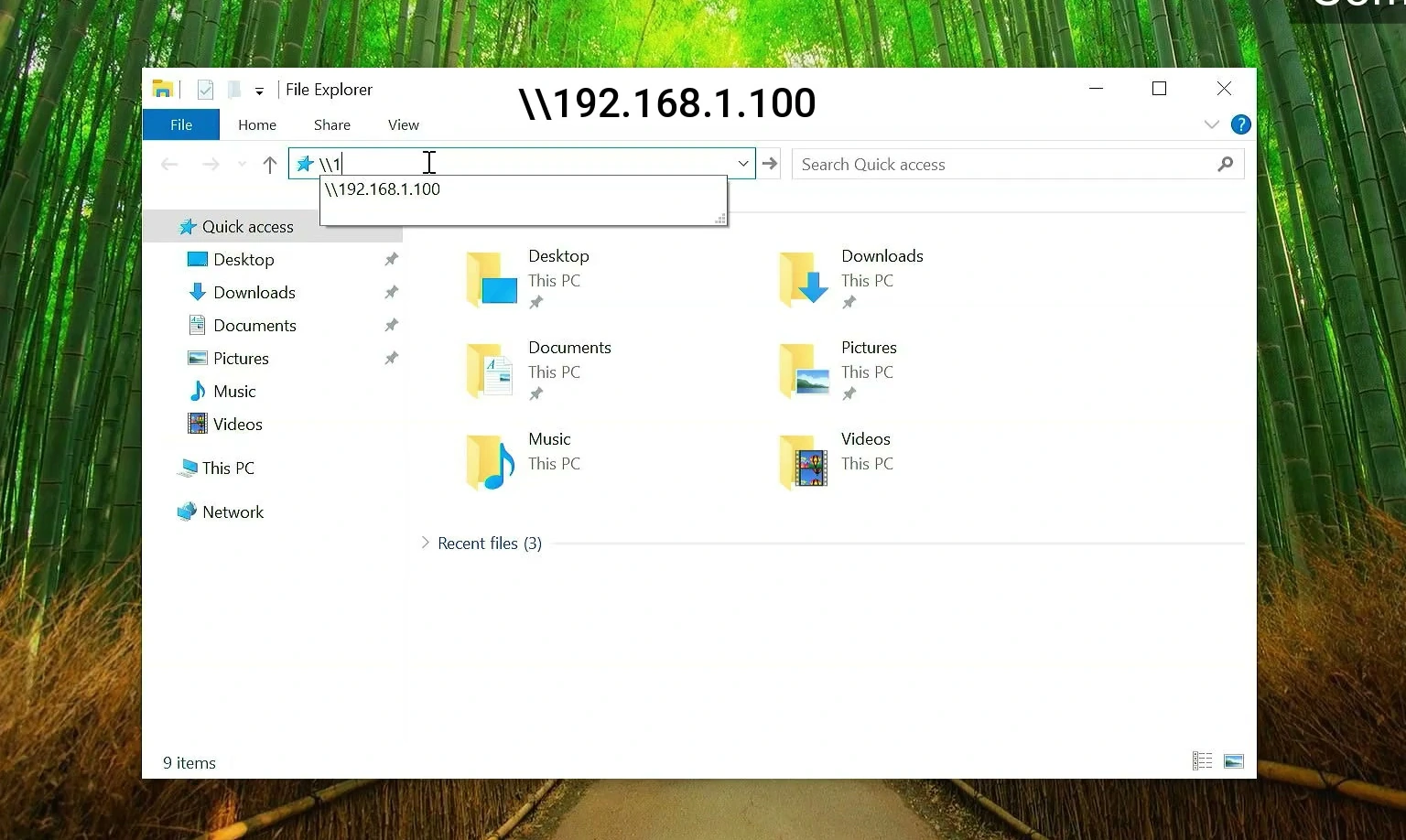
Now for the satisfying part. On Computer 2, open File Explorer. Click the address bar and enter the first computer’s network address:
\\192.168.1.100
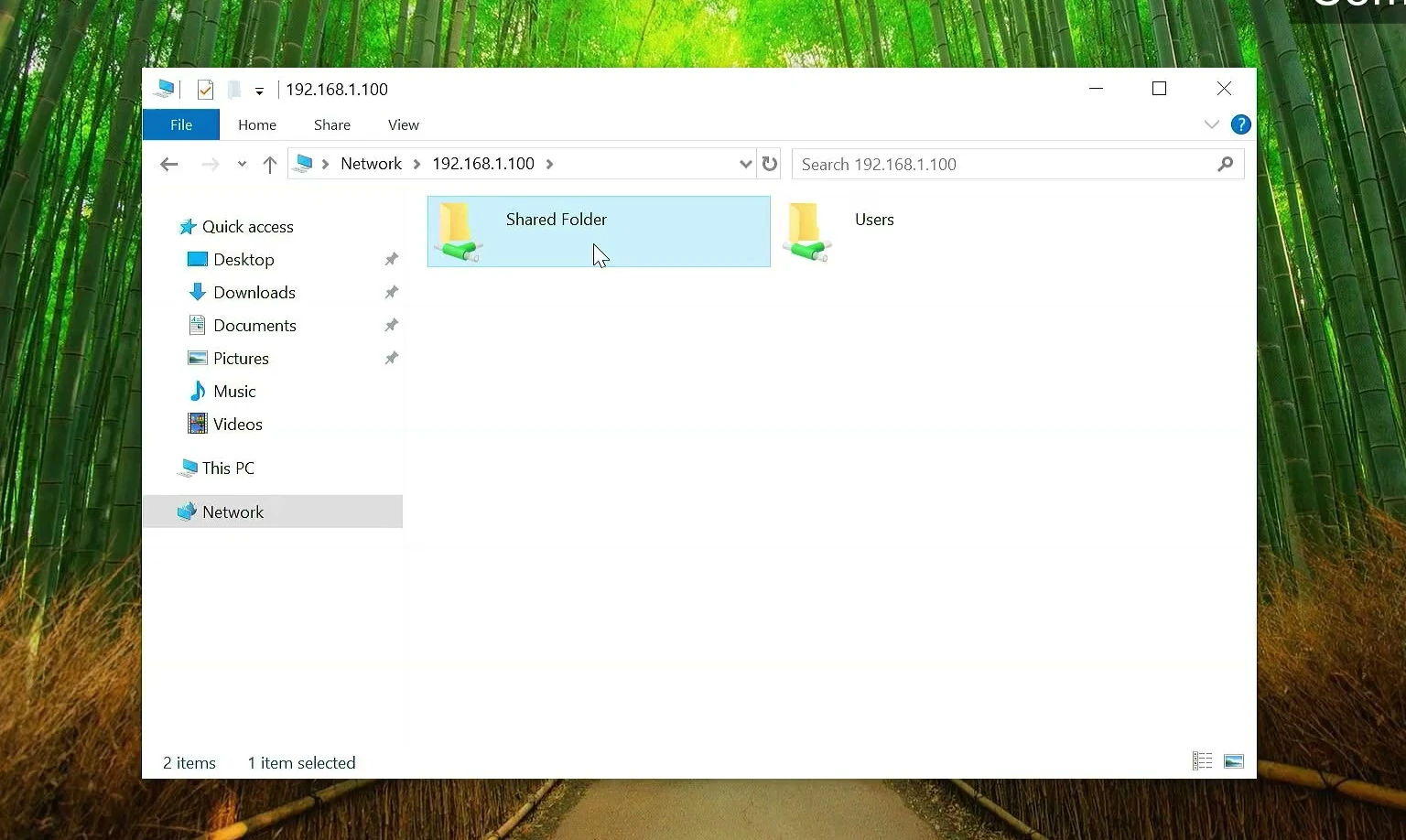
Press Enter. You should see the shares available from Computer 1. If you know the exact share name, you can also open \\192.168.1.100\Shared Folder directly.
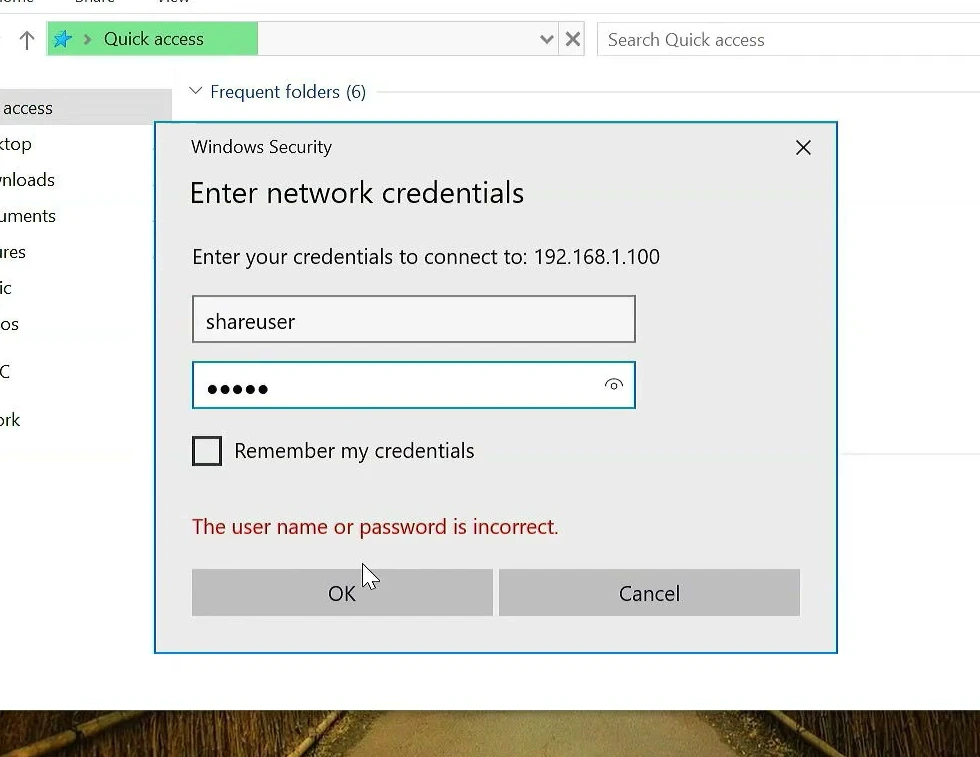
Windows may ask for network credentials. Enter the local username and password created on Computer 1. If the username alone doesn’t work, use the host computer’s real name followed by the account, such as COMPUTER1\shareuser. Replace COMPUTER1 with the actual name of your first PC.
If you see an incorrect-password message, double-check which computer owns the account. The credentials must belong to Computer 1, not the Windows account you normally use on Computer 2.
After Windows accepts the credentials, open Shared Folder. Its files should now be visible from the second computer, just like a regular folder in File Explorer.
Copy your files and check the transfer speed
Drag files from the shared folder into a local folder on Computer 2, or use Copy and Paste. If you enabled write permissions, you can also copy files back to the shared folder from Computer 2.
In my test, Windows showed a copy speed of around 112 MB/s while transferring files over the direct LAN cable. That’s a good result for a Gigabit Ethernet connection. It’s not a fixed speed that every PC will achieve, though. Your cable, network adapters, SSDs or hard drives, and the types of files you’re copying all affect performance.
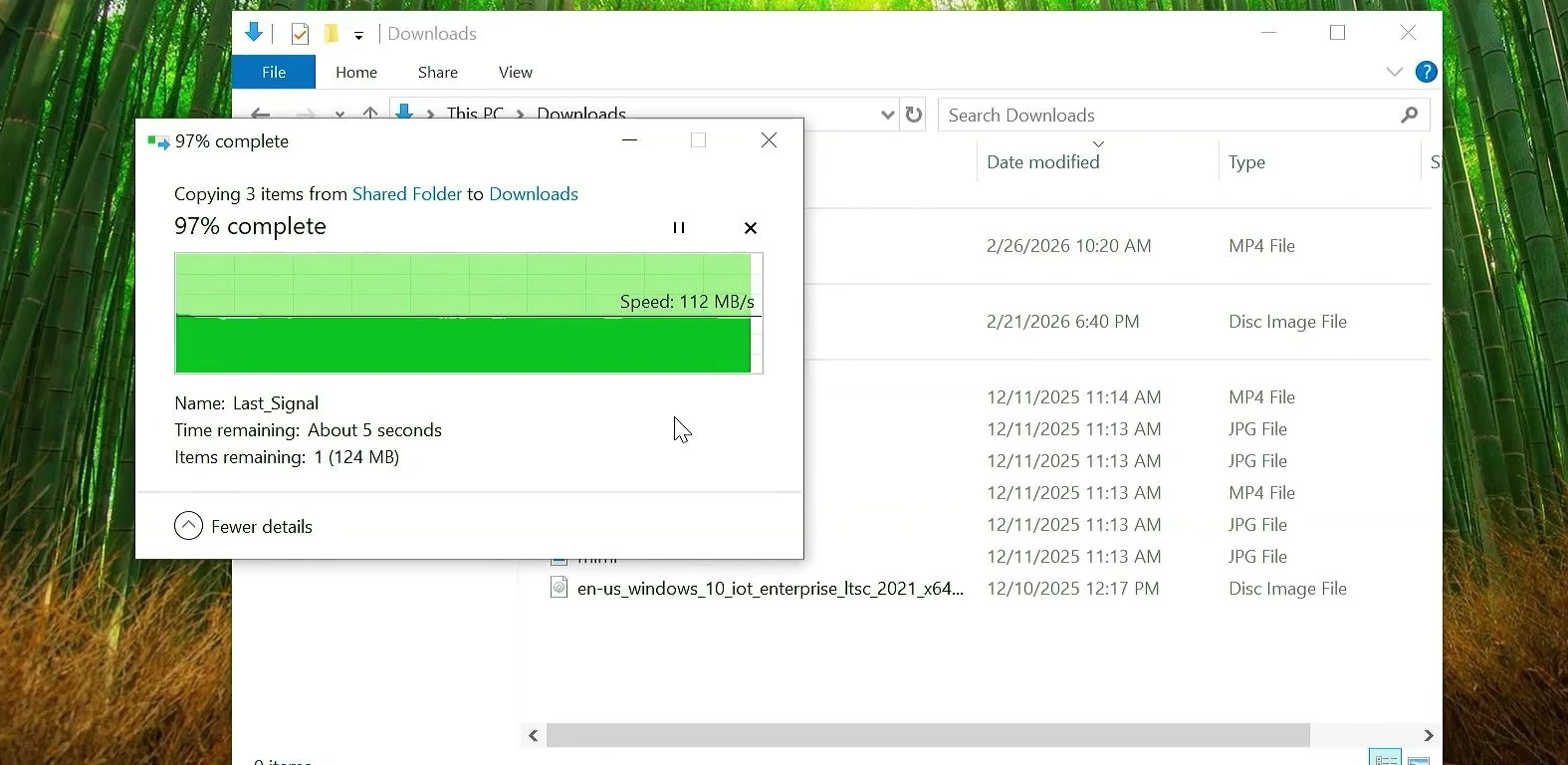
One quick detail is worth knowing. MB/s means megabytes per second, while Mbps means megabits per second. Gigabit Ethernet is rated at 1,000 Mbps, which is a theoretical 125 MB/s before overhead. That’s why a real-world copy speed around 100–112 MB/s can make sense on a healthy Gigabit link.
If the shared folder won’t open
Most connection problems come down to a few settings. Before changing anything complicated, check these basics.
- Wrong IP address: Confirm Computer 1 is using
192.168.1.100and Computer 2 is using192.168.1.101, both with the same subnet mask. - Network profile or firewall: Make sure the direct Ethernet link is trusted and configured as Private. Allow Windows File and Printer Sharing on that private connection, but don’t open it on unrelated public networks.
- Incorrect credentials: Use the local sharing account created on Computer 1. If necessary, include Computer 1’s name before the username.
- Access denied: Recheck permissions under both Sharing and Security on the shared folder.
- Slow transfer speed: Check whether both Ethernet connections have negotiated a Gigabit link. Older 100 Mbps adapters, damaged cables, and slower disks can limit transfers.
If you’re transferring large files regularly, this can be a convenient setup to keep available. Just remember to disable the share when you no longer need it, and restore the original Ethernet IP settings if you use that adapter for another network.