A portable local AI setup keeps the language model, chat interface, and conversation data on removable storage. The first setup still needs an internet connection, but once all components are downloaded, the model can answer without sending each prompt to an online AI service.
The legacy setup demonstrated here combines the local Ollama engine with the AnythingLLM Desktop chat interface on a USB drive. The tutorial covers Windows and follows the process shown in the video.
Important Update: Use the Maintained Version for a New Setup
The project shown in the video is now legacy software. Its author archived Portable-AI-USB on July 4, 2026, marked it as deprecated, and moved active development and fixes to Uncensored Local Studio. Use the maintained project for a new installation unless you specifically need to reproduce the older AnythingLLM and Ollama workflow below.
Set Up the Maintained Version on Windows
The current project requires 64-bit Windows 10 or Windows 11. Download its ZIP from GitHub, extract the complete project folder to a fast USB 3.x drive or external SSD, and keep enough free space for the runtime and model files. The project also supports Linux and Apple Silicon Macs, but the launcher and hardware requirements differ, so use the instructions for your operating system.
On Windows, open the extracted folder on the USB drive and run windows.bat. The first launch needs internet access because it downloads a portable Node.js runtime and chooses a CPU or GPU backend for the host computer. Keep the terminal window open while the service runs.
Open http://localhost:1420 if the interface does not open automatically. In the Text Chat workspace, use the Model Manager to download a suitable GGUF chat model or import one you already have. Start with a smaller model if the computer has limited RAM or no dedicated GPU; CPU mode works but can be slow.
After the runtime, backend, and model are stored on the drive, restart the studio with windows.bat and test it with the network disconnected. This maintained version does not use the same AnythingLLM screens shown later in this article, so follow its current README if a menu or filename changes.
The remaining sections document the archived workflow from the video. Because install.bat launches a PowerShell script with execution-policy bypass and downloads executable files, review the code and proceed only if you trust the repository. Archived software may stop working as its dependencies change.
What You Need for the Legacy Setup
- A compatible 64-bit Windows computer. Ollama’s current Windows requirements list Windows 10 22H2 or newer.
- A USB drive with at least 16 GB of free space. The archived project’s README recommends 32 GB for larger or multiple models. A fast USB 3.x drive or external SSD will reduce loading time.
- A stable internet connection for the initial downloads. Offline use is possible only after the model, Ollama, and AnythingLLM have been installed successfully.
- Enough system memory for the selected model. The project lists at least 6 GB of RAM for its 7B models and at least 8 GB for its 12B model, but additional headroom will make Windows and the chat interface more reliable.
- A backup of every existing file on the USB drive because formatting it will erase the drive.
Prepare the USB Drive
Download and Extract Portable-AI-USB
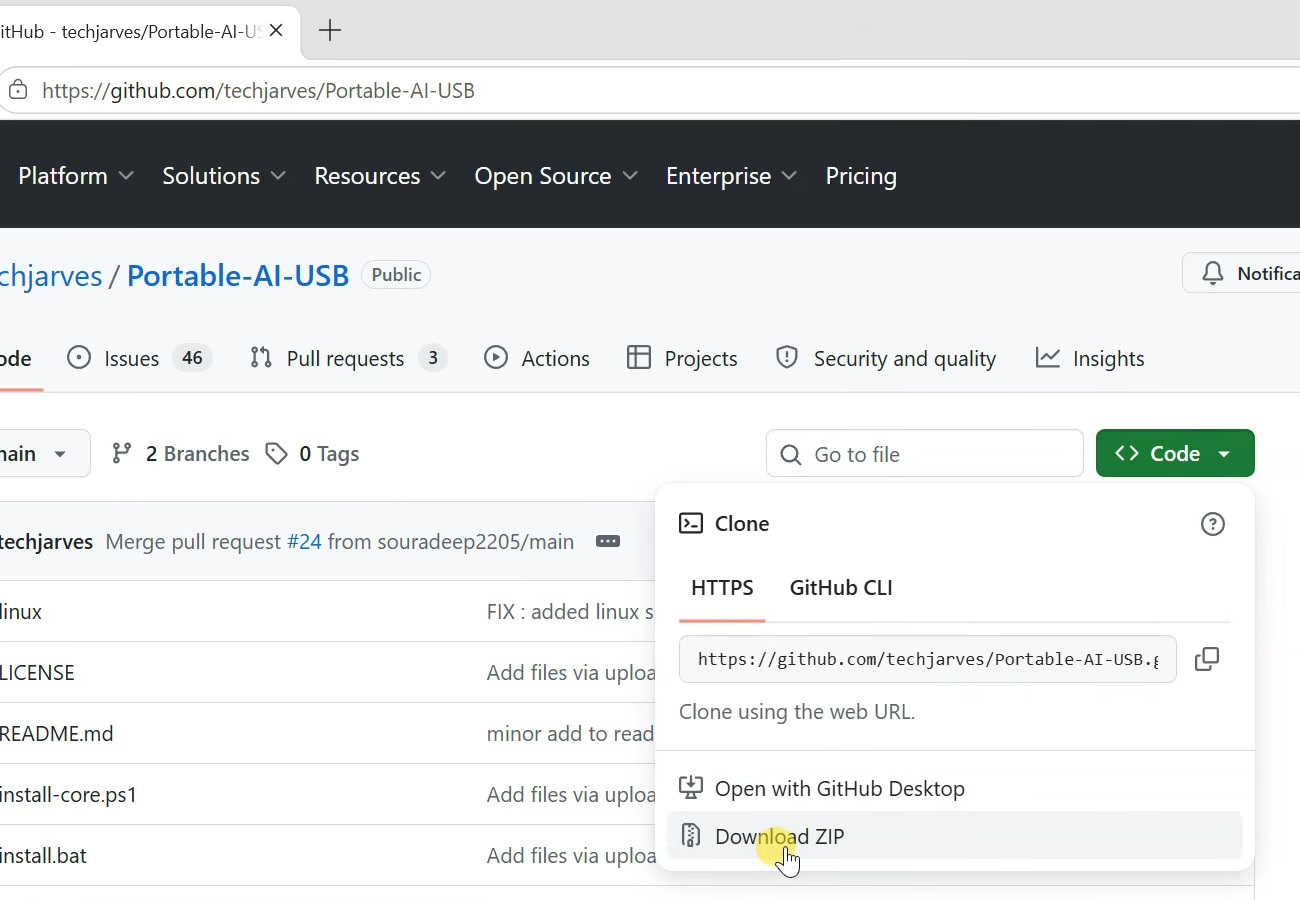
Open the archived repository, select Code, and choose Download ZIP. When the download finishes, extract the ZIP to a normal folder on the computer.
Format the USB Drive as exFAT
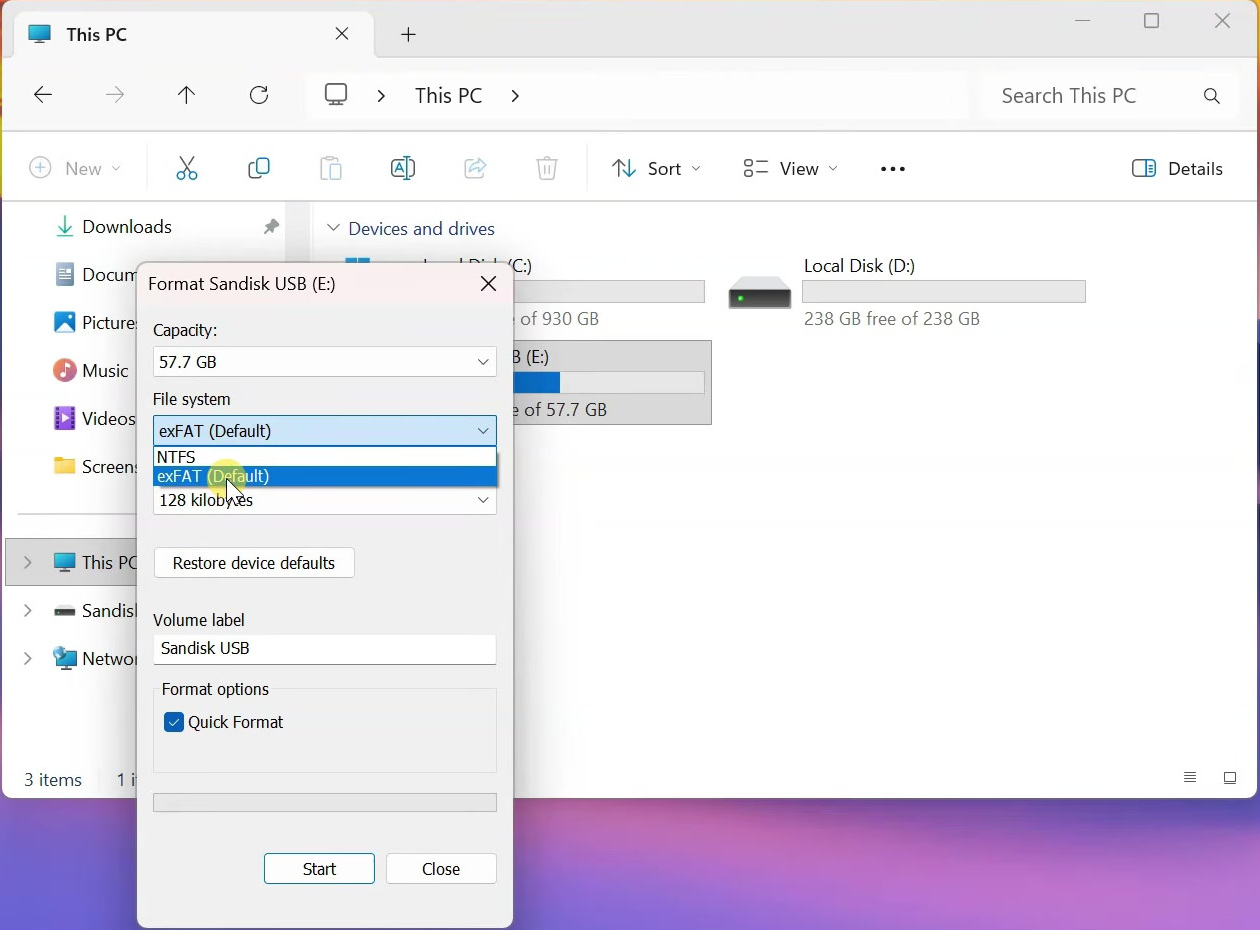
Connect the USB drive, open File Explorer, and go to This PC. Right-click the correct removable drive and select Format. Confirm the drive letter and capacity carefully so that you do not erase the wrong disk.
Warning: Formatting permanently removes the files currently stored on that USB drive. Copy anything important somewhere safe before continuing.
Set File system to exFAT, leave Allocation unit size at its default value, enter an optional volume label, and keep Quick Format enabled. Select Start and confirm the erase warning.
Copy the Setup Files to the Root of the Drive
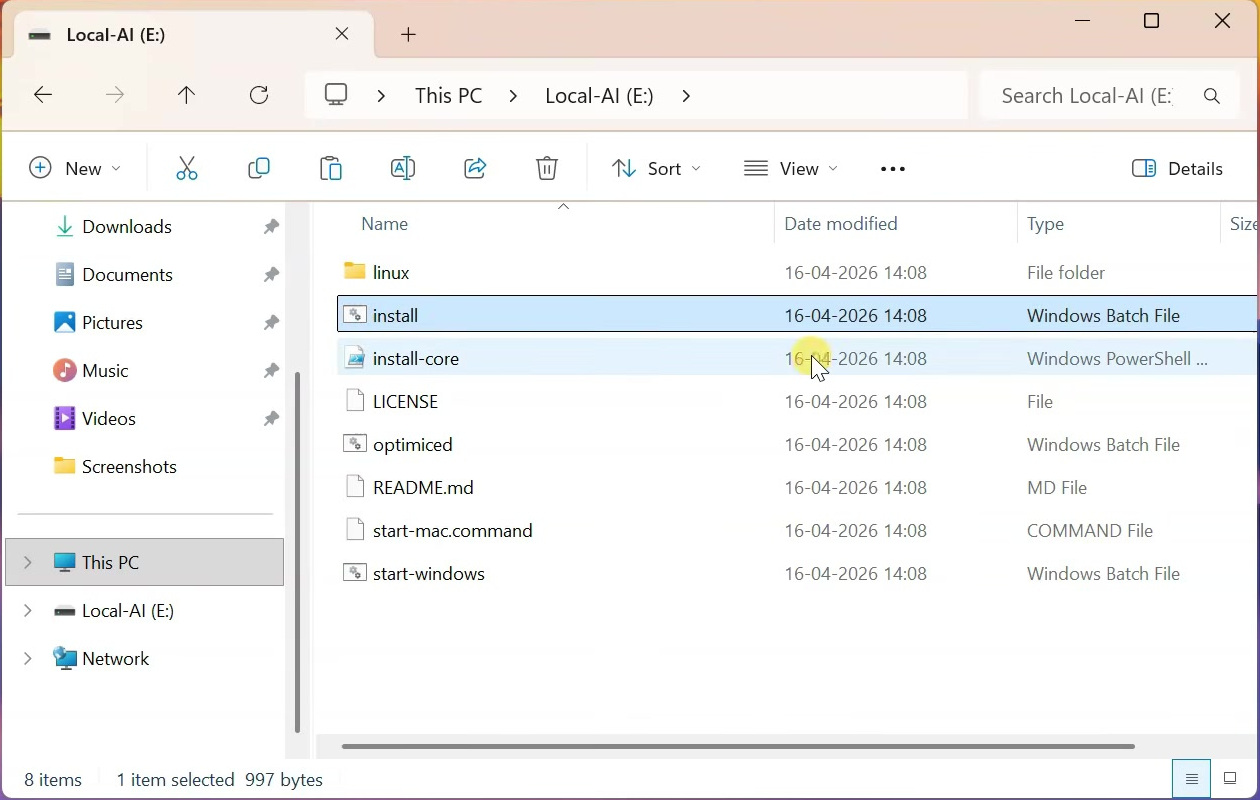
Open the extracted Portable-AI-USB-main folder and copy everything inside it to the root of the USB drive. Do not copy the parent folder itself. When you open the USB drive, files such as install.bat, install-core.ps1, and start-windows.bat should be immediately visible.
Install the Local AI Components
Run install.bat and Select a Model
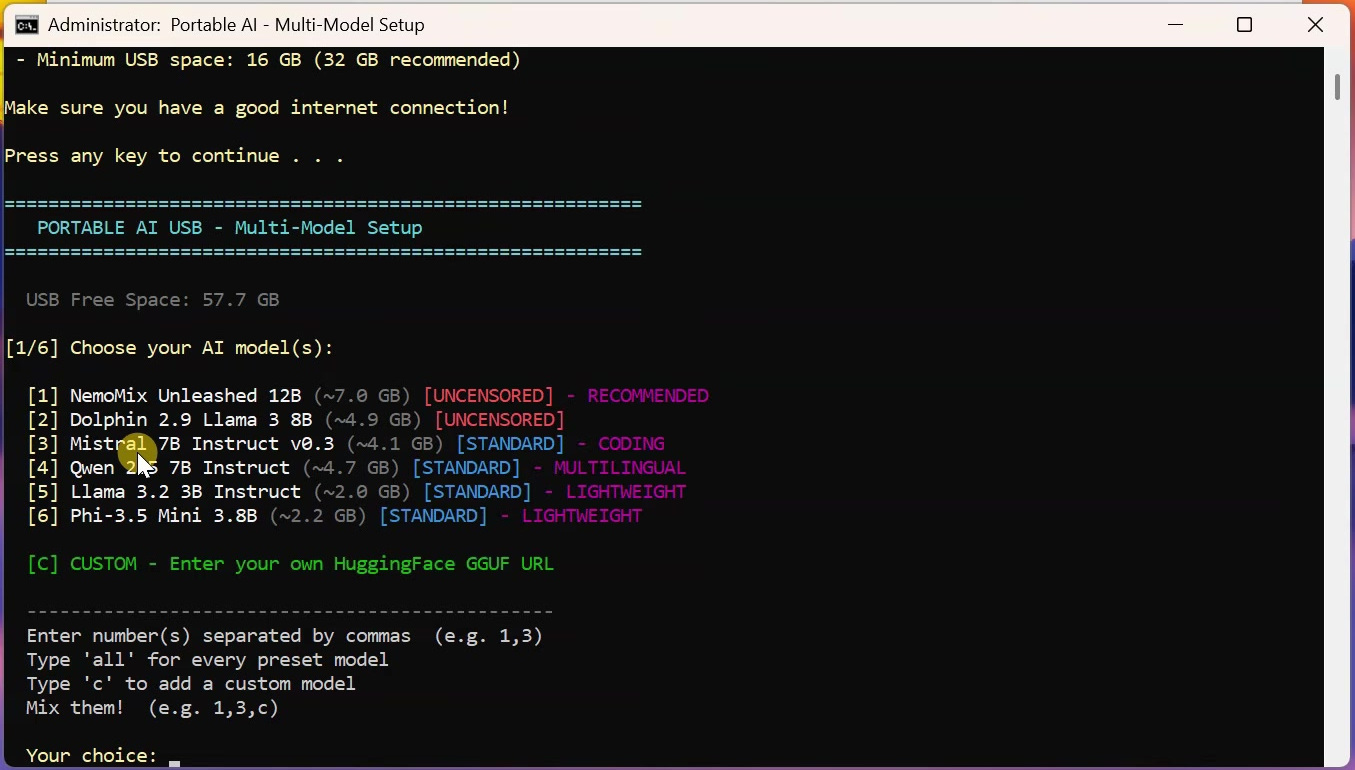
Double-click install.bat on the USB drive. Approve the Windows prompt only after checking that you downloaded the intended repository, then press any key when the setup window asks you to continue.
The installer shown in the video offers the following preset models. The sizes are approximate and refer mainly to the quantized model file, so leave extra room for Ollama, AnythingLLM, chat data, and temporary downloads.
| Option | Model | Approximate size | Suggested use |
|---|---|---|---|
| 1 | NemoMix Unleashed 12B | 7.0 GB | Largest preset and the repository’s recommended quality option |
| 2 | Dolphin 2.9 Llama 3 8B | 4.9 GB | General-purpose model used in the video |
| 3 | Mistral 7B Instruct v0.3 | 4.1 GB | Coding and general instructions |
| 4 | Qwen 2.5 7B Instruct | 4.7 GB | Multilingual tasks |
| 5 | Llama 3.2 3B Instruct | 2.0 GB | Lightweight option for older computers |
| 6 | Phi-3.5 Mini 3.8B | 2.2 GB | Lightweight general reasoning |
Enter the number for the model you want and press Enter. You can enter several numbers separated by commas, but each extra model consumes more storage. The video selects option 2, Dolphin 2.9 Llama 3 8B. A higher parameter count can require more memory and processing power, but it does not guarantee that every answer will be better or more accurate.
The script creates folders on the USB drive, downloads the selected GGUF model, downloads a standalone Ollama package, and opens the AnythingLLM installer. Do not close the command window or unplug the drive while this is happening.
Install AnythingLLM on the USB Drive
When the AnythingLLM installer asks for an installation location, select Browse and choose the anythingllm folder on the USB drive. Do not accept the default location on the computer’s C: drive because that would defeat the intended portable layout.
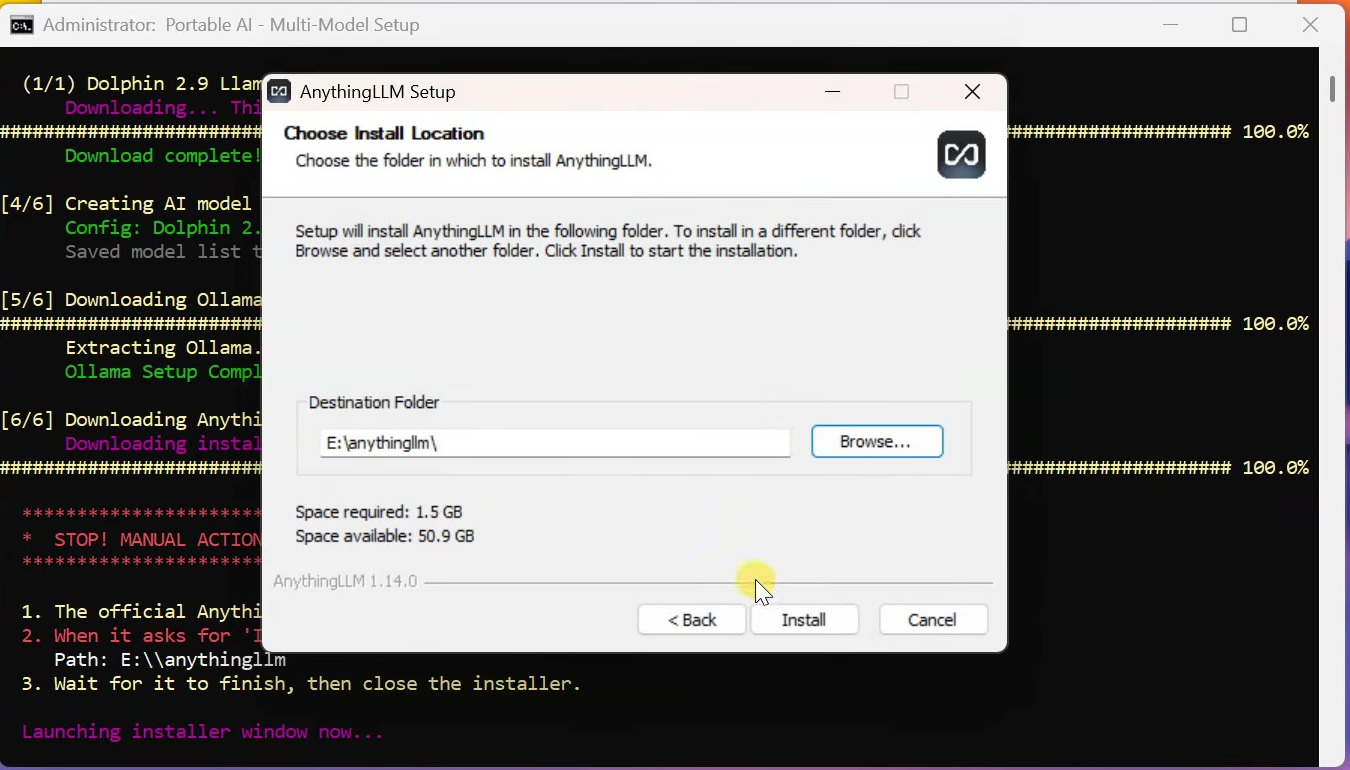
Complete the installer. If it offers to download the optional Meeting Assistant model, you can select No when you only need the chatbot; the video skips that additional download.
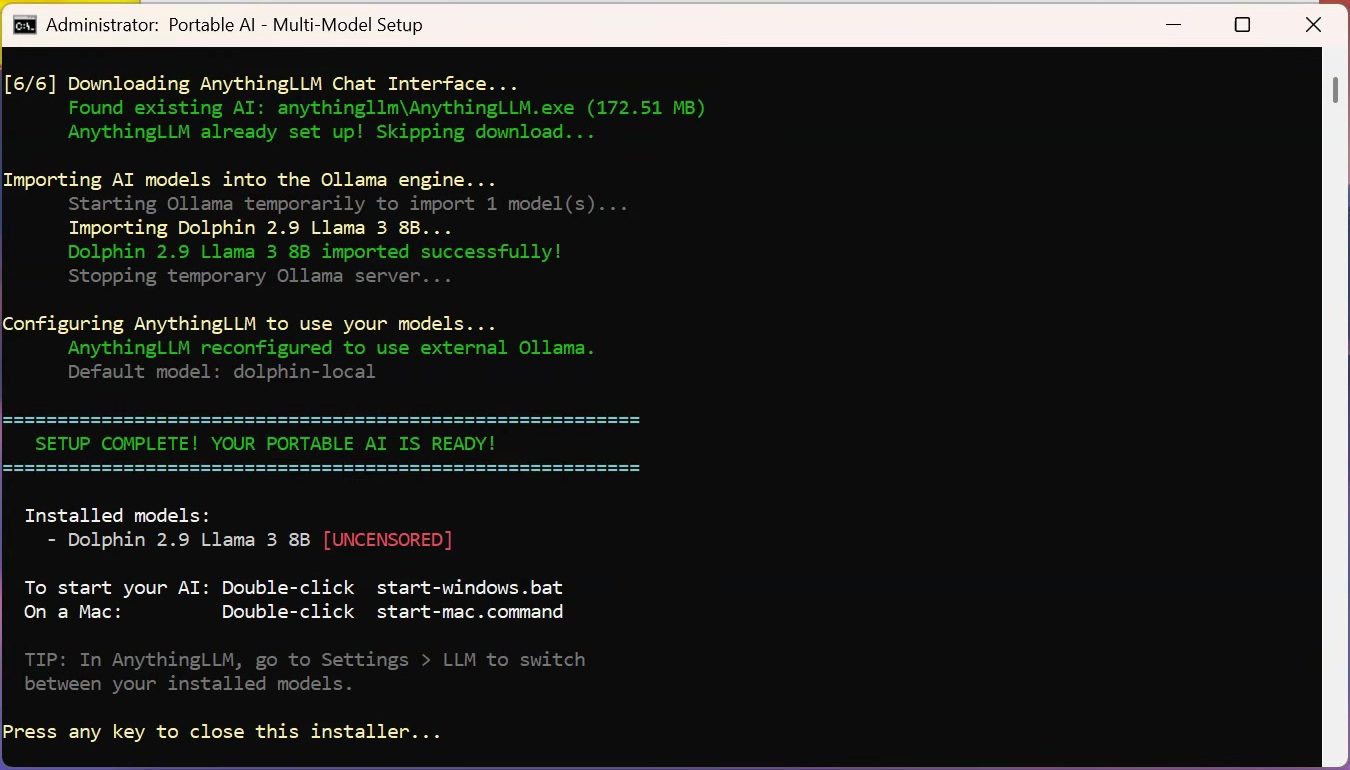
Return to the setup command window and let it import the GGUF model into the portable Ollama engine. This stage may appear unchanged for a long time. The system in the video took roughly 30 to 40 minutes, although the actual time depends on the drive, processor, model, and internet connection. Wait until the console reports that the model imported successfully and that the portable AI setup is complete.
Start the Chatbot and Configure AnythingLLM
Launch the Portable Services
After setup, double-click start-windows.bat on the USB drive. The launcher sets the model and application-data paths to folders on the removable drive, starts the portable Ollama server, and opens AnythingLLM. Keep the black launcher window open while you chat because closing it stops the local services.
If another copy of Ollama is already running on the computer, it may already be using localhost:11434. Quit the existing Ollama process and run start-windows.bat again before troubleshooting AnythingLLM.
Create a Workspace
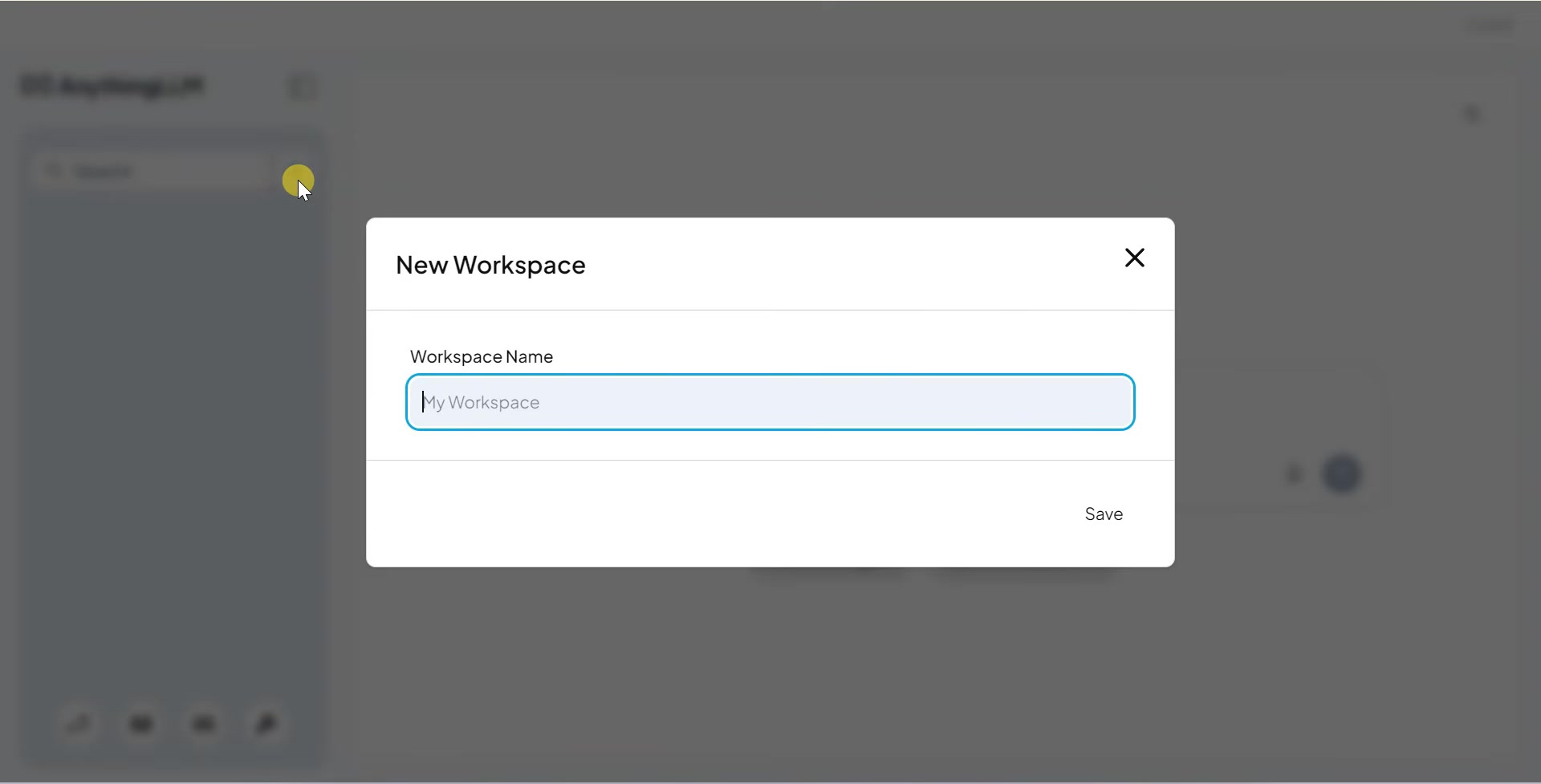
In AnythingLLM, create a new workspace and give it a descriptive name. The video creates Coding Assistant, but you can make separate workspaces for writing, study notes, or general chat.
Select Ollama, the Model, and Chat Mode
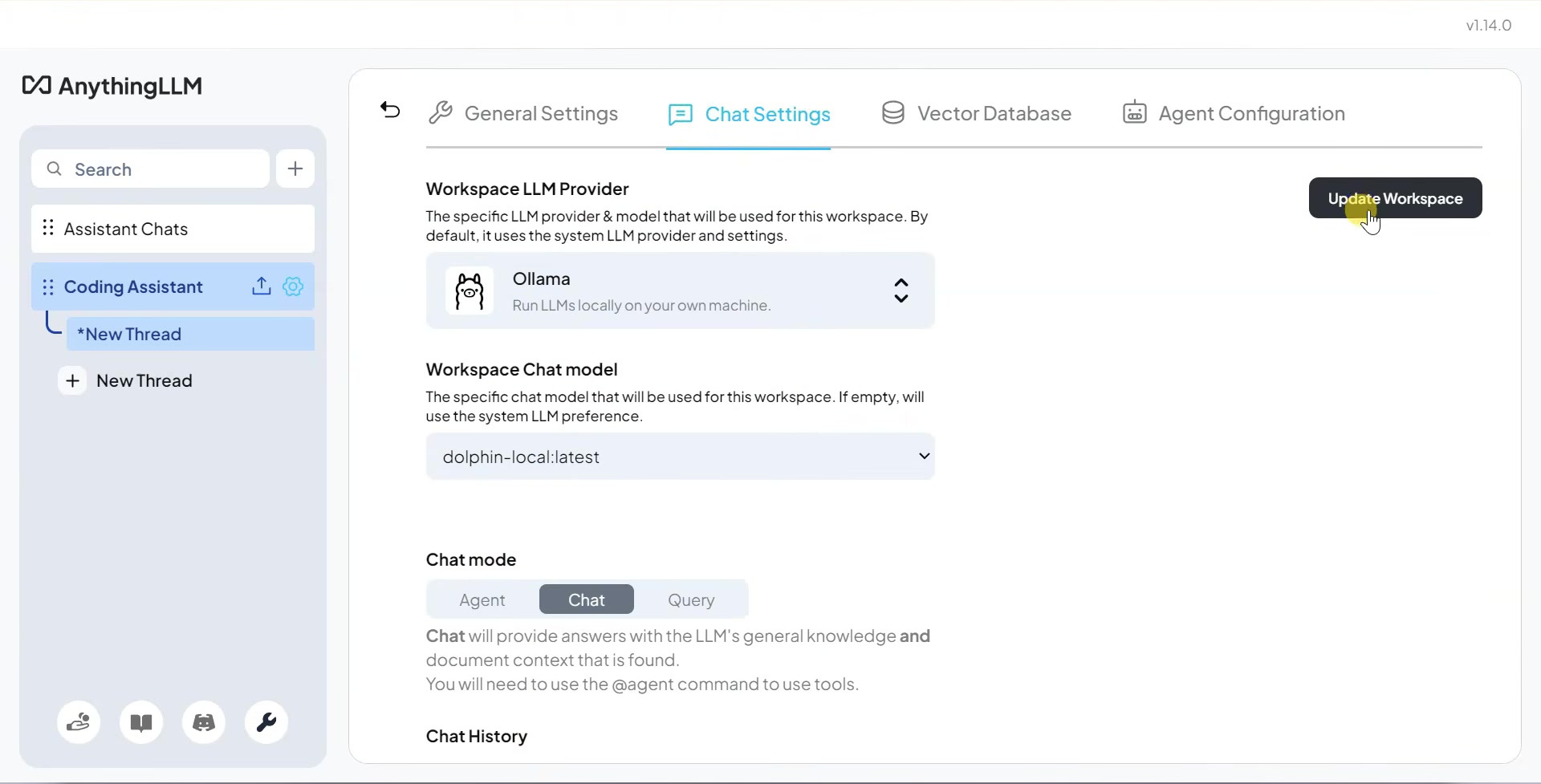
Open the workspace settings, switch to Chat Settings, and set Workspace LLM Provider to Ollama. Select the imported model under Workspace Chat model. For the setup in the video, the model appears as dolphin-local:latest.
Choose Chat mode for ordinary conversations. Agent mode is intended for tool use and may not work correctly with every local model.
Add an Optional System Prompt
A system prompt tells the model how to behave in this workspace. For a beginner-friendly coding assistant, the video uses this example:
You are a helpful coding assistant. Explain code clearly, give beginner-friendly examples, and provide clean working code with comments when needed.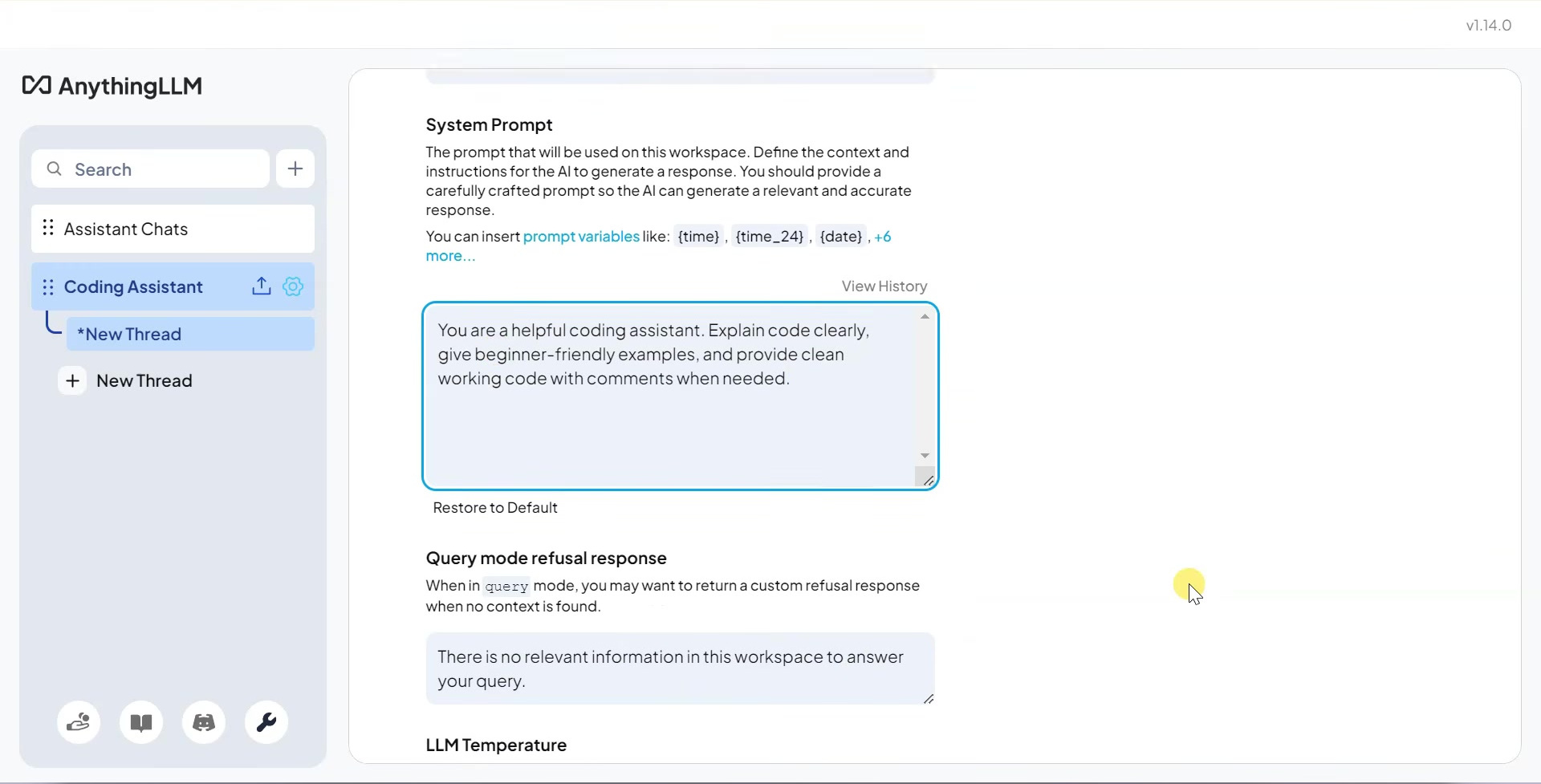
Select Update Workspace to save the provider, model, chat mode, and prompt.
Test the AI Without an Internet Connection
First confirm that installation and model import finished completely. Then disconnect Wi-Fi and Ethernet, return to the workspace, and submit a test prompt. The video asks:
Write a simple Python program to create a to-do list app.If the local model begins replying while Windows is offline, the core setup is working. AnythingLLM can also show generation time and tokens per second. These values vary significantly with the chosen model, CPU, GPU, available memory, and USB speed.
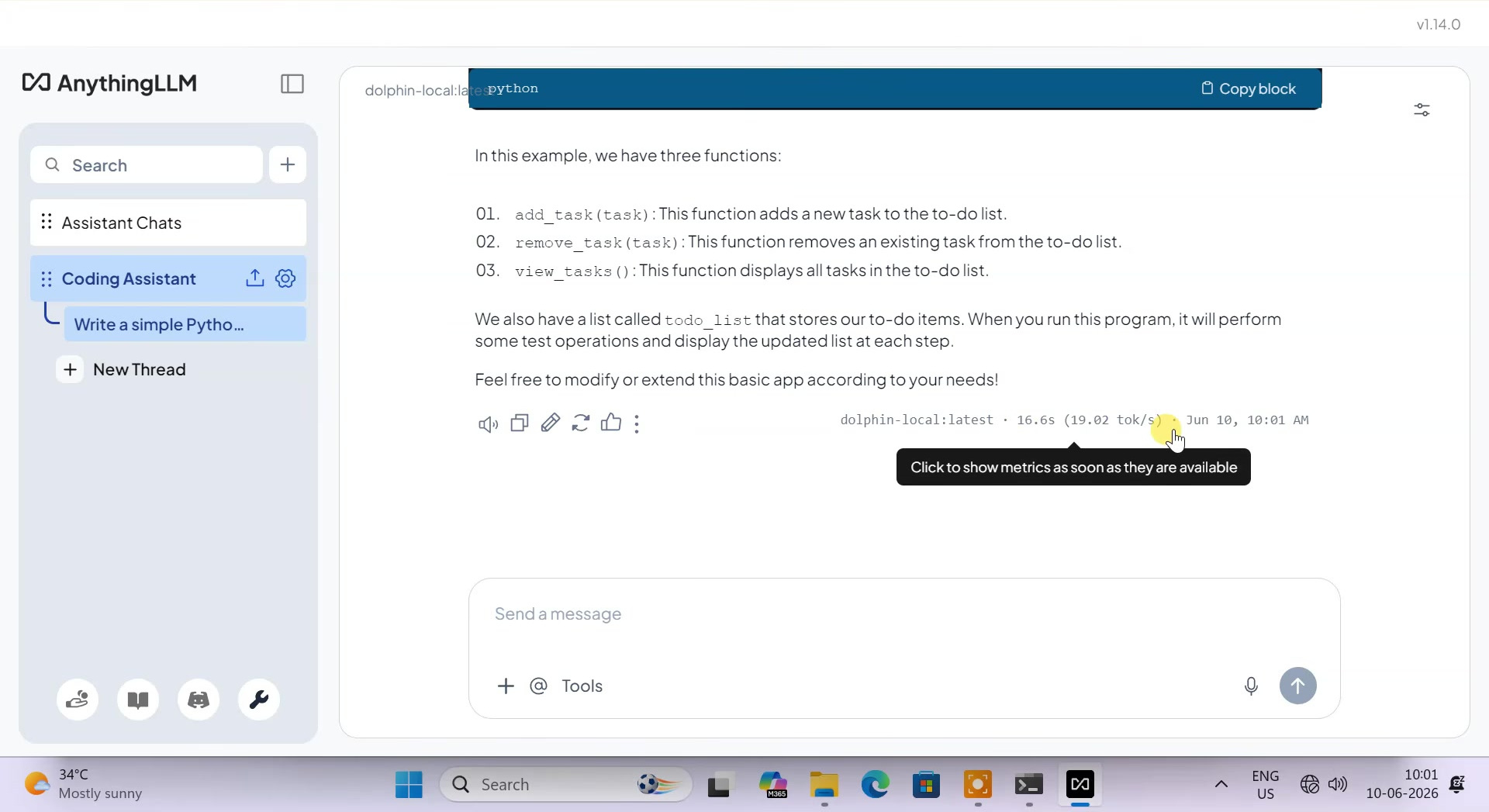
Offline does not mean the model has current internet knowledge. It can only use information already present in its model weights or documents you intentionally provide, and its answers can still be inaccurate. Verify important code and factual claims before relying on them.
Use New Thread in the workspace sidebar when you want a separate conversation. This keeps a new question from being mixed with the context of the previous chat.
Shut Down and Move the USB Safely
When you are finished, return to the black launcher window and follow its prompt to shut down the AI. Wait until the Ollama and AnythingLLM processes have closed, then use Windows’ Eject option before removing the drive. Unplugging the USB while the model or chat database is being written can corrupt the portable setup.
The archived launcher uses relative paths and clears old application caches to cope with a different drive letter on another computer. Even so, portability is limited by the host computer’s Windows version, processor architecture, memory, graphics drivers, and security policy. Also remember that exFAT is not encryption; anyone who obtains the drive may be able to read its files and chats.