Winlator Ludashi lets an Android phone run many x86-64 Windows applications and games through Wine and the Box64 or FEXCore translation layers. It is a community-modified Winlator build aimed at gaming performance, but the result still depends heavily on the phone, GPU driver, game, and settings.
This tutorial shows the complete setup used in the video, including the correct APK choice, a gaming container, Turnip graphics drivers, DXVK, game shortcuts, and touch controls. Use it as a tested starting point rather than a universal preset for every device.
Current-version note: The video and screenshots use Ludashi 3.0. Ludashi 4.x introduced a rewritten interface, and the current 4.1 release uses new APK filenames, so some menus and labels will look different. The 4.1 update also requires reinstallation instead of an in-place upgrade. New users should install the current build and treat the screenshots below as a map of the settings to find, while existing users should back up anything important before replacing an older installation.
Before You Start
Winlator Ludashi is a third-party community build, not an app from Google Play. Download it only from the project’s official release page, and understand the normal risks of sideloading an APK. Android may also warn that the app is designed for an older version of the operating system.
You also need legally obtained Windows game files. The simplest option is usually a DRM-free or portable game that can run from an existing folder. Games tied to a launcher, anti-cheat system, or restrictive DRM may not work when their folder is copied to the phone.
Check the Phone Hardware
Install Device Info HW if you do not know the phone’s processor and GPU. The demonstration uses a Snapdragon 8+ Gen 1 with an Adreno 730 GPU and 16 GB of RAM. A less powerful phone can still run Winlator, but it will usually need a lower container resolution, lighter games, and more conservative graphics settings.
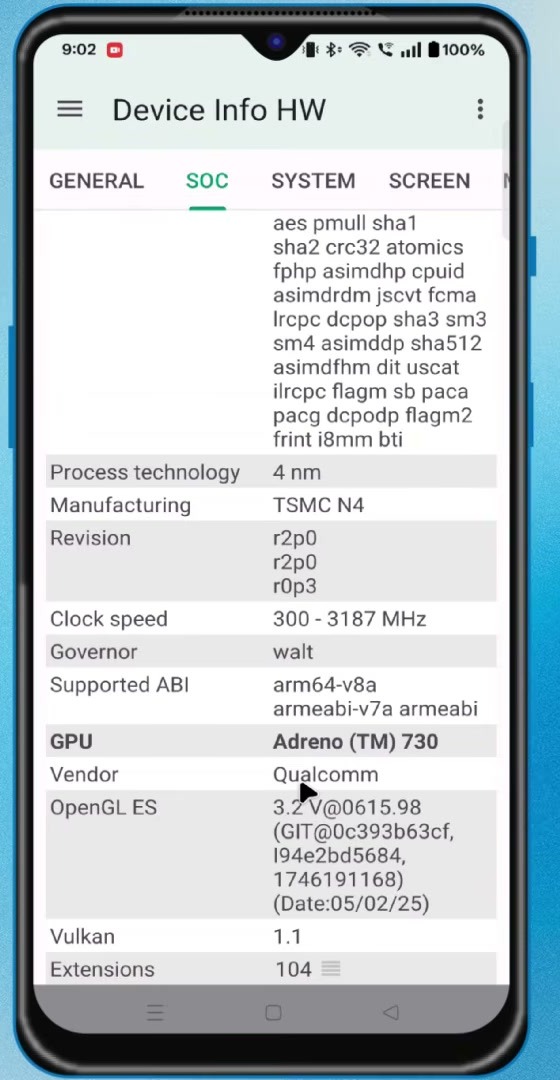
Download and Install Winlator Ludashi
Open the official Winlator Ludashi releases page and expand the assets for the current release. The button below opens the current release, which is version 4.1 at the time of writing. The archived Ludashi 3.0 release matches the recording, but it should only be used when you specifically need that older build.
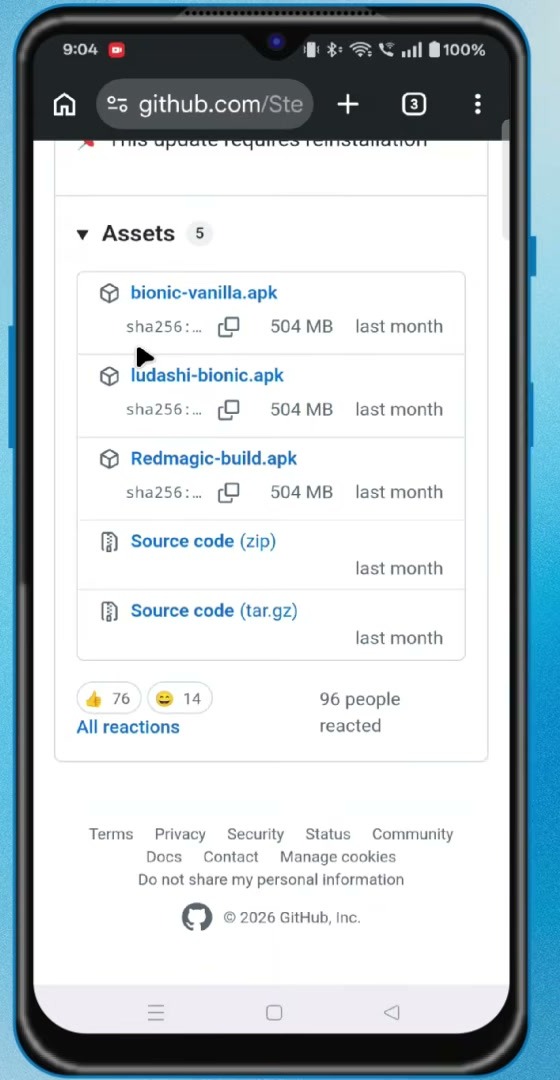
Choose the Right APK
- ludashi-build.apk: the main current Ludashi build and the normal choice for a supported phone. The equivalent file shown in the 3.0 video is named ludashi-bionic.apk.
- vanilla-build.apk: the current vanilla variant, which may be useful when the extra Ludashi changes cause trouble. Version 3.0 calls it bionic-vanilla.apk.
- Redmagic_build.apk: intended for compatible RedMagic devices, not as a general build for every phone. The punctuation differs slightly in the older release.
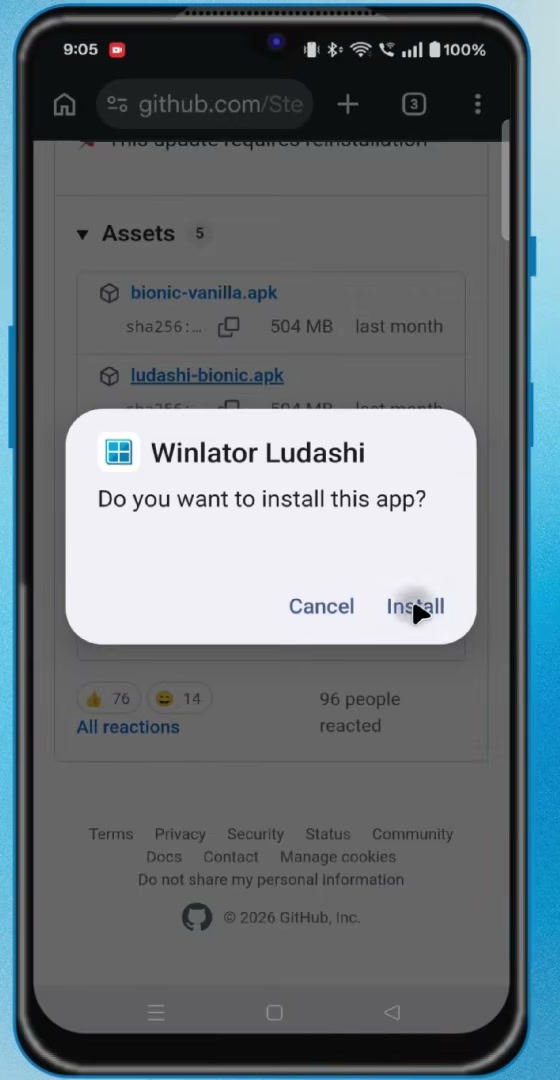
Tap the downloaded APK and allow installation from that source when Android asks. Confirm the installation, open Winlator Ludashi, grant the required file access, and let the app finish installing its system files before changing any settings.
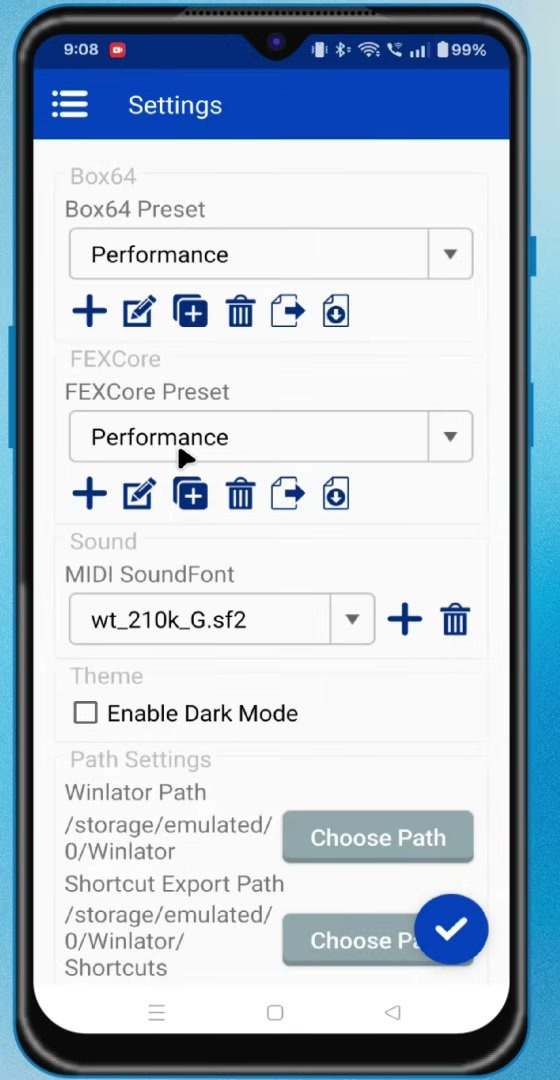
Configure the Global Performance Settings
Open the navigation menu and select Settings. Set both Box64 Preset and FEXCore Preset to Performance. The interface calls the second option FEXCore; automatic captions may transcribe its name incorrectly.
The video also raises the cursor speed to about 200 percent, which makes the desktop pointer easier to move on a touchscreen. Save the settings when finished.
Create a Gaming Container
Return to Containers and tap the plus button. A container is the isolated Windows environment that holds the Wine, display, graphics, audio, and processor settings for your game.
Set the Resolution and Wine Version
Choose 1280 × 720 for a mid-range or high-end phone. This gives a useful balance between image quality and performance. Start with 960 × 544 or another lower 16:9 option if the phone has limited RAM, overheats quickly, or cannot maintain a playable frame rate.
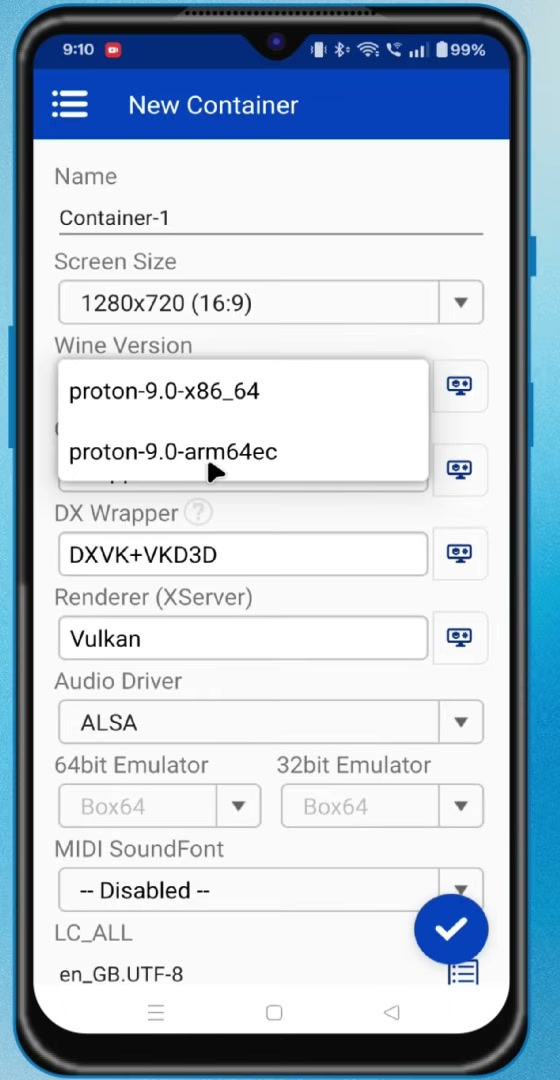
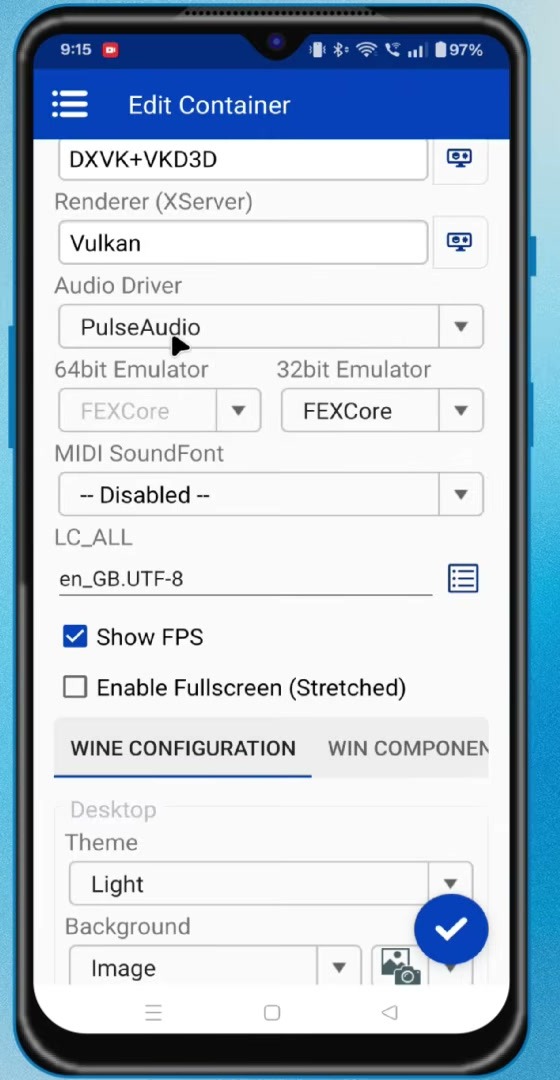
Select proton-9.0-arm64ec as the Wine version shown in the tutorial. Leave the graphics option on Wrapper, choose DXVK+VKD3D as the DirectX wrapper, and use the Vulkan renderer.
Install a Turnip Driver for Adreno
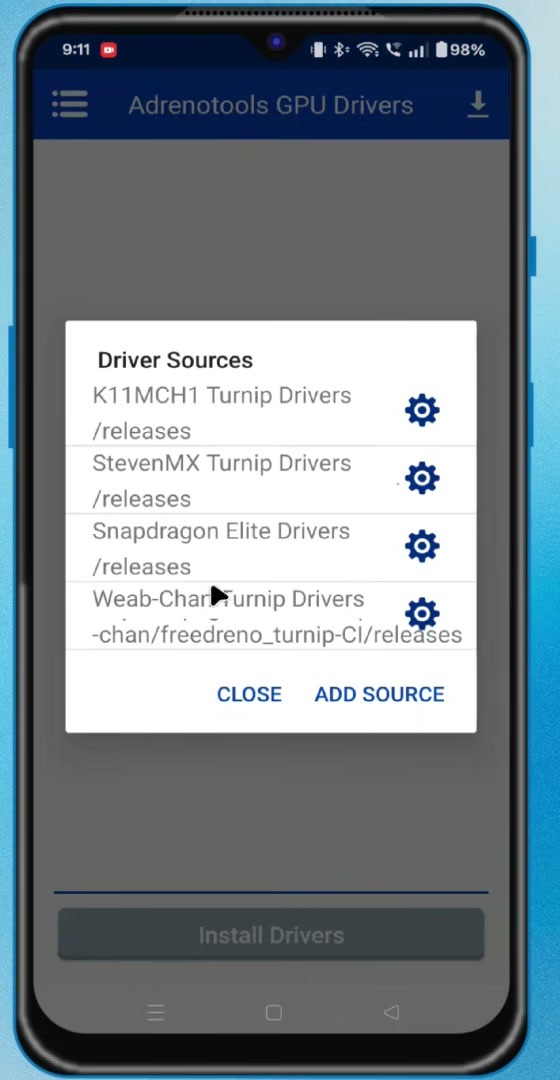
Snapdragon phones normally use an Adreno GPU and can benefit from a compatible Turnip driver. Open the side menu, select Adrenotools GPU Drivers, open the driver sources, and choose StevenMX Turnip Drivers.
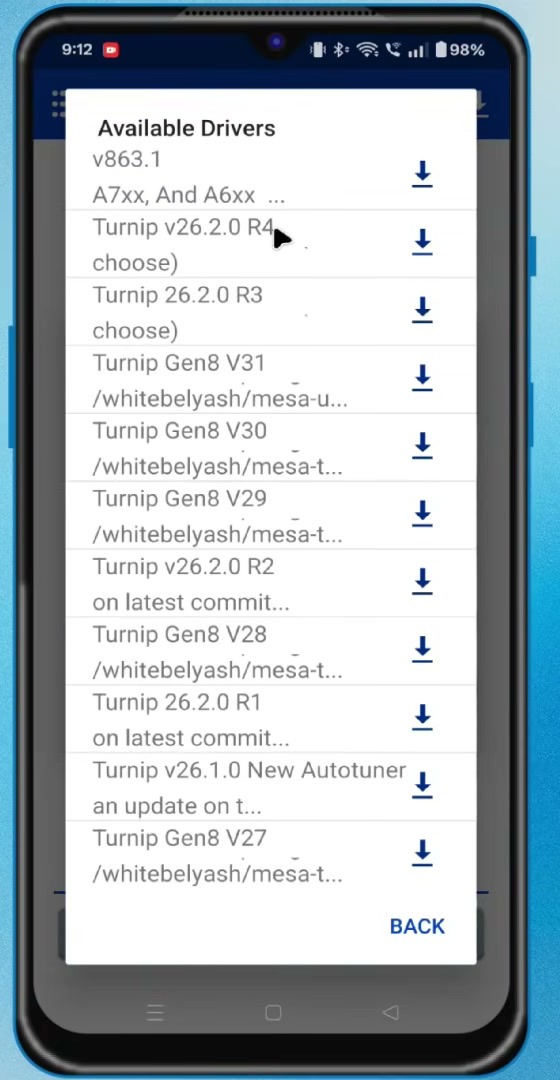
The demonstration downloads v863.1 for A7xx and A6xx GPUs. It also shows Turnip V26.2.0 R4 as an alternative if the first driver fails. Driver lists change over time, so match the driver to the Adreno generation instead of assuming the newest entry will work best on every phone.
Phones that use a Mali GPU cannot use the same Adreno Turnip driver. Mali is common in many MediaTek and Exynos devices, although those processor families are not limited to one GPU brand. Start with the system driver or a build specifically documented for the phone’s GPU. Return to the container editor after installing a driver and select it under the graphics-driver setting.
Finish the Graphics and Audio Settings
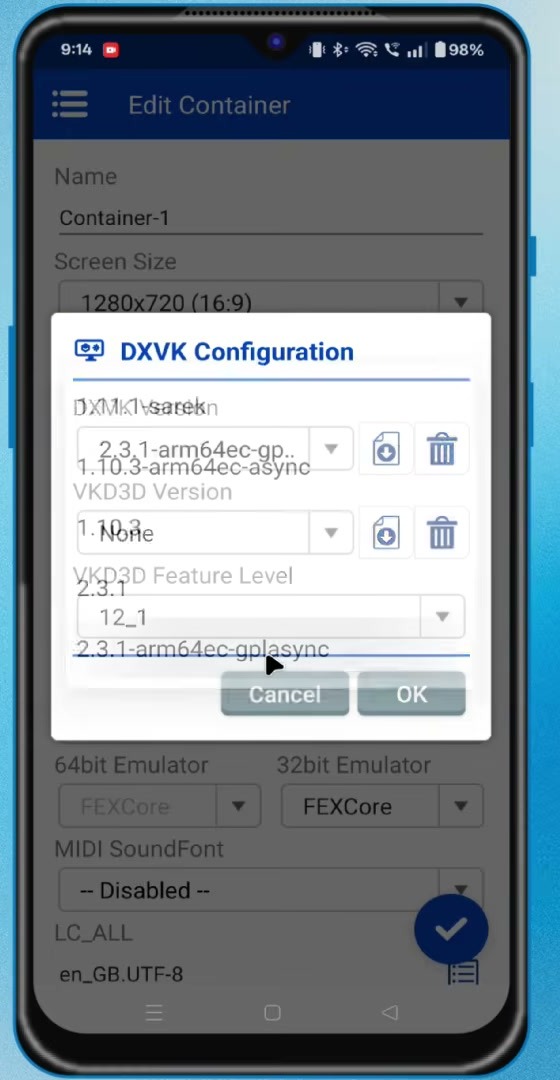
Open the DXVK configuration and choose 2.3.1-arm64ec-gplasync, which is the exact version selected in the video. Enable Async and Async Cache. The demonstrated configuration leaves the separate VKD3D version at None, so a DirectX 12 game may require a compatible VKD3D build. If a game shows graphics corruption or will not start, test a different wrapper version; older hardware and non-Adreno devices can behave differently.
Choose PulseAudio for sound. Enable Show FPS while testing so the on-screen HUD can help you compare frame rate, load, memory use, temperature, and other performance information. Enable Fullscreen (Stretched) is optional and may distort games that do not match the container’s aspect ratio.
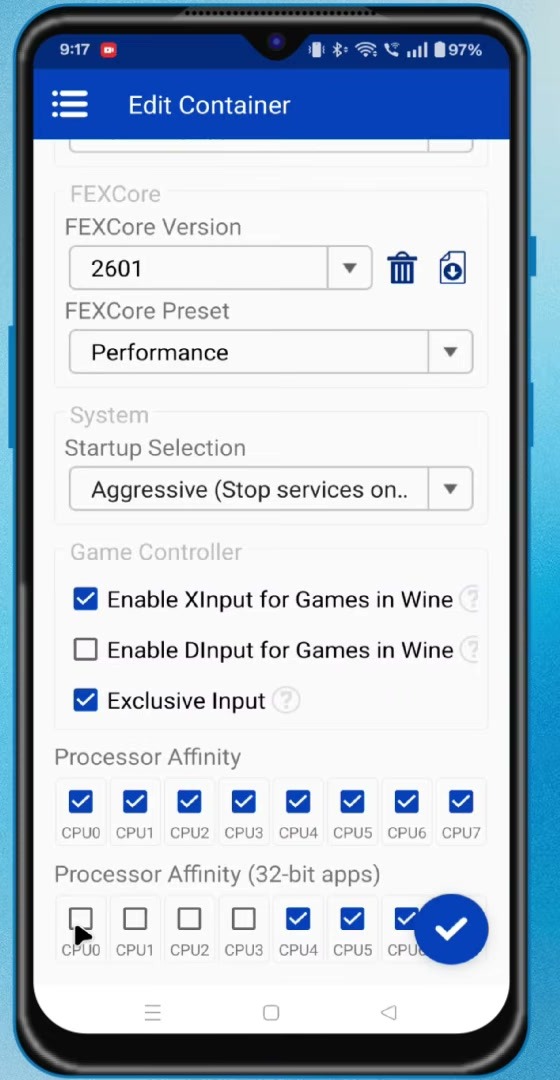
In the advanced section, the tutorial uses FEXCore 2601 with the Performance preset, Aggressive startup selection, XInput enabled, DInput disabled, Exclusive Input enabled, and the available processor cores selected. Aggressive startup can free resources by stopping background Windows services inside the container, but a game that depends on one of those services may need a less aggressive option.
Add a Windows Game
On a PC, prepare the complete folder for a legally owned game that can run without a launcher. Copy that folder to the Android Downloads folder. Keep every DLL and data subfolder beside the executable; copying only the EXE is usually not enough.
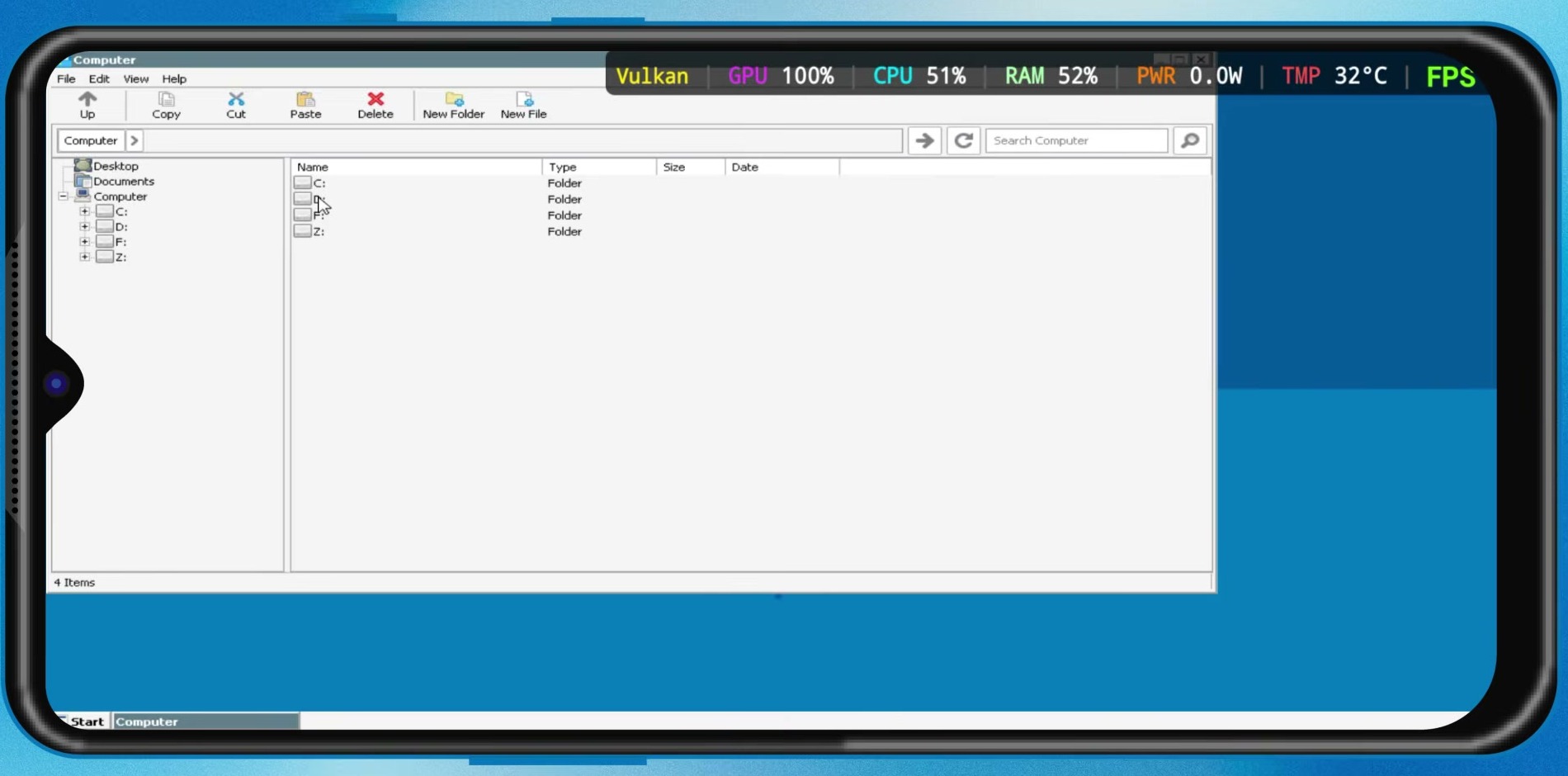
Start the container and open its Windows-style file manager. Android’s Downloads folder appears as the D: drive, so open D: and browse to the game folder.
Create a Game Shortcut
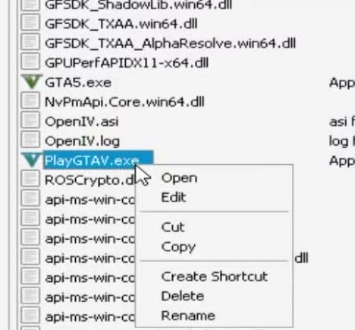
Find the game’s main EXE. Use a two-finger tap to open the right-click menu, then choose Create Shortcut. Close the container and open Shortcuts from Winlator’s navigation menu. The new entry lets you launch the game without browsing through the D: drive each time.
If the shortcut uses a generic icon, open its menu and choose Change Icon. Changing the icon is cosmetic and does not affect compatibility.
Configure Touch or Controller Input
A physical Bluetooth or USB controller generally gives the best experience for games designed around a gamepad. Winlator also supports touchscreen profiles when a controller is not available.
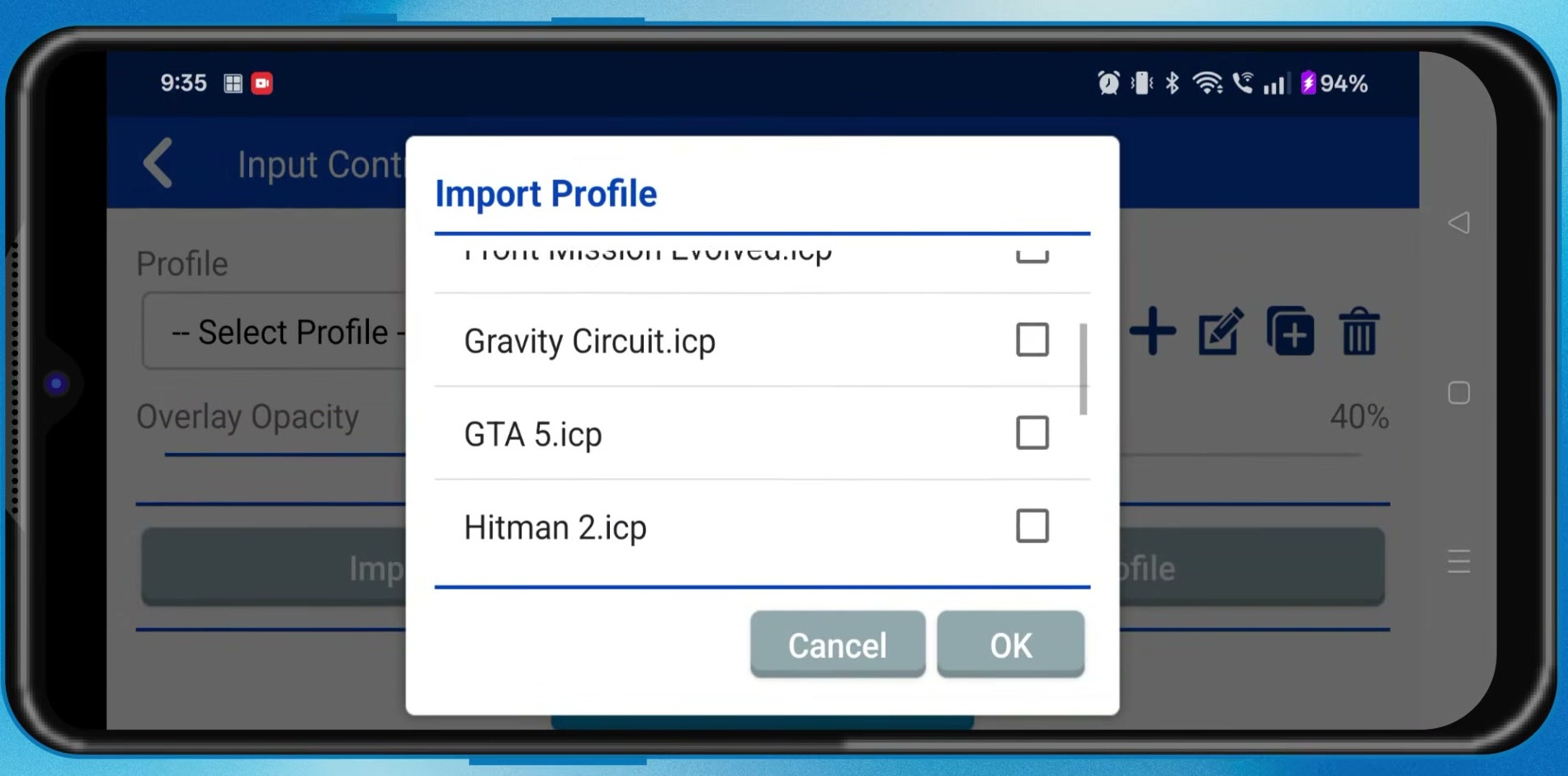
Open Input Controls, tap Import Profile, and import a compatible ICP file, or select one of the profiles already available in the build. The video demonstrates selecting a GTA 5 profile. After importing, choose that profile from the list and enable the touchscreen controls when launching the game.
Match the In-Game Display Settings
Inside the game, select fullscreen mode and set the resolution to match the container, such as 1280 × 720. Disable VSync when measuring raw performance. A mismatch between the game and container resolution can create a black screen, incorrect scaling, or unnecessary GPU load.
A 60 FPS limit is a sensible maximum for many phones, while 30 FPS can reduce heat and battery drain in demanding games. Lower the container resolution, in-game graphics quality, and frame-rate limit before experimenting with more advanced options.
Troubleshooting Winlator Ludashi
The Game Does Not Start
Try another DXVK version, switch between the selected Turnip driver and the system driver, and temporarily return the startup selection to a less aggressive preset. Also confirm that all game files and required runtimes are present. Games that require a separate launcher, online authentication, kernel anti-cheat, or unsupported DRM may not work in Winlator.
The Phone Overheats or Performance Is Unstable
Reduce the resolution and graphics quality, cap the frame rate at 30 FPS, close other Android apps, and stop playing if the device becomes uncomfortably hot. Sustained performance differs substantially between phones because cooling systems, power limits, and driver support are not the same.
Controls Do Not Respond
Make sure the intended touch profile is selected for the shortcut. For a physical controller, verify Android detects it first, keep XInput enabled for modern controller support, and test Exclusive Input both on and off if buttons are duplicated or ignored.
Final Notes
Winlator Ludashi can make surprisingly capable PC gaming possible on a recent Android phone, but compatibility is never guaranteed. Start with the settings above, change one option at a time, and use the FPS and temperature overlay to judge whether each change actually helps your device and game.