Is the call recording option missing on your Samsung Galaxy phone? In this guide, I will show you how to enable the native call recording feature on a Samsung phone without root, without unlocking the bootloader, and without losing your data.
On many Samsung phones, the call recording option depends on the phone’s CSC, which means Country Specific Code. In some regions, Samsung enables native call recording by default. In other regions, the same option may be hidden or disabled.
So, if you open the Phone app, go to Settings, and do not see the Record calls option, this method can help you enable it by changing the CSC to a region where native call recording is supported.
What This Method Does
This method changes the CSC region on your Samsung phone using SamFW Tool. After changing the CSC to a call-recording-supported region, the missing native call recording option can appear inside the Samsung Phone app.
For example, if your Samsung phone is currently using a CSC where call recording is disabled, you can change it to a CSC like INS, which is the Indian CSC and supports native call recording.
After the process is complete, the phone will reboot. Then you can open the Phone app settings and check whether the Record calls option is available.
What You Need
Before starting, make sure you have these things ready:
- A Samsung Galaxy phone
- A Windows PC
- A proper USB data cable
- Samsung USB Driver
- SamFW Tool
- USB debugging enabled on your phone
This method does not require root access, and it does not require bootloader unlock.
Required Tools
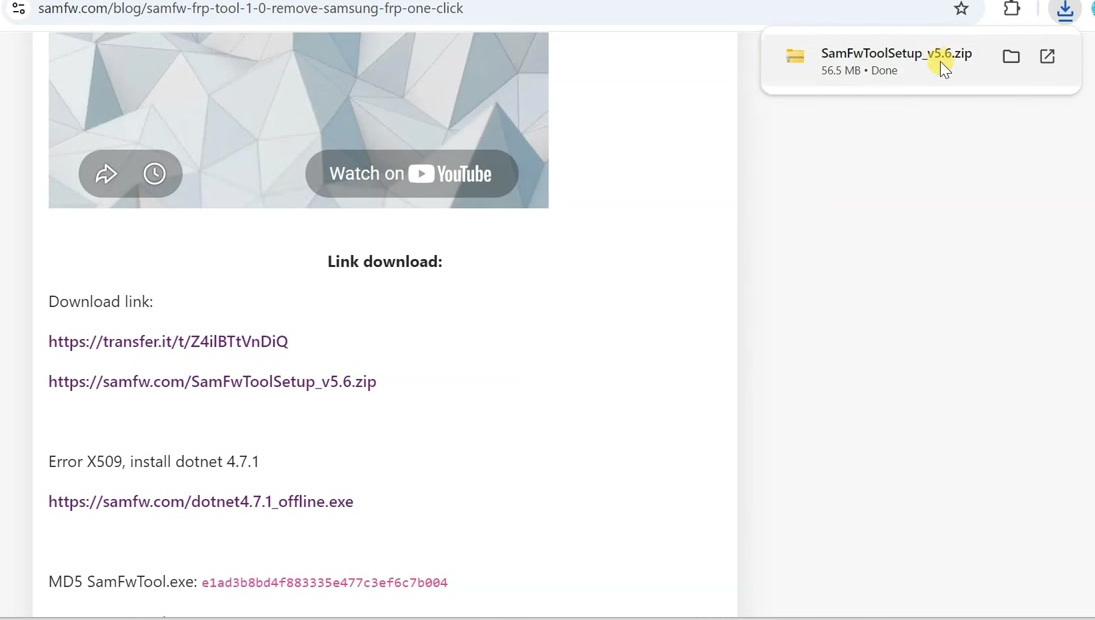
You need Samsung USB Driver so your phone can properly communicate with the computer. You also need SamFW Tool to change the CSC from the PC.
Step 1: Check if Call Recording is Missing
First, open the Phone app on your Samsung phone.
Tap on the three-dot menu in the top-right corner and open Settings.
Now check whether you can see the Record calls option.
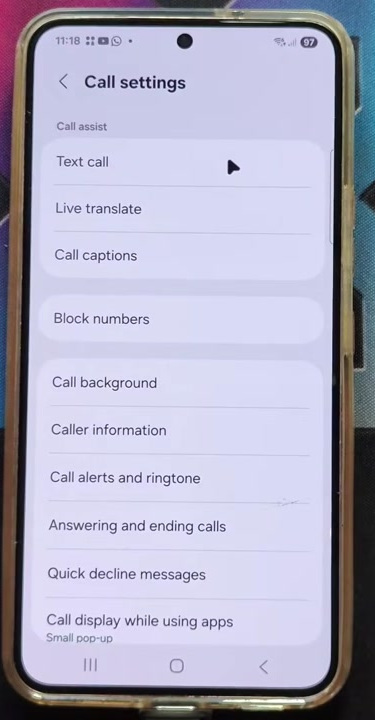
If the call recording option is missing, that means native call recording is currently disabled for your region or CSC.
Step 2: Enable Developer Options on Samsung Phone
Now we need to prepare the Samsung phone so it can properly connect with the computer.
Open the Settings app on your Samsung phone.
Scroll down and tap on About phone.
Now tap on Software information.
Here, find Build number and tap on it seven times continuously.
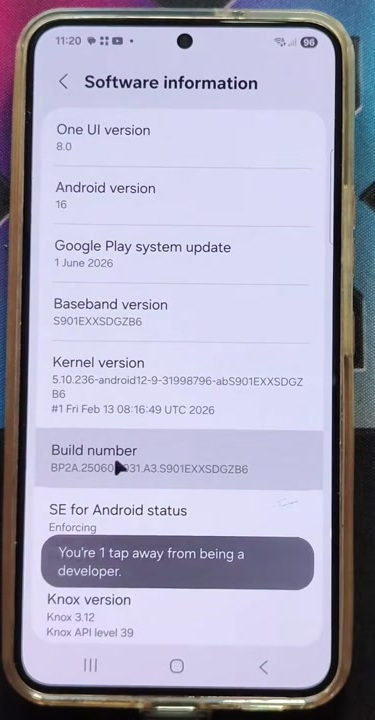
If your phone asks for your lock screen PIN, password, or pattern, enter it.
After that, you should see a message saying that Developer mode has been turned on.
Step 3: Enable USB Debugging
Now go back to the main Settings page.
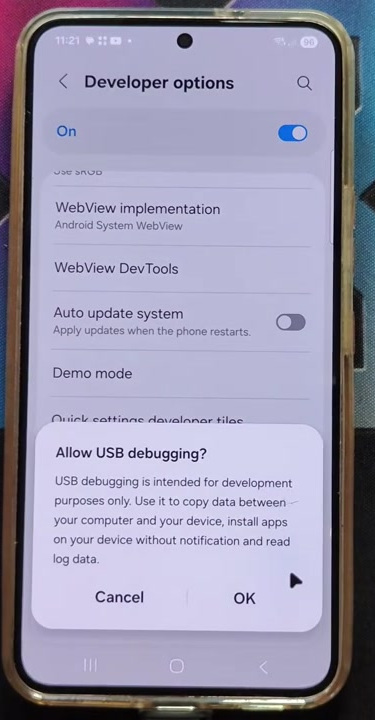
Scroll down and open Developer options.
Inside Developer options, scroll down and find USB debugging.
Turn on USB debugging and confirm the popup.
Step 4: Connect Samsung Phone to PC
Now connect your Samsung phone to the Windows PC using a proper USB data cable.
After connecting, keep your phone screen unlocked.
If your phone asks for a USB connection mode, select File transfer or Android Auto.
If a USB debugging permission popup appears on your phone, tap Allow.
Step 5: Install Samsung USB Driver
On your computer, install the Samsung USB Driver first.
Open the Samsung USB Driver setup file and follow the on-screen instructions. Once the installation is complete, restart the PC if required.
This driver helps Windows detect your Samsung phone properly inside tools like SamFW Tool.
Step 6: Install and Open SamFW Tool
After installing the Samsung USB Driver, extract the SamFW Tool ZIP file.
Open the extracted folder and install SamFW Tool on your computer.
Once the installation is complete, open SamFW Tool.
Make sure your Samsung phone is still connected to the PC and the phone screen is unlocked.
If any permission popup appears on your phone, tap Allow.
SamFW Tool should automatically detect your Samsung phone.
Step 7: Open the MTP Tab in SamFW Tool
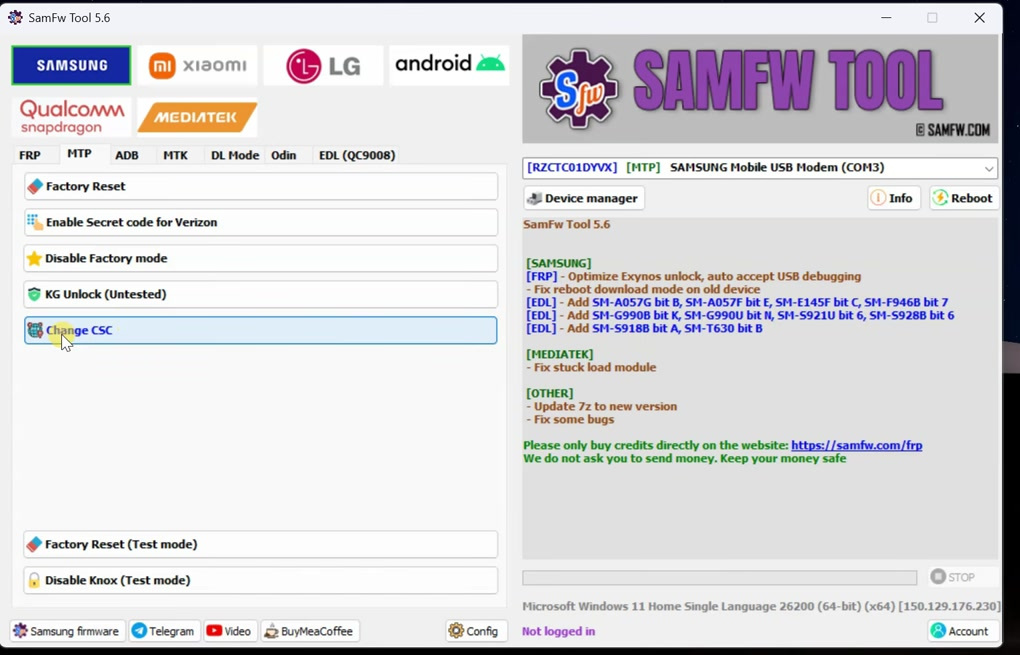
By default, SamFW Tool may open on another tab, such as the FRP tab.
For this method, we do not need those options.
Go to the MTP tab inside SamFW Tool.
Inside the MTP tab, click on the Change CSC option.
Step 8: Understand CSC Before Changing It
CSC means Country Specific Code. Samsung uses this code to decide which regional features should be available on your phone.
In some regions, Samsung’s native call recording feature is available by default. In other regions, the same feature may be hidden because of regional rules.
So, to enable native call recording, you need to select a CSC where Samsung call recording is supported.
For example, INS is the Indian CSC, and it supports native Samsung call recording.
Step 9: Change CSC to Enable Call Recording
After clicking on Change CSC, SamFW Tool will show a list of CSC codes.
From the list, select a call-recording-supported CSC.
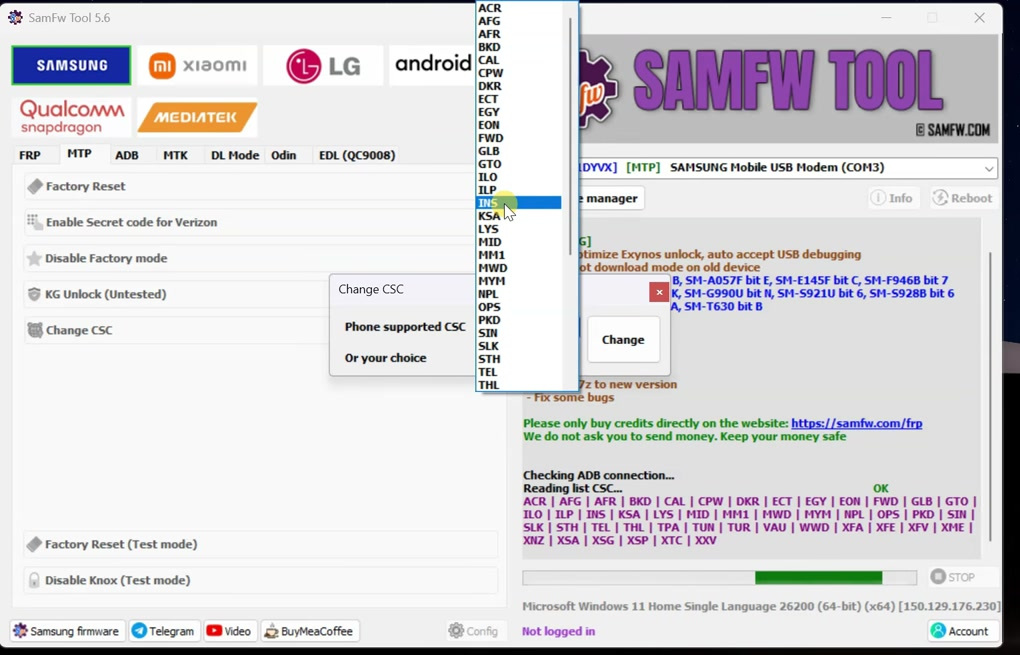
For this guide, select:
INSNow click on Change.
Do not disconnect the phone during this process.
SamFW Tool will start changing the CSC. For example, if your phone is currently using XSG, which is the CSC for the United Arab Emirates region, the tool can change it from XSG to INS.
Wait until the process is complete.
Step 10: Wait for the Phone to Reboot
After the CSC change is done, your Samsung phone should reboot automatically.
Do not disconnect the phone while the process is running.
Once the phone restarts, unlock it and wait for everything to load properly.
Step 11: Check the Record Calls Option
Now open the Phone app again.
Tap on the three-dot menu and go to Settings.
Now you should see the Record calls option.
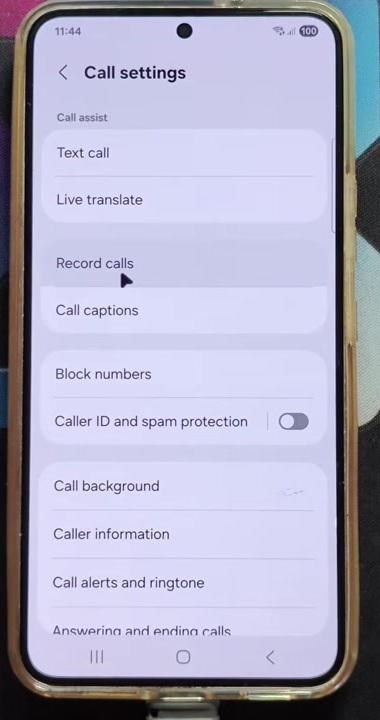
If the option appears, that means the missing call recording feature has been enabled successfully on your Samsung phone.
Step 12: Test Call Recording
Now you can test the feature during a phone call.
Make a test call, and during the call, check whether the Record button appears on the call screen.
Tap the record button to start recording.
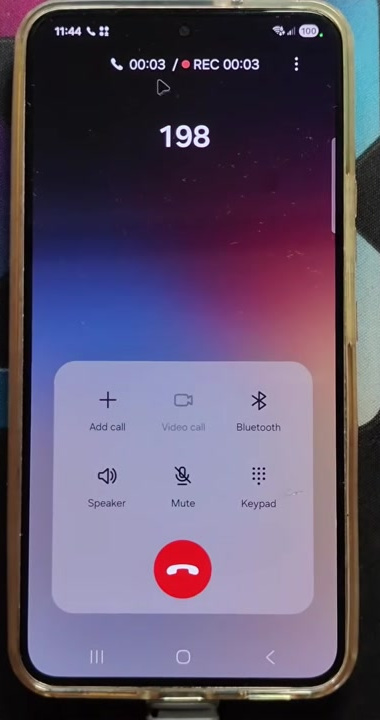
After ending the call, the recorded audio file should be saved on your phone.
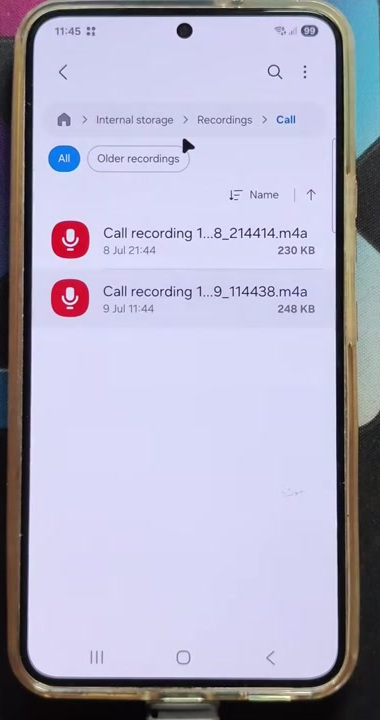
You can usually find the recorded calls from the Phone app call recording section or inside your phone storage, depending on your Samsung model and One UI version.
Will This Erase Data?
This method is designed to enable call recording without root, without unlocking the bootloader, and without wiping your phone data.
However, before making any system-level change, it is always a good idea to back up important data such as photos, contacts, messages, and documents.
Important Notes
Before using this method, keep these points in mind:
- Call recording availability depends on CSC and region.
- Some CSC options may not be available on every Samsung model.
- Some carrier-locked phones may have restrictions.
- Future software updates may change regional features.
- Always use call recording responsibly according to your local laws.
Troubleshooting
SamFW Tool is Not Detecting the Phone
If SamFW Tool does not detect your phone, first make sure Samsung USB Driver is installed properly.
Also check that your phone is connected using a proper USB data cable, not a charging-only cable.
Keep the phone screen unlocked and allow any USB debugging popup that appears.
USB Debugging Popup is Not Showing
If the USB debugging popup does not appear, disconnect and reconnect the USB cable.
You can also try changing the USB port or using another USB cable.
Make sure USB debugging is enabled in Developer options.
Change CSC Option is Not Working
If the Change CSC option does not work, restart the phone and PC, then try again.
Also make sure the phone is connected in File transfer or Android Auto mode.
If your model or firmware does not support CSC change through this method, the option may fail.
Record Calls Option Still Not Showing
If the Record calls option still does not appear after changing CSC, check whether the selected CSC supports native call recording.
You can also restart the phone again and check the Phone app settings.
In some cases, the phone model, firmware, carrier restrictions, or One UI version may prevent the feature from appearing.
Frequently Asked Questions
Can I enable call recording on Samsung without root?
Yes, on many Samsung phones, you can enable the missing native call recording option by changing the CSC to a supported region using SamFW Tool.
Does this method unlock the bootloader?
No, this method does not unlock the bootloader.
Does this method root the phone?
No, root access is not required.
Will this delete my data?
This method is designed to work without data loss. However, you should still back up important data before changing CSC or making system-level changes.
Which CSC supports Samsung call recording?
INS, which is the Indian CSC, supports native Samsung call recording. Other regions may also support it, but availability can vary by model and firmware.
Can I use this on any Samsung phone?
This method can work on many Samsung Galaxy phones, but compatibility depends on the model, firmware, One UI version, CSC availability, and carrier restrictions.
Is call recording legal?
Call recording laws are different in different countries and regions. Always follow your local laws and use this feature responsibly.
Conclusion
So, this is how you can enable the missing call recording option on a Samsung phone without root.
First, we enabled Developer Options and USB debugging. Then we installed Samsung USB Driver and SamFW Tool on the PC. After that, we connected the Samsung phone, opened the MTP tab in SamFW Tool, and changed the CSC to a call-recording-supported region like INS.
After the phone rebooted, the native Record calls option appeared inside the Samsung Phone app, and the record button became available during calls.
This is a useful method if call recording is missing on your Samsung device, but always remember to follow your local laws and use call recording responsibly.