Need to reinstall Windows 11 but don’t have a USB drive nearby? Perhaps your USB ports aren’t working, or you simply don’t want to spend time preparing a bootable pendrive. If your computer can still start Windows, there’s another way to get the job done.
You can download the official Windows 11 ISO from Microsoft, open it directly in File Explorer, and launch Windows Setup from your desktop. There’s no need to create installation media or use tools such as Rufus. Windows does the heavy lifting using its own built-in features.
One of the most useful parts of this method is that you’re not locked into removing everything. Setup lets you choose whether to keep your apps and files or reinstall Windows without keeping them. Let’s look at the process carefully so you can choose the right option for your PC.
What This Method Can and Cannot Do
This approach is helpful when Windows is already running and you want to upgrade or reinstall it without external installation media. You mount an ISO, run setup.exe, and let Windows Setup handle the installation and restarts.
It is not the same as booting from a USB installer to delete partitions and install Windows onto an empty disk. If Windows will not start at all, you cannot launch this particular method from the desktop. You’ll need a different recovery or installation method.
Before You Begin, Protect Your Files
Reinstalling an operating system is a bigger change than installing an everyday application. Even if you plan to keep your files, make a backup of anything important first. Documents, photos, desktop files, browser data, and license details are all worth checking.
Keep your laptop plugged in, make sure you have a working Windows license, and save your BitLocker recovery key if device encryption is enabled. If you’re choosing to remove everything, copy your personal files to another drive or a trusted cloud backup before starting Setup.
Download the Official Windows 11 ISO
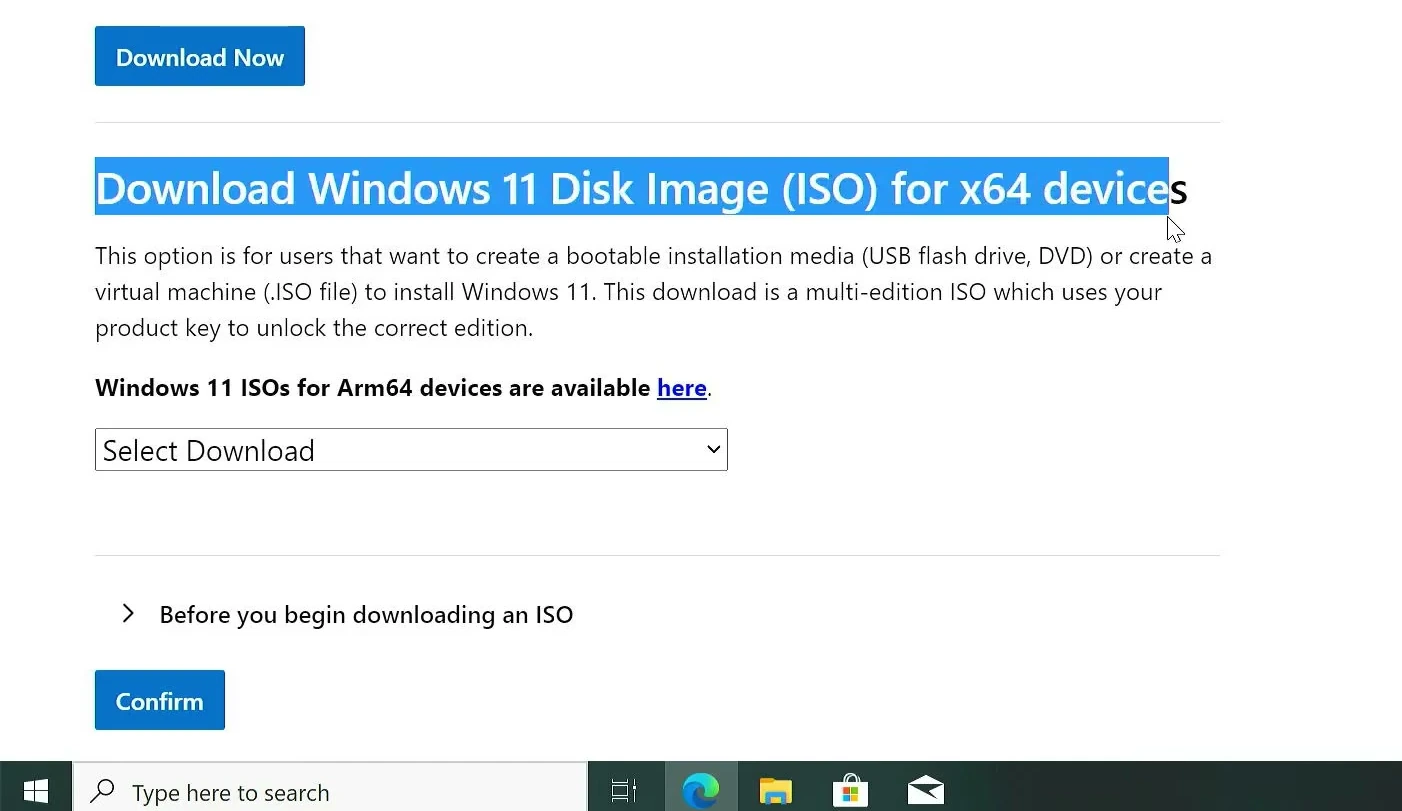
Start by opening Microsoft’s official Windows 11 download page. There are several installation options on the page, but for this method you need the Windows 11 Disk Image (ISO), not the Installation Assistant or Media Creation Tool.
Scroll to the section for downloading the Windows 11 ISO for x64 devices. Choose the available multi-edition ISO, click Confirm, then select your preferred language and confirm again.
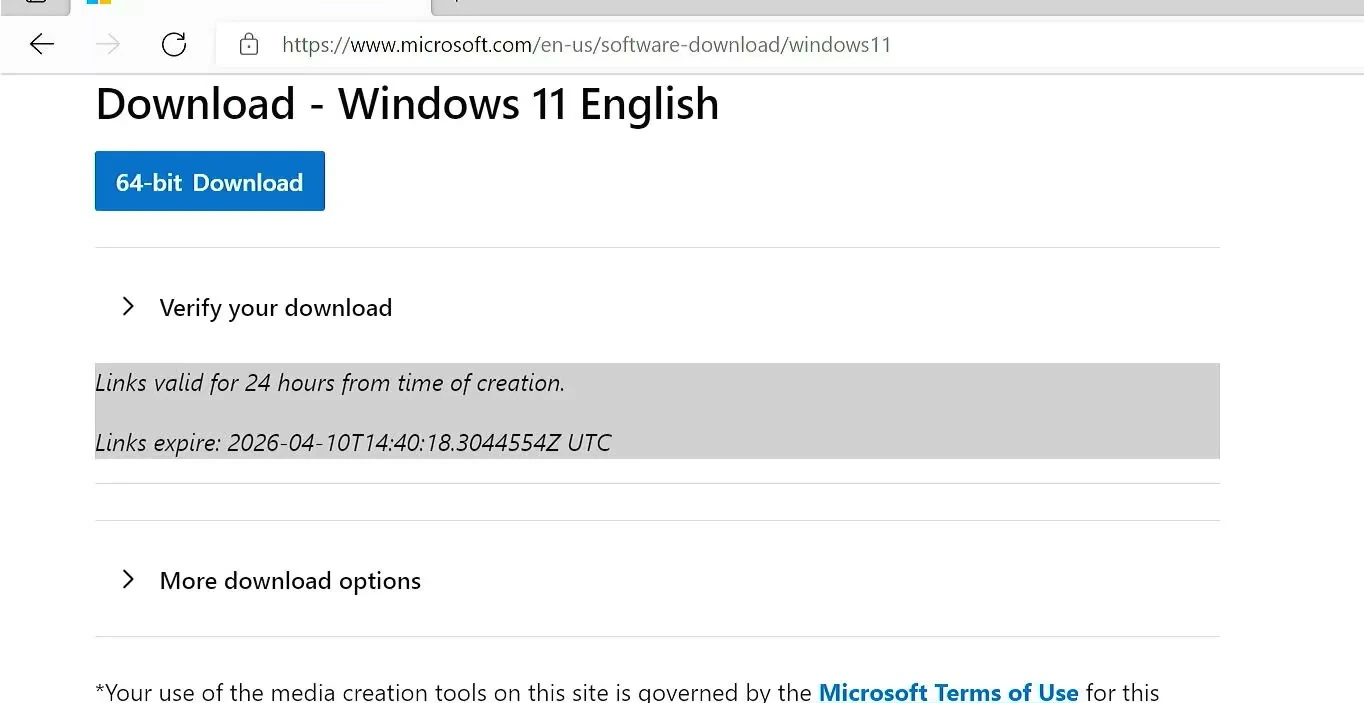
Microsoft will provide a 64-bit Download button. Click it and save the ISO somewhere with enough free space. The file is several gigabytes, so the download may take a while depending on your internet connection.
There’s no need to download an unofficial modified ISO. The official file gives you the standard Windows installation files and is the best starting point for this procedure.
Mount the ISO and Start Windows Setup
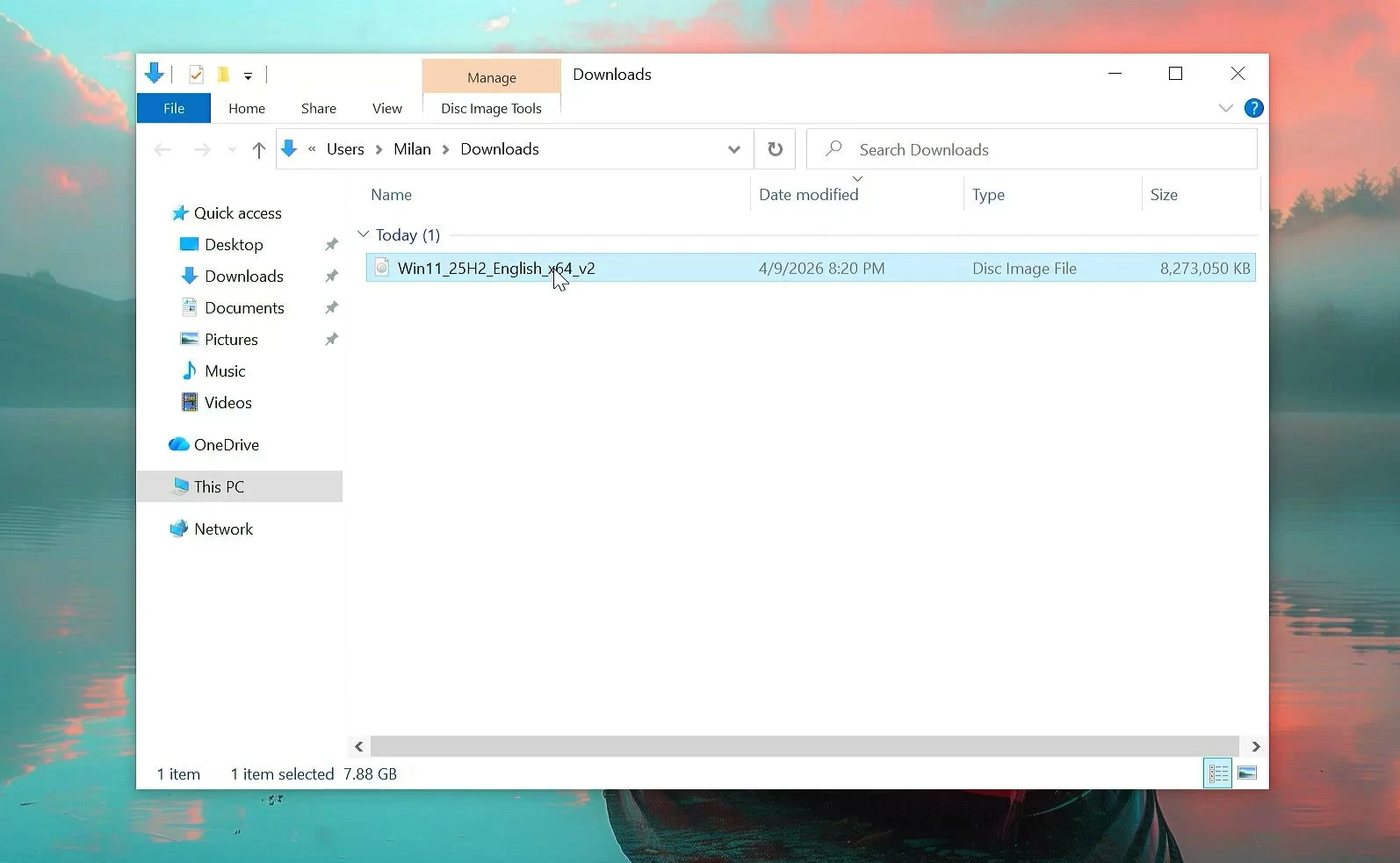
Once the download finishes, open File Explorer and find the ISO, usually in your Downloads folder. Windows can treat an ISO as a virtual DVD, so you can access the files inside without burning a disc or making a bootable USB.
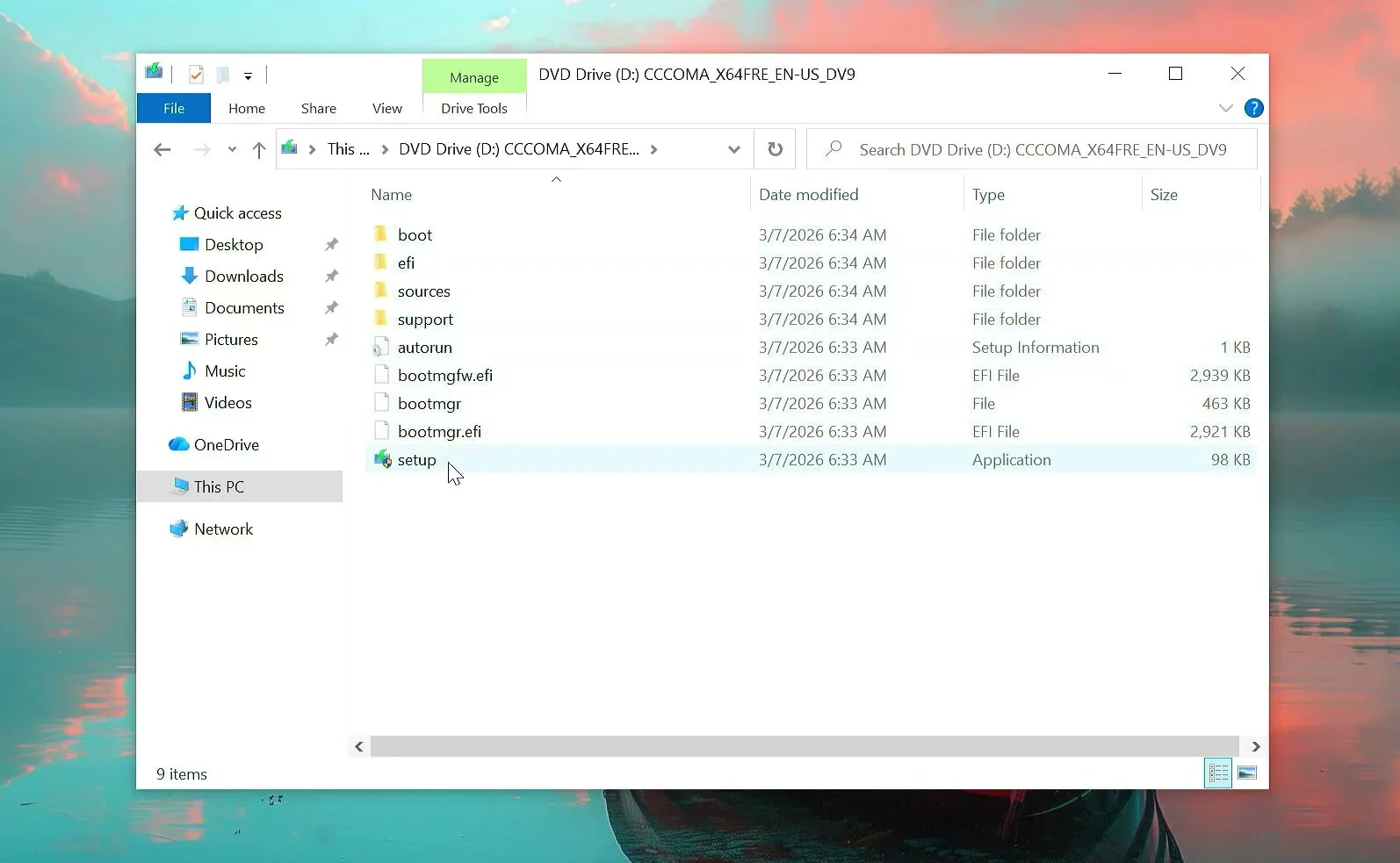
Right-click the ISO and select Mount. Depending on your Windows version, you may also be able to double-click the ISO to mount it. A new DVD-style drive will appear under This PC.
Open that virtual drive. You’ll see the Windows installation files, including setup.exe. Double-click setup.exe and approve the User Account Control prompt if Windows asks for permission.
You’re now running the official installer from inside your existing copy of Windows. That’s the whole reason this method doesn’t need a separate USB installer.
Choose Setup Updates and Decide What to Keep
Windows Setup may ask whether to download updates, drivers, and optional features before installing. Downloading them is generally a good choice when you have a stable connection. If you prefer to move ahead and update afterward, you can select Not right now where that choice is available.
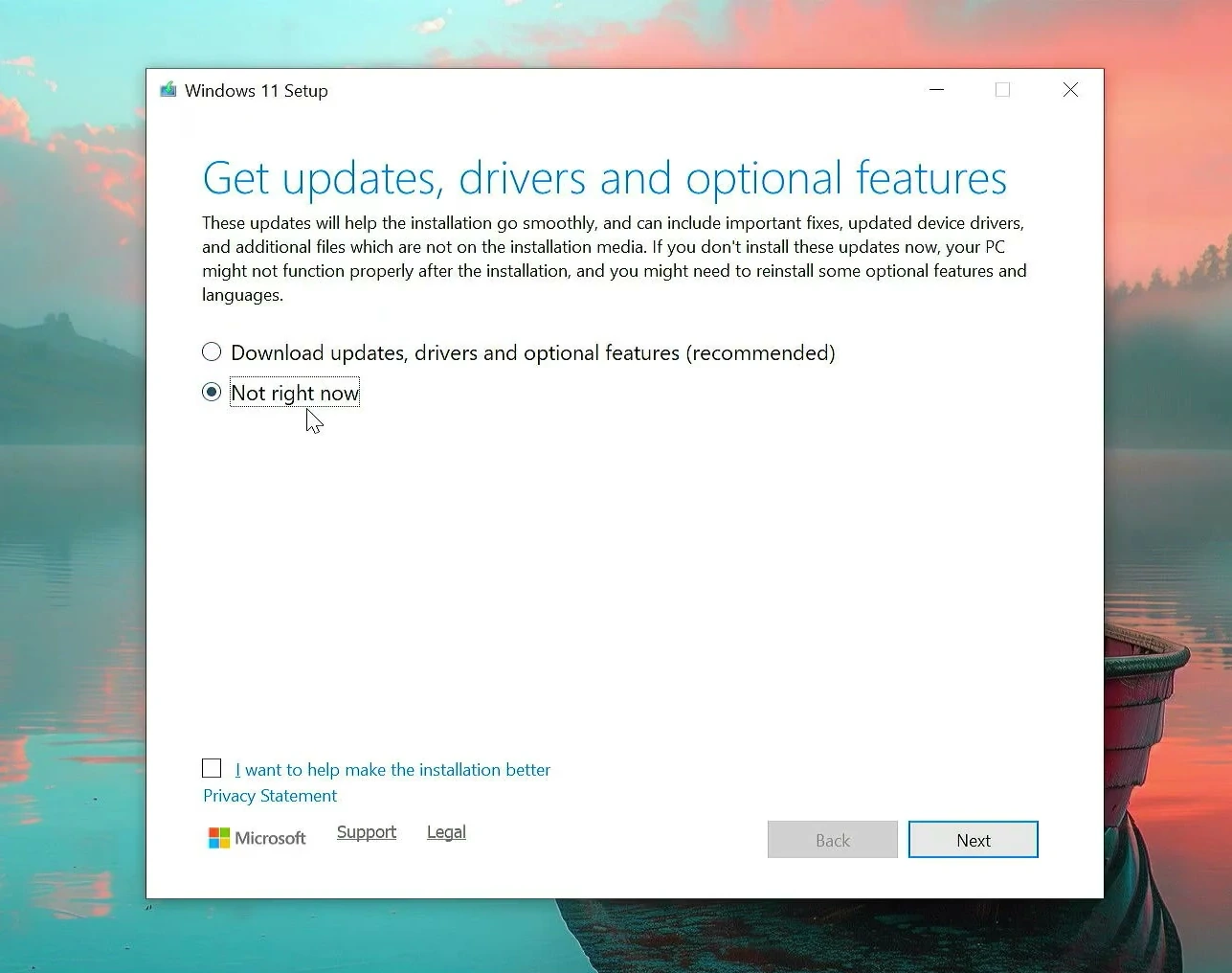
Accept the license terms and follow the prompts until you reach Choose what to keep. This is the decision to pay the most attention to, because it determines what happens to your files and installed programs.
- Keep personal files and apps preserves your compatible programs, files, and Windows settings when Setup supports this option.
- Keep personal files only retains personal files but removes installed apps and some settings.
- Nothing removes your personal files, installed applications, and settings from the Windows installation.
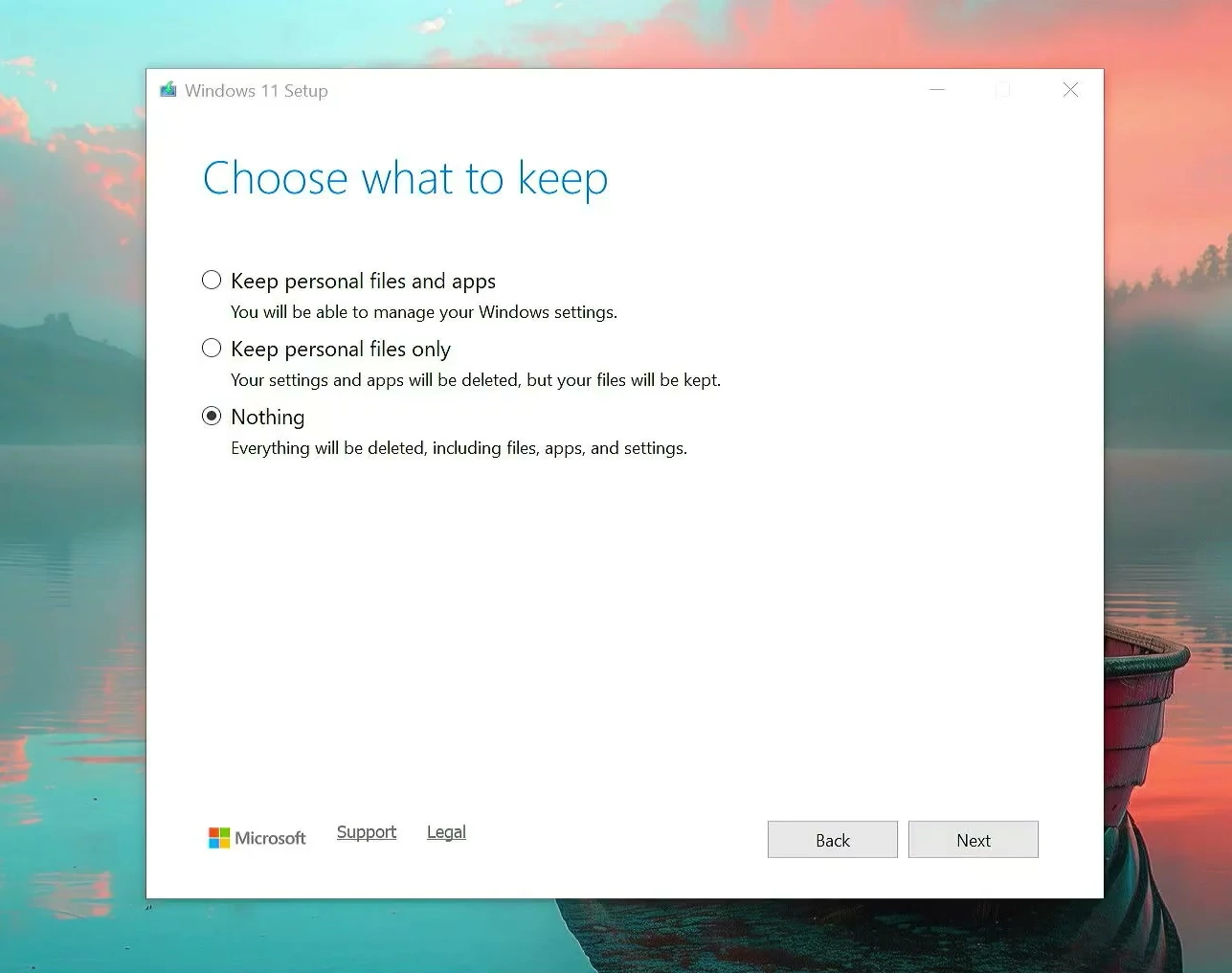
Choose the option that matches your goal. If you’re mainly upgrading or trying to repair Windows without rebuilding your whole setup, keeping your files and apps may be preferable. If you want to start over without retaining the current installation’s data and applications, choose Nothing only after backing everything up.
Install Windows 11 Without the USB Drive
After confirming your selection, Setup will check that the PC is ready. Review the final Ready to install page carefully. It should show what Windows will install and what, if anything, will be kept.
When you’re satisfied with those choices, click Install. Windows will begin copying and preparing files, and your PC will restart several times. Keep the computer connected to power and avoid interrupting the installation.
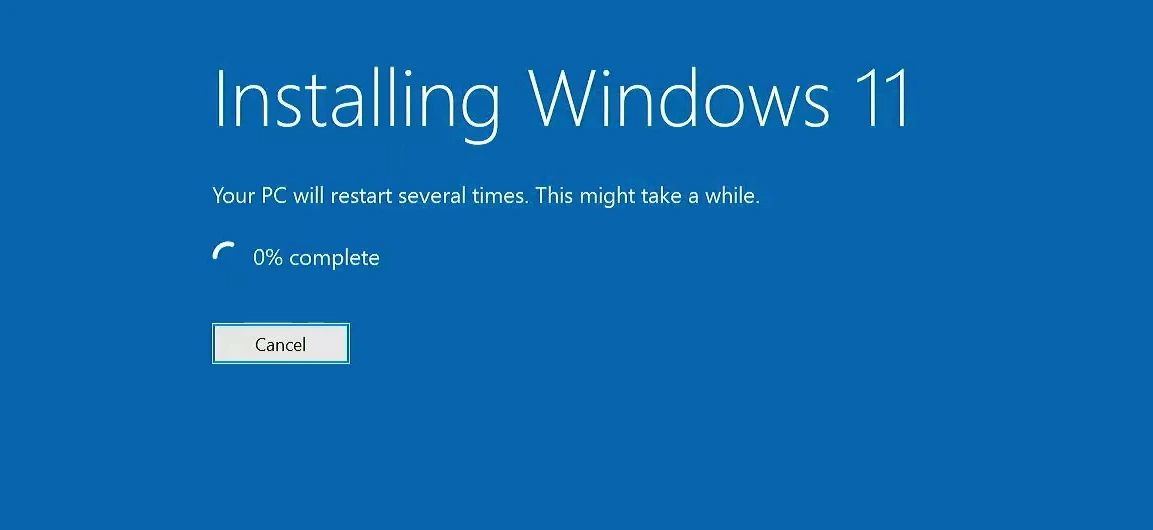
Installation time depends on your hardware and the changes being made. An SSD can help things move along, but there is no fixed completion time. The important part is to let the setup process finish on its own.
Finish the First-Time Windows Setup
Once Windows is installed, you’ll be greeted by the initial setup screens. Choose your country or region, select the correct keyboard layout, and follow the prompts for the rest of the device setup.
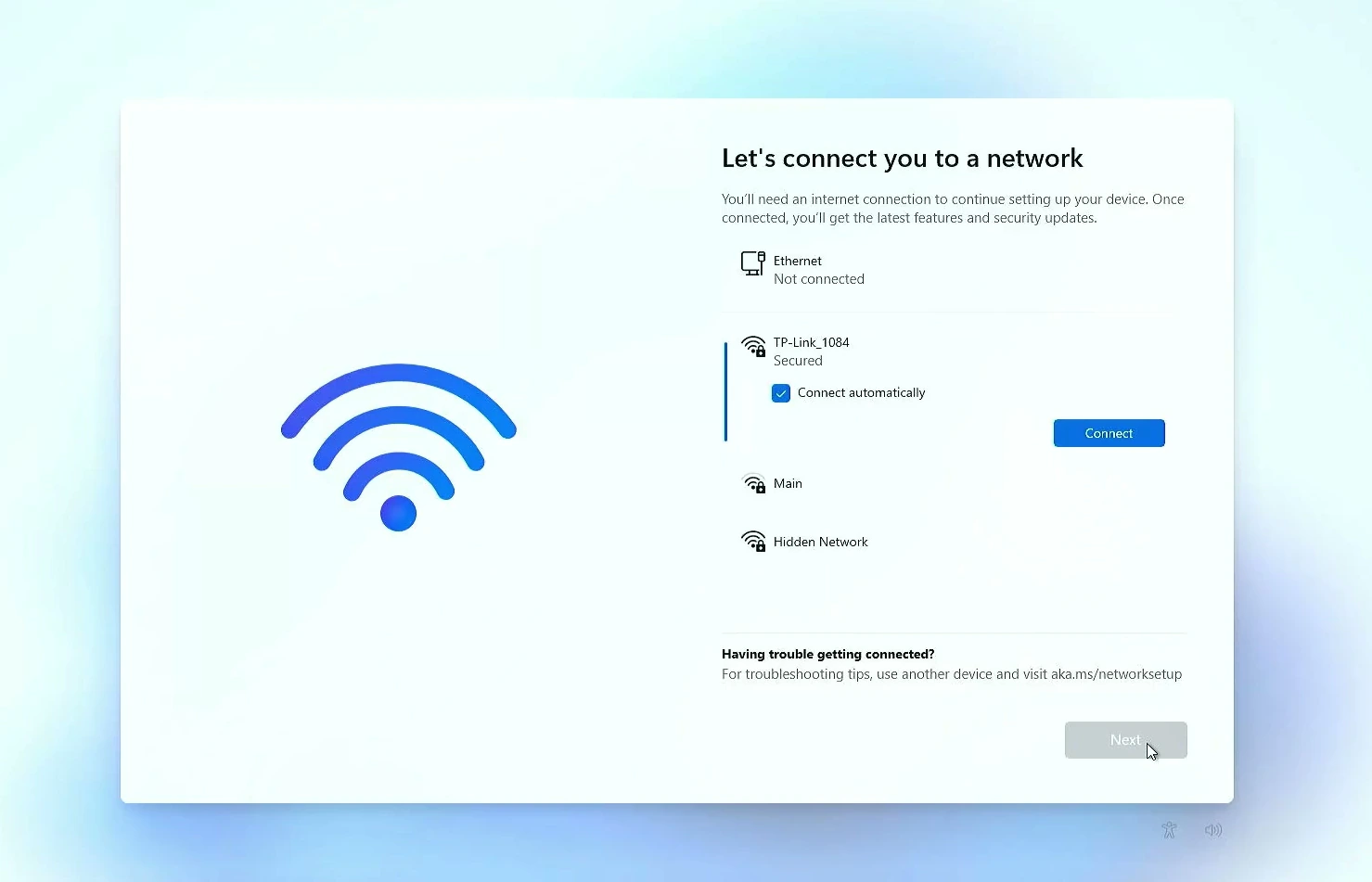
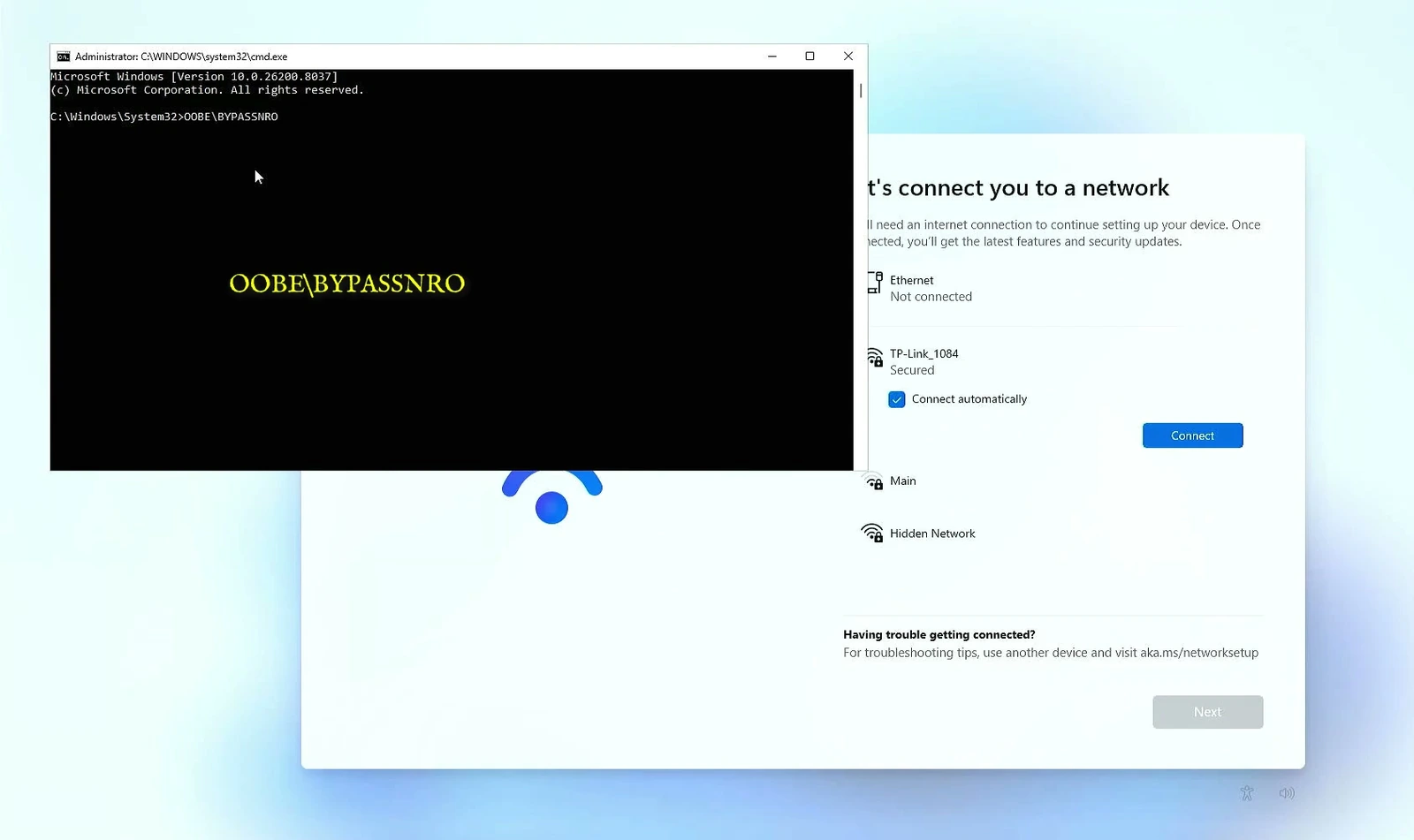
When you reach the network screen, connect to Wi-Fi or Ethernet if you’re setting up Windows with a Microsoft account. This is the standard path for recent Windows 11 versions, and it can restore supported synced settings when you sign in.
What if you prefer a local account?
Some older Windows 11 builds offered an offline account path during setup. In those versions, users could disconnect from the internet, press Shift + F10 to open Command Prompt, and use the legacy OOBE\BYPASSNRO command to restart setup. If the option became available, they could choose I don’t have internet and continue with a local account.
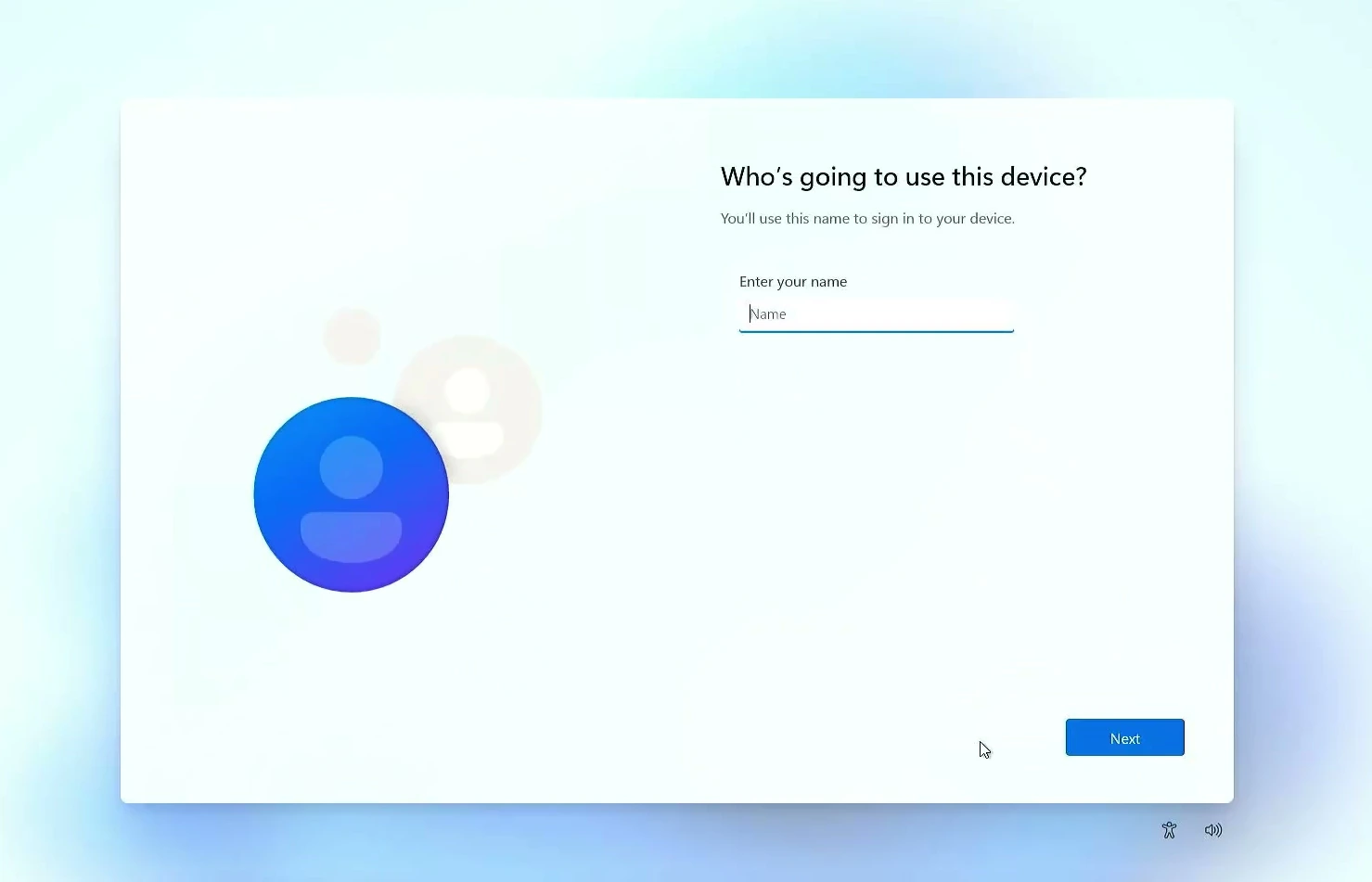
If your version offers local account creation, enter a username and choose a password. Windows may also ask you to configure security questions. Choose answers you can remember, and then finish the privacy settings that appear for your device.
Check Windows Update After Installation
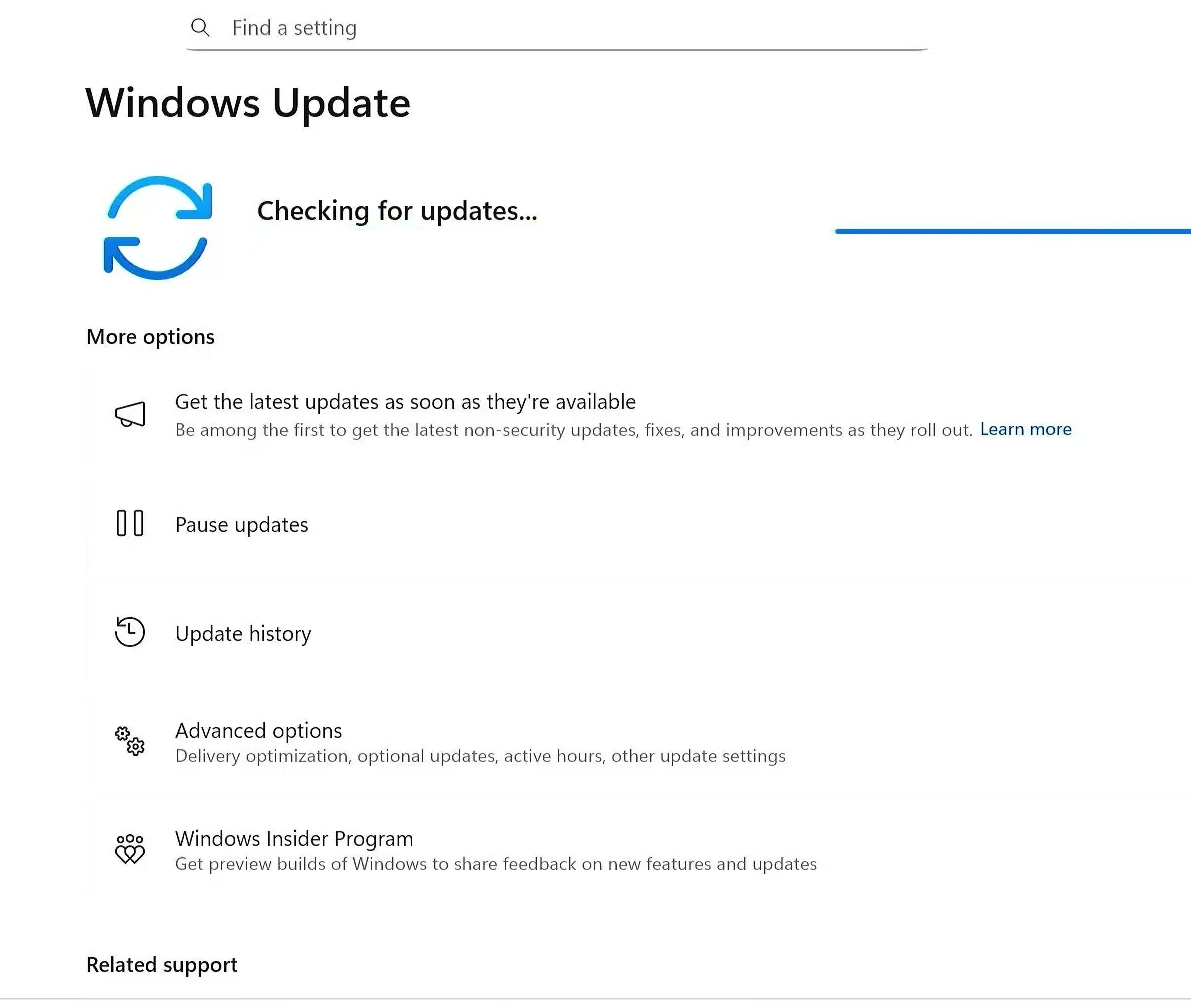
Reaching the desktop is a great sign, but there’s one more thing worth doing before you install all your favorite apps. Open Settings → Windows Update, connect to the internet if needed, and select Check for updates.
Windows Update can install security fixes and many common drivers. If graphics, sound, Wi-Fi, or another device still doesn’t work properly, check the PC manufacturer’s support page for the correct drivers.
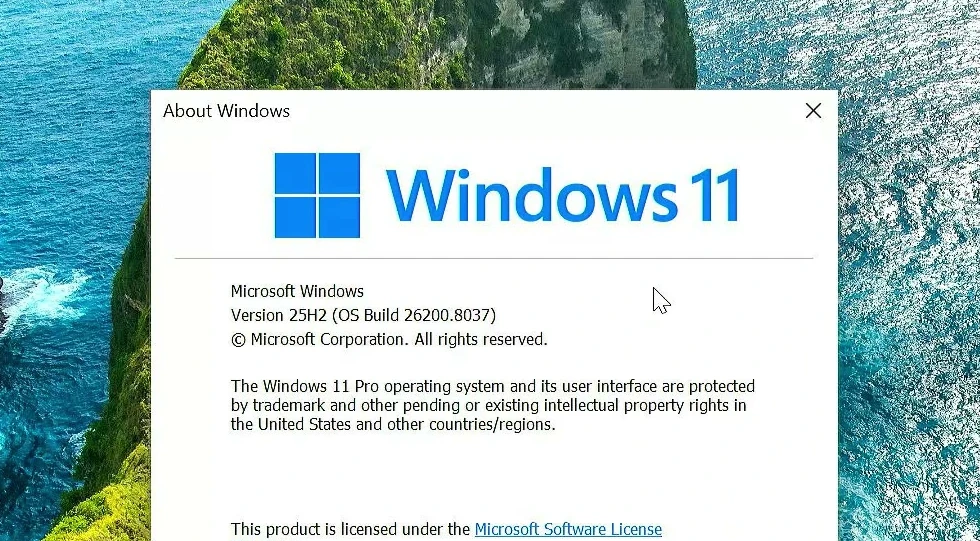
You can also press Windows + R, enter winver, and check the installed Windows version. The About Windows window is a quick way to confirm that the system is up and running.
And that’s it. You’ve used Microsoft’s own ISO and Windows Setup to reinstall or upgrade Windows 11 without preparing a bootable USB drive. Just remember that this approach starts from a working Windows desktop, and the option you choose under What to keep determines whether your existing files and apps are preserved.